



How to Install PHP Extensions in CyberPanel (LSPHP 8.1 to 8.5)
An app says "PHP extension intl is missing", WordPress Site Health complains about imagick, or a plugin needs soap. In CyberPanel each PHP version (called LSPHP, LiteSpeed's PHP build) has its own set of extensions, so you install the extension for the version your site uses.
Step 1: Find your site's PHP version
In Websites, open the site: the PHP version is shown there and can be changed. CyberPanel 3.0 ships with PHP 8.1, 8.2, 8.3, 8.4 and 8.5. Installing an extension for 8.3 does nothing for a site on 8.2.
Step 2: Install from the panel
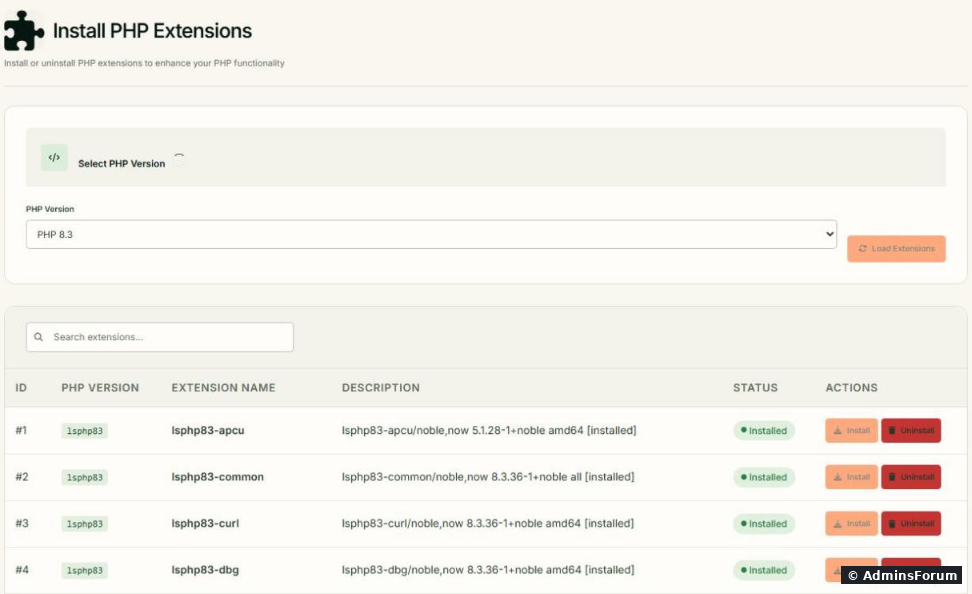
Open Server > PHP Extensions, pick the PHP version and load the list:
, or Restart PHP on the PHP settings page.
Step 3 (alternative): Install from SSH
On Ubuntu the packages are named, where XX is the version without the dot. For PHP 8.3:
On our test server was already installed by default. Some extensions live in a combined package (for example or ). lists everything available.
Step 4: Check it's loaded
Command line:
If the extension is listed, PHP can use it. For the web side, WordPress Tools > Site Health > Info > Server or a temporary file shows it too (delete that file afterwards).
Extensions people often need
If the install fails
More CyberPanel guides
Tested on CyberPanel 3.0 (build 8, OpenLiteSpeed edition) on Ubuntu 24.04, October 2026. Menu names can change slightly between versions.
An app says "PHP extension intl is missing", WordPress Site Health complains about imagick, or a plugin needs soap. In CyberPanel each PHP version (called LSPHP, LiteSpeed's PHP build) has its own set of extensions, so you install the extension for the version your site uses.
Step 1: Find your site's PHP version
In Websites, open the site: the PHP version is shown there and can be changed. CyberPanel 3.0 ships with PHP 8.1, 8.2, 8.3, 8.4 and 8.5. Installing an extension for 8.3 does nothing for a site on 8.2.
Step 2: Install from the panel
Open Server > PHP Extensions, pick the PHP version and load the list:
- Choose the PHP Version and click Load Extensions.
- The table lists every package with its version and Status (Installed or not). Use the Search extensions box to find one quickly, for exampleCode:
lsphp83-....Code:imagick
- Click Install next to the one you need. The Installation Log shows progress; wait until it finishes.
Code:
systemctl restart lswsStep 3 (alternative): Install from SSH
On Ubuntu the packages are named
Code:
lsphpXX-nameCode:
apt search lsphp83- | grep -i intl
apt install -y lsphp83-intl
systemctl restart lswsCode:
lsphp83-intlCode:
lsphp83-commonCode:
lsphp83-mysqlCode:
apt search lsphp83-Step 4: Check it's loaded
Command line:
Code:
/usr/local/lsws/lsphp83/bin/php -m | grep -i intlCode:
phpinfo()Extensions people often need
- WordPress: imagick (better images), intl, zip, gd, curl, mbstring. Most are there already; imagick is the common missing one.
- Laravel / Symfony: intl, bcmath, zip, gd, redis.
- Object cache: redis and memcached (the installer offers both).
- Old apps asking for ioncube: LSPHP ioncube packages exist for some versions (was installed on our server).Code:
lsphp81-ioncube
If the install fails
- Run first, then try again.Code:
apt update
- Not every extension exists for the newest PHP version on day one. Check with ; if it's missing, run the site on a version that has it.Code:
apt search lsphp85-NAME
- Installed but still "missing": you installed it for a different PHP version than the site uses, or PHP wasn't restarted.
More CyberPanel guides
- Fail2ban brute-force protection
- Change PHP version per website
- Git deployment from GitHub
- SSH key login, passwords off
- Create a website
- Issue SSL and fix failed certificates
- Subdomains, addon domains and aliases
- Rewrite rules, force HTTPS, HSTS
- Install WordPress with LiteSpeed Cache
- Cron jobs and a real WP-Cron
- Redis object cache for WordPress
- Databases and phpMyAdmin
- Email, DKIM, SPF and DMARC
- Email forwarding, catch-all, plus-addressing
- Mail queue, spam senders, blacklists
- CyberPanel DNS vs Cloudflare
- Packages and website limits
- Deploy Laravel on CyberPanel
- WordPress staging (clone) fixes
- Backups: create, restore, schedule
- File Manager and FTP
- Reset the admin password from SSH
- Log files and config locations
- Check and restart services
- First steps after install
- ModSecurity + OWASP rules (fix)
- CLI cheat sheet
- Install CyberPanel on Ubuntu 24.04
- Firewall explained
- Change PHP settings (php.ini)
- Update CyberPanel safely
- Server Error (500) after a fresh install
- Packages, users and ACLs
- Upgrade CyberPanel safely
- Real visitor IPs behind Cloudflare
- Docker apps on your domain with SSL
- Import a large SQL file over SSH
- Remote MySQL access for one IP
- Move WordPress to CyberPanel by hand
- Fix "Error establishing a database connection"
- Fix PHP2Shell (CVE-2026-109618/109619)
- Run your own nameservers (PowerDNS)
- CyberPanel on a small VPS: RAM tuning
Tested on CyberPanel 3.0 (build 8, OpenLiteSpeed edition) on Ubuntu 24.04, October 2026. Menu names can change slightly between versions.