



10-28-2026, 04:57 AM
CyberPanel on a Small VPS: Where the RAM Goes and How to Cut It (Tested)
CyberPanel installs a lot more than a web server: OpenLiteSpeed, MariaDB, PowerDNS, a mail server, FTP, Docker, a memcached clone, fail2ban, a web terminal and the panel itself. On a 1 or 2 GB VPS that leaves little for your sites, and when RAM runs out the kernel kills the biggest process, usually MariaDB, and every site shows "Error establishing a database connection". We measured where the memory goes on our lab server (CyberPanel 3.0, OpenLiteSpeed 1.9.4, Ubuntu 24.04, 4 cores) and tested three things that help. Our server has 8 GB, but the numbers below are what each part uses, and those don't grow with the RAM you buy.
Step 1: See what uses the RAM
The last line adds up the memory of all processes with the same name.
Our server at rest, RAM per program:
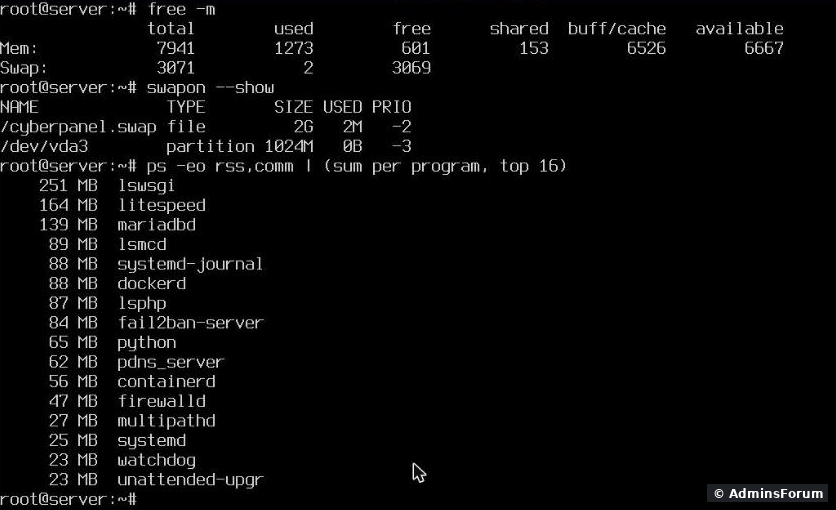
What we found, idle, with four small sites:) and set in . Check that you have it too: swap won't make a small server fast, but it turns a crash into a slow moment.
Step 2: Stop the services you don't useFive services stopped, sites and panel still up:
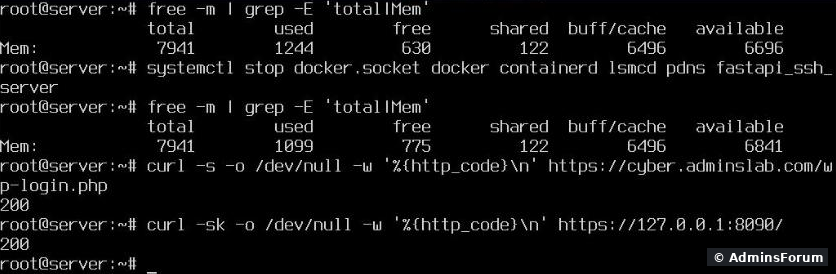
That freed 145 MB (1244 to 1099 MB used), less than the per-program list suggests, because processes share some memory. On a 1 GB server that's 15% of the RAM. The site and the panel both still answered 200. To keep them off after a reboot:
Don't stop , and unless you're sure no site sends or receives mail through this server: password reset mails and contact forms often go through the local Postfix. Leave and running. We started everything again on our server after the test.
Step 3: Limit PHP processes per site (the big one)
Every website on CyberPanel gets its own PHP pool, set in (also in the panel: Websites > List Websites > Manage > vHost Conf):
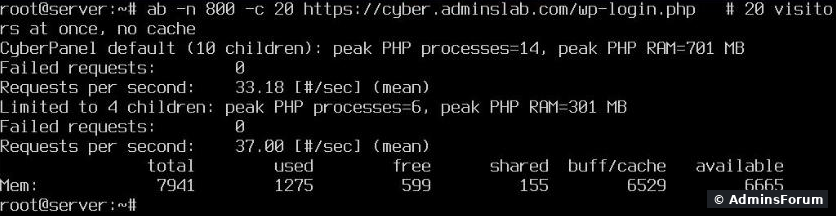
That's up to 10 PHP processes per site, each 40 to 50 MB with WordPress. Five busy sites can ask for over 2 GB of RAM just for PHP. We sent 20 visitors at once to our WordPress login page (not cached, so every request runs PHP and MariaDB) with , and measured the PHP processes of that site. Then we set both values to 4 and ran it again:
The same load test, 10 PHP children vs 4:
To change it (both lines, same number):
The trap: restarting the web server doesn't apply it
After the change we restarted OpenLiteSpeed, ran the test again, and nothing had changed: still 14 to 19 processes. The reason: CyberPanel's PHP pools run detached from the web server, so leaves the old PHP parent process running, with the old setting:
Restarting the web server didn't apply the change:
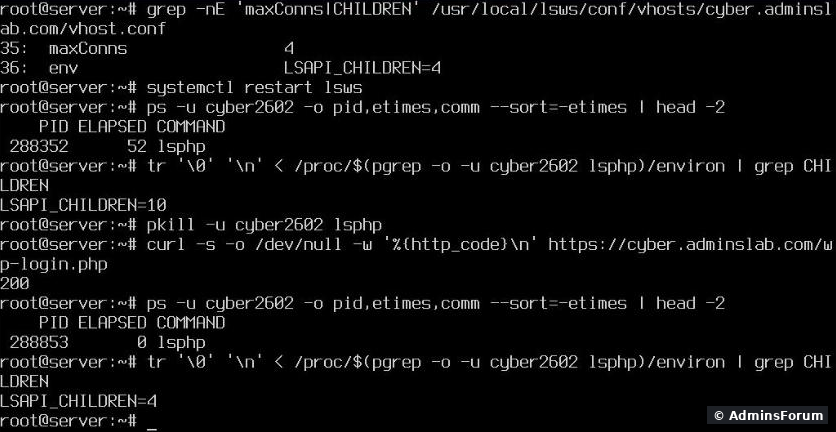
The PHP parent survived the restart (52 seconds old) and still had. Only after we killed that site's PHP processes did the next request start a new parent with :
Find with . Killing PHP is safe: the next visitor's request starts it again within a second. The same applies to every other PHP setting you change ( values, extensions): if a change doesn't show up, kill the site's lsphp processes.
After changing the PHP version of a site in the panel, check vhost.conf again, in case the panel rewrote the block.
Also worth knowing
Checklist for a 1 to 2 GB server
More CyberPanel guides
CyberPanel installs a lot more than a web server: OpenLiteSpeed, MariaDB, PowerDNS, a mail server, FTP, Docker, a memcached clone, fail2ban, a web terminal and the panel itself. On a 1 or 2 GB VPS that leaves little for your sites, and when RAM runs out the kernel kills the biggest process, usually MariaDB, and every site shows "Error establishing a database connection". We measured where the memory goes on our lab server (CyberPanel 3.0, OpenLiteSpeed 1.9.4, Ubuntu 24.04, 4 cores) and tested three things that help. Our server has 8 GB, but the numbers below are what each part uses, and those don't grow with the RAM you buy.
Step 1: See what uses the RAM
Code:
free -m
swapon --show
ps -eo rss,comm --sort=-rss | awk 'NR>1{a[$2]+=$1}END{for(k in a)printf "%7.0f MB %s\n",a[k]/1024,k}' | sort -rn | head -16Our server at rest, RAM per program:
What we found, idle, with four small sites:
- 1.27 GB used before any visitor arrived.
- (251 MB) is the CyberPanel panel itself.Code:
lswsgi(164 MB) is the web server. Both stay.Code:litespeed
- (139 MB): already lean. CyberPanel ships MariaDB with a 128 MB InnoDB buffer pool and performance_schema off, so there's little to gain there.Code:
mariadbd
- (89 MB),Code:
lsmcd+Code:dockerd(144 MB),Code:containerd(62 MB) andCode:pdns_server(65 MB, that's the web terminal on port 8888) run whether you use them or not.Code:python
- (87 MB) is PHP. At rest that's small; under load it's the biggest by far (Step 3).Code:
lsphp
Code:
/cyberpanel.swapCode:
vm.swappiness = 10Code:
/etc/sysctl.confStep 2: Stop the services you don't use
- Docker (,Code:
docker,Code:docker.socket): only needed for the Docker Manager and Docker apps. We had no containers.Code:containerd
- PowerDNS (): only if your domains don't use this server as nameserver. With DNS at Cloudflare or your registrar, it answers nothing.Code:
pdns
- LSMCD (): LiteSpeed's memcached, used by the LiteSpeed Cache object cache. If you stop it, switch off Object Cache in LiteSpeed Cache's settings so WordPress stops trying to connect.Code:
lsmcd
- Web terminal (): the browser SSH terminal in the panel. If you use normal SSH, you don't need it.Code:
fastapi_ssh_server
Code:
systemctl stop docker.socket docker containerd lsmcd pdns fastapi_ssh_server
free -mThat freed 145 MB (1244 to 1099 MB used), less than the per-program list suggests, because processes share some memory. On a 1 GB server that's 15% of the RAM. The site and the panel both still answered 200. To keep them off after a reboot:
Code:
systemctl disable docker.socket docker containerd lsmcd pdns fastapi_ssh_serverCode:
postfixCode:
dovecotCode:
opendkimCode:
fail2banCode:
firewalldStep 3: Limit PHP processes per site (the big one)
Every website on CyberPanel gets its own PHP pool, set in
Code:
/usr/local/lsws/conf/vhosts/DOMAIN/vhost.confCode:
extprocessor SITEUSER {
  ...
  maxConns                10
  env                     LSAPI_CHILDREN=10
  ...
  memSoftLimit            1024M
  memHardLimit            1024M
}Code:
ab -n 800 -c 20The same load test, 10 PHP children vs 4:
- Default: 14 PHP processes, 701 MB.
- Limited to 4: 6 processes, 301 MB.
- 0 failed requests both times. Speed was about the same: across our runs we saw 25 to 42 requests per second with either setting, because our 4 CPU cores were the limit, not the number of PHP processes.
To change it (both lines, same number):
Code:
V=/usr/local/lsws/conf/vhosts/example.com/vhost.conf
sed -i -e 's/^\(\s*maxConns\s*\)10$/\14/' -e 's/LSAPI_CHILDREN=10/LSAPI_CHILDREN=4/' $V
grep -nE 'maxConns|CHILDREN' $V
The trap: restarting the web server doesn't apply it
After the change we restarted OpenLiteSpeed, ran the test again, and nothing had changed: still 14 to 19 processes. The reason: CyberPanel's PHP pools run detached from the web server, so
Code:
systemctl restart lswsRestarting the web server didn't apply the change:
The PHP parent survived the restart (52 seconds old) and still had
Code:
LSAPI_CHILDREN=10Code:
4Code:
systemctl restart lsws
pkill -u SITEUSER lsphpCode:
SITEUSERCode:
grep extUser /usr/local/lsws/conf/vhosts/example.com/vhost.confCode:
php.iniAfter changing the PHP version of a site in the panel, check vhost.conf again, in case the panel rewrote the block.
Also worth knowing
- LiteSpeed Cache does most of the work. A cached page is served without PHP or MariaDB at all. The load test above deliberately used the uncached login page; on cached pages your RAM use barely moves.
- bots and wp-login brute force are the usual reason a small server suddenly runs out of RAM: every attempt runs PHP. Limiting PHP processes (Step 3) is what keeps that from taking MariaDB down with it.
- Find out if it already happened: andCode:
dmesg -T | grep -iE 'out of memory|killed process'.Code:journalctl -u mariadb -n 50
Checklist for a 1 to 2 GB server
- Swap file present and low (CyberPanel's installer did both on ours).Code:
vm.swappiness
- Docker, PowerDNS, LSMCD and the web terminal stopped and disabled if you don't use them (145 MB in our test).
- Every site: andCode:
maxConnsat 2 to 4, thenCode:LSAPI_CHILDREN.Code:pkill -u SITEUSER lsphp
- LiteSpeed Cache on for WordPress sites.
- Check for OOM kills once in a while.Code:
dmesg
More CyberPanel guides
- Fail2ban brute-force protection
- Change PHP version per website
- Git deployment from GitHub
- SSH key login, passwords off
- Create a website
- Issue SSL and fix failed certificates
- Subdomains, addon domains and aliases
- Rewrite rules, force HTTPS, HSTS
- Install WordPress with LiteSpeed Cache
- Cron jobs and a real WP-Cron
- Redis object cache for WordPress
- Databases and phpMyAdmin
- Email, DKIM, SPF and DMARC
- Email forwarding, catch-all, plus-addressing
- Mail queue, spam senders, blacklists
- CyberPanel DNS vs Cloudflare
- Packages and website limits
- Deploy Laravel on CyberPanel
- WordPress staging (clone) fixes
- Backups: create, restore, schedule
- File Manager and FTP
- Reset the admin password from SSH
- Log files and config locations
- Check and restart services
- First steps after install
- ModSecurity + OWASP rules (fix)
- CLI cheat sheet
- Install CyberPanel on Ubuntu 24.04
- Firewall explained
- Install PHP extensions
- Change PHP settings (php.ini)
- Update CyberPanel safely
- Server Error (500) after a fresh install
- Packages, users and ACLs
- Upgrade CyberPanel safely
- Real visitor IPs behind Cloudflare
- Import a large SQL file over SSH
- Remote MySQL access for one IP
- Move WordPress to CyberPanel by hand
- Fix "Error establishing a database connection"
- Fix PHP2Shell (CVE-2026-109618/109619)
- Docker apps on your domain with SSL
- Run your own nameservers (PowerDNS)