



CyberPanel DNS vs Cloudflare: Which One Really Answers for Your Domain?
CyberPanel ships its own DNS server (PowerDNS) and quietly fills it with records every time you create a website. Many people host DNS at Cloudflare or their registrar instead, and then wonder why the DNS page in CyberPanel shows different records, or why port 53 is open on their server. We looked at what CyberPanel actually created on our test server, which uses Cloudflare for DNS.
Step 1: Find out who really answers for your domain
Only the nameservers set at your registrar matter. Check them from any machine:
Ours printed and . That means Cloudflare answers for the whole domain, and anything in CyberPanel's DNS is ignored by the rest of the world. If you see your own nameservers (like ) pointing at this server, CyberPanel's DNS is the live one and the records there matter.
Step 2: Where the DNS pages are
CyberPanel's DNS pages aren't in the new sidebar. We found them at:
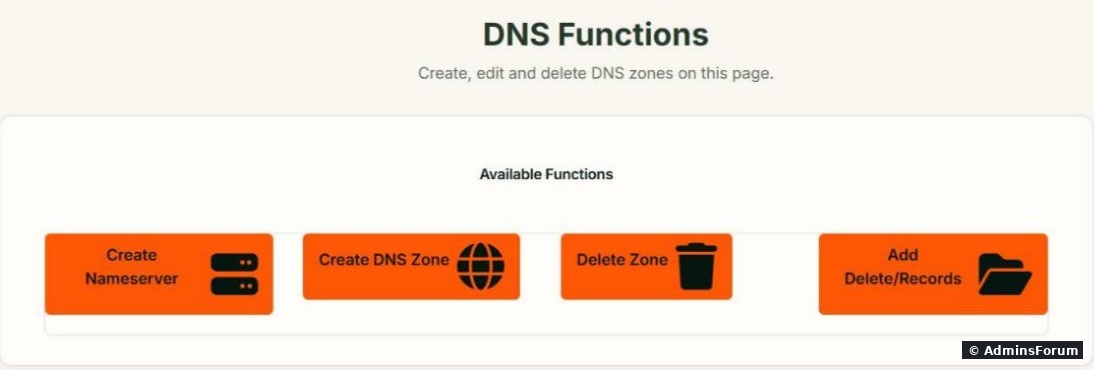
Four buttons: Create Nameserver, Create DNS Zone, Delete Zone and Add/Delete Records. On our CyberPanel 3.0 build the sidebar search didn't find them; the address above works.
Step 3: What CyberPanel created on its own
We never added a DNS zone by hand. This is what Add/Delete Records showed for adminslab.com, the parent of our test site:
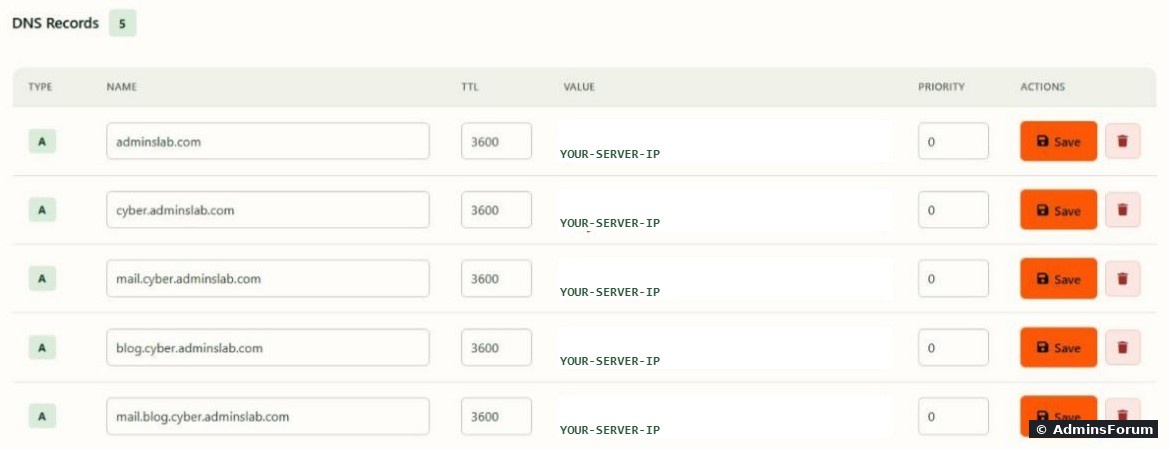
When we created the website (a subdomain), CyberPanel made a zone for the whole parent domain , with an A record for itself pointing to this server. Child domains got their records added there too, including entries. There was also a zone called , from the server's hostname.
That's wrong for us: the real lives on another server.
Ask the server's own PowerDNS and then a public resolver the same question:

PowerDNS answered with our CyberPanel server; the public answer was a different IP. PowerDNS also had its own SPF record for the subdomain (), different from the one we set at Cloudflare.
Because our nameservers are at Cloudflare, nobody on the internet asks this server, so nothing broke. But it is confusing, and it bites people in two cases:
Step 4: If your DNS is elsewhere, close port 53
PowerDNS was running and listening on all addresses:
and CyberPanel's firewall had four rules opening port 53 (TCP and UDP, IPv4 and IPv6) to everyone:
An authoritative DNS server that answers for domains it doesn't really own is just attack surface.
We only use Cloudflare for DNS, so we closed port 53 on our server:
Four times , and the last count is . The file keeps the removed rules, so you can add them back with the same way. Websites, mail and the panel kept working.
Two notes:
If you do want to run your own DNS on CyberPanel
Then the records in Add/Delete Records are live and need to be complete: A, MX, and the TXT records for SPF, DKIM and DMARC (what to put in them). You also need:
Cloudflare tips for CyberPanel sites
Quick checks
If the last two differ and your NS records aren't on this server, the CyberPanel zone is stale. Delete it with Delete Zone if you like; it isn't serving anything.
More CyberPanel guides
Tested on CyberPanel 3.0 (build 8, OpenLiteSpeed edition) on Ubuntu 24.04, October 2026. Menu names can change slightly between versions.
CyberPanel ships its own DNS server (PowerDNS) and quietly fills it with records every time you create a website. Many people host DNS at Cloudflare or their registrar instead, and then wonder why the DNS page in CyberPanel shows different records, or why port 53 is open on their server. We looked at what CyberPanel actually created on our test server, which uses Cloudflare for DNS.
Step 1: Find out who really answers for your domain
Only the nameservers set at your registrar matter. Check them from any machine:
Code:
dig +short NS yourdomain.comCode:
sam.ns.cloudflare.comCode:
blair.ns.cloudflare.comCode:
ns1.yourdomain.comStep 2: Where the DNS pages are
CyberPanel's DNS pages aren't in the new sidebar. We found them at
Code:
/dns/Code:
https://YOUR-SERVER-IP:8090/dns/Step 3: What CyberPanel created on its own
We never added a DNS zone by hand. This is what Add/Delete Records showed for adminslab.com, the parent of our test site:
When we created the website
Code:
cyber.adminslab.comCode:
adminslab.comCode:
adminslab.comCode:
mail.Code:
localdomain.That's wrong for us: the real
Code:
adminslab.comAsk the server's own PowerDNS and then a public resolver the same question:
Code:
dig @127.0.0.1 adminslab.com A +short     # this server's PowerDNS
dig @1.1.1.1 adminslab.com A +short # what the world seesCode:
v=spf1 a mx ip4:... ~allBecause our nameservers are at Cloudflare, nobody on the internet asks this server, so nothing broke. But it is confusing, and it bites people in two cases:
- You edit records in CyberPanel and nothing changes, because the domain's DNS is somewhere else. Make the change where your NS records point.
- You later move the domain's nameservers to this server: the stale parent zone suddenly becomes live and points your main domain at the wrong server.
Step 4: If your DNS is elsewhere, close port 53
PowerDNS was running and listening on all addresses:
Code:
ss -lunp | grep ':53 'Code:
firewall-cmd --list-rich-rules | grep 'port="53"'We only use Cloudflare for DNS, so we closed port 53 on our server:
Code:
firewall-cmd --list-rich-rules | grep 'port="53"' > /root/r53
while read -r r; do firewall-cmd --permanent --remove-rich-rule="$r"; done < /root/r53
firewall-cmd --reload
firewall-cmd --list-rich-rules | grep -c 'port="53"'Code:
successCode:
/root/r53Code:
--add-rich-ruleTwo notes:
- The CyberPanel Security > Firewall page keeps its own list, so it may still show port 53. The live rules are what prints.Code:
firewall-cmd
- We left PowerDNS running. CyberPanel adds records to it every time you create a website or mail domain, and we didn't want to test what breaks if it's stopped. With the port closed, it only answers the server itself.
If you do want to run your own DNS on CyberPanel
Then the records in Add/Delete Records are live and need to be complete: A, MX, and the TXT records for SPF, DKIM and DMARC (what to put in them). You also need:
- Two nameserver names, for example andCode:
ns1.yourdomain.com(Create Nameserver).Code:ns2.yourdomain.com
- "Glue" records for those names at your registrar, pointing to your server IP(s).
- Port 53 TCP and UDP open.
Cloudflare tips for CyberPanel sites
- Point the A record of each website to your server IP. Proxied (orange cloud) is fine for websites.
- records and MX must be DNS only (grey cloud).Code:
mail.
- If Let's Encrypt fails behind Cloudflare, see fixing failed SSL in CyberPanel.
Quick checks
Code:
dig +short NS yourdomain.com            # who is in charge
dig +short A yourdomain.com             # what visitors get
dig @127.0.0.1 yourdomain.com A +short # what this server's PowerDNS saysMore CyberPanel guides
- Fail2ban brute-force protection
- Change PHP version per website
- Git deployment from GitHub
- SSH key login, passwords off
- Create a website
- Issue SSL and fix failed certificates
- Subdomains, addon domains and aliases
- Rewrite rules, force HTTPS, HSTS
- Install WordPress with LiteSpeed Cache
- Cron jobs and a real WP-Cron
- Redis object cache for WordPress
- Databases and phpMyAdmin
- Email, DKIM, SPF and DMARC
- Email forwarding, catch-all, plus-addressing
- Mail queue, spam senders, blacklists
- Packages and website limits
- Deploy Laravel on CyberPanel
- WordPress staging (clone) fixes
- Backups: create, restore, schedule
- File Manager and FTP
- Reset the admin password from SSH
- Log files and config locations
- Check and restart services
- First steps after install
- ModSecurity + OWASP rules (fix)
- CLI cheat sheet
- Install CyberPanel on Ubuntu 24.04
- Firewall explained
- Install PHP extensions
- Change PHP settings (php.ini)
- Update CyberPanel safely
- Server Error (500) after a fresh install
- Packages, users and ACLs
- Upgrade CyberPanel safely
- Real visitor IPs behind Cloudflare
- Docker apps on your domain with SSL
- Import a large SQL file over SSH
- Remote MySQL access for one IP
- Move WordPress to CyberPanel by hand
- Fix "Error establishing a database connection"
- Fix PHP2Shell (CVE-2026-109618/109619)
- Run your own nameservers (PowerDNS)
- CyberPanel on a small VPS: RAM tuning
Tested on CyberPanel 3.0 (build 8, OpenLiteSpeed edition) on Ubuntu 24.04, October 2026. Menu names can change slightly between versions.