



10-24-2026, 08:15 AM
(This post was last modified: 2 hours ago by JAY.
Edit Reason: Added the course video
)
How to Install CyberPanel on Ubuntu 24.04: Step by Step, Every Prompt Explained
CyberPanel is a free hosting control panel built around the OpenLiteSpeed web server. You install it on a fresh VPS with one command, answer a handful of questions, and about 10 to 15 minutes later you have a panel for websites, WordPress, email, DNS, databases and backups. New to it? Read What is CyberPanel? first.
Watch it: Part 2 of the CyberPanel course, Install CyberPanel on Ubuntu 24.04
This is Part 2 of 10 in our free CyberPanel Full Course. The written steps below go into more detail.
This guide follows a real install we did in October 2026 (installer v3.0.8) and explains every prompt so you know what you're choosing.
What you need
Step 1: Update the server
On a brand-new Ubuntu image this can ask a few questions (keyboard layout, a modified ). For sshd_config, choose keep the local version currently installed so your provider's SSH settings stay as they are.
Step 2: Run the installer
If your console has trouble with special characters, download it first and run it:
The script checks root, your IP, the OS, existing panels and RAM/disk, then asks its questions.
Step 3: The prompts, one by one
Step 4: Save the login details
At the end you see a summary with Visit: https://YOUR-IP:8090, Panel username: admin and Panel password. Copy the password somewhere safe before you answer the last question (restart the server), because the screen clears on reboot. Lost it anyway? Set a new one from the console:
Step 5: Log in
When the installer finishes and the server has restarted, open and log in as admin. This is the dashboard you land on:
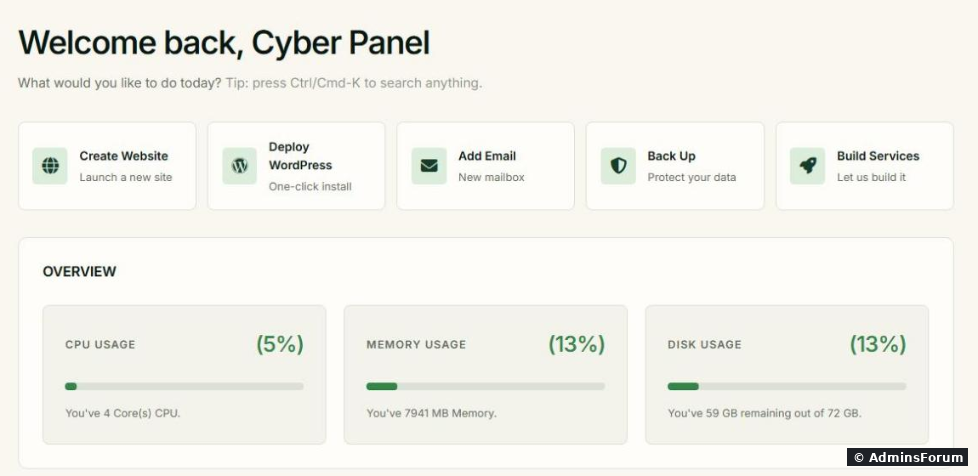
Your browser will warn about the certificate: CyberPanel uses a self-signed certificate until you give the panel a real hostname with SSL. Click Advanced > Proceed for now.
The dashboard shows quick actions (Create Website, Deploy WordPress, Add Email, Back Up), a "Get started" checklist, and CPU, memory and disk usage. The left menu is grouped into Hosting (Websites, WordPress, Email, Databases & FTP, Backups), Account (Users & Plans) and Administration (Server, Security, Settings).
If the login page shows "Server Error (500)"
That happened on our very first boot: MariaDB hung at startup and the panel couldn't reach its database. The full diagnosis and fix, with screenshots, is here: CyberPanel Server Error (500) after a fresh install.
What next
Before you add sites, take ten minutes to lock things down: CyberPanel first steps after install. Then look at the firewall and make sure everything is running with the services page.
More CyberPanel guides
Tested on CyberPanel 3.0 (build 8, OpenLiteSpeed edition) on Ubuntu 24.04, October 2026. Menu names can change slightly between versions.
CyberPanel is a free hosting control panel built around the OpenLiteSpeed web server. You install it on a fresh VPS with one command, answer a handful of questions, and about 10 to 15 minutes later you have a panel for websites, WordPress, email, DNS, databases and backups. New to it? Read What is CyberPanel? first.
Watch it: Part 2 of the CyberPanel course, Install CyberPanel on Ubuntu 24.04
This is Part 2 of 10 in our free CyberPanel Full Course. The written steps below go into more detail.
This guide follows a real install we did in October 2026 (installer v3.0.8) and explains every prompt so you know what you're choosing.
What you need
- A fresh VPS with nothing else on it. Supported: Ubuntu 22.04 or 24.04, AlmaLinux 8/9 and Rocky Linux. We used Ubuntu 24.04. Don't install CyberPanel next to another panel (aaPanel, cPanel, Plesk) or an existing web server.
- At least 1 GB RAM (2 GB or more if you'll run email and several sites) and 10 GB free disk. The installer checks both.
- Root access over SSH, or your provider's VNC/web console.
- Ports that your provider's cloud firewall must let through (the installer reminds you at the end): 8090 (panel), 80, 443 TCP and 443 UDP (websites), 21 and 40110-40210 (FTP), 25, 587, 465, 110, 143, 993 (mail), 53 TCP/UDP (DNS).
Step 1: Update the server
Code:
apt update && apt -y upgradeCode:
sshd_configStep 2: Run the installer
Code:
sh <(curl -s https://cyberpanel.net/install.sh || wget -qO - https://cyberpanel.net/install.sh)Code:
wget -O install.sh https://cyberpanel.net/install.sh
sh install.shStep 3: The prompts, one by one
- 1. Install CyberPanel / 2. Exit: choose 1.
- OpenLiteSpeed or LiteSpeed Enterprise: choose 1 (OpenLiteSpeed). It's free. Enterprise needs a paid LiteSpeed license.
- Full service (PowerDNS, Postfix, Pure-FTPd)? Y if you want email, DNS and FTP in the panel. n gives a lighter install with only websites and databases.
- Remote MySQL? N for almost everyone. It installs MariaDB on the same server.
- Version: press Enter for the latest stable.
- Admin password: [d]efault, [r]andom or [s]et: never use the default (1234567). Choose r (random, recommended) or s to type your own. The password is shown at the end.
- Memcached and Redis with PHP extensions: Y. Handy for WordPress object caching later.
- WatchDog (beta): Yes restarts the web server and database automatically if they crash.
Step 4: Save the login details
At the end you see a summary with Visit: https://YOUR-IP:8090, Panel username: admin and Panel password. Copy the password somewhere safe before you answer the last question (restart the server), because the screen clears on reboot. Lost it anyway? Set a new one from the console:
Code:
adminPass YourNewStrongPasswordStep 5: Log in
When the installer finishes and the server has restarted, open
Code:
https://YOUR-SERVER-IP:8090Your browser will warn about the certificate: CyberPanel uses a self-signed certificate until you give the panel a real hostname with SSL. Click Advanced > Proceed for now.
The dashboard shows quick actions (Create Website, Deploy WordPress, Add Email, Back Up), a "Get started" checklist, and CPU, memory and disk usage. The left menu is grouped into Hosting (Websites, WordPress, Email, Databases & FTP, Backups), Account (Users & Plans) and Administration (Server, Security, Settings).
If the login page shows "Server Error (500)"
That happened on our very first boot: MariaDB hung at startup and the panel couldn't reach its database. The full diagnosis and fix, with screenshots, is here: CyberPanel Server Error (500) after a fresh install.
What next
Before you add sites, take ten minutes to lock things down: CyberPanel first steps after install. Then look at the firewall and make sure everything is running with the services page.
More CyberPanel guides
- Fail2ban brute-force protection
- Change PHP version per website
- Git deployment from GitHub
- SSH key login, passwords off
- Create a website
- Issue SSL and fix failed certificates
- Subdomains, addon domains and aliases
- Rewrite rules, force HTTPS, HSTS
- Install WordPress with LiteSpeed Cache
- Cron jobs and a real WP-Cron
- Redis object cache for WordPress
- Databases and phpMyAdmin
- Email, DKIM, SPF and DMARC
- Email forwarding, catch-all, plus-addressing
- Mail queue, spam senders, blacklists
- CyberPanel DNS vs Cloudflare
- Packages and website limits
- Deploy Laravel on CyberPanel
- WordPress staging (clone) fixes
- Backups: create, restore, schedule
- File Manager and FTP
- Reset the admin password from SSH
- Log files and config locations
- Check and restart services
- First steps after install
- ModSecurity + OWASP rules (fix)
- CLI cheat sheet
- Firewall explained
- Install PHP extensions
- Change PHP settings (php.ini)
- Update CyberPanel safely
- Server Error (500) after a fresh install
- Packages, users and ACLs
- Upgrade CyberPanel safely
- Real visitor IPs behind Cloudflare
- Docker apps on your domain with SSL
- Import a large SQL file over SSH
- Remote MySQL access for one IP
- Move WordPress to CyberPanel by hand
- Fix "Error establishing a database connection"
- Fix PHP2Shell (CVE-2026-109618/109619)
- Run your own nameservers (PowerDNS)
- CyberPanel on a small VPS: RAM tuning
Tested on CyberPanel 3.0 (build 8, OpenLiteSpeed edition) on Ubuntu 24.04, October 2026. Menu names can change slightly between versions.