



CyberPanel Backups: Create, Restore and Schedule (and Why Restore Can't Find Them)
A backup you've never restored is a guess. We backed up our test site cyber.adminslab.com (WordPress, a database and a mailbox), looked inside the archive, and tried to restore it. Two things didn't work the way the screens suggest, so here is the full picture.
Step 1: Create a backup
Open Backups > Create Backup, pick the website and the destination Home, then Create Backup. Ours finished in a few seconds:
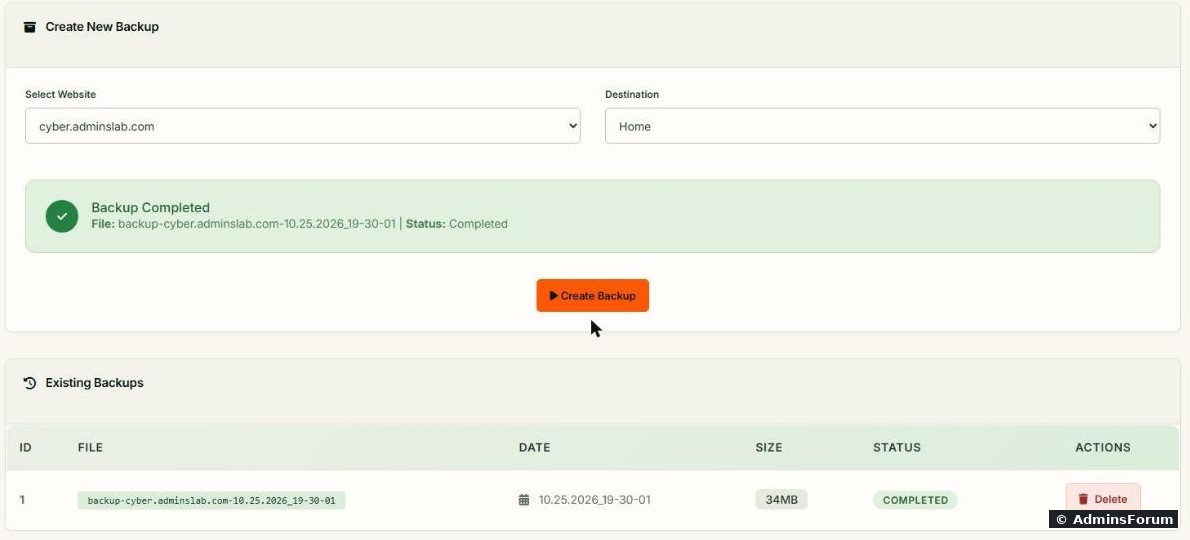
Under Existing Backups you see the file name, date, size (34 MB for our small WordPress site) and status COMPLETED.
What's in the backup
The file is a normal. On our server it was saved in the website's own folder:
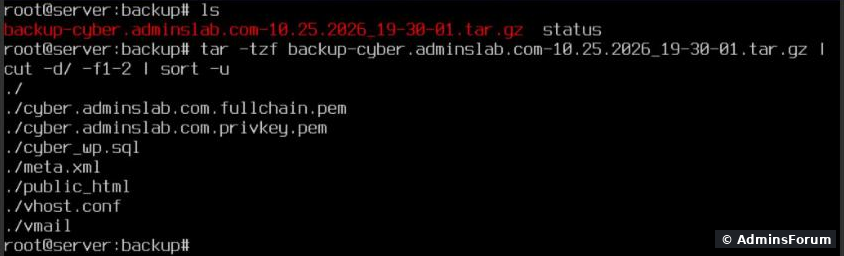
Here is what was inside ours ( on the file):
, which CyberPanel already set) and store copies somewhere safe.
Trap 1: Restore can't see your backup
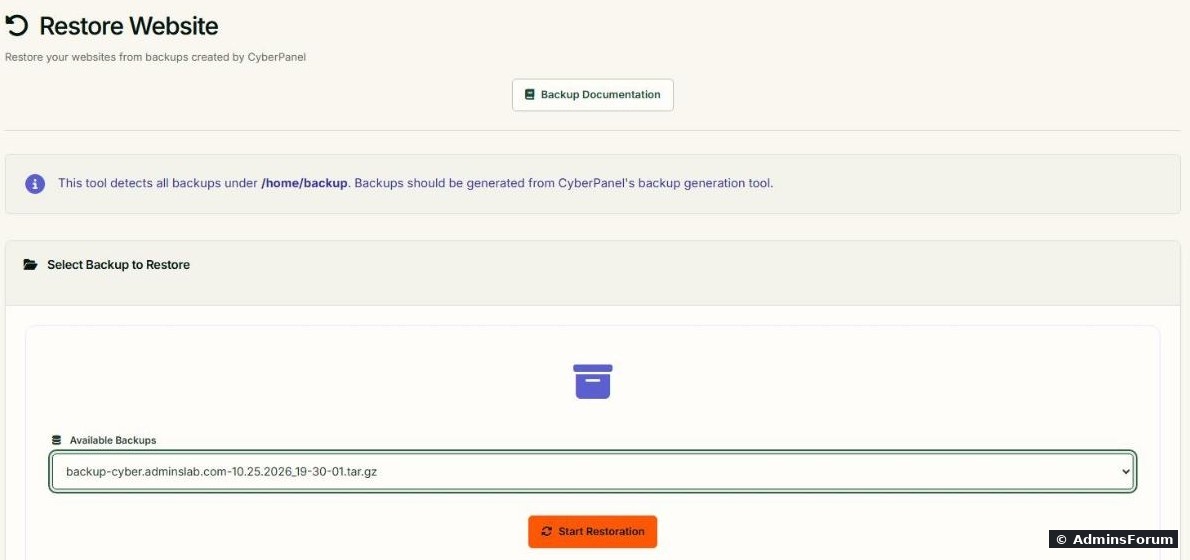
Backups > Restore Backup only lists files in. At first our backup wasn't listed, because Create Backup had saved it in . Copy it to first:
Reload the page and the file appears under Available Backups:
The same applies to a backup you downloaded earlier or copied from another server: put it in.
Trap 2: You can't restore over an existing site
Restoring while the site still exists failed on our server with this error:

The restore tool creates the website, its user, databases and DNS records from the backup. It's made for disasters (the site was deleted, or you moved to a new server), not for rolling back a site that still exists. You have two options:
Step 2: Get backups off the server
A backup on the same disk is lost with the server. Add a remote destination under Backups > Destinations: CyberPanel offers Local Storage and SFTP Server (another VPS or a storage box with SSH). There are also menu entries for Google Drive, Incremental Backups (Restic snapshots) and CyberPanel's paid One-Click Backups.
Step 3: Schedule automatic backups
Backups > Schedule Backup needs a destination first; on a fresh server the list is empty:
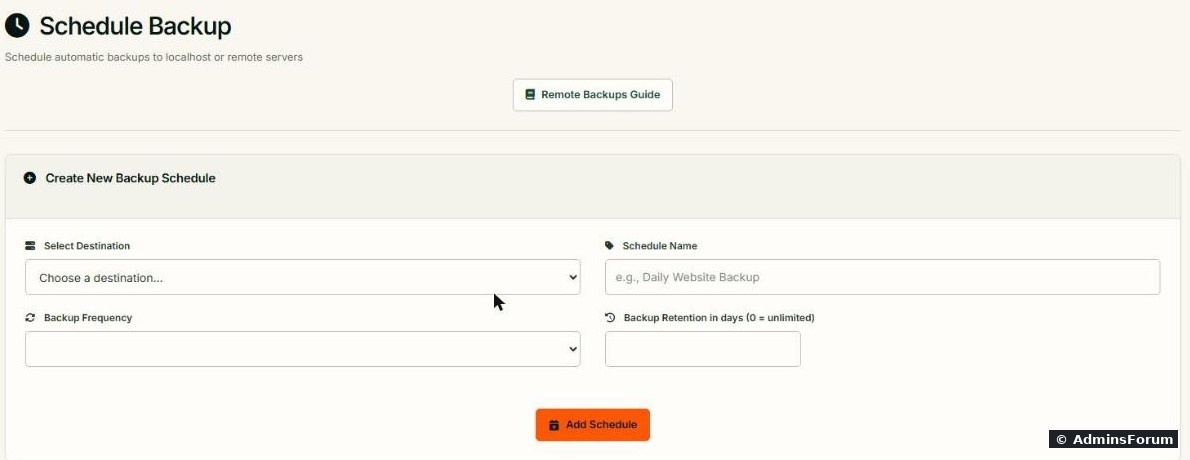
After adding a destination, choose it, give the schedule a name, set Backup Frequency (Daily or Weekly) and Backup Retention in days (0 = keep everything, which fills the disk; 7 to 14 is a good start), click Add Schedule, then pick the websites under Manage Existing Backup Schedules.
Prefer simple and transparent? A nightly cron job plus rsync to another server works too, using SSH keys:
Test your restore
At least once, restore a backup onto a spare VPS (install CyberPanel, copy the file to, Restore Backup) and open the site. That's the only real proof your backups work. A VPS snapshot at your provider is a good extra layer, especially before upgrades: see updating CyberPanel safely.
Common problems
More CyberPanel guides
Tested on CyberPanel 3.0 (build 8, OpenLiteSpeed edition) on Ubuntu 24.04, October 2026. Menu names can change slightly between versions.
A backup you've never restored is a guess. We backed up our test site cyber.adminslab.com (WordPress, a database and a mailbox), looked inside the archive, and tried to restore it. Two things didn't work the way the screens suggest, so here is the full picture.
Step 1: Create a backup
Open Backups > Create Backup, pick the website and the destination Home, then Create Backup. Ours finished in a few seconds:
Under Existing Backups you see the file name, date, size (34 MB for our small WordPress site) and status COMPLETED.
What's in the backup
The file is a normal
Code:
.tar.gzCode:
/home/cyber.adminslab.com/backup/backup-cyber.adminslab.com-10.25.2026_19-30-01.tar.gzCode:
tar -tzf- : a dump of each database of the site.Code:
cyber_wp.sql
- : all website files.Code:
public_html/
- : the mailboxes, with all mail.Code:
vmail/
- and the SSL certificate (Code:
vhost.conf,Code:privkey.pem).Code:fullchain.pem
Code:
chmod 600Trap 1: Restore can't see your backup
Backups > Restore Backup only lists files in
Code:
/home/backupCode:
/home/cyber.adminslab.com/backup/Code:
/home/backup/Code:
mkdir -p /home/backup
cp /home/cyber.adminslab.com/backup/*.tar.gz /home/backup/The same applies to a backup you downloaded earlier or copied from another server: put it in
Code:
/home/backup/Trap 2: You can't restore over an existing site
Restoring while the site still exists failed on our server with this error:
Code:
Error Message: This website already exists.. Not able to create Account, Databases and DNS Records, aborting.- Full restore: make sure the backup file is safe outside the site folder (in and ideally downloaded too), delete the website in CyberPanel, then run Start Restoration.Code:
/home/backup/
- Roll back only what broke (usually better), straight from the archive:
Use your own database name and site user. Take a fresh backup before you overwrite anything.Code:mkdir /root/restore && cd /root/restore tar -xzf /home/backup/backup-cyber.adminslab.com-*.tar.gz # database only: mysql cyber_wp < cyber_wp.sql # files only (replace public_html, then fix the owner): rsync -a --delete public_html/public_html/ /home/cyber.adminslab.com/public_html/ chown -R cyber2602:cyber2602 /home/cyber.adminslab.com/public_html/*
Step 2: Get backups off the server
A backup on the same disk is lost with the server. Add a remote destination under Backups > Destinations: CyberPanel offers Local Storage and SFTP Server (another VPS or a storage box with SSH). There are also menu entries for Google Drive, Incremental Backups (Restic snapshots) and CyberPanel's paid One-Click Backups.
Step 3: Schedule automatic backups
Backups > Schedule Backup needs a destination first; on a fresh server the list is empty:
After adding a destination, choose it, give the schedule a name, set Backup Frequency (Daily or Weekly) and Backup Retention in days (0 = keep everything, which fills the disk; 7 to 14 is a good start), click Add Schedule, then pick the websites under Manage Existing Backup Schedules.
Prefer simple and transparent? A nightly cron job plus rsync to another server works too, using SSH keys:
Code:
0 3 * * * rsync -a /home/backup/ backupuser@BACKUP-SERVER:/backups/cyberpanel/Test your restore
At least once, restore a backup onto a spare VPS (install CyberPanel, copy the file to
Code:
/home/backup/Common problems
- Backup fails or hangs: not enough free disk space for the archive. Check .Code:
df -h
- Disk fills up: old backups in andCode:
/home/*/backup/. Delete what you've copied elsewhere and set a retention.Code:/home/backup/
- Restored site shows a database error: the database user or password in wp-config.php doesn't match. See databases and phpMyAdmin.
- Restored site has no HTTPS: DNS isn't pointing to the new server yet. See the SSL guide.
More CyberPanel guides
- Fail2ban brute-force protection
- Change PHP version per website
- Git deployment from GitHub
- SSH key login, passwords off
- Create a website
- Issue SSL and fix failed certificates
- Subdomains, addon domains and aliases
- Rewrite rules, force HTTPS, HSTS
- Install WordPress with LiteSpeed Cache
- Cron jobs and a real WP-Cron
- Redis object cache for WordPress
- Databases and phpMyAdmin
- Email, DKIM, SPF and DMARC
- Email forwarding, catch-all, plus-addressing
- Mail queue, spam senders, blacklists
- CyberPanel DNS vs Cloudflare
- Packages and website limits
- Deploy Laravel on CyberPanel
- WordPress staging (clone) fixes
- File Manager and FTP
- Reset the admin password from SSH
- Log files and config locations
- Check and restart services
- First steps after install
- ModSecurity + OWASP rules (fix)
- CLI cheat sheet
- Install CyberPanel on Ubuntu 24.04
- Firewall explained
- Install PHP extensions
- Change PHP settings (php.ini)
- Update CyberPanel safely
- Server Error (500) after a fresh install
- Packages, users and ACLs
- Upgrade CyberPanel safely
- Real visitor IPs behind Cloudflare
- Docker apps on your domain with SSL
- Import a large SQL file over SSH
- Remote MySQL access for one IP
- Move WordPress to CyberPanel by hand
- Fix "Error establishing a database connection"
- Fix PHP2Shell (CVE-2026-109618/109619)
- Run your own nameservers (PowerDNS)
- CyberPanel on a small VPS: RAM tuning
Tested on CyberPanel 3.0 (build 8, OpenLiteSpeed edition) on Ubuntu 24.04, October 2026. Menu names can change slightly between versions.