



CyberPanel SSH Key Login and Disabling Password Login (the Ubuntu cloud-init Trap)
Every server on the internet gets password guesses on SSH within minutes. Logging in with an SSH key instead of a password and then switching passwords off stops all of that cold. CyberPanel has a page for SSH keys, but turning password login off is where most people go wrong on Ubuntu: we did it the "obvious" way and password login stayed on. Here's the full, tested way, and how to check that it really worked.
Before you start
Step 1: What does your server allow right now?
This is what our server had, checked with (the settings sshd really uses):
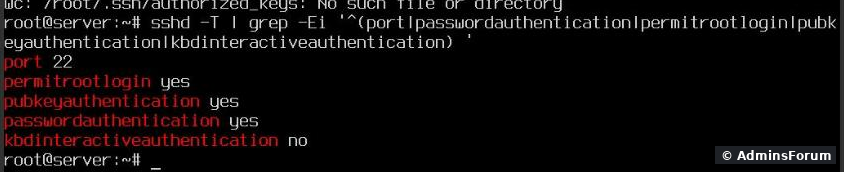
Port 22, root login allowed, and both keys and passwords allowed. There was no yet, and one extra config file: . Remember that file, it matters in Step 4.
Step 2: Create a key on your own computer
On Linux, macOS and Windows 10/11 (PowerShell has OpenSSH built in) it's the same command:
Press Enter for the default location and set a passphrase if you like. You get two files: (private, never leaves your computer) and (public, this goes on the server). Show the public one:
It's one line starting with .
Step 3: Add the public key in CyberPanel
Security > Secure SSH (), tab SSH Keys, Add Key.
Paste it and click Save Key:
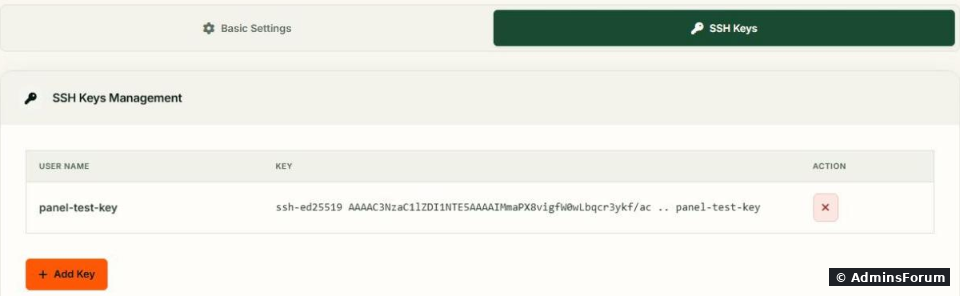
Two things we noticed:.
Now test it from a new terminal on your computer:
It must log you in without asking for the server password (it may ask for the key's passphrase). In our test the key login worked straight away. Don't continue until this works.
Step 4: Turn off password login (and the trap)
The CyberPanel page only has SSH Port and Permit Root Login; there's no switch for passwords. So it's a config file. On Ubuntu the clean way is a small file in instead of editing the main config.
We put into , reloaded SSH and checked:

, and a login attempt without a key was still offered . Nothing changed.
The reason: for each setting, sshd uses the first value it reads, and it reads the files in in alphabetical order. Ubuntu's cloud images ship with . That file comes before , so it wins. Most VPS providers use these images, so you probably have the same file.
The fix is a name that sorts before 50:
(You could also change the line inside , but cloud-init may write that file again.)
We renamed our file so it's read first, and tested both ways of logging in:
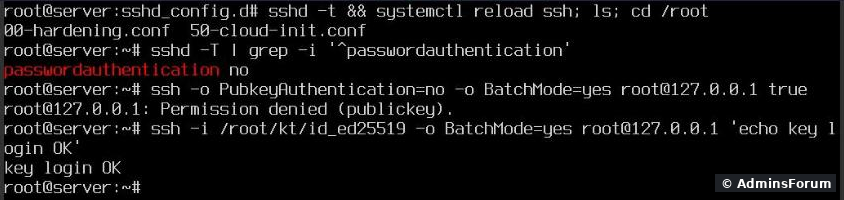
checks the config for errors before the reload. If it prints anything, fix that first. A reload doesn't drop your open session.
Step 5 (optional): Root login and the port
If you lock yourself out
Log in through your provider's VNC/console (it uses the local login, not SSH) and remove the file:
Password login is back. That's exactly how we undid our test afterwards.
Checklist
More CyberPanel guides
Tested on CyberPanel 3.0 (build 8, OpenLiteSpeed edition) on Ubuntu 24.04, October 2026. Menu names can change slightly between versions.
Every server on the internet gets password guesses on SSH within minutes. Logging in with an SSH key instead of a password and then switching passwords off stops all of that cold. CyberPanel has a page for SSH keys, but turning password login off is where most people go wrong on Ubuntu: we did it the "obvious" way and password login stayed on. Here's the full, tested way, and how to check that it really worked.
Before you start
- Keep your current SSH session open the whole time. Test every change in a second terminal.
- Make sure you have your VPS provider's console (VNC) as a way in if SSH breaks.
Step 1: What does your server allow right now?
This is what our server had, checked with
Code:
sshd -TCode:
sshd -T | grep -Ei '^(port|passwordauthentication|permitrootlogin|pubkeyauthentication) 'Code:
/root/.ssh/authorized_keysCode:
/etc/ssh/sshd_config.d/50-cloud-init.confStep 2: Create a key on your own computer
On Linux, macOS and Windows 10/11 (PowerShell has OpenSSH built in) it's the same command:
Code:
ssh-keygen -t ed25519 -C "my-laptop"Code:
id_ed25519Code:
id_ed25519.pubCode:
cat ~/.ssh/id_ed25519.pubCode:
ssh-ed25519Step 3: Add the public key in CyberPanel
Security > Secure SSH (
Code:
https://YOUR-SERVER-IP:8090/firewall/secureSSHPaste it and click Save Key:
Two things we noticed:
- The key is added for root: CyberPanel writes it to , with aCode:
/root/.ssh/authorized_keyscomment on top. There is no way to pick another Linux user on this page.Code:#Created by CyberPanel
- The User Name column just shows the comment at the end of your key (in our test), not a user. Give your keys clear comments (laptop, office PC) so you know which one to delete later.Code:
panel-test-key
Code:
ssh-copy-id -i ~/.ssh/id_ed25519.pub root@YOUR-SERVER-IPNow test it from a new terminal on your computer:
Code:
ssh -i ~/.ssh/id_ed25519 root@YOUR-SERVER-IPStep 4: Turn off password login (and the trap)
The CyberPanel page only has SSH Port and Permit Root Login; there's no switch for passwords. So it's a config file. On Ubuntu the clean way is a small file in
Code:
/etc/ssh/sshd_config.d/We put
Code:
PasswordAuthentication noCode:
/etc/ssh/sshd_config.d/99-hardening.confCode:
passwordauthentication yesCode:
(publickey,password)The reason: for each setting, sshd uses the first value it reads, and it reads the files in
Code:
sshd_config.dCode:
50-cloud-init.confCode:
PasswordAuthentication yesCode:
99-...The fix is a name that sorts before 50:
Code:
echo 'PasswordAuthentication no' > /etc/ssh/sshd_config.d/00-hardening.conf
rm -f /etc/ssh/sshd_config.d/99-hardening.conf
sshd -t && systemctl reload ssh
sshd -T | grep -i '^passwordauthentication'Code:
50-cloud-init.confWe renamed our file so it's read first, and tested both ways of logging in:
- now saysCode:
sshd -T.Code:passwordauthentication no
- Without a key: . Password isn't even offered any more.Code:
Permission denied (publickey)
- With the key: logged in.
Code:
sshd -tStep 5 (optional): Root login and the port
- Permit Root Login on the same CyberPanel page: only switch it off after you created another user with sudo rights and tested that you can log in with it (add your key to that user's by hand, the panel only does root). A softer option isCode:
~/.ssh/authorized_keysin yourCode:PermitRootLogin prohibit-password: root can still log in, but only with a key.Code:00-hardening.conf
- SSH Port: a different port cuts the log noise but isn't real security. If you change it, open the new port in the firewall before you save, as shown in the CyberPanel firewall guide.
If you lock yourself out
Log in through your provider's VNC/console (it uses the local login, not SSH) and remove the file:
Code:
rm /etc/ssh/sshd_config.d/00-hardening.conf
systemctl reload sshChecklist
- Key works in a new terminal before you turn passwords off.
- Your setting is in a file that sorts before .Code:
50-cloud-init.conf
- showsCode:
sshd -T, not just your file.Code:passwordauthentication no
- A login without a key says .Code:
Permission denied (publickey)
- Keep a copy of your private key somewhere safe (password manager). If you lose it, only the console gets you back in.
More CyberPanel guides
- Fail2ban brute-force protection
- Change PHP version per website
- Git deployment from GitHub
- Create a website
- Issue SSL and fix failed certificates
- Subdomains, addon domains and aliases
- Rewrite rules, force HTTPS, HSTS
- Install WordPress with LiteSpeed Cache
- Cron jobs and a real WP-Cron
- Redis object cache for WordPress
- Databases and phpMyAdmin
- Email, DKIM, SPF and DMARC
- Email forwarding, catch-all, plus-addressing
- Mail queue, spam senders, blacklists
- CyberPanel DNS vs Cloudflare
- Packages and website limits
- Deploy Laravel on CyberPanel
- WordPress staging (clone) fixes
- Backups: create, restore, schedule
- File Manager and FTP
- Reset the admin password from SSH
- Log files and config locations
- Check and restart services
- First steps after install
- ModSecurity + OWASP rules (fix)
- CLI cheat sheet
- Install CyberPanel on Ubuntu 24.04
- Firewall explained
- Install PHP extensions
- Change PHP settings (php.ini)
- Update CyberPanel safely
- Server Error (500) after a fresh install
- Packages, users and ACLs
- Upgrade CyberPanel safely
- Real visitor IPs behind Cloudflare
- Docker apps on your domain with SSL
- Import a large SQL file over SSH
- Remote MySQL access for one IP
- Move WordPress to CyberPanel by hand
- Fix "Error establishing a database connection"
- Fix PHP2Shell (CVE-2026-109618/109619)
- Run your own nameservers (PowerDNS)
- CyberPanel on a small VPS: RAM tuning
Tested on CyberPanel 3.0 (build 8, OpenLiteSpeed edition) on Ubuntu 24.04, October 2026. Menu names can change slightly between versions.