



CyberPanel: Change the PHP Version of One Website (and Per-Site PHP Settings)
CyberPanel lets every website run its own PHP version. That's useful when an old plugin or script breaks on a new PHP, or when you want to test PHP 8.4 on one site before moving the rest. Changing it takes one click, but two things catch people out: the switch isn't instant, and SSH/cron still use the server's default PHP. Then there's the next question: how do you give one site more memory or a bigger upload limit? On CyberPanel with OpenLiteSpeed, the usual cPanel tricks don't work. We tested all of it on our server.
Which PHP versions you have
Each version lives in its own folder:
Ours had to . A version only shows up in the panel's dropdowns if it's installed. Missing extensions per version are covered in our PHP extensions guide.
Step 1: Change the PHP version in the panel
Websites > List Websites > Manage (for a subdomain or addon domain: Websites > List Child Domains > Manage). We used our test subdomain, which ran PHP 8.3.
Open the site, scroll to Configurations and click Change PHP:
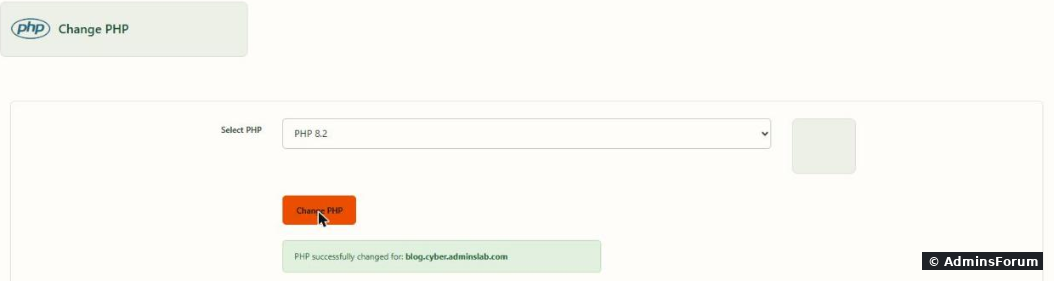
Pick the version and click Change PHP. The panel says PHP successfully changed. One small trap: on our build the dropdown is empty when the page opens, so the panel doesn't tell you which version the site uses right now. Check it from SSH before and after (Step 2).
What the button actually does: it edits one line in the site's OpenLiteSpeed config,:
Nothing else in the file changes, so your other vHost settings stay as they are.
Step 2: Check that the site really switched
Put a tiny test file in the site folder (as the site user, so it gets the right owner):
Our check on the test site, switched to PHP 8.2:
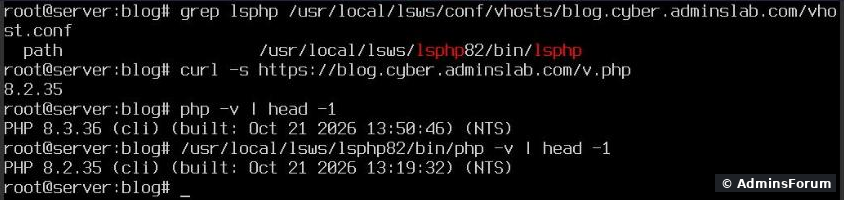
The config says, the website answers 8.2.35, but on the command line still says 8.3.36. Two lessons from this:That matters most for cron jobs and for Laravel's artisan: a script that works on the site can fail from cron because it runs on a different PHP.
Delete when you're done.
Step 3: Change PHP settings for one site only
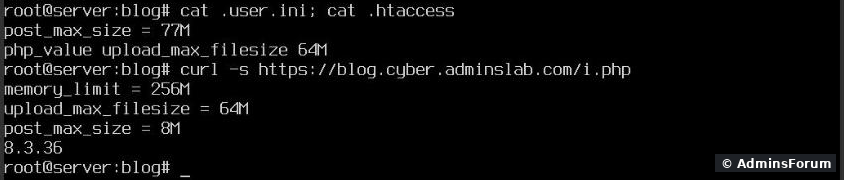
Server > PHP > Edit PHP Configs changes for every site on that PHP version (see our php.ini guide). Often you only want one site to get more memory or a bigger upload limit. We tried the three usual ways on the same site:
In the panel it's vHost Conf on the same page. Ours, after the change:
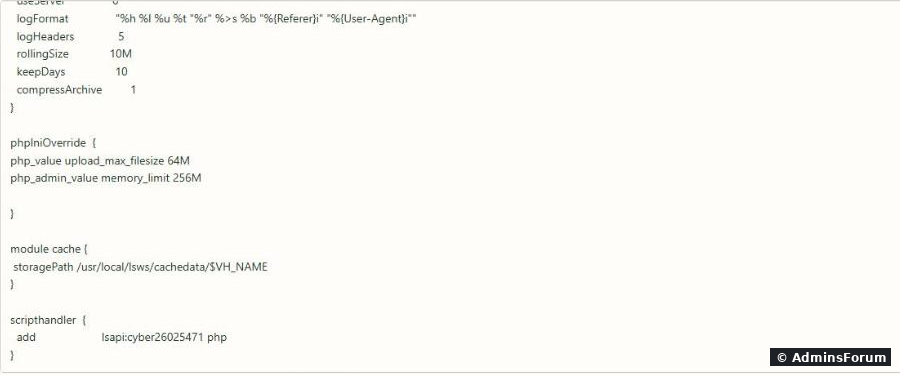
Find the existing block (it's empty by default) and add your settings inside:
Click Save. If the change doesn't show up on the site, restart OpenLiteSpeed from SSH: (a graceful restart, visitors don't notice).
Notes:
Before you switch a live site
More CyberPanel guides
Tested on CyberPanel 3.0 (build 8, OpenLiteSpeed edition) on Ubuntu 24.04, October 2026. Menu names can change slightly between versions.
CyberPanel lets every website run its own PHP version. That's useful when an old plugin or script breaks on a new PHP, or when you want to test PHP 8.4 on one site before moving the rest. Changing it takes one click, but two things catch people out: the switch isn't instant, and SSH/cron still use the server's default PHP. Then there's the next question: how do you give one site more memory or a bigger upload limit? On CyberPanel with OpenLiteSpeed, the usual cPanel tricks don't work. We tested all of it on our server.
Which PHP versions you have
Each version lives in its own folder:
Code:
ls -d /usr/local/lsws/lsphp*Code:
lsphp81Code:
lsphp85Step 1: Change the PHP version in the panel
Websites > List Websites > Manage (for a subdomain or addon domain: Websites > List Child Domains > Manage). We used our test subdomain
Code:
blog.cyber.adminslab.comOpen the site, scroll to Configurations and click Change PHP:
Pick the version and click Change PHP. The panel says PHP successfully changed. One small trap: on our build the dropdown is empty when the page opens, so the panel doesn't tell you which version the site uses right now. Check it from SSH before and after (Step 2).
What the button actually does: it edits one line in the site's OpenLiteSpeed config,
Code:
/usr/local/lsws/conf/vhosts/yoursite/vhost.confCode:
path /usr/local/lsws/lsphp82/bin/lsphpStep 2: Check that the site really switched
Put a tiny test file in the site folder (as the site user, so it gets the right owner):
Code:
cd /home/yourdomain.com/public_html
echo '<?php echo PHP_VERSION, "\n";' > v.php
chown SITEUSER:SITEUSER v.php
curl -s https://yourdomain.com/v.phpThe config says
Code:
lsphp82Code:
php -v- Give it a few seconds. Our very first request right after the click still came back as 8.3.36; the old PHP processes finish their work first. Within about 10 to 30 seconds every request was on the new version, both times we switched. No manual restart needed.
- The command line doesn't follow. in SSH, cron jobs, Composer and WP-CLI use the server's default PHP, not the site's. If your site runs 8.2, call that version's binary directly:Code:
php
Code:
/usr/local/lsws/lsphp82/bin/php -v
/usr/local/lsws/lsphp82/bin/php /home/yourdomain.com/public_html/cron.php
/usr/local/lsws/lsphp82/bin/php /usr/local/bin/composer installDelete
Code:
v.phpStep 3: Change PHP settings for one site only
Server > PHP > Edit PHP Configs changes
Code:
php.ini- in the site folder withCode:
.user.iniCode:post_max_size = 77M - withCode:
.htaccessCode:php_value upload_max_filesize 64M - in the site's vHost config withCode:
phpIniOverrideandCode:upload_max_filesize 64MCode:memory_limit 256M
- .user.ini: ignored. stayed at the server's 8M, also after the 5-minuteCode:
post_max_sizeand with fresh PHP processes.Code:user_ini.cache_ttl
- .htaccess php_value: ignored. OpenLiteSpeed reads rewrite rules from , but not PHP settings. No error either, which is why people don't notice. (On LiteSpeed Enterprise this line does work.)Code:
.htaccess
- vHost phpIniOverride: works. 256M and 64M, right after a restart.
In the panel it's vHost Conf on the same page. Ours, after the change:
Find the existing block (it's empty by default) and add your settings inside:
Code:
phpIniOverride  {
php_value upload_max_filesize 64M
php_value post_max_size 64M
php_admin_value memory_limit 256M
}Code:
/usr/local/lsws/bin/lswsctrl restartNotes:
- can be changed again by the site's own code (Code:
php_value);Code:ini_set()can't. UseCode:php_admin_valuefor limits you want to enforce, such asCode:php_admin_value.Code:memory_limit
- When you raise uploads, set at least as high asCode:
post_max_size. Otherwise the smaller one wins.Code:upload_max_filesize
- The block survived a PHP version change: we switched the site 8.3 > 8.2 > 8.3 in the panel and the override was still there and active.
- There are two blocks in the file on our build: one near the top and one inside the SSL section at the bottom. The top one is the one that counted in our test.Code:
phpIniOverride
- Typos in the vHost config can take the site down. Keep a copy before you edit: .Code:
cp vhost.conf /root/vhost.conf.bak
Before you switch a live site
- Check that your plugins/themes or framework support the target version. WordPress core runs on all current versions, plugins are the usual problem.
- Install the same extensions for the new version (,Code:
lsphp82-curl,Code:-intland so on). A missing extension is the most common cause of a 500 error after a PHP switch.Code:-imagick
- Copy any custom settings to the new version: each one has its own file, e.g.Code:
php.ini.Code:/usr/local/lsws/lsphp82/etc/php/8.2/litespeed/php.ini
- Watch the site's error log for a few minutes after switching: .Code:
/home/yourdomain.com/logs/yourdomain.com.error_log
More CyberPanel guides
- Fail2ban brute-force protection
- Git deployment from GitHub
- SSH key login, passwords off
- Create a website
- Issue SSL and fix failed certificates
- Subdomains, addon domains and aliases
- Rewrite rules, force HTTPS, HSTS
- Install WordPress with LiteSpeed Cache
- Cron jobs and a real WP-Cron
- Redis object cache for WordPress
- Databases and phpMyAdmin
- Email, DKIM, SPF and DMARC
- Email forwarding, catch-all, plus-addressing
- Mail queue, spam senders, blacklists
- CyberPanel DNS vs Cloudflare
- Packages and website limits
- Deploy Laravel on CyberPanel
- WordPress staging (clone) fixes
- Backups: create, restore, schedule
- File Manager and FTP
- Reset the admin password from SSH
- Log files and config locations
- Check and restart services
- First steps after install
- ModSecurity + OWASP rules (fix)
- CLI cheat sheet
- Install CyberPanel on Ubuntu 24.04
- Firewall explained
- Install PHP extensions
- Change PHP settings (php.ini)
- Update CyberPanel safely
- Server Error (500) after a fresh install
- Packages, users and ACLs
- Upgrade CyberPanel safely
- Real visitor IPs behind Cloudflare
- Docker apps on your domain with SSL
- Import a large SQL file over SSH
- Remote MySQL access for one IP
- Move WordPress to CyberPanel by hand
- Fix "Error establishing a database connection"
- Fix PHP2Shell (CVE-2026-109618/109619)
- Run your own nameservers (PowerDNS)
- CyberPanel on a small VPS: RAM tuning
Tested on CyberPanel 3.0 (build 8, OpenLiteSpeed edition) on Ubuntu 24.04, October 2026. Menu names can change slightly between versions.