



CyberPanel Server Error (500) after a fresh install: MariaDB stuck at boot (fixed)
You install CyberPanel, the installer finishes with "Visit: https://your-ip:8090", the server reboots, and the login page shows only one line: Server Error (500). No login form, no details.
This happened to us on a brand-new install (CyberPanel installer v3.0.8, OpenLiteSpeed edition, Ubuntu 24.04, MariaDB 10.11). Below is exactly how we found the cause and fixed it in a few minutes, with the real console output.
What the 500 error means
The page on port 8090 is served by lscpd (CyberPanel's own web server). Behind it runs the CyberPanel app, which reads everything (users, websites, settings) from the MariaDB database. If the app can't talk to the database, it can't build any page, not even the login page, so you get a bare "Server Error (500)". In other words: a 500 on port 8090 is almost always a backend problem, not a browser or password problem.
Step 1: Check the three services
Log in to the server as root (SSH, or your provider's VNC/web console) and run:
In our case lscpd and lsws were active, but MariaDB said deactivating. That's the problem. Look closer:
"Active: deactivating (stop-sigterm) (Result: resources)" means systemd gave up waiting for MariaDB to start, tried to stop it, and the process never stopped either. The mariadbd process (here PID 824) is still there, but stuck.
Step 2: Read the log
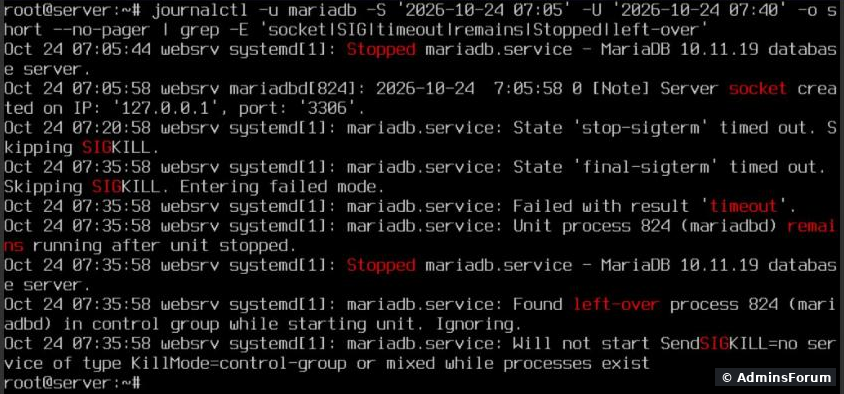
The story is clear in the timestamps:
Step 3: Confirm the database doesn't answer
ERROR 2002 (HY000): Can't connect to local server through socket '/run/mysqld/mysqld.sock' (11). The socket file exists, but nothing is accepting connections. CyberPanel's own log () shows the same 2002 error. The process was using 0 seconds of CPU and waiting forever ( showed ): a hung start, not a slow one.
Step 4: The fix
Kill the stuck process, let systemd start MariaDB again, then restart the panel:
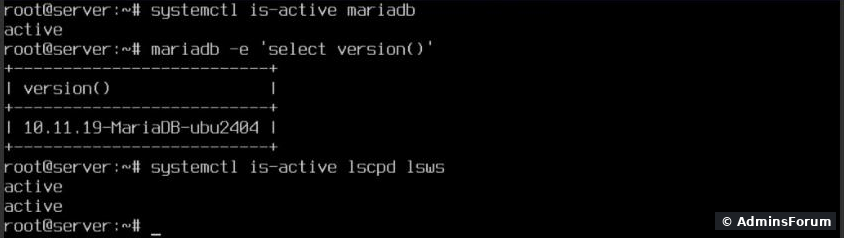
The MariaDB unit restarts automatically after the kill. This time it started cleanly within seconds:
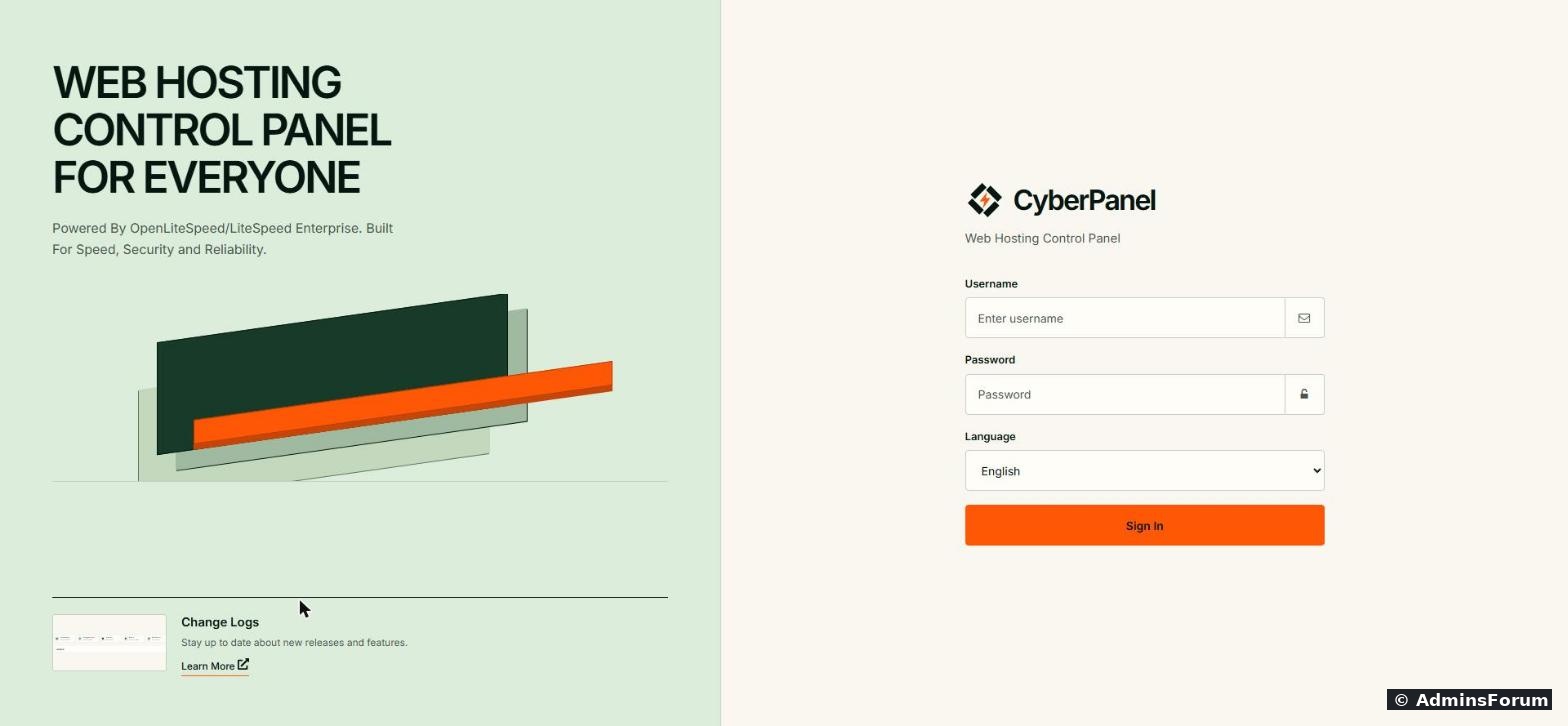
Reload and the login page is back:
Is kill -9 on a database safe? Only as a last resort, and only when the process is truly hung like here (no CPU, not answering, not stopping). InnoDB recovers on the next start. On a fresh install there's no data to lose anyway. On a server with live sites, take a backup first if you possibly can.
If it happens again after every reboot
In our case one clean restart was enough. If MariaDB hangs on every boot, check these:
Other causes of a 500 on port 8090
If MariaDB is active and works, but you still get a 500:
Got a different error or this didn't help? Post the output of and the last 20 lines of in CyberPanel Support and we'll take a look.
More CyberPanel reading: What is CyberPanel? · Fix PHP2Shell on CyberPanel
More CyberPanel guides
Tested on CyberPanel installer v3.0.8 (OpenLiteSpeed), Ubuntu 24.04, MariaDB 10.11.19, October 2026.
You install CyberPanel, the installer finishes with "Visit: https://your-ip:8090", the server reboots, and the login page shows only one line: Server Error (500). No login form, no details.
This happened to us on a brand-new install (CyberPanel installer v3.0.8, OpenLiteSpeed edition, Ubuntu 24.04, MariaDB 10.11). Below is exactly how we found the cause and fixed it in a few minutes, with the real console output.
What the 500 error means
The page on port 8090 is served by lscpd (CyberPanel's own web server). Behind it runs the CyberPanel app, which reads everything (users, websites, settings) from the MariaDB database. If the app can't talk to the database, it can't build any page, not even the login page, so you get a bare "Server Error (500)". In other words: a 500 on port 8090 is almost always a backend problem, not a browser or password problem.
Step 1: Check the three services
Log in to the server as root (SSH, or your provider's VNC/web console) and run:
Code:
systemctl is-active lscpd lsws mariadbCode:
systemctl status mariadb --no-pagerCode:
● mariadb.service - MariaDB 10.11.19 database server
     Loaded: loaded (/usr/lib/systemd/system/mariadb.service; enabled; preset: enabled)
    Drop-In: /etc/systemd/system/mariadb.service.d
             └─migrated-from-my.cnf-settings.conf
     Active: deactivating (stop-sigterm) (Result: resources)
       Docs: man:mariadbd(8)
             https://mariadb.com/docs/server/server-management/starting-and-stopping-mariadb/systemd
      Tasks: 8 (limit: 62250)
     Memory: 107.2M (peak: 107.6M)
        CPU: 560ms
     CGroup: /system.slice/mariadb.service
             └─824 /usr/sbin/mariadbd

Oct 24 07:35:58 websrv systemd[1]: mariadb.service: Will not start SendSIGKILL=no service of type KillMode=control-group or mixed while processes exist
Oct 24 07:35:58 websrv systemd[1]: Starting mariadb.service - MariaDB 10.11.19 database server...Step 2: Read the log
Code:
journalctl -u mariadb -b --no-pager | tail -30The story is clear in the timestamps:
- 07:05:58: MariaDB starts normally, loads InnoDB and creates its socket on 127.0.0.1:3306. Looks fine.
- After that: nothing. It never reports "ready for connections" to systemd.
- 07:20:58 and 07:35:58: systemd, having given up on the start, tries to stop the process and both stop attempts time out ("timed out. Skipping SIGKILL"). The MariaDB unit is set to never force-kill the database, so the hung process just stays.
Step 3: Confirm the database doesn't answer
Code:
mariadb -e 'select 1'Code:
ERROR 2002 (HY000): Can't connect to local server through socket '/run/mysqld/mysqld.sock' (11)

# the same error in CyberPanel's log:
[10.24.2026_07:30-03] (2002, "Can't connect to local server through socket '/run/mysqld/mysqld.sock' (11)"). [RemoteBackup]Code:
/home/cyberpanel/error-logs.txtCode:
cat /proc/PID/wchanCode:
futex_wait_queueStep 4: The fix
Kill the stuck process, let systemd start MariaDB again, then restart the panel:
Code:
ps aux | grep [m]ariadbd          # note the PID
kill -9 PID                         # replace PID, e.g. kill -9 824
sleep 5
systemctl is-active mariadb         # should say: active
mariadb -e 'select version()'
systemctl restart lscpdReload
Code:
https://your-ip:8090Is kill -9 on a database safe? Only as a last resort, and only when the process is truly hung like here (no CPU, not answering, not stopping). InnoDB recovers on the next start. On a fresh install there's no data to lose anyway. On a server with live sites, take a backup first if you possibly can.
If it happens again after every reboot
In our case one clean restart was enough. If MariaDB hangs on every boot, check these:
- Free memory and disk: andCode:
free -h. CyberPanel wants at least 1 GB RAM (2 GB is more comfortable) and 10 GB free disk.Code:df -h
- Errors at the end of the MariaDB log (journalctl command above): a corrupted table or wrong permission on will show up there.Code:
/var/lib/mysql
- Asynchronous I/O: some virtual servers have trouble with MariaDB's native async I/O. As a test, create with:Code:
/etc/mysql/mariadb.conf.d/99-noaio.cnf
thenCode:[mysqld] innodb_use_native_aio = 0and reboot to see if the hang is gone.Code:systemctl restart mariadb
Other causes of a 500 on port 8090
If MariaDB is active and
Code:
mariadb -e 'select 1'- Restart the panel: , wait 10 seconds, reload.Code:
systemctl restart lscpd
- Look at the last lines of for the real error.Code:
/home/cyberpanel/error-logs.txt
- The disk is full: .Code:
df -h /
- An interrupted install or upgrade: run (take a snapshot first).Code:
cyberpanel upgrade
Got a different error or this didn't help? Post the output of
Code:
systemctl is-active lscpd lsws mariadbCode:
journalctl -u mariadb -bMore CyberPanel reading: What is CyberPanel? · Fix PHP2Shell on CyberPanel
More CyberPanel guides
- Fail2ban brute-force protection
- Change PHP version per website
- Git deployment from GitHub
- SSH key login, passwords off
- Create a website
- Issue SSL and fix failed certificates
- Subdomains, addon domains and aliases
- Rewrite rules, force HTTPS, HSTS
- Install WordPress with LiteSpeed Cache
- Cron jobs and a real WP-Cron
- Redis object cache for WordPress
- Databases and phpMyAdmin
- Email, DKIM, SPF and DMARC
- Email forwarding, catch-all, plus-addressing
- Mail queue, spam senders, blacklists
- CyberPanel DNS vs Cloudflare
- Packages and website limits
- Deploy Laravel on CyberPanel
- WordPress staging (clone) fixes
- Backups: create, restore, schedule
- File Manager and FTP
- Reset the admin password from SSH
- Log files and config locations
- Check and restart services
- First steps after install
- ModSecurity + OWASP rules (fix)
- CLI cheat sheet
- Install CyberPanel on Ubuntu 24.04
- Firewall explained
- Install PHP extensions
- Change PHP settings (php.ini)
- Update CyberPanel safely
- Packages, users and ACLs
- Upgrade CyberPanel safely
- Real visitor IPs behind Cloudflare
- Docker apps on your domain with SSL
- Import a large SQL file over SSH
- Remote MySQL access for one IP
- Move WordPress to CyberPanel by hand
- Fix "Error establishing a database connection"
- Fix PHP2Shell (CVE-2026-109618/109619)
- Run your own nameservers (PowerDNS)
- CyberPanel on a small VPS: RAM tuning
Tested on CyberPanel installer v3.0.8 (OpenLiteSpeed), Ubuntu 24.04, MariaDB 10.11.19, October 2026.