



10-25-2026, 07:16 PM
(This post was last modified: 2 hours ago by JAY.
Edit Reason: Added the course video
)
CyberPanel Databases: Create a MySQL Database, Users and Use phpMyAdmin
Almost every PHP app (WordPress, Laravel, forums, shops) needs a database. CyberPanel runs MariaDB (10.11 on our server), and you manage it from Databases & FTP. Here's how to create one, find it later, open it in phpMyAdmin and move data in and out.
Watch it: Part 7 of the CyberPanel course, Databases & phpMyAdmin
This is Part 7 of 10 in our free CyberPanel Full Course. The written steps below go into more detail.
Create a database and user
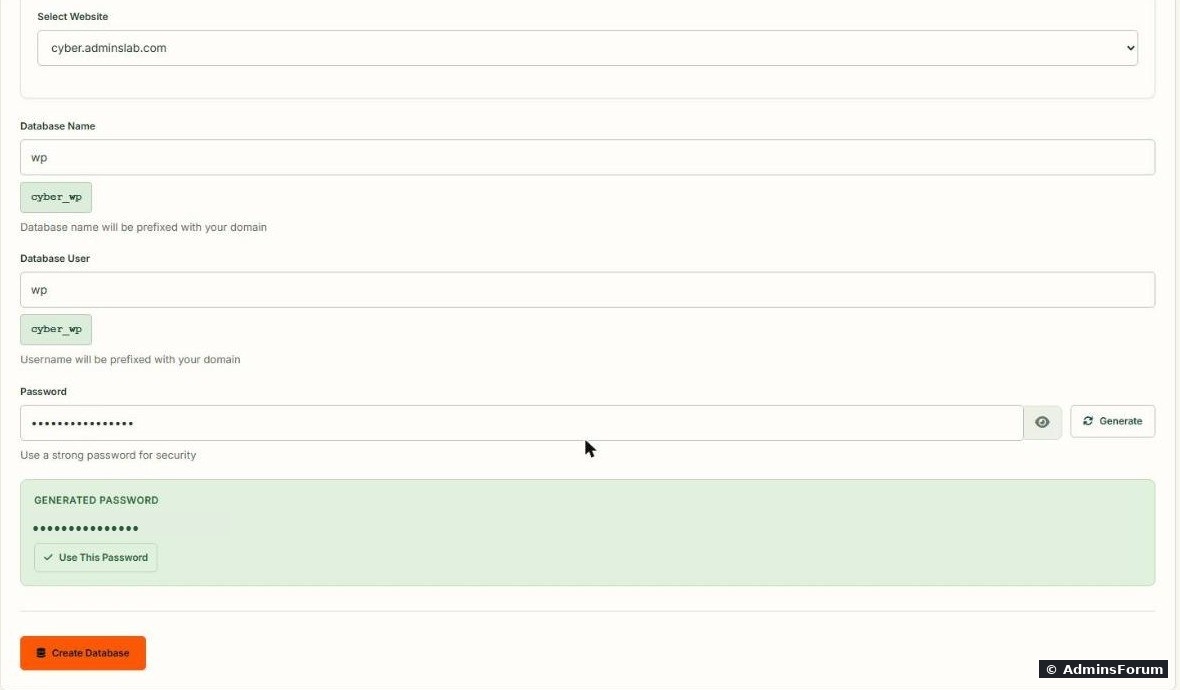
Open Databases & FTP > Create Database and pick the website first. The name and user fields then appear:
Find your databases later
Databases & FTP > List Databases, choose the domain, and you see every database of that site:
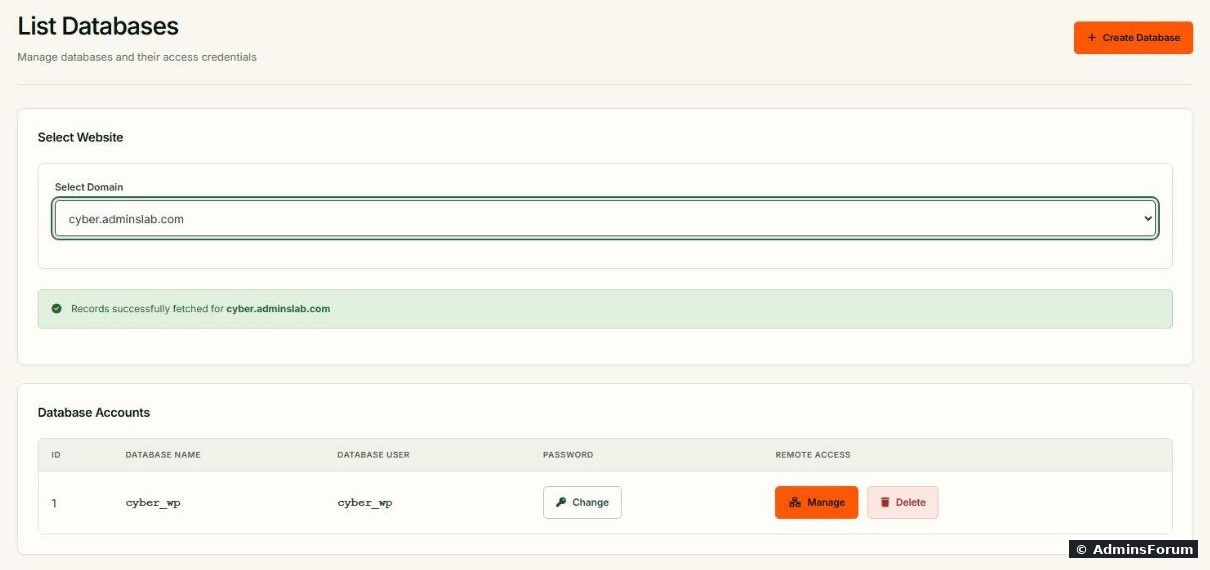
For each database you can:
phpMyAdmin
Databases & FTP > phpMyAdmin opens phpMyAdmin already logged in, no password needed:
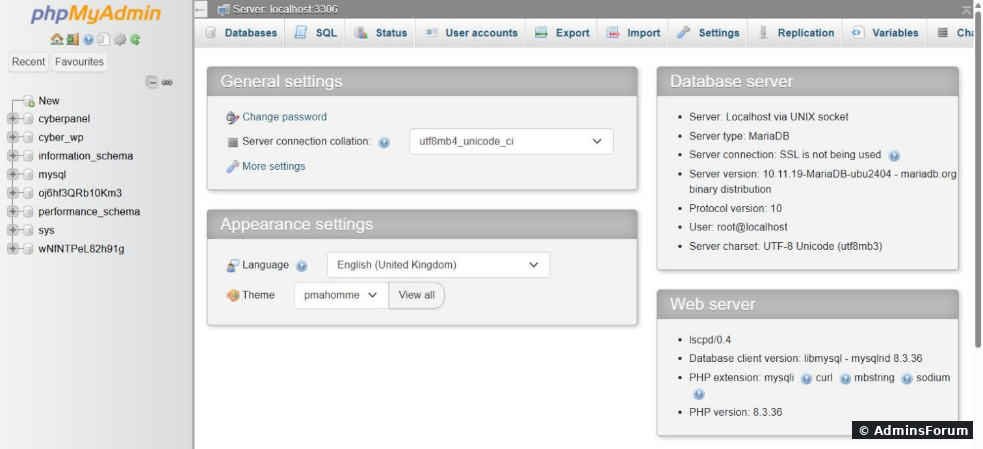
On our server it was phpMyAdmin 5.2.1, connected as when opened from the admin account. That means full access to every database on the server, including CyberPanel's own database. Be careful:, export a small database.
Import and export from SSH (better for big databases)
Uploads through a browser hit PHP size and time limits. For anything over a few dozen MB, use the command line. Export:
Import into an existing (empty) database:
As root on our server, and connected without asking for a password. If yours asks, use the database's own user:
Quick checks:
Remote access (connect from your PC or another server)
By default a database only accepts connections from the server itself (). That's the safe setting. If you really need remote access, for example a reporting tool on another server, click Manage next to the database. The Remote Access dialog shows who may connect now; on ours, only from :
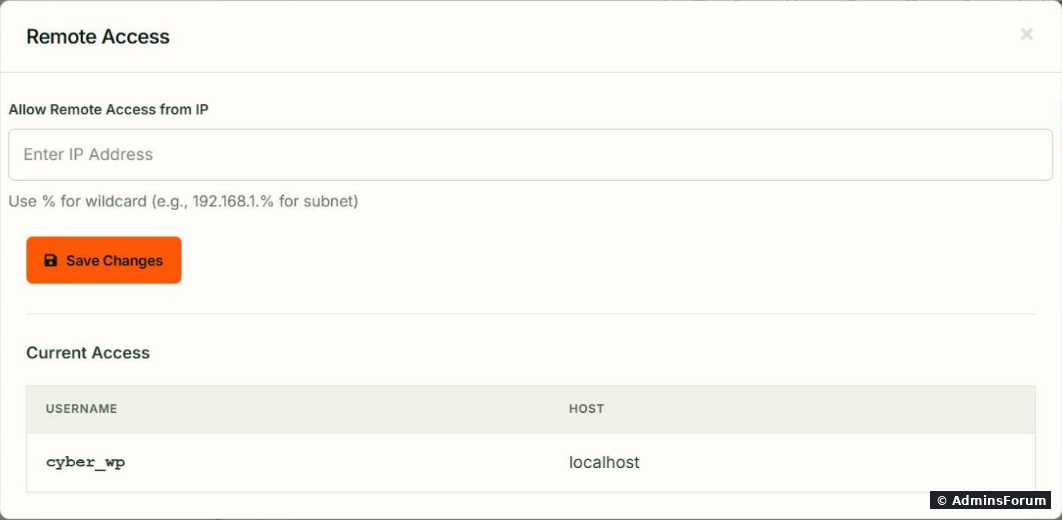
, then connect your database tool to .
Common problems
More CyberPanel guides
Tested on CyberPanel 3.0 (build 8, OpenLiteSpeed edition) on Ubuntu 24.04, October 2026. Menu names can change slightly between versions.
Almost every PHP app (WordPress, Laravel, forums, shops) needs a database. CyberPanel runs MariaDB (10.11 on our server), and you manage it from Databases & FTP. Here's how to create one, find it later, open it in phpMyAdmin and move data in and out.
Watch it: Part 7 of the CyberPanel course, Databases & phpMyAdmin
This is Part 7 of 10 in our free CyberPanel Full Course. The written steps below go into more detail.
Create a database and user
Open Databases & FTP > Create Database and pick the website first. The name and user fields then appear:
- Database Name and Database User: CyberPanel adds a prefix based on the domain, and shows the final name in a green box under each field. For our site cyber.adminslab.com, becameCode:
wp. Use the full prefixed names in your app's config.Code:cyber_wp
- Password: click Generate, then Use This Password. Copy it before you leave the page; you can't read it back later (only change it).
Find your databases later
Databases & FTP > List Databases, choose the domain, and you see every database of that site:
For each database you can:
- Change the password. Remember to update the app's config file too (for WordPress, in wp-config.php), or the site shows a database error.Code:
DB_PASSWORD
- Manage remote access (see below).
- Delete it. This removes the data for good; take a backup first.
phpMyAdmin
Databases & FTP > phpMyAdmin opens phpMyAdmin already logged in, no password needed:
On our server it was phpMyAdmin 5.2.1, connected as
Code:
root@localhostCode:
cyberpanel- Don't edit or drop the ,Code:
cyberpanel,Code:mysql,Code:information_schemaorCode:performance_schemadatabases.Code:sys
- Anyone who gets into your admin account gets this too, so protect it with 2FA: see first steps after install.
Code:
wp_optionsImport and export from SSH (better for big databases)
Uploads through a browser hit PHP size and time limits. For anything over a few dozen MB, use the command line. Export:
Code:
mysqldump --single-transaction cyber_wp | gzip > /root/cyber_wp-$(date +%F).sql.gzCode:
gunzip < /root/cyber_wp-2026-10-24.sql.gz | mysql cyber_wpCode:
mysqlCode:
mysqldumpCode:
mysql -u cyber_wp -p cyber_wp < file.sqlQuick checks:
Code:
mysql -e "SHOW DATABASES;"
mysql -e "SELECT user,host FROM mysql.user;"
Remote access (connect from your PC or another server)
By default a database only accepts connections from the server itself (
Code:
localhostCode:
cyber_wpCode:
localhost- Enter only the specific IP address that needs access and click Save Changes. The dialog accepts wildcards; avoid them, and never use a loneCode:
%(any host).Code:%
- Open port in the firewall for that IP only, not for everyone. See the CyberPanel firewall guide.Code:
3306
Code:
ssh -L 3306:127.0.0.1:3306 root@YOUR-SERVER-IPCode:
127.0.0.1:3306Common problems
- Access denied for user: you used the short name instead of the prefixed one, or the wrong password. Reset it with Change.
- Can't connect to local MySQL server through socket: MariaDB is stopped. See checking CyberPanel services, and the Server Error (500) fix if the panel is down too.
- phpMyAdmin import fails on a big file: use the SSH import above.
- Database disk usage counts toward the package's disk limit; see packages, users and ACLs.
More CyberPanel guides
- Fail2ban brute-force protection
- Change PHP version per website
- Git deployment from GitHub
- SSH key login, passwords off
- Create a website
- Issue SSL and fix failed certificates
- Subdomains, addon domains and aliases
- Rewrite rules, force HTTPS, HSTS
- Install WordPress with LiteSpeed Cache
- Cron jobs and a real WP-Cron
- Redis object cache for WordPress
- Email, DKIM, SPF and DMARC
- Email forwarding, catch-all, plus-addressing
- Mail queue, spam senders, blacklists
- CyberPanel DNS vs Cloudflare
- Packages and website limits
- Deploy Laravel on CyberPanel
- WordPress staging (clone) fixes
- Backups: create, restore, schedule
- File Manager and FTP
- Reset the admin password from SSH
- Log files and config locations
- Check and restart services
- First steps after install
- ModSecurity + OWASP rules (fix)
- CLI cheat sheet
- Install CyberPanel on Ubuntu 24.04
- Firewall explained
- Install PHP extensions
- Change PHP settings (php.ini)
- Update CyberPanel safely
- Server Error (500) after a fresh install
- Packages, users and ACLs
- Upgrade CyberPanel safely
- Real visitor IPs behind Cloudflare
- Docker apps on your domain with SSL
- Import a large SQL file over SSH
- Remote MySQL access for one IP
- Move WordPress to CyberPanel by hand
- Fix "Error establishing a database connection"
- Fix PHP2Shell (CVE-2026-109618/109619)
- Run your own nameservers (PowerDNS)
- CyberPanel on a small VPS: RAM tuning
Tested on CyberPanel 3.0 (build 8, OpenLiteSpeed edition) on Ubuntu 24.04, October 2026. Menu names can change slightly between versions.