



CyberPanel Remote MySQL Access: Why the Panel Setting Alone Doesn't Work (Tested)
You want to connect to a CyberPanel database from somewhere else: your PC with HeidiSQL or DBeaver, a reporting tool, an app on a second server. CyberPanel has a Remote Access button for every database, so it looks like a one-click job. On our lab server (CyberPanel 3.0, MariaDB 10.11, Ubuntu 24.04) that button changed exactly one thing, and the connection still failed. You need three things, and we tested each one from a second server.
Short version:
Before you start: do you really need it?
An open database port gets scanned and brute-forced like SSH. If you only need it now and then from your own PC, an SSH tunnel needs none of the steps below: in HeidiSQL or DBeaver choose "MySQL over SSH tunnel", or run and connect your tool to . Use the steps below when another server or app needs a permanent connection.
Step 1: Allow the user from your IP (the panel part)
Databases > List Databases, choose the website, and click Manage under Remote Access next to the database. Enter the IP address the connection will come from. works as a wildcard ( for a subnet), but avoid a plain (any IP).
The Remote Access window, before saving:
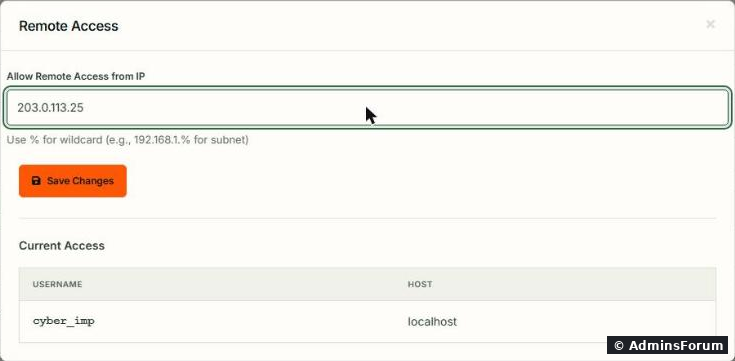
We used here as an example. After Save Changes the window only showed the new host, which looks as if was replaced. If it were, your website (which connects from localhost) would stop working:
After saving, it lists only the new host:
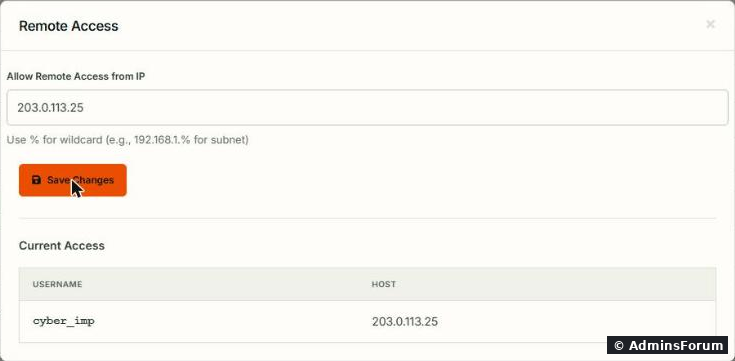
It wasn't. The panel added a second user with the same name and password for that IP, and gave it all rights on this one database. and were still there and the site kept working:
What the panel really changed:
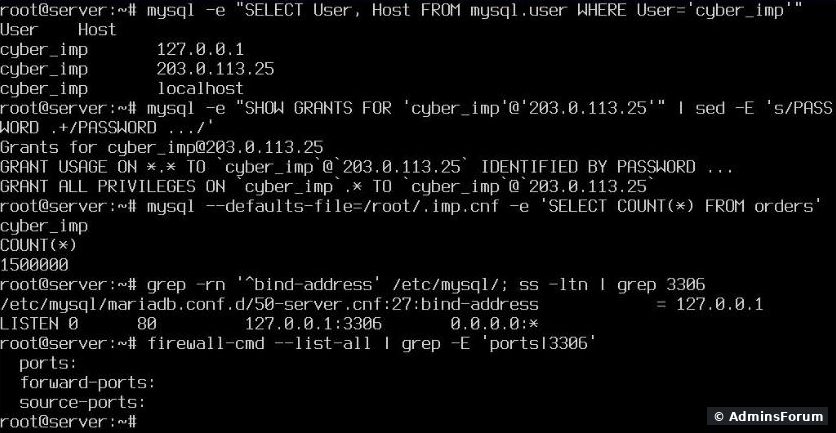
And that's all the button did. MariaDB still listened on only and the firewall had no rule for 3306. From our second server the port was simply closed:
Step 2: Let MariaDB listen on the network
On CyberPanel the setting is in:
The last line must show instead of . The restart takes a few seconds; websites lose their database connection for that moment.
Now MariaDB accepts connections from everywhere, but the firewall still blocks them. In our test the second server still got error 2003 at this point. That's what you want: next, open it for your IP only.
Step 3: Open 3306 for one IP in the firewall
Don't add 3306 in CyberPanel's Security > Firewall page: that opens it to the whole internet. Use a rule that only matches your address (CyberPanel uses firewalld):
Our server after steps 2 and 3 ($CLIENT is the client's IP, hidden here):
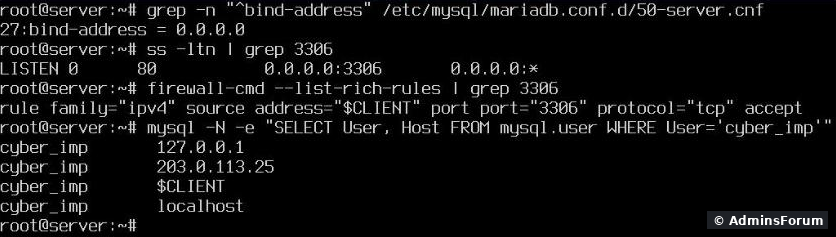
From the second server, the port was now open. The error changed, and that's the useful part, because each error tells you which step is still missing:
A client-side trap: MySQL 9 can't log in to MariaDB
Our second server had the MySQL 9.0 command line client. It got past the network and host checks and then stopped with:
MySQL 9 dropped that login method, and it's exactly the method MariaDB uses for normal users. Nothing is wrong on the server. Use a MariaDB client (), a MySQL 8.x client, or GUI tools with their MariaDB driver.
Turn it off again
When you don't need remote access any more, undo all three steps, in reverse:
Use your own database user and IP in the last line. Check with that only and remain for your site's user. That's how we left our test server.
Checklist
More CyberPanel guides
You want to connect to a CyberPanel database from somewhere else: your PC with HeidiSQL or DBeaver, a reporting tool, an app on a second server. CyberPanel has a Remote Access button for every database, so it looks like a one-click job. On our lab server (CyberPanel 3.0, MariaDB 10.11, Ubuntu 24.04) that button changed exactly one thing, and the connection still failed. You need three things, and we tested each one from a second server.
Short version:
- A database user that's allowed from your IP (this is what the panel button does).
- MariaDB listening on the public network, not only on 127.0.0.1.
- Port 3306 open in the firewall, for your IP only.
Before you start: do you really need it?
An open database port gets scanned and brute-forced like SSH. If you only need it now and then from your own PC, an SSH tunnel needs none of the steps below: in HeidiSQL or DBeaver choose "MySQL over SSH tunnel", or run
Code:
ssh -L 3306:127.0.0.1:3306 root@YOUR-SERVER-IPCode:
127.0.0.1:3306Step 1: Allow the user from your IP (the panel part)
Databases > List Databases, choose the website, and click Manage under Remote Access next to the database. Enter the IP address the connection will come from.
Code:
%Code:
192.168.1.%Code:
%The Remote Access window, before saving:
We used
Code:
203.0.113.25Code:
localhostAfter saving, it lists only the new host:
It wasn't. The panel added a second user with the same name and password for that IP, and gave it all rights on this one database.
Code:
localhostCode:
127.0.0.1What the panel really changed:
And that's all the button did. MariaDB still listened on
Code:
127.0.0.1:3306Code:
ERROR 2003 (HY000): Can't connect to MySQL server on 'YOUR-SERVER-IP:3306' (113)Step 2: Let MariaDB listen on the network
On CyberPanel the setting is in
Code:
/etc/mysql/mariadb.conf.d/50-server.cnfCode:
grep -n '^bind-address' /etc/mysql/mariadb.conf.d/50-server.cnf
sed -i 's/^bind-address.*/bind-address = 0.0.0.0/' /etc/mysql/mariadb.conf.d/50-server.cnf
systemctl restart mariadb
ss -ltn | grep 3306Code:
0.0.0.0:3306Code:
127.0.0.1:3306Now MariaDB accepts connections from everywhere, but the firewall still blocks them. In our test the second server still got error 2003 at this point. That's what you want: next, open it for your IP only.
Step 3: Open 3306 for one IP in the firewall
Don't add 3306 in CyberPanel's Security > Firewall page: that opens it to the whole internet. Use a rule that only matches your address (CyberPanel uses firewalld):
Code:
CLIENT=203.0.113.10        # the IP that will connect
firewall-cmd --permanent --add-rich-rule="rule family=ipv4 source address=$CLIENT port port=3306 protocol=tcp accept"
firewall-cmd --reload
firewall-cmd --list-rich-rules | grep 3306From the second server, the port was now open. The error changed, and that's the useful part, because each error tells you which step is still missing:
- ERROR 2003 ... (113) or a timeout: blocked by the firewall (Step 3) or MariaDB not listening on the network (Step 2).
- ERROR 1130: Host '203.0.113.10' is not allowed to connect to this MariaDB server: the network part works, but there is no database user for this IP. We got this because our panel entry was for a different IP than the one we connected from. Fix the IP in Step 1. If the client is behind NAT, use the IP the server sees: it's the one in this error message.
- ERROR 1045: Access denied for user ...: the host is allowed, but the user name or password is wrong.
A client-side trap: MySQL 9 can't log in to MariaDB
Our second server had the MySQL 9.0 command line client. It got past the network and host checks and then stopped with:
Code:
ERROR 2059 (HY000): Authentication plugin 'mysql_native_password' cannot be loadedCode:
apt install mariadb-clientTurn it off again
When you don't need remote access any more, undo all three steps, in reverse:
Code:
firewall-cmd --permanent --remove-rich-rule="rule family=ipv4 source address=$CLIENT port port=3306 protocol=tcp accept"
firewall-cmd --reload
sed -i 's/^bind-address.*/bind-address = 127.0.0.1/' /etc/mysql/mariadb.conf.d/50-server.cnf
systemctl restart mariadb
mysql -e "DROP USER 'dbuser'@'203.0.113.10'"Code:
SELECT User, Host FROM mysql.userCode:
localhostCode:
127.0.0.1Checklist
- Remote Access entry with the exact client IP (the one shown in error 1130).
- and MariaDB restarted.Code:
bind-address = 0.0.0.0
- Firewall rule for that IP only, never port 3306 for everyone.
- Client that can log in to MariaDB (not MySQL 9).
- Or skip all of it and use an SSH tunnel.
More CyberPanel guides
- Fail2ban brute-force protection
- Change PHP version per website
- Git deployment from GitHub
- SSH key login, passwords off
- Create a website
- Issue SSL and fix failed certificates
- Subdomains, addon domains and aliases
- Rewrite rules, force HTTPS, HSTS
- Install WordPress with LiteSpeed Cache
- Cron jobs and a real WP-Cron
- Redis object cache for WordPress
- Databases and phpMyAdmin
- Email, DKIM, SPF and DMARC
- Email forwarding, catch-all, plus-addressing
- Mail queue, spam senders, blacklists
- CyberPanel DNS vs Cloudflare
- Packages and website limits
- Deploy Laravel on CyberPanel
- WordPress staging (clone) fixes
- Backups: create, restore, schedule
- File Manager and FTP
- Reset the admin password from SSH
- Log files and config locations
- Check and restart services
- First steps after install
- ModSecurity + OWASP rules (fix)
- CLI cheat sheet
- Install CyberPanel on Ubuntu 24.04
- Firewall explained
- Install PHP extensions
- Change PHP settings (php.ini)
- Update CyberPanel safely
- Server Error (500) after a fresh install
- Packages, users and ACLs
- Upgrade CyberPanel safely
- Real visitor IPs behind Cloudflare
- Docker apps on your domain with SSL
- Import a large SQL file over SSH
- Move WordPress to CyberPanel by hand
- Fix "Error establishing a database connection"
- Fix PHP2Shell (CVE-2026-109618/109619)
- Run your own nameservers (PowerDNS)
- CyberPanel on a small VPS: RAM tuning