



How to Update CyberPanel Safely: Check Your Version, Upgrade and Recover
CyberPanel ships fixes and security patches regularly. Running an old version is how many CyberPanel servers got hacked in past years. Updating is usually painless, but do it the safe way: snapshot first, then upgrade, then check.
Step 1: Check your version
Open Settings > Version Management. It shows the version and build you run next to the latest available one:
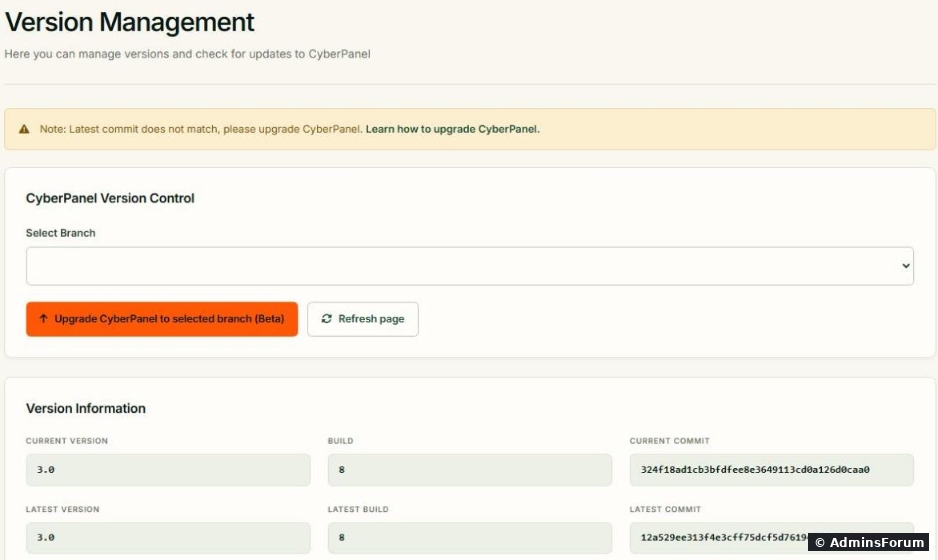
If Current Version / Build / Commit match Latest, you're up to date. On our server: Current 3.0 Build 8, Latest 3.0 Build 8, but a couple of days after install the page also showed "Latest commit does not match, please upgrade CyberPanel". CyberPanel pushes fixes into the same version and build number, so the commit is the only thing that changes. A different commit alone isn't urgent; read what changed before you upgrade a working server.
Step 2: Before you upgrade
Step 3: Upgrade
From the panel: in Version Management, Select Branch (stay on the stable branch unless you know why you want another) and click Upgrade CyberPanel to selected branch (Beta). Note the "Beta" label on that button: the SSH method below is the more proven route. The Upgrade Progress Log shows what's happening. Keep the page open until it finishes.
From SSH (more reliable, and you see every line). The installer's closing message suggests; you can use that, or run CyberPanel's official upgrade script directly:
Run it inside or so a dropped SSH connection doesn't stop it halfway:
Keep the operating system patched too: .
Step 4: Check everything after
If the panel won't load after the upgrade
Security patches can't wait
When a serious vulnerability is announced, patch the same day. For example, see how to fix PHP2Shell on CyberPanel.
More CyberPanel guides
Tested on CyberPanel 3.0 (build 8, OpenLiteSpeed edition) on Ubuntu 24.04, October 2026. Menu names can change slightly between versions.
CyberPanel ships fixes and security patches regularly. Running an old version is how many CyberPanel servers got hacked in past years. Updating is usually painless, but do it the safe way: snapshot first, then upgrade, then check.
Step 1: Check your version
Open Settings > Version Management. It shows the version and build you run next to the latest available one:
If Current Version / Build / Commit match Latest, you're up to date. On our server: Current 3.0 Build 8, Latest 3.0 Build 8, but a couple of days after install the page also showed "Latest commit does not match, please upgrade CyberPanel". CyberPanel pushes fixes into the same version and build number, so the commit is the only thing that changes. A different commit alone isn't urgent; read what changed before you upgrade a working server.
Step 2: Before you upgrade
- Take a snapshot at your VPS provider. It's the fastest way back if anything goes wrong.
- Make sure you have free disk space (, at least a few GB) and enough RAM.Code:
df -h
- Pick a quiet time: the web server restarts during the upgrade.
- Have console access ready (SSH or your provider's VNC) in case the panel doesn't come back.
Step 3: Upgrade
From the panel: in Version Management, Select Branch (stay on the stable branch unless you know why you want another) and click Upgrade CyberPanel to selected branch (Beta). Note the "Beta" label on that button: the SSH method below is the more proven route. The Upgrade Progress Log shows what's happening. Keep the page open until it finishes.
From SSH (more reliable, and you see every line). The installer's closing message suggests
Code:
cyberpanel upgradeCode:
sh <(curl -s https://raw.githubusercontent.com/usmannasir/cyberpanel/stable/preUpgrade.sh || wget -qO - https://raw.githubusercontent.com/usmannasir/cyberpanel/stable/preUpgrade.sh)Code:
screenCode:
tmuxCode:
apt install -y screen
screen -S upgrade
# run the command above; if you get disconnected: screen -r upgradeCode:
apt update && apt -y upgradeStep 4: Check everything after
- Log in to the panel and confirm the new build in Version Management.
- Open a few websites, including one with a database (WordPress).
- Check the services: . See checking and restarting CyberPanel services.Code:
systemctl is-active lscpd lsws mariadb
- Send a test email if you use mail on this server.
If the panel won't load after the upgrade
- Server Error (500): check MariaDB first; see our Server Error (500) fix. Then .Code:
systemctl restart lscpd
- The upgrade stopped halfway (lost connection, out of disk): free space if needed and run the upgrade command again. It's designed to be re-run.
- Still broken: restore the snapshot and post the last 30 lines of the upgrade output in CyberPanel Support.
Security patches can't wait
When a serious vulnerability is announced, patch the same day. For example, see how to fix PHP2Shell on CyberPanel.
More CyberPanel guides
- Fail2ban brute-force protection
- Change PHP version per website
- Git deployment from GitHub
- SSH key login, passwords off
- Create a website
- Issue SSL and fix failed certificates
- Subdomains, addon domains and aliases
- Rewrite rules, force HTTPS, HSTS
- Install WordPress with LiteSpeed Cache
- Cron jobs and a real WP-Cron
- Redis object cache for WordPress
- Databases and phpMyAdmin
- Email, DKIM, SPF and DMARC
- Email forwarding, catch-all, plus-addressing
- Mail queue, spam senders, blacklists
- CyberPanel DNS vs Cloudflare
- Packages and website limits
- Deploy Laravel on CyberPanel
- WordPress staging (clone) fixes
- Backups: create, restore, schedule
- File Manager and FTP
- Reset the admin password from SSH
- Log files and config locations
- Check and restart services
- First steps after install
- ModSecurity + OWASP rules (fix)
- CLI cheat sheet
- Install CyberPanel on Ubuntu 24.04
- Firewall explained
- Install PHP extensions
- Change PHP settings (php.ini)
- Server Error (500) after a fresh install
- Packages, users and ACLs
- Upgrade CyberPanel safely
- Real visitor IPs behind Cloudflare
- Docker apps on your domain with SSL
- Import a large SQL file over SSH
- Remote MySQL access for one IP
- Move WordPress to CyberPanel by hand
- Fix "Error establishing a database connection"
- Fix PHP2Shell (CVE-2026-109618/109619)
- Run your own nameservers (PowerDNS)
- CyberPanel on a small VPS: RAM tuning
Tested on CyberPanel 3.0 (build 8, OpenLiteSpeed edition) on Ubuntu 24.04, October 2026. Menu names can change slightly between versions.