



11 hours ago
Lock each website's PHP into its own folder with open_basedir
If one WordPress site on your server gets hacked, the attacker's first move is usually to look around: read system files, look for other sites' config files and database passwords. PHP's open_basedir setting stops that by only letting a site's PHP code open files inside its own folders. CyberPanel can switch it on per website with one dropdown. It is off by default on new websites.
We switched it on for a WordPress site on a CyberPanel 3.0.8 server and ran a small test script before and after, so you can see exactly what it blocks.
How to turn it on
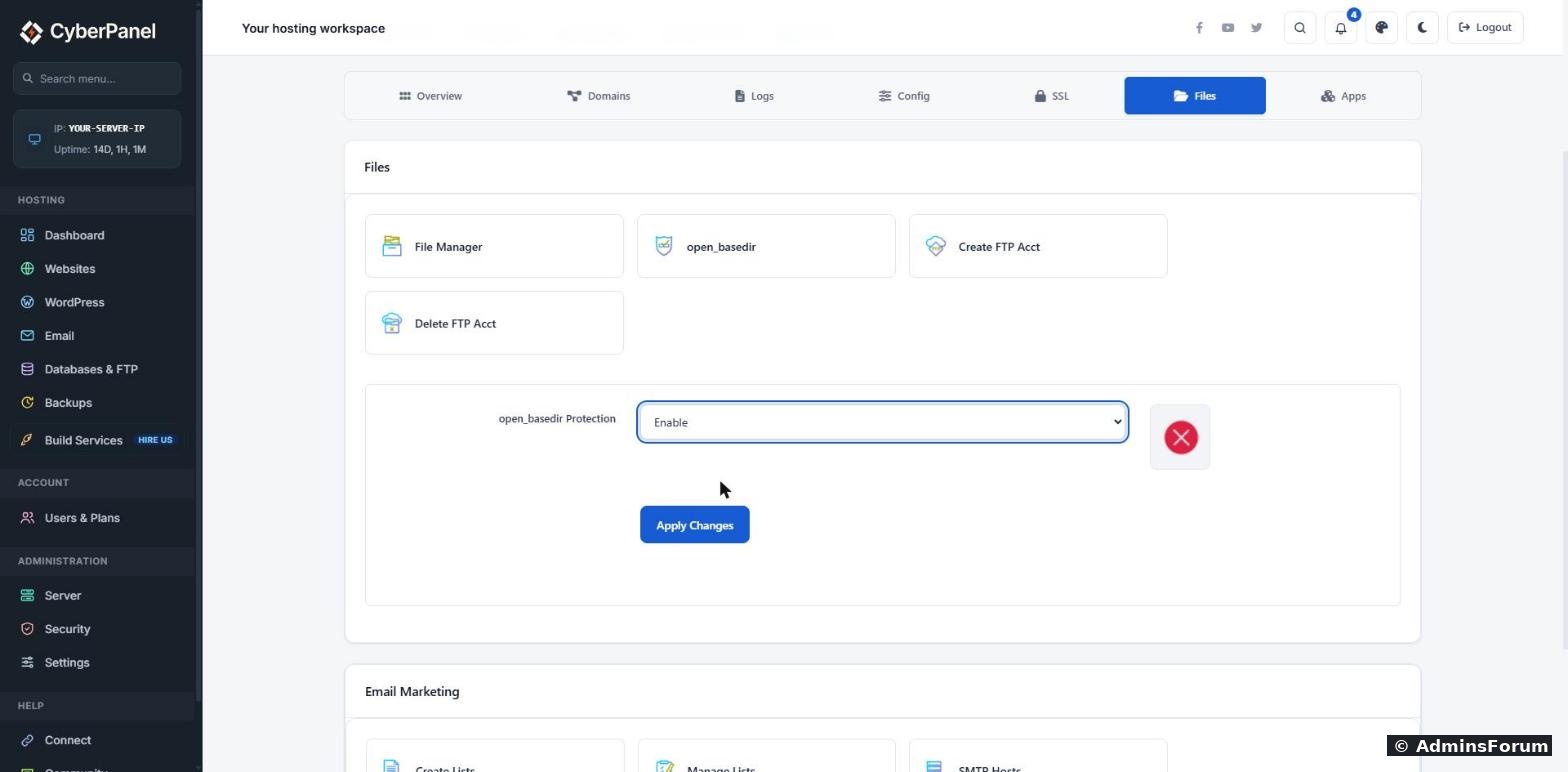
Note: the dropdown is empty when you open it. It doesn't show whether open_basedir is already on. See "How to check if it is on" below.
What it actually blocks (our test)
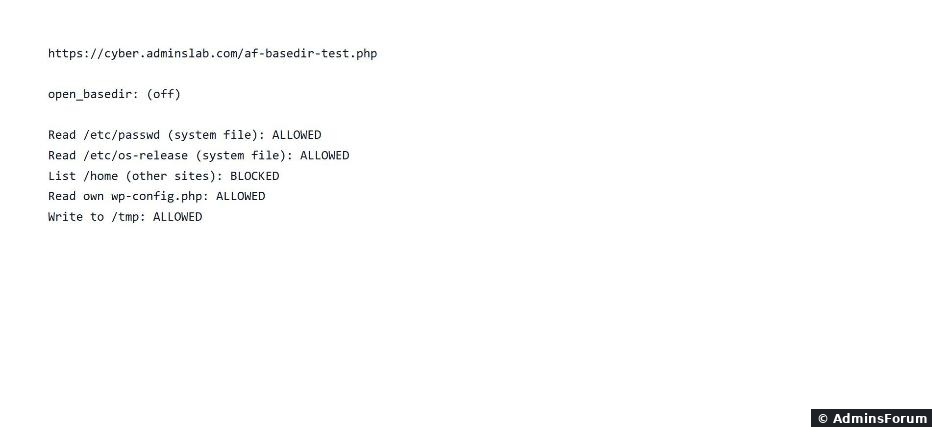
We put a small PHP file in the site's public_html that tries to read a few files and prints ALLOWED or BLOCKED.
Before (open_basedir off):
After (open_basedir on):
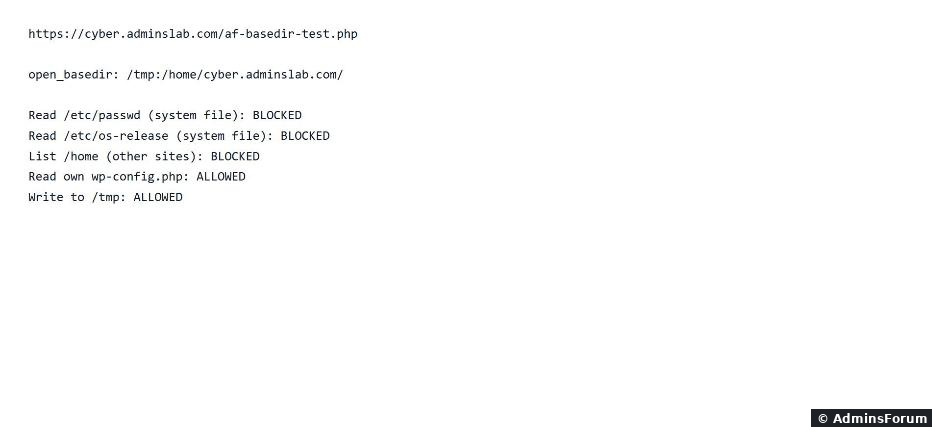
What changed:
Listing /home (where all your other sites live) was already blocked before we turned it on, because CyberPanel gives each site its own Linux user with locked-down home folders. open_basedir adds a second layer on top of that.
Remove the test file when you are done. A script that prints what PHP can read should never be left on a live site.
How to check if it is on
Open the site's Config tab and click vHost Conf. When open_basedir is on you will see a line like this under phpIniOverride:
Or create a file with <?php echo ini_get('open_basedir'); in public_html, open it in the browser, then delete it.
Things that can break, and fixes
Careful when you turn it off
Choosing Disable does more than remove open_basedir. In CyberPanel's code, Disable deletes every line starting with php_admin_value from that site's vHost Conf. If you added your own php_admin_value lines there (for example a custom memory_limit or disable_functions), they are removed too. Copy your vHost Conf somewhere before you click Disable, and put your own lines back afterwards.
Also, clicking Enable twice adds the line twice. It still works, but tidy it up in vHost Conf if you see duplicates.
Should you turn it on?
For WordPress, Joomla and most PHP sites: yes. It costs nothing in speed, rarely breaks anything, and makes life much harder for an attacker who finds a hole in one plugin. Turn it on, load the site and its admin area, check the error log, and you're done.
Tested on CyberPanel 3.0.8 with OpenLiteSpeed on Ubuntu 24.04.
More CyberPanel guides
If one WordPress site on your server gets hacked, the attacker's first move is usually to look around: read system files, look for other sites' config files and database passwords. PHP's open_basedir setting stops that by only letting a site's PHP code open files inside its own folders. CyberPanel can switch it on per website with one dropdown. It is off by default on new websites.
We switched it on for a WordPress site on a CyberPanel 3.0.8 server and ran a small test script before and after, so you can see exactly what it blocks.
How to turn it on
- Go to Websites > List Websites and click Manage on the site.
- Open the Files tab and click open_basedir.
- Choose Enable in the open_basedir Protection dropdown.
- Click Apply Changes. You should see "Changes successfully saved." CyberPanel restarts OpenLiteSpeed for you, so it works straight away.
Note: the dropdown is empty when you open it. It doesn't show whether open_basedir is already on. See "How to check if it is on" below.
What it actually blocks (our test)
We put a small PHP file in the site's public_html that tries to read a few files and prints ALLOWED or BLOCKED.
Before (open_basedir off):
After (open_basedir on):
What changed:
- PHP can no longer read system files such as /etc/passwd or /etc/os-release. These are exactly the files attack scripts read first.
- The site can still read its own files (wp-config.php was still ALLOWED) and write to /tmp, so WordPress keeps working. We checked: the site loaded normally afterwards.
- The allowed paths are /tmp and the site's home folder, /home/your-domain/ (that includes public_html and logs).
Listing /home (where all your other sites live) was already blocked before we turned it on, because CyberPanel gives each site its own Linux user with locked-down home folders. open_basedir adds a second layer on top of that.
Remove the test file when you are done. A script that prints what PHP can read should never be left on a live site.
How to check if it is on
Open the site's Config tab and click vHost Conf. When open_basedir is on you will see a line like this under phpIniOverride:
Code:
php_admin_value open_basedir "/tmp:$VH_ROOT"Things that can break, and fixes
- "open_basedir restriction in effect" errors in the site's error log: a plugin or script is trying to read a file outside the site folder. Often it is a backup or image plugin using a path like /usr/bin or /var/tmp. Check the plugin settings first. If it truly needs that path, add it to the line in vHost Conf, separated by a colon, for example "/tmp:$VH_ROOT:/usr/share/php", then save and restart OpenLiteSpeed.
- Sites that run command-line tools (image converters, ffmpeg) through PHP may also complain. Same fix.
- Subdomains and addon domains with their own folder still work, as long as the folder is inside /home/your-domain/.
Careful when you turn it off
Choosing Disable does more than remove open_basedir. In CyberPanel's code, Disable deletes every line starting with php_admin_value from that site's vHost Conf. If you added your own php_admin_value lines there (for example a custom memory_limit or disable_functions), they are removed too. Copy your vHost Conf somewhere before you click Disable, and put your own lines back afterwards.
Also, clicking Enable twice adds the line twice. It still works, but tidy it up in vHost Conf if you see duplicates.
Should you turn it on?
For WordPress, Joomla and most PHP sites: yes. It costs nothing in speed, rarely breaks anything, and makes life much harder for an attacker who finds a hole in one plugin. Turn it on, load the site and its admin area, check the error log, and you're done.
Tested on CyberPanel 3.0.8 with OpenLiteSpeed on Ubuntu 24.04.
More CyberPanel guides
- Server slow? Find what is using it
- LiteSpeed and PHP tuning explained
- Update server packages from the panel
- Web Terminal is paid: free ways to get a shell
- Hostname and mail SSL (port 8090)
- Fail2ban brute-force protection
- Change PHP version per website
- Git deployment from GitHub
- SSH key login, passwords off
- Create a website
- Issue SSL and fix failed certificates
- Subdomains, addon domains and aliases
- Rewrite rules, force HTTPS, HSTS
- Install WordPress with LiteSpeed Cache
- Cron jobs and a real WP-Cron
- Redis object cache for WordPress
- Databases and phpMyAdmin
- Email, DKIM, SPF and DMARC
- Email forwarding, catch-all, plus-addressing
- Mail queue, spam senders, blacklists
- CyberPanel DNS vs Cloudflare
- Packages and website limits
- Deploy Laravel on CyberPanel
- WordPress staging (clone) fixes
- Backups: create, restore, schedule
- File Manager and FTP
- Reset the admin password from SSH
- Log files and config locations
- Check and restart services
- First steps after install
- ModSecurity + OWASP rules (fix)
- CLI cheat sheet
- Install CyberPanel on Ubuntu 24.04
- Firewall explained
- Install PHP extensions
- Change PHP settings (php.ini)
- Update CyberPanel safely
- Server Error (500) after a fresh install
- Packages, users and ACLs
- Upgrade CyberPanel safely
- Real visitor IPs behind Cloudflare
- Import a large SQL file over SSH
- Remote MySQL access for one IP
- Move WordPress to CyberPanel by hand
- Fix "Error establishing a database connection"
- Fix PHP2Shell (CVE-2026-109618/109619)
- Docker apps on your domain with SSL
- Run your own nameservers (PowerDNS)