



10-24-2026, 08:17 AM
(This post was last modified: 2 hours ago by JAY.
Edit Reason: Added the course video
)
CyberPanel Firewall Explained: Default Ports, Adding Rules, Avoiding Lockouts
CyberPanel switches on a firewall during install (it uses firewalld underneath) and opens the ports its services need. Everything else is blocked. This guide shows what's open by default, how to add or restrict rules, and the two mistakes that lock people out.
Watch it: Part 10 of the CyberPanel course, Security & Updates
This is Part 10 of 10 in our free CyberPanel Full Course. The written steps below go into more detail.
Where to find it
Open Security > Firewall. The status, the Add Rule form and the default rules are all on one page:
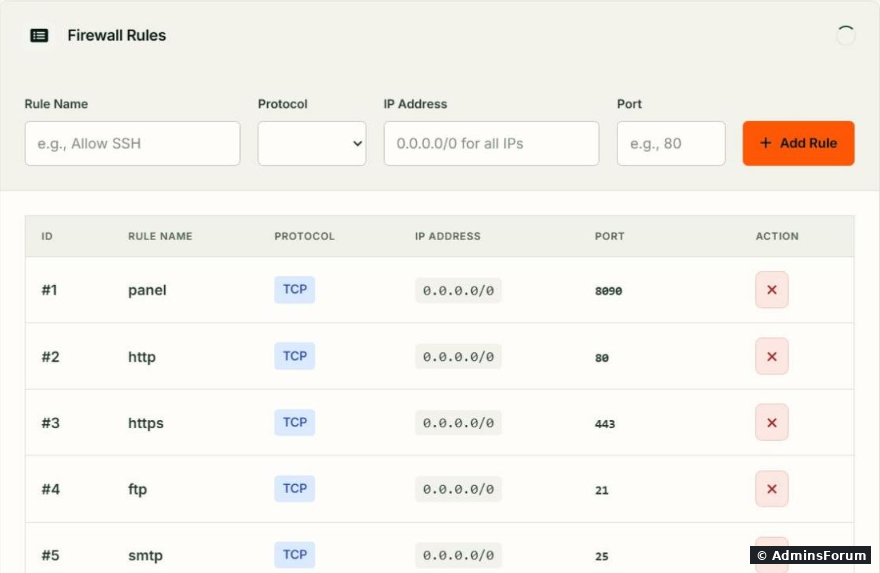
Firewall Status shows ON or OFF, with Start, Stop and Reload buttons. Leave it ON.
The default rules
On a fresh install you get 15 rules, all open to everyone ():
You'll see . The panel rules show up as "rich rules" ().
Add a rule
Fill in the row above the table:
Lock the panel to your own IP
The most useful change: allow 8090 only from your office or home IP.
Close what you don't use
Not using FTP? Delete ftp and ftptls. Not hosting DNS on this server? Delete the two dns rules. Fewer open ports means less to attack. Don't remove the mail ports if you send or receive mail here.
Two ways people lock themselves out to see what's wrong. As a last resort, opens everything until you fix the rule and start it again.
Firewall vs ModSecurity and Imunify
The firewall only decides which ports are reachable. Attacks on your websites over port 80/443 (SQL injection, bad bots) are handled by a web application firewall. CyberPanel offers ModSecurity and Imunify under the same Security menu. That's a separate guide.
More CyberPanel guides
Tested on CyberPanel 3.0 (build 8, OpenLiteSpeed edition) on Ubuntu 24.04, October 2026. Menu names can change slightly between versions.
CyberPanel switches on a firewall during install (it uses firewalld underneath) and opens the ports its services need. Everything else is blocked. This guide shows what's open by default, how to add or restrict rules, and the two mistakes that lock people out.
Watch it: Part 10 of the CyberPanel course, Security & Updates
This is Part 10 of 10 in our free CyberPanel Full Course. The written steps below go into more detail.
Where to find it
Open Security > Firewall. The status, the Add Rule form and the default rules are all on one page:
Firewall Status shows ON or OFF, with Start, Stop and Reload buttons. Leave it ON.
The default rules
On a fresh install you get 15 rules, all open to everyone (
Code:
0.0.0.0/0- panel 8090 TCP: the CyberPanel login.
- http 80 TCP, https 443 TCP and quic 443 UDP (HTTP/3): your websites.
- ftp 21 TCP and ftptls 40110-40210 TCP: FTP and its passive data ports.
- smtp 25, smtps 587, ssmtp 465: sending and receiving mail.
- pop3 110, POP3S 995, imap 143, simap 993: mail apps fetching mail.
- dns 53 UDP and dnstcp 53 TCP: PowerDNS, if you host your own DNS.
Code:
firewall-cmd --list-allCode:
services: dhcpv6-client ftp sshCode:
firewall-cmd --list-rich-rulesAdd a rule
Fill in the row above the table:
- Rule Name: anything you'll recognise, like orCode:
ssh-2222.Code:redis-office
- Protocol: TCP or UDP.
- IP Address: for everyone, or a single IP likeCode:
0.0.0.0/0to allow only that address.Code:203.0.113.10
- Port: one port () or a range (Code:
2222).Code:40110-40210
Lock the panel to your own IP
The most useful change: allow 8090 only from your office or home IP.
- Add a rule: name , TCP, your IP, port 8090.Code:
panel-me
- Test that you can still reach the panel.
- Delete the original panel rule (0.0.0.0/0, 8090).
Code:
firewall-cmd --permanent --add-rich-rule='rule family="ipv4" source address="NEW-IP" port port="8090" protocol="tcp" accept' && firewall-cmd --reloadClose what you don't use
Not using FTP? Delete ftp and ftptls. Not hosting DNS on this server? Delete the two dns rules. Fewer open ports means less to attack. Don't remove the mail ports if you send or receive mail here.
Two ways people lock themselves out
- Changing the SSH or panel port without a rule first. Always add the rule, test, then change the port. See first steps after install.
- Forgetting the provider's cloud firewall. Many providers have their own firewall in front of the VPS. A port must be open in both places.
Code:
firewall-cmd --list-allCode:
systemctl stop firewalldFirewall vs ModSecurity and Imunify
The firewall only decides which ports are reachable. Attacks on your websites over port 80/443 (SQL injection, bad bots) are handled by a web application firewall. CyberPanel offers ModSecurity and Imunify under the same Security menu. That's a separate guide.
More CyberPanel guides
- Fail2ban brute-force protection
- Change PHP version per website
- Git deployment from GitHub
- SSH key login, passwords off
- Create a website
- Issue SSL and fix failed certificates
- Subdomains, addon domains and aliases
- Rewrite rules, force HTTPS, HSTS
- Install WordPress with LiteSpeed Cache
- Cron jobs and a real WP-Cron
- Redis object cache for WordPress
- Databases and phpMyAdmin
- Email, DKIM, SPF and DMARC
- Email forwarding, catch-all, plus-addressing
- Mail queue, spam senders, blacklists
- CyberPanel DNS vs Cloudflare
- Packages and website limits
- Deploy Laravel on CyberPanel
- WordPress staging (clone) fixes
- Backups: create, restore, schedule
- File Manager and FTP
- Reset the admin password from SSH
- Log files and config locations
- Check and restart services
- First steps after install
- ModSecurity + OWASP rules (fix)
- CLI cheat sheet
- Install CyberPanel on Ubuntu 24.04
- Install PHP extensions
- Change PHP settings (php.ini)
- Update CyberPanel safely
- Server Error (500) after a fresh install
- Packages, users and ACLs
- Upgrade CyberPanel safely
- Real visitor IPs behind Cloudflare
- Docker apps on your domain with SSL
- Import a large SQL file over SSH
- Remote MySQL access for one IP
- Move WordPress to CyberPanel by hand
- Fix "Error establishing a database connection"
- Fix PHP2Shell (CVE-2026-109618/109619)
- Run your own nameservers (PowerDNS)
- CyberPanel on a small VPS: RAM tuning
Tested on CyberPanel 3.0 (build 8, OpenLiteSpeed edition) on Ubuntu 24.04, October 2026. Menu names can change slightly between versions.