



CyberPanel Cron Jobs: Add a Cron Job and Replace WP-Cron With a Real One
A cron job runs a command on a schedule: a backup script every night, a Laravel scheduler every minute, a WordPress task runner every five minutes. CyberPanel has a page for this per website, so you don't need to open crontab by hand. Below we add a real job on our test site and use it for the most common case: replacing WordPress's built-in WP-Cron.
Where to find it
Open Websites > List Websites, click Manage on your site and find Cron Jobs. The direct address is:
Each website has its own list. The jobs run as that website's Linux user (ours is ), not as root. That's good for security, and it means the files your job creates belong to the site, so WordPress can still edit them.
Step 1: Fill in the schedule
The Pre defined dropdown fills the five time fields for you: every minute, every 5 minutes, every 30 minutes, every hour, every day, every week, every month, every year. Pick one, or type your own values:; ours was UTC.
Step 2: The command (use the full PHP path)
Here is the form filled in for WordPress, with the Every 5 minutes preset:
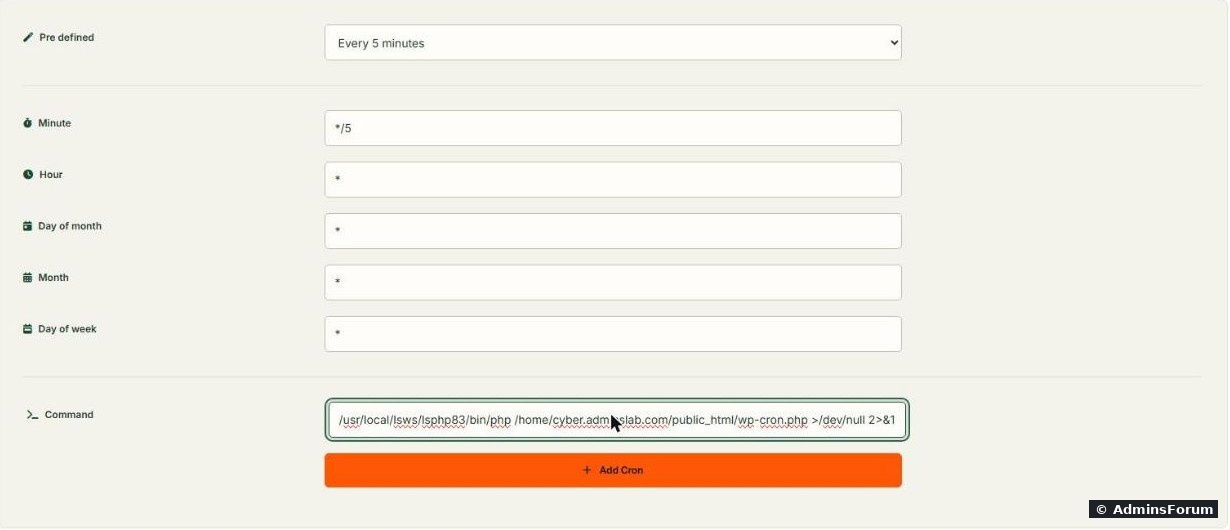
The field hint says. On our server is a link to PHP 8.3:
That's fine until your site uses a different PHP version than the server default. To be sure the job runs with the same PHP as the website, write the full path of that version: , , and so on. See which ones you have with .
Our WordPress command:
throws the output away. Without it, cron tries to email the output to the site user every run.
Step 3: Save and check
Click Add Cron, then Fetch Current Cron Jobs. The new job shows up with edit and delete buttons:
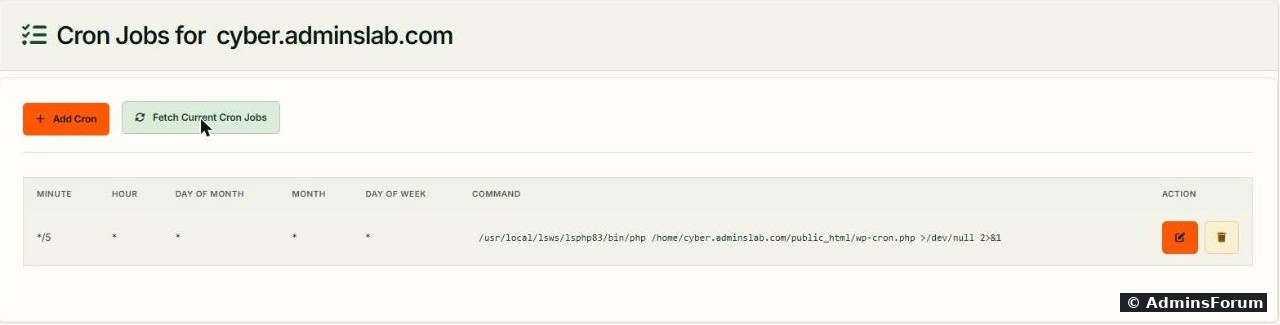
CyberPanel writes the job into the site user's crontab. You can see the same thing from SSH:
Before we added it, the same command said . Replace with your site's user (the owner of : ).
To change a job, use the edit (pencil) button; to remove it, the delete button. If the list looks empty, click Fetch Current Cron Jobs: the page doesn't always load them on its own.
Step 4: Turn off the built-in WP-Cron
By default WordPress runs its scheduled tasks (publishing scheduled posts, plugin update checks, LiteSpeed Cache image optimization, WooCommerce jobs) when a visitor opens a page. On a quiet site tasks run late; on a busy site the check runs on every page view. With a real cron in place, switch the visitor trigger off:
WP-CLI answered (No WP-CLI yet? See our WordPress install guide. Or add to above the "That's all, stop editing" line with the File Manager.)
Do step 3 before step 4. If you disable WP-Cron without a server cron, scheduled posts and plugin tasks silently stop.
Step 5: Prove it works
List WordPress's queued tasks:
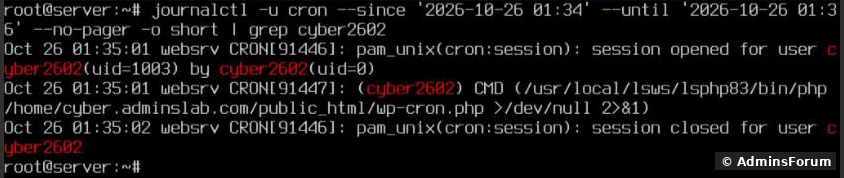
Right after we disabled WP-Cron, two tasks were overdue and showed : and . To see cron start the job, check the system log:
Every five minutes the log shows a session opening for the site user and the command it ran:
To test the command without waiting, run it by hand as the site user, then list the tasks again:
Ours printed , and the overdue tasks were gone: had run, and moved to its next slot. No output and exit code 0 is what success looks like; a PHP error here is the same error your cron job hits.
Other jobs people add
Common problems
More CyberPanel guides
Tested on CyberPanel 3.0 (build 8, OpenLiteSpeed edition) on Ubuntu 24.04, October 2026. Menu names can change slightly between versions.
A cron job runs a command on a schedule: a backup script every night, a Laravel scheduler every minute, a WordPress task runner every five minutes. CyberPanel has a page for this per website, so you don't need to open crontab by hand. Below we add a real job on our test site and use it for the most common case: replacing WordPress's built-in WP-Cron.
Where to find it
Open Websites > List Websites, click Manage on your site and find Cron Jobs. The direct address is:
Code:
https://YOUR-SERVER-IP:8090/websites/listCron?domain=yourdomain.comCode:
cyber2602Step 1: Fill in the schedule
The Pre defined dropdown fills the five time fields for you: every minute, every 5 minutes, every 30 minutes, every hour, every day, every week, every month, every year. Pick one, or type your own values:
- Minute 0-59, Hour 0-23, Day of month 1-31, Month 1-12, Day of week 0-6 (0 = Sunday).
- means "every".Code:
*means "every 5th".Code:*/5is a list,Code:1,15is a range.Code:1-5
- Examples: = 03:00 every day.Code:
0 3 * * *= 02:30 every Sunday.Code:30 2 * * 0= every 6 hours.Code:0 */6 * * *
Code:
timedatectlStep 2: The command (use the full PHP path)
Here is the form filled in for WordPress, with the Every 5 minutes preset:
The field hint says
Code:
/usr/bin/php /path/to/script.phpCode:
/usr/bin/phpCode:
ls -l /usr/bin/php
/usr/bin/php -> /usr/local/lsws/lsphp83/bin/phpCode:
/usr/local/lsws/lsphp81/bin/phpCode:
/usr/local/lsws/lsphp82/bin/phpCode:
/usr/local/lsws/lsphp83/bin/phpCode:
ls /usr/local/lsws/ | grep lsphpOur WordPress command:
Code:
/usr/local/lsws/lsphp83/bin/php /home/cyber.adminslab.com/public_html/wp-cron.php >/dev/null 2>&1Code:
>/dev/null 2>&1Step 3: Save and check
Click Add Cron, then Fetch Current Cron Jobs. The new job shows up with edit and delete buttons:
CyberPanel writes the job into the site user's crontab. You can see the same thing from SSH:
Code:
crontab -u cyber2602 -l
*/5 * * * * /usr/local/lsws/lsphp83/bin/php /home/cyber.adminslab.com/public_html/wp-cron.php >/dev/null 2>&1Code:
no crontab for cyber2602Code:
cyber2602Code:
public_htmlCode:
stat -c %U /home/yourdomain.com/public_htmlTo change a job, use the edit (pencil) button; to remove it, the delete button. If the list looks empty, click Fetch Current Cron Jobs: the page doesn't always load them on its own.
Step 4: Turn off the built-in WP-Cron
By default WordPress runs its scheduled tasks (publishing scheduled posts, plugin update checks, LiteSpeed Cache image optimization, WooCommerce jobs) when a visitor opens a page. On a quiet site tasks run late; on a busy site the check runs on every page view. With a real cron in place, switch the visitor trigger off:
Code:
cd /home/yourdomain.com/public_html
sudo -u cyber2602 wp config set DISABLE_WP_CRON true --rawCode:
Success: Added the constant 'DISABLE_WP_CRON' to the 'wp-config.php' file with the raw value 'true'.Code:
define( 'DISABLE_WP_CRON', true );Code:
wp-config.phpDo step 3 before step 4. If you disable WP-Cron without a server cron, scheduled posts and plugin tasks silently stop.
Step 5: Prove it works
List WordPress's queued tasks:
Code:
sudo -u cyber2602 wp cron event list --fields=hook,next_run_relativeCode:
nowCode:
wp_update_pluginsCode:
litespeed_task_lqipCode:
journalctl -u cron --since "-15min" --no-pager | grep cyber2602To test the command without waiting, run it by hand as the site user, then list the tasks again:
Code:
sudo -u cyber2602 /usr/local/lsws/lsphp83/bin/php wp-cron.php; echo EXIT=$?
sudo -u cyber2602 wp cron event list --fields=hook,next_run_relativeCode:
EXIT=0Code:
wp_update_pluginsCode:
litespeed_task_lqipOther jobs people add
- Laravel scheduler, every minute: Code:
cd /home/yourdomain.com/public_html && /usr/local/lsws/lsphp83/bin/php artisan schedule:run >/dev/null 2>&1 - Open a URL (some apps give you a cron URL): Code:
curl -fsS https://yourdomain.com/cron.php >/dev/null 2>&1 - Keep a log while you test: replace withCode:
>/dev/null 2>&1, then read the file. Switch back when it works so the log doesn't grow forever.Code:>> /home/yourdomain.com/cron.log 2>&1
Common problems
- Job never runs: is cron running? should printCode:
systemctl is-active cron. Then check the log command above.Code:active
- Runs from SSH but not from cron: cron has a tiny PATH. Use full paths for everything: PHP, scripts, (Code:
curl).Code:/usr/bin/curl
- Permission denied: the job runs as the site user, so it can't write to root-owned folders. Keep scripts and output inside .Code:
/home/yourdomain.com/
- Wrong PHP version or missing extension: use the full path that matches the site.Code:
/usr/local/lsws/lsphpXX/bin/php
- Scheduled posts show "Missed schedule": WP-Cron is disabled but the server job is missing or failing. Run the command by hand as the site user to see the error: Code:
sudo -u cyber2602 /usr/local/lsws/lsphp83/bin/php /home/yourdomain.com/public_html/wp-cron.php
More CyberPanel guides
- Fail2ban brute-force protection
- Change PHP version per website
- Git deployment from GitHub
- SSH key login, passwords off
- Create a website
- Issue SSL and fix failed certificates
- Subdomains, addon domains and aliases
- Rewrite rules, force HTTPS, HSTS
- Install WordPress with LiteSpeed Cache
- Redis object cache for WordPress
- Databases and phpMyAdmin
- Email, DKIM, SPF and DMARC
- Email forwarding, catch-all, plus-addressing
- Mail queue, spam senders, blacklists
- CyberPanel DNS vs Cloudflare
- Packages and website limits
- Deploy Laravel on CyberPanel
- WordPress staging (clone) fixes
- Backups: create, restore, schedule
- File Manager and FTP
- Reset the admin password from SSH
- Log files and config locations
- Check and restart services
- First steps after install
- ModSecurity + OWASP rules (fix)
- CLI cheat sheet
- Install CyberPanel on Ubuntu 24.04
- Firewall explained
- Install PHP extensions
- Change PHP settings (php.ini)
- Update CyberPanel safely
- Server Error (500) after a fresh install
- Packages, users and ACLs
- Upgrade CyberPanel safely
- Real visitor IPs behind Cloudflare
- Docker apps on your domain with SSL
- Import a large SQL file over SSH
- Remote MySQL access for one IP
- Move WordPress to CyberPanel by hand
- Fix "Error establishing a database connection"
- Fix PHP2Shell (CVE-2026-109618/109619)
- Run your own nameservers (PowerDNS)
- CyberPanel on a small VPS: RAM tuning
Tested on CyberPanel 3.0 (build 8, OpenLiteSpeed edition) on Ubuntu 24.04, October 2026. Menu names can change slightly between versions.