



10-25-2026, 07:39 PM
(This post was last modified: 2 hours ago by JAY.
Edit Reason: Added the course video
)
CyberPanel File Manager and FTP: Upload Files, Fix Permissions, Create FTP Users
Two ways to get files onto a CyberPanel website without SSH: the built-in File Manager in your browser, and FTP accounts for apps like FileZilla. We used both on our test site cyber.adminslab.com, and the FTP screen showed one confusing detail worth knowing before you hand a login to someone.
Watch it: Part 9 of the CyberPanel course, FTP, SSH & File Manager
This is Part 9 of 10 in our free CyberPanel Full Course. The written steps below go into more detail.
File Manager
Open your site in Websites, go to the Files tab and click File Manager. It opens in the site's home folder:
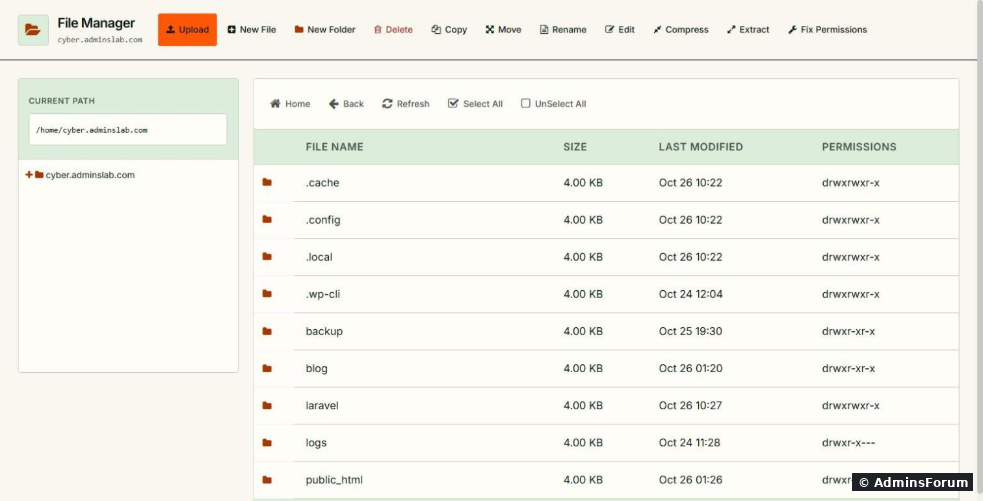
The current path is. Your website lives in ; has the access/error logs and the backups you create in the panel. The other folders in our screenshot came later from our other guides: , and are child sites, and the dot-folders (, , ...) belong to tools like Composer and WP-CLI run as the site user. The toolbar covers everything you normally need: and apply. See changing PHP settings in CyberPanel, or use FTP/SFTP for large files.
Create an FTP account
Open Databases & FTP > Create FTP Account and pick the website. Type a user name, click Generate for a password:
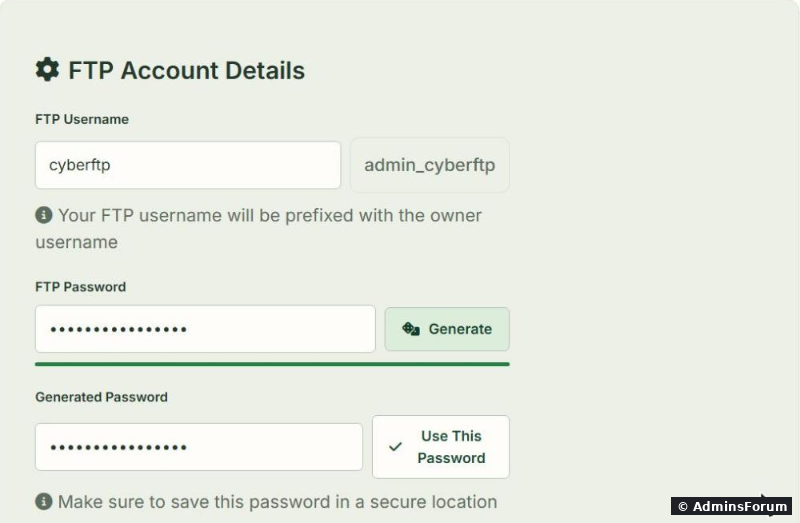
Leave Path empty to give access to the site's home folder, or type (or a subfolder) to keep the user away from logs and backups. For a developer who only needs the website files, is the safer choice. Click Use This Password and save it.
Which username do you log in with?
After clicking Create FTP Account, look closely at the message:
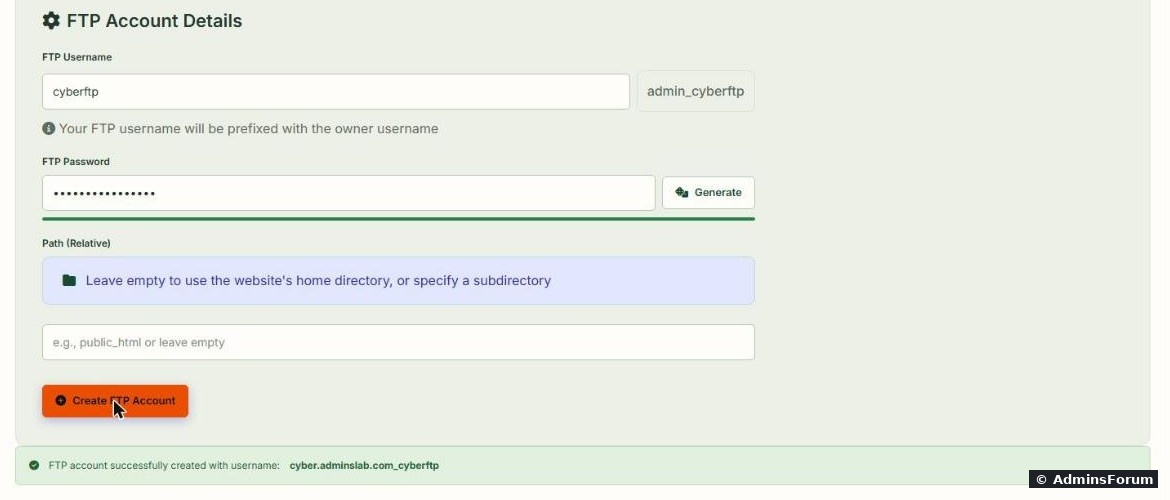
The success message said, while the form showed the prefix . Which one is real?
Databases & FTP > List FTP Accounts shows the real login name and folder:
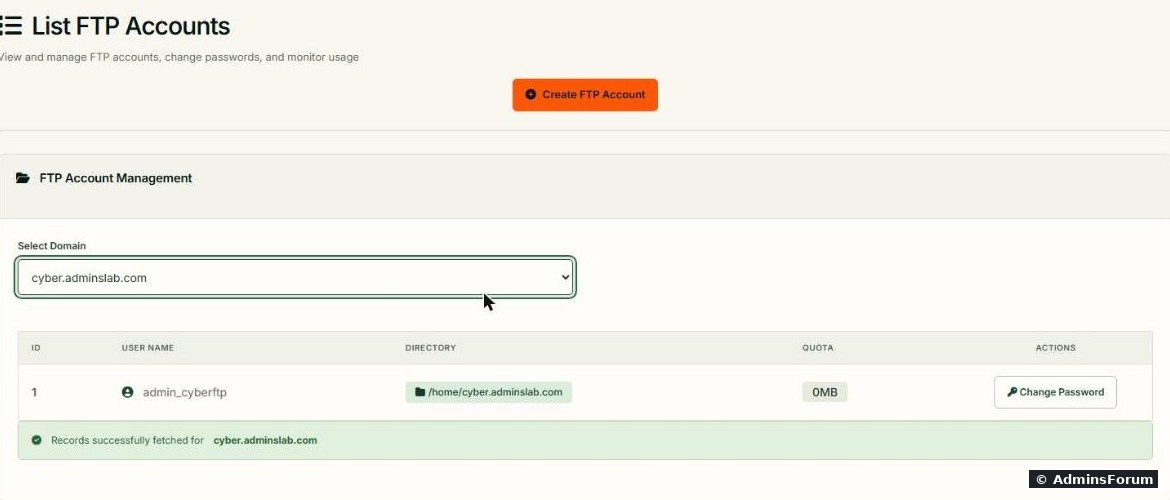
The account list and the FTP server's own user table both said:
So the login is owner name + underscore + what you typed (our site belongs to the user). Trust List FTP Accounts, not the success message. Use Change Password there if a password is lost.
Connect with FileZilla): Pure-FTPd listens on port 21, is set to (TLS allowed but not required), the passive ports are and are open in the firewall, and every user is locked into their folder ().
To force encrypted FTP for everyone, set TLS to 2 and restart:
FileZilla may warn about the certificate the first time; check it and accept.
Even better: SFTP
If you have SSH access, SFTP (port 22) needs no FTP account at all, is always encrypted and works in FileZilla too (protocol SFTP). Upload as the site user, or fix ownership afterwards:
(use your own site user; shows it).
Common problems
More CyberPanel guides
Tested on CyberPanel 3.0 (build 8, OpenLiteSpeed edition) on Ubuntu 24.04, October 2026. Menu names can change slightly between versions.
Two ways to get files onto a CyberPanel website without SSH: the built-in File Manager in your browser, and FTP accounts for apps like FileZilla. We used both on our test site cyber.adminslab.com, and the FTP screen showed one confusing detail worth knowing before you hand a login to someone.
Watch it: Part 9 of the CyberPanel course, FTP, SSH & File Manager
This is Part 9 of 10 in our free CyberPanel Full Course. The written steps below go into more detail.
File Manager
Open your site in Websites, go to the Files tab and click File Manager. It opens in the site's home folder:
The current path is
Code:
/home/cyber.adminslab.comCode:
public_htmlCode:
logsCode:
backupCode:
blogCode:
laravelCode:
staging.cyber.adminslab.comCode:
.cacheCode:
.configCode:
.wp-cli- Upload: for many files, upload one .zip and use Extract. It's much faster than hundreds of small uploads.
- New File / New Folder / Rename / Move / Copy / Delete.
- Edit: a text editor for ,Code:
.htaccessand the like.Code:wp-config.php
- Compress: zip a folder to download it.
- Fix Permissions: puts the site's file permissions back to CyberPanel's defaults. Use it after uploading files as root over SSH, or when WordPress says it can't write files.
Code:
upload_max_filesizeCode:
post_max_sizeCreate an FTP account
Open Databases & FTP > Create FTP Account and pick the website. Type a user name, click Generate for a password:
Leave Path empty to give access to the site's home folder, or type
Code:
public_htmlCode:
public_htmlWhich username do you log in with?
After clicking Create FTP Account, look closely at the message:
The success message said
Code:
cyber.adminslab.com_cyberftpCode:
admin_Databases & FTP > List FTP Accounts shows the real login name and folder:
The account list and the FTP server's own user table both said
Code:
admin_cyberftpCode:
mysql cyberpanel -e 'select User,Dir from users'Code:
adminConnect with FileZilla
- Host: your domain or , port 21.Code:
YOUR-SERVER-IP
- Encryption: Require explicit FTP over TLS. Plain FTP sends the password unencrypted.
- User: the full FTP username (in our case) and its password.Code:
admin_cyberftp
- Transfer mode: passive (the default).
Code:
/etc/pure-ftpd/conf/Code:
TLSCode:
1Code:
40110-40210Code:
ChrootEveryone yesTo force encrypted FTP for everyone, set TLS to 2 and restart:
Code:
echo 2 > /etc/pure-ftpd/conf/TLS
systemctl restart pure-ftpd-mysqlEven better: SFTP
If you have SSH access, SFTP (port 22) needs no FTP account at all, is always encrypted and works in FileZilla too (protocol SFTP). Upload as the site user, or fix ownership afterwards:
Code:
chown -R cyber2602:cyber2602 /home/cyber.adminslab.com/public_html/*Code:
ls -la /home/yourdomain.com/public_htmlCommon problems
- 530 Login authentication failed: wrong username (missing the owner prefix) or password. Check List FTP Accounts and reset the password.
- Connects, then the directory listing times out: passive ports blocked by your provider's firewall or a network firewall. See the CyberPanel firewall guide.Code:
40110-40210
- Uploads work but the site shows 403 or WordPress can't update: wrong file owner. Use Fix Permissions in File Manager.
- FTP doesn't connect at all: check the service: . See checking CyberPanel services.Code:
systemctl is-active pure-ftpd-mysql
- No longer need the account: delete it. Unused FTP logins are an easy way in for attackers.
More CyberPanel guides
- Fail2ban brute-force protection
- Change PHP version per website
- Git deployment from GitHub
- SSH key login, passwords off
- Create a website
- Issue SSL and fix failed certificates
- Subdomains, addon domains and aliases
- Rewrite rules, force HTTPS, HSTS
- Install WordPress with LiteSpeed Cache
- Cron jobs and a real WP-Cron
- Redis object cache for WordPress
- Databases and phpMyAdmin
- Email, DKIM, SPF and DMARC
- Email forwarding, catch-all, plus-addressing
- Mail queue, spam senders, blacklists
- CyberPanel DNS vs Cloudflare
- Packages and website limits
- Deploy Laravel on CyberPanel
- WordPress staging (clone) fixes
- Backups: create, restore, schedule
- Reset the admin password from SSH
- Log files and config locations
- Check and restart services
- First steps after install
- ModSecurity + OWASP rules (fix)
- CLI cheat sheet
- Install CyberPanel on Ubuntu 24.04
- Firewall explained
- Install PHP extensions
- Change PHP settings (php.ini)
- Update CyberPanel safely
- Server Error (500) after a fresh install
- Packages, users and ACLs
- Upgrade CyberPanel safely
- Real visitor IPs behind Cloudflare
- Docker apps on your domain with SSL
- Import a large SQL file over SSH
- Remote MySQL access for one IP
- Move WordPress to CyberPanel by hand
- Fix "Error establishing a database connection"
- Fix PHP2Shell (CVE-2026-109618/109619)
- Run your own nameservers (PowerDNS)
- CyberPanel on a small VPS: RAM tuning
Tested on CyberPanel 3.0 (build 8, OpenLiteSpeed edition) on Ubuntu 24.04, October 2026. Menu names can change slightly between versions.