



8 hours ago
Find a website's errors in CyberPanel: access log, error log and PHP errors
A site shows "500 Internal Server Error" or a white page, and you open CyberPanel to find out why. Every website has a Logs tab with an access log and an error log. We tested both on CyberPanel 3.0.8 with a WordPress site and a PHP file that crashes on purpose, and found something important: PHP errors do not show up in the panel's Error Logs. This guide shows what each log is good for and how to get PHP errors into a file you can actually read, in about two minutes.
Access Logs: who visited and what they asked for
Open Websites > List Websites > Manage on your site, click the Logs tab, then Access Logs. You get a table with the request type, visitor IP, time, the page or file requested, and the size of the reply. Use the search box to filter, and Next/Previous to page through older lines.
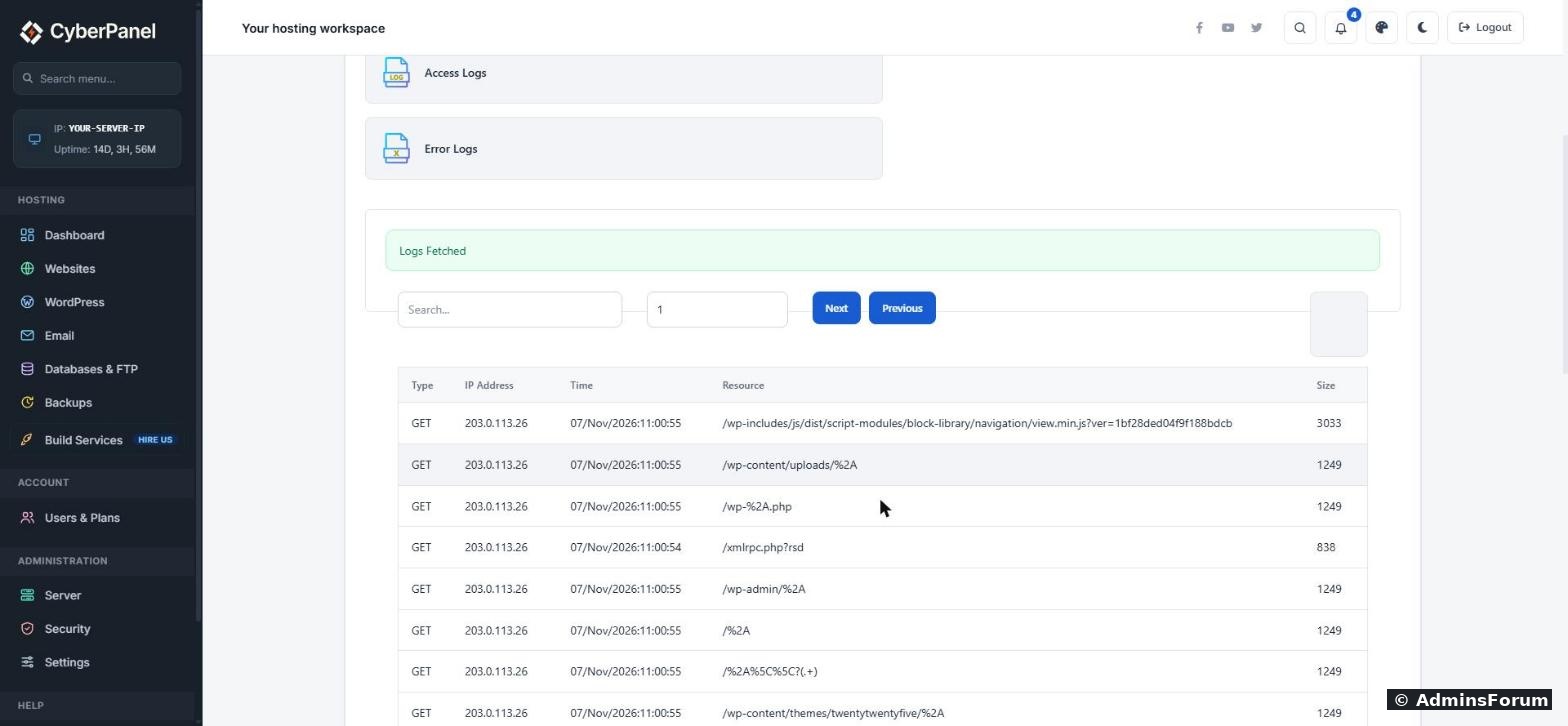
Look at the screenshot: within the same second one IP asked for /wp-%2A.php, /wp-admin/%2A, /xmlrpc.php and a dozen other odd addresses. That is an automated scanner probing a fresh WordPress site, and you will see this on every server on the internet. One IP doing this a lot is a good candidate for a block in Security > Firewall or in Cloudflare.
What the panel table does not show is the HTTP status code (200, 404, 500 and so on), which is often what you need. Over SSH you get the full lines:
Replace example.com with your domain.
Error Logs: web server errors only
The Error Logs button shows /home/your-domain/logs/your-domain.error_log. On our server it was empty, even right after we loaded a PHP page that crashed with a fatal error and returned a 500. This log is for OpenLiteSpeed's own problems with the site (bad rewrite rules, missing files, permission problems), not for errors inside your PHP code.
So if your site shows a 500 and Error Logs is empty, that is normal. You need a PHP error log.
Turn on a PHP error log for one website
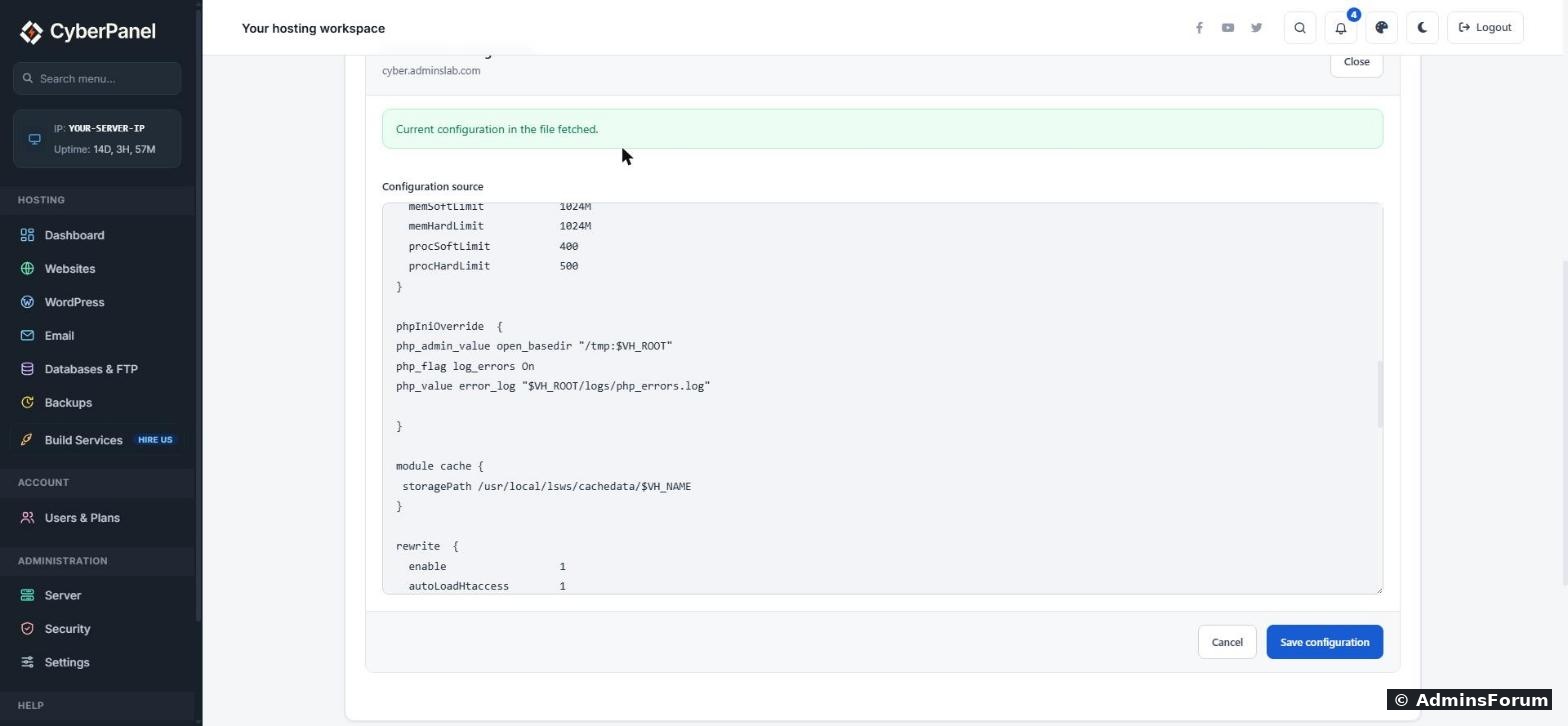
Why not put it in the existing logs folder? We tried that first. The logs folder belongs to the web server, and the site's PHP user isn't allowed to write there, so no file ever appeared. The php-logs folder you create in File Manager works.
Why php_value and not php_admin_value? If you ever turn open_basedir off for this site, CyberPanel deletes every php_admin_value line from the vHost Conf. Lines that start with php_value and php_flag survive that.
Read the PHP errors
Open File Manager > php-logs, select php_errors.log and click Edit to view it. Our test file produced exactly what you would hope for: the time, the error, the file and the line number.
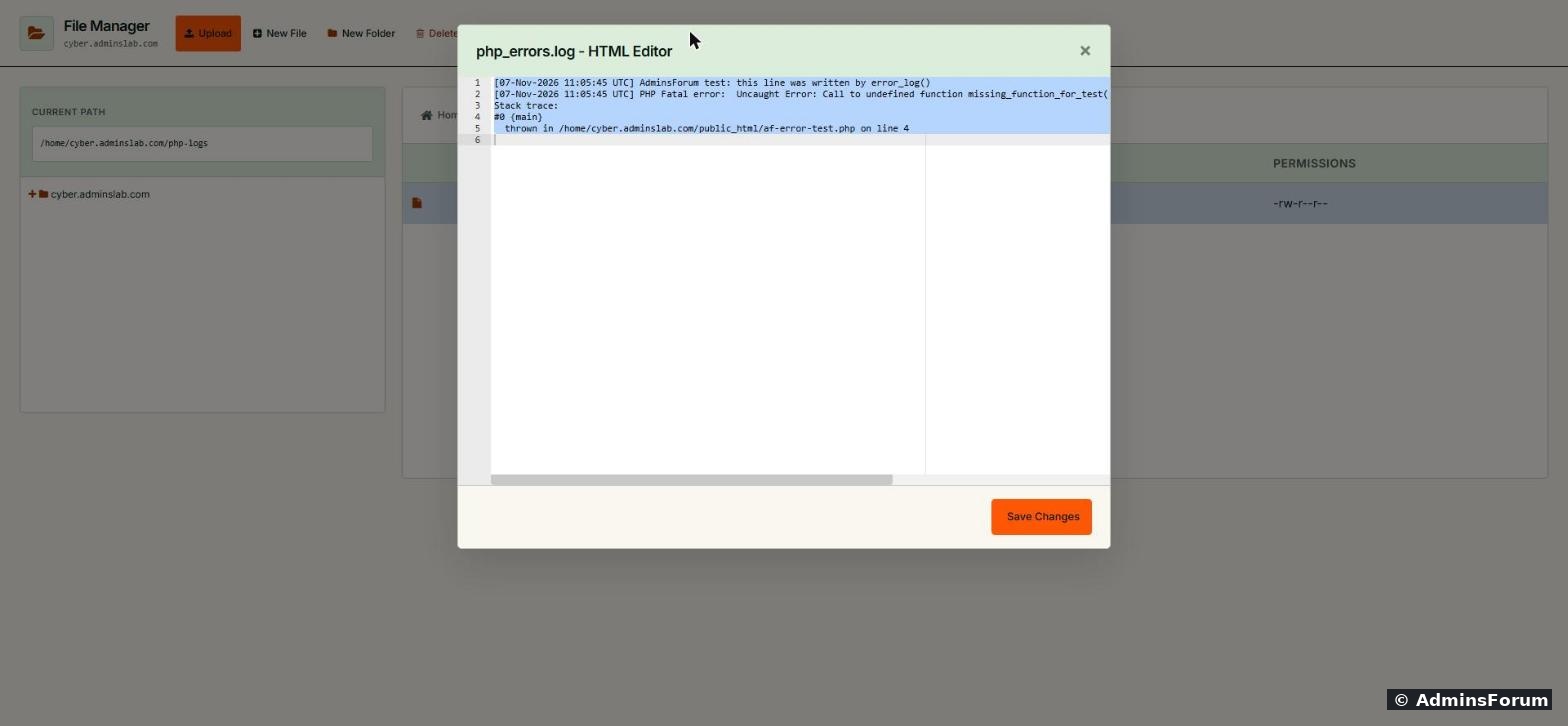
Over SSH you can watch it live while you reload the broken page:
Common errors and what they mean
Keep it tidy
PHP error logs grow forever if a site keeps throwing warnings. Once a week, have a look at the size in File Manager, fix what is causing the noise, and empty the file (open it with Edit, delete the contents, Save Changes). Don't leave test files that crash on purpose on a live site.
Tested on CyberPanel 3.0.8 with OpenLiteSpeed and LSPHP on Ubuntu 24.04.
More CyberPanel guides
A site shows "500 Internal Server Error" or a white page, and you open CyberPanel to find out why. Every website has a Logs tab with an access log and an error log. We tested both on CyberPanel 3.0.8 with a WordPress site and a PHP file that crashes on purpose, and found something important: PHP errors do not show up in the panel's Error Logs. This guide shows what each log is good for and how to get PHP errors into a file you can actually read, in about two minutes.
Access Logs: who visited and what they asked for
Open Websites > List Websites > Manage on your site, click the Logs tab, then Access Logs. You get a table with the request type, visitor IP, time, the page or file requested, and the size of the reply. Use the search box to filter, and Next/Previous to page through older lines.
Look at the screenshot: within the same second one IP asked for /wp-%2A.php, /wp-admin/%2A, /xmlrpc.php and a dozen other odd addresses. That is an automated scanner probing a fresh WordPress site, and you will see this on every server on the internet. One IP doing this a lot is a good candidate for a block in Security > Firewall or in Cloudflare.
What the panel table does not show is the HTTP status code (200, 404, 500 and so on), which is often what you need. Over SSH you get the full lines:
Code:
tail -n 50 /home/example.com/logs/example.com.access_log
grep '" 500 ' /home/example.com/logs/example.com.access_log | tailError Logs: web server errors only
The Error Logs button shows /home/your-domain/logs/your-domain.error_log. On our server it was empty, even right after we loaded a PHP page that crashed with a fatal error and returned a 500. This log is for OpenLiteSpeed's own problems with the site (bad rewrite rules, missing files, permission problems), not for errors inside your PHP code.
So if your site shows a 500 and Error Logs is empty, that is normal. You need a PHP error log.
Turn on a PHP error log for one website
- In the site's File Manager, go to the top folder (/home/your-domain) and create a new folder called php-logs. Creating it from File Manager makes it owned by the site's own user, so PHP can write to it.
- Open the Config tab and click vHost Conf.
- Find the phpIniOverride { block and add these two lines inside it:
Code:php_flag log_errors On php_value error_log "$VH_ROOT/php-logs/php_errors.log" - Click Save configuration.
- Restart OpenLiteSpeed: Server > Services > OpenLiteSpeed > Restart, or over SSH systemctl restart lsws.
Why not put it in the existing logs folder? We tried that first. The logs folder belongs to the web server, and the site's PHP user isn't allowed to write there, so no file ever appeared. The php-logs folder you create in File Manager works.
Why php_value and not php_admin_value? If you ever turn open_basedir off for this site, CyberPanel deletes every php_admin_value line from the vHost Conf. Lines that start with php_value and php_flag survive that.
Read the PHP errors
Open File Manager > php-logs, select php_errors.log and click Edit to view it. Our test file produced exactly what you would hope for: the time, the error, the file and the line number.
Over SSH you can watch it live while you reload the broken page:
Code:
tail -f /home/example.com/php-logs/php_errors.logCommon errors and what they mean
- Call to undefined function: a plugin needs a PHP extension that isn't installed, or the code is broken. Check the function name, then install the extension in Server > PHP > Install Extensions.
- Allowed memory size exhausted: raise memory_limit for that PHP version, or find the plugin that eats memory.
- open_basedir restriction in effect: the site tried to read a file outside its own folder. See our open_basedir guide below.
- Maximum execution time exceeded: a slow import or backup. Raise max_execution_time, or run the job over SSH instead.
Keep it tidy
PHP error logs grow forever if a site keeps throwing warnings. Once a week, have a look at the size in File Manager, fix what is causing the noise, and empty the file (open it with Edit, delete the contents, Save Changes). Don't leave test files that crash on purpose on a live site.
Tested on CyberPanel 3.0.8 with OpenLiteSpeed and LSPHP on Ubuntu 24.04.
More CyberPanel guides
- open_basedir: lock PHP into its folder
- Server slow? Find what is using it
- LiteSpeed and PHP tuning explained
- Update server packages from the panel
- Web Terminal is paid: free ways to get a shell
- Hostname and mail SSL (port 8090)
- Fail2ban brute-force protection
- Change PHP version per website
- Git deployment from GitHub
- SSH key login, passwords off
- Create a website
- Issue SSL and fix failed certificates
- Subdomains, addon domains and aliases
- Rewrite rules, force HTTPS, HSTS
- Install WordPress with LiteSpeed Cache
- Cron jobs and a real WP-Cron
- Redis object cache for WordPress
- Databases and phpMyAdmin
- Email, DKIM, SPF and DMARC
- Email forwarding, catch-all, plus-addressing
- Mail queue, spam senders, blacklists
- CyberPanel DNS vs Cloudflare
- Packages and website limits
- Deploy Laravel on CyberPanel
- WordPress staging (clone) fixes
- Backups: create, restore, schedule
- File Manager and FTP
- Reset the admin password from SSH
- Log files and config locations
- Check and restart services
- First steps after install
- ModSecurity + OWASP rules (fix)
- CLI cheat sheet
- Install CyberPanel on Ubuntu 24.04
- Firewall explained
- Install PHP extensions
- Change PHP settings (php.ini)
- Update CyberPanel safely
- Server Error (500) after a fresh install
- Packages, users and ACLs
- Upgrade CyberPanel safely
- Real visitor IPs behind Cloudflare
- Import a large SQL file over SSH
- Remote MySQL access for one IP
- Move WordPress to CyberPanel by hand
- Fix "Error establishing a database connection"
- Fix PHP2Shell (CVE-2026-109618/109619)
- Docker apps on your domain with SSL
- Run your own nameservers (PowerDNS)