



10-24-2026, 12:23 PM
(This post was last modified: 2 hours ago by JAY.
Edit Reason: Added the course video
)
Install WordPress on CyberPanel With LiteSpeed Cache (Free Way, WP-CLI)
WordPress on OpenLiteSpeed with the LiteSpeed Cache plugin is one of the fastest setups you can run on a small VPS, and the main reason many people pick CyberPanel.
Watch it: Part 6 of the CyberPanel course, WordPress with LiteSpeed Cache
This is Part 6 of 10 in our free CyberPanel Full Course. The written steps below go into more detail.
One surprise first: on our CyberPanel 3.0 server, the WordPress menu didn't open an installer. It opened the WordPress Manager pricing page (staging, backups, auto login and one-click install are sold as an add-on). You don't need it. This guide does the same job for free, in about five minutes, with WP-CLI, the official WordPress command line tool. We did every step below on our test site cyber.adminslab.com.
What you need
Step 1: Create the database
Open Databases & FTP > Create Database. Pick the website, type a short name and user, and click Generate for a strong password:
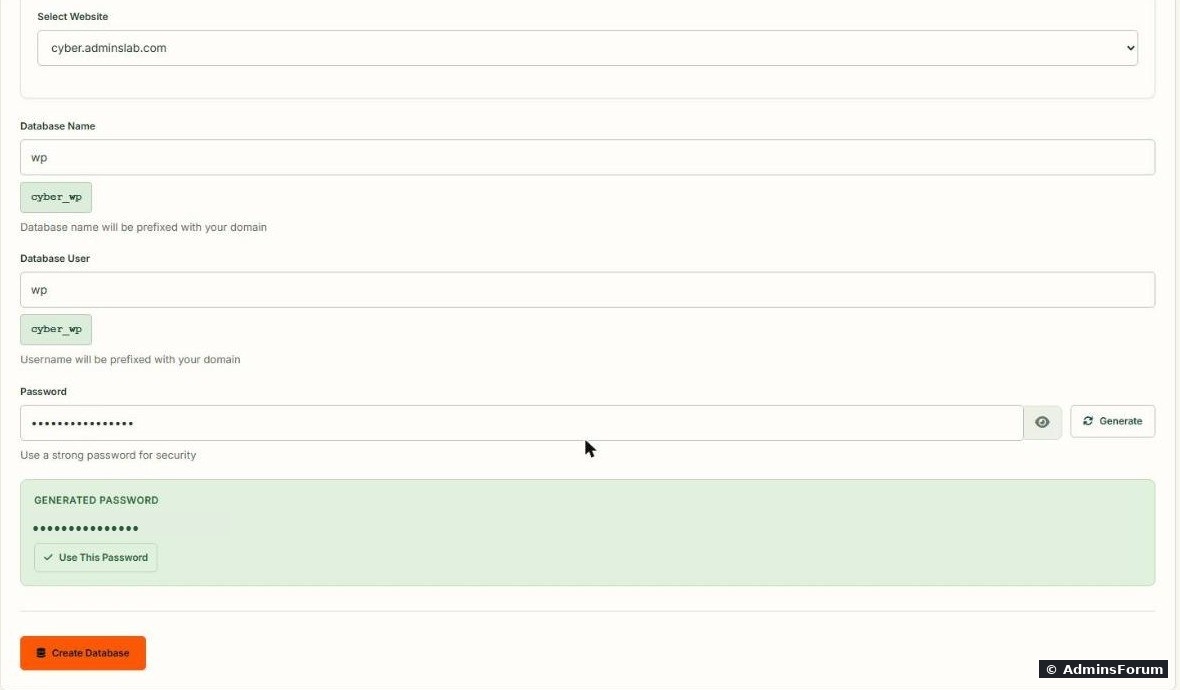
CyberPanel adds a prefix to both names. On our site it became for the database and for the user. Click Use This Password, copy the password somewhere safe (a password manager), then Create Database. More about this page in our databases and phpMyAdmin guide.
Step 2: Install WP-CLI (once per server)
WP-CLI wasn't installed on our fresh CyberPanel server (). Install it:
We got .
Step 3: Download WordPress as the site user
Run WordPress commands as the website's own Linux user, never as root, so every file gets the right owner. Find the user name:
Ours is . Then remove CyberPanel's placeholder page and download WordPress:
Removing matters: if it stays, visitors keep seeing the placeholder instead of WordPress.
Step 4: Create wp-config.php and install
Type the database password without it landing in your shell history:
Then install WordPress. Choose your own admin user name (not "admin") and a strong password:
You should see Use the https address in so WordPress doesn't start on http.
Step 5: Install LiteSpeed Cache
The plugin writes its rules into . Now the step most guides skip: OpenLiteSpeed only reads .htaccess changes after a restart. On our server the cache did nothing until we ran:
Step 6: Check the cache really works
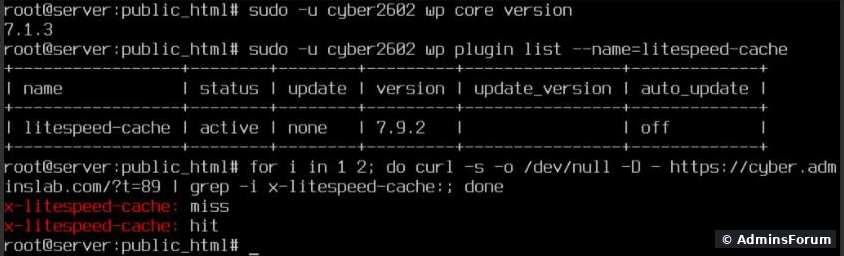
Request the home page twice and look at the header:
Here is the whole check on our server: WordPress 7.1.3, LiteSpeed Cache 7.9.2 active, first request a miss, second a hit:
After the install
Common problems
More CyberPanel guides
Tested on CyberPanel 3.0 (build 8, OpenLiteSpeed edition) on Ubuntu 24.04, October 2026. Menu names can change slightly between versions.
WordPress on OpenLiteSpeed with the LiteSpeed Cache plugin is one of the fastest setups you can run on a small VPS, and the main reason many people pick CyberPanel.
Watch it: Part 6 of the CyberPanel course, WordPress with LiteSpeed Cache
This is Part 6 of 10 in our free CyberPanel Full Course. The written steps below go into more detail.
One surprise first: on our CyberPanel 3.0 server, the WordPress menu didn't open an installer. It opened the WordPress Manager pricing page (staging, backups, auto login and one-click install are sold as an add-on). You don't need it. This guide does the same job for free, in about five minutes, with WP-CLI, the official WordPress command line tool. We did every step below on our test site cyber.adminslab.com.
What you need
- A website in CyberPanel with working SSL. See creating a website in CyberPanel.
- SSH access as root.
- PHP 8.3 is a good choice for WordPress today.
Step 1: Create the database
Open Databases & FTP > Create Database. Pick the website, type a short name and user, and click Generate for a strong password:
CyberPanel adds a prefix to both names. On our site it became
Code:
cyber_wpCode:
cyber_wpStep 2: Install WP-CLI (once per server)
WP-CLI wasn't installed on our fresh CyberPanel server (
Code:
wp: command not foundCode:
curl -sLo /usr/local/bin/wp https://raw.githubusercontent.com/wp-cli/builds/gh-pages/phar/wp-cli.phar
chmod +x /usr/local/bin/wp
wp --version --allow-rootCode:
WP-CLI 2.12.0Step 3: Download WordPress as the site user
Run WordPress commands as the website's own Linux user, never as root, so every file gets the right owner. Find the user name:
Code:
ls -la /home/cyber.adminslab.com/public_htmlCode:
cyber2602Code:
cd /home/cyber.adminslab.com/public_html
rm -f index.html
sudo -u cyber2602 wp core downloadCode:
index.htmlStep 4: Create wp-config.php and install
Type the database password without it landing in your shell history:
Code:
read -s -p "DB password: " P; echo
sudo -u cyber2602 wp config create --dbname=cyber_wp --dbuser=cyber_wp --dbpass="$P" --dbhost=localhostCode:
read -s -p "WP admin password: " A; echo
sudo -u cyber2602 wp core install --url=https://cyber.adminslab.com --title="My Site" \
--admin_user=youradmin [email protected] --admin_password="$A" --skip-emailCode:
Success: WordPress installed successfully.Code:
--urlStep 5: Install LiteSpeed Cache
Code:
sudo -u cyber2602 wp plugin install litespeed-cache --activateCode:
.htaccessCode:
systemctl restart lswsStep 6: Check the cache really works
Request the home page twice and look at the
Code:
x-litespeed-cacheCode:
for i in 1 2; do curl -s -o /dev/null -D - https://cyber.adminslab.com/ | grep -i x-litespeed-cache:; done- miss then hit: the cache is working.
- No header at all: restart lsws (Step 5) and try again. Logged-in visitors and POST requests are never cached, so test with curl or a private window.
After the install
- Log in at . LiteSpeed Cache adds its own LiteSpeed Cache menu; the defaults are fine to start with.Code:
https://yourdomain.com/wp-admin/
- Forgot the admin password? Set a new one from SSH: Code:
sudo -u cyber2602 wp user update youradmin --prompt=user_pass - Keep WordPress updated: Code:
sudo -u cyber2602 wp core update && sudo -u cyber2602 wp plugin update --all - Upload limit too small for themes or imports? See changing PHP settings in CyberPanel.
- Missing imagick in Site Health? See installing PHP extensions.
Common problems
- "Error establishing a database connection": wrong database name, user or password in wp-config.php (remember the prefix), or MariaDB stopped: check the services.
- Still seeing the CyberPanel placeholder: is still in public_html.Code:
index.html
- Plugin or theme install asks for FTP details: files are owned by root. Fix with (your own user name).Code:
chown -R cyber2602:cyber2602 /home/cyber.adminslab.com/public_html/*
- Redirect loop behind Cloudflare: set Cloudflare's SSL mode to Full (strict), not Flexible.
More CyberPanel guides
- Fail2ban brute-force protection
- Change PHP version per website
- Git deployment from GitHub
- SSH key login, passwords off
- Create a website
- Issue SSL and fix failed certificates
- Subdomains, addon domains and aliases
- Rewrite rules, force HTTPS, HSTS
- Cron jobs and a real WP-Cron
- Redis object cache for WordPress
- Databases and phpMyAdmin
- Email, DKIM, SPF and DMARC
- Email forwarding, catch-all, plus-addressing
- Mail queue, spam senders, blacklists
- CyberPanel DNS vs Cloudflare
- Packages and website limits
- Deploy Laravel on CyberPanel
- WordPress staging (clone) fixes
- Backups: create, restore, schedule
- File Manager and FTP
- Reset the admin password from SSH
- Log files and config locations
- Check and restart services
- First steps after install
- ModSecurity + OWASP rules (fix)
- CLI cheat sheet
- Install CyberPanel on Ubuntu 24.04
- Firewall explained
- Install PHP extensions
- Change PHP settings (php.ini)
- Update CyberPanel safely
- Server Error (500) after a fresh install
- Packages, users and ACLs
- Upgrade CyberPanel safely
- Real visitor IPs behind Cloudflare
- Docker apps on your domain with SSL
- Import a large SQL file over SSH
- Remote MySQL access for one IP
- Move WordPress to CyberPanel by hand
- Fix "Error establishing a database connection"
- Fix PHP2Shell (CVE-2026-109618/109619)
- Run your own nameservers (PowerDNS)
- CyberPanel on a small VPS: RAM tuning
Tested on CyberPanel 3.0 (build 8, OpenLiteSpeed edition) on Ubuntu 24.04, October 2026. Menu names can change slightly between versions.