AdminsForum

Paste the error. Find the fix.

Step-by-step guides and community answers for Linux servers, VPS and hosting control panels.

New threads

The latest guides and questions from every forum.

aaPanel Plugins & Integrations Guides

Deploy a Website from GitHub in aaPanel: Step-by-Step Guide

aaPanel's Git Manager can deploy a public repository to an existing website. Open the website settings, choose Git Manager, enter the repository URL, test access, select its branch and use Save & deploy. Saving immediately deploys files, so start with a separate test website and a backup.

Tested environment
Ubuntu 22.04, aaPanel 8.0.7 Free Edition and Nginx 1.30.5. We deployed MDN's public beginner HTML/CSS example to a dedicated demo website. Repository access succeeded, commit 6c7a360 was deployed and recorded as Success/Active. The website returned HTTP 200 over HTTPS with certificate verification passing. We did not test private repositories, webhooks, custom build scripts or rollback in this walkthrough.

1. Prepare a separate website
Create a test website through Website → Add site. Use a domain or subdomain you control. If there are existing files, back them up before deployment. Our demo site's native backup completed successfully and produced an 86.97 KB file-only ZIP. Its restore was not tested here. A file backup does not include an application's database unless you explicitly include and verify that component.

Create a DNS A record for the test hostname pointing to the server's public IPv4 address. Configure HTTPS through the site's SSL settings after DNS resolves. Our lab used DNS-only Cloudflare resolution and a Let's Encrypt certificate. Use your own IP and hostname; the demonstration hostname is not a shared deployment service.

2. Choose a repository suitable for the first test
For this rehearsal we used the public, static MDN sample:
Code:
https://github.com/mdn/beginner-html-site-styled.git
It contains an index.html plus styles and images. This avoids a database or build step during the initial Git test. Use a trusted repository and inspect its contents before deployment. A framework application may also need dependency installation, a build command, runtime configuration and a different document root.

3. Connect through Git Manager
Open Website, find the demo site and click Conf. Select Git Manager, then Repository URL. Paste the repository address. For a public repository choose Public authentication. No GitHub account connection, token or SSH key was required for our public example.

Click Test connection. Wait for the result. Our screen reported Connection successful · 4 branches available. Select the intended deployment branch; ours was main. Branch names vary by repository.
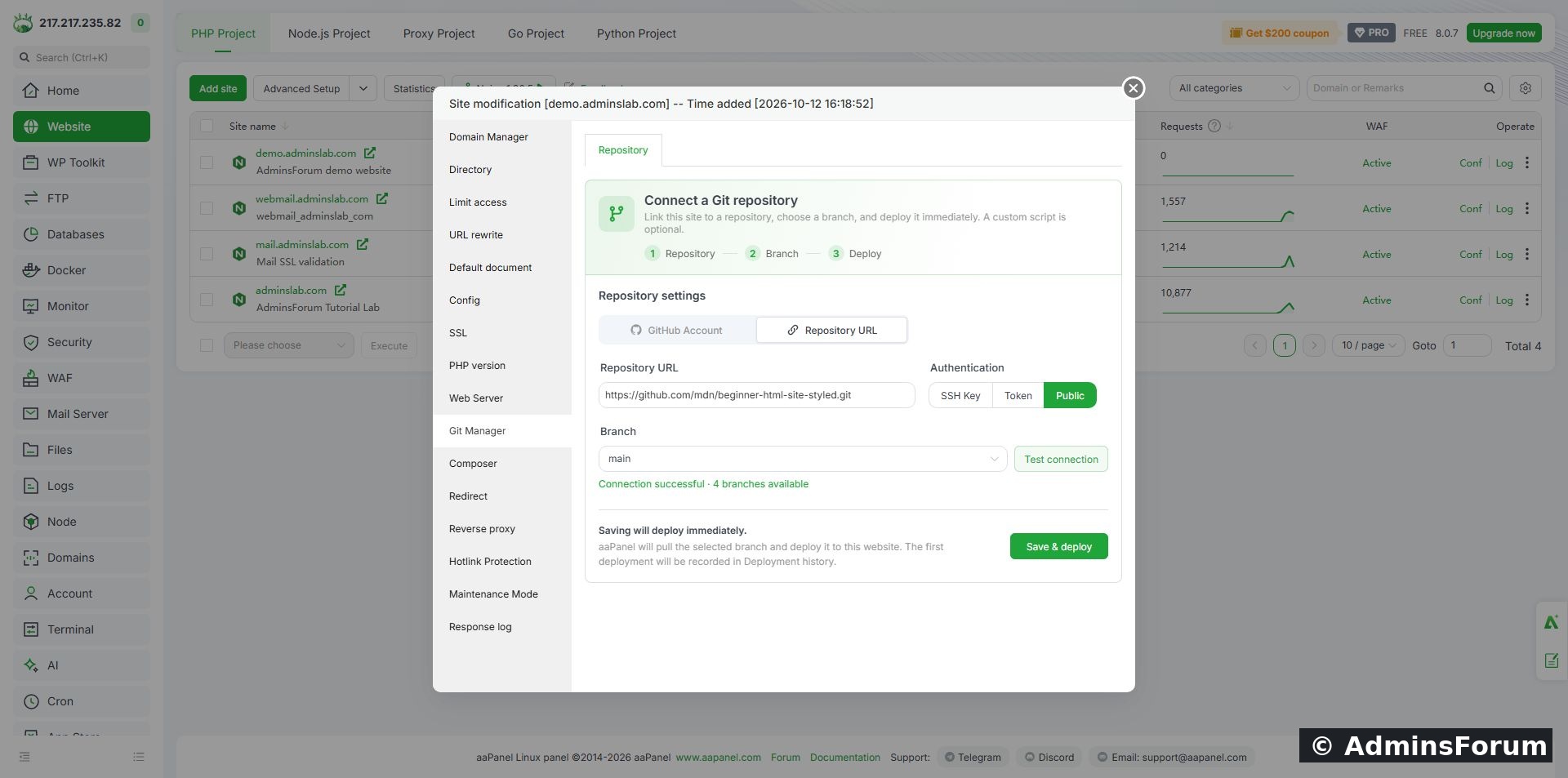
   
Successful public-repository connection, with main selected before deployment.

4. Save and deploy
Check the destination site and branch again. Click Save & deploy once. The panel states that saving deploys immediately; it is not merely saving connection preferences. Wait for the task result.

After our successful deployment, reopening Git Manager showed the connected repository, deployed commit and last deployment time. Automatic deployment was Off; connecting a repository does not by itself configure a webhook.
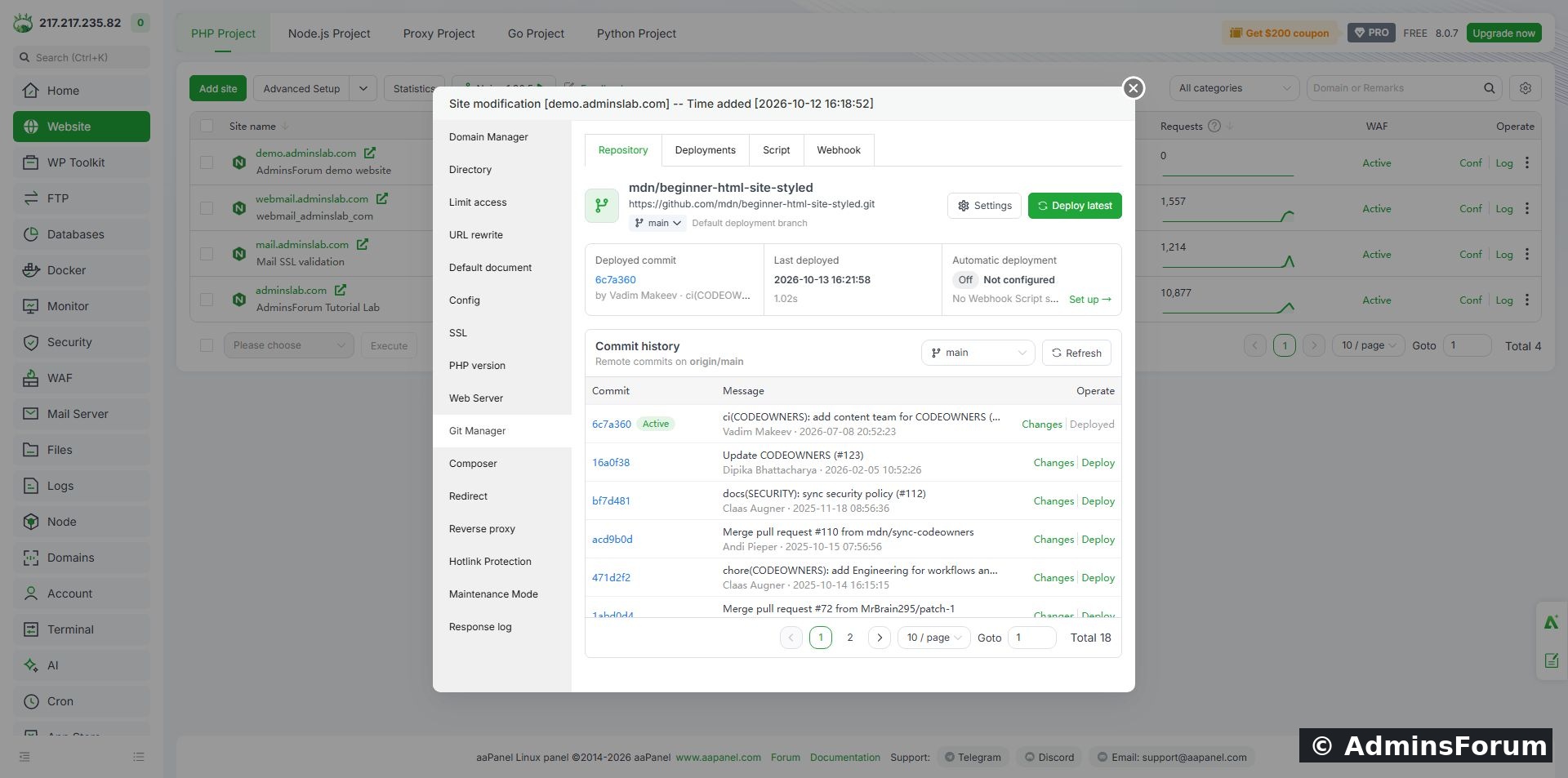
   
Connected repository and active commit after deployment.

5. Read deployment history
Select Deployments. Confirm that the expected commit and branch appear, its result is Success, and the active version is marked. Use the record's Log action when diagnosing a failed deployment.

Our installed Free panel says it retains 5 deployment records, while its upgrade notice advertises 30 for Pro. This is the limit shown by this version, not a comparison test of Pro. The displayed 1.02-second duration applies only to this small sample and is not a deployment-speed benchmark.
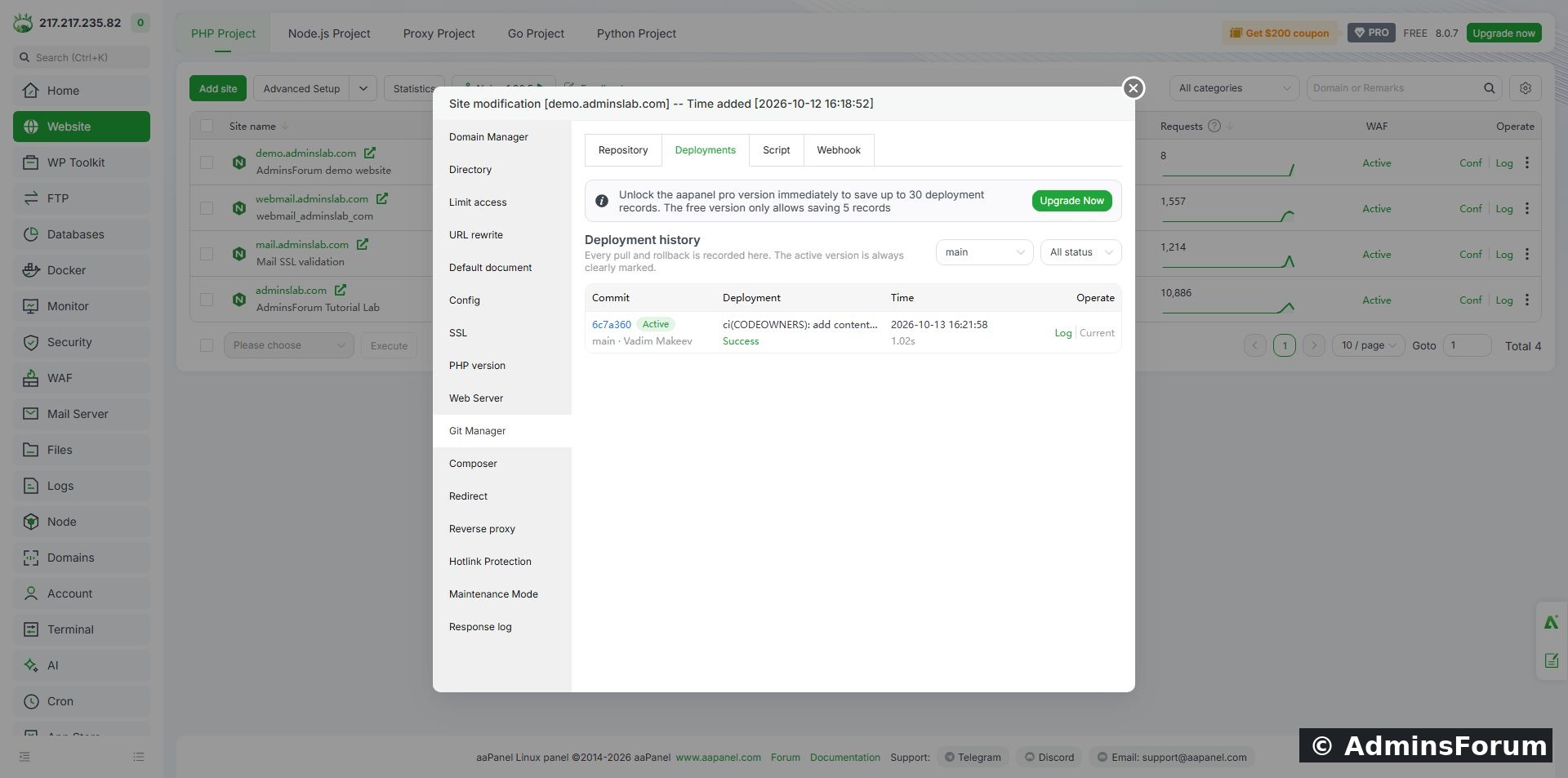
   
Deployment history records the tested commit as Success and Active.

6. Verify the actual website
Visit the hostname and check the expected page, stylesheet and images. A success notice alone is not proof that DNS, HTTPS or application configuration is correct. Our hostname initially had no DNS record. After adding it, the local browser retained an NXDOMAIN result temporarily. We first verified the origin over HTTPS using the hostname and explicit IP resolution; certificate checking stayed enabled. Once the resolver cache updated, a fresh browser request also displayed the deployed page and Firefox image over HTTPS.

   
The deployed sample rendered in the browser after DNS propagation.

Optional command for readers:
Code:
curl --resolve YOUR_HOSTNAME:443:YOUR_SERVER_IP https://YOUR_HOSTNAME/
Replace both placeholders. Do not add -k to hide certificate failures. The response in our lab contained the sample's expected HTML and returned HTTP 200. A request for /.git/HEAD returned 404; that specific file was not publicly readable. This is a targeted check, not a comprehensive server security audit.

7. Understand updates before automating
The connected repository screen offers Deploy latest and per-commit deployment controls. Review the selected branch and changes, preserve a recovery copy and test an update on a staging site before using these on production. This guide directly verified the first deployment only. A Git rollback is not a database restore, and runtime uploads or secrets should not be treated as disposable repository files.

Keep automatic deployment disabled until you deliberately configure and test the separate webhook workflow. Do not publish tokens or webhook secrets in screenshots.

Troubleshooting
  • Connection fails: confirm the repository URL, its visibility and outbound access. The public authentication option cannot authenticate to a private repository.
  • Wrong page: check the site's document root, selected branch and default document order; existing index files can affect which page is served.
  • 404 or broken assets: check filenames, asset paths and whether a build directory should be the document root.
  • Application error: check the required PHP/Node version, dependencies and environment configuration. Copying repository files does not complete every application's installation.
  • DNS error: verify the A/AAAA records and allow resolver caches to refresh. Changing Git settings will not repair DNS.

Reference sample: MDN beginner HTML/CSS repository. Its website files belong to the sample's authors; our screenshots document the aaPanel deployment workflow.

Need help? Share the aaPanel version, repository visibility, branch and relevant deployment error in Plugins & Integrations Support. Remove credentials and private configuration values first.

Tested follow-up: Roll Back a Git Deployment in aaPanel and Verify Recovery — our separate native rollback rehearsal is now complete.
DEV 10-13-2026, 04:27 PM Read thread
aaPanel PHP & Extensions Guides

Install PHP Intl in aaPanel and Fix Missing Intl Errors

To enable Intl in aaPanel, open the PHP version used by your website, choose Install extensions, install intl, and check the loaded-module list after the task completes. This addresses a missing extension; it does not resolve every application error.

Tested setup
Ubuntu 22.04, aaPanel 8.0.7 Free Edition, PHP 8.5.11. We installed Intl in our lab using aaPanel's official PHP manager. The installation log reported success and a PHP-FPM reload; the refreshed extension list showed Uninstall, and the PHP information screen included intl under Loaded. These screenshots document that test. A separate website request and command-line test were not performed in this rehearsal.

What is Intl used for?
Intl provides internationalization functions. For example, NumberFormatter formats a number or currency according to a locale. Some applications require ext-intl and may report that it is missing, or show a class-not-found error for NumberFormatter. Check the application's requirements before adding extensions.

1. Find the PHP version your website uses
Open Website, select the relevant site's settings and check its PHP version. Record it before opening App Store. A server can have several PHP versions installed: an extension added to PHP 8.5 does not automatically become available in PHP 8.4.

If the website uses OpenLiteSpeed, also check its configured PHP handler. Its runtime can differ from the PHP-FPM version managed here. Do not change a working site's PHP version just to match these screenshots.

2. Open the correct PHP manager
Open App Store, search for PHP, find the installed version used by the website and click Setting. Select Install extensions. Find the row named intl. The search field can narrow the list; allow the result to refresh.

If Intl already shows an installed status and an Uninstall action, skip installation and proceed to verification. Do not uninstall it as a troubleshooting shortcut.

3. Install Intl and follow the task
Click Install on the intl row and confirm the installation. The row changes to Installing.... Open that status link to inspect the task log. Compilation produces many lines and may take several minutes. Do not submit the same installation repeatedly or restart the panel while the build is progressing.

In our test the log ended with a successful build, shared-extension installation and Reload service php-fpm done.
   
Completed installer log from the PHP 8.5 lab. A queued task alone is not proof of success.

4. Refresh and verify the installed extension
Return to Install extensions and click Refresh List. Wait for the loading message to disappear. In our lab the intl row changed from Install to Uninstall, confirming the manager's installed status.
   
Intl installed for PHP 8.5. Leave the Uninstall control untouched.

Select phpinfo in the same manager. Check the version and the Loaded list. Our screen reports 8.5.11 and includes intl. This checks the manager's PHP runtime; verify the website separately if its error remains.
   
The PHP information screen lists intl among loaded extensions.

5. Recheck the application
Reload the application's requirements check or the page that originally failed. Confirm that its PHP version matches the version you modified. If you have SSH access, this optional command checks the aaPanel PHP 8.5 CLI binary:
Code:
/www/server/php/85/bin/php -r 'echo PHP_VERSION, PHP_EOL; var_export(extension_loaded("intl")); echo PHP_EOL;'
A loaded extension returns true. Replace 85 with your installed version's directory. Running plain php may check a different system binary. This command is an additional check for readers, not output captured in our rehearsal.

Troubleshooting
  • The task fails: read the first actual error in the log. A compiler/dependency error needs its own fix; a final queue message does not explain the cause. Include the PHP version and relevant error when asking for support.
  • Installed but still missing: check the website's PHP version, PHP handler and application's requirements screen. The CLI and web runtime may differ.
  • Duplicate loading warning: inspect the relevant configuration for repeated extension entries. Avoid adding extension=intl blindly after the manager has already configured it.
  • No intl row: refresh the official app/extension list and check support for your PHP version. Installing the operating system's php-intl package may affect system PHP rather than aaPanel's PHP installation.

Success checklist
The installer finishes successfully, the intl row shows installed, the correct runtime lists intl, and the application's missing-extension check clears. Only the first three were directly verified in this lab rehearsal.

Reference: PHP NumberFormatter documentation and PHP Intl installation documentation.

Need help? Post your aaPanel version, website PHP version and the relevant installation error in PHP & Extensions Support. Remove credentials and private tokens from screenshots or logs.
DEV 10-13-2026, 03:32 PM Read thread
aaPanel Databases & phpMyAdmin Guides

Check MySQL Status and Error Logs in aaPanel

When a website reports a database error, check the database service, connection settings and logs before restarting MySQL or changing passwords. aaPanel's MySQL manager can show the service controls, live status metrics and database error log in one place.

This guide is for MySQL and MariaDB installations managed by aaPanel. A database problem is different from an Nginx or PHP-FPM problem: a working panel login does not prove that every website component is healthy.

What we verified
We inspected aaPanel 8.0.7 on our Ubuntu 22.04 lab on 13 October 2026. The software button was labelled mariadb_10.11.6, while the database startup log reported MariaDB 10.11.10. We also completed a SQL import and saw its two-row table in the database tools.

The Service screen displayed Current state: Stop, yet Current status returned a launch time, connections and database statistics. This is a verified panel-status mismatch, not proof that MariaDB stopped. We did not restart or reinstall the database to make the label change, and we have not confirmed the underlying cause of that mismatch.

1. Identify which layer is failing
Record the exact error, affected website and time. Keep the message private if it contains a username, client IP or application path.
  • A database connection error in the application: check its database host, database name, username and password, as well as service availability.
  • An import error: use the Import dialog's Show Logs output. A failed SQL statement may leave a partially imported database.
  • 502 or 503 from the web server: inspect the web server/PHP path too. Those HTTP errors do not, by themselves, identify a broken database.
Only one website failing while other database-backed websites work points toward a site-specific problem. All sites failing together makes the shared database service or VPS resources more relevant. Use these clues to narrow the checks; they are not a diagnosis on their own.

2. Open the database service manager
Go to Databases → MySQL, then click the installed service button above the database list. In our lab it was labelled Mysql mariadb_10.11.6. The same manager can also be reached through the installed MySQL/MariaDB app in App Store.

Select Service. Read the state and available controls. Start, Restart and Reload are actions; do not click them merely to test whether the screen responds.

   
Actual lab screen: the Service label says Stop. The next checks are essential before treating this label as the server's actual state.

If the server is truly stopped, first collect the startup error and identify the reason. A restart can briefly interrupt every application using the service, and repeatedly restarting does not repair an invalid configuration, full disk or corrupted data.

3. Cross-check Current status
Open Current status in the manager. Wait for the figures to load. Note the launch time, connection totals and active connections. A momentary -- or NaN while the screen loads is not a final diagnostic result.

Our screen returned real database metrics after loading, even though the Service tab's label remained Stop. Combined with the successful SQL import, this established that the database was responding to the panel at that time.

   
The lab's loaded status metrics. Counters and percentages vary with workload; they are not tuning targets to copy to another server.

Do not increase every memory or cache setting because a panel tip suggests it. An apparently low hit rate can be irrelevant to your engine or workload. For a 4 GB VPS, raising several per-connection buffers can make memory pressure worse.

4. Read Error log
Select Error log. Read the most recent relevant lines and compare their timestamps with the failure time. Server and browser time zones can differ.

   
Our log contains startup information and a ready for connections message. That message is historical; the import and Current status checks provide the additional evidence that the lab is responding now.

Pay attention to severity and context:
  • Note: often normal startup or background information. Our log's FEEDBACK plugin disabled note was not evidence of a stopped database.
  • Warning: something to review, not automatically a fatal error. Our binary-log retention warning did not prevent the sample import.
  • Error: investigate the named file, setting or resource and the lines immediately around it.
Do not use Empty log while diagnosing a failure. It removes useful evidence; it does not resolve the cause. Save a private copy of the relevant output before changing anything. Redact usernames, IP addresses, paths containing secrets and SQL data before posting screenshots for support.

5. Distinguish a connection problem from a login problem
The exact database-client error helps decide what to check next:
  • 2002 or 2003, cannot connect: verify the service and the configured host, port or Unix socket. A running service may still be listening somewhere different from the client's settings.
  • 1045, access denied for user: review the username, password and allowed host/account permissions. The root, aaPanel login and website database passwords are separate credentials.
  • 1044, access denied to a database: check that the application account is permitted to use the requested database.
  • 1049, unknown database: compare the configured database name with the database list and confirm that creation or migration completed.
These are general error interpretations from MariaDB's documentation. We did not reproduce each error or change credentials during this read-only walkthrough.

For an application on the same VPS, opening MySQL port 3306 to everyone is not a fix for a wrong local password or database name. Likewise, changing the database root password is not a substitute for correcting a website's own connection settings.

6. Optional checks through SSH
If you already have working SSH access, these read-only checks can help corroborate a misleading panel label:
Code:
/etc/init.d/mysqld status ss -lntp | grep ':3306' ls -lh /www/server/data/*.err
Use your actual port if it differs from 3306. An open listening port proves that a listener exists; it does not prove that the application can authenticate or query its tables.

A test with the website's own database account is more specific:
Code:
/www/server/mysql/bin/mysql --protocol=TCP  --host=127.0.0.1 --port=3306  --user=YOUR_DATABASE_USER --password  YOUR_DATABASE_NAME -e "SELECT 1;"
The --password option prompts interactively. Do not put a real password directly into a command that may be saved in shell history. This TCP test is different from a localhost Unix-socket connection; use the connection method your application actually requires. The optional SSH commands were not executed in this walkthrough because the lab's browser terminal was not connected.

7. Change one confirmed cause, then verify the website
Back up before a configuration change. Correct the specific failing setting rather than reinstalling the database or deleting files from its data directory. Retest the same connection and a real application page after the change.

If the Service label and successful database queries disagree, report the evidence to aaPanel support: panel version, engine version from the server/log, state screenshot, Current status and the outcome of a harmless query. A hostname/PID-file or process-detection issue is a possibility to investigate, not a cause we have proved on this lab.

Related guides:
Import a SQL Database File in aaPanel
Fix 502 Bad Gateway and 503 Errors in aaPanel

References:
aaPanel MySQL manager
aaPanel service-management commands
MariaDB connection troubleshooting
DEV 10-13-2026, 02:20 PM Read thread
aaPanel Databases & phpMyAdmin Guides

Import a SQL Database File in aaPanel (Step by Step)

To import a MySQL or MariaDB database in aaPanel, open Databases, choose Import beside the correct database, upload your SQL file and confirm the import. Back up first, then verify the imported tables and data.

This walkthrough uses aaPanel's built-in importer. You do not need to expose phpMyAdmin publicly or open MySQL port 3306 to the internet.

Tested lab
Ubuntu 22.04 and aaPanel 8.0.7, tested on 13 October 2026. The database startup log reports MariaDB 10.11.10; the panel software button still displays the mariadb_10.11.6 label. The destination was our isolated adminsforum_lab tutorial database. We created a fresh backup, imported one sample table and verified that the panel lists it with a Row number of 2. The existing af_backup_check table remained present with one row. We did not import into the WordPress or webmail databases.

Before you begin
  • A running MySQL or MariaDB service and a database created in aaPanel.
  • A trusted .sql export containing database structure and/or data, not website files.
  • Enough free disk space for the upload, extracted archive and database.
  • A current backup of anything already in the destination database.
For a migration, start with a separate empty destination database. A SQL dump can contain DROP TABLE, DELETE, TRUNCATE or USE statements. aaPanel warns that an import may overwrite the selected database. Do not test an unfamiliar file against a working website database.

1. Choose the destination and create a backup
Open Databases → MySQL. The MySQL tab also manages our installed MariaDB service. Read the database name carefully; it is not always the same as the website domain.

If the database does not exist, follow Create a Database and User in aaPanel first. Use a separate database rather than importing over another site's tables.

In the destination row, click its Backup value, such as Exists(1), to open the backup details. Click Backup, wait for the background task to finish and confirm that a new dated archive appears with a non-zero size. Keep a private copy off the VPS for important data. Do not post a real SQL dump or its passwords in a support thread.

   
Our pre-import backup appeared in the list before we continued. Backup creation alone is not a tested restore.

2. Check the file before uploading
Use the SQL export from the source database or a harmless sample for practice. A renamed spreadsheet, HTML error page or ZIP without a SQL file is not a database export.

For this rehearsal, our file was plain SQL. It created a uniquely named training table and inserted two rows:
Code:
CREATE TABLE IF NOT EXISTS af_import_lesson_20261013 ( id INT NOT NULL PRIMARY KEY, title VARCHAR(120) NOT NULL ) ENGINE=InnoDB DEFAULT CHARSET=utf8mb4; INSERT INTO af_import_lesson_20261013 (id, title) VALUES (1, 'Welcome to AdminsForum'), (2, 'SQL import verified') ON DUPLICATE KEY UPDATE title=VALUES(title);
Save this as a UTF-8 file ending in .sql if you want to practise in your own empty lab database. This is demonstration data, not a WordPress migration file. It contains no DROP, DELETE or USE statement.

3. Open Import beside the correct database
Return to the database list and click Import in your destination row. Check the database name in the dialog title before selecting a file.

The dialog lists database archives stored on the server. Do not choose an unrelated backup simply because it appears in the list. The list can contain backups from other databases, including WordPress.

Click Upload from local → Select file, choose your .sql file and click Upload. Wait for the upload to finish. Uploading only transfers the file; it does not yet execute the SQL.

   
The sample file is selected in the upload dialog. Complete the upload before starting Import.

The tested panel lists .sql, .zip, .gz, .tar.gz and .tgz support. When using an archive, check that it actually contains the intended SQL dump. For a file too large for browser upload, aaPanel's dialog suggests SFTP upload to /www/backup/database. Keep database backups outside the public website directory.

4. Start the import and read the warning
After upload, find the exact filename in the import list and click Import on that row. aaPanel asks: Database will be overwritten, continue?

Only confirm after checking the destination database, selected file and backup. Wait while aaPanel runs the background import. Avoid repeated clicks or starting several imports into the same database.

Closing the progress window is not evidence of success. The panel says the task continues in the background; use the log to check its result.

5. Read the import log
In the import dialog, click Show Logs and refresh if necessary. Read the output for the correct database and for errors. Our log reported Import status: Successful and Database recovery successful!

   
Actual log from the two-row lab import. A tiny sample completing quickly is not a speed estimate for large website databases.

If the log reports a SQL error, the database may already contain partially imported tables. Investigate that error before repeating the import. Do not assume a retry automatically undoes earlier statements.

6. Verify the tables and rows
Close the import dialog and open Tools in the destination database row. Confirm that the expected table names appear. Our new af_import_lesson_20261013 table showed two rows, and the old backup-test table was still present.

   
The new training table and the original test table are both visible. We only inspected this screen; Repair, Optimize and engine conversion were not needed.

For an exact data check, use your private database client or phpMyAdmin to run:
Code:
SELECT COUNT(*) AS imported_rows FROM af_import_lesson_20261013; SELECT id, title FROM af_import_lesson_20261013 ORDER BY id;
For this sample, expect two rows and the two titles above. The screenshot's table row number is a useful panel check; use SELECT to verify exact counts for a real migration.

For a website migration, also update the application's database settings to the new database, check a real page and test any login or form that depends on it. Imported tables alone do not prove that the application is configured correctly.

Troubleshooting
  • The file is missing from the list: finish the upload, reopen Import and check the filename. An uploaded file and an imported database are separate steps.
  • Unknown collation or SQL syntax error: compare the source and destination database versions. Request a compatible export or review the failing SQL. Do not blindly replace every collation name in a production dump.
  • Access denied: check the database service and aaPanel's stored database credentials. Opening port 3306 to everyone does not fix a local importer authentication error.
  • Table already exists or duplicate entry: check whether you selected a populated destination or already ran the file. For a migration, use a separate empty database and retain the original backup.
  • Success message but missing data: check the selected database, expected table prefix and actual row contents. A structure-only export can create tables without restoring records.
  • Large import stalls or fails: inspect the log, available disk space and archive contents. Do not change PHP upload limits at random; browser upload and the panel's background database import are different stages.

Rollback and next steps
If an import damages existing data, stop changes and restore the correct pre-import backup through the database backup controls. Validate a restore in an isolated database before making a live application depend on it. See Back Up and Restore a Database in aaPanel for the recovery workflow.

aaPanel MySQL database documentation

Check MySQL Status and Error Logs in aaPanel
DEV 10-13-2026, 02:08 PM Read thread
aaPanel FTP, SFTP & File Transfer Guides

Automatically Update the Pure-FTPd FTPS Certificate in aaPanel

Renewing a website or mail certificate does not automatically update a separate Pure-FTPd PEM bundle. If you manually copied a certificate for FTPS, the FTP service can keep using an older certificate after the original renews. This guide closes that gap using a checked deployment helper.

What this does
The helper reads an already renewed certificate managed by aaPanel, validates it, and deploys the combined certificate/key bundle used by Pure-FTPd. It does not request a new certificate or replace the existing certificate-renewal mechanism. You must keep that original renewal working and monitor its result.

1. Confirm the source and destination
In our lab the certificate belongs to mail.adminslab.com. Its source files are:
Code:
/www/server/panel/vhost/cert/mail.adminslab.com/fullchain.pem /www/server/panel/vhost/cert/mail.adminslab.com/privkey.pem
Pure-FTPd uses
Code:
/etc/ssl/private/pure-ftpd.pem
Confirm your own hostname, certificate paths and service name first. Do not copy another site's private key or publish the key in a post. Keep the FTP bundle root-owned and readable only by root. Retain a private rollback copy and confirm provider-console access before changing the service.

2. Install the helper after reviewing it
Save the following as /usr/local/sbin/af-sync-ftps-certificate.py using your authorized root session. The code below is the lab version. Adapt the hostname, source folder and private backup folder to your server before using it. It expects Python 3, OpenSSL, ss and systemctl, and the existing pure-ftpd.service.
Code:
#!/usr/bin/python3 """Deploy an already-renewed aaPanel certificate to Pure-FTPd without exposing its key.""" import argparse,fcntl,hashlib,os,ssl,subprocess,tempfile from pathlib import Path parser=argparse.ArgumentParser();parser.add_argument('--dry-run',action='store_true');args=parser.parse_args() if os.geteuid()!=0: raise SystemExit('Root required') lock=open('/run/af-ftps-certificate-sync.lock','w');fcntl.flock(lock,fcntl.LOCK_EX|fcntl.LOCK_NB) source=Path('/www/server/panel/vhost/cert/mail.adminslab.com');target=Path('/etc/ssl/private/pure-ftpd.pem') cert=source/'fullchain.pem';key=source/'privkey.pem' for p in [cert,key,target]: if not p.is_file() or p.is_symlink():raise SystemExit('Expected regular certificate file missing') subprocess.run(['openssl','x509','-in',str(cert),'-noout','-checkend','604800'],check=True,stdout=subprocess.DEVNULL) subprocess.run(['openssl','verify','-CApath','/etc/ssl/certs','-verify_hostname','mail.adminslab.com','-untrusted',str(cert),str(cert)],check=True,stdout=subprocess.DEVNULL) bundle=cert.read_bytes().rstrip()+bytes([10])+key.read_bytes().rstrip()+bytes([10]) fd,name=tempfile.mkstemp(prefix='.af-ftps-',dir=str(target.parent));tmp=Path(name) try: os.fchmod(fd,0o600) with os.fdopen(fd,'wb') as out:out.write(bundle);out.flush();os.fsync(out.fileno()) context=ssl.SSLContext(ssl.PROTOCOL_TLS_SERVER);context.load_cert_chain(str(tmp)) old=target.read_bytes() if old==bundle:print('FTPS certificate already synchronized; no restart');raise SystemExit(0) if args.dry_run:print('DRY RUN PASS: chain, hostname, expiry and matching key validated; update required');raise SystemExit(0) sessions=subprocess.check_output(['ss','-Hnt','state','established','sport','=',':21'],text=True) if sessions.strip():raise SystemExit('Active FTP control session: deferred until next run') backup=Path('/root/af-hosting-batch-20261012/ftps-renewal-20261013');backup.mkdir(mode=0o700,parents=True,exist_ok=True) previous=backup/'previous-bundle.pem';previous.write_bytes(old);previous.chmod(0o600) os.replace(tmp,target);os.chmod(target,0o600) try:   subprocess.run(['systemctl','restart','pure-ftpd.service'],check=True) except Exception:   target.write_bytes(old);target.chmod(0o600);subprocess.run(['systemctl','restart','pure-ftpd.service'],check=False);raise print('FTPS certificate deployed; Pure-FTPd restarted') finally: if tmp.exists():tmp.unlink()
Then set its ownership/permissions and run a dry check:
Code:
chown root:root /usr/local/sbin/af-sync-ftps-certificate.py chmod 700 /usr/local/sbin/af-sync-ftps-certificate.py /usr/local/sbin/af-sync-ftps-certificate.py --dry-run
The helper checks the certificate chain and hostname, a seven-day remaining-validity margin, and that the key matches the certificate. If the existing bundle already matches, it exits without restarting FTP. If a control connection is active, a live deployment is deferred. A failure message needs investigation; do not bypass the validation just to make the job complete.

3. Deploy once and verify trusted FTPS
Run the helper without --dry-run. When the source differs, it preserves the previous bundle privately, replaces the file with mode 600 and restarts Pure-FTPd. It attempts to restore the old bundle if the restart fails.
Code:
/usr/local/sbin/af-sync-ftps-certificate.py
Reconnect using the certificate's hostname and explicit FTPS. Confirm certificate validation succeeds. Do not use an IP address as the hostname when the certificate covers a DNS name. Check an encrypted upload/download after a real renewal, not just the certificate's displayed expiration date.
   
Actual lab deployment: updated bundle, trusted TLS 1.3, then an unchanged second run with no restart.

4. Add the scheduled check
Our lab uses a root-owned /etc/cron.d/af-ftps-certificate-sync file with:
Code:
SHELL=/bin/sh PATH=/usr/sbin:/usr/bin:/sbin:/bin 17 * * * * root /usr/local/sbin/af-sync-ftps-certificate.py >> /var/log/af-ftps-certificate-sync.log 2>&1
This runs at minute 17 of each hour in the server's configured timezone. Use only one copy of the schedule; do not also create an identical panel task. Set the schedule file to root ownership and mode 644, and pre-create the log root-owned with mode 600. Check that the cron daemon is running. If you prefer aaPanel Cron, create the equivalent root Shell Script task and use the helper command, with private logging.

5. Monitor the complete renewal path
Read the private log for validation errors, deferred sessions or a failed restart. Inspect source certificate expiration and the actual certificate presented by FTPS. Persistent FTP sessions can delay deployment; plan a maintenance window if that continues. The old backup bundle includes a private key and must remain private. Arrange suitable log retention and an alert route outside the server.

6. Troubleshooting
  • Source missing: confirm the actual aaPanel certificate folder and that renewal produced files.
  • Chain/hostname check fails: confirm the certificate covers the FTPS hostname and includes the necessary intermediate certificates.
  • Key mismatch: use the key from the same certificate issuance; never guess or combine unrelated files.
  • Expiry margin fails: repair the original renewal process before attempting deployment.
  • Active session deferred: wait for transfers to finish; the next scheduled run can retry.
  • FTP restart fails: inspect the service configuration and restore the private previous bundle if required.

Verified scope
The lab passed dry validation, live deployment, trusted FTPS TLS 1.3, an unchanged no-restart run, and cron-service/schedule checks. A future certificate issuance and a future automatic renewal have not yet occurred, so this is not a claim that the next renewal has already succeeded. The existing aaPanel certificate-renewal job was preserved.

Start with the FTPS setup guide. Original helper and lab evidence: © AdminsForum.
DEV 10-13-2026, 08:47 AM Read thread
aaPanel Security Guides

Install Fail2ban Manager in aaPanel and Verify SSH Protection

Fail2ban watches configured logs and applies a ban action when failures reach a jail's threshold. Installing a plugin is only the first step: the service, log source, filter and ban action must all match your server. This guide follows an actual Ubuntu 22.04 aaPanel lab installation.

1. Prepare before installation
Keep your existing panel and SSH connections open, and confirm that the VPS provider console works. Record the actual SSH port. Review backups and firewall rules. Do not intentionally fail your own SSH login repeatedly to test a rule: you can block your management address. A firewall and strong authentication remain necessary.

2. Install the official manager
Open App Store → Official App → ALL. Search for Fail2ban. Confirm the row says Fail2ban Manager, developer official, and review the displayed price. Our catalog listed it as Free. Click Install, inspect the version dialog and choose Install Now. Wait until the row changes to Setting / Uninstall. Our installation produced Manager version 2.2.5. Panel/plugin versions and availability can change.

3. Open the controls and check the service
Choose Setting → Service status. The lab showed Current status: On. The manager also contains WebSite protection, Server protection, Black IP, White IP, Alarm Settings and CDN Provide. Installing this version produced SSH and FTP jail rows automatically; inspect the resulting rules immediately rather than assuming installation creates no active protection.

4. Understand a server-protection rule
Open Server protection. Existing services offer Edit and Log. The Create dialog offers these fields:
   
  • Status: whether the rule is enabled.
  • Maxretry: the failure threshold used by that rule.
  • Findtime: the period in which failures are counted, in seconds.
  • Bantime: how long the ban lasts, in seconds.
  • Port: the service's actual port; the default 22 is not correct for every SSH setup.
  • Server: the selected service/filter family. This dialog listed sshd, mysql, dovecot, postfix and ftpd.
The illustrated Create dialog defaults are not a recommended policy. Our installed sshd and ftpd rows showed Maxretry 5, Findtime 300 and Bantime 86400. That ban duration is one day. Review whether that is appropriate before deployment. Do not create a duplicate service rule when one already exists. We inspected the dialog and cancelled it; no extra rule was created for this illustration.

5. Verify the backend, not just the plugin row
Use aaPanel Terminal or your authorized SSH session for these read-only checks:
Code:
fail2ban-client ping fail2ban-client status fail2ban-client status sshd fail2ban-client status ftpd fail2ban-client -t
   
Original lab checks: service responded, sshd and ftpd jails were listed, and the configuration test passed. IP addresses are omitted from the illustration.
Our SSH jail used /var/log/auth.log and reported detected failures and two bans during observation. Those were service observations, not a deliberate controlled login test. The SSH listener remained available. This does not prove every rule blocks traffic correctly from every network.

6. Check the log path for each service
The lab FTP jail reported /var/log/messages. Our follow-up test deliberately supplied an invalid password to the existing lab FTP account over trusted TLS. Pure-FTPd returned 530 and wrote the expected authentication failure to /var/log/messages. Localhost is excluded by the jail, so that local check did not ban the administrator. We then sent distinct synthetic failure records for documentation address 203.0.113.123: Fail2ban detected them, created a UFW REJECT rule, and removed it when the test address was unbanned. Other bans were preserved. This verifies real log placement plus synthetic detection/firewall enforcement; it does not prove external packet reachability. Repeated identical log messages can be collapsed by syslog, so use distinguishable records in a synthetic test.

For SSH, confirm the backend fits your system's logging arrangement. Some installations use files; others use the system journal. If the expected events are missing, inspect the service logging and jail configuration before changing thresholds.

7. Review bans and recovery
Use the relevant rule's Log control and the Black IP/White IP sections to inspect the manager's view. Check the exact IP and jail before unbanning a legitimate user. If you lose management access, use the provider console and investigate the specific ban. Avoid disabling all protection simply because one legitimate client was affected. Only add trusted addresses to exclusions; large or public ranges can undermine protection.

8. Website and CDN rules require a separate test
Website protection depends on the correct web-server logs. The manager warns that rules need to be recreated after changing the web server or log path. A reverse proxy/CDN can alter which IP reaches the origin; verify real-client-IP handling before using IP-based bans. Do not ban a shared proxy address based on unverified logging. This guide does not configure website/CDN rules or notification accounts.

Installation result
Manager 2.2.5 installed; service responded; two jails loaded; configuration test succeeded. SSH failures and bans were observed. FTP log placement, synthetic detection and the UFW ban/unban action subsequently passed. An external network ban test remains unverified. No new public port was opened for this plugin.

Continue with aaPanel firewall rules.
References: aaPanel App Store documentation and Fail2ban project documentation. Screenshots and lab observations: © AdminsForum.
DEV 10-13-2026, 07:27 AM Read thread
aaPanel Plugins & Integrations Guides

aaPanel App Store Guide: Apps, Plugins and What to Install

You do not need every App Store app to host a website. Start with the components your application requires, then add optional tools for a specific purpose. This reference explains all 98 rows visible in our lab's catalog on 13 October 2026. Availability, versions and prices can change. The descriptions below are our practical summaries, not claims that every plugin has been installed or tested.

1. Find and understand the App Store
Open App Store → Official App. Search by name. Use ALL for the catalog and Installed to see services already present. Deployment, Tools, Plug-ins and Professional narrow the list. Setting opens an installed component's controls; Install starts setup for an available component; paid entries may show a purchase action. Do not treat a catalog listing as proof that an app is running.
   
Our Installed view contains ten components. The full 98-row catalog also includes optional and retired entries.

2. Choose a small starting stack
For a typical PHP website, choose a supported web server, a PHP runtime compatible with the application and a database when required. phpMyAdmin is an optional administration interface, not the database itself. Redis is optional caching infrastructure. Mail Server and Pure-FTPd are separate services: install them only when you need to operate mail or FTP. Our lab includes multiple web servers to demonstrate hosting configurations; a beginner does not need to install all three.

3. Before clicking Install
Check operating-system and panel-version compatibility, memory/disk requirements and existing dependencies. Back up configuration and data. Review new ports and credentials. A plugin marked Free can still use a cloud account with quotas or charges. A Paid label below means the catalog listed a price; it does not define the terms of a subscription or guarantee current pricing. Review licensing in your own account. After installation, check service status, application behavior and firewall rules.

4. Core hosting, database and runtime entries
Nginx 1.30.5 — Listed Free
Serves websites and can reverse-proxy application backends.

Apache 2.4.62 — Listed Free
Serves websites with Apache modules and per-site configuration.

MySQL 10.11.10-MariaDB — Listed Free
The lab catalog label refers to the installed MariaDB relational database; applications need compatible database settings.

Mail Server 7.4.1 — Listed Free
Manages mail services; delivery also requires DNS, certificates, reverse DNS and provider connectivity.

Redis 7.4.11 — Listed Free
Provides a key-value service used for caches and other applications; secure access and avoid shared-cache flushes.

Pure-Ftpd 1.0.49 — Listed Free
Provides FTP/FTPS accounts and transfers; require encryption and restrict user folders.

phpMyAdmin 5.2 — Listed Free
Provides a browser interface for MySQL/MariaDB administration; protect access.

Node.js version manager — Listed Free
Manages Node.js runtimes; check project compatibility and conflicts with older managers.

ffmpeg manager — Listed Free
Installs and manages FFmpeg for media conversion; resource use depends on the job.

MongoDB — Listed Free
Provides a document database for applications designed to use it.

Memcached — Listed Free
Provides an in-memory cache; restrict network access and expect cache contents to be disposable.

elasticsearch — Listed Free
Provides search and analytics infrastructure; plan its memory and storage requirements.

Openlitespeed 1.8.5 — Listed Free
Provides the OpenLiteSpeed web server; its PHP handling differs from Nginx/PHP-FPM.

RabbitMQ — Listed Free
Provides a message broker for applications that need queues.

PostgreSQL Manager — Listed Free
Installs and manages PostgreSQL databases.

Supervisor — Listed Free
Keeps configured application processes running; set the correct user and working directory.

Java Manager — Listed Free
Supports Java/JSP deployment management; choose compatible runtimes.

Mariadb multi-version management (Docker) — Listed Free
Runs multiple MariaDB versions in containers; separate ports, data and backups.

5. PHP version entries
The catalog lists PHP-8.5, PHP-8.4, PHP-8.3, PHP-8.2, PHP-8.1, PHP-8.0, PHP-7.4, PHP-7.3, PHP-7.2, PHP-7.1, PHP-7.0, PHP-5.6, PHP-5.5, PHP-5.4, PHP-5.3, PHP-5.2. All were listed Free. Each is a PHP runtime version, not a different website application. Select the version required by your software and still covered by appropriate security support. Old PHP 5.x and 7.x entries are legacy choices, not recommendations for a new site. Check the official support table before choosing or migrating a version. Installing a newer runtime does not automatically switch every existing website to it. Back up and test the site, required extensions and the selected web server before changing its runtime.

6. Optional apps and plugins
Site Diagnosis — Listed Paid
Helps investigate common website failures; verify its suggestions against the actual logs.

Network Threat Detection — Listed Paid
Reviews network traffic for suspicious activity; check the supported OS before installing.

Website Analytics — Listed Paid
Adds visitor analytics; review tracking, privacy and storage requirements.

Files Sync — Listed Paid
Transfers files between locations on a schedule or continuously; test conflict and deletion behavior first.

Network Scan Detection — Listed Paid
Looks for scanning activity against the server; alerts still need investigation.

aaPanel Daily Report — Listed Paid
Summarizes operational and security information for regular review.

Website statistics-v2 — Listed Paid
Provides website traffic statistics for supported web servers.

Nginx WAF — Listed Paid
Adds application-layer filtering for Nginx; tune rules to avoid blocking legitimate requests.

Tamper-proof for Enterprise — Listed Paid
Restricts unwanted website file changes; review incompatibilities with other tamper protection.

Load Balance — Listed Paid
Distributes requests across backends; requires healthy services and a tested routing plan.

aaPanel Mobile — Listed Paid
Provides mobile management access; protect the associated account.

Apache WAF — Listed Paid
Adds application-layer filtering for Apache; review compatibility and false positives.

Microsoft OneDrive — Listed Free
Stores backups in a Microsoft cloud account; account limits and charges are separate.

PHP code security — Listed Paid
Adds PHP behavior checks; test application compatibility before enabling blocking.

Task manager — Listed Paid
Provides controls for processes and other system tasks; stopping the wrong service can interrupt hosting.

Website Tamper-proof — Listed Paid
Protects selected website files against changes; allow your legitimate deployment workflow.

aaPanel user Manager — Listed Paid
Manages panel users and menu permissions on supported panel versions; grant the minimum access needed.

System hardening — Listed Paid
Offers system protection settings; review each change and its recovery route.

File monitor — Listed Paid
Records file changes and offers related checks or backups.

Disk analysis — Listed Paid
Helps locate large files and directories; review files before cleanup.

aaCloud — Listed Free
Connects servers to centralized management; review the access and data involved.

OpenClaw(Docker) — Listed Free
Runs a self-hosted AI assistant through Docker; plan disk, memory, model and integration requirements.

OpenClaw — Listed Free
Runs a self-hosted AI assistant; use a separate lab and review messaging integrations and credentials.

Tencent EdgeOne CDN — Listed Free
Connects edge/CDN services; review the provider account, plan and DNS requirements.

Anti-intrusion — Listed Paid
Adds protections around service and process activity; validate compatibility with your workloads.

Website basic Statistics — Listed Free
Provides a basic view of website visits.

CloudFlare free CDN — Listed Free
Integrates Cloudflare website/CDN configuration; DNS and account requirements still apply.

Website Log Analyzer — Listed Free
Analyzes selected Nginx access logs to help investigate traffic.

WebSite Speed — Listed Free
Offers website acceleration controls; review its current documentation and test before enabling.

WebHook — Listed Free
Runs configured actions on callbacks; protect webhook secrets and limit command privileges.

DeepSeek-R1 — Listed Free
Provides an AI model integration; review its current deployment, memory and model requirements.

S3 Storage (AWS S3) — Listed Free
Sends backups to S3-compatible storage; protect access keys and test recovery.

Google Drive — Listed Free
Sends backups to Google Drive; verify account authorization and storage capacity.

Fail2ban Manager — Listed Free
Manages bans triggered by repeated authentication failures; verify log paths and trusted-client access.

Cloud dns — Listed Free
Manages supported DNS-provider records; use narrowly scoped provider tokens.

DDNS Manager — Listed Free
Updates supported DNS records when an address changes.

One-click migration beta — Listed Free
Helps migrate panel data; verify backups, compatibility and the destination before relying on it.

one-click deployment — Listed Free
Deploys supported applications; update and secure each application after installation.

Intrusion Detection — Listed Free
Monitors for possible intrusion activity; review alerts instead of treating them as proof.

FTP Storage — Listed Free
Sends backups to an FTP destination; review encryption support before transmitting private data.

ClamAV — Listed Free
Scans files for malware signatures; scan results do not replace patching or incident review.

frp manager — Listed Free
Manages reverse-proxy tunnels; review which private services become reachable.

Platform Ops — Listed Paid
Coordinates maintenance across servers; protect stored access and review batch operations.

Disk Mount Manager — Listed Free
Manages disk mounts; back up first and distinguish mounting from formatting.

Google Cloud Storage — Listed Free
Sends backups to Google Cloud Storage; provider permissions and charges are separate.

Performance testing — Listed Free
Runs CPU, memory, disk and network benchmarks; schedule away from busy production periods.

System boot items — Listed Free
Manages startup services and environment settings; avoid disabling hosting dependencies.

NFS Manager — Listed Paid
Manages network file shares and mounts; restrict clients and export permissions.

Server performance testing — Listed Free
Provides server benchmarking; tests can compete with live workloads.

Linux Tools — Listed Free
Provides system utilities including DNS, swap and network settings; review disruptive changes.

PHP Guardian — Listed Free
Monitors PHP-FPM availability; investigate the underlying failure rather than only restarting it.

Log cleanup — Listed Free
Removes selected logs or temporary data; retain troubleshooting and audit evidence first.

Anti-Spam Gateway — Listed Free
Filters mail through a gateway; review routing and false-positive behavior.

IP setup tool — Listed Free
Changes network address configuration; its listed OS support is old, so check compatibility and console recovery.

Nginx free firewall — Listed Free
The catalog gives little detail; check maintenance and documentation before choosing it for protection.

7. Retired or replaced catalog entries
These rows were still visible but their catalog notices direct users to replacements. Do not use an old install guide without checking the current location and support status.

Dns Manager — Listed Free
Retired catalog entry; use the panel Domains area indicated by the catalog.

aaPanel AI Assistant — Listed Free
Unmaintained plugin entry; use the current AI menu indicated by the catalog.

Sync Tool — Listed Paid
Retired entry; the catalog directs users to Files Sync.

Abnormal Push — Listed Paid
Retired entry; the catalog directs users to Settings → Alarm.

SYS Firewall — Listed Free
Retired entry; use the current Security area.

PM2 Manager — Listed Free
Retired entry; use Website → Node Project as indicated by the catalog.

Docker Manager — Listed Free
Retired entry; use the current Docker menu.

Python Manager — Listed Free
Older entry marked for replacement; use Website → Python Project.

Website statistics — Listed Paid
Retired entry; use Website statistics-v2.

8. How to verify an installation
Return to Installed, open Setting, confirm the service status and inspect logs. Test the actual function: load a website, connect to the database through the intended private route, transfer a file using encryption or restore a backup into an isolated environment. A green service indicator alone does not prove the application is configured correctly. If setup fails, record the app/version, OS, precise error and relevant redacted log lines when asking for support.

Lab scope
The installed view shows Nginx, Apache, MariaDB, Mail Server, Redis, Pure-FTPd, phpMyAdmin, PHP 8.5, PHP 8.4 and OpenLiteSpeed. Our related guides demonstrate selected functions of this stack. The remaining catalog entries are explanations based on the visible catalog; they have not all been installed, audited or benchmarked.

Continue with focused guides
WordPress Redis object cache
Pure-FTPd installation and service checks
Firewall rules after installing services

References: aaPanel App Store documentation and PHP supported versions. Catalog review and original lab screenshot: © AdminsForum.
DEV 10-13-2026, 05:20 AM Read thread
aaPanel Security Guides

Secure aaPanel After Installation: HTTPS, Access and Backups

After installing aaPanel, secure management access before adding production websites. This checklist separates settings verified on our lab from account changes you must complete yourself. It does not claim that enabling one option makes a server fully secure.

1. Save a recovery route first
Confirm you can open the VPS provider console. Keep a working SSH session while changing management settings. Store the actual panel address and security entrance in a private password manager. Create an off-server backup of website files, databases and the configuration needed to restore them. A backup that has never been restored is not a verified recovery plan.

2. Use a hostname with trusted HTTPS
Create a DNS-only record such as cp.example.com pointing to the panel server. aaPanel's port may not be supported by a CDN proxy; our lab uses 18443 with DNS-only resolution. In Settings → Panel SSL, request and install a certificate for the hostname. Open the panel using that exact name, not the IP address. Check the browser's certificate information and expiration date.
   
The lab panel uses a trusted certificate for cp.adminslab.com. The private login entrance is intentionally omitted.
Follow the complete panel SSL tutorial. Monitor renewal before expiry. A currently valid certificate does not prove that a future renewal has succeeded.

3. Review the firewall
Open Security → Firewall and preserve your actual SSH and panel ports. Keep only the services required for websites, mail and file transfers. Review TCP and UDP separately and check IPv6. Databases and internal web-server backends should not be generally accessible from the Internet. Our lab retains management access while denying direct database and backend ports; Redis also binds to localhost.
Use the tested firewall walkthrough. Do not run a firewall reset or remove a management rule before confirming a recovery route.

4. Strengthen the panel account
Use a unique, strong password stored in your password manager. If your installed panel offers multi-factor authentication, enroll it and keep recovery information privately. Check the account or security settings for session controls and notifications. Sign in successfully from a second session before ending the first. Password rotation and MFA enrollment were not performed during this lab walkthrough; these require the owner to complete the credential and recovery steps.

5. Review SSH authentication
Prepare a non-root administrator account and a tested SSH key before considering removal of password authentication. Confirm that the new account can sign in and use the administration privileges it needs. Keep the provider console available. Validate the SSH configuration before reloading it, and test another connection afterward. Do not disable root/password access based only on a screenshot or an untested key. The lab's SSH authentication method has not been changed in this article.

6. Use encrypted file transfer
Use SFTP over SSH or explicitly encrypted FTPS. Restrict FTP users to the folder they need, deny anonymous access, validate the FTPS certificate and encrypt the data channel as well as the login. Our restricted lab account passed a protected upload/download check, and access outside its assigned folder was refused.
FTPS configuration and certificate guide. The lab FTPS certificate bundle was manually deployed: renewal must also update that service's bundle and be verified.

7. Keep runtime versions and plugins maintainable
Review panel, operating-system and installed app updates. Back up first and check compatibility before a major runtime change. The App Store may still list old PHP versions; availability does not mean security support. Remove unused plugins through the supported uninstall workflow after checking dependencies. Avoid installing every optional service on a small VPS.

8. Verify backups without overwriting the live site
Check archive integrity, extract into an isolated private folder, import the database under a separate name and verify the staged application. Keep staged credentials and files out of the public web root. Our lab restore rehearsal checked 3,935 file hashes, imported 12 tables and bootstrapped WordPress in an isolated copy. It did not overwrite the live site or prove every browser workflow.
Full restore verification walkthrough.

9. Monitor and repeat the checks
Review panel/SSH login events, service failures, disk space, backup results and certificate expiry. Investigate unexpected open ports after installing apps. Test website access, mail and file transfers after changes. Store logs privately and redact credentials, tokens and personal details before posting a support question.

Lab verification summary
Trusted panel HTTPS, reviewed IPv4/IPv6 firewall rules, protected FTPS, localhost Redis and an isolated WordPress restore were checked. Owner password rotation, MFA enrollment and SSH-key migration remain separate owner actions. These checks are useful evidence, not a security audit of every installed application.

Reference: aaPanel Settings documentation. Original lab image: © AdminsForum.
DEV 10-13-2026, 05:17 AM Read thread
aaPanel Security Guides

Configure aaPanel Firewall Rules Without Losing SSH Access

A firewall should allow the services you use and block direct access to internal services. This walkthrough shows the rules checked on our Ubuntu aaPanel lab. Your panel, SSH and application ports may differ: inspect them before making changes.

1. Prepare a recovery route
Keep the current SSH session and panel tab open. Make sure your VPS provider console works before changing SSH or panel rules. Record your actual SSH port and panel URL. Export or privately copy the existing firewall rules so you can restore the previous configuration. Do not publish that backup: it can include infrastructure details.

2. Inspect the existing firewall
In aaPanel, open Security → Firewall. Look at protocol, port, Allow/Deny, direction and source. On Ubuntu, the following read-only commands help confirm the effective configuration:
Code:
sudo ufw status verbose sudo ufw status numbered sudo ss -lntup
A listening service is not necessarily reachable from the Internet. The listener report and firewall rules answer different questions. Check IPv6 rules as well as IPv4. Do not reset UFW simply to reproduce a tutorial.

3. Preserve management and application access
Our lab uses SSH TCP 22 and panel port 18443. The panel also has a UDP listener on 18443, so its existing TCP and UDP rules were preserved. Do not copy this port number if yours differs. Preserve HTTP/HTTPS for websites and the mail or FTP ports you actually need. Passive FTP also needs its configured passive port range; opening port 21 alone is insufficient. Ports 887/888 were left unchanged because existing aaPanel applications use them.

4. Block direct backend and database access
Our existing rules already denied TCP 7080, 8188–8190 and 8288–8290. We found backend UDP listeners too and added matching UDP denies. We also added explicit TCP denies for database port 3306 and Redis port 6379. Redis was already bound to localhost. These rules were added for IPv4 and IPv6, ahead of general rules.

Important: A remote database application or deliberately public backend needs its own reviewed access plan. A broad deny can break it. Before adding a rule, check existing allows and identify the clients that depend on that port. Prefer a private network and specific trusted sources where remote database access is required.

To create a rule in the panel, choose Add port rule, select the correct protocol, enter the port or range, choose Deny for unwanted inbound access, and review the source and direction before saving. Labels can vary by panel version. Apply one change at a time. Review ordering afterward: an earlier allow can defeat a later deny.

5. Verify the result
   
Original lab result: explicit backend/database denies in both address families, with SSH and panel rules preserved.
Our post-change checks confirmed the SSH listener remained available and the panel still passed trusted certificate verification using TLS 1.3. Existing application allow rules were preserved. This evidence is a rules review and service check; it is not a comprehensive external penetration test or an external UDP reachability test.

Open a second SSH connection and sign in to the panel before closing your original session. Check your websites, mail and FTPS from the clients that use them. A timeout on a blocked port is expected; a failed website or management login needs investigation. The overview's “Allowed ports” summary is less useful than the actual Allow/Deny table and effective operating-system rules.

6. Recovery and ongoing maintenance
If access breaks, use the provider console and restore the reviewed previous rules. Remove or amend the specific conflicting rule rather than disabling the firewall indefinitely. Recheck rules after installing apps, changing service ports or enabling IPv6. Keep databases and internal backend services protected even when the panel reports them as listening.

Related guides
Enable secure FTPS
Install trusted panel HTTPS

Reference: Ubuntu firewall documentation. Screenshots and lab verification: © AdminsForum.
DEV 10-13-2026, 05:15 AM Read thread
aaPanel Websites & Web Servers Guides

Fix 502 Bad Gateway and 503 Errors in aaPanel

Quick answer
Find which layer returned the error before changing settings. A 502 commonly means the gateway did not receive a usable upstream response. A 503 means a service is unavailable and can be intentional maintenance, a policy response or a capacity problem. Neither code alone proves that increasing PHP memory or restarting every service is the fix.

What we tested
We used a separate Nginx configuration bound only to localhost, without stopping or reconfiguring the public web service. A missing local upstream produced HTTP 502 and a connection-refused error log. An explicit maintenance response produced HTTP 503. Starting the intended upstream restored its route to 200, and removing the test maintenance response restored that route to 200. The public WordPress site also returned 200.
   
These were controlled examples on the lab, not claims that a current public-site outage had either specific cause. The temporary test listeners were closed afterward.

1. Record the failure before restarting anything
Note the exact URL, time, error code and what changed immediately beforehand: PHP version, extension, plugin, proxy target, certificate, deployment or firewall rule. Test an affected page and a simple page on the same website.
If the browser shows a CDN error page, distinguish that layer from the server's own response. Compare the origin through a trusted administration route while keeping hostname and TLS validation correct. Do not permanently disable a CDN or firewall just to see whether the error disappears.
A working aaPanel login only proves the panel route works. It does not prove the website's Nginx, PHP handler, database or application route is healthy.

2. Check the active website handler
Open Website and inspect the affected site's actual web server and PHP selection. In a multi-webserver setup, the frontend and backend may be different services. Record the chain before changing it.
Our public lab site uses Nginx and PHP-FPM 8.5. An OpenLiteSpeed website would use its corresponding handler and logs; checking a running PHP-FPM service would not by itself verify lsphp.
If the error began immediately after switching PHP, verify the selected interpreter, required extensions and compatibility. Use a recorded previous working configuration for rollback rather than choosing an arbitrary older version.

3. Read the matching logs
Find the website's access/error logs and the relevant backend or PHP-FPM log. Match entries to the same request time. Look for the diagnostic message, not only a repeated status code.
  • Connection refused to upstream: verify the intended process is started and listening at the configured address or socket.
  • Missing Unix socket: compare the web-server FastCGI target with the selected PHP pool's actual listen setting.
  • Permission denied on a socket: inspect socket ownership, mode and worker identity. Do not make the whole website world-writable.
  • Upstream reset or invalid response: inspect the backend/application failure and whether the configured protocol matches it.
  • Timeout: inspect slow application/database work and saturation before simply extending timeouts.
The controlled 502 test's log explicitly reported a refused upstream connection. The matching service was absent; a larger upload limit would not have addressed that cause.
Share only the relevant log excerpt when asking for help, keeping credentials and tokens out of it.

4. Verify service state and configuration
In App Store, open the manager for the actual web server and PHP version. If the intended service is stopped, inspect its startup result and start that service. A Running badge is useful but still needs a real request check.
For our Nginx/PHP 8.5 installation, the following configuration tests are appropriate:
Code:
/www/server/nginx/sbin/nginx -t /www/server/php/85/sbin/php-fpm -t
Use your installed paths and version. A failed syntax test needs its specific error corrected before reload. Keep a private backup of the previous configuration. Avoid restarting unrelated mail, database and panel services as a generic troubleshooting step.

5. Match the upstream endpoint
Compare the website's proxy_pass or FastCGI target with the backend's real listener. A running process on the wrong port, or a website still pointing to an old PHP socket, can leave the error unchanged.
Check local listeners from an established administration session:
Code:
ss -lntp ss -lx
Do not copy a socket path or backend port from another server without checking it. Internal application and multi-webserver ports should remain private; opening them to the Internet is not a general fix for a frontend 502.
In our isolated test, only the expected local upstream needed to start. The same Nginx route then returned HTTP 200.

6. For 503, check explicit maintenance and policy first
Inspect whether the application or web-server configuration deliberately returns 503, including a maintenance setting left active after an interrupted change. Review the intended rule before removing it.
Our demonstration used a deliberate Nginx maintenance response. Removing that test response and validating/reloading the test configuration restored 200. Starting PHP would not change an explicit return rule.
If no deliberate response explains the error, inspect the application log, worker capacity, queueing and resource pressure. The responsible layer may be the application, origin gateway or a fronting service.

7. Check resources without guessing limits
Look at memory, disk space and process behavior:
Code:
free -m df -h /
A full disk can prevent logging or temporary-file writes. A saturated PHP pool can queue work. Investigate slow requests and calculate available memory before increasing worker counts; multiplying workers on a small VPS can make pressure worse.
Our separate preflight showed the lab's web and PHP services active with free disk and memory available. Those observations do not replace checking conditions at the time of your own incident.

8. Verify the fix through the actual route
Repeat the affected URL, a normal application page and any relevant upload/login/action. Check the corresponding error log again. Record the one change that fixed the cause and preserve the rollback configuration.
A brief 200 from a static page is not enough if the failing route executes PHP or another backend. Our test specifically rechecked the previously failing upstream route, the maintenance route and the public WordPress home page.

What not to do blindly
Do not disable certificate validation, expose backend ports, clear shared Redis databases, raise every timeout or keep restarting services without reading the failure. Each changes a different layer and can hide the useful evidence.

References: Nginx proxy documentation and PHP-FPM configuration documentation. © AdminsForum.
DEV 10-13-2026, 05:01 AM Read thread