



10-13-2026, 01:56 AM
Quick answer
Use aaPanel App Store to install Pure-FTPd if it is missing. Then open its Setting → Service page, confirm the service is started and configure a separate restricted account plus FTPS before using it for website transfers. Installing an FTP server does not automatically prove that a client can log in or transfer files securely.
Our lab ran aaPanel 8.0.6 on Ubuntu 22.04 with Pure-FTPd 1.0.49. This walkthrough verifies the existing installation, native service start and subsequent encrypted connection checks. The download/reinstallation step was not repeated on the already installed service.
1. Decide whether you need FTP
Pure-FTPd supplies FTP and FTPS. FTPS adds TLS encryption to the FTP protocol. SFTP is a different protocol supplied through SSH; installing Pure-FTPd is not required for SFTP.
Use a dedicated FTP account when you want to limit a transfer user to an assigned directory without giving them the server's root SSH login. FTP credentials that can modify website files are still sensitive: those files can change the site's behavior.
Keep existing administrator access working while setting up a new transfer method. Record the current service configuration and firewall rules before changing them. We preserved private configuration copies on the disposable lab.
2. Find Pure-FTPd in the App Store
Open App Store → Official App. Search for Pure-FTPd or use the Deployment category. If it is not installed, use the official row's Install action, review the offered version/method and confirm the installation. Wait for the installation task to finish and inspect any error rather than repeatedly clicking Install.
If Installed already shows Pure-FTPd with Setting and Uninstall, open Setting. Do not uninstall a functioning transfer service merely to follow the fresh-install branch of a tutorial.
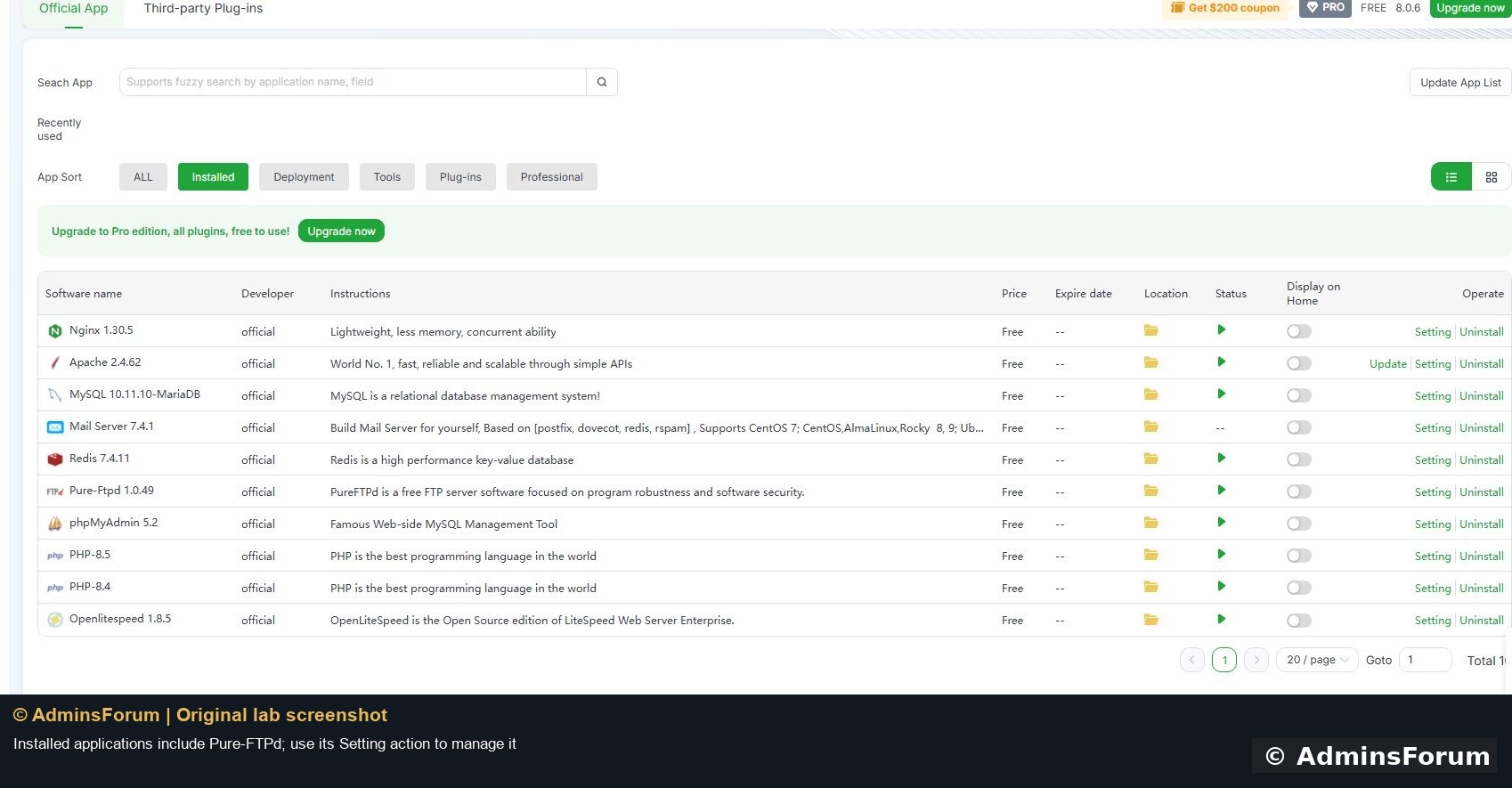
Our installed list showed Pure-FTPd 1.0.49. Versions and available packages depend on the operating system and current aaPanel catalog. Record the installed version rather than treating an example version number as a permanent recommendation.
3. Check and start the service
Open Pure-FTPd → Setting → Service. If it is stopped, click Start, review the service confirmation and Confirm. Wait for completion, then reopen or refresh the manager and verify Current state is Start and the action has changed to Stop.
The lab's native service view showed that started state. The same menu exposes configuration, user management, port settings and logs.
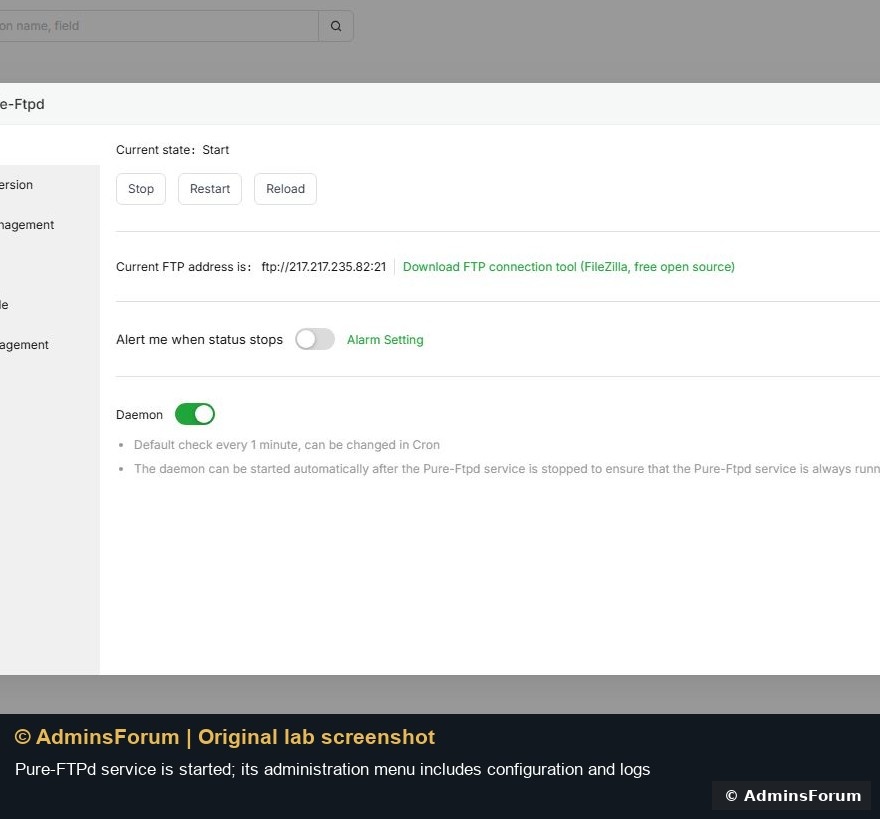
A started service is only the first check. If Start fails, inspect its error/configuration result and port conflicts. Do not disable the firewall or stop unrelated web/SSH services to get past an FTP error.
4. Understand control and passive data connections
The panel displayed a control address on TCP port 21. Our actual Pure-FTPd configuration used passive data ports 39000–40000. FTP uses a control connection for commands and separate data connections for listings and file transfers, so a successful login with a stalled listing often points to the data path.
Inspect the configured range before writing firewall rules. The system firewall and any provider firewall must allow the required control/data traffic for the intended clients. Our lab already had its FTP rules; no new public ports were opened during this test. Do not copy an arbitrary passive range that differs from the running service.
For a private workflow, restrict source addresses where practical. Do not expose database, Redis or internal web-server backend ports as part of FTP setup.
5. Create the account and secure the connection
Open the FTP module and use Add FTP. Assign a unique user to the exact required document root, not /www/wwwroot or a server-wide folder. Use a strong unique password and keep it out of screenshots and tutorial text.
We created af_ftp_lab only under /www/wwwroot/adminslab.com/ftp-lab. The later transfer test refused access to another website path. The FTP account does not become an SSH/SFTP account automatically.
Before sending credentials, configure a certificate matching the hostname you connect to and require FTPS. Our lab used a valid mail.adminslab.com certificate, strict TLS mode 3, and certificate-verified TLS 1.3. A plaintext connection was refused. The separate FTPS guide explains that configuration; the plain ftp:// address displayed by the panel is not an instruction to send a password without encryption.
6. Verify a real transfer
Test an encrypted login, a directory listing, a small original upload and a download of the same file. Compare the bytes or checksum, and confirm the account cannot leave its assigned root.
Our restricted test account uploaded and downloaded an original AdminsForum text file with matching SHA-256, using protected data connections. The test was performed with a certificate-verifying FTPS client in the lab; it is separate from the panel's service badge.
Common failures
Reference: aaPanel FTP documentation. © AdminsForum.
Use aaPanel App Store to install Pure-FTPd if it is missing. Then open its Setting → Service page, confirm the service is started and configure a separate restricted account plus FTPS before using it for website transfers. Installing an FTP server does not automatically prove that a client can log in or transfer files securely.
Our lab ran aaPanel 8.0.6 on Ubuntu 22.04 with Pure-FTPd 1.0.49. This walkthrough verifies the existing installation, native service start and subsequent encrypted connection checks. The download/reinstallation step was not repeated on the already installed service.
1. Decide whether you need FTP
Pure-FTPd supplies FTP and FTPS. FTPS adds TLS encryption to the FTP protocol. SFTP is a different protocol supplied through SSH; installing Pure-FTPd is not required for SFTP.
Use a dedicated FTP account when you want to limit a transfer user to an assigned directory without giving them the server's root SSH login. FTP credentials that can modify website files are still sensitive: those files can change the site's behavior.
Keep existing administrator access working while setting up a new transfer method. Record the current service configuration and firewall rules before changing them. We preserved private configuration copies on the disposable lab.
2. Find Pure-FTPd in the App Store
Open App Store → Official App. Search for Pure-FTPd or use the Deployment category. If it is not installed, use the official row's Install action, review the offered version/method and confirm the installation. Wait for the installation task to finish and inspect any error rather than repeatedly clicking Install.
If Installed already shows Pure-FTPd with Setting and Uninstall, open Setting. Do not uninstall a functioning transfer service merely to follow the fresh-install branch of a tutorial.
Our installed list showed Pure-FTPd 1.0.49. Versions and available packages depend on the operating system and current aaPanel catalog. Record the installed version rather than treating an example version number as a permanent recommendation.
3. Check and start the service
Open Pure-FTPd → Setting → Service. If it is stopped, click Start, review the service confirmation and Confirm. Wait for completion, then reopen or refresh the manager and verify Current state is Start and the action has changed to Stop.
The lab's native service view showed that started state. The same menu exposes configuration, user management, port settings and logs.
A started service is only the first check. If Start fails, inspect its error/configuration result and port conflicts. Do not disable the firewall or stop unrelated web/SSH services to get past an FTP error.
4. Understand control and passive data connections
The panel displayed a control address on TCP port 21. Our actual Pure-FTPd configuration used passive data ports 39000–40000. FTP uses a control connection for commands and separate data connections for listings and file transfers, so a successful login with a stalled listing often points to the data path.
Inspect the configured range before writing firewall rules. The system firewall and any provider firewall must allow the required control/data traffic for the intended clients. Our lab already had its FTP rules; no new public ports were opened during this test. Do not copy an arbitrary passive range that differs from the running service.
For a private workflow, restrict source addresses where practical. Do not expose database, Redis or internal web-server backend ports as part of FTP setup.
5. Create the account and secure the connection
Open the FTP module and use Add FTP. Assign a unique user to the exact required document root, not /www/wwwroot or a server-wide folder. Use a strong unique password and keep it out of screenshots and tutorial text.
We created af_ftp_lab only under /www/wwwroot/adminslab.com/ftp-lab. The later transfer test refused access to another website path. The FTP account does not become an SSH/SFTP account automatically.
Before sending credentials, configure a certificate matching the hostname you connect to and require FTPS. Our lab used a valid mail.adminslab.com certificate, strict TLS mode 3, and certificate-verified TLS 1.3. A plaintext connection was refused. The separate FTPS guide explains that configuration; the plain ftp:// address displayed by the panel is not an instruction to send a password without encryption.
6. Verify a real transfer
Test an encrypted login, a directory listing, a small original upload and a download of the same file. Compare the bytes or checksum, and confirm the account cannot leave its assigned root.
Our restricted test account uploaded and downloaded an original AdminsForum text file with matching SHA-256, using protected data connections. The test was performed with a certificate-verifying FTPS client in the lab; it is separate from the panel's service badge.
Common failures
- Service will not start: inspect the configuration/error result and existing listeners on the control port.
- Login fails: confirm the account is enabled, the username/password are correct and the client requires explicit FTP over TLS.
- Listing stalls: check passive mode, the configured passive range, server/provider firewall and public address/NAT settings.
- Certificate fails validation: fix the hostname/certificate/chain instead of permanently accepting an unrelated certificate.
Reference: aaPanel FTP documentation. © AdminsForum.