



CyberPanel Subdomains, Addon Domains and Domain Aliases: Create and Manage
CyberPanel calls them child domains: a subdomain like or a completely different domain (addon domain) that lives under an existing website and its owner. Each child domain gets its own folder, PHP version and SSL certificate. We added blog.cyber.adminslab.com to our test site.
Sub domain, addon domain or alias?
Step 1: DNS first
Point the new name to your server before creating it, so the free SSL certificate can be issued straight away. We added an A record > in Cloudflare, set to DNS only.
Step 2: Create the subdomain
Open your website, go to SSL & Domains > Create Sub/Addon Domain. Choose Sub Domain, the parent website, the domain name, a folder and the PHP version:
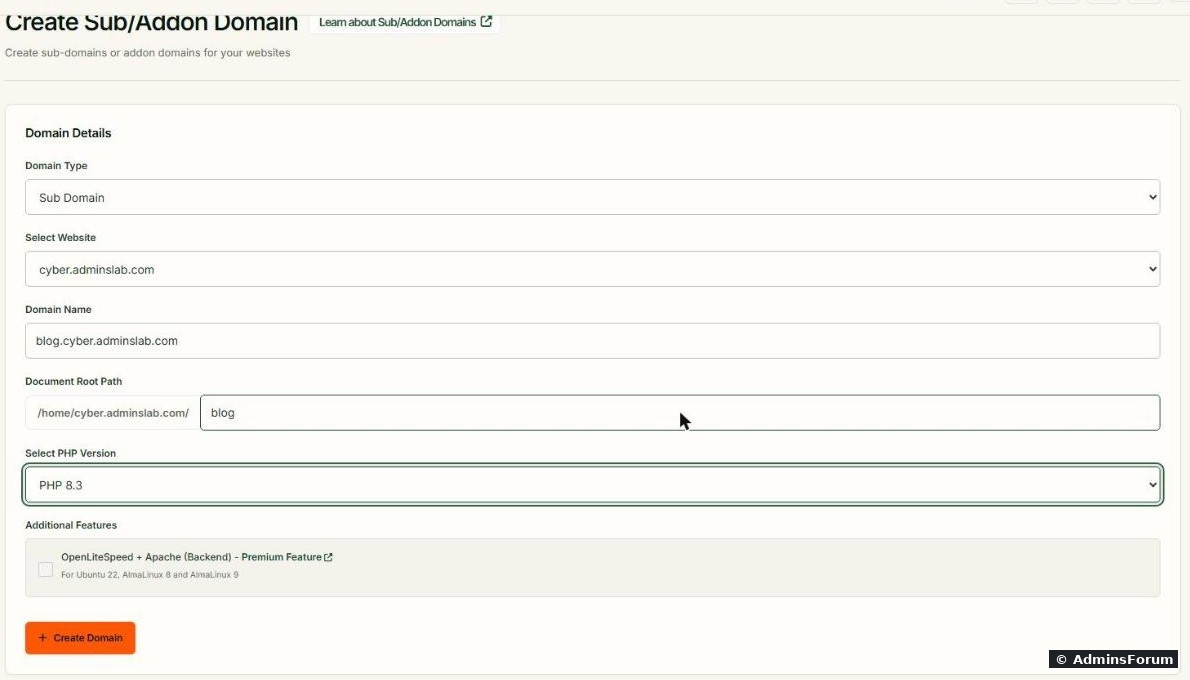
Choose the folder carefully. The suggested path is, inside the main website's folder. Then the subdomain's files are also reachable as , and a WordPress or Laravel app in the main site can get in the way. We used instead, which gave , next to instead of inside it.
Click Create Domain. The progress bar went through "Creating SSL.." and finished with "Domain successfully created" in about 20 seconds.
Step 3: Check it
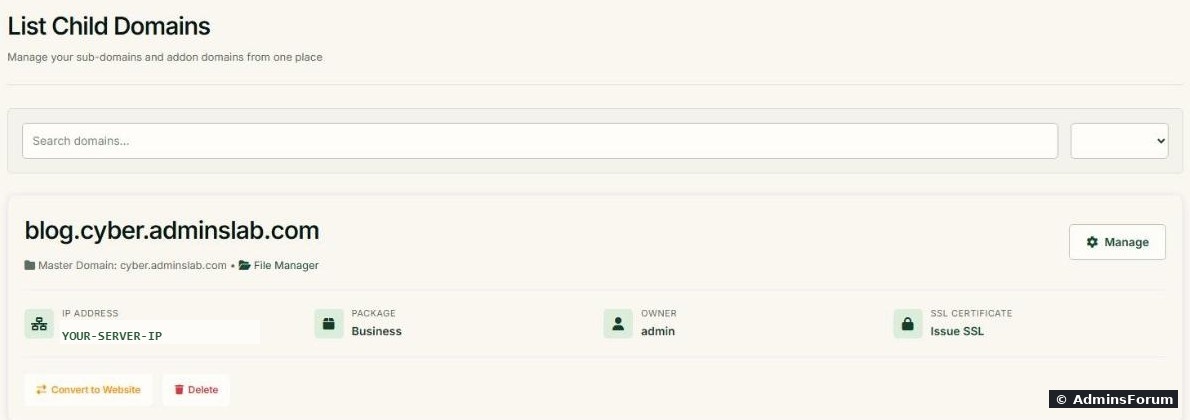
It then shows up under Sub / Addon Domains with its parent (master) domain, package and owner:
From SSH:
The folder belonged to the site's user () with CyberPanel's placeholder , and the subdomain already had its own Let's Encrypt certificate. The Issue SSL link on the card is there to re-issue it, not a sign that SSL is missing.
The Manage button opens the child domain's own page (files, PHP version, rewrite rules). Convert to Website turns it into a standalone website later if it outgrows the parent.
Addon domain
Same form, but choose Addon Domain and type the full other domain. Point its DNS (A record, and www if you want it) to your server first. For mail on an addon domain, create it as a mail domain too: see email setup in CyberPanel.
Domain aliases
Domain Aliases (same SSL & Domains tab) makes another domain show the same website:
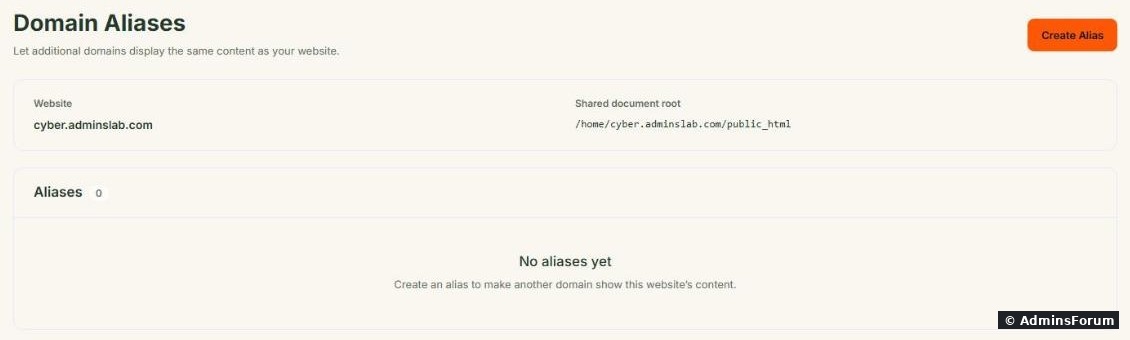
The page shows the shared document root ( for us). Click Create Alias, enter the other domain (its DNS must already point to the server) and make sure it gets an SSL certificate too. For SEO, don't let two domains serve the same content: redirect the alias to the main domain with a rewrite rule (see rewrite rules in CyberPanel).
Delete a child domain
Delete on the child domain card removes it from the web server. Take a backup of its folder and any database first; check afterwards whether the folder is still there before you reuse the name.
Common problems
More CyberPanel guides
Tested on CyberPanel 3.0 (build 8, OpenLiteSpeed edition) on Ubuntu 24.04, October 2026. Menu names can change slightly between versions.
CyberPanel calls them child domains: a subdomain like
Code:
blog.example.comSub domain, addon domain or alias?
- Subdomain (): a separate site under the same domain.Code:
blog.example.com
- Addon domain (): a separate site with a different domain, sharing the parent website's owner, package limits and Linux user.Code:
another-domain.com
- Domain alias: a different domain that shows the same website (for example showingCode:
example.net).Code:example.com
- A completely separate website (own Linux user, own limits) is still the better choice for clients or unrelated projects: see creating a website.
Step 1: DNS first
Point the new name to your server before creating it, so the free SSL certificate can be issued straight away. We added an A record
Code:
blog.cyberCode:
YOUR-SERVER-IPStep 2: Create the subdomain
Open your website, go to SSL & Domains > Create Sub/Addon Domain. Choose Sub Domain, the parent website, the domain name, a folder and the PHP version:
Choose the folder carefully. The suggested path is
Code:
public_html/subdomainCode:
example.com/subdomain/Code:
blogCode:
/home/cyber.adminslab.com/blogCode:
public_htmlClick Create Domain. The progress bar went through "Creating SSL.." and finished with "Domain successfully created" in about 20 seconds.
Step 3: Check it
It then shows up under Sub / Addon Domains with its parent (master) domain, package and owner:
From SSH:
Code:
ls -la /home/cyber.adminslab.com/blog
echo | openssl s_client -connect blog.cyber.adminslab.com:443 -servername blog.cyber.adminslab.com 2>/dev/null | openssl x509 -noout -issuer -enddateCode:
cyber2602Code:
index.htmlThe Manage button opens the child domain's own page (files, PHP version, rewrite rules). Convert to Website turns it into a standalone website later if it outgrows the parent.
Addon domain
Same form, but choose Addon Domain and type the full other domain. Point its DNS (A record, and www if you want it) to your server first. For mail on an addon domain, create it as a mail domain too: see email setup in CyberPanel.
Domain aliases
Domain Aliases (same SSL & Domains tab) makes another domain show the same website:
The page shows the shared document root (
Code:
/home/cyber.adminslab.com/public_htmlDelete a child domain
Delete on the child domain card removes it from the web server. Take a backup of its folder and any database first; check afterwards whether the folder is still there before you reuse the name.
Common problems
- No SSL on the new subdomain: the DNS record didn't exist yet. Add it, wait, and use Issue SSL. See the SSL guide.
- "Domain already exists": it's already a website, child domain or alias somewhere on this server.
- Subdomain shows the main site: DNS points elsewhere or a wildcard rule catches it; check .Code:
dig +short blog.example.com
More CyberPanel guides
- Fail2ban brute-force protection
- Change PHP version per website
- Git deployment from GitHub
- SSH key login, passwords off
- Create a website
- Issue SSL and fix failed certificates
- Rewrite rules, force HTTPS, HSTS
- Install WordPress with LiteSpeed Cache
- Cron jobs and a real WP-Cron
- Redis object cache for WordPress
- Databases and phpMyAdmin
- Email, DKIM, SPF and DMARC
- Email forwarding, catch-all, plus-addressing
- Mail queue, spam senders, blacklists
- CyberPanel DNS vs Cloudflare
- Packages and website limits
- Deploy Laravel on CyberPanel
- WordPress staging (clone) fixes
- Backups: create, restore, schedule
- File Manager and FTP
- Reset the admin password from SSH
- Log files and config locations
- Check and restart services
- First steps after install
- ModSecurity + OWASP rules (fix)
- CLI cheat sheet
- Install CyberPanel on Ubuntu 24.04
- Firewall explained
- Install PHP extensions
- Change PHP settings (php.ini)
- Update CyberPanel safely
- Server Error (500) after a fresh install
- Packages, users and ACLs
- Upgrade CyberPanel safely
- Real visitor IPs behind Cloudflare
- Docker apps on your domain with SSL
- Import a large SQL file over SSH
- Remote MySQL access for one IP
- Move WordPress to CyberPanel by hand
- Fix "Error establishing a database connection"
- Fix PHP2Shell (CVE-2026-109618/109619)
- Run your own nameservers (PowerDNS)
- CyberPanel on a small VPS: RAM tuning
Tested on CyberPanel 3.0 (build 8, OpenLiteSpeed edition) on Ubuntu 24.04, October 2026. Menu names can change slightly between versions.