



Today, 07:01 AM
Keep your CyberPanel server's system packages up to date from the panel
Your websites are only as safe as the server under them. Ubuntu ships security fixes for things like OpenSSL, the Linux kernel and system libraries almost every week, and none of that is updated by the CyberPanel upgrade script. CyberPanel 3 has a Package Manager page that runs apt (or yum/dnf on AlmaLinux) for you, so you can see and install these updates without SSH. We tested it on a CyberPanel 3.0.8 server running Ubuntu 24.04.
Where to find it
Go to Server > Package Manager (the address is /serverstatus/packageManager on port 8090). Only the main admin account can open it.
The page has three tabs:
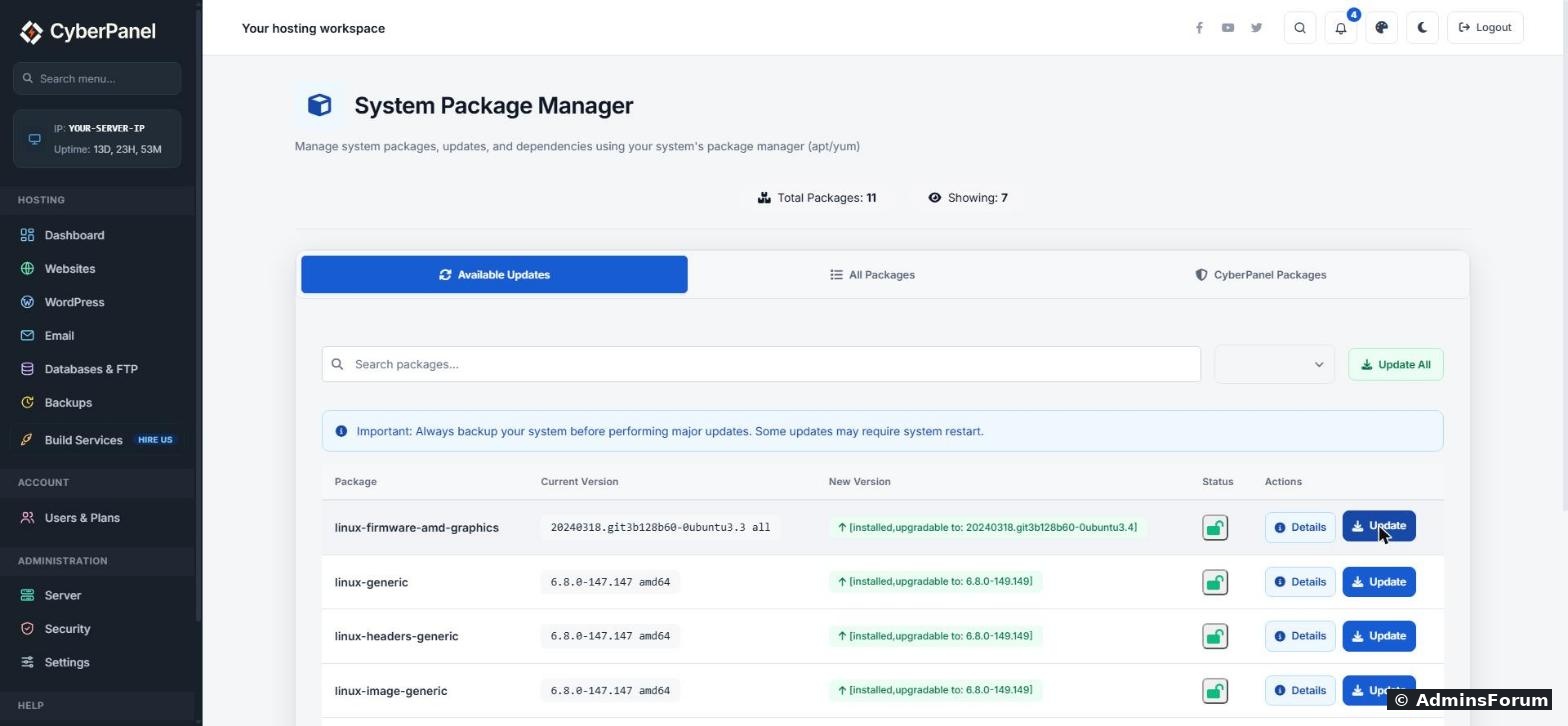
Each row shows the package name, the version you have now and the version you would get. The Details button shows the package information from apt: what it is, what it depends on and its size.
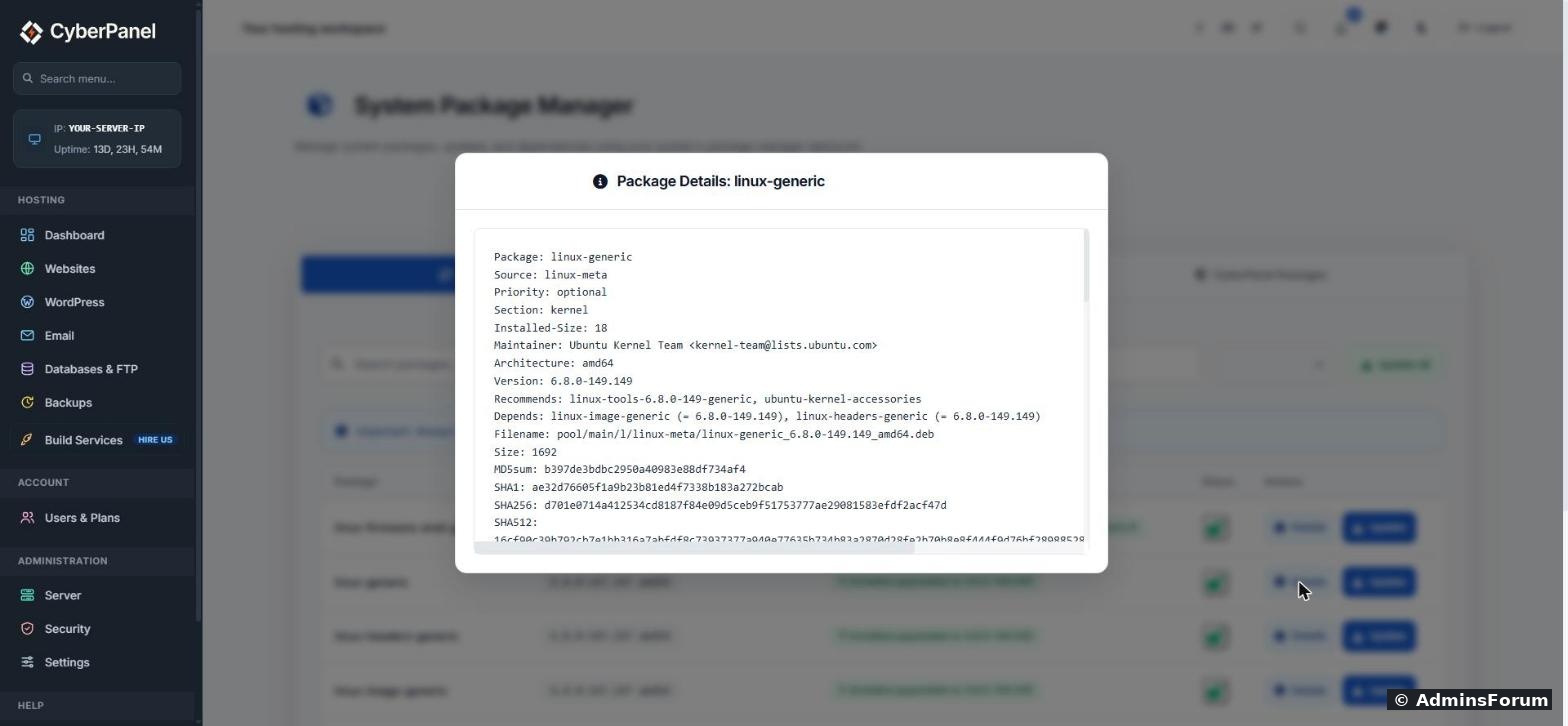
Update one package
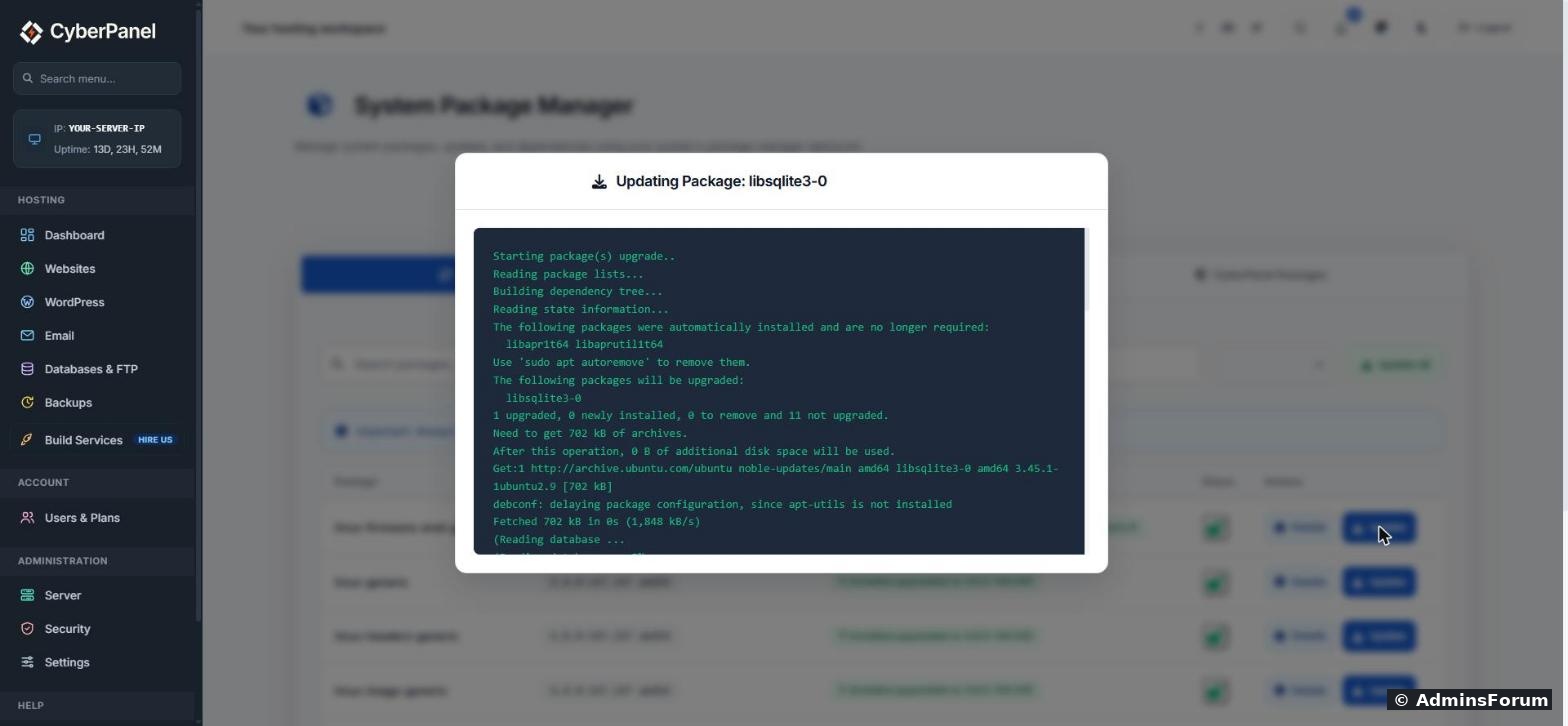
On our test server, updating libsqlite3-0 took about five seconds and the panel kept working normally.
Update everything at once
The Update All button runs a full upgrade of every package in the list. This is the same as running apt upgrade over SSH. It is fine for most servers, but do two things first:
Kernel updates need a reboot
When you see packages like linux-generic, linux-image-generic and linux-headers-generic in the list, that is a new Linux kernel. Installing it is safe, but the server keeps running the old kernel until you reboot. Over SSH you can check if a reboot is waiting:
If the file exists, reboot when it suits you:
CyberPanel, OpenLiteSpeed, MariaDB and mail all start on their own after a reboot. Give it two or three minutes, then log back in on port 8090.
The lock button does not hold packages (3.0.8)
Each row has a small padlock in the Status column. It is meant to "hold" a package so it is never updated, for example to keep the current kernel. On our 3.0.8 server, clicking it showed "Status updated", but the package stayed unlocked. We checked the page code: when a package is unlocked, the button sends the "unhold" command instead of "hold", so it can never lock anything.
If you really need to hold a package, do it over SSH instead:
And to release it later:
Doing the same thing over SSH
If the page is slow or you prefer the command line, these do exactly what the panel does on Ubuntu:
On AlmaLinux or Rocky Linux use:
Let Ubuntu install security fixes by itself
If you don't want to remember to check this page, Ubuntu can install security updates automatically every day. It does not install big upgrades or reboot unless you tell it to:
Choose Yes when it asks. You can still use the Package Manager page for everything else.
Common problems
Tested on CyberPanel 3.0.8 with OpenLiteSpeed on Ubuntu 24.04. If your Package Manager page looks different, post a screenshot below (hide your server IP).
More CyberPanel guides
Your websites are only as safe as the server under them. Ubuntu ships security fixes for things like OpenSSL, the Linux kernel and system libraries almost every week, and none of that is updated by the CyberPanel upgrade script. CyberPanel 3 has a Package Manager page that runs apt (or yum/dnf on AlmaLinux) for you, so you can see and install these updates without SSH. We tested it on a CyberPanel 3.0.8 server running Ubuntu 24.04.
Where to find it
Go to Server > Package Manager (the address is /serverstatus/packageManager on port 8090). Only the main admin account can open it.
The page has three tabs:
- Available Updates: packages that have a newer version waiting. Start here.
- All Packages: every package installed on the server, with a search box. Handy to check if something is installed and which version.
- CyberPanel Packages: the packages CyberPanel itself depends on.
Each row shows the package name, the version you have now and the version you would get. The Details button shows the package information from apt: what it is, what it depends on and its size.
Update one package
- Open the Available Updates tab.
- Find the package (use the search box if the list is long).
- Click Update. There is no "are you sure" step. The update starts straight away.
- A window opens with the live apt output. Wait for it to finish, then close the window. The list refreshes and the package drops off.
On our test server, updating libsqlite3-0 took about five seconds and the panel kept working normally.
Update everything at once
The Update All button runs a full upgrade of every package in the list. This is the same as running apt upgrade over SSH. It is fine for most servers, but do two things first:
- Take a backup or a provider snapshot. A snapshot from your VPS control panel takes a minute and is the fastest way back if an update goes wrong.
- Pick a quiet time. Some updates restart services such as MariaDB or Postfix, which can drop a few requests or emails for a moment.
Kernel updates need a reboot
When you see packages like linux-generic, linux-image-generic and linux-headers-generic in the list, that is a new Linux kernel. Installing it is safe, but the server keeps running the old kernel until you reboot. Over SSH you can check if a reboot is waiting:
Code:
ls /var/run/reboot-required && cat /var/run/reboot-required.pkgsCode:
rebootThe lock button does not hold packages (3.0.8)
Each row has a small padlock in the Status column. It is meant to "hold" a package so it is never updated, for example to keep the current kernel. On our 3.0.8 server, clicking it showed "Status updated", but the package stayed unlocked. We checked the page code: when a package is unlocked, the button sends the "unhold" command instead of "hold", so it can never lock anything.
If you really need to hold a package, do it over SSH instead:
Code:
apt-mark hold linux-generic linux-image-generic linux-headers-generic
apt-mark showholdCode:
apt-mark unhold linux-generic linux-image-generic linux-headers-genericDoing the same thing over SSH
If the page is slow or you prefer the command line, these do exactly what the panel does on Ubuntu:
Code:
apt update
apt list --upgradable
apt upgrade -yCode:
dnf check-update
dnf upgrade -y
Let Ubuntu install security fixes by itself
If you don't want to remember to check this page, Ubuntu can install security updates automatically every day. It does not install big upgrades or reboot unless you tell it to:
Code:
apt install unattended-upgrades -y
dpkg-reconfigure -plow unattended-upgradesCommon problems
- The update window stays empty or the update fails with a lock error: another apt process is running, often the daily automatic update. Wait a few minutes and try again. Over SSH, ps aux | grep apt shows what is running.
- The list is empty but you know updates exist: the package list is cached. Run apt update over SSH, then reload the page.
- The panel disconnects during Update All: an update restarted lscpd, the service behind port 8090. Wait a minute and reload. The upgrade keeps running in the background.
Tested on CyberPanel 3.0.8 with OpenLiteSpeed on Ubuntu 24.04. If your Package Manager page looks different, post a screenshot below (hide your server IP).
More CyberPanel guides
- Web Terminal is paid: free ways to get a shell
- Hostname and mail SSL (port 8090)
- Fail2ban brute-force protection
- Change PHP version per website
- Git deployment from GitHub
- SSH key login, passwords off
- Create a website
- Issue SSL and fix failed certificates
- Subdomains, addon domains and aliases
- Rewrite rules, force HTTPS, HSTS
- Install WordPress with LiteSpeed Cache
- Cron jobs and a real WP-Cron
- Redis object cache for WordPress
- Databases and phpMyAdmin
- Email, DKIM, SPF and DMARC
- Email forwarding, catch-all, plus-addressing
- Mail queue, spam senders, blacklists
- CyberPanel DNS vs Cloudflare
- Packages and website limits
- Deploy Laravel on CyberPanel
- WordPress staging (clone) fixes
- Backups: create, restore, schedule
- File Manager and FTP
- Reset the admin password from SSH
- Log files and config locations
- Check and restart services
- First steps after install
- ModSecurity + OWASP rules (fix)
- CLI cheat sheet
- Install CyberPanel on Ubuntu 24.04
- Firewall explained
- Install PHP extensions
- Change PHP settings (php.ini)
- Update CyberPanel safely
- Server Error (500) after a fresh install
- Packages, users and ACLs
- Upgrade CyberPanel safely
- Real visitor IPs behind Cloudflare
- Import a large SQL file over SSH
- Remote MySQL access for one IP
- Move WordPress to CyberPanel by hand
- Fix "Error establishing a database connection"
- Fix PHP2Shell (CVE-2026-109618/109619)
- Docker apps on your domain with SSL
- Run your own nameservers (PowerDNS)