



Today, 07:05 AM
Tune OpenLiteSpeed and PHP in CyberPanel without breaking anything
CyberPanel 3 has two tuning pages under Server: LiteSpeed Tuning for the web server as a whole, and PHP Tuning for the PHP processes of each website. The defaults are fine for most small servers, but when a busy site starts showing 503 errors, slow pages under load or "out of memory" errors, these are the first settings to check.
We changed settings on both pages on a CyberPanel 3.0.8 server (OpenLiteSpeed, Ubuntu 24.04), checked what actually got written to the config, and found one bug you should know about before you click Apply.
Part 1: LiteSpeed Tuning (whole server)
Go to Server > LiteSpeed Tuning. The cards at the top show your current values, and the form below lets you change them.
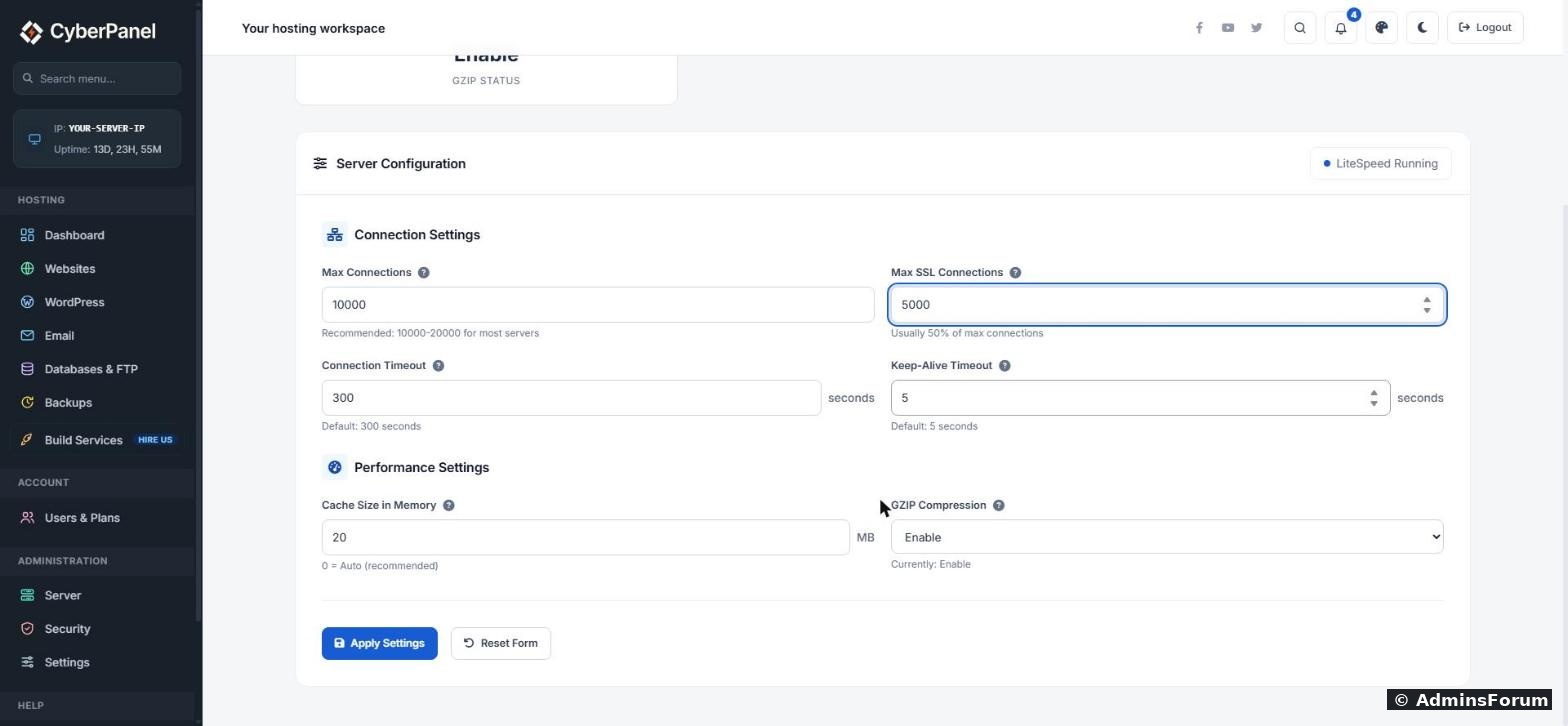
What each setting means, in plain words:
Change what you need, click Apply Settings, and you should see "LiteSpeed server has been successfully tuned".
The Cache Size bug: check this after every Apply
On 3.0.8 the page reads the cache size from the config as "20M", shows it as "20", and when you click Apply it writes back 20 without the M. OpenLiteSpeed reads a plain number as bytes, so the static file memory cache drops from 20 megabytes to 20 bytes, which turns it off. The card at the top still shows "20M" because it adds the M itself, so you won't notice in the panel. The "0 = Auto (recommended)" hint under the field is not right either: 0 also turns it off.
We confirmed this by reading the value back after saving. To fix it, run this over SSH after you apply LiteSpeed tuning:
The last grep should show totalInMemCacheSize 20M. It is not a disaster if you skip this, the site keeps working, but static files are then read from disk every time.
Part 2: PHP Tuning (one website at a time)
Go to Server > PHP Tuning, pick the website from the list and the settings load. These values are saved in that website's own config (its vhost.conf), so changing one site does not touch the others.
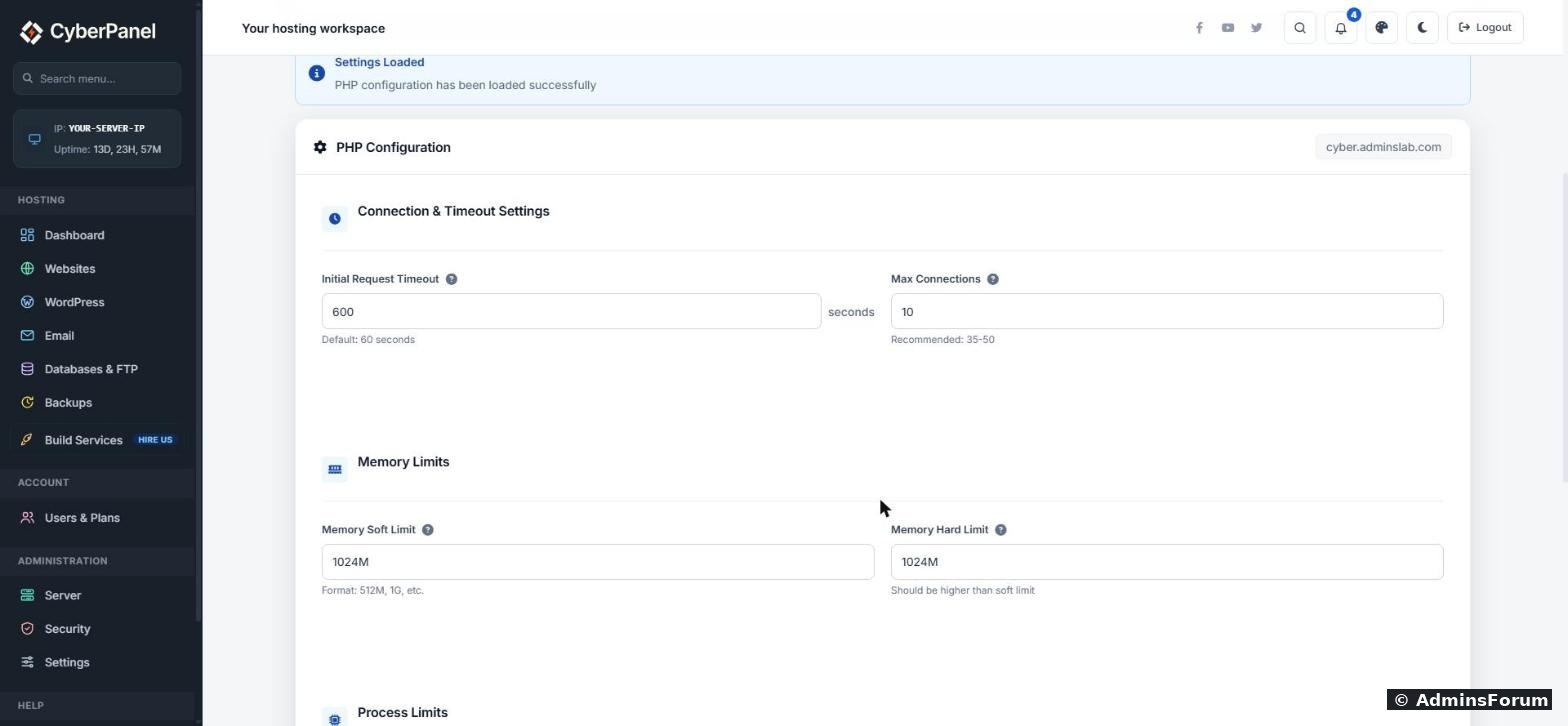
Click Apply PHP Settings. You should see "PHP settings for your-domain have been updated successfully".
Restart OpenLiteSpeed after changing either page
Neither page restarts the web server, so new values are only used after a restart. Go to Server > Services and click Restart on the OpenLiteSpeed card, or over SSH:
A restart takes a second or two and visitors normally don't notice. We checked our test site straight after and it loaded fine.
A sensible starting point for a small VPS
For a 2 to 4 GB VPS with a handful of WordPress sites:
Common problems
Tested on CyberPanel 3.0.8 with OpenLiteSpeed on Ubuntu 24.04. Post your server size and the values you settled on below, it helps others pick a starting point.
More CyberPanel guides
CyberPanel 3 has two tuning pages under Server: LiteSpeed Tuning for the web server as a whole, and PHP Tuning for the PHP processes of each website. The defaults are fine for most small servers, but when a busy site starts showing 503 errors, slow pages under load or "out of memory" errors, these are the first settings to check.
We changed settings on both pages on a CyberPanel 3.0.8 server (OpenLiteSpeed, Ubuntu 24.04), checked what actually got written to the config, and found one bug you should know about before you click Apply.
Part 1: LiteSpeed Tuning (whole server)
Go to Server > LiteSpeed Tuning. The cards at the top show your current values, and the form below lets you change them.
What each setting means, in plain words:
- Max Connections: how many visitors' connections the server will hold open at once. The default 10000 is plenty for almost every VPS. Raising it does not make anything faster.
- Max SSL Connections: the same, for HTTPS. Today almost all traffic is HTTPS, so keep this close to Max Connections. We set it to 5000 on our small test server.
- Connection Timeout: how long (in seconds) an idle connection may stay open before it is closed. Default 300.
- Keep-Alive Timeout: how long the server keeps a connection open waiting for the visitor's next request. The default 5 seconds is a good balance. Higher values hold more idle connections and memory.
- Cache Size in Memory: memory used to keep small static files (CSS, JS, icons) in RAM. Default 20M. This is not LSCache page caching.
- GZIP Compression: compresses text files before sending them. Leave it on.
Change what you need, click Apply Settings, and you should see "LiteSpeed server has been successfully tuned".
The Cache Size bug: check this after every Apply
On 3.0.8 the page reads the cache size from the config as "20M", shows it as "20", and when you click Apply it writes back 20 without the M. OpenLiteSpeed reads a plain number as bytes, so the static file memory cache drops from 20 megabytes to 20 bytes, which turns it off. The card at the top still shows "20M" because it adds the M itself, so you won't notice in the panel. The "0 = Auto (recommended)" hint under the field is not right either: 0 also turns it off.
We confirmed this by reading the value back after saving. To fix it, run this over SSH after you apply LiteSpeed tuning:
Code:
grep totalInMemCacheSize /usr/local/lsws/conf/httpd_config.conf
sed -i 's/^\(\s*totalInMemCacheSize\s*\)[0-9]*$/\120M/' /usr/local/lsws/conf/httpd_config.conf
grep totalInMemCacheSize /usr/local/lsws/conf/httpd_config.conf
systemctl restart lswsPart 2: PHP Tuning (one website at a time)
Go to Server > PHP Tuning, pick the website from the list and the settings load. These values are saved in that website's own config (its vhost.conf), so changing one site does not touch the others.
- Initial Request Timeout: how long OpenLiteSpeed waits for PHP to answer a request. CyberPanel sets 600 seconds, which is generous. Long imports and backups need it; normal pages answer in under a second.
- Max Connections: how many PHP requests this website can run at the same time. The default is 10. If a busy site queues up and shows 503 errors under load, raise it. The page suggests 35 to 50, but every extra PHP process can use 30 to 100 MB of RAM, so on a 2 GB VPS stay around 15 to 25. We raised our test site from 10 to 20.
- Memory Soft / Hard Limit: the most memory the PHP processes of this site may use together (1024M by default). This is not PHP's memory_limit; change that in the PHP settings page instead. Raise these if the error log shows PHP being killed for memory.
- Process Soft / Hard Limit: the most processes the site's PHP user may run (400 / 500 by default). Leave these alone unless you have a reason.
- Persistent Connections: keeps PHP processes alive between requests so they start faster. Leave it on.
Click Apply PHP Settings. You should see "PHP settings for your-domain have been updated successfully".
Restart OpenLiteSpeed after changing either page
Neither page restarts the web server, so new values are only used after a restart. Go to Server > Services and click Restart on the OpenLiteSpeed card, or over SSH:
Code:
systemctl restart lswsA sensible starting point for a small VPS
For a 2 to 4 GB VPS with a handful of WordPress sites:
- LiteSpeed: leave everything at the default, keep Max SSL Connections near Max Connections, keep GZIP on.
- PHP, busy site: Max Connections 20, memory limits 1024M or 2048M.
- PHP, quiet sites: leave at 10.
Common problems
- 503 errors under load: PHP Max Connections for that site is too low, or the server is out of memory. Check memory with free -m before raising it.
- "Failed to Fetch Settings" on PHP Tuning: pick a website from the list first and click Load Settings.
- Changes do nothing: you didn't restart OpenLiteSpeed.
- Server slower after raising limits: it is swapping. Lower PHP Max Connections again.
Tested on CyberPanel 3.0.8 with OpenLiteSpeed on Ubuntu 24.04. Post your server size and the values you settled on below, it helps others pick a starting point.
More CyberPanel guides
- Update server packages from the panel
- Web Terminal is paid: free ways to get a shell
- Hostname and mail SSL (port 8090)
- Fail2ban brute-force protection
- Change PHP version per website
- Git deployment from GitHub
- SSH key login, passwords off
- Create a website
- Issue SSL and fix failed certificates
- Subdomains, addon domains and aliases
- Rewrite rules, force HTTPS, HSTS
- Install WordPress with LiteSpeed Cache
- Cron jobs and a real WP-Cron
- Redis object cache for WordPress
- Databases and phpMyAdmin
- Email, DKIM, SPF and DMARC
- Email forwarding, catch-all, plus-addressing
- Mail queue, spam senders, blacklists
- CyberPanel DNS vs Cloudflare
- Packages and website limits
- Deploy Laravel on CyberPanel
- WordPress staging (clone) fixes
- Backups: create, restore, schedule
- File Manager and FTP
- Reset the admin password from SSH
- Log files and config locations
- Check and restart services
- First steps after install
- ModSecurity + OWASP rules (fix)
- CLI cheat sheet
- Install CyberPanel on Ubuntu 24.04
- Firewall explained
- Install PHP extensions
- Change PHP settings (php.ini)
- Update CyberPanel safely
- Server Error (500) after a fresh install
- Packages, users and ACLs
- Upgrade CyberPanel safely
- Real visitor IPs behind Cloudflare
- Import a large SQL file over SSH
- Remote MySQL access for one IP
- Move WordPress to CyberPanel by hand
- Fix "Error establishing a database connection"
- Fix PHP2Shell (CVE-2026-109618/109619)
- Docker apps on your domain with SSL
- Run your own nameservers (PowerDNS)