



Today, 06:42 AM
Out of the box, CyberPanel answers on https://YOUR-SERVER-IP:8090 with a self-signed certificate. Every browser shows a "Your connection is not private" page, mail apps warn about the certificate, and clients get nervous. The fix is to give the server a proper hostname with a free Let's Encrypt certificate, for the panel and for the mail server.
We did this on our CyberPanel 3 demo server and checked every port with an outside SSL checker. Two things did not go as the panel suggests:
Step 1: Pick the right hostname (check your rDNS first)
If you send email from this server, the hostname should match the server's reverse DNS (rDNS, also called the PTR record). Big mail providers like Gmail check it. Look it up from any Linux machine:
On our server it returned bm.adminslab.com, so that is the hostname we used. Then make sure the same name has an A record pointing back to your server:
Both must match. If your rDNS shows a generic name from your VPS company (like vps123.provider.net), change it first in your VPS provider's control panel (usually called rDNS or PTR), then come back.
If you use Cloudflare, set this A record to DNS only (grey cloud). Let's Encrypt, port 8090 and mail don't work through the orange-cloud proxy.
Step 2: Run the setup wizard
The Hostname SSL page now says "deprecated in favour of setup-wizard". The wizard lives at:
Type the hostname, and leave Skip rDNS/PTR Check unticked if you send mail from this server (tick it only if you don't use email here). Then click Start Configurations.
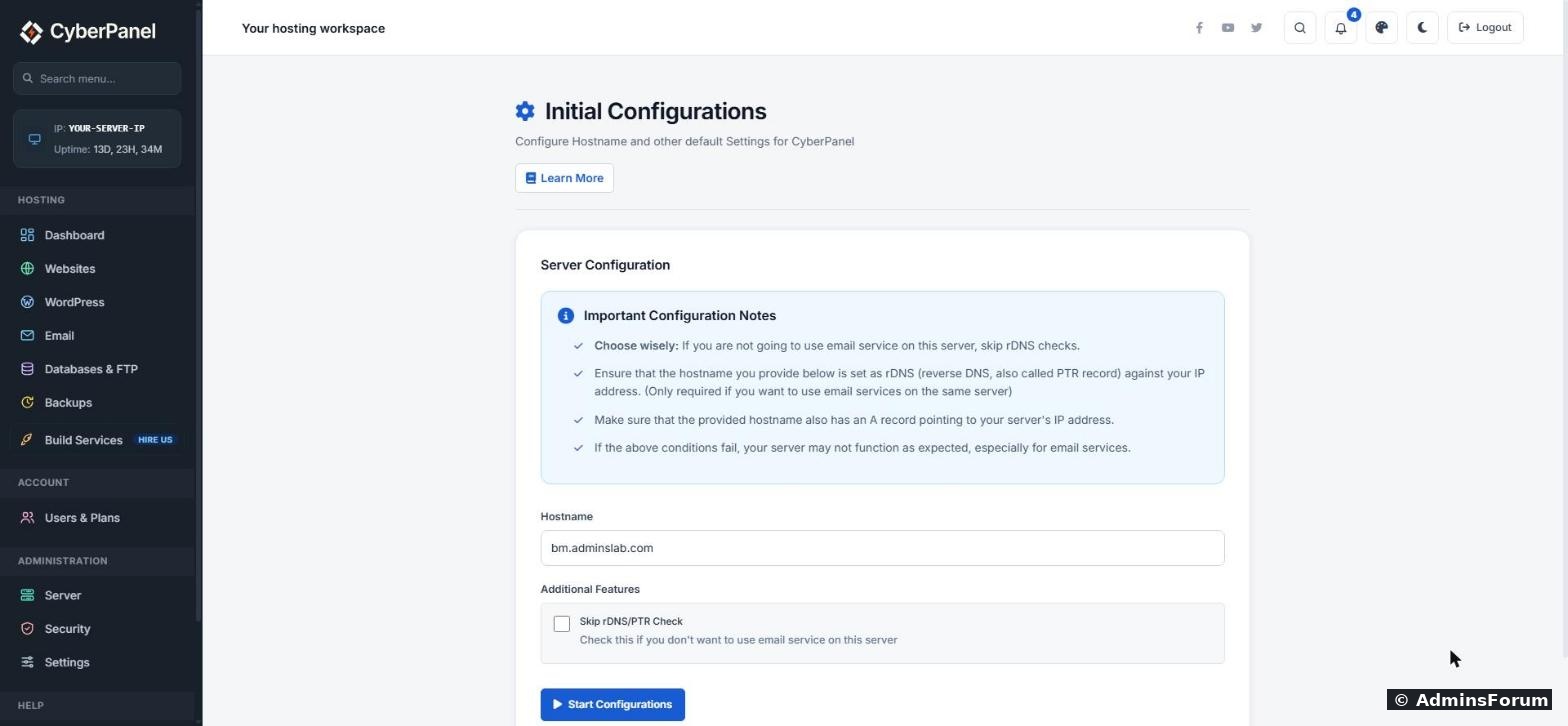
What it did on our server:
But after the panel restarted, https://bm.adminslab.com:8090 still gave a privacy error: the panel itself was still using its old certificate.
Step 3: Install the certificate on the panel (Hostname SSL)
This is the step that fixed it. Go to Security > Hostname SSL, pick your hostname site from the list, and click Issue SSL.
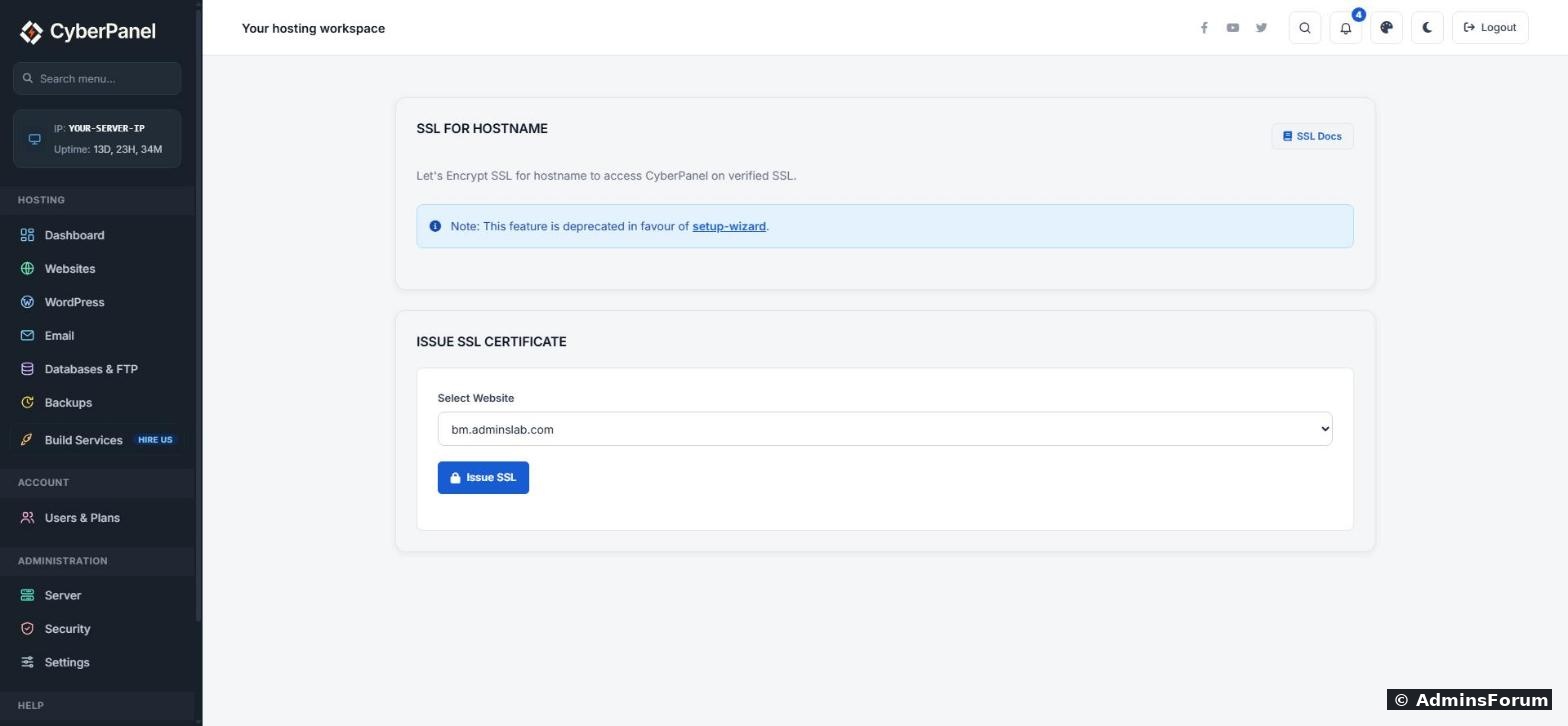
The panel restarts by itself to load the new certificate, so you may see a red "Connection Error, could not connect to server" box for a few seconds. That is expected. Wait 10 to 20 seconds and open:
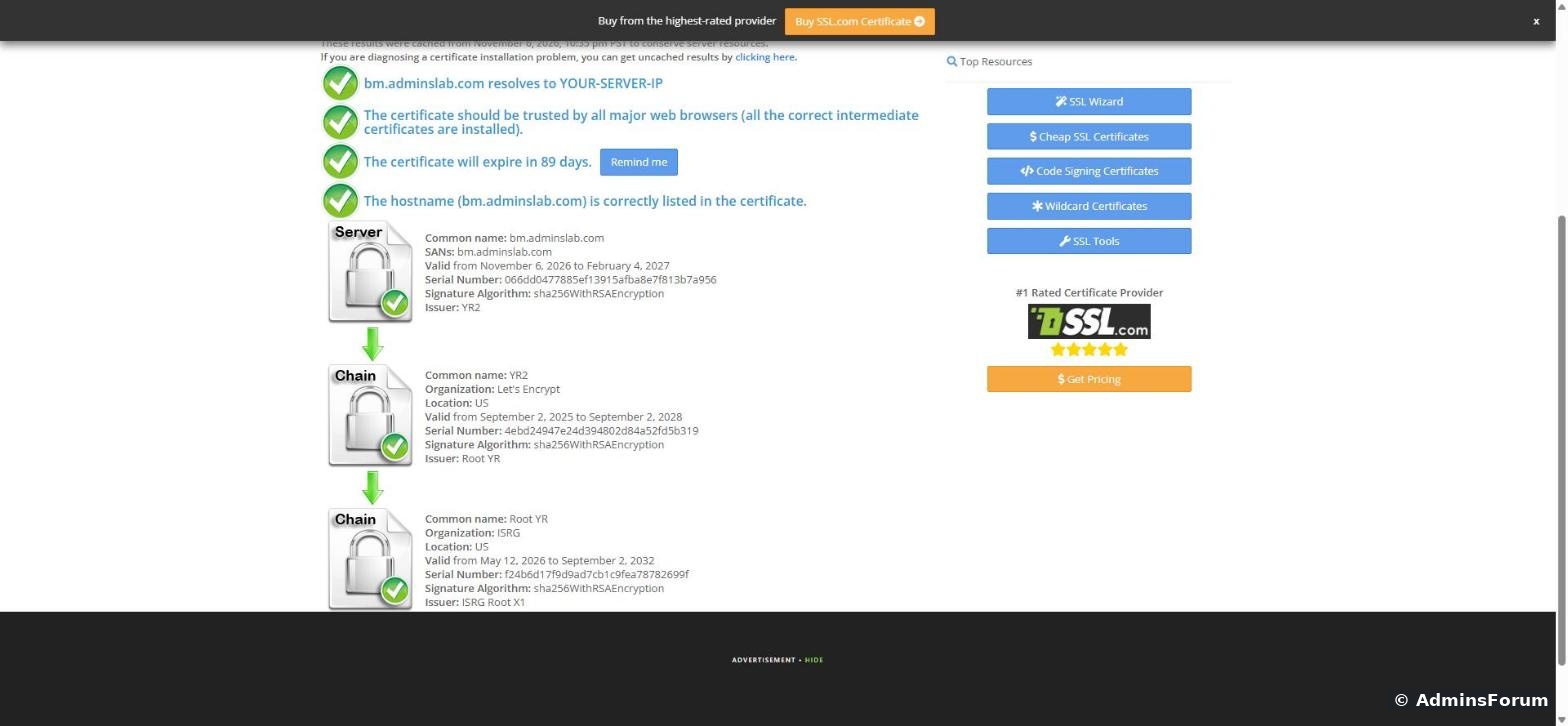
(with your own hostname). The privacy warning is gone. An outside SSL checker confirmed a valid Let's Encrypt certificate on port 8090 with the full chain:
From now on, log in to the panel with the hostname instead of the IP. The IP address will keep showing a warning, because certificates are issued for names, not IPs. This is also the address to give mailbox users for webmail: https://bm.adminslab.com:8090/webmail/login.
Step 4: Mail Server SSL (pick the hostname site!)
Go to Security > Mail Server SSL, choose a site and click Issue SSL. You should see "SSL Issued, your mail server now uses Lets Encrypt!".
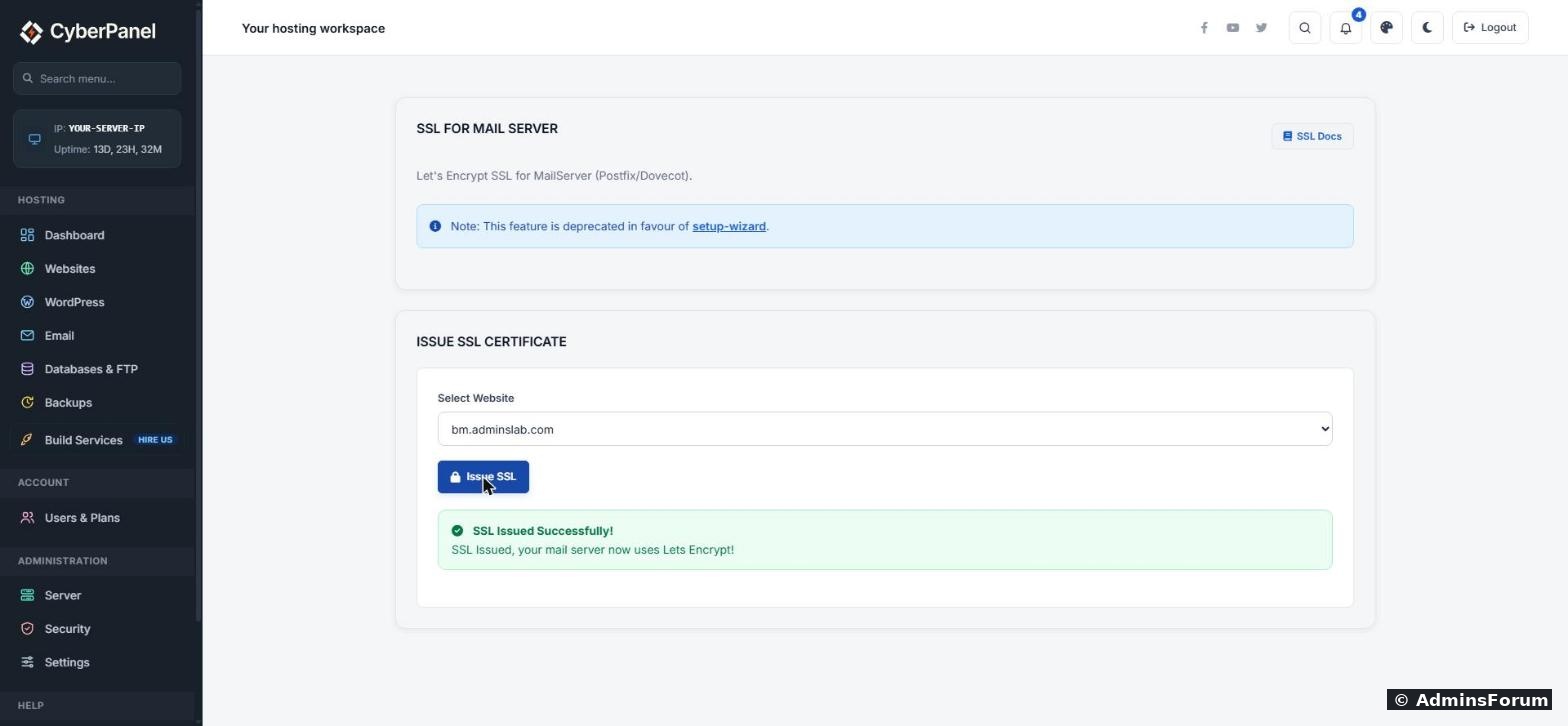
The catch: Postfix and Dovecot get one certificate for the whole server, made for the site you picked. We first picked our main site cyber.adminslab.com. Port 993 then served a certificate for cyber.adminslab.com only, so a mail app set up with mail.cyber.adminslab.com (the usual setting) gets a name mismatch warning:
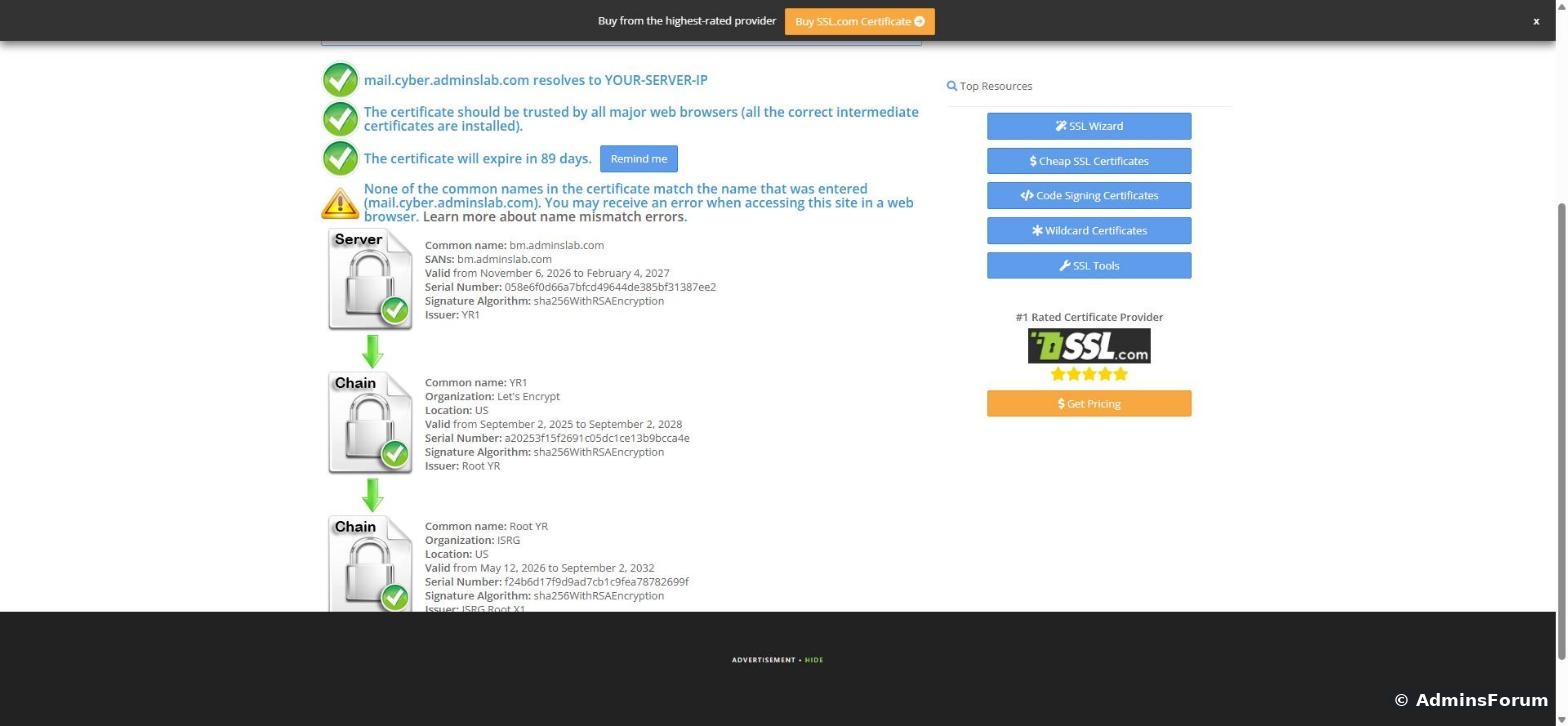
So pick your hostname site here (bm.adminslab.com in our case). After we did that, port 993 served a valid certificate for bm.adminslab.com. Then set up every mailbox, on every domain, with the hostname as the server:
If something goes wrong
More CyberPanel guides
We did this on our CyberPanel 3 demo server and checked every port with an outside SSL checker. Two things did not go as the panel suggests:
- The recommended setup wizard made the certificate for the website, but the panel on port 8090 still showed a privacy error. The older Hostname SSL page (marked "deprecated") is what actually fixed it.
- Mail Server SSL uses one certificate for all domains. Pick the wrong site and every mail app shows a name warning.
Step 1: Pick the right hostname (check your rDNS first)
If you send email from this server, the hostname should match the server's reverse DNS (rDNS, also called the PTR record). Big mail providers like Gmail check it. Look it up from any Linux machine:
Code:
dig -x YOUR-SERVER-IP +shortCode:
dig bm.adminslab.com +shortIf you use Cloudflare, set this A record to DNS only (grey cloud). Let's Encrypt, port 8090 and mail don't work through the orange-cloud proxy.
Step 2: Run the setup wizard
The Hostname SSL page now says "deprecated in favour of setup-wizard". The wizard lives at:
Code:
https://YOUR-SERVER-IP:8090/base/onboardingWhat it did on our server:
- It created a new website for the hostname (bm.adminslab.com shows up under Websites). That is normal: the certificate is issued for that site. Don't delete it later.
- It issued a valid Let's Encrypt certificate for https://bm.adminslab.com on the normal port 443.
- The progress area stayed empty and the Restart CyberPanel button that the note talks about never appeared, even though the job had finished in the background. Give it a minute or two; you can check that the site appeared under Websites.
But after the panel restarted, https://bm.adminslab.com:8090 still gave a privacy error: the panel itself was still using its old certificate.
Step 3: Install the certificate on the panel (Hostname SSL)
This is the step that fixed it. Go to Security > Hostname SSL, pick your hostname site from the list, and click Issue SSL.
The panel restarts by itself to load the new certificate, so you may see a red "Connection Error, could not connect to server" box for a few seconds. That is expected. Wait 10 to 20 seconds and open:
Code:
https://bm.adminslab.com:8090From now on, log in to the panel with the hostname instead of the IP. The IP address will keep showing a warning, because certificates are issued for names, not IPs. This is also the address to give mailbox users for webmail: https://bm.adminslab.com:8090/webmail/login.
Step 4: Mail Server SSL (pick the hostname site!)
Go to Security > Mail Server SSL, choose a site and click Issue SSL. You should see "SSL Issued, your mail server now uses Lets Encrypt!".
The catch: Postfix and Dovecot get one certificate for the whole server, made for the site you picked. We first picked our main site cyber.adminslab.com. Port 993 then served a certificate for cyber.adminslab.com only, so a mail app set up with mail.cyber.adminslab.com (the usual setting) gets a name mismatch warning:
So pick your hostname site here (bm.adminslab.com in our case). After we did that, port 993 served a valid certificate for bm.adminslab.com. Then set up every mailbox, on every domain, with the hostname as the server:
- Incoming (IMAP): bm.adminslab.com, port 993, SSL/TLS
- Outgoing (SMTP): bm.adminslab.com, port 587 (STARTTLS) or 465 (SSL/TLS), with the full email address and mailbox password
If something goes wrong
- Let's Encrypt fails: the A record isn't pointing to your server yet, or Cloudflare's orange cloud is on. Fix DNS, wait a few minutes, and try again.
- Port 8090 still shows a warning after Step 3: make sure you open the panel by the hostname, not the IP. Then fully reload the page (Ctrl + Shift + R) or try a private window, because browsers remember certificate exceptions you clicked through earlier.
- Mail apps still warn: they are probably set to mail.yourdomain.com or the IP. Change the server name to the hostname.
- Gmail marks your mail as spam: SSL doesn't fix that. Check rDNS (Step 1) and set up DKIM, SPF and DMARC. See our email setup guide.
- Renewal: Let's Encrypt certificates last 90 days. CyberPanel is meant to renew them automatically, but check the panel padlock around day 60 the first time, just to be sure.
More CyberPanel guides
- Fail2ban brute-force protection
- Change PHP version per website
- Git deployment from GitHub
- SSH key login, passwords off
- Create a website
- Issue SSL and fix failed certificates
- Subdomains, addon domains and aliases
- Rewrite rules, force HTTPS, HSTS
- Install WordPress with LiteSpeed Cache
- Cron jobs and a real WP-Cron
- Redis object cache for WordPress
- Databases and phpMyAdmin
- Email, DKIM, SPF and DMARC
- Email forwarding, catch-all, plus-addressing
- Mail queue, spam senders, blacklists
- CyberPanel DNS vs Cloudflare
- Packages and website limits
- Deploy Laravel on CyberPanel
- WordPress staging (clone) fixes
- Backups: create, restore, schedule
- File Manager and FTP
- Reset the admin password from SSH
- Log files and config locations
- Check and restart services
- First steps after install
- ModSecurity + OWASP rules (fix)
- CLI cheat sheet
- Install CyberPanel on Ubuntu 24.04
- Firewall explained
- Install PHP extensions
- Change PHP settings (php.ini)
- Update CyberPanel safely
- Server Error (500) after a fresh install
- Packages, users and ACLs
- Upgrade CyberPanel safely
- Real visitor IPs behind Cloudflare
- Import a large SQL file over SSH
- Remote MySQL access for one IP
- Move WordPress to CyberPanel by hand
- Fix "Error establishing a database connection"
- Fix PHP2Shell (CVE-2026-109618/109619)
- Docker apps on your domain with SSL
- Run your own nameservers (PowerDNS)