



CyberPanel Behind Cloudflare: Real Visitor IPs and the Setting That Allows Fake IPs
When you switch on Cloudflare's orange cloud, visitors no longer connect to your server. They connect to Cloudflare, and Cloudflare connects to you. If the web server doesn't know that, every visitor looks like a Cloudflare IP: in the access logs, in PHP (), in WordPress comments, in login limiters and in anything that blocks by IP. Many tutorials fix this by switching OpenLiteSpeed's Use Client IP in Header to Yes. We tested on CyberPanel 3.0 (OpenLiteSpeed 2.5.5) and found two things: real IPs already worked without any change, and Yes is the one setting that lets anyone fake their IP.
Step 1: Proxy the site through Cloudflare
In the Cloudflare dashboard, DNS > Records, we switched the A record of our test site from DNS only (grey cloud) to Proxied (orange cloud):
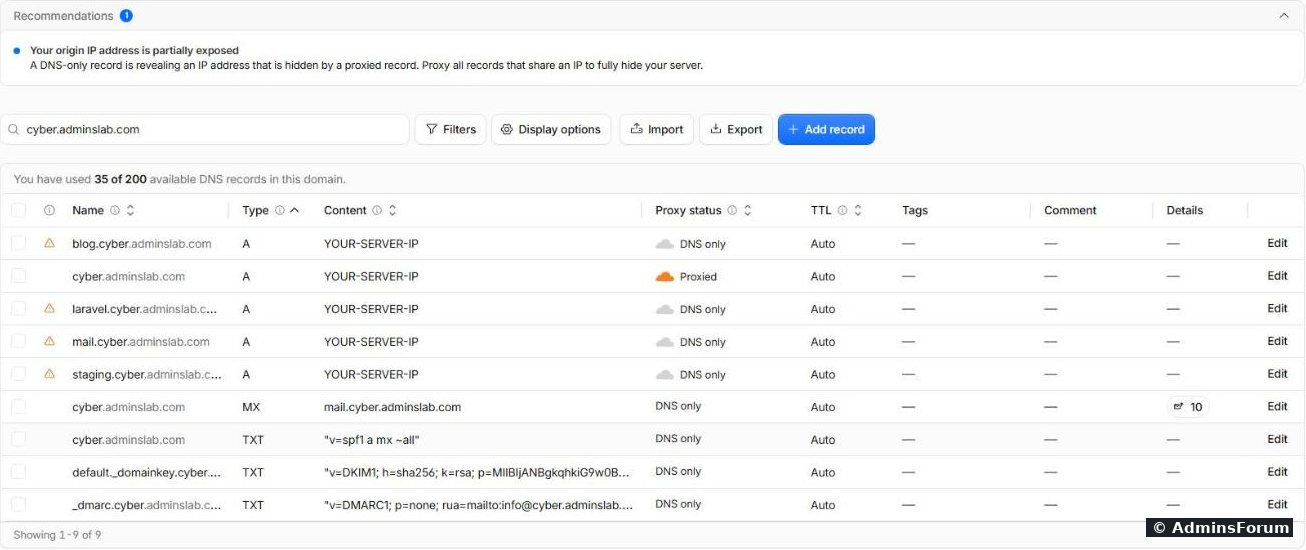
Cloudflare then shows Your origin IP address is partially exposed. That's because other records (the record and some test subdomains) still point straight at the same server. You can't proxy mail through Cloudflare, so on a one-server setup with mail the server IP is never fully hidden. Keep that in mind for Step 4: anyone can find your server IP and talk to it directly, without Cloudflare.
The two-level subdomain trap. Cloudflare's free certificate (Universal SSL) covers and , one level deep only. Our test site is itself a subdomain, so is two levels deep.
This is what our server got back when we tried it with a two-level name:

: the site was simply dead over HTTPS as soon as it was proxied. Your options: leave such names on DNS only, use a one-level name (), or buy Cloudflare's Advanced Certificate. We set it back to DNS only.
Step 2: Check which IP your site really sees
Put a small test file in the site's folder, for example:
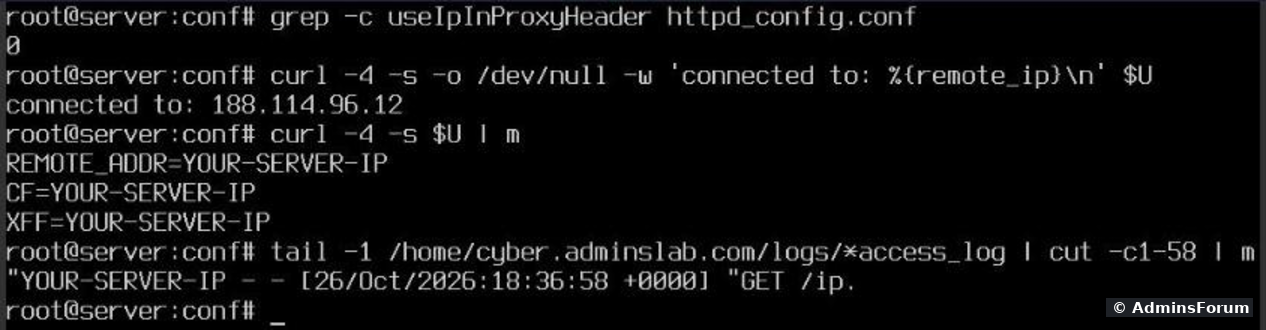
in your browser and compare with your own IP (search "what is my ip"). We tested from the server itself with curl. The request goes out to Cloudflare and comes back, so the "visitor" is our server:
Our results, with the site proxied and nothing changed on the server:
Step 3: What it looks like when it's wrong
To see what a wrong setup looks like, we set the option to off on purpose () and ran the same test:
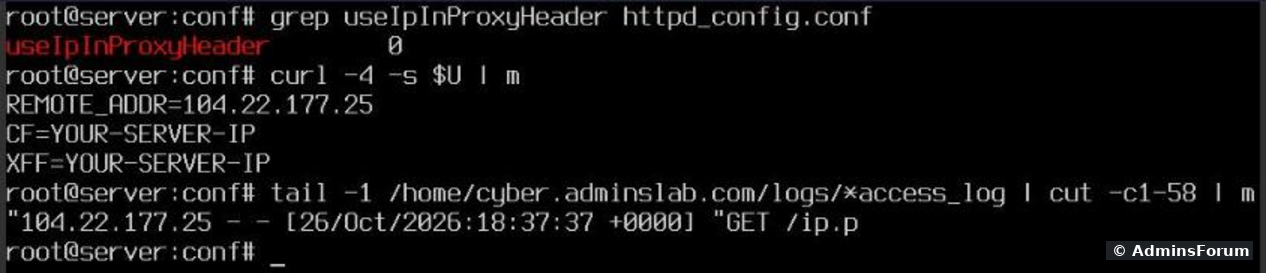
: a Cloudflare server, and the same in the access log, although the header still holds the real IP. That's the classic problem: every visitor in your logs is Cloudflare, and a "limit login attempts" plugin would lock out Cloudflare itself, which means all your visitors. If your test in Step 2 shows a Cloudflare IP, go to Step 5. (We removed the line again afterwards.)
Step 4: The spoof test (why "Yes" is dangerous)
and are just request headers. Cloudflare sets them, but anyone who connects to your server IP directly can send them too, with any value. The server should only believe them when the request comes from Cloudflare.
We ran the same three requests from a browser on another network, directly to the server (a DNS-only subdomain on the same server), once for each setting:
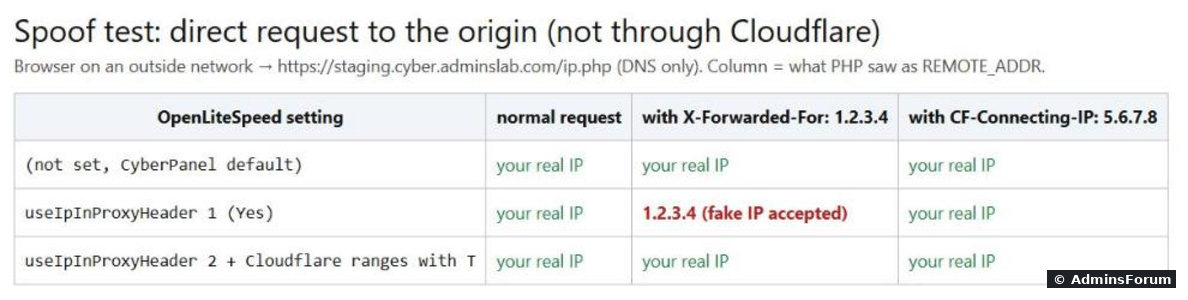
means your server can be fooled. Why not from the server: in our tests OpenLiteSpeed always trusted requests from the server's own IP, even in mode 2. A test run on the server shows 1.2.3.4 whatever the setting, and proves nothing.
Step 5: If you need to set it, use "Trusted IP Only"
Only needed if Step 2 shows a Cloudflare IP. Back up the config first, then download Cloudflare's current IP list (they publish it at and ):
We got 22 ranges (15 IPv4, 7 IPv6). The at the end of each range means "trusted proxy" in OpenLiteSpeed. Then edit : add the setting above the block and the ranges to its line (shortened here):
Keep at the start, or nobody can reach your sites. In the OpenLiteSpeed WebAdmin (port 7080) it's the same: Server Configuration > General > Use Client IP in Header = Trusted IP Only, and the ranges with in Server Configuration > Security > Access Control > Allowed List. Restart and test again (Step 2 and Step 4):
Never use Yes. Cloudflare adds new ranges rarely, but check the list once in a while, and after a CyberPanel upgrade check that your lines are still in the file.
Good to know with Cloudflare in front
Checklist
More CyberPanel guides
Tested on CyberPanel 3.0 (build 8) with OpenLiteSpeed 2.5.5 on Ubuntu 24.04, Cloudflare free plan, October 2026. Other OpenLiteSpeed versions may behave differently; run the tests in Step 2 and Step 4 on yours.
When you switch on Cloudflare's orange cloud, visitors no longer connect to your server. They connect to Cloudflare, and Cloudflare connects to you. If the web server doesn't know that, every visitor looks like a Cloudflare IP: in the access logs, in PHP (
Code:
REMOTE_ADDRStep 1: Proxy the site through Cloudflare
In the Cloudflare dashboard, DNS > Records, we switched the A record of our test site
Code:
cyber.adminslab.comCloudflare then shows Your origin IP address is partially exposed. That's because other records (the
Code:
mail.The two-level subdomain trap. Cloudflare's free certificate (Universal SSL) covers
Code:
example.comCode:
*.example.comCode:
blog.cyber.adminslab.comThis is what our server got back when we tried it with a two-level name:
Code:
curl: (35) ... sslv3 alert handshake failureCode:
blog.example.comStep 2: Check which IP your site really sees
Put a small test file in the site's folder, for example
Code:
/home/yourdomain.com/public_html/ip.phpCode:
<?php $s=$_SERVER;
echo "REMOTE_ADDR=".$s["REMOTE_ADDR"]."\n";
echo "CF=".($s["HTTP_CF_CONNECTING_IP"]??"-")."\n";
echo "XFF=".($s["HTTP_X_FORWARDED_FOR"]??"-")."\n";- is what PHP, WordPress and your logs use as the visitor IP.Code:
REMOTE_ADDR
- is theCode:
CFheader Cloudflare adds: the real visitor IP.Code:CF-Connecting-IP
Code:
https://yourdomain.com/ip.phpCode:
REMOTE_ADDRCode:
grep -c useIpInProxyHeader /usr/local/lsws/conf/httpd_config.conf
curl -4 -s -o /dev/null -w 'connected to: %{remote_ip}\n' https://yourdomain.com/ip.php
curl -4 -s https://yourdomain.com/ip.php
tail -1 /home/yourdomain.com/logs/yourdomain.com.access_log- The request really went through Cloudflare (, a Cloudflare address).Code:
connected to: 188.114.96.12
- and the access log both show the real visitor (our server's IP), not Cloudflare.Code:
REMOTE_ADDR
- appears 0 times in the config. Nothing was set up for this.Code:
useIpInProxyHeader
Step 3: What it looks like when it's wrong
To see what a wrong setup looks like, we set the option to off on purpose (
Code:
useIpInProxyHeader 0Code:
REMOTE_ADDR=104.22.177.25Code:
CFStep 4: The spoof test (why "Yes" is dangerous)
Code:
X-Forwarded-ForCode:
CF-Connecting-IPWe ran the same three requests from a browser on another network, directly to the server (a DNS-only subdomain on the same server), once for each setting:
- Not set (CyberPanel default): the fake headers were ignored. PHP saw the real IP every time.
- useIpInProxyHeader 1 ("Yes"): the fake IP 1.2.3.4 was accepted from a normal visitor on the internet. Anyone could pick any IP: get around login limiters and per-IP limits by sending a new fake IP with every attempt, or put somebody else's IP in your logs. (The fake was not used in this mode;Code:
CF-Connecting-IPwas enough.)Code:X-Forwarded-For
- useIpInProxyHeader 2 ("Trusted IP Only") with Cloudflare's ranges marked as trusted: fake headers ignored, real IPs through Cloudflare still correct.
Code:
curl -s --resolve yourdomain.com:443:YOUR-SERVER-IP -H 'X-Forwarded-For: 1.2.3.4' https://yourdomain.com/ip.phpCode:
REMOTE_ADDR=1.2.3.4Step 5: If you need to set it, use "Trusted IP Only"
Only needed if Step 2 shows a Cloudflare IP. Back up the config first, then download Cloudflare's current IP list (they publish it at
Code:
https://www.cloudflare.com/ips-v4Code:
ips-v6Code:
cd /usr/local/lsws/conf
cp -a httpd_config.conf /root/httpd_config.bak
U=https://www.cloudflare.com/ips-v
{ curl -s ${U}4; echo; curl -s ${U}6; } | grep . > /root/cf.txt
sed 's/$/T/' /root/cf.txt | paste -sd, - | sed 's/,/, /g'Code:
TCode:
httpd_config.confCode:
accessControlCode:
allowCode:
useIpInProxyHeader        2

accessControl{
  allow                   ALL, 173.245.48.0/20T, 103.21.244.0/22T, ... , 2a06:98c0::/29T, 2c0f:f248::/32T
  deny
}Code:
ALLCode:
TCode:
/usr/local/lsws/bin/lswsctrl restartGood to know with Cloudflare in front
- Delete the test file when you're done: . We removed ours.Code:
rm /home/yourdomain.com/public_html/ip.php
- Fail2ban and the firewall: a firewall ban only blocks direct connections. Proxied visitors reach your server from Cloudflare's IPs, so banning a visitor's real IP in the server firewall doesn't stop them. Block web visitors in Cloudflare (Security rules or IP Access rules) instead. Fail2ban for SSH and mail is not affected, because those don't go through Cloudflare.
- SSL mode: CyberPanel gives the site a real Let's Encrypt certificate (SSL guide), so use Full (strict) in Cloudflare's SSL/TLS settings. "Flexible" talks plain HTTP to your server and fights with a force-HTTPS rule (redirect loop).
- The panel and mail stay DNS only. Cloudflare doesn't proxy port 8090 or mail ports. Open the panel by server IP or a grey-cloud name, and keep on DNS only.Code:
mail.
Checklist
- Site record proxied, no two-level subdomains proxied on the free plan.
- through Cloudflare shows your real IP, not a Cloudflare IP.Code:
ip.php
- Fake-header test from your own computer does not show 1.2.3.4.
- If you had to set it: plus Cloudflare ranges withCode:
useIpInProxyHeader 2, neverCode:T.Code:1
- Test file deleted.
More CyberPanel guides
- Fail2ban brute-force protection
- Change PHP version per website
- Git deployment from GitHub
- SSH key login, passwords off
- Create a website
- Issue SSL and fix failed certificates
- Subdomains, addon domains and aliases
- Rewrite rules, force HTTPS, HSTS
- Install WordPress with LiteSpeed Cache
- Cron jobs and a real WP-Cron
- Redis object cache for WordPress
- Databases and phpMyAdmin
- Email, DKIM, SPF and DMARC
- Email forwarding, catch-all, plus-addressing
- Mail queue, spam senders, blacklists
- CyberPanel DNS vs Cloudflare
- Packages and website limits
- Deploy Laravel on CyberPanel
- WordPress staging (clone) fixes
- Backups: create, restore, schedule
- File Manager and FTP
- Reset the admin password from SSH
- Log files and config locations
- Check and restart services
- First steps after install
- ModSecurity + OWASP rules (fix)
- CLI cheat sheet
- Install CyberPanel on Ubuntu 24.04
- Firewall explained
- Install PHP extensions
- Change PHP settings (php.ini)
- Update CyberPanel safely
- Server Error (500) after a fresh install
- Packages, users and ACLs
- Upgrade CyberPanel safely
- Docker apps on your domain with SSL
- Import a large SQL file over SSH
- Remote MySQL access for one IP
- Move WordPress to CyberPanel by hand
- Fix "Error establishing a database connection"
- Fix PHP2Shell (CVE-2026-109618/109619)
- Run your own nameservers (PowerDNS)
- CyberPanel on a small VPS: RAM tuning
Tested on CyberPanel 3.0 (build 8) with OpenLiteSpeed 2.5.5 on Ubuntu 24.04, Cloudflare free plan, October 2026. Other OpenLiteSpeed versions may behave differently; run the tests in Step 2 and Step 4 on yours.