



Today, 05:42 AM
CyberPanel 3 has its own webmail built into the panel. You don't need to install Roundcube or SnappyMail to read and send email any more. We tested it on our demo server with two mailboxes on cyber.adminslab.com: we sent mail between them, set up a filter rule and checked that it really moved new mail.
Short version: it works well for everyday mail, and filter rules work. There is one thing to know before you give panel access to other people: the panel admin can open every mailbox without its password.
Where to find it
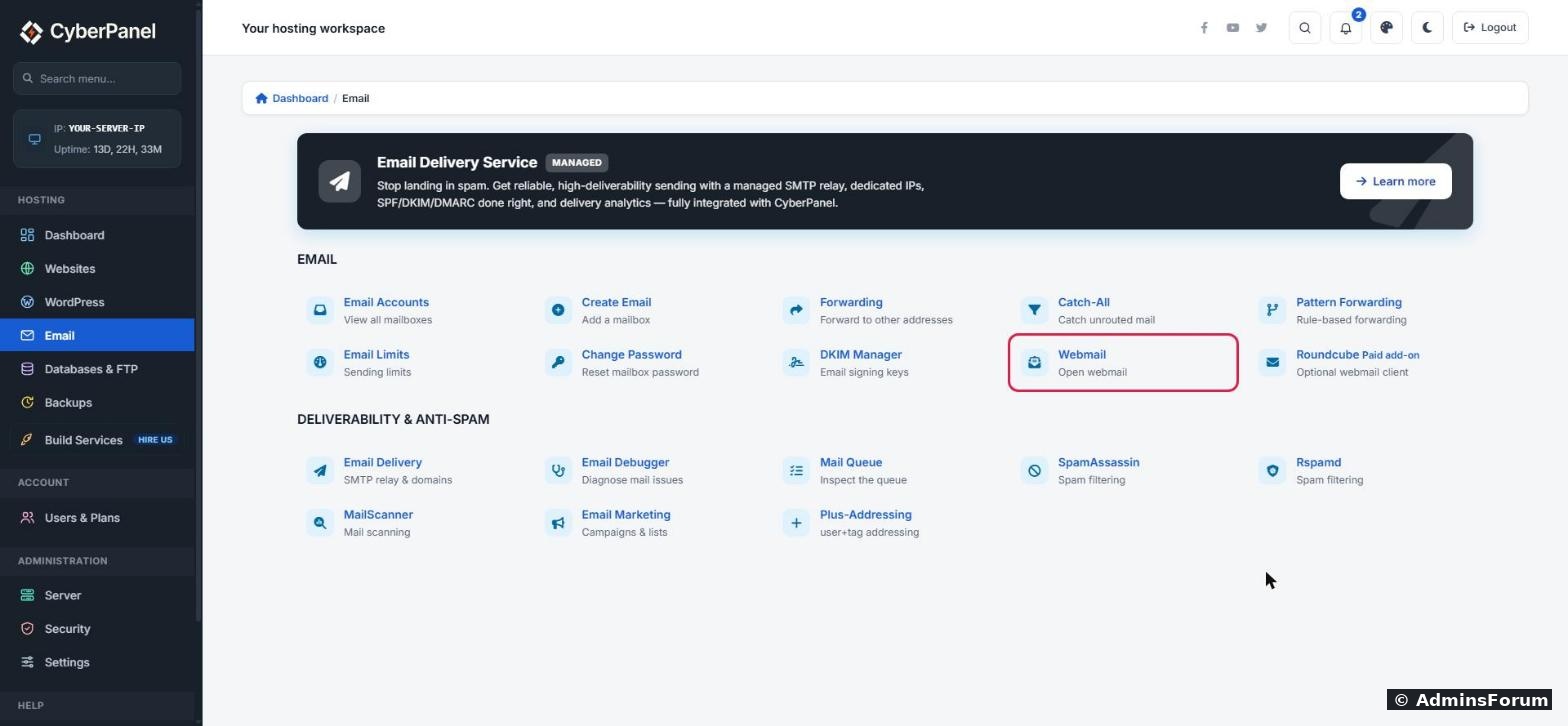
In the menu, click Email, then the Webmail tool. (The Roundcube tile next to it is a paid add-on. You don't need it for anything in this guide.)
Switching between mailboxes
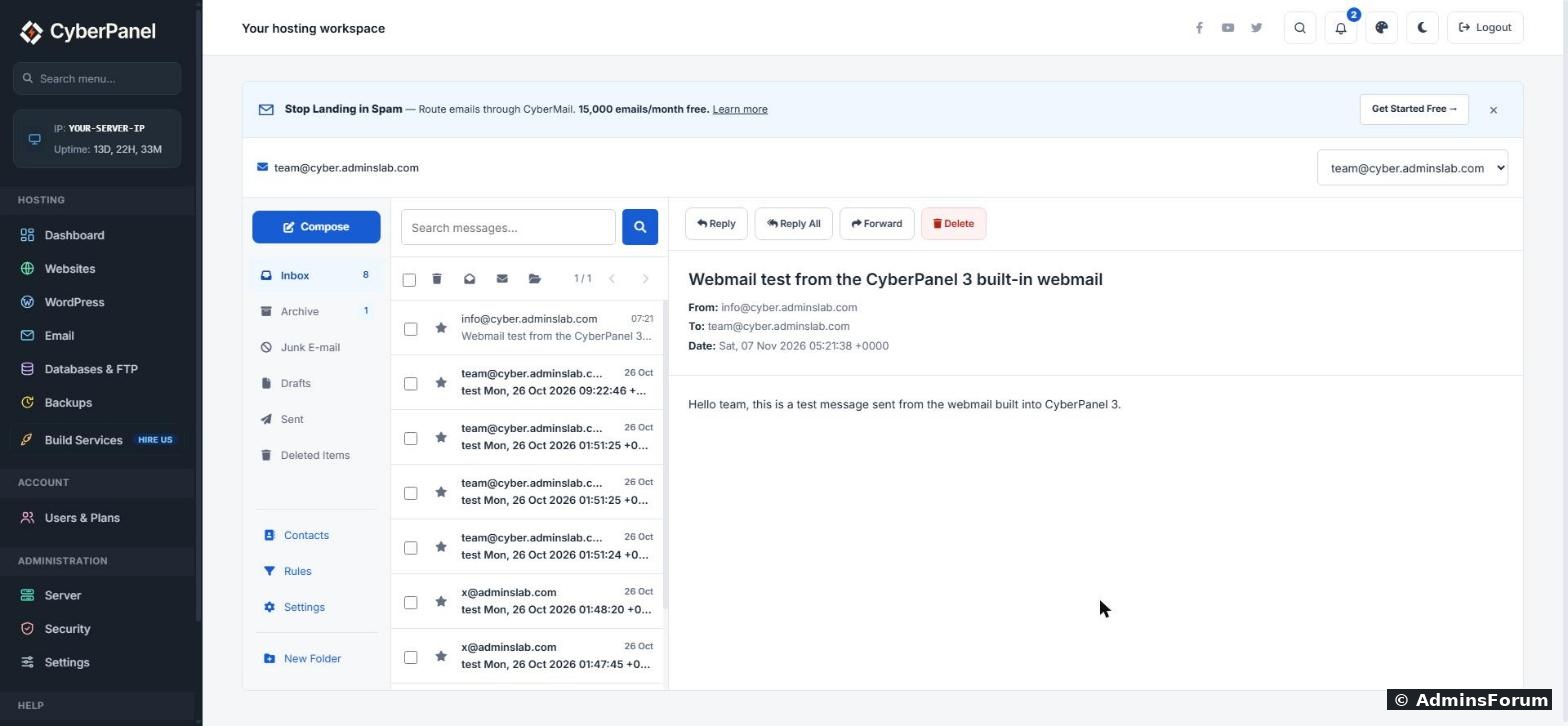
Webmail opens the first mailbox on your server. At the top right there is a drop-down with every mailbox your panel user owns. Pick one and its folders load straight away, with no password asked.
That is handy when you manage your own mail. But it also means anyone who can log in to the panel as you can read all of these mailboxes. If clients or staff should only see their own email, don't share the panel login. Give them the separate webmail login further down instead.
Reading and sending email
Click a message to read it. Reply, Reply All, Forward and Delete sit above the message.
To write a new email, click Compose. You get: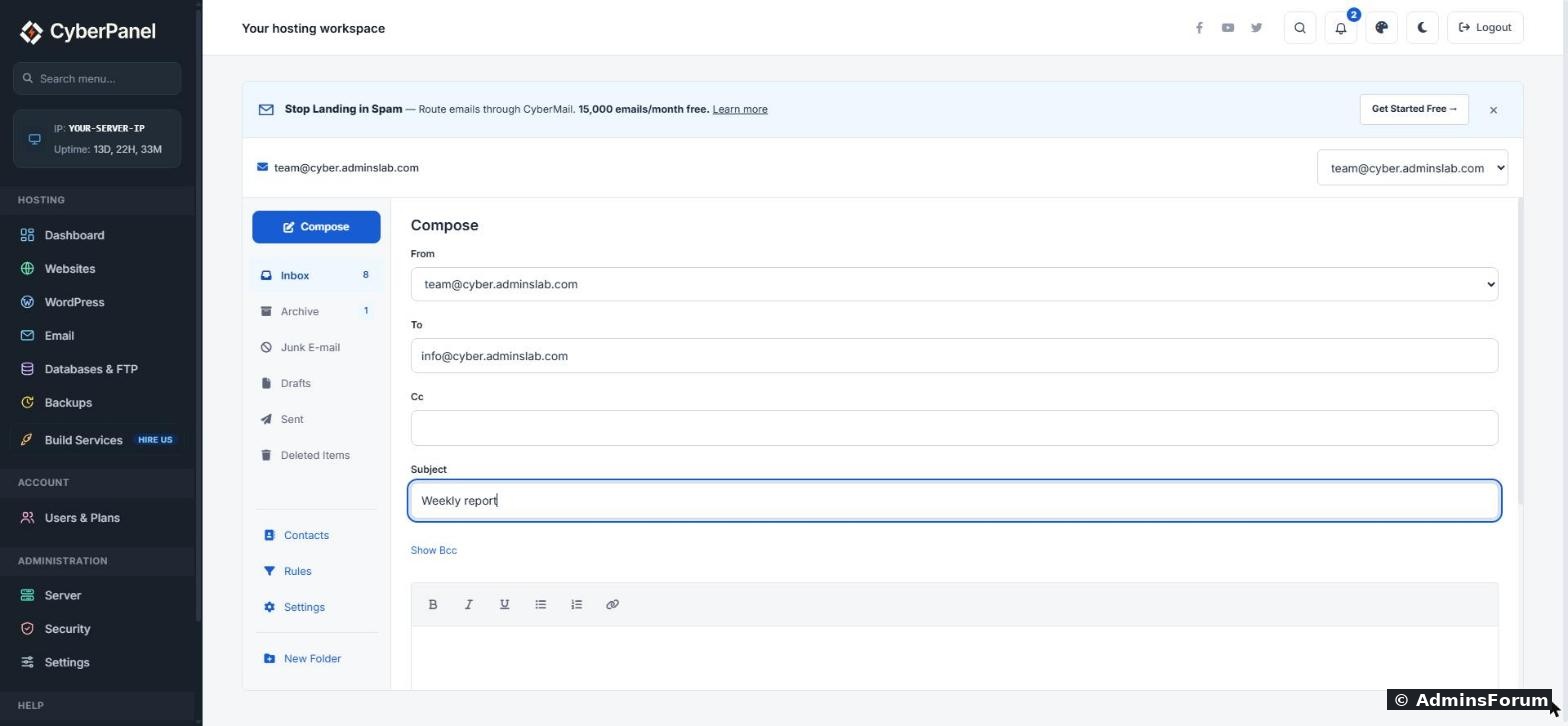
Our test email from info@ to team@ arrived in about a second. In the message list the time shows in your browser's local time, while the Date line inside the message shows the server time (UTC), so the two can look a couple of hours apart. That is normal.
Sending to Gmail or Outlook is a different story. Whether that mail lands in the inbox or in spam depends on your DNS records, not on webmail. If you haven't set those up yet, see our email setup guide (DKIM, SPF, DMARC).
Folders
Every mailbox gets Inbox, Archive, Junk E-mail, Drafts, Sent and Deleted Items. Click New Folder to add your own. To move messages, tick them in the list and use the folder button in the small toolbar above the list.
Filter rules (tested)
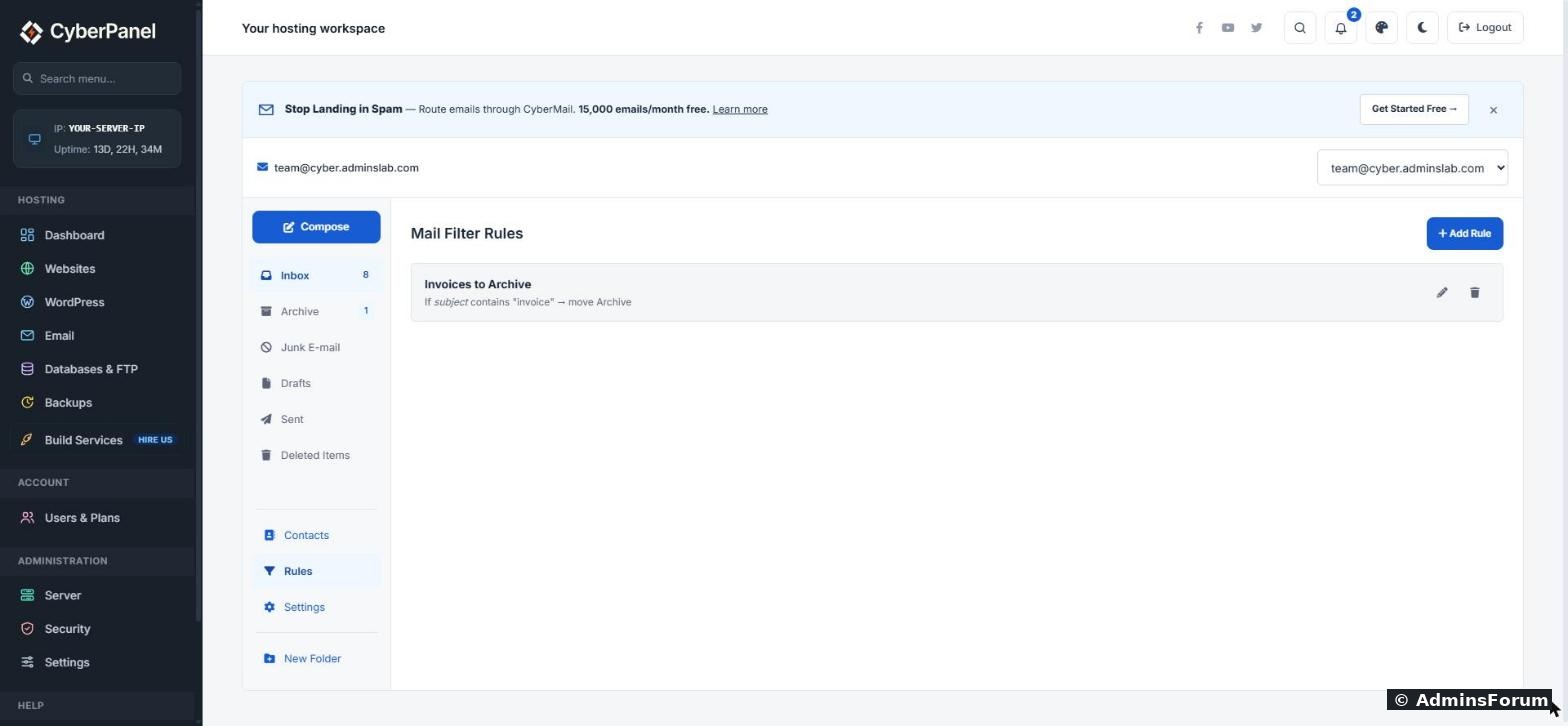
Rules sort new mail automatically. Click Rules, then Add Rule, and fill in:
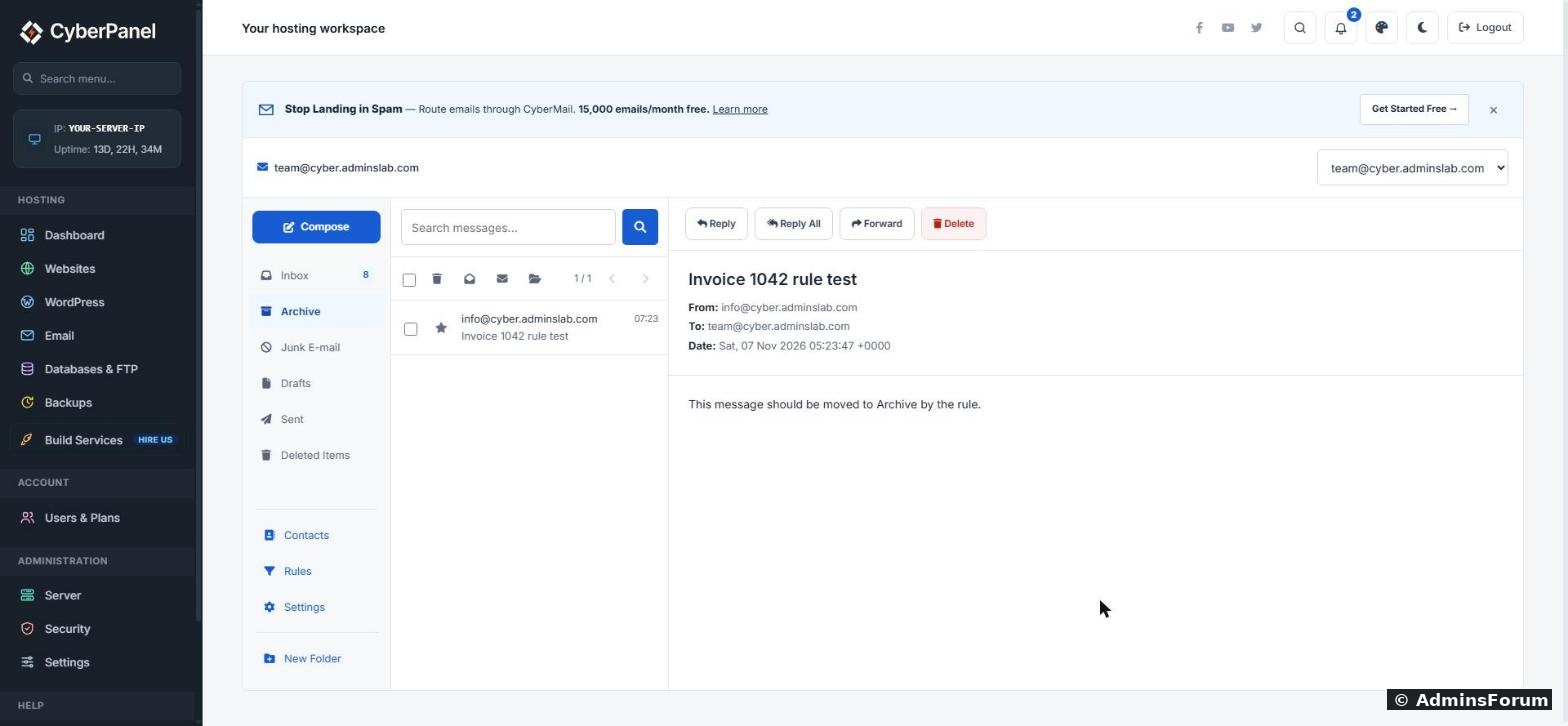
We made a rule "if subject contains invoice, move to Archive" on the team@ mailbox, then sent it a message called "Invoice 1042 rule test". It never showed up in the Inbox. It went straight into Archive, so the rule runs on the server when mail arrives (it also works for mail you read in a phone app, not only in webmail).
Careful with "Discard": it deletes matching mail on arrival and you won't see it anywhere. Test a new rule with "Move to folder" first, and only switch to Discard once you are sure it only catches what you want.
Webmail settings
Under Settings you can set the display name people see, a signature, how many messages show per page (10 to 100), whether replies default to Reply or Reply All, and whether addresses you send to are saved to Contacts automatically. Settings are per mailbox, so switch mailbox first if you manage several.
A separate webmail login for mailbox users
People who only have an email account (no panel login) can use their own sign-in page:
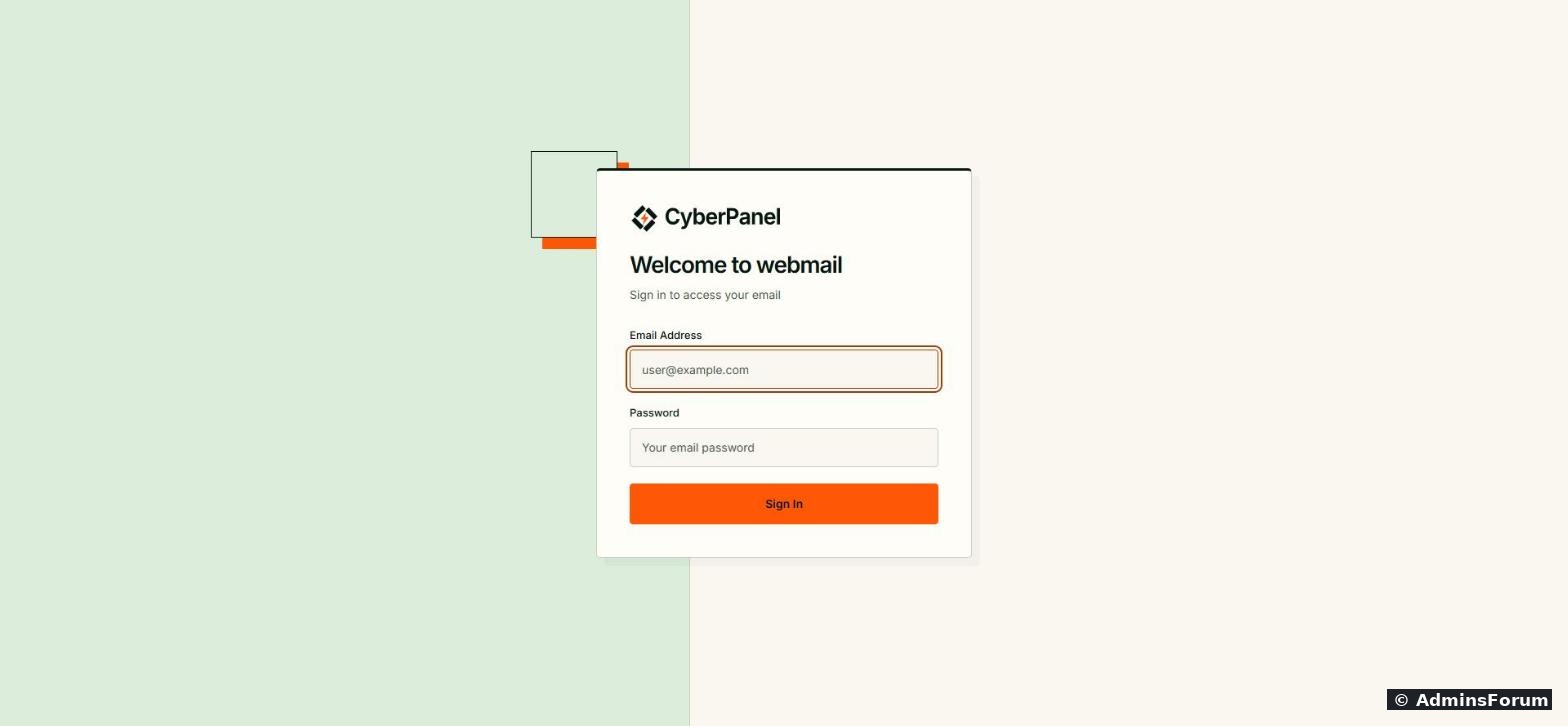
They sign in with their full email address and that mailbox's password, and only see their own mail. This is the page to give clients and staff.
Things to know about this page:
Quick fixes
More CyberPanel guides
Short version: it works well for everyday mail, and filter rules work. There is one thing to know before you give panel access to other people: the panel admin can open every mailbox without its password.
Where to find it
In the menu, click Email, then the Webmail tool. (The Roundcube tile next to it is a paid add-on. You don't need it for anything in this guide.)
Switching between mailboxes
Webmail opens the first mailbox on your server. At the top right there is a drop-down with every mailbox your panel user owns. Pick one and its folders load straight away, with no password asked.
That is handy when you manage your own mail. But it also means anyone who can log in to the panel as you can read all of these mailboxes. If clients or staff should only see their own email, don't share the panel login. Give them the separate webmail login further down instead.
Reading and sending email
Click a message to read it. Reply, Reply All, Forward and Delete sit above the message.
To write a new email, click Compose. You get:
- From: the mailbox you are sending from. On our server, changing it here also switched the whole webmail to that mailbox and closed the compose window, so pick the right mailbox at the top first, then click Compose.
- To, Cc and Bcc (click Show Bcc).
- A simple editor with bold, italic, underline, lists and links.
- Attachments (click or drag files in), Save Draft and Discard.
Our test email from info@ to team@ arrived in about a second. In the message list the time shows in your browser's local time, while the Date line inside the message shows the server time (UTC), so the two can look a couple of hours apart. That is normal.
Sending to Gmail or Outlook is a different story. Whether that mail lands in the inbox or in spam depends on your DNS records, not on webmail. If you haven't set those up yet, see our email setup guide (DKIM, SPF, DMARC).
Folders
Every mailbox gets Inbox, Archive, Junk E-mail, Drafts, Sent and Deleted Items. Click New Folder to add your own. To move messages, tick them in the list and use the folder button in the small toolbar above the list.
Filter rules (tested)
Rules sort new mail automatically. Click Rules, then Add Rule, and fill in:
- Name: anything you like, for example "Invoices to Archive".
- Priority: lower numbers run first. Leave it at 0 if you only have one rule.
- If: From, To, Subject or Size.
- Condition: contains, is, matches, or greater than (for size).
- Value: the text to look for.
- Action: Move to folder, Forward to, Discard or Flag.
We made a rule "if subject contains invoice, move to Archive" on the team@ mailbox, then sent it a message called "Invoice 1042 rule test". It never showed up in the Inbox. It went straight into Archive, so the rule runs on the server when mail arrives (it also works for mail you read in a phone app, not only in webmail).
Careful with "Discard": it deletes matching mail on arrival and you won't see it anywhere. Test a new rule with "Move to folder" first, and only switch to Discard once you are sure it only catches what you want.
Webmail settings
Under Settings you can set the display name people see, a signature, how many messages show per page (10 to 100), whether replies default to Reply or Reply All, and whether addresses you send to are saved to Contacts automatically. Settings are per mailbox, so switch mailbox first if you manage several.
A separate webmail login for mailbox users
People who only have an email account (no panel login) can use their own sign-in page:
Code:
https://your-domain.com:8090/webmail/loginThings to know about this page:
- It runs on the panel port 8090, so that port must be open in your firewall (it is by default).
- Use your domain name in the address, not the server IP, so the browser shows a padlock instead of a security warning. If the browser still warns, the panel's hostname SSL needs setting up. We'll cover that in a separate guide.
- If a user doesn't know their password, set a new one under Email > Change Password.
Quick fixes
- Webmail shows no mailboxes: create one first under Email > Create Email. Webmail only lists mailboxes owned by your panel user.
- Sent mail goes to spam at Gmail: fix DKIM, SPF and DMARC (link above). Webmail can't fix that.
- A rule doesn't seem to work: rules only act on new mail, not on mail that was already in the Inbox. Send yourself a fresh test message.
- The blue "Stop Landing in Spam" bar: it's an advert for CyberPanel's paid mail service. Click the × to hide it. It is not an error.
More CyberPanel guides
- Fail2ban brute-force protection
- Change PHP version per website
- Git deployment from GitHub
- SSH key login, passwords off
- Create a website
- Issue SSL and fix failed certificates
- Subdomains, addon domains and aliases
- Rewrite rules, force HTTPS, HSTS
- Install WordPress with LiteSpeed Cache
- Cron jobs and a real WP-Cron
- Redis object cache for WordPress
- Databases and phpMyAdmin
- Email, DKIM, SPF and DMARC
- Email forwarding, catch-all, plus-addressing
- Mail queue, spam senders, blacklists
- CyberPanel DNS vs Cloudflare
- Packages and website limits
- Deploy Laravel on CyberPanel
- WordPress staging (clone) fixes
- Backups: create, restore, schedule
- File Manager and FTP
- Reset the admin password from SSH
- Log files and config locations
- Check and restart services
- First steps after install
- ModSecurity + OWASP rules (fix)
- CLI cheat sheet
- Install CyberPanel on Ubuntu 24.04
- Firewall explained
- Install PHP extensions
- Change PHP settings (php.ini)
- Update CyberPanel safely
- Server Error (500) after a fresh install
- Packages, users and ACLs
- Upgrade CyberPanel safely
- Real visitor IPs behind Cloudflare
- Import a large SQL file over SSH
- Remote MySQL access for one IP
- Move WordPress to CyberPanel by hand
- Fix "Error establishing a database connection"
- Fix PHP2Shell (CVE-2026-109618/109619)
- Docker apps on your domain with SSL
- Run your own nameservers (PowerDNS)