



Today, 06:48 AM
Why the CyberPanel Web Terminal button does nothing (and what to use instead)
CyberPanel 3 has a Web Terminal in the menu, so a lot of people expect a free browser shell like the old one. On a fresh CyberPanel 3.0.8 install we clicked it and got a "Web Terminal is disabled" box instead. Here is what that box means and the free ways we used to get a shell on the same server.
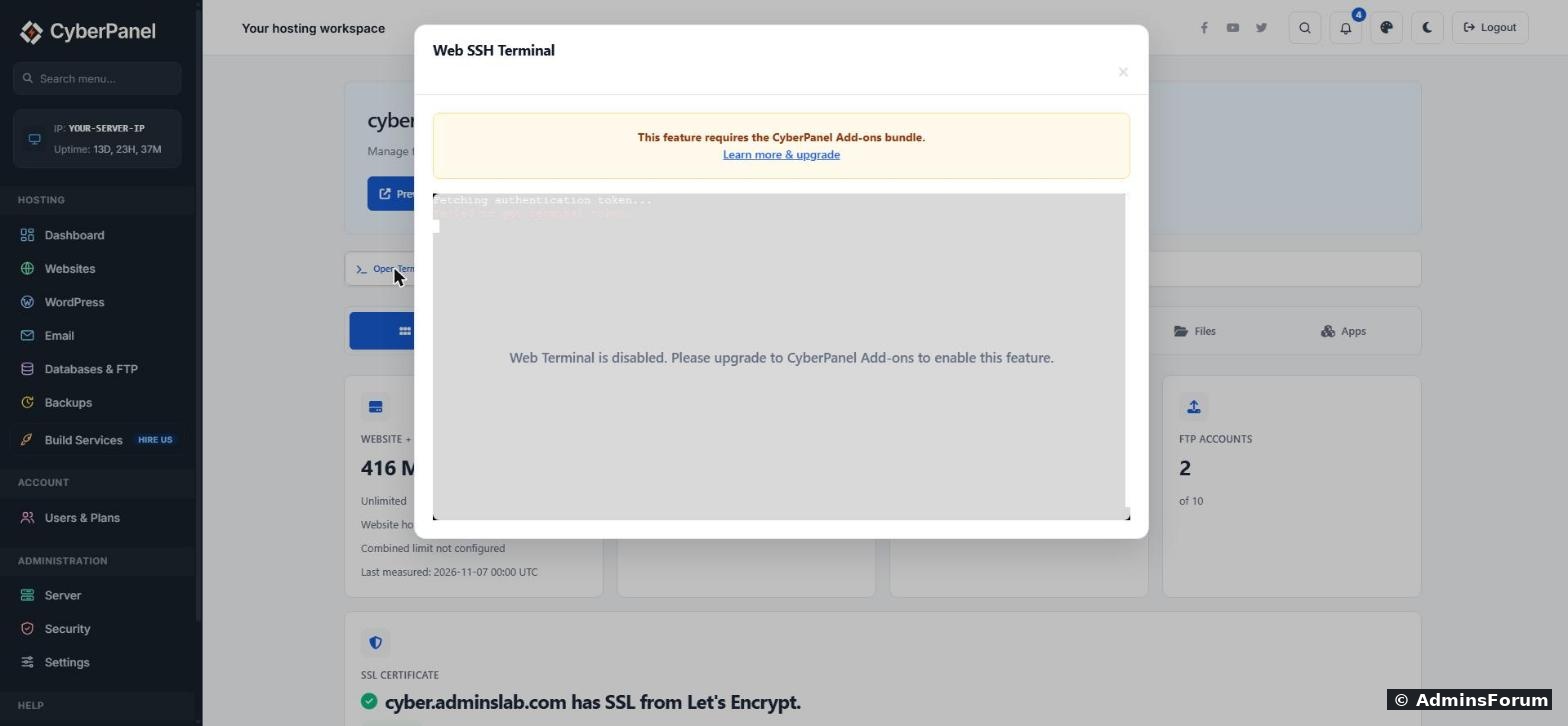
What the message means
In CyberPanel 3 the Web Terminal is part of the paid CyberPanel Add-ons bundle. The panel checks for the add-on licence before it opens the terminal, so on a free install the button only shows that dialog. Nothing is broken on your server, and restarting services or reinstalling will not turn it on.
If you already pay for the Add-ons bundle, activate the licence in the panel and the terminal opens normally. If not, the three options below are free and work fine.
Option 1: SSH/SFTP access for one website (no root)
Every website in CyberPanel has its own Linux user. You can give that user SSH and SFTP access from the panel. This is the right choice for a developer or client who should only touch one site.
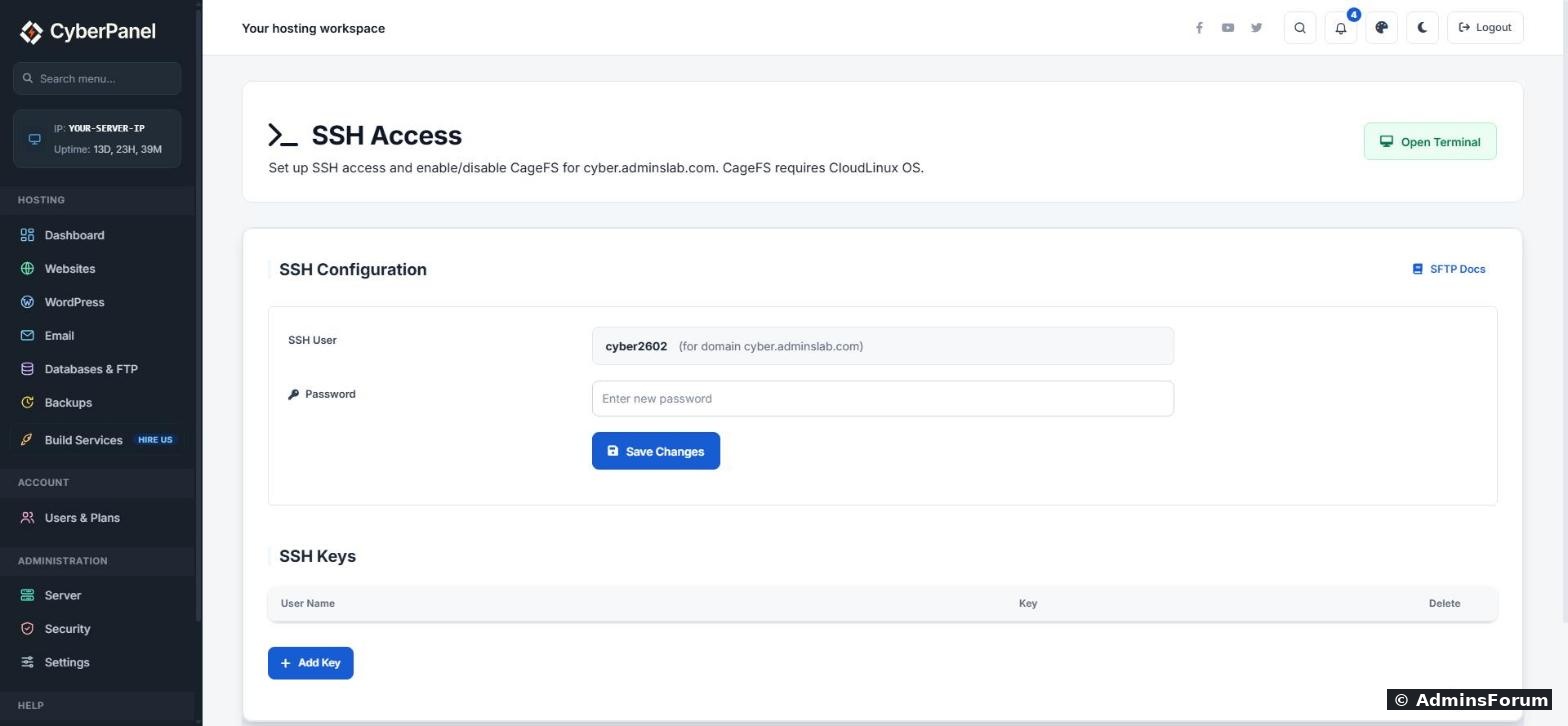
That user lands in the site's own home folder and cannot read other sites. Good for running Composer, WP-CLI or git pull for that one site.
Option 2: Root SSH from your own computer
For server admin work you want root over normal SSH, ideally with a key instead of a password. We have a full walkthrough, including the Ubuntu cloud-init setting that quietly turns password login back on:
CyberPanel SSH key login and disabling password login
On Windows, PowerShell and Windows Terminal already include ssh. On a Mac or Linux, open Terminal and run
Option 3: Your VPS provider's console
Almost every VPS provider has a browser console (often called VNC, KVM or Console) in their client area. It works even when SSH is blocked by a firewall rule or a wrong sshd setting, so keep it in mind as your rescue door. It is slow and copy-paste can be unreliable, so use it to fix SSH, then switch back to a real SSH client.
Quick comparison
Common problems
Tested on CyberPanel 3.0.8 with OpenLiteSpeed on Ubuntu 24.04. If your panel shows something different, post a screenshot below (hide your server IP) and we will take a look.
More CyberPanel guides
CyberPanel 3 has a Web Terminal in the menu, so a lot of people expect a free browser shell like the old one. On a fresh CyberPanel 3.0.8 install we clicked it and got a "Web Terminal is disabled" box instead. Here is what that box means and the free ways we used to get a shell on the same server.
What the message means
In CyberPanel 3 the Web Terminal is part of the paid CyberPanel Add-ons bundle. The panel checks for the add-on licence before it opens the terminal, so on a free install the button only shows that dialog. Nothing is broken on your server, and restarting services or reinstalling will not turn it on.
If you already pay for the Add-ons bundle, activate the licence in the panel and the terminal opens normally. If not, the three options below are free and work fine.
Option 1: SSH/SFTP access for one website (no root)
Every website in CyberPanel has its own Linux user. You can give that user SSH and SFTP access from the panel. This is the right choice for a developer or client who should only touch one site.
- Go to Websites > List Websites and click Manage on the site.
- Open SSH Access (on CyberPanel 3 the page lives at /websites/your-domain/sshAccess).
- Note the SSH user shown at the top. It is made from the domain name, for example cyber2602.
- Either set a password for that user, or click Add Key and paste the person's public SSH key. A key is safer.
- Connect with:
or use SFTP in FileZilla with the same user, port 22.Code:ssh SITE-USER@YOUR-SERVER-IP
That user lands in the site's own home folder and cannot read other sites. Good for running Composer, WP-CLI or git pull for that one site.
Option 2: Root SSH from your own computer
For server admin work you want root over normal SSH, ideally with a key instead of a password. We have a full walkthrough, including the Ubuntu cloud-init setting that quietly turns password login back on:
CyberPanel SSH key login and disabling password login
On Windows, PowerShell and Windows Terminal already include ssh. On a Mac or Linux, open Terminal and run
Code:
ssh root@YOUR-SERVER-IPOption 3: Your VPS provider's console
Almost every VPS provider has a browser console (often called VNC, KVM or Console) in their client area. It works even when SSH is blocked by a firewall rule or a wrong sshd setting, so keep it in mind as your rescue door. It is slow and copy-paste can be unreliable, so use it to fix SSH, then switch back to a real SSH client.
Quick comparison
- Web Terminal: paid add-on, opens in the panel, root.
- Site SSH/SFTP: free, one website only, good for developers.
- Root SSH: free, full server, best for daily admin.
- Provider console: free, full server, for emergencies.
Common problems
- "Permission denied" for the site user: make sure you saved a password or key on the SSH Access page, and that you used the exact user name shown there, not the domain name.
- Connection times out: port 22 is blocked. In CyberPanel go to Security > Firewall and check that 22 (or your custom SSH port) is allowed, and check your provider's cloud firewall too.
- Changed the SSH port and got locked out: log in through the provider console, fix the port in /etc/ssh/sshd_config, allow it in the firewall, then restart ssh.
Tested on CyberPanel 3.0.8 with OpenLiteSpeed on Ubuntu 24.04. If your panel shows something different, post a screenshot below (hide your server IP) and we will take a look.
More CyberPanel guides
- Hostname and mail SSL (port 8090)
- Fail2ban brute-force protection
- Change PHP version per website
- Git deployment from GitHub
- SSH key login, passwords off
- Create a website
- Issue SSL and fix failed certificates
- Subdomains, addon domains and aliases
- Rewrite rules, force HTTPS, HSTS
- Install WordPress with LiteSpeed Cache
- Cron jobs and a real WP-Cron
- Redis object cache for WordPress
- Databases and phpMyAdmin
- Email, DKIM, SPF and DMARC
- Email forwarding, catch-all, plus-addressing
- Mail queue, spam senders, blacklists
- CyberPanel DNS vs Cloudflare
- Packages and website limits
- Deploy Laravel on CyberPanel
- WordPress staging (clone) fixes
- Backups: create, restore, schedule
- File Manager and FTP
- Reset the admin password from SSH
- Log files and config locations
- Check and restart services
- First steps after install
- ModSecurity + OWASP rules (fix)
- CLI cheat sheet
- Install CyberPanel on Ubuntu 24.04
- Firewall explained
- Install PHP extensions
- Change PHP settings (php.ini)
- Update CyberPanel safely
- Server Error (500) after a fresh install
- Packages, users and ACLs
- Upgrade CyberPanel safely
- Real visitor IPs behind Cloudflare
- Import a large SQL file over SSH
- Remote MySQL access for one IP
- Move WordPress to CyberPanel by hand
- Fix "Error establishing a database connection"
- Fix PHP2Shell (CVE-2026-109618/109619)
- Docker apps on your domain with SSL
- Run your own nameservers (PowerDNS)