



Yesterday, 03:23 AM
A .env file holds application configuration, but merely creating the file does not guarantee Node.js will read it. This guide explicitly loads a .env file with Node.js 24 and verifies the result using a small localhost-only app on an aaPanel server.
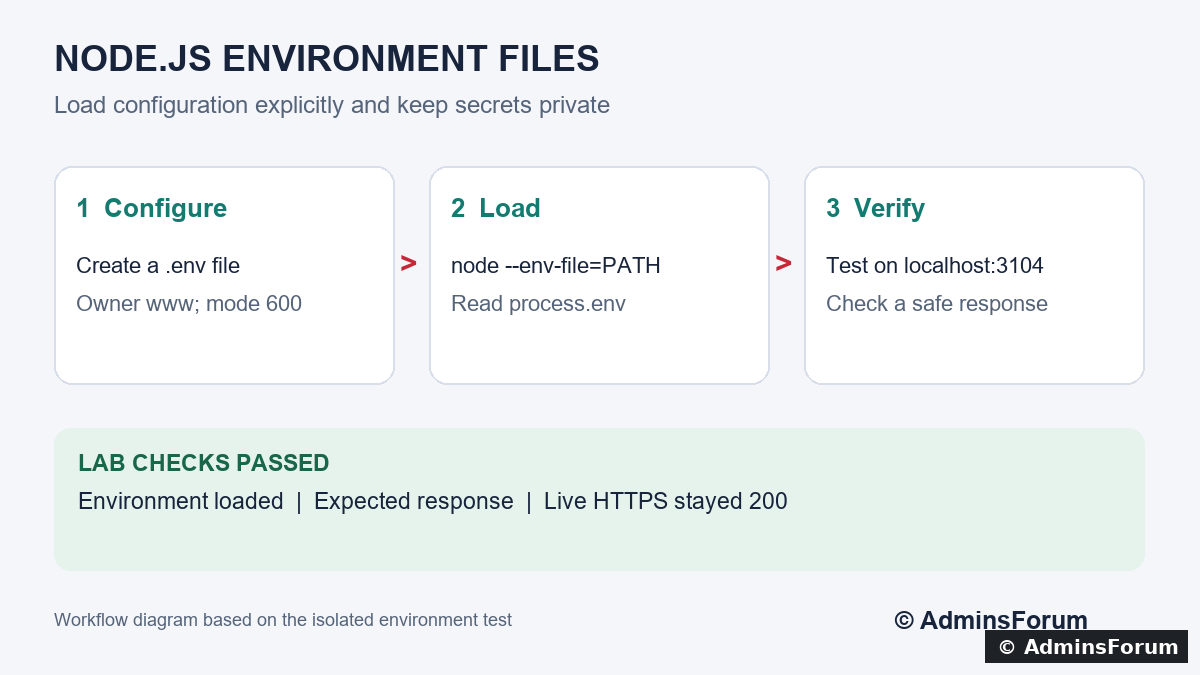
Environment-file workflow based on the isolated lab test.
Tested: Ubuntu 22.04.5 LTS, aaPanel Free 8.0.7 and Node.js 24.21.0 on 14 October 2026. The sample ran as www in /www/af-node-env-lab and listened on 127.0.0.1:3104. We tested the SSH startup command below; we did not change the live aaPanel project's start command.
1. Separate configuration from application code
Configuration can include a port, a display label or connection settings. This example uses only non-secret values. Do not place real credentials into tutorial screenshots, public repositories or responses returned to visitors.
Create a new practice directory as an administrator:
Choose a directory that does not already contain an application. This sample is outside the live website's document root.
2. Create the environment file
Create /www/af-node-env-lab/.env with:
A leading dot can make the file less obvious in file listings; it does not make it encrypted or safe to expose over HTTP. If using a file manager, enable its hidden-file view when needed.
Restrict access to the intended owner:
Mode 600 allows the owner to read and write. It is not isolation between applications that all run as www. Use suitable account isolation and secret management for real deployments.
3. Create a sample application
Create /www/af-node-env-lab/server.js with:
Set its owner to www and allow that user to read it. The app reads configuration from process.env. It exposes only the harmless sample label, not the whole environment. This demonstration validates presence of the two sample values; a real application should validate its complete configuration, including allowed port ranges.
4. Load the file explicitly
Use the installed Node.js binary and an absolute path:
Keep this foreground process running while testing from a second SSH session. Replace the runtime path with your installed version. This command uses Node's built-in environment-file support; no dotenv package is required for this tested Node.js 24 example.
The --env-file option must be passed to Node before the application filename. Using an absolute file path avoids confusion about the working directory. Check your runtime's documentation before using this option with an older release.
5. Verify the result without displaying secrets
From another SSH session:
Expect HTTP 200 and:
Our test returned exactly that label. We also checked the file's permissions were 600 and confirmed that the existing HTTPS website still returned 200. Stop the foreground test with Ctrl+C when finished. Our temporary process was stopped after verification.
Do not verify real credentials by printing process.env or returning secret values from a web endpoint. For a required secret, check its presence or test the intended service connection without exposing its value.
6. Connect this to your aaPanel deployment
For a managed application, the configured start command must load the intended environment file every time the process starts. An export in your interactive SSH shell is not proof that a separately started panel process receives the same environment.
Review the app's package.json start script or custom startup command and its expected working directory. Preserve the selected runtime, run user and port. Test in a separate project before changing a live start command, then verify application restart and reboot recovery. This guide proves the environment-loading command; panel-managed persistence for this practice app was not configured here.
7. Troubleshoot missing values
Related guides: Node.js deployment with domain and HTTPS and startup after reboot.
Reference: Node.js command-line environment-file documentation.
Environment-file workflow based on the isolated lab test.
Tested: Ubuntu 22.04.5 LTS, aaPanel Free 8.0.7 and Node.js 24.21.0 on 14 October 2026. The sample ran as www in /www/af-node-env-lab and listened on 127.0.0.1:3104. We tested the SSH startup command below; we did not change the live aaPanel project's start command.
1. Separate configuration from application code
Configuration can include a port, a display label or connection settings. This example uses only non-secret values. Do not place real credentials into tutorial screenshots, public repositories or responses returned to visitors.
Create a new practice directory as an administrator:
Code:
sudo mkdir /www/af-node-env-lab
sudo chown www:www /www/af-node-env-lab2. Create the environment file
Create /www/af-node-env-lab/.env with:
Code:
APP_LABEL=AdminsForum environment lab
PORT=3104Restrict access to the intended owner:
Code:
sudo chown www:www /www/af-node-env-lab/.env
sudo chmod 600 /www/af-node-env-lab/.env3. Create a sample application
Create /www/af-node-env-lab/server.js with:
Code:
const http = require('node:http');
const port = Number(process.env.PORT);
const label = process.env.APP_LABEL;

if (!port || !label) {
  throw new Error('Missing configuration');
}

http.createServer((req, res) => {
  res.writeHead(200, { 'Content-Type': 'text/plain' });
  res.end(label);
}).listen(port, '127.0.0.1');4. Load the file explicitly
Use the installed Node.js binary and an absolute path:
Code:
sudo runuser -u www -- /www/server/nodejs/v24.21.0/bin/node --env-file=/www/af-node-env-lab/.env /www/af-node-env-lab/server.jsThe --env-file option must be passed to Node before the application filename. Using an absolute file path avoids confusion about the working directory. Check your runtime's documentation before using this option with an older release.
5. Verify the result without displaying secrets
From another SSH session:
Code:
curl -i http://127.0.0.1:3104/Code:
AdminsForum environment labDo not verify real credentials by printing process.env or returning secret values from a web endpoint. For a required secret, check its presence or test the intended service connection without exposing its value.
6. Connect this to your aaPanel deployment
For a managed application, the configured start command must load the intended environment file every time the process starts. An export in your interactive SSH shell is not proof that a separately started panel process receives the same environment.
Review the app's package.json start script or custom startup command and its expected working directory. Preserve the selected runtime, run user and port. Test in a separate project before changing a live start command, then verify application restart and reboot recovery. This guide proves the environment-loading command; panel-managed persistence for this practice app was not configured here.
7. Troubleshoot missing values
- Missing configuration: Check that the startup command includes --env-file and that variable names match the code.
- File not found: Check the absolute path and hidden filename.
- Permission denied: Check the file owner, mode and parent-directory access for the run user.
- Unsupported option: Confirm which Node binary is running and whether it supports --env-file.
- Port conflict: Check for an existing listener before launching another copy.
Related guides: Node.js deployment with domain and HTTPS and startup after reboot.
Reference: Node.js command-line environment-file documentation.