



Yesterday, 02:09 AM
This walkthrough creates a small Node.js website, starts it as the www user in aaPanel, connects a domain through Nginx and enables HTTPS. It includes the actual sample files and checks used in our lab, so you can confirm each stage before moving on.
Tested setup: Ubuntu 22.04.5 LTS, aaPanel Free 8.0.7, Nginx 1.30.5, Node.js 24.21.0. Our project is afnodelab, its folder is /www/wwwroot/af-node-lab, and its domain is node.adminslab.com. Replace the domain and server IP with your own. Tested on 14 October 2026.
1. Install the runtime first
Complete Install Node.js LTS in aaPanel and verify Node and npm. You should have a supported runtime available in Website → Node.js Project. This example has no third-party dependencies and does not need a database.
2. Create a separate application folder
In aaPanel Files, open /www/wwwroot and create a directory named af-node-lab. Inside it create two files: server.js and package.json. Keep this sample in its own folder rather than replacing an existing website.
Put the following in server.js:
Put the following in package.json:
The package's start script tells the panel how to launch the app. The app listens on 127.0.0.1:3100, which is local to the VPS. Nginx will handle public website requests later. This simple example deliberately returns the same page for every request; it is a test app, not a complete production application.
Set the folder and files to owner www so the selected run user can read them. Standard directory permissions 755 and file permissions 644 are sufficient here; do not use 777 as a troubleshooting shortcut.
3. Add the application to aaPanel
Open Website → Node.js Project → Add Project → Default Project. Use the folder button beside Path to open the directory picker. Select af-node-lab under /www/wwwroot and confirm it.
Use these values:
Use a simple project identifier with letters, numbers or underscores. Our first identifier containing hyphens was rejected by the panel. The folder and package.json name can contain hyphens; the panel's project identifier has its own validation rule. Dismiss any error popup before correcting and resubmitting the form.
Click Confirm and wait for the project to show Running.
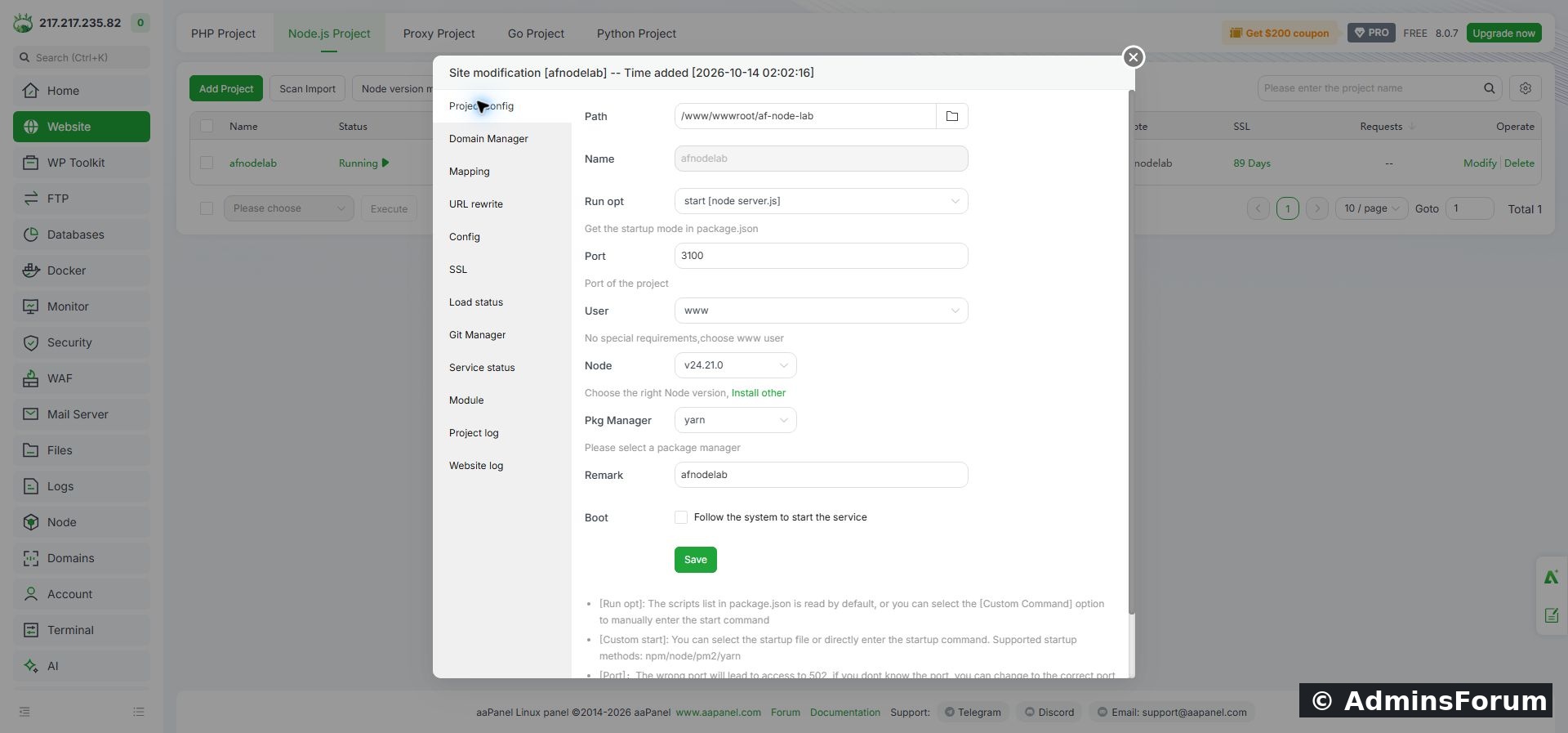
Final project configuration: app folder, start script, runtime, port and www user.
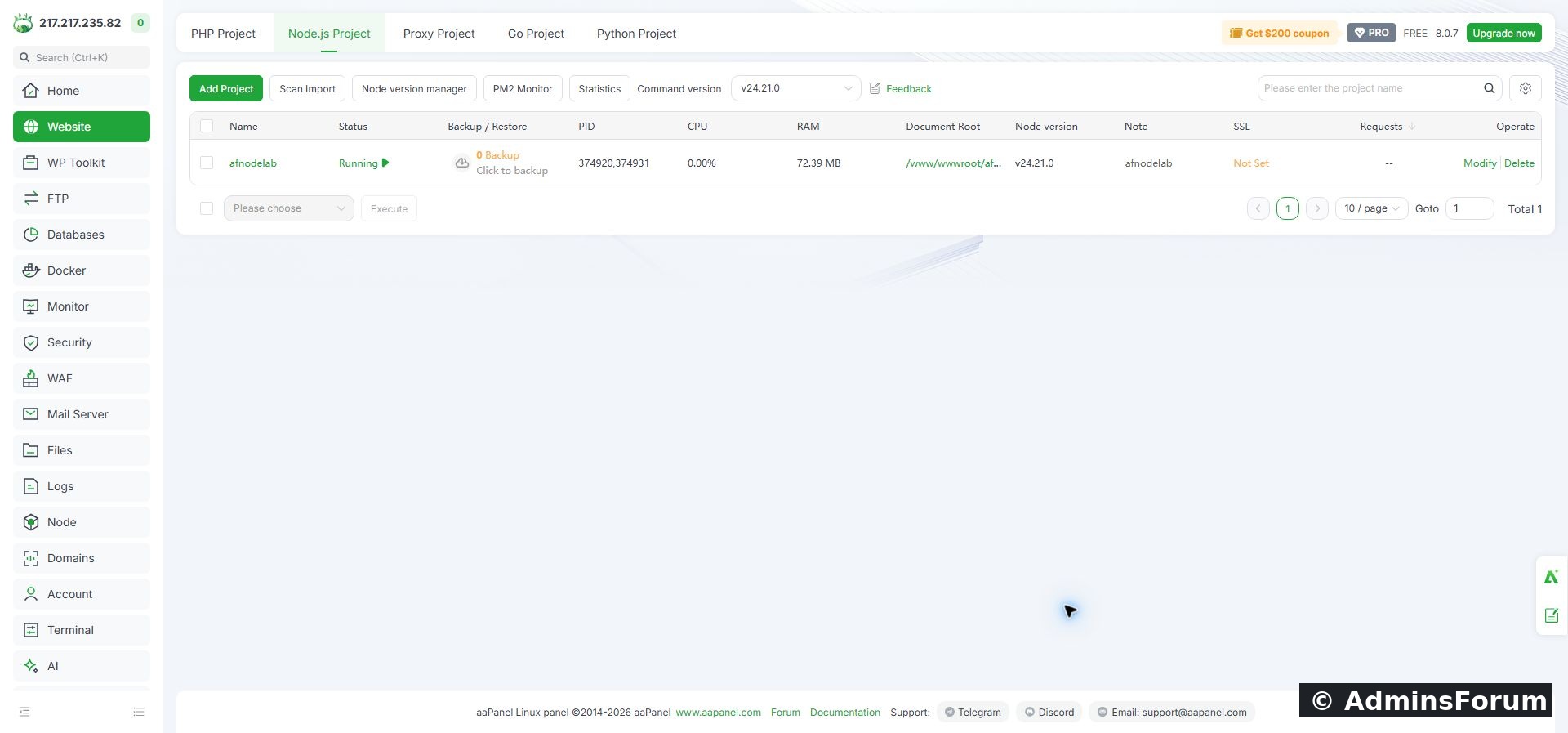
The sample project is running and shows its process IDs and memory usage.
4. Verify the app locally
Before adding a domain, run these checks over SSH:
Expect HTTP 200 and the AdminsForum Node.js Lab page. The listening address should be 127.0.0.1:3100. We verified both in this lab. If the local request fails, fix the app startup before troubleshooting DNS or SSL.
5. Point a domain to the VPS
In Cloudflare DNS, create an A record for your chosen hostname. Our record was node → 217.217.235.82, with DNS only and automatic TTL. Check for conflicting records before adding it. Do not copy our IP for your own server.
We used DNS only while validating direct access to the origin. If you later enable Cloudflare proxying, check the origin certificate and Cloudflare SSL mode separately.
6. Add the domain and turn on Mapping
Click the project name to open its settings. In Domain Manager, enter node.adminslab.com and click Add. Add only a hostname, without https:// or a path.
Open Mapping, enable the switch and confirm. Mapping connects the hostname on the web server to the local Node.js service. Our HTTP domain check returned 200 after this stage. The project's port must match the listening port in server.js; changing one does not automatically change the other.
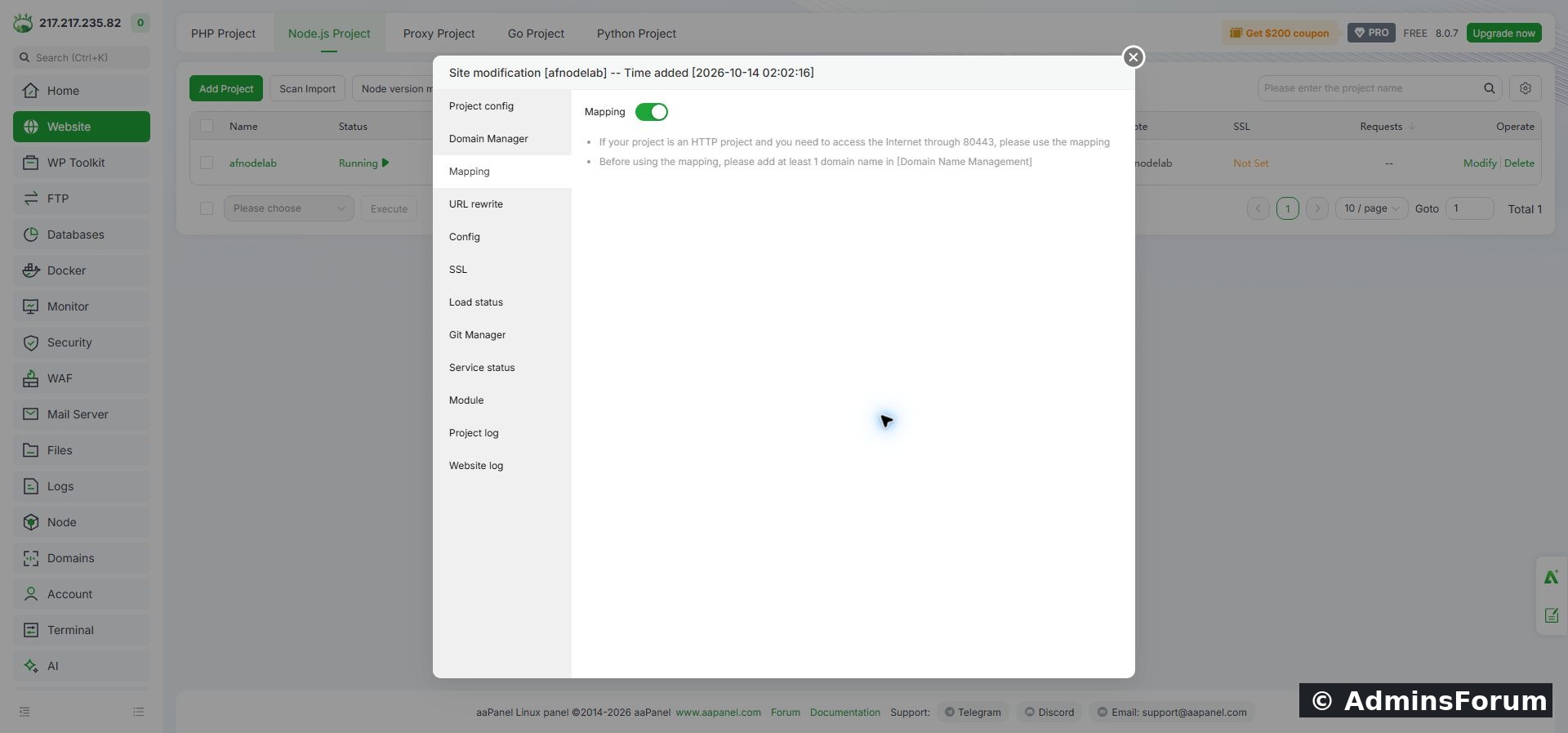
Mapping connects public web requests to the running local application.
7. Issue the HTTPS certificate
Open SSL → Let's Encrypt. Select File Verification and check your hostname, then click Apply. The DNS record must resolve to this VPS and HTTP validation must be reachable. Wait for certificate issuance and deployment to finish.
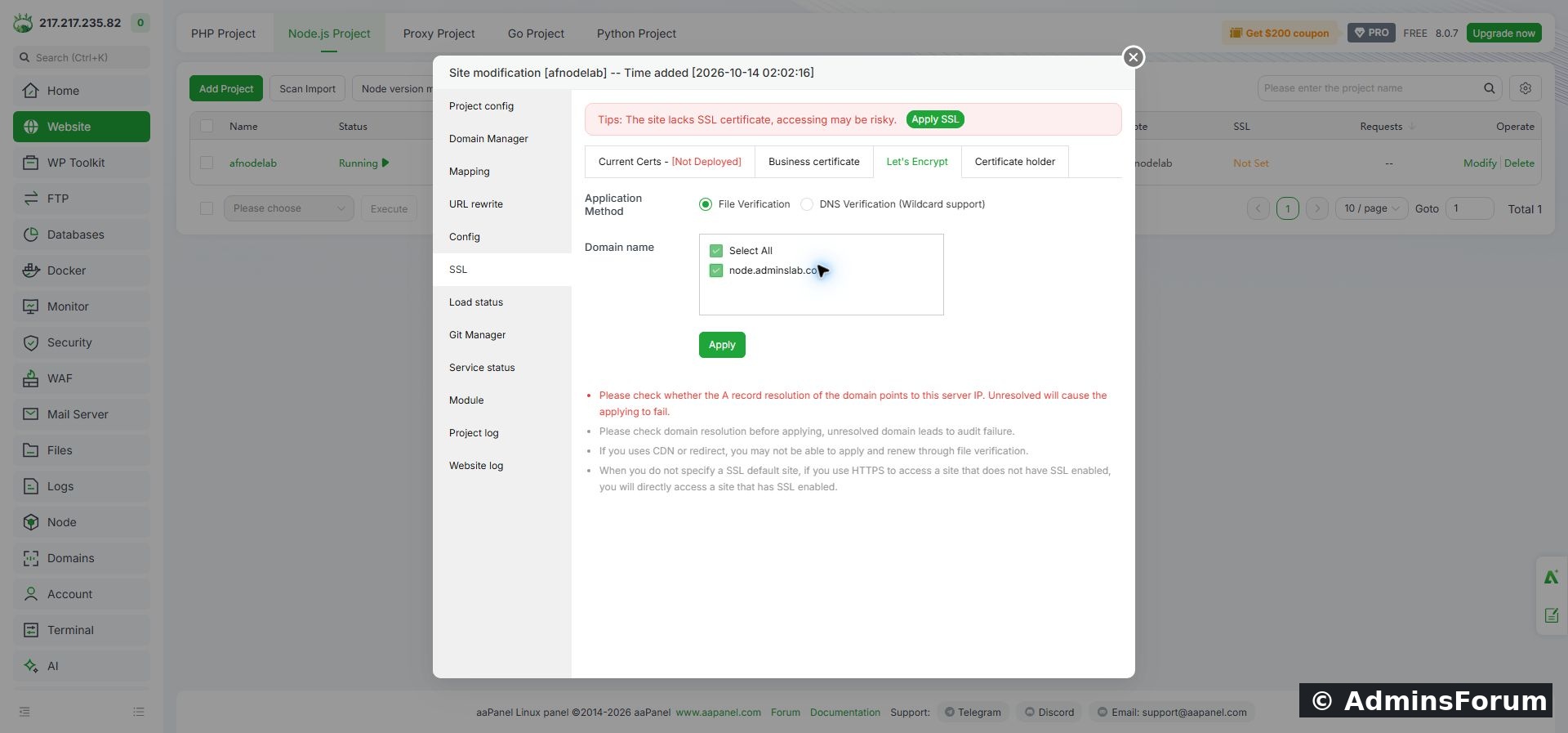
Select the mapped hostname for Let's Encrypt file verification.
Open https://node.adminslab.com in your browser. For your own installation, use your own hostname. Verify from the command line as well:
Do not add a certificate-validation bypass to make this check pass. Our request returned HTTP 200 with normal TLS validation enabled, and the browser displayed the expected page.
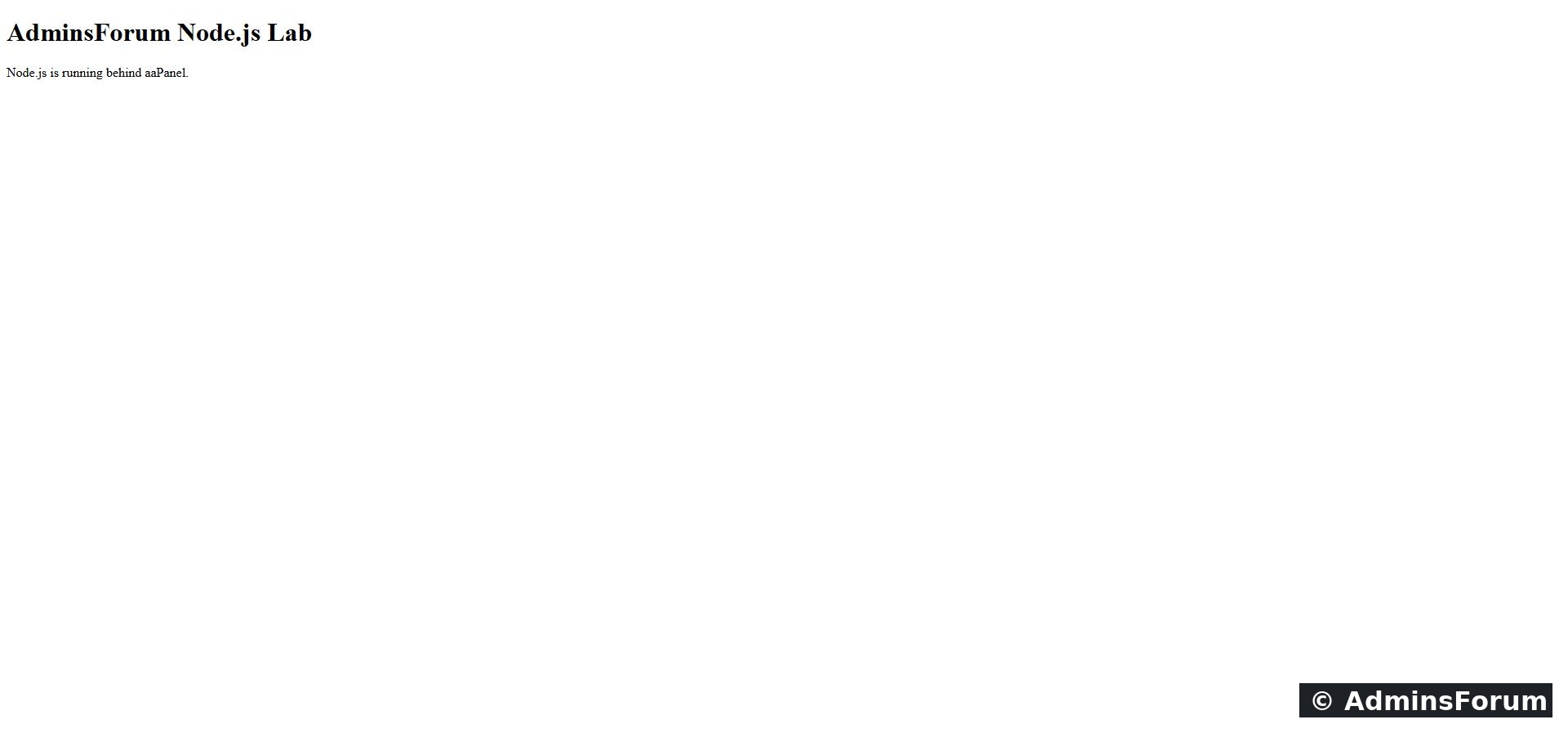
The Node.js sample page is accessible over HTTPS.
8. Check logs and restart the app
In project settings, Project log shows application startup output. Website log is for the mapped web server. These are different layers: an app can fail before Nginx can reach it.
Open Service status → Restart and confirm. We restarted only this sample project, then repeated the HTTPS request and confirmed that the expected page still loaded.
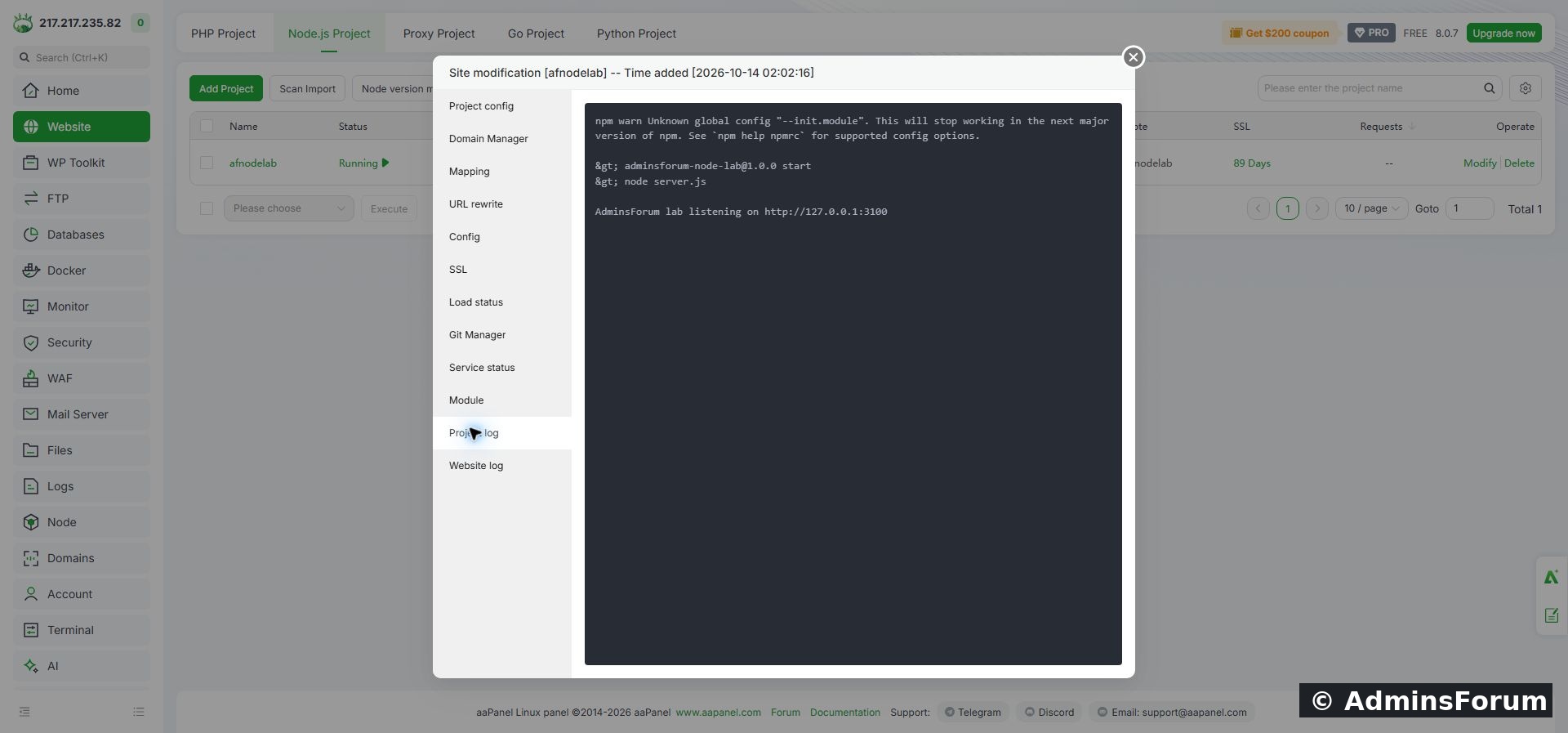
The application startup log confirms the local listening address.
The lab log also contained an npm warning about the global --init.module configuration. It did not prevent this sample from starting or passing the response checks. Read warnings as well as errors, but use the app's actual state and response to identify whether startup failed.
9. Common problems
Result: The sample app runs as www, listens only on localhost, responds through Nginx under its own domain, has working HTTPS and recovered after a project restart. This is a useful foundation before deploying a real application with dependencies, environment variables and a build process.
Reference: aaPanel Node.js project documentation.
Tested setup: Ubuntu 22.04.5 LTS, aaPanel Free 8.0.7, Nginx 1.30.5, Node.js 24.21.0. Our project is afnodelab, its folder is /www/wwwroot/af-node-lab, and its domain is node.adminslab.com. Replace the domain and server IP with your own. Tested on 14 October 2026.
1. Install the runtime first
Complete Install Node.js LTS in aaPanel and verify Node and npm. You should have a supported runtime available in Website → Node.js Project. This example has no third-party dependencies and does not need a database.
2. Create a separate application folder
In aaPanel Files, open /www/wwwroot and create a directory named af-node-lab. Inside it create two files: server.js and package.json. Keep this sample in its own folder rather than replacing an existing website.
Put the following in server.js:
Code:
const http = require('node:http');
const host = '127.0.0.1';
const port = 3100;

http.createServer((req, res) => {
  res.writeHead(200, { 'Content-Type': 'text/html; charset=utf-8' });
  res.end('<!doctype html><html><head><title>AdminsForum Node.js Lab</title></head><body><h1>AdminsForum Node.js Lab</h1><p>Node.js is running behind aaPanel.</p></body></html>');
}).listen(port, host, () => {
  console.log('AdminsForum lab listening on http://127.0.0.1:3100');
});Code:
{
  "name": "adminsforum-node-lab",
  "version": "1.0.0",
  "private": true,
  "scripts": {
    "start": "node server.js"
  }
}Set the folder and files to owner www so the selected run user can read them. Standard directory permissions 755 and file permissions 644 are sufficient here; do not use 777 as a troubleshooting shortcut.
3. Add the application to aaPanel
Open Website → Node.js Project → Add Project → Default Project. Use the folder button beside Path to open the directory picker. Select af-node-lab under /www/wwwroot and confirm it.
Use these values:
- Path: /www/wwwroot/af-node-lab
- Project Name: afnodelab
- Run User: www
- Node.js runtime: v24.21.0, or your application's supported installed version
- Start command: From package.json → start [node server.js]
- Project Port: 3100
- Install dependencies: Off for this dependency-free sample
Use a simple project identifier with letters, numbers or underscores. Our first identifier containing hyphens was rejected by the panel. The folder and package.json name can contain hyphens; the panel's project identifier has its own validation rule. Dismiss any error popup before correcting and resubmitting the form.
Click Confirm and wait for the project to show Running.
Final project configuration: app folder, start script, runtime, port and www user.
The sample project is running and shows its process IDs and memory usage.
4. Verify the app locally
Before adding a domain, run these checks over SSH:
Code:
curl -i http://127.0.0.1:3100/
ss -ltnp | grep ':3100'5. Point a domain to the VPS
In Cloudflare DNS, create an A record for your chosen hostname. Our record was node → 217.217.235.82, with DNS only and automatic TTL. Check for conflicting records before adding it. Do not copy our IP for your own server.
We used DNS only while validating direct access to the origin. If you later enable Cloudflare proxying, check the origin certificate and Cloudflare SSL mode separately.
6. Add the domain and turn on Mapping
Click the project name to open its settings. In Domain Manager, enter node.adminslab.com and click Add. Add only a hostname, without https:// or a path.
Open Mapping, enable the switch and confirm. Mapping connects the hostname on the web server to the local Node.js service. Our HTTP domain check returned 200 after this stage. The project's port must match the listening port in server.js; changing one does not automatically change the other.
Mapping connects public web requests to the running local application.
7. Issue the HTTPS certificate
Open SSL → Let's Encrypt. Select File Verification and check your hostname, then click Apply. The DNS record must resolve to this VPS and HTTP validation must be reachable. Wait for certificate issuance and deployment to finish.
Select the mapped hostname for Let's Encrypt file verification.
Open https://node.adminslab.com in your browser. For your own installation, use your own hostname. Verify from the command line as well:
Code:
curl -I https://node.adminslab.com/The Node.js sample page is accessible over HTTPS.
8. Check logs and restart the app
In project settings, Project log shows application startup output. Website log is for the mapped web server. These are different layers: an app can fail before Nginx can reach it.
Open Service status → Restart and confirm. We restarted only this sample project, then repeated the HTTPS request and confirmed that the expected page still loaded.
The application startup log confirms the local listening address.
The lab log also contained an npm warning about the global --init.module configuration. It did not prevent this sample from starting or passing the response checks. Read warnings as well as errors, but use the app's actual state and response to identify whether startup failed.
9. Common problems
- 502 Bad Gateway: Test localhost first. Check Running status, the start script, project port and Project log. Confirm Mapping points to the same port.
- Module not found: A real app may need dependencies or a build step. Install them with the application's supported runtime and package manager; this sample needs neither.
- Permission denied: Check the selected www user's access to the app files. Avoid running the app as root to hide a permissions issue.
- SSL validation fails: Check DNS, HTTP reachability and redirects/CDN settings before retrying. A working local app does not prove that certificate validation can reach the hostname.
- App stops after a VPS reboot: Review the Boot option in Project config and test recovery during a planned maintenance window. We tested an application restart, not a full VPS reboot; the lab Boot checkbox remained off.
Result: The sample app runs as www, listens only on localhost, responds through Nginx under its own domain, has working HTTPS and recovered after a project restart. This is a useful foundation before deploying a real application with dependencies, environment variables and a build process.
Reference: aaPanel Node.js project documentation.