



11-14-2026, 03:47 PM
Open CyberPanel on a Domain Without :8090 (Tested on LiteSpeed Enterprise)
CyberPanel lives on port 8090, so its address is something like
. If you'd rather open it as
, with a normal certificate and no port to remember, you can put the panel behind a website on the same server. We set this up on a CyberPanel 3.0.8 server and logged in through the domain. The first way we tried showed the login page but refused every login, so this guide shows the way that works, and how to spot the broken one.
Which web server: our test server runs LiteSpeed Enterprise, and the config file below is the Enterprise one. We didn't test this on OpenLiteSpeed, where the web server config is a different file with a different format.
Step 1: Create a website for the panel address
In CyberPanel, create a normal website for the name you want, for example
(point its DNS A record at the server first, so the free SSL certificate is issued). Nothing needs to be in its public_html.
Step 2: Tell LiteSpeed where the panel is
Over SSH as root, back up the web server config, then open it:
Find the line
and add this block right under it:
This gives the panel a name, cyberpanel, that websites can pass visitors to. Save the file and restart LiteSpeed:
Check that your sites still load. If LiteSpeed doesn't come back, copy the backup over the file and restart again.
Step 3: Send the website to the panel
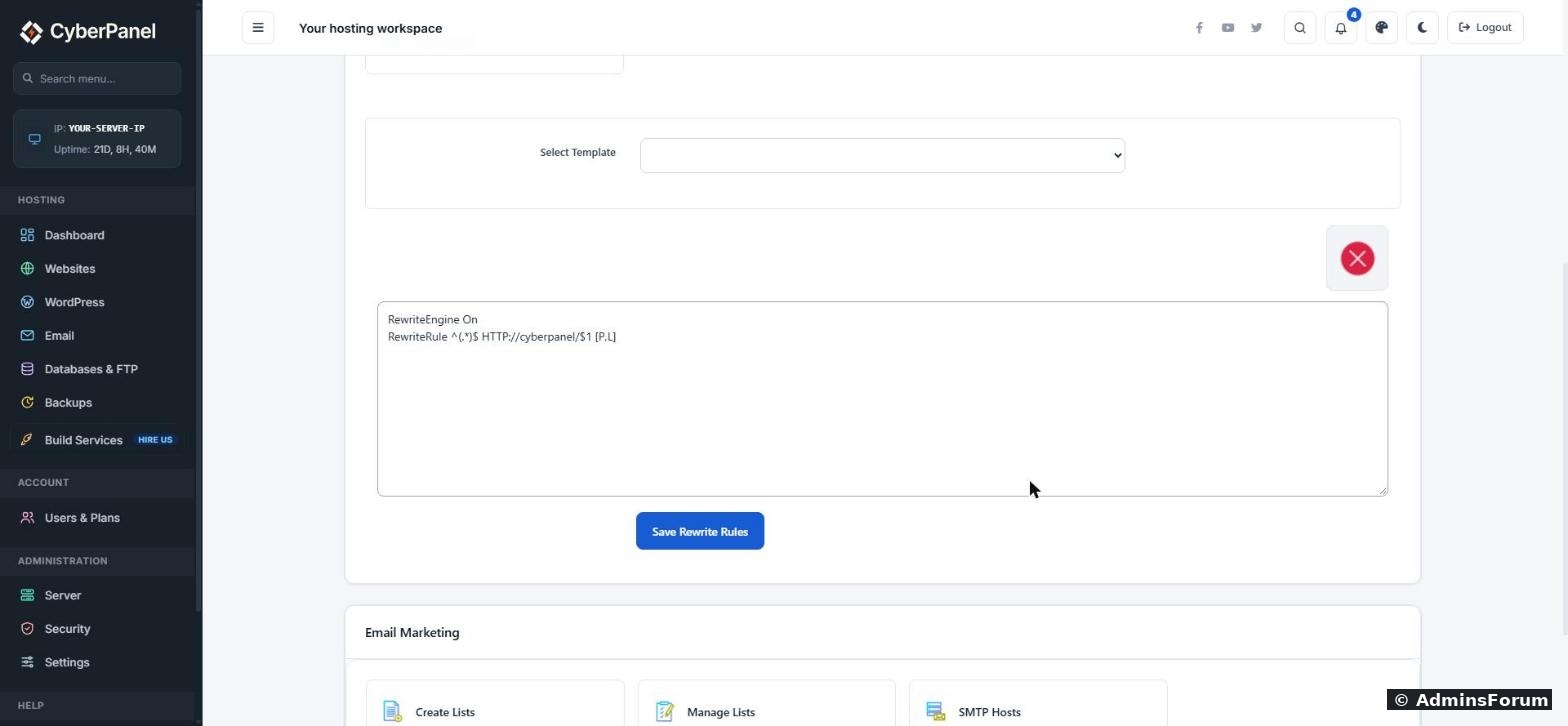
In CyberPanel open Websites → panel.yourdomain.com → Config → Rewrite Rules, replace what's there with these two lines and click Save Rewrite Rules:
The name after
must match the
from step 2. It's a name, not a web address.
Step 4: Log in through the domain
Open
. You get the CyberPanel login page with the padlock, and after logging in, the dashboard:
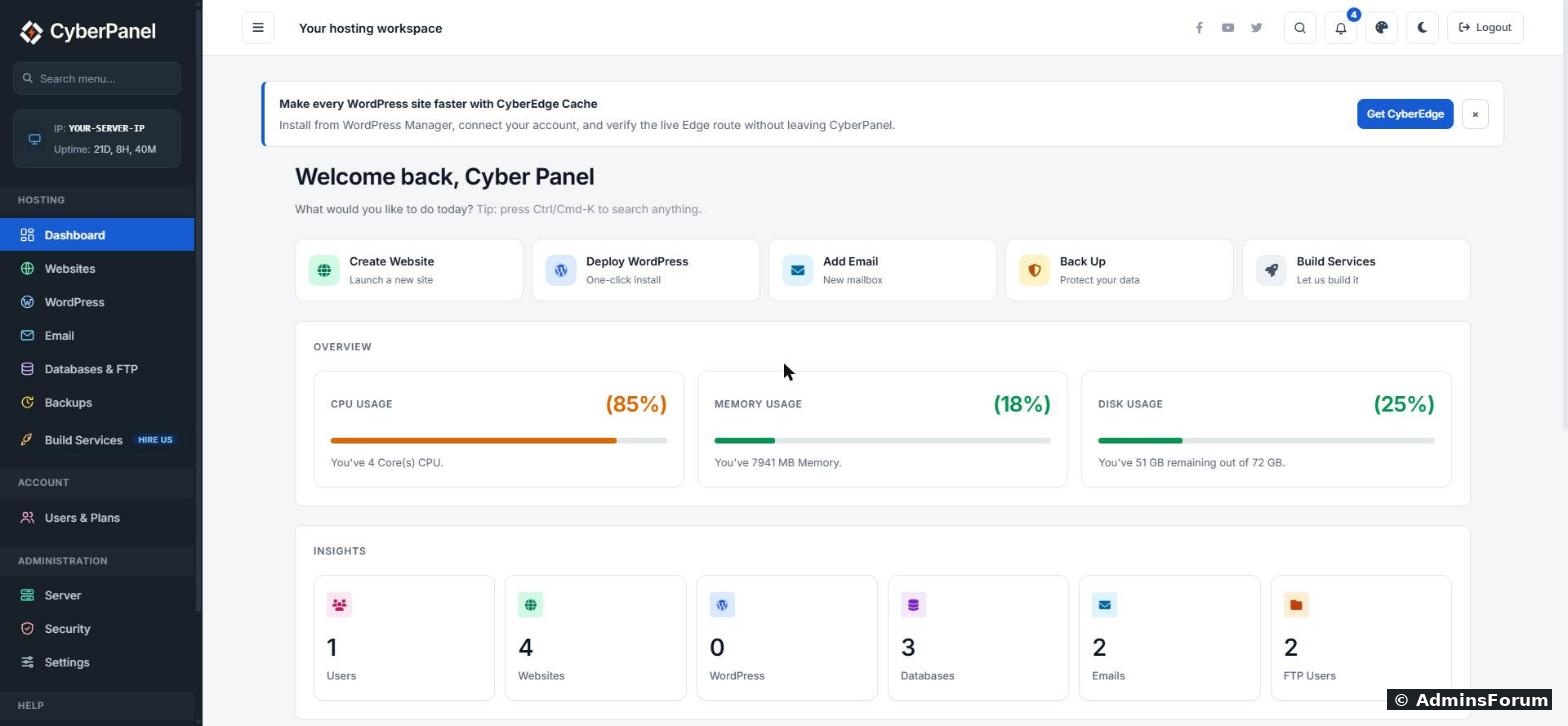
We also opened the website list, the file manager, the phpMyAdmin page, the SpamAssassin page and the LiteSpeed status page through the domain. All loaded, and the dashboard's live numbers updated normally.
The shortcut that doesn't work
You can skip step 2 and point the rewrite rule straight at the port:
We tried this first. The login page loaded fine, which makes it look finished. But logging in just dropped us back on the login page, every time. Behind the scenes the panel answered the login with 403, CSRF verification failed. CyberPanel checks that a login comes from the same address the panel thinks it's running on, and with this shortcut the panel doesn't see your domain name. With the named proxy from step 2, the same login worked.
So if you're stuck on the login page after setting this up, check your rewrite rule. It has to use the name (
), not the IP and port.
Good to know
Questions, or a login that still bounces back? Reply below and tell us which rewrite rule you used (hide your server IP first).
CyberPanel lives on port 8090, so its address is something like
Code:
https://YOUR-SERVER-IP:8090Code:
https://panel.yourdomain.comWhich web server: our test server runs LiteSpeed Enterprise, and the config file below is the Enterprise one. We didn't test this on OpenLiteSpeed, where the web server config is a different file with a different format.
Step 1: Create a website for the panel address
In CyberPanel, create a normal website for the name you want, for example
Code:
panel.yourdomain.comStep 2: Tell LiteSpeed where the panel is
Over SSH as root, back up the web server config, then open it:
Code:
cp -a /usr/local/lsws/conf/httpd_config.xml /root/httpd_config.xml.bak
nano /usr/local/lsws/conf/httpd_config.xmlCode:
<extProcessorList>Code:
    <extProcessor>
      <type>proxy</type>
      <name>cyberpanel</name>
      <address>https://127.0.0.1:8090</address>
      <maxConns>100</maxConns>
      <initTimeout>60</initTimeout>
      <retryTimeout>0</retryTimeout>
      <respBuffer>0</respBuffer>
</extProcessor>Code:
/usr/local/lsws/bin/lswsctrl restartStep 3: Send the website to the panel
In CyberPanel open Websites → panel.yourdomain.com → Config → Rewrite Rules, replace what's there with these two lines and click Save Rewrite Rules:
Code:
RewriteEngine On
RewriteRule ^(.*)$ HTTP://cyberpanel/$1 [P,L]
The name after
Code:
HTTP://Code:
<name>Step 4: Log in through the domain
Open
Code:
https://panel.yourdomain.comWe also opened the website list, the file manager, the phpMyAdmin page, the SpamAssassin page and the LiteSpeed status page through the domain. All loaded, and the dashboard's live numbers updated normally.
The shortcut that doesn't work
You can skip step 2 and point the rewrite rule straight at the port:
Code:
RewriteRule ^(.*)$ https://127.0.0.1:8090/$1 [P,L]So if you're stuck on the login page after setting this up, check your rewrite rule. It has to use the name (
Code:
HTTP://cyberpanel/Good to know
- Port 8090 still works. This adds a second door, it doesn't close the first. The old
address keeps working, and it's your way back in if the website or its certificate ever breaks. We left it open.Code:https://YOUR-SERVER-IP:8090
- You log in again on the new address. Browsers keep logins per address, so being logged in on :8090 doesn't carry over.
- Keep the backup. You edited the web server's main config by hand. After a LiteSpeed or CyberPanel upgrade, check that the
block is still there if the domain stops working.Code:cyberpanel
- Undo: remove the two rewrite lines from the website, remove the block from
(or restore the backup) and restart LiteSpeed.Code:httpd_config.xml
Questions, or a login that still bounces back? Reply below and tell us which rewrite rule you used (hide your server IP first).