



10-12-2026, 12:37 PM
How do you fix the missing EXIF warning in WordPress on aaPanel?
Confirm the website’s PHP version, open that version’s settings in aaPanel’s App Store, choose Install extensions and install exif. Wait for the task to finish, then run WordPress Site Health again. Installing EXIF for a different PHP version will not necessarily fix the website’s warning.
We tested this on wp.adminslab.com with aaPanel 8.0.6 Free Edition and PHP 8.5.11. WordPress initially reported missing EXIF and Imagick. After installing EXIF for PHP 8.5, the EXIF warning disappeared. The separate Imagick warning remained.
What is EXIF?
EXIF is a PHP extension for reading image metadata, commonly from JPEG and TIFF photographs. It is different from Imagick, which provides image-processing functionality. Adding EXIF does not automatically install Imagick or solve every image-upload problem.
1. Confirm the original warning
In WordPress choose Tools → Site Health. Wait for the checks to finish. Expand One or more recommended modules are missing and read the exact names shown.
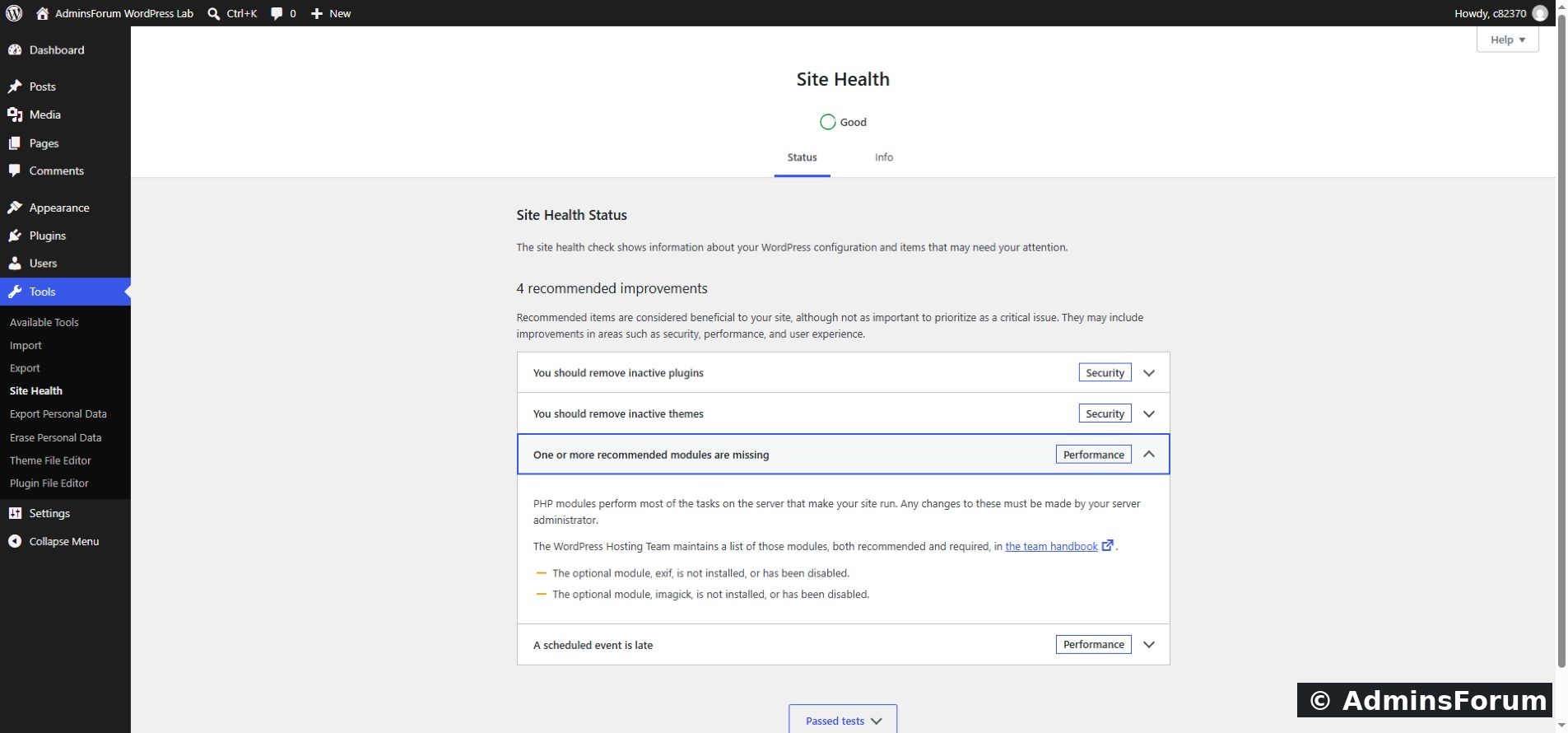
Our original report listed both optional modules: exif and imagick.
If EXIF is not listed, do not install it simply because this guide uses it. Identify the actual missing component first. An optional-module recommendation is different from a fatal website error.
2. Identify the PHP version serving the website
Open Site Health → Info → Server and read PHP version. Our website reported 8.5.11 with the fpm-fcgi interface.
You can also inspect the website’s PHP selection in aaPanel. On a server with PHP 8.4 and 8.5, each version has its own configuration and extensions. The default terminal command named php may use another version, so it is not sufficient evidence for the website’s runtime.
3. Open the matching PHP manager
In aaPanel choose App Store, then Installed. Find the PHP version used by your website. We opened Setting in the PHP-8.5 row.
In the php-8.5Manage window choose Install extensions. Check the version in the window heading before making changes.
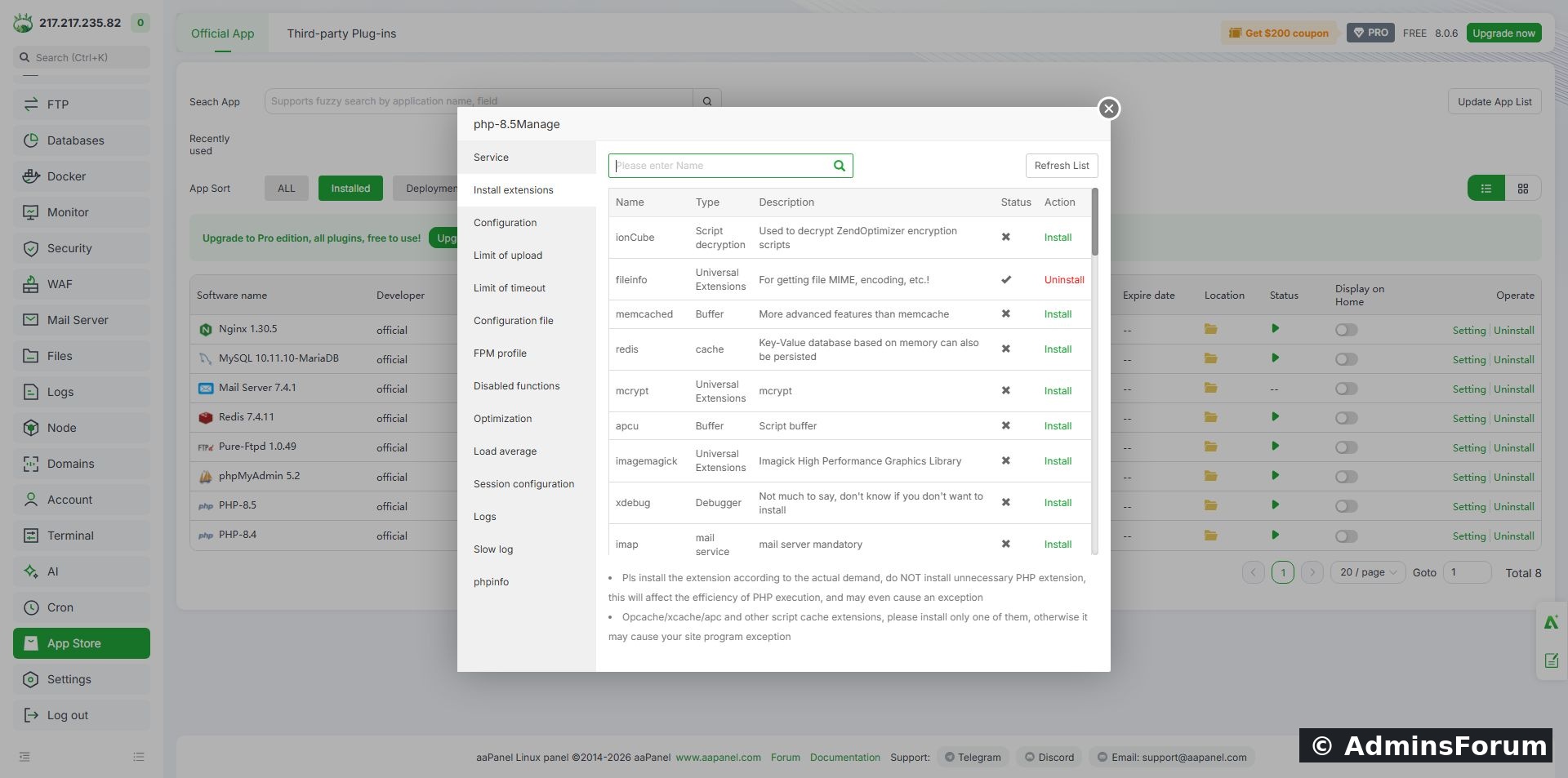
The Install extensions section in our PHP 8.5 manager. Locate exif in this list or use the extension search field.
Plan the operation during a suitable maintenance period on a live server: extension changes can reload or restart the PHP service used by other websites on that version. Have a current backup and avoid running several extension installations at once.
4. Install exif
Find exif. Our row described it as for reading picture EXIF information and offered Install. Use the extension-name search field if necessary and allow the table to update.
Click Install in the exif row. The panel displayed Install【exif】 with a confirmation asking whether to install it. Confirm after checking the module and PHP version.
The action changed to Pending install... while the task was queued or running. This is progress information, not proof of completion. Wait for the job to finish rather than submitting duplicate installs.
If the list becomes blank while refreshing, reopen the PHP manager after the operation finishes and inspect it again. Do not assume an empty table means the module failed or that PHP itself was removed.
5. Verify through the website
Return to WordPress → Tools → Site Health and let the checks complete. Expand the missing-module finding again.
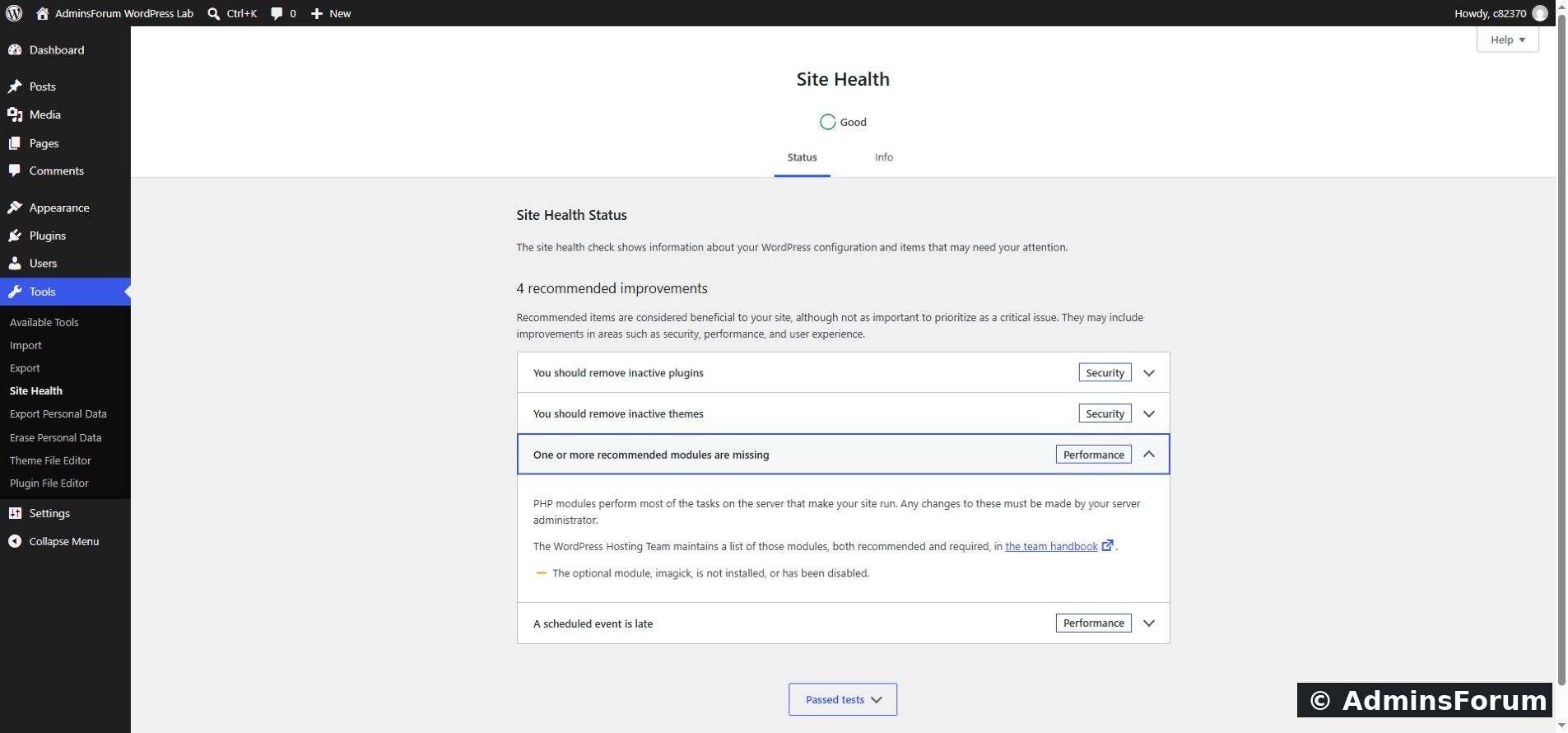
After our installation, WordPress listed only imagick. The EXIF warning was gone.
The overall recommendation can remain because another module is still missing. Read the expanded details rather than expecting the entire heading to disappear after fixing one item.
Our aaPanel session expired when we reloaded the extension manager after installation, so we did not capture a final installed-state panel row. The website’s new Site Health result verified that EXIF was no longer reported as missing. We did not test reading metadata from a sample photograph in this walkthrough.
Optional terminal check
For the exact aaPanel PHP version used in this example, an administrator can check:
Replace the version-specific path if your website uses another PHP version. This checks command-line PHP; verify the website too because CLI and PHP-FPM configuration can differ. This optional command was not run as part of our current browser test.
Troubleshooting
Verified outcome
We installed EXIF through the PHP 8.5 extension manager and confirmed that WordPress stopped reporting it as missing. No other PHP version was changed. Imagick installation and functional photo-metadata testing are separate tasks.
References: PHP EXIF manual and our WordPress Site Health walkthrough. Screenshots are from the AdminsForum lab.
Confirm the website’s PHP version, open that version’s settings in aaPanel’s App Store, choose Install extensions and install exif. Wait for the task to finish, then run WordPress Site Health again. Installing EXIF for a different PHP version will not necessarily fix the website’s warning.
We tested this on wp.adminslab.com with aaPanel 8.0.6 Free Edition and PHP 8.5.11. WordPress initially reported missing EXIF and Imagick. After installing EXIF for PHP 8.5, the EXIF warning disappeared. The separate Imagick warning remained.
What is EXIF?
EXIF is a PHP extension for reading image metadata, commonly from JPEG and TIFF photographs. It is different from Imagick, which provides image-processing functionality. Adding EXIF does not automatically install Imagick or solve every image-upload problem.
1. Confirm the original warning
In WordPress choose Tools → Site Health. Wait for the checks to finish. Expand One or more recommended modules are missing and read the exact names shown.
Our original report listed both optional modules: exif and imagick.
If EXIF is not listed, do not install it simply because this guide uses it. Identify the actual missing component first. An optional-module recommendation is different from a fatal website error.
2. Identify the PHP version serving the website
Open Site Health → Info → Server and read PHP version. Our website reported 8.5.11 with the fpm-fcgi interface.
You can also inspect the website’s PHP selection in aaPanel. On a server with PHP 8.4 and 8.5, each version has its own configuration and extensions. The default terminal command named php may use another version, so it is not sufficient evidence for the website’s runtime.
3. Open the matching PHP manager
In aaPanel choose App Store, then Installed. Find the PHP version used by your website. We opened Setting in the PHP-8.5 row.
In the php-8.5Manage window choose Install extensions. Check the version in the window heading before making changes.
The Install extensions section in our PHP 8.5 manager. Locate exif in this list or use the extension search field.
Plan the operation during a suitable maintenance period on a live server: extension changes can reload or restart the PHP service used by other websites on that version. Have a current backup and avoid running several extension installations at once.
4. Install exif
Find exif. Our row described it as for reading picture EXIF information and offered Install. Use the extension-name search field if necessary and allow the table to update.
Click Install in the exif row. The panel displayed Install【exif】 with a confirmation asking whether to install it. Confirm after checking the module and PHP version.
The action changed to Pending install... while the task was queued or running. This is progress information, not proof of completion. Wait for the job to finish rather than submitting duplicate installs.
If the list becomes blank while refreshing, reopen the PHP manager after the operation finishes and inspect it again. Do not assume an empty table means the module failed or that PHP itself was removed.
5. Verify through the website
Return to WordPress → Tools → Site Health and let the checks complete. Expand the missing-module finding again.
After our installation, WordPress listed only imagick. The EXIF warning was gone.
The overall recommendation can remain because another module is still missing. Read the expanded details rather than expecting the entire heading to disappear after fixing one item.
Our aaPanel session expired when we reloaded the extension manager after installation, so we did not capture a final installed-state panel row. The website’s new Site Health result verified that EXIF was no longer reported as missing. We did not test reading metadata from a sample photograph in this walkthrough.
Optional terminal check
For the exact aaPanel PHP version used in this example, an administrator can check:
Code:
/www/server/php/85/bin/php -r 'echo extension_loaded("exif") ? "EXIF loaded
" : "EXIF missing
";'Troubleshooting
- Warning remains: confirm the website’s PHP version, review the installation result and check whether the relevant PHP service loaded the extension.
- Task fails: read the installation log and exact error before retrying. Check resources and package/source connectivity without weakening security settings.
- Panel says installed but website says missing: compare the PHP version and configuration used by the actual website. Plan a reload of the correct service only if needed.
- Only Imagick remains: that is a separate module. EXIF installation is not intended to clear the Imagick warning.
Verified outcome
We installed EXIF through the PHP 8.5 extension manager and confirmed that WordPress stopped reporting it as missing. No other PHP version was changed. Imagick installation and functional photo-metadata testing are separate tasks.
References: PHP EXIF manual and our WordPress Site Health walkthrough. Screenshots are from the AdminsForum lab.