



10-12-2026, 03:06 AM
Quick answer
Open App Store → Installed → your website's PHP version → Setting → Install extensions. Find fileinfo, click Install and confirm. Wait for the installer to finish, refresh the list, then verify fileinfo from the website using that PHP version.
What we tested
On the AdminsForum lab, we installed fileinfo for PHP 8.5 through aaPanel 8.0.6. The row changed from Install to Uninstall. A command-line check reported fileinfo loaded=yes. More importantly, an HTTPS request to the lab website returned:
The temporary test page was removed after checking. This is a completed installation and website-side function test, not just an installer screenshot.
What fileinfo does
Fileinfo helps PHP identify a file's content type. An application can use it when checking uploaded images or documents. It is useful when an error mentions a missing finfo class, finfo_open function or the fileinfo extension. It is not a complete upload-security solution, and installing it does not fix every upload error.
1. Check the website's PHP version first
Open Website, select your website and review its PHP version. The version installed most recently is not necessarily the version assigned to this website. If the website uses PHP 8.4, install the extension for PHP-8.4. Our test website was assigned PHP 8.5.
Check the application's requirements too. Only install the extensions it needs. Before changing a busy production runtime, have a current backup and consider the other websites using the same PHP version.
2. Open Install extensions
Go to App Store and choose Installed. Find the correct PHP row, click Setting, then choose Install extensions in the PHP manager's left-hand menu. Locate fileinfo in the table; you can use the extension search field when available.
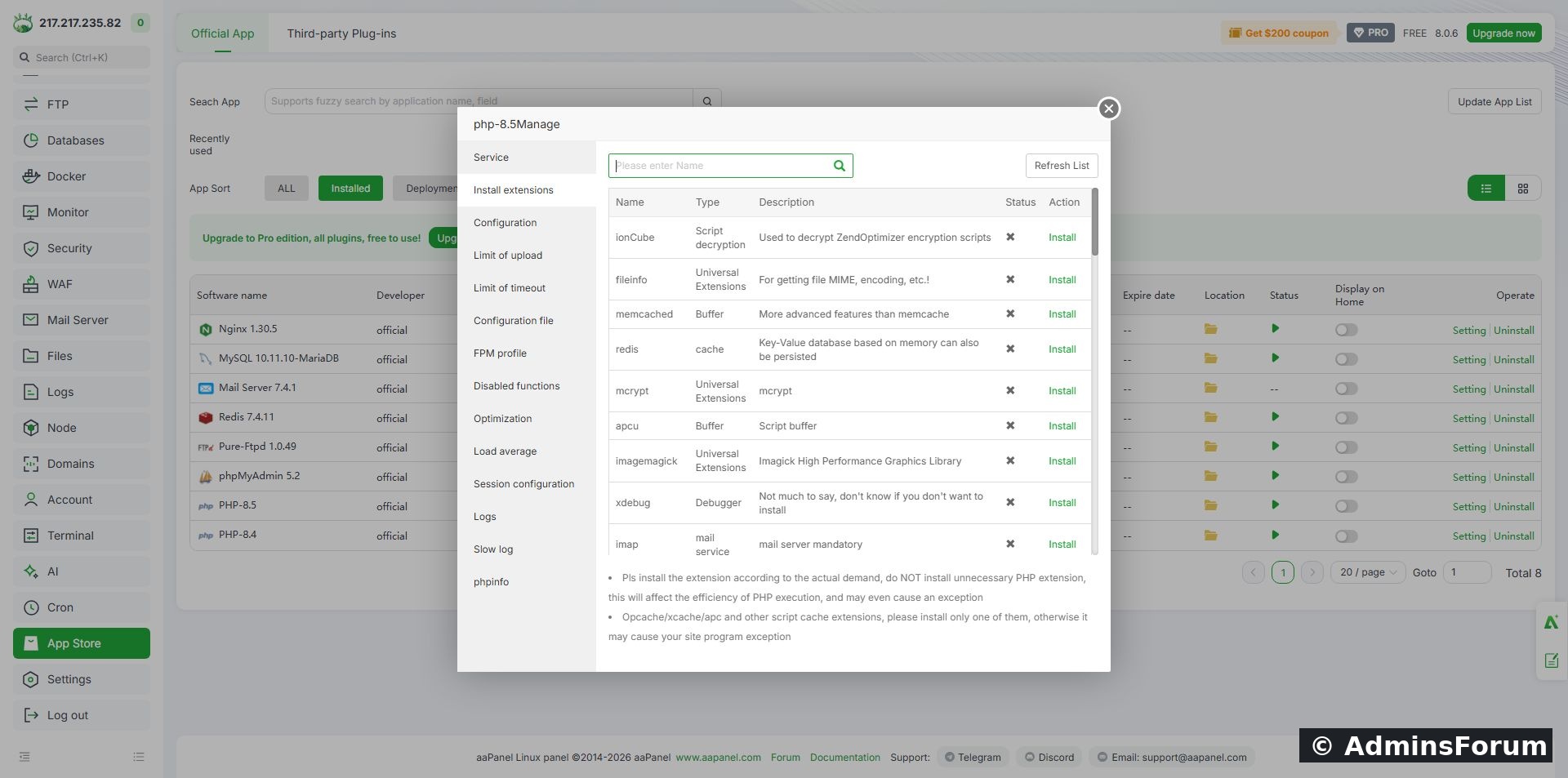
AdminsForum lab: the extension manager before installation. Locate the fileinfo row and its Install action.
3. Start the installation
Click Install on the fileinfo row and confirm the prompt. aaPanel adds the job to its installer queue. Leave the job running rather than submitting it repeatedly. Compilation can take several minutes, depending on the server and downloads.
An Installing status means the job is still in progress; it is not a successful completion result. If the job fails, read the installation log and retain the exact error for troubleshooting.
4. Check the finished state
After the installer finishes, use Refresh List. On our lab, fileinfo showed Uninstall, which indicated it was installed for this PHP version.
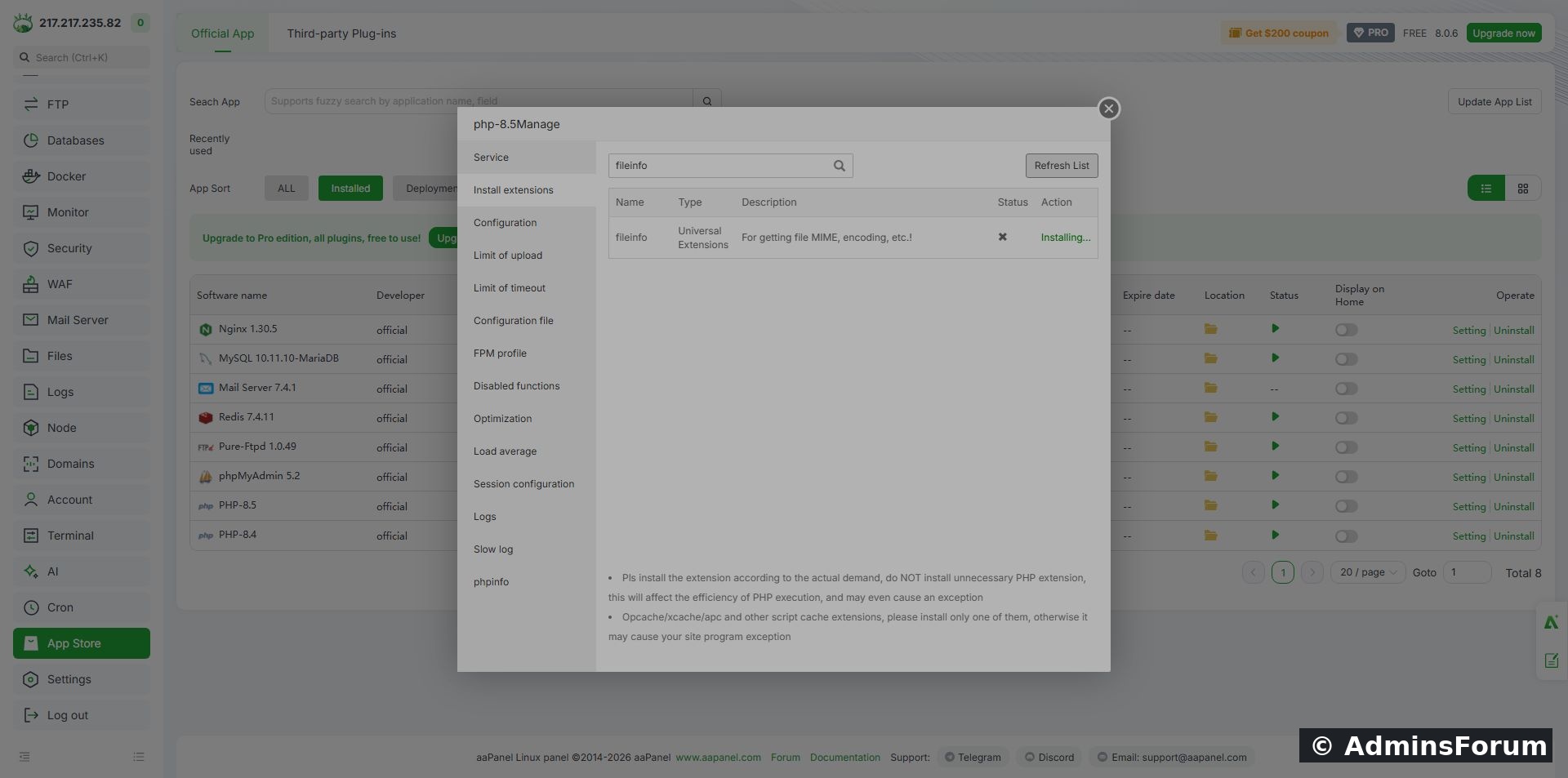
AdminsForum lab: fileinfo now has an Uninstall action. The runtime test below also confirmed it was actually loaded.
Return to Service and confirm the runtime is On. If the installer did not reload the service, use Reload after checking the installation result. Recheck your website afterward.
5. Verify the website runtime
Prefer the application's own server-information page if it reports extensions. For a narrowly scoped test, create a temporary PHP file in your website's document root with the following content. Use a unique filename and restrict access if your environment requires it.
Open that file through the website's HTTPS address. A working result should include fileinfo=yes and sample=text/plain. Remove the test file immediately afterward. This small test avoids publishing the much broader information exposed by a full phpinfo page.
6. Compare with the command-line runtime when needed
For the aaPanel PHP 8.5 installation, use its version-specific executable:
The 85 path corresponds to PHP 8.5. Do not blindly copy it for PHP 8.4 or a distribution-installed PHP. The plain php command may invoke another installation.
A command-line success alone is not proof that the website runtime loads the same extension. Always keep the website-side check.
7. Retest the original problem
Repeat the upload or application action that failed. Check the exact new result. If fileinfo works but an upload still fails, compare the file's actual content with its filename extension and declared MIME type. A JPEG saved with a .png name can be rejected even with fileinfo working correctly. Do not bypass image validation to accept mislabeled files.
Also investigate upload size, temporary storage, disk space, permissions and allowed file types if appropriate. These are separate causes.
Common problems
Completion checklist
Reference: PHP official fileinfo manual.
Open App Store → Installed → your website's PHP version → Setting → Install extensions. Find fileinfo, click Install and confirm. Wait for the installer to finish, refresh the list, then verify fileinfo from the website using that PHP version.
What we tested
On the AdminsForum lab, we installed fileinfo for PHP 8.5 through aaPanel 8.0.6. The row changed from Install to Uninstall. A command-line check reported fileinfo loaded=yes. More importantly, an HTTPS request to the lab website returned:
Code:
PHP 8.5.11
fileinfo=yes
sample=text/plainWhat fileinfo does
Fileinfo helps PHP identify a file's content type. An application can use it when checking uploaded images or documents. It is useful when an error mentions a missing finfo class, finfo_open function or the fileinfo extension. It is not a complete upload-security solution, and installing it does not fix every upload error.
1. Check the website's PHP version first
Open Website, select your website and review its PHP version. The version installed most recently is not necessarily the version assigned to this website. If the website uses PHP 8.4, install the extension for PHP-8.4. Our test website was assigned PHP 8.5.
Check the application's requirements too. Only install the extensions it needs. Before changing a busy production runtime, have a current backup and consider the other websites using the same PHP version.
2. Open Install extensions
Go to App Store and choose Installed. Find the correct PHP row, click Setting, then choose Install extensions in the PHP manager's left-hand menu. Locate fileinfo in the table; you can use the extension search field when available.
AdminsForum lab: the extension manager before installation. Locate the fileinfo row and its Install action.
3. Start the installation
Click Install on the fileinfo row and confirm the prompt. aaPanel adds the job to its installer queue. Leave the job running rather than submitting it repeatedly. Compilation can take several minutes, depending on the server and downloads.
An Installing status means the job is still in progress; it is not a successful completion result. If the job fails, read the installation log and retain the exact error for troubleshooting.
4. Check the finished state
After the installer finishes, use Refresh List. On our lab, fileinfo showed Uninstall, which indicated it was installed for this PHP version.
AdminsForum lab: fileinfo now has an Uninstall action. The runtime test below also confirmed it was actually loaded.
Return to Service and confirm the runtime is On. If the installer did not reload the service, use Reload after checking the installation result. Recheck your website afterward.
5. Verify the website runtime
Prefer the application's own server-information page if it reports extensions. For a narrowly scoped test, create a temporary PHP file in your website's document root with the following content. Use a unique filename and restrict access if your environment requires it.
Code:
<?php
header('Content-Type: text/plain; charset=utf-8');
header('X-Robots-Tag: noindex');
echo 'PHP ' . PHP_VERSION . PHP_EOL;
echo 'fileinfo=' . (extension_loaded('fileinfo') ? 'yes' : 'no') . PHP_EOL;
if (class_exists('finfo')) {
    echo 'sample=' . (new finfo(FILEINFO_MIME_TYPE))->buffer("Tutorial test text
") . PHP_EOL;
}6. Compare with the command-line runtime when needed
For the aaPanel PHP 8.5 installation, use its version-specific executable:
Code:
/www/server/php/85/bin/php -r 'echo extension_loaded("fileinfo") ? "fileinfo loaded
" : "fileinfo missing
";'A command-line success alone is not proof that the website runtime loads the same extension. Always keep the website-side check.
7. Retest the original problem
Repeat the upload or application action that failed. Check the exact new result. If fileinfo works but an upload still fails, compare the file's actual content with its filename extension and declared MIME type. A JPEG saved with a .png name can be rejected even with fileinfo working correctly. Do not bypass image validation to accept mislabeled files.
Also investigate upload size, temporary storage, disk space, permissions and allowed file types if appropriate. These are separate causes.
Common problems
- Install action still appears: refresh the list after the job completes and check the installation log. A queued job is not yet installed.
- Class finfo not found: verify the PHP version actually assigned to the site and its effective extension configuration.
- CLI works but website fails: compare PHP versions and loaded configuration files, then reload the correct PHP-FPM runtime.
- A different extension is missing: install the named requirement for the correct version. Do not install the entire list just in case.
- Installer compile error: preserve the full relevant error and check extension compatibility with that PHP version before retrying.
Completion checklist
- The site's PHP version was checked before installation.
- The installation job completed successfully.
- The extension manager and service state were checked.
- The website returned fileinfo=yes and detected the sample MIME type.
- The temporary diagnostic file was removed.
- The original application action was retested.
Reference: PHP official fileinfo manual.