



10-13-2026, 06:50 PM
Use the PHP binary required by your project when running Composer on aaPanel. Check Composer's version first, run dependency operations as the website user in the correct directory, and verify the generated autoloader. A panel message saying a command was sent is not proof that dependencies installed successfully.
Tested environment
Ubuntu 22.04, aaPanel 8.0.7 Free Edition and PHP 8.5.11. Our lab initially had Composer 2.0.14, which produced deprecation warnings with PHP 8.5. We backed up its PHAR, updated through the official stable self-update channel to 2.10.3, then installed psr/log 3.0.2 as user www in a separate non-public directory. Autoload and platform-requirement checks passed. A subsequent install from composer.lock reported nothing to install, update or remove.
1. Inspect the panel controls and find your runtime
In aaPanel open Website → Conf → Composer. Our interface exposes PHP, command parameters, source, execution user and directory controls. Its version field was blank and the PHP selector offered Auto. Submitting composer --version returned Command has been sent! without command output in this screen.
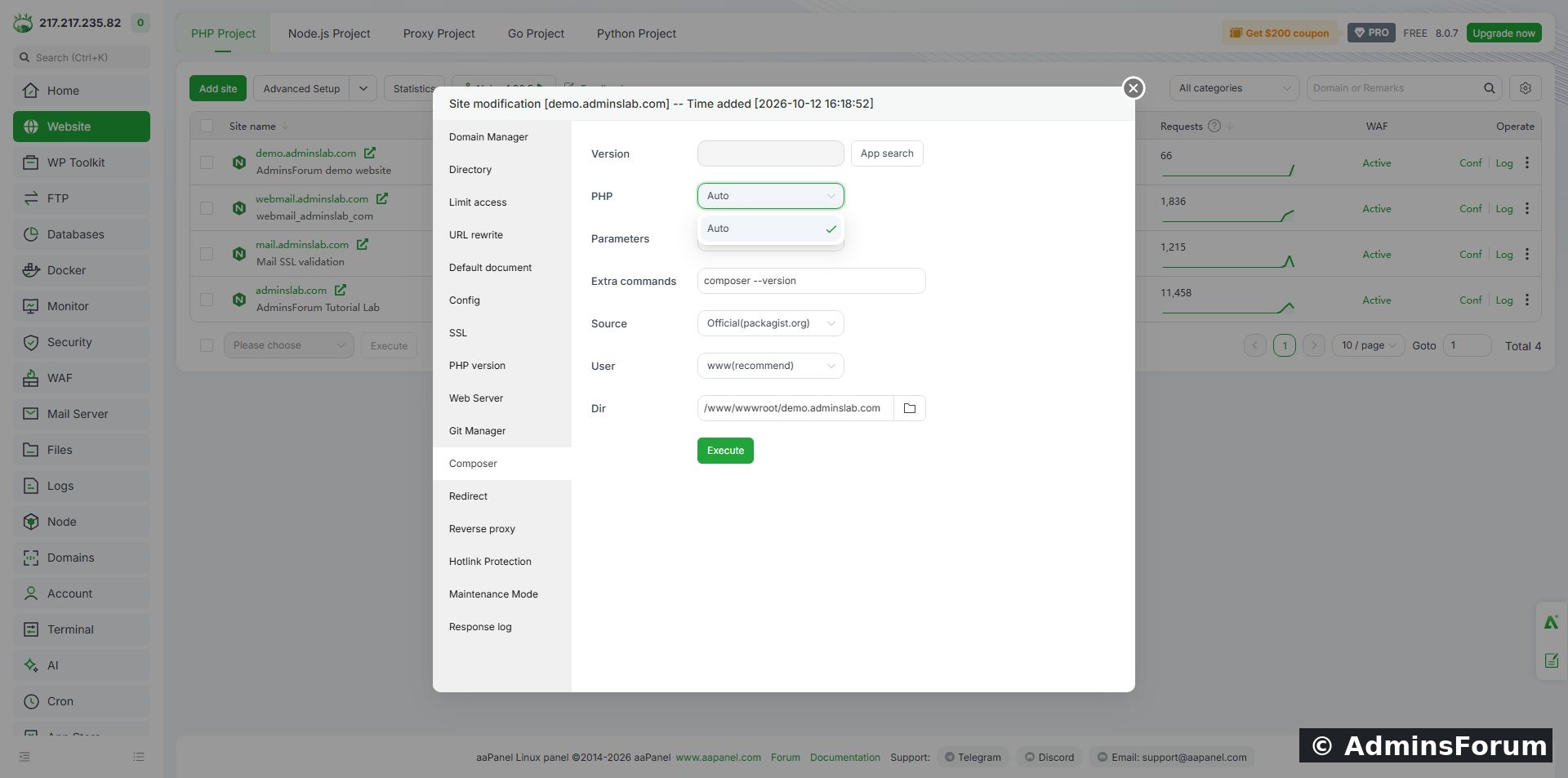
Inspected Composer controls. This screenshot does not prove that the submitted command completed.
For a verifiable first test we used SSH instead. Sign into your own server with an authorized SSH account. The commands below are for our aaPanel PHP 8.5 layout; confirm the installed paths before copying them. A site's PHP handler and the shell's plain php command can point to different runtimes.
The first checks PHP, the second finds Composer and the third executes that PHAR with the chosen PHP binary. Our Composer location was /usr/bin/composer. Use the location reported by your own server.
2. Update an old Composer installation carefully
Composer 2.0.14 was the observed lab version, not a recommended version. Before updating a shared installation, record its path/version and preserve a private copy. Our administrator used:
These commands require administrative access and affect the shared Composer executable. They do not update every project's dependencies. We retained the old executable for recovery, but did not test restoring it. Recheck --version after the update; ours reported 2.10.3. Do not hard-code today's version as an evergreen latest-version claim.
If self-update is unavailable for your installation method, use the official Composer download instructions and their current installer-verification procedure rather than copying an old installer checksum.
3. Create an isolated project directory
Our test directory was /www/af-composer-lab, outside the websites' document roots. We created it with www ownership and 750 permissions:
Check the correct website user/group on your server. This preparation uses administrative access; the dependency operation itself runs as www. No root-owned website dependency tree or public diagnostic endpoint was needed.
4. Install one small test dependency
We used psr/log, a logging-interface package from the official Composer registry. It is a library test, not a complete website application:
COMPOSER_HOME keeps this test's Composer configuration/cache separate. --working-dir selects the exact project. We disabled scripts and plugins for the small test; do not assume those flags are suitable for every real application, because some projects require them.
The actual output created composer.json, locked psr/log at 3.0.2, extracted the package and generated autoload files. aaPanel File Manager then showed composer.json, composer.lock and vendor with www ownership.
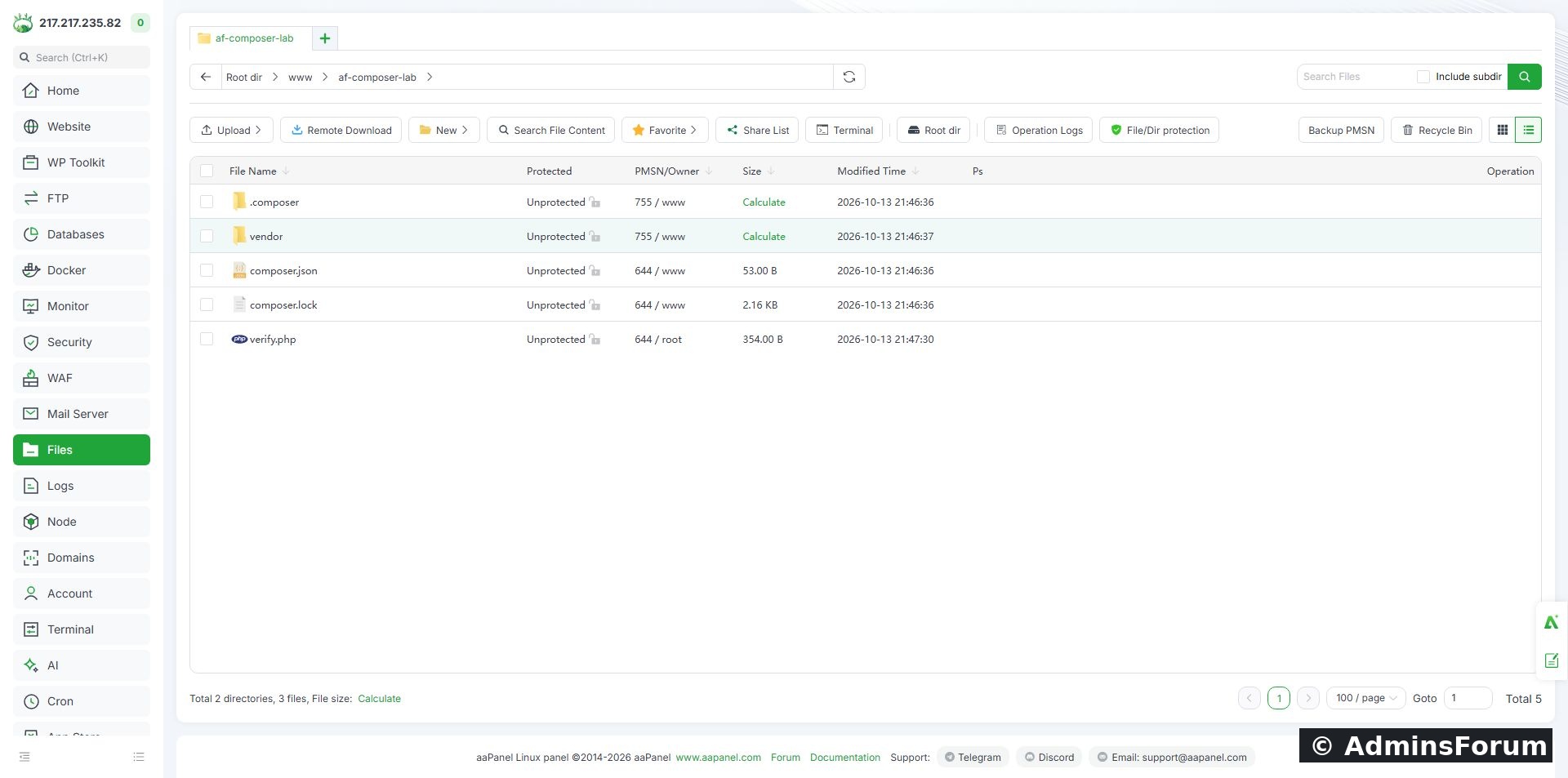
Actual files produced in the isolated project directory. verify.php was our additional CLI-only test file.
Open composer.json in File Manager to inspect it without changing anything. Our generated manifest contains psr/log with the ^3.0 requirement.
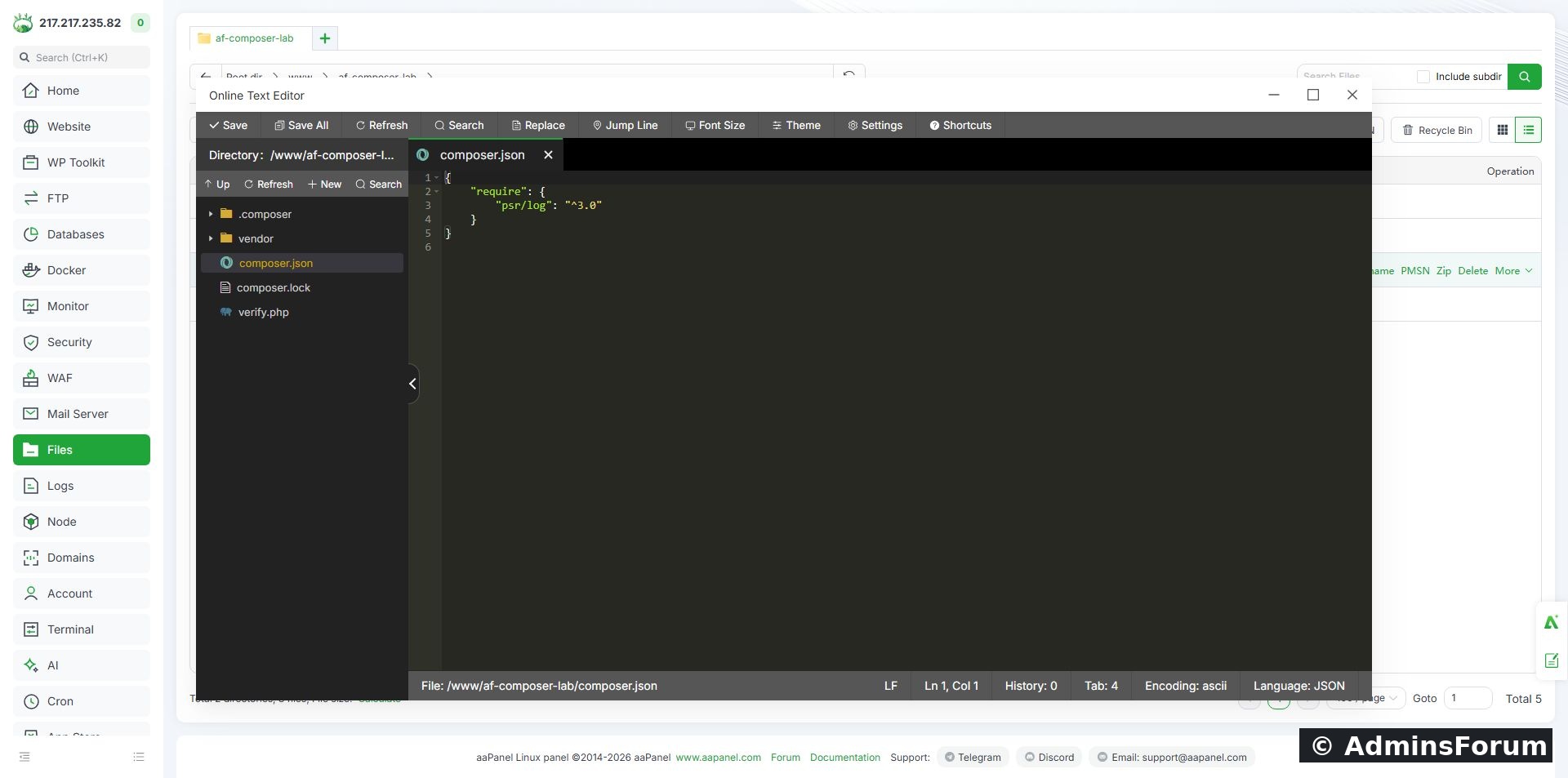
The generated dependency requirement. composer.lock records the resolved version separately.
5. Verify autoloading and platform requirements
For the rehearsal we created a non-public verify.php containing:
Run it with the same runtime and user:
Our actual output was:
We also ran check-platform-reqs in that directory using the same PHP binary. It reported php 8.5.11 success. This verifies the requirements of the installed sample, not every possible PHP extension or a website's web runtime.
6. Confirm installation from the lock file
We repeated an install in the same project:
It read the lock file, verified platform compatibility and reported Nothing to install, update or remove. Keep an application's committed lock file with its deployment workflow. Deliberately resolving new dependency versions is a separate change from reproducing the locked installation.
Troubleshooting
Scope and final lab state
Composer updated; isolated sample and lock file retained; autoload/platform checks passed. Existing Git demo files, WordPress and mail projects were not used as dependency destinations. No full framework deployment or browser-based PHP application test is claimed.
Reference: Official Composer command documentation.
Tested environment
Ubuntu 22.04, aaPanel 8.0.7 Free Edition and PHP 8.5.11. Our lab initially had Composer 2.0.14, which produced deprecation warnings with PHP 8.5. We backed up its PHAR, updated through the official stable self-update channel to 2.10.3, then installed psr/log 3.0.2 as user www in a separate non-public directory. Autoload and platform-requirement checks passed. A subsequent install from composer.lock reported nothing to install, update or remove.
1. Inspect the panel controls and find your runtime
In aaPanel open Website → Conf → Composer. Our interface exposes PHP, command parameters, source, execution user and directory controls. Its version field was blank and the PHP selector offered Auto. Submitting composer --version returned Command has been sent! without command output in this screen.
Inspected Composer controls. This screenshot does not prove that the submitted command completed.
For a verifiable first test we used SSH instead. Sign into your own server with an authorized SSH account. The commands below are for our aaPanel PHP 8.5 layout; confirm the installed paths before copying them. A site's PHP handler and the shell's plain php command can point to different runtimes.
Code:
/www/server/php/85/bin/php -v
command -v composer
/www/server/php/85/bin/php /usr/bin/composer --version2. Update an old Composer installation carefully
Composer 2.0.14 was the observed lab version, not a recommended version. Before updating a shared installation, record its path/version and preserve a private copy. Our administrator used:
Code:
install -d -m 700 /root/af-composer-backups
cp -p /usr/bin/composer /root/af-composer-backups/composer-2.0.14-before-20261013.phar
/www/server/php/85/bin/php /usr/bin/composer self-update --stable --no-interactionIf self-update is unavailable for your installation method, use the official Composer download instructions and their current installer-verification procedure rather than copying an old installer checksum.
3. Create an isolated project directory
Our test directory was /www/af-composer-lab, outside the websites' document roots. We created it with www ownership and 750 permissions:
Code:
install -d -o www -g www -m 750 /www/af-composer-lab4. Install one small test dependency
We used psr/log, a logging-interface package from the official Composer registry. It is a library test, not a complete website application:
Code:
runuser -u www -- env COMPOSER_HOME=/www/af-composer-lab/.composer /www/server/php/85/bin/php /usr/bin/composer --working-dir=/www/af-composer-lab require 'psr/log:^3.0' --no-scripts --no-plugins --prefer-dist --no-interactionThe actual output created composer.json, locked psr/log at 3.0.2, extracted the package and generated autoload files. aaPanel File Manager then showed composer.json, composer.lock and vendor with www ownership.
Actual files produced in the isolated project directory. verify.php was our additional CLI-only test file.
Open composer.json in File Manager to inspect it without changing anything. Our generated manifest contains psr/log with the ^3.0 requirement.
The generated dependency requirement. composer.lock records the resolved version separately.
5. Verify autoloading and platform requirements
For the rehearsal we created a non-public verify.php containing:
Code:
<?php
require '/www/af-composer-lab/vendor/autoload.php';
echo 'PHP: ', PHP_VERSION, PHP_EOL;
echo 'psr/log: ', ComposerInstalledVersions::getPrettyVersion('psr/log'), PHP_EOL;
echo 'LoggerInterface autoload: ', interface_exists(PsrLogLoggerInterface::class) ? 'PASS' : 'FAIL', PHP_EOL;Code:
runuser -u www -- /www/server/php/85/bin/php /www/af-composer-lab/verify.phpCode:
PHP: 8.5.11
psr/log: 3.0.2
LoggerInterface autoload: PASS
We also ran check-platform-reqs in that directory using the same PHP binary. It reported php 8.5.11 success. This verifies the requirements of the installed sample, not every possible PHP extension or a website's web runtime.
6. Confirm installation from the lock file
We repeated an install in the same project:
Code:
runuser -u www -- env COMPOSER_HOME=/www/af-composer-lab/.composer /www/server/php/85/bin/php /usr/bin/composer --working-dir=/www/af-composer-lab install --no-scripts --no-plugins --no-interactionTroubleshooting
- Wrong PHP version: inspect the binary path used by the command, not only the site's panel setting.
- Permission failure: check ownership and the chosen working directory. Avoid solving it by running all dependency operations as root.
- Missing extension: read the requirement error and enable the needed extension for the runtime that actually executes Composer. Do not bypass platform checks to declare success.
- Old-tool warnings: check Composer's version and installation method. Back up and verify an update before changing projects.
- Panel says command sent: inspect execution output and generated files. Our verified dependency operation used SSH, not an assumed successful panel command.
Scope and final lab state
Composer updated; isolated sample and lock file retained; autoload/platform checks passed. Existing Git demo files, WordPress and mail projects were not used as dependency destinations. No full framework deployment or browser-based PHP application test is claimed.
Reference: Official Composer command documentation.