



10-12-2026, 06:57 PM
Quick answer
Install the official LiteSpeed Cache WordPress plugin, confirm your website actually uses OpenLiteSpeed, enable public-page caching and check repeated anonymous HTTPS requests for X-LiteSpeed-Cache: hit. Test purging separately. A plugin activation message or green settings switch is not proof that visitors receive cached pages.
Our test used aaPanel 8.0.6, OpenLiteSpeed 1.8.5, lsphp 8.5.11 and LiteSpeed Cache 7.9.1 on an isolated Ubuntu 22.04 lab on 12 October 2026. We verified real cache hits, observed misses after a homepage purge, and then disabled/deactivated the plugin before returning the lab site to Nginx.
1. Verify the backend before installing a cache plugin
This guide tests OpenLiteSpeed's server page cache. The WordPress plugin also has other optimization features, but those do not make its LiteSpeed server cache work on an ordinary Nginx/PHP-FPM backend.
Open WordPress Tools → Site Health → Info → Server. Our test reported Web server: LiteSpeed and PHP SAPI: litespeed after selecting Nginx + Openlitespeed in aaPanel. Follow the engine-switch and rollback walkthrough first if necessary.
Keep a current website/database/configuration backup. Record other cache plugins or reverse-proxy caching already in use so you do not mistake one cache layer for another. Our lab had no other active WordPress plugin when this test began.
2. Install the official plugin
In WordPress, open Plugins → Add Plugin. Search for LiteSpeed Cache. Identify the plugin published by LiteSpeed Technologies, then click Install Now. Wait until installation finishes and the button becomes Activate. Click Activate and confirm the installed plugin is active.
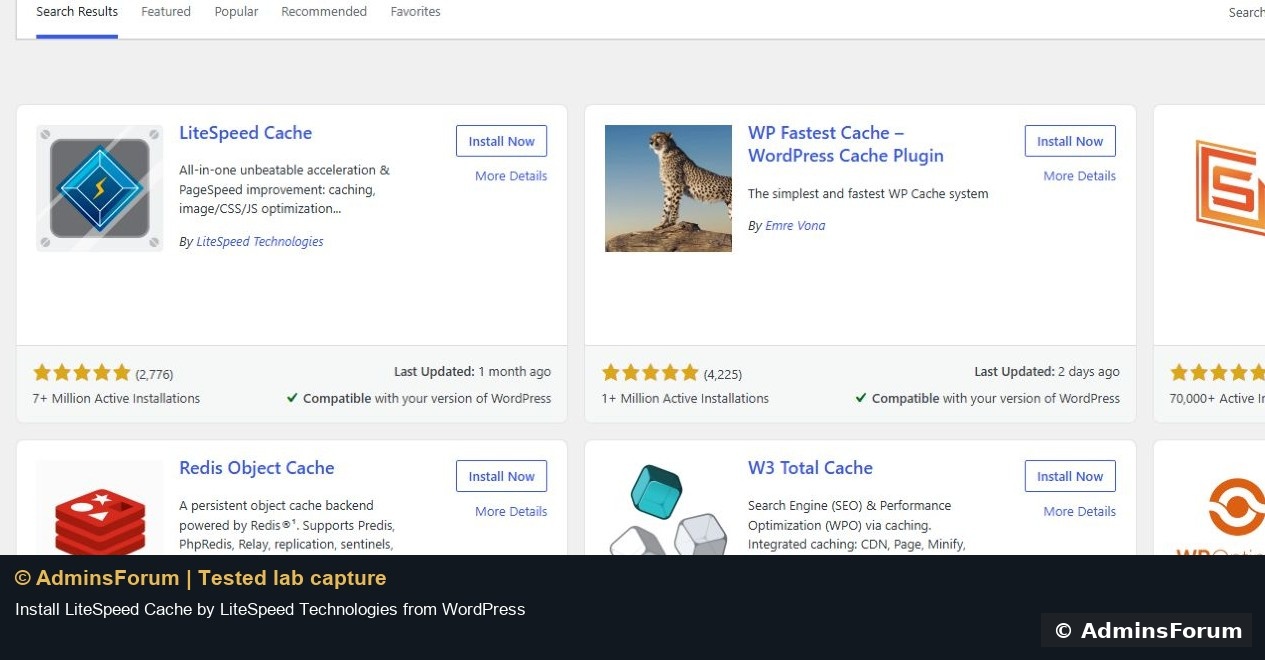
We installed version 7.9.1 through WordPress's native Plugin Directory interface. Do not install a similarly named package from an unknown download page.
3. Use a simple public-page configuration
Open LiteSpeed Cache → Cache → the Cache tab. Confirm Enable Cache is ON. For this public-page lab test we set Cache Logged-in Users, Cache Commenters and Cache REST API to OFF, then clicked Save Changes. Cache Login Page and Cache Mobile were already OFF.
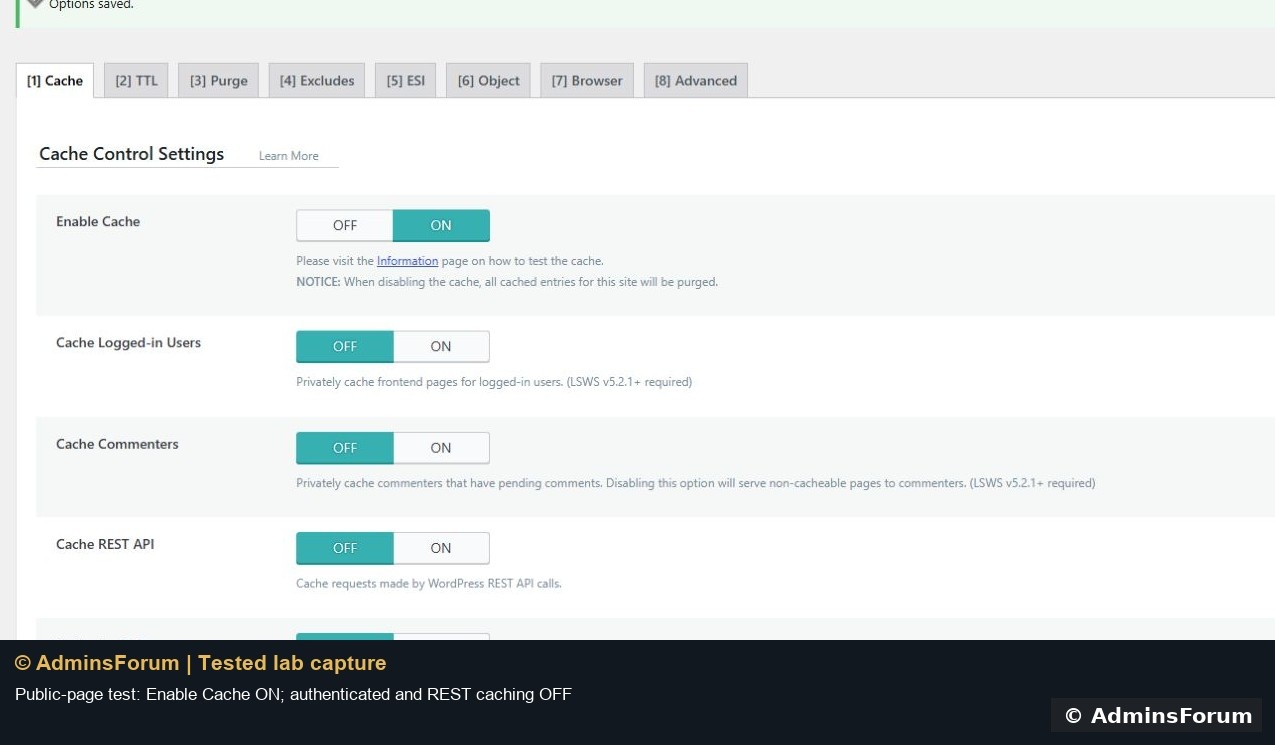
These choices keep the test focused on anonymous public pages. They are not a universal performance preset. Evaluate membership, shopping-cart, personalized and API behavior separately before enabling additional caching. We did not add Force Public Cache URIs or force private/account pages into public cache.
We did not connect QUIC.cloud, enable a CDN, request remote image optimization or enable the crawler. None of those steps was needed to verify the local OpenLiteSpeed page cache in this lab. Avoid changing minification and other optimization settings while diagnosing basic caching.
4. Test without your administrator login cookies
An administrator browser session is not a reliable anonymous cache test. Use a separate signed-out browser session and inspect the document response headers, or run cookie-free requests from a terminal.
This is the exact spaced request test we used. Replace the URL with your public homepage. It makes three ordinary HTTPS GET requests without login cookies, checks curl's exit code, and prints only the relevant response headers:
This uses GET rather than assuming that a HEAD request behaves identically. It does not log in, weaken certificate verification or print authentication/cookie headers.
Interpret the result
Our first tests returned repeated misses. Later anonymous requests returned hits. A cold cache or operation still completing can affect the first results; recheck after processing finishes rather than treating one immediate miss as a finished diagnosis. If misses persist, inspect cache storage permissions, server configuration, exclusions and conflicting layers using the official troubleshooting documentation.
Nginx remained the public front end, so the response's Server header said nginx even when X-LiteSpeed-Cache reported hit. The backend was independently verified through WordPress's litespeed SAPI.
5. Test the purge operation
Open LiteSpeed Cache → Toolbox → Purge. For the plugin's page cache, choose Purge All - LSCache. The lab displayed Notified LiteSpeed Web Server to purge all LSCache entries. We also tested Purge Front Page to invalidate only the homepage.
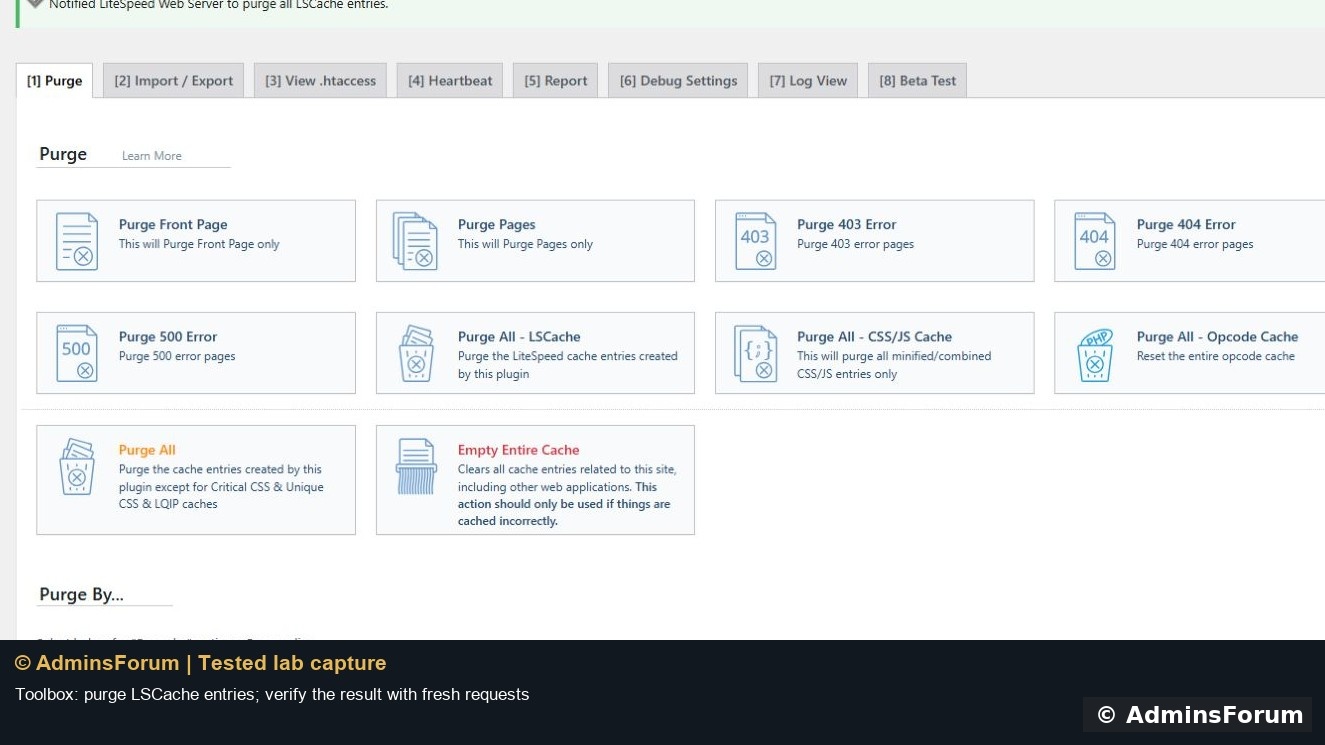
Repeat the anonymous request check. Our targeted homepage purge was not instantaneous: the first observed response still showed hit, followed by subsequent miss responses. The screenshot captures that transition. This checks the actual response after the notification rather than treating the notification alone as evidence.
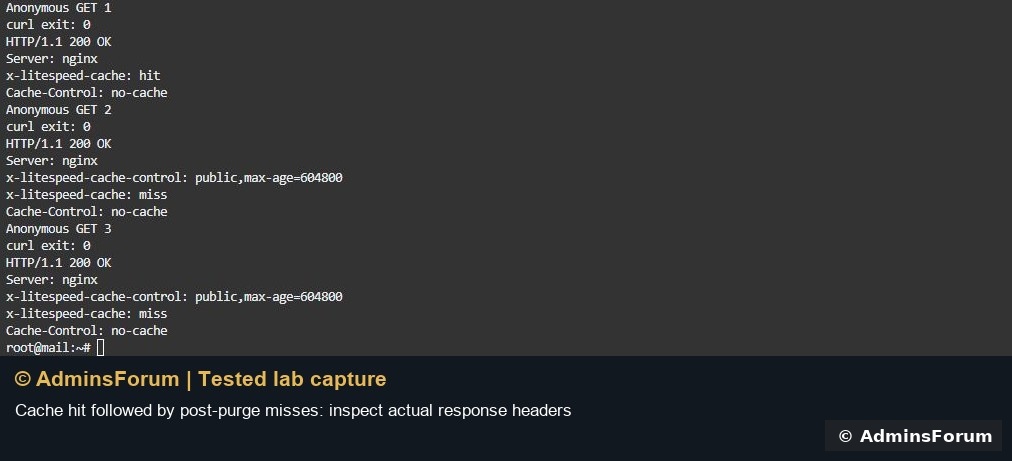
After a purge, allow the site to generate fresh eligible responses and recheck for hits before declaring it warmed again. We did not measure a purge latency guarantee or performance improvement. Do not use Empty Entire Cache as a routine substitute for the narrower plugin/page purge; its scope is broader.
6. Check normal website behavior
Open a post and a standalone page over HTTPS. In the lab, /hello-world/ and /sample-page/ rendered successfully on OpenLiteSpeed. We also opened the dashboard and uploaded an original branded JPEG through WordPress; its public HTTPS image loaded at its original dimensions.
For a real site, check logged-in and logged-out behavior separately and test any forms, carts or personalized screens before keeping new cache settings in production.
7. Disable caching before an engine return test
We set Enable Cache to OFF and saved the setting, then deactivated LiteSpeed Cache through Plugins → Installed Plugins. The plugin remained installed for future lab testing. We used aaPanel's native Rollback and a validated Nginx reload, then verified WordPress reported nginx/1.30.5 with fpm-fcgi SAPI.
Anonymous HTTPS requests still returned HTTP 200, but no longer reported a LiteSpeed cache hit/miss header. Public content and the uploaded image remained accessible. The lab is left on Nginx with LiteSpeed Cache inactive.
What this test proves
The official plugin installed and activated, public-page settings saved, anonymous requests received cache hits, and the homepage purge was followed by misses. Website content/media checks and the return to PHP-FPM passed. This is a tested setup and verification guide, not a speed benchmark or a recommendation to cache every URL.
References: official WordPress plugin listing, LiteSpeed installation/cache verification and cache troubleshooting. Screenshots are original © AdminsForum lab captures.
Install the official LiteSpeed Cache WordPress plugin, confirm your website actually uses OpenLiteSpeed, enable public-page caching and check repeated anonymous HTTPS requests for X-LiteSpeed-Cache: hit. Test purging separately. A plugin activation message or green settings switch is not proof that visitors receive cached pages.
Our test used aaPanel 8.0.6, OpenLiteSpeed 1.8.5, lsphp 8.5.11 and LiteSpeed Cache 7.9.1 on an isolated Ubuntu 22.04 lab on 12 October 2026. We verified real cache hits, observed misses after a homepage purge, and then disabled/deactivated the plugin before returning the lab site to Nginx.
1. Verify the backend before installing a cache plugin
This guide tests OpenLiteSpeed's server page cache. The WordPress plugin also has other optimization features, but those do not make its LiteSpeed server cache work on an ordinary Nginx/PHP-FPM backend.
Open WordPress Tools → Site Health → Info → Server. Our test reported Web server: LiteSpeed and PHP SAPI: litespeed after selecting Nginx + Openlitespeed in aaPanel. Follow the engine-switch and rollback walkthrough first if necessary.
Keep a current website/database/configuration backup. Record other cache plugins or reverse-proxy caching already in use so you do not mistake one cache layer for another. Our lab had no other active WordPress plugin when this test began.
2. Install the official plugin
In WordPress, open Plugins → Add Plugin. Search for LiteSpeed Cache. Identify the plugin published by LiteSpeed Technologies, then click Install Now. Wait until installation finishes and the button becomes Activate. Click Activate and confirm the installed plugin is active.
We installed version 7.9.1 through WordPress's native Plugin Directory interface. Do not install a similarly named package from an unknown download page.
3. Use a simple public-page configuration
Open LiteSpeed Cache → Cache → the Cache tab. Confirm Enable Cache is ON. For this public-page lab test we set Cache Logged-in Users, Cache Commenters and Cache REST API to OFF, then clicked Save Changes. Cache Login Page and Cache Mobile were already OFF.
These choices keep the test focused on anonymous public pages. They are not a universal performance preset. Evaluate membership, shopping-cart, personalized and API behavior separately before enabling additional caching. We did not add Force Public Cache URIs or force private/account pages into public cache.
We did not connect QUIC.cloud, enable a CDN, request remote image optimization or enable the crawler. None of those steps was needed to verify the local OpenLiteSpeed page cache in this lab. Avoid changing minification and other optimization settings while diagnosing basic caching.
4. Test without your administrator login cookies
An administrator browser session is not a reliable anonymous cache test. Use a separate signed-out browser session and inspect the document response headers, or run cookie-free requests from a terminal.
This is the exact spaced request test we used. Replace the URL with your public homepage. It makes three ordinary HTTPS GET requests without login cookies, checks curl's exit code, and prints only the relevant response headers:
Code:
python3 - <<'PY'
import subprocess,time
for n in range(1,4):
 print('Anonymous GET',n)
 r=subprocess.run(['curl','-sS','--max-time','20','-D','-','-o','/dev/null','https://wp.adminslab.com/'],capture_output=True,text=True)
 print('curl exit:',r.returncode)
 for line in r.stdout.splitlines():
  if line.lower().startswith(('http/','server:','x-litespeed-cache:','x-litespeed-cache-control:','cache-control:','age:')):print(line)
 if r.returncode:print('Request failed; inspect connectivity before retrying')
 time.sleep(2)
PY
This uses GET rather than assuming that a HEAD request behaves identically. It does not log in, weaken certificate verification or print authentication/cookie headers.
Interpret the result
- HTTP 200 and curl exit 0: the requested page was reached successfully.
- X-LiteSpeed-Cache: miss: this response was not served from a stored LiteSpeed cache entry.
- X-LiteSpeed-Cache: hit: this response was served from LiteSpeed's page cache.
- No hit/miss header: confirm the selected backend, cache configuration and eligible URL before claiming caching works.
Our first tests returned repeated misses. Later anonymous requests returned hits. A cold cache or operation still completing can affect the first results; recheck after processing finishes rather than treating one immediate miss as a finished diagnosis. If misses persist, inspect cache storage permissions, server configuration, exclusions and conflicting layers using the official troubleshooting documentation.
Nginx remained the public front end, so the response's Server header said nginx even when X-LiteSpeed-Cache reported hit. The backend was independently verified through WordPress's litespeed SAPI.
5. Test the purge operation
Open LiteSpeed Cache → Toolbox → Purge. For the plugin's page cache, choose Purge All - LSCache. The lab displayed Notified LiteSpeed Web Server to purge all LSCache entries. We also tested Purge Front Page to invalidate only the homepage.
Repeat the anonymous request check. Our targeted homepage purge was not instantaneous: the first observed response still showed hit, followed by subsequent miss responses. The screenshot captures that transition. This checks the actual response after the notification rather than treating the notification alone as evidence.
After a purge, allow the site to generate fresh eligible responses and recheck for hits before declaring it warmed again. We did not measure a purge latency guarantee or performance improvement. Do not use Empty Entire Cache as a routine substitute for the narrower plugin/page purge; its scope is broader.
6. Check normal website behavior
Open a post and a standalone page over HTTPS. In the lab, /hello-world/ and /sample-page/ rendered successfully on OpenLiteSpeed. We also opened the dashboard and uploaded an original branded JPEG through WordPress; its public HTTPS image loaded at its original dimensions.
For a real site, check logged-in and logged-out behavior separately and test any forms, carts or personalized screens before keeping new cache settings in production.
7. Disable caching before an engine return test
We set Enable Cache to OFF and saved the setting, then deactivated LiteSpeed Cache through Plugins → Installed Plugins. The plugin remained installed for future lab testing. We used aaPanel's native Rollback and a validated Nginx reload, then verified WordPress reported nginx/1.30.5 with fpm-fcgi SAPI.
Anonymous HTTPS requests still returned HTTP 200, but no longer reported a LiteSpeed cache hit/miss header. Public content and the uploaded image remained accessible. The lab is left on Nginx with LiteSpeed Cache inactive.
What this test proves
The official plugin installed and activated, public-page settings saved, anonymous requests received cache hits, and the homepage purge was followed by misses. Website content/media checks and the return to PHP-FPM passed. This is a tested setup and verification guide, not a speed benchmark or a recommendation to cache every URL.
References: official WordPress plugin listing, LiteSpeed installation/cache verification and cache troubleshooting. Screenshots are original © AdminsForum lab captures.