



10-12-2026, 04:25 PM
Quick answer
For a new WordPress website, open Settings → Permalinks, choose Post name and click Save Changes. Then open an actual published post. On Nginx, the site also needs a WordPress routing rule so URLs such as /hello-world/ reach index.php.
This walkthrough was tested on our isolated AdminsForum lab on 12 October 2026: aaPanel 8.0.6, Nginx 1.30.5, PHP 8.5 and WordPress 7.1.3. We changed Plain to Post name and opened the resulting published post successfully. The required rewrite rule was already present; we inspected it rather than replacing a working configuration.
Before you start
1. Open the permalink settings
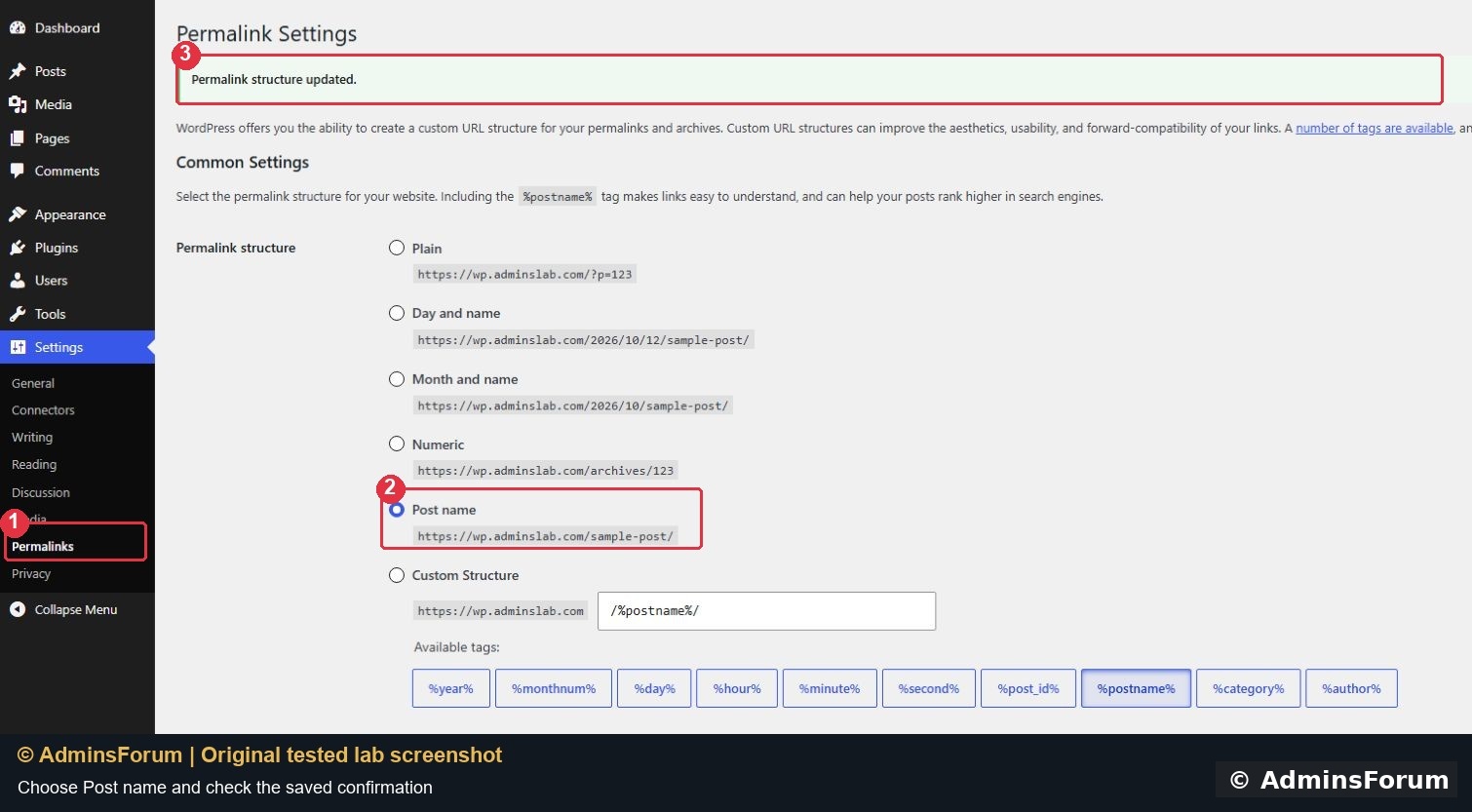
In the WordPress dashboard, expand Settings and click Permalinks. Our fresh installation used Plain, which creates a URL such as https://example.com/?p=123.
Choose Post name for the /sample-post/ structure. The Custom Structure field should show
Do not enter the whole domain in that field. Leave Category base and Tag base alone unless you are deliberately changing archive URLs.
The screenshot shows the resulting saved configuration: marker 1 identifies Permalinks, marker 2 identifies Post name and marker 3 identifies the confirmation message.
2. Save and check the confirmation
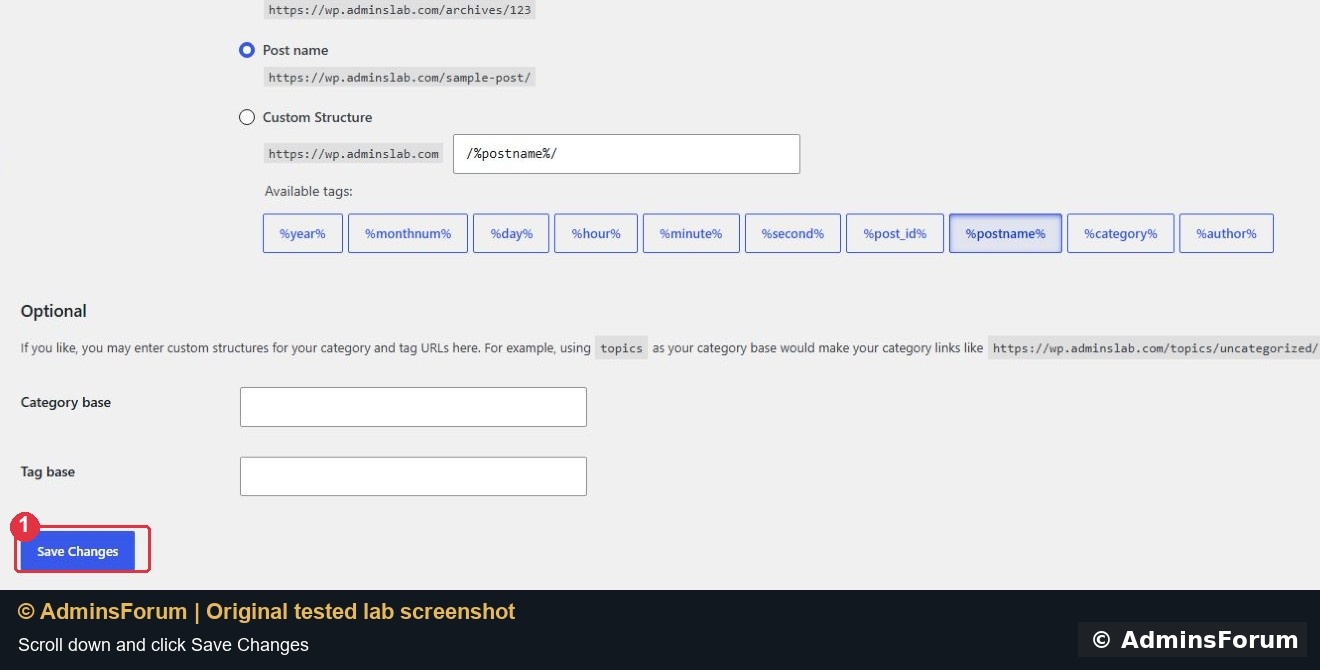
Scroll to the bottom and click Save Changes. Wait for Permalink structure updated. Reload this settings page and confirm Post name remains selected. Selecting the radio button without saving does not update the site.
3. Check the Nginx routing in aaPanel
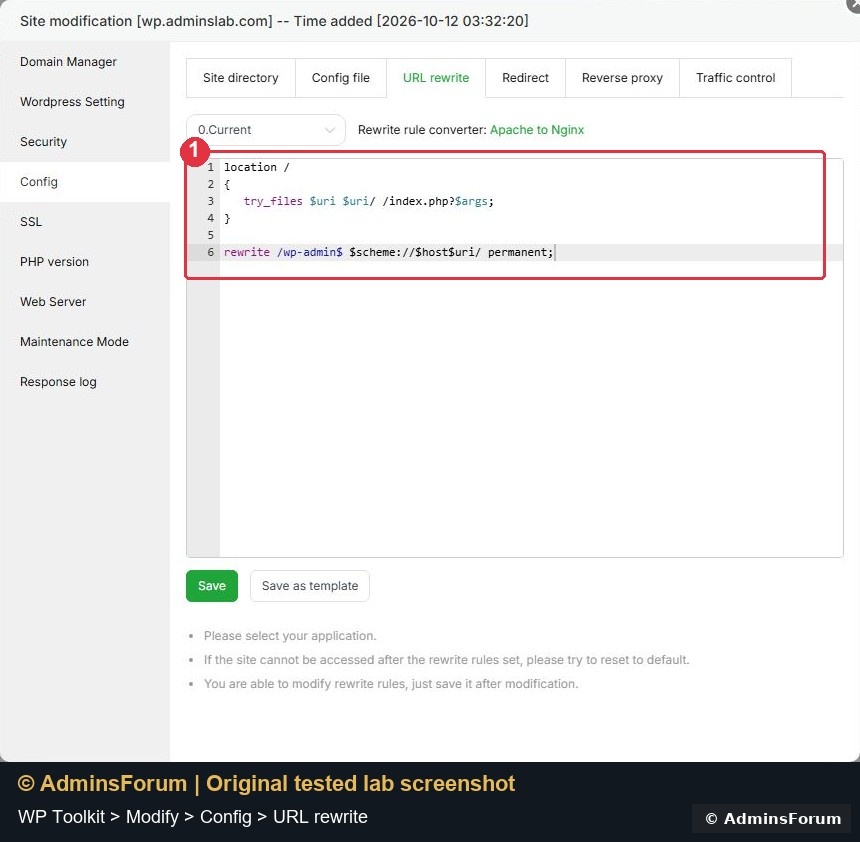
For a site created through WP Toolkit, go to WP Toolkit → your website → Modify → Config → URL rewrite. For a manually created PHP site, open that website's configuration under Website and look for URL rewrite.
Our root-installed WordPress site used this working rule:
The try_files line serves real files/directories first and sends other requests to WordPress's index.php, preserving the query string. The wp-admin rule adds the trailing slash to that administration URL.
Keep an already working rule. If yours is missing and pretty URLs return 404, first save a copy of the existing rule, then use the WordPress template offered by your aaPanel installation for the correct web server and site layout. Review it before saving. Do not paste a second location / block into a configuration that already has one. A WordPress installation in a subdirectory needs rules for that layout; the root-site example above is not a universal replacement.
Nginx does not read Apache .htaccess rules. If you run Apache or OpenLiteSpeed, use the configuration appropriate to that server rather than pasting this Nginx block. This tutorial tested Nginx only.
4. Test real content, not just the homepage
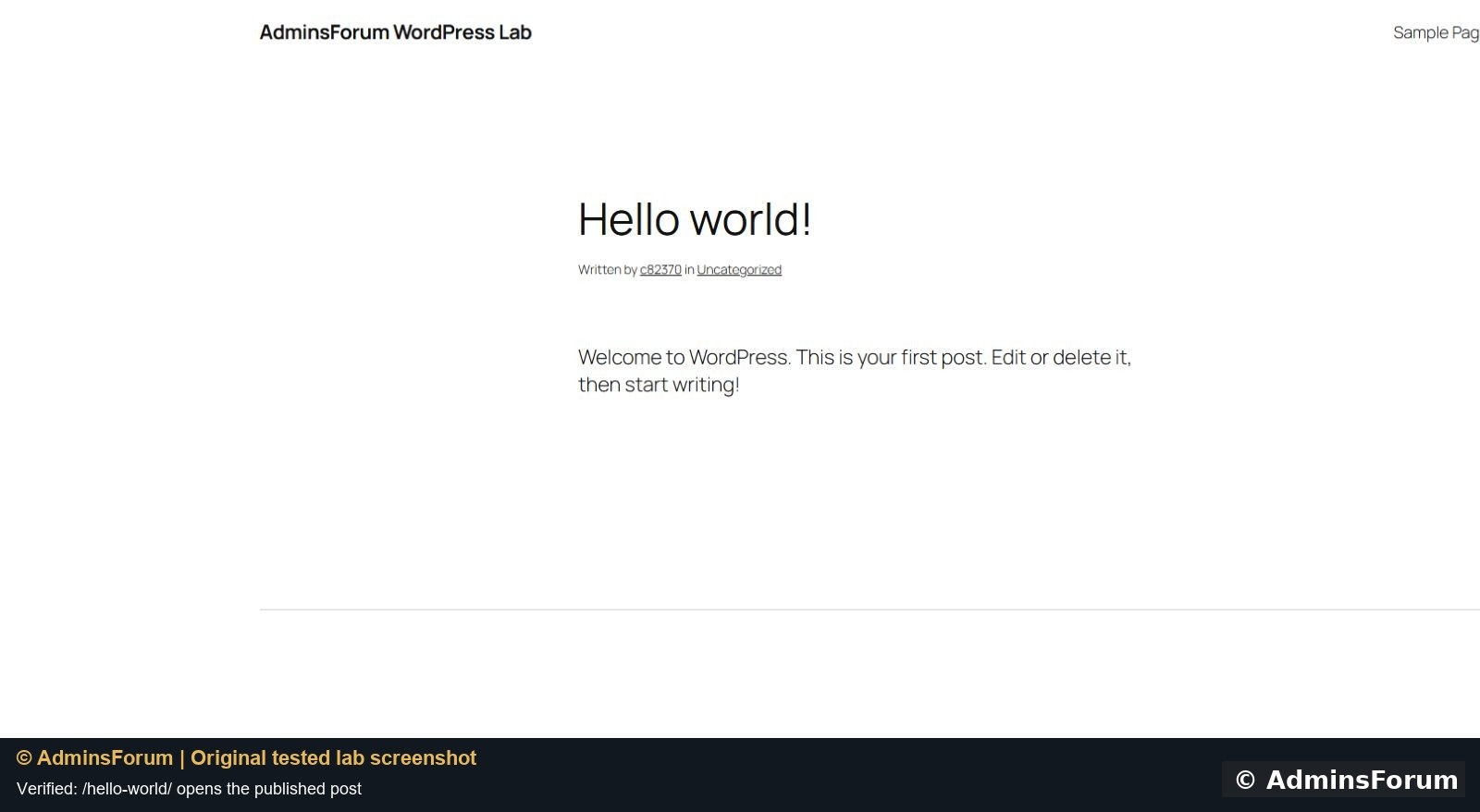
Open the public homepage and click the title of a published post. In our lab, Hello world! changed to
and opened with its content and comments intact.
Also open a published page, such as Sample Page, directly from the navigation. Test in a logged-out/private window and refresh a deep URL directly. A working homepage alone does not prove that rewritten URLs work.
If you get a 404
Does this guarantee better Google rankings?
No. Readable URLs help visitors understand links, but rankings still depend on useful content, indexing and the rest of the site. Avoid repeated permalink changes just to chase SEO.
Our verified result
Post name saved successfully; /hello-world/ opened the published post; the Nginx WordPress rule was visible in aaPanel. We did not simulate a broken rule or test an Apache/OpenLiteSpeed migration in this walkthrough.
Reference: WordPress permalink documentation. Screenshots are original AdminsForum lab captures.
For a new WordPress website, open Settings → Permalinks, choose Post name and click Save Changes. Then open an actual published post. On Nginx, the site also needs a WordPress routing rule so URLs such as /hello-world/ reach index.php.
This walkthrough was tested on our isolated AdminsForum lab on 12 October 2026: aaPanel 8.0.6, Nginx 1.30.5, PHP 8.5 and WordPress 7.1.3. We changed Plain to Post name and opened the resulting published post successfully. The required rewrite rule was already present; we inspected it rather than replacing a working configuration.
Before you start
- WordPress must already be installed and accessible over HTTPS. See our WP Toolkit installation guide.
- Sign in as a WordPress administrator. The aaPanel account and WordPress account are separate.
- Have a current files-and-database backup. See our backup guide.
- For an established site, plan redirects from existing URLs before changing the structure. Do this on staging first; existing bookmarks and external links can depend on the old URLs.
1. Open the permalink settings
In the WordPress dashboard, expand Settings and click Permalinks. Our fresh installation used Plain, which creates a URL such as https://example.com/?p=123.
Choose Post name for the /sample-post/ structure. The Custom Structure field should show
Code:
/%postname%/The screenshot shows the resulting saved configuration: marker 1 identifies Permalinks, marker 2 identifies Post name and marker 3 identifies the confirmation message.
2. Save and check the confirmation
Scroll to the bottom and click Save Changes. Wait for Permalink structure updated. Reload this settings page and confirm Post name remains selected. Selecting the radio button without saving does not update the site.
3. Check the Nginx routing in aaPanel
For a site created through WP Toolkit, go to WP Toolkit → your website → Modify → Config → URL rewrite. For a manually created PHP site, open that website's configuration under Website and look for URL rewrite.
Our root-installed WordPress site used this working rule:
Code:
location /
{
    try_files $uri $uri/ /index.php?$args;
}
rewrite /wp-admin$ $scheme://$host$uri/ permanent;Keep an already working rule. If yours is missing and pretty URLs return 404, first save a copy of the existing rule, then use the WordPress template offered by your aaPanel installation for the correct web server and site layout. Review it before saving. Do not paste a second location / block into a configuration that already has one. A WordPress installation in a subdirectory needs rules for that layout; the root-site example above is not a universal replacement.
Nginx does not read Apache .htaccess rules. If you run Apache or OpenLiteSpeed, use the configuration appropriate to that server rather than pasting this Nginx block. This tutorial tested Nginx only.
4. Test real content, not just the homepage
Open the public homepage and click the title of a published post. In our lab, Hello world! changed to
Code:
https://wp.adminslab.com/hello-world/Also open a published page, such as Sample Page, directly from the navigation. Test in a logged-out/private window and refresh a deep URL directly. A working homepage alone does not prove that rewritten URLs work.
If you get a 404
- Homepage works, every pretty URL fails: check the web-server rewrite rule and whether it belongs to the same domain/site root you changed.
- Only one URL fails: check its actual slug, publication status and copied URL. A draft page is not a public page.
- Changes look stale: clear any relevant page cache/CDN cache, then retest the exact URL.
- The panel refuses the configuration: restore the saved rule and inspect the error; do not repeatedly add duplicate blocks.
Does this guarantee better Google rankings?
No. Readable URLs help visitors understand links, but rankings still depend on useful content, indexing and the rest of the site. Avoid repeated permalink changes just to chase SEO.
Our verified result
Post name saved successfully; /hello-world/ opened the published post; the Nginx WordPress rule was visible in aaPanel. We did not simulate a broken rule or test an Apache/OpenLiteSpeed migration in this walkthrough.
Reference: WordPress permalink documentation. Screenshots are original AdminsForum lab captures.