



10-16-2026, 10:24 AM
To install wildcard SSL in aaPanel, connect your DNS provider, use DNS-01 validation to obtain a certificate for the names you need, deploy it to the selected website and verify the certificate served publicly. A wildcard certificate does not create DNS records or website bindings.
We verified this workflow on our aaPanel 8.0.7 lab running Ubuntu 22.04.5 on 16 October 2026. Cloudflare supplied DNS validation for adminslab.com. The certificate was deployed only to demo.adminslab.com; panel-login and mail certificates were not replaced. These are original lab screenshots.
1. Decide which names the certificate must cover
2. Prepare the domain and a restricted Cloudflare token
Confirm that Cloudflare is the authoritative DNS provider for the domain. Have administrator access to aaPanel and a test website ready. Back up its existing certificate, private key and web-server configuration securely before deployment. Never put key backups in a public website folder.
In Cloudflare, open your profile, then API Tokens → Create Token. Choose the Edit zone DNS template, give it a descriptive name, and select Include → Specific zone → your lab domain. Review the summary before creation. We used DNS Edit permission restricted to adminslab.com; this worked in our lab without granting access to other zones.
Create the token and store it securely. It is a credential: do not include its value in a screenshot, article or support request. The label can be something like aaPanel lab wildcard SSL. Restricting a token to one zone limits its scope, but it can still change DNS records in that zone.
3. Add the provider in aaPanel
Open Domains → Provider List → Integrate DNS Provider API. Choose CloudFlareDns. Enable API-Limit for token authentication; in our release this removes the API User field. Enter the token in API Key, enter an Alias such as Cloudflare Lab, leave the intended provider enabled and click Confirm.
Alias is a friendly connection name, not a DNS record. API-Limit selects token mode; it is not a guarantee that the token's permissions are restricted correctly. The actual restriction must be set in Cloudflare.
Return to Provider List and confirm that the provider appears enabled and discovers the intended domain. In our lab it showed one domain. If validation fails, check the token mode, authoritative zone and required permissions before widening access.
4. Confirm wildcard issuance in the certificate inventory
Open Domains → SSL Certificate → Let's Encrypt. After the provider integration was saved in this lab, the inventory already contained a newly issued certificate for *.adminslab.com and adminslab.com, marked DNS-01 Automatic. We used that certificate rather than requesting a duplicate.
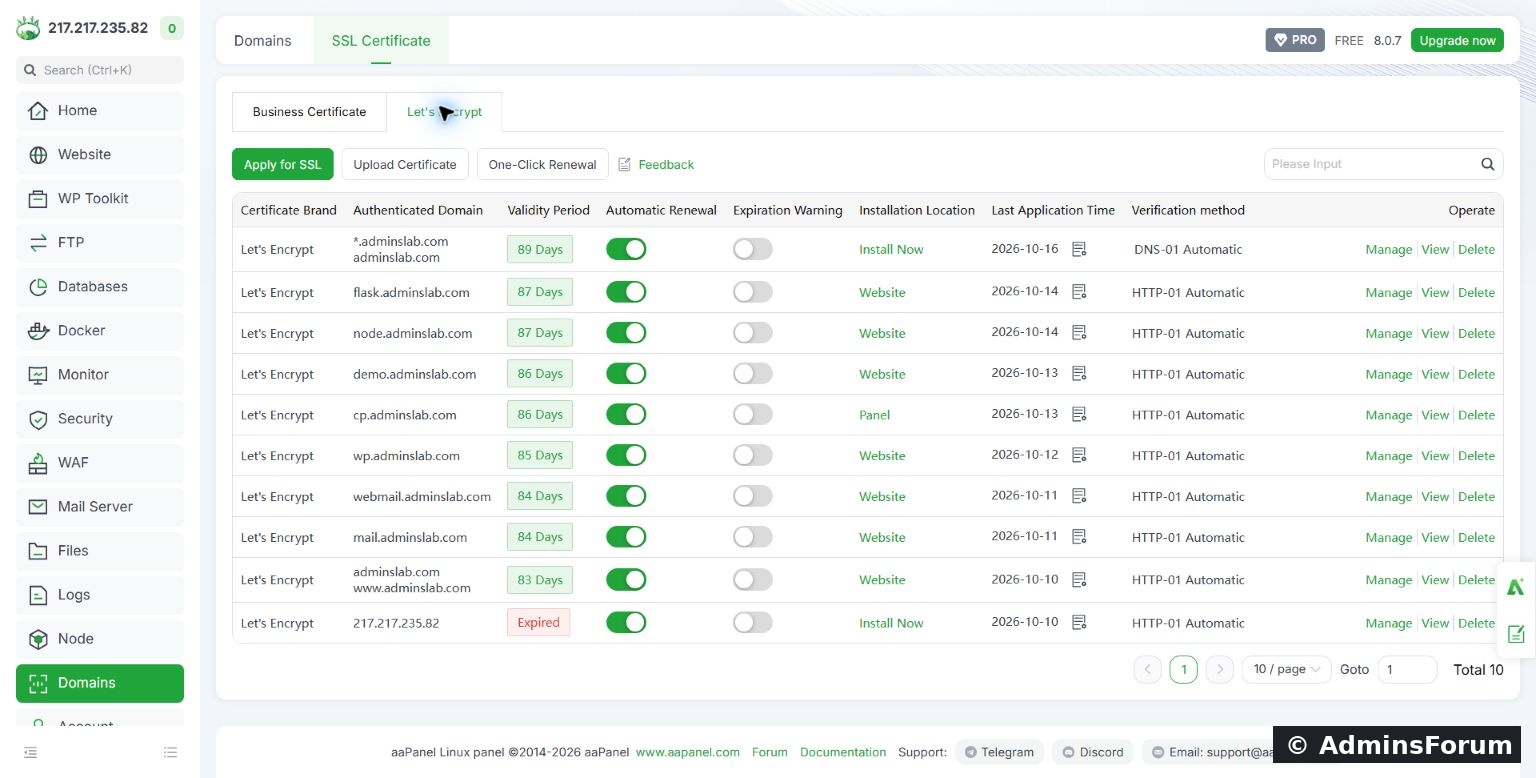
The lab certificate inventory shows both names and DNS-01 Automatic. Check for an existing valid certificate before requesting another.
If your inventory has no suitable certificate, use Apply for SSL and follow the installed release's DNS-validation workflow for the intended names and provider. That alternative request dialog was not exercised in this lab run; do not assume a different release automatically creates the same certificate on integration. Follow its prompts and inspect the issuance result before proceeding.
Wildcard validation requires DNS-01. An HTTP home-page check cannot validate a wildcard request. DNS validation publishes a challenge TXT value; with a working provider integration the client handles those updates. For a manually managed challenge, future requests can need new TXT values, so manual issuance alone does not establish unattended renewal.
5. Select only the website you intend to update
In the certificate row, click Manage to open Certificate Management. Choose the Site tab and select the matching website. Our screenshot shows only demo.adminslab.com selected.
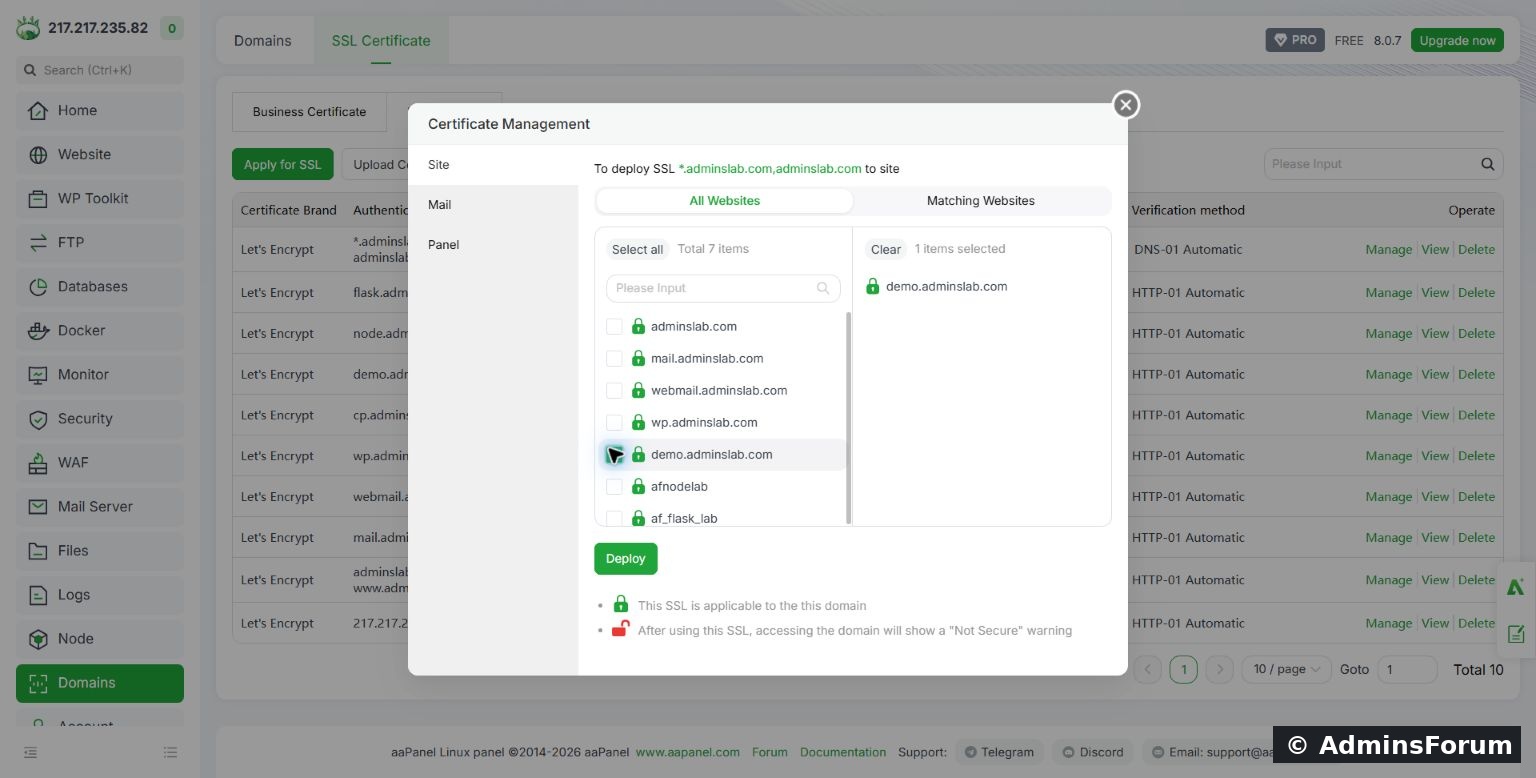
Deploy the certificate to a specific site. A matching wildcard does not mean every website should be selected.
Review the names and selected site, click Deploy and confirm the deployment. The panel has separate Site, Mail and Panel targets; choose the appropriate service deliberately. We backed up the demo site's certificate directory and Nginx configuration before this step.
Do not deploy indiscriminately to all sites, especially sites for unrelated domains. A certificate can only authenticate names within its actual coverage.
6. Verify trusted HTTPS from outside the VPS
Open the test hostname in a browser and inspect the certificate details. For a command-line HTTPS check from another machine:
Replace the example hostname with your site. Do not add -k, because that bypasses certificate validation. An HTTP error from the application is separate from a TLS verification failure; inspect each result rather than treating every non-200 response as a certificate fault.
Our external TLS check of demo.adminslab.com passed hostname and trust verification using TLS 1.3. It returned:
These are measured results from this lab run, not dates to copy into your configuration. If Cloudflare proxies your website, its public edge can serve a different certificate. Verify the origin separately using the intended origin hostname and trust configuration.
7. Check renewal readiness and keep monitoring
The wildcard row showed automatic renewal enabled. Keep the required DNS integration functional and monitor certificate expiry independently. If you revoke or expire the token, plan how renewal will continue. Never leave broader permissions enabled merely to avoid diagnosing a specific access problem.
We verified issuance, the renewal setting and deployment; we did not wait for or force a later automatic renewal. Use Diagnose aaPanel SSL Renewal Failures if a scheduled renewal fails.
Common problems
For an initial single-site certificate, see Install Let's Encrypt SSL in aaPanel. More topics are in Domains, DNS & SSL Guides. Ask troubleshooting questions with your panel version and a redacted error in aaPanel Support.
References
aaPanel Domains documentation.
aaPanel DNS API tutorial.
Let's Encrypt validation methods.
We verified this workflow on our aaPanel 8.0.7 lab running Ubuntu 22.04.5 on 16 October 2026. Cloudflare supplied DNS validation for adminslab.com. The certificate was deployed only to demo.adminslab.com; panel-login and mail certificates were not replaced. These are original lab screenshots.
1. Decide which names the certificate must cover
- A certificate for *.example.com can cover demo.example.com and www.example.com.
- It does not cover the bare example.com unless that name is also included.
- It does not cover a deeper name such as app.demo.example.com.
2. Prepare the domain and a restricted Cloudflare token
Confirm that Cloudflare is the authoritative DNS provider for the domain. Have administrator access to aaPanel and a test website ready. Back up its existing certificate, private key and web-server configuration securely before deployment. Never put key backups in a public website folder.
In Cloudflare, open your profile, then API Tokens → Create Token. Choose the Edit zone DNS template, give it a descriptive name, and select Include → Specific zone → your lab domain. Review the summary before creation. We used DNS Edit permission restricted to adminslab.com; this worked in our lab without granting access to other zones.
Create the token and store it securely. It is a credential: do not include its value in a screenshot, article or support request. The label can be something like aaPanel lab wildcard SSL. Restricting a token to one zone limits its scope, but it can still change DNS records in that zone.
3. Add the provider in aaPanel
Open Domains → Provider List → Integrate DNS Provider API. Choose CloudFlareDns. Enable API-Limit for token authentication; in our release this removes the API User field. Enter the token in API Key, enter an Alias such as Cloudflare Lab, leave the intended provider enabled and click Confirm.
Alias is a friendly connection name, not a DNS record. API-Limit selects token mode; it is not a guarantee that the token's permissions are restricted correctly. The actual restriction must be set in Cloudflare.
Return to Provider List and confirm that the provider appears enabled and discovers the intended domain. In our lab it showed one domain. If validation fails, check the token mode, authoritative zone and required permissions before widening access.
4. Confirm wildcard issuance in the certificate inventory
Open Domains → SSL Certificate → Let's Encrypt. After the provider integration was saved in this lab, the inventory already contained a newly issued certificate for *.adminslab.com and adminslab.com, marked DNS-01 Automatic. We used that certificate rather than requesting a duplicate.
The lab certificate inventory shows both names and DNS-01 Automatic. Check for an existing valid certificate before requesting another.
If your inventory has no suitable certificate, use Apply for SSL and follow the installed release's DNS-validation workflow for the intended names and provider. That alternative request dialog was not exercised in this lab run; do not assume a different release automatically creates the same certificate on integration. Follow its prompts and inspect the issuance result before proceeding.
Wildcard validation requires DNS-01. An HTTP home-page check cannot validate a wildcard request. DNS validation publishes a challenge TXT value; with a working provider integration the client handles those updates. For a manually managed challenge, future requests can need new TXT values, so manual issuance alone does not establish unattended renewal.
5. Select only the website you intend to update
In the certificate row, click Manage to open Certificate Management. Choose the Site tab and select the matching website. Our screenshot shows only demo.adminslab.com selected.
Deploy the certificate to a specific site. A matching wildcard does not mean every website should be selected.
Review the names and selected site, click Deploy and confirm the deployment. The panel has separate Site, Mail and Panel targets; choose the appropriate service deliberately. We backed up the demo site's certificate directory and Nginx configuration before this step.
Do not deploy indiscriminately to all sites, especially sites for unrelated domains. A certificate can only authenticate names within its actual coverage.
6. Verify trusted HTTPS from outside the VPS
Open the test hostname in a browser and inspect the certificate details. For a command-line HTTPS check from another machine:
Code:
curl -I https://demo.example.com/Our external TLS check of demo.adminslab.com passed hostname and trust verification using TLS 1.3. It returned:
Code:
Certificate names:
  *.adminslab.com
  adminslab.com
Valid from: 16 October 2026, 09:21:40 UTC
Valid until: 14 January 2027, 09:21:39 UTC
SHA-256:
AA:7D:92:E0:9E:10:74:E4:23:CE:2D:83:FA:DC:9D:90:56:92:9F:22:35:43:5C:F0:C8:22:10:61:8C:92:8A:327. Check renewal readiness and keep monitoring
The wildcard row showed automatic renewal enabled. Keep the required DNS integration functional and monitor certificate expiry independently. If you revoke or expire the token, plan how renewal will continue. Never leave broader permissions enabled merely to avoid diagnosing a specific access problem.
We verified issuance, the renewal setting and deployment; we did not wait for or force a later automatic renewal. Use Diagnose aaPanel SSL Renewal Failures if a scheduled renewal fails.
Common problems
- No domain discovered: check the token's zone scope, account, permissions and the domain's authoritative DNS provider.
- Authentication error: confirm API-Limit is on for a scoped token. Do not paste a token into the account-wide key mode.
- TXT validation failure: inspect the exact challenge name and authoritative answer, including any DNS delegation.
- Apex or deeper hostname mismatch: inspect the certificate names; wildcard coverage has limits.
- Old certificate still served: verify the deployment target, virtual host and proxy layer.
For an initial single-site certificate, see Install Let's Encrypt SSL in aaPanel. More topics are in Domains, DNS & SSL Guides. Ask troubleshooting questions with your panel version and a redacted error in aaPanel Support.
References
aaPanel Domains documentation.
aaPanel DNS API tutorial.
Let's Encrypt validation methods.