



11-14-2026, 02:54 PM
Wildcard SSL on CyberPanel with acme.sh and a Manual DNS Record (Tested)
A wildcard certificate covers every subdomain at once:
is valid for shop.yourdomain.com, app.yourdomain.com and anything else you make up later. CyberPanel's normal SSL button can't issue one, because Let's Encrypt only gives wildcards after you prove you control the domain's DNS. You can still get one for free with
, which CyberPanel already installs. We did it on a CyberPanel 3.0.8 server without any DNS API key: we added two TXT records by hand (our DNS is at Cloudflare, but any DNS host works).
Know the trade-off first: done by hand, the certificate does not renew by itself. It's valid for 90 days, and you repeat steps 2 to 4 before it runs out. More on that at the end.
Below,
is the website in CyberPanel that should answer for all subdomains. Ours was itself a subdomain, which works the same way.
Step 1: Point all subdomains at the server
In your DNS, add one A record with the name
(a star) pointing to your server IP. At Cloudflare, set it to DNS only (grey cloud). Subdomains that have their own record keep it. The star only catches the rest.
Step 2: Ask for the certificate
Over SSH as root:
The long option is real. It's acme.sh's way of making sure you know that manual mode can't renew by itself. The command stops and prints two blocks like this:
You get two different values for the same name: one for the domain itself and one for the wildcard. You need both.
Step 3: Add the two TXT records
In your DNS, add a TXT record named
with the first value. (For a subdomain like ours, the name is
.) At Cloudflare: DNS → Records → Add record, Type TXT.
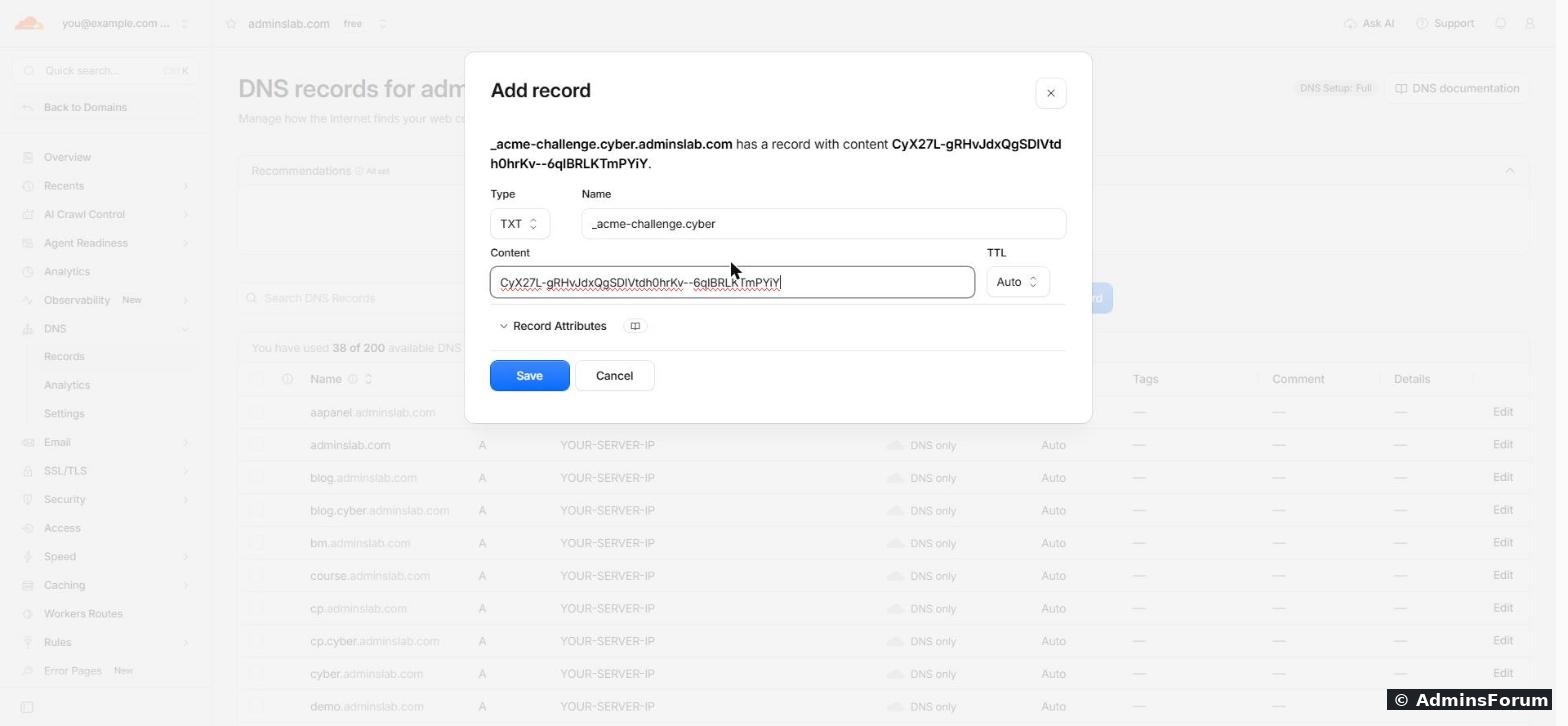
Then add a second TXT record with the same name and the second value. Don't edit the first one. Both have to exist together:
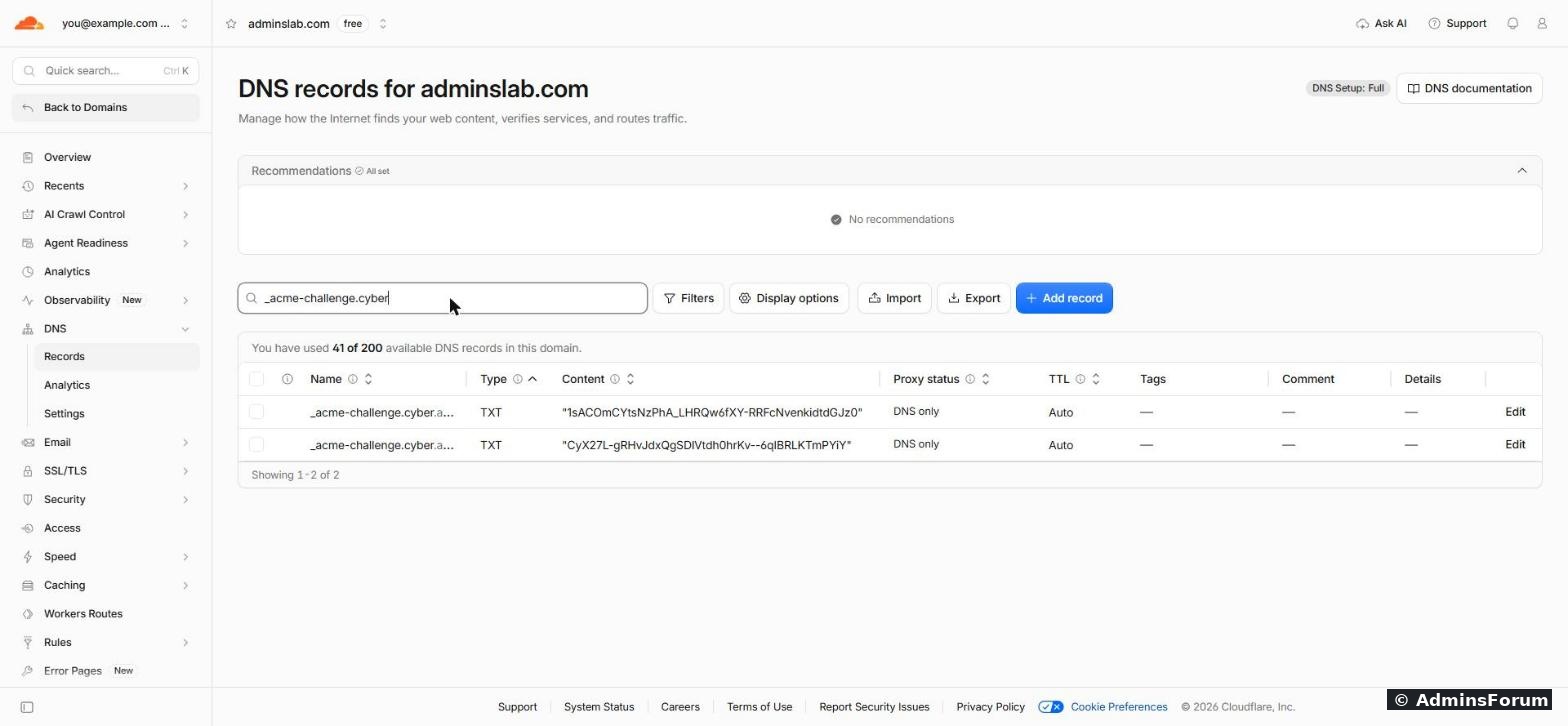
Check that the world can see them before you go on:
It should print both values. With Cloudflare ours showed up within a minute. Other DNS hosts can take longer.
Step 4: Finish the certificate
Run the same command again, with
instead of
(and
, because acme.sh made an ECC key):
Ours took about ten seconds:
You can delete the two TXT records now. They were only needed for this check.
Step 5: Put the certificate on the website
CyberPanel keeps each site's certificate in
. Back up what's there, then let acme.sh copy the new files in and restart the web server:
Check what the site now uses:
Ours printed
and an end date 90 days away.
Step 6: Make the website answer for every subdomain
The certificate is ready, but the website also has to accept the extra names. Our server runs LiteSpeed Enterprise, where the site config is Apache-style. Open Websites → your site → Config → vHost Conf and add the wildcard to both
lines (one for http, one for https):
Save, then restart:
On OpenLiteSpeed (the free default) the vHost Conf looks different and has no ServerAlias line. We tested this step on LiteSpeed Enterprise only.
Our test results
We opened subdomains that we had never created anywhere:
Both invented names showed the main site with a valid padlock. Two subdomains that already existed as their own websites in CyberPanel kept working as before, each with its own certificate. A separate website always wins over the wildcard.
Renewal: the part you must not forget
Questions, or a step that fails? Reply below with the acme.sh output (hide your server IP first).
A wildcard certificate covers every subdomain at once:
Code:
*.yourdomain.comCode:
acme.shKnow the trade-off first: done by hand, the certificate does not renew by itself. It's valid for 90 days, and you repeat steps 2 to 4 before it runs out. More on that at the end.
Below,
Code:
yourdomain.comStep 1: Point all subdomains at the server
In your DNS, add one A record with the name
Code:
*Step 2: Ask for the certificate
Over SSH as root:
Code:
/root/.acme.sh/acme.sh --issue -d yourdomain.com -d "*.yourdomain.com" --dns --yes-I-know-dns-manual-mode-enough-go-ahead-please --server letsencryptCode:
Add the following TXT record:
Domain: '_acme-challenge.yourdomain.com'
TXT value: 'CyX27L-gRHvJdxQgSDlVtdh0hrKv--6qIBRLKTmPYiY'Step 3: Add the two TXT records
In your DNS, add a TXT record named
Code:
_acme-challengeCode:
_acme-challenge.subThen add a second TXT record with the same name and the second value. Don't edit the first one. Both have to exist together:
Check that the world can see them before you go on:
Code:
dig +short TXT _acme-challenge.yourdomain.com @1.1.1.1Step 4: Finish the certificate
Run the same command again, with
Code:
--renewCode:
--issueCode:
--eccCode:
/root/.acme.sh/acme.sh --renew -d yourdomain.com -d "*.yourdomain.com" --ecc --dns --yes-I-know-dns-manual-mode-enough-go-ahead-please --server letsencryptCode:
Verifying: yourdomain.com
Success
Verifying: *.yourdomain.com
Success
Cert success.Step 5: Put the certificate on the website
CyberPanel keeps each site's certificate in
Code:
/etc/letsencrypt/live/yourdomain.com/Code:
mkdir -p /root/ssl-backup
cp -a /etc/letsencrypt/live/yourdomain.com/*.pem /root/ssl-backup/

/root/.acme.sh/acme.sh --install-cert -d yourdomain.com --ecc \
  --fullchain-file /etc/letsencrypt/live/yourdomain.com/fullchain.pem \
  --key-file /etc/letsencrypt/live/yourdomain.com/privkey.pem \
--reloadcmd "/usr/local/lsws/bin/lswsctrl restart"Code:
openssl x509 -in /etc/letsencrypt/live/yourdomain.com/fullchain.pem -noout -enddate -ext subjectAltNameCode:
DNS:*.yourdomain.com, DNS:yourdomain.comStep 6: Make the website answer for every subdomain
The certificate is ready, but the website also has to accept the extra names. Our server runs LiteSpeed Enterprise, where the site config is Apache-style. Open Websites → your site → Config → vHost Conf and add the wildcard to both
Code:
ServerAliasCode:
ServerAlias www.yourdomain.com *.yourdomain.comCode:
/usr/local/lsws/bin/lswsctrl restartOur test results
We opened subdomains that we had never created anywhere:
Code:
yourdomain.com            200, certificate valid
anything.yourdomain.com   200, certificate valid (wildcard)
shop.yourdomain.com 200, certificate valid (wildcard)Renewal: the part you must not forget
- Set a reminder for about 60 days from now. Then run step 2 again with
added. acme.sh prints two new TXT values. Add them, run step 4, and the certificate is copied to the site automatically (acme.sh remembers step 5). We haven't done a second round yet, since ours is new.Code:--renew --force
- Don't click Issue SSL for this site in CyberPanel. That would get a normal certificate for the one domain and put it in the same folder. (We didn't test what happens. It's the obvious risk.) Whether CyberPanel's own renewal job touches the files later is something we can't confirm yet either, so check the certificate now and then with the
line from step 5.Code:openssl
- Want it automatic? acme.sh can add and remove the TXT records itself if you give it an API token from your DNS host (for Cloudflare, the
method). Then renewal needs no hands. We didn't test that here.Code:dns_cf
- Going back: copy the files from
back, removeCode:/root/ssl-backup/
from the ServerAlias lines and restart.Code:*.yourdomain.com
Questions, or a step that fails? Reply below with the acme.sh output (hide your server IP first).