



10-12-2026, 05:32 AM
How do you change a WordPress theme in aaPanel?
In WP Toolkit, click the WordPress version beside your domain, open the Theme tab, install the theme you want and turn on its Active switch. Then check the public website. Keep the previous theme installed so you can switch back if the new design is unsuitable.
We tested this on wp.adminslab.com with aaPanel 8.0.6 Free Edition, WordPress 7.1.3 and PHP 8.5. We installed Twenty Twenty-Two 2.2, activated it, checked its homepage and switched back to the original Twenty Twenty-Five 1.5 theme. Installation and switching worked without purchasing Pro.
Before starting
1. Open the Theme tab
Choose WP Toolkit in aaPanel. Find the correct website and click the WordPress version button in its Quick action area. In the Site modification window, choose Theme beside Base setup, Plugin and Utils.
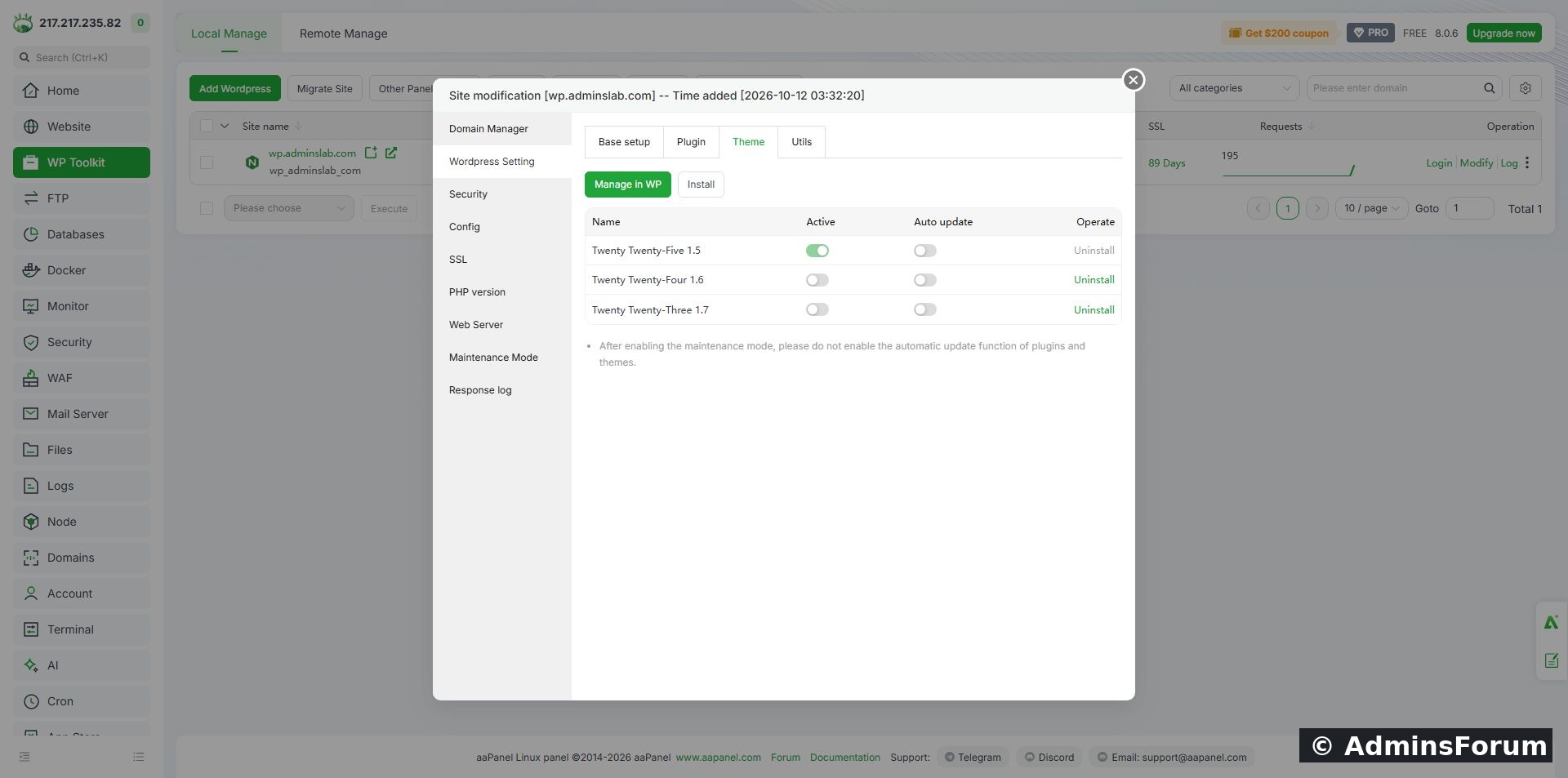
Our original theme list. Twenty Twenty-Five was active; other installed themes were inactive.
The table separates Active from Auto update. Active controls which theme supplies your website’s design. Auto update is a separate update preference. Installing a theme does not mean it becomes active.
2. Find and install a theme
Click Install in the Theme tab. Enter the theme’s name in the search field and press Enter. Our panel’s theme search field was labelled Please enter plugin name, even though the window was for themes. Check that you opened Theme before searching.
We searched for Twenty Twenty-Two and chose the result from the WordPress team. Review the Name, Author, WP and PHP columns; similar names can refer to different products. Requirements shown in the list do not prove compatibility with every plugin or customization on your website.
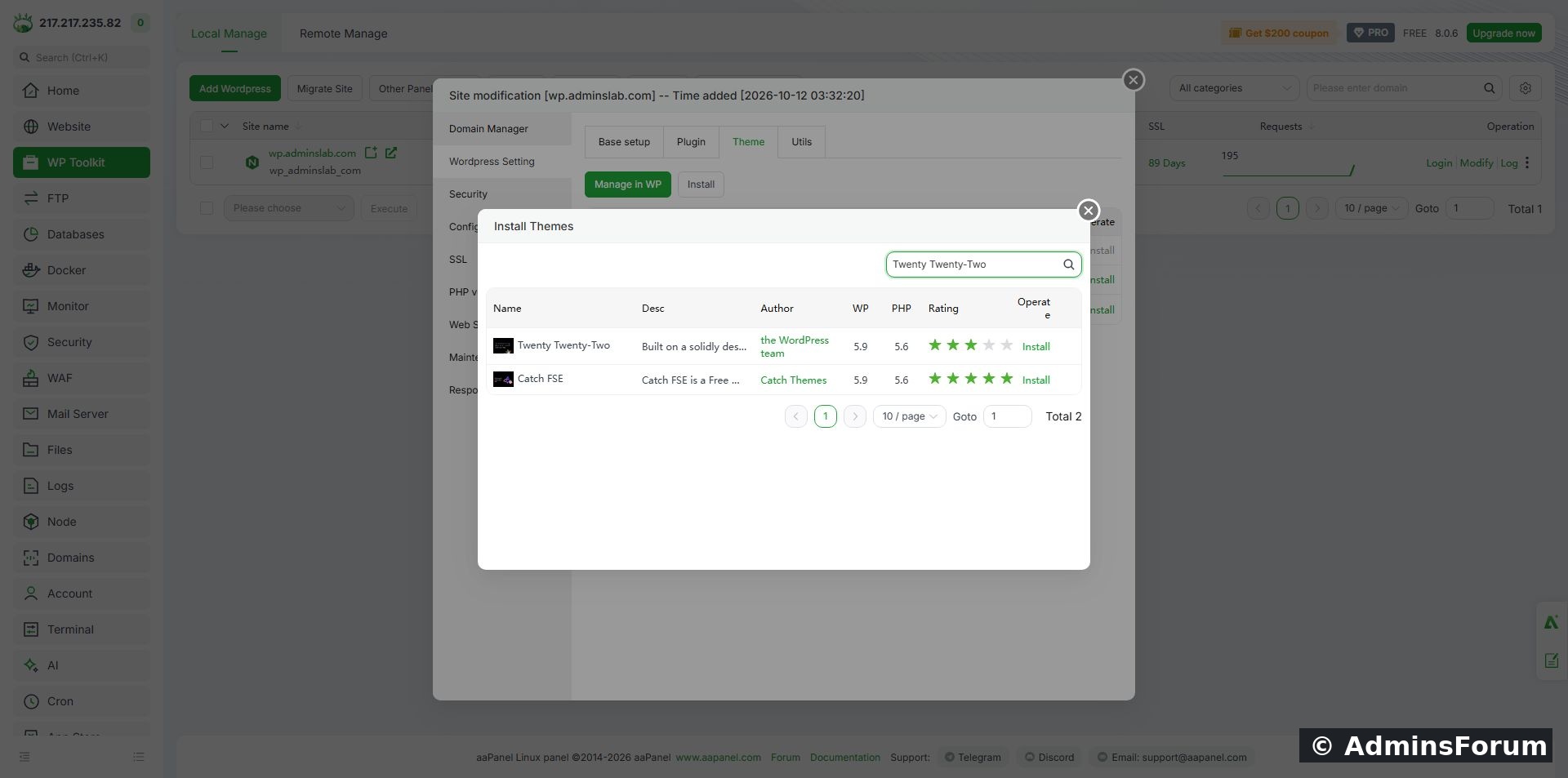
The exact theme and author in our search result.
Click Install in the correct row once and wait for completion. Close the installation window, keeping the underlying theme manager open. Confirm that the theme appears in the installed list. In our test it appeared as Twenty Twenty-Two 2.2.
3. Activate the new theme
In the new theme’s row, turn on the Active switch. Wait for the operation to finish. Confirm that the new theme is active and the previous one is inactive. WordPress uses one active theme for the site.
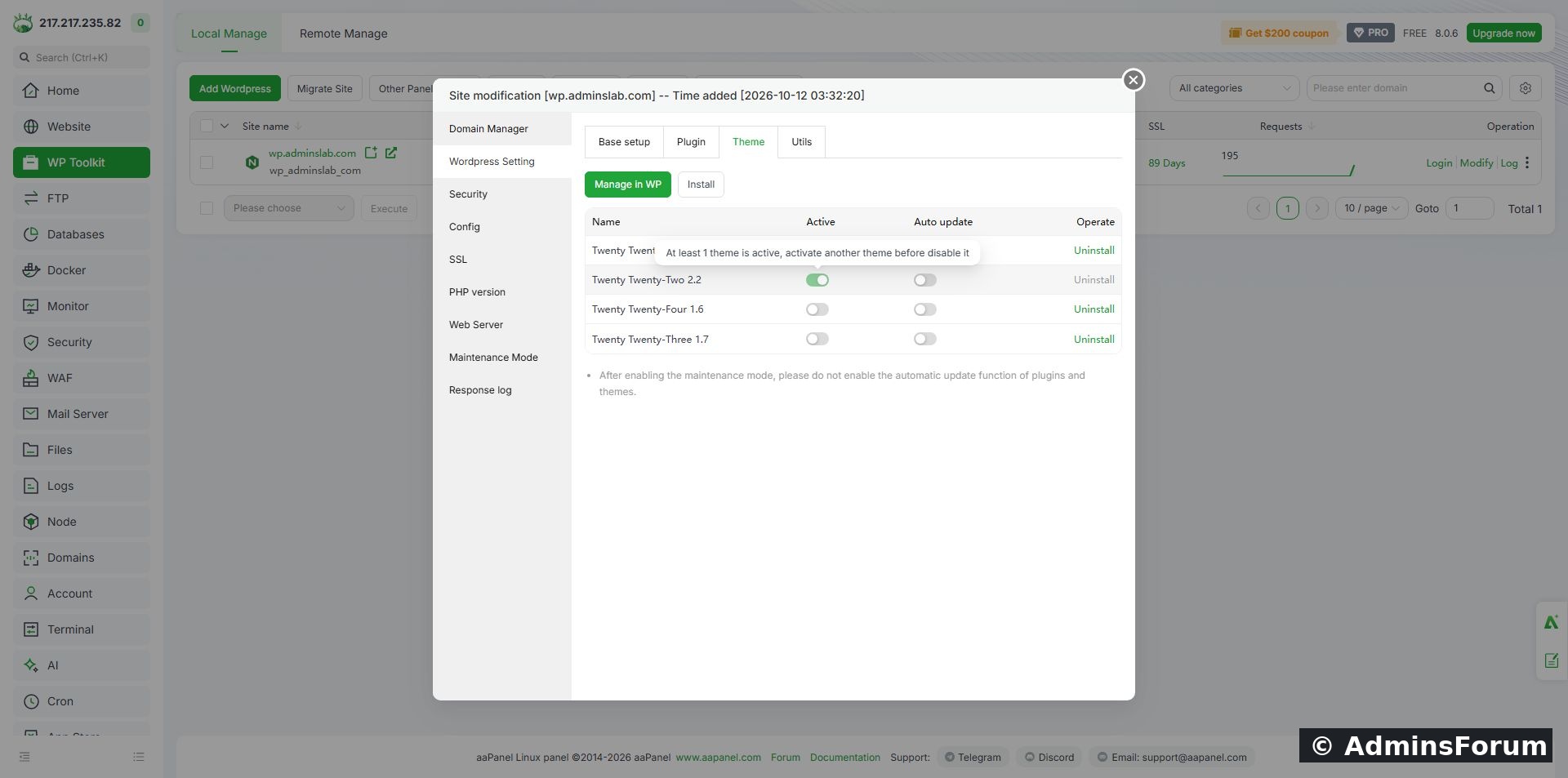
Twenty Twenty-Two is active after the switch; the other themes are inactive.
Do not switch off your only active theme first. Activate its replacement instead. The panel can display an “At least 1 theme is active” message if you attempt to disable the active theme without a replacement.
4. Check the actual website
Open the public HTTPS address and refresh the page. Check the homepage, a post, important pages, navigation, mobile layout, images and forms. A successful switch in the panel does not mean the new design meets your needs.
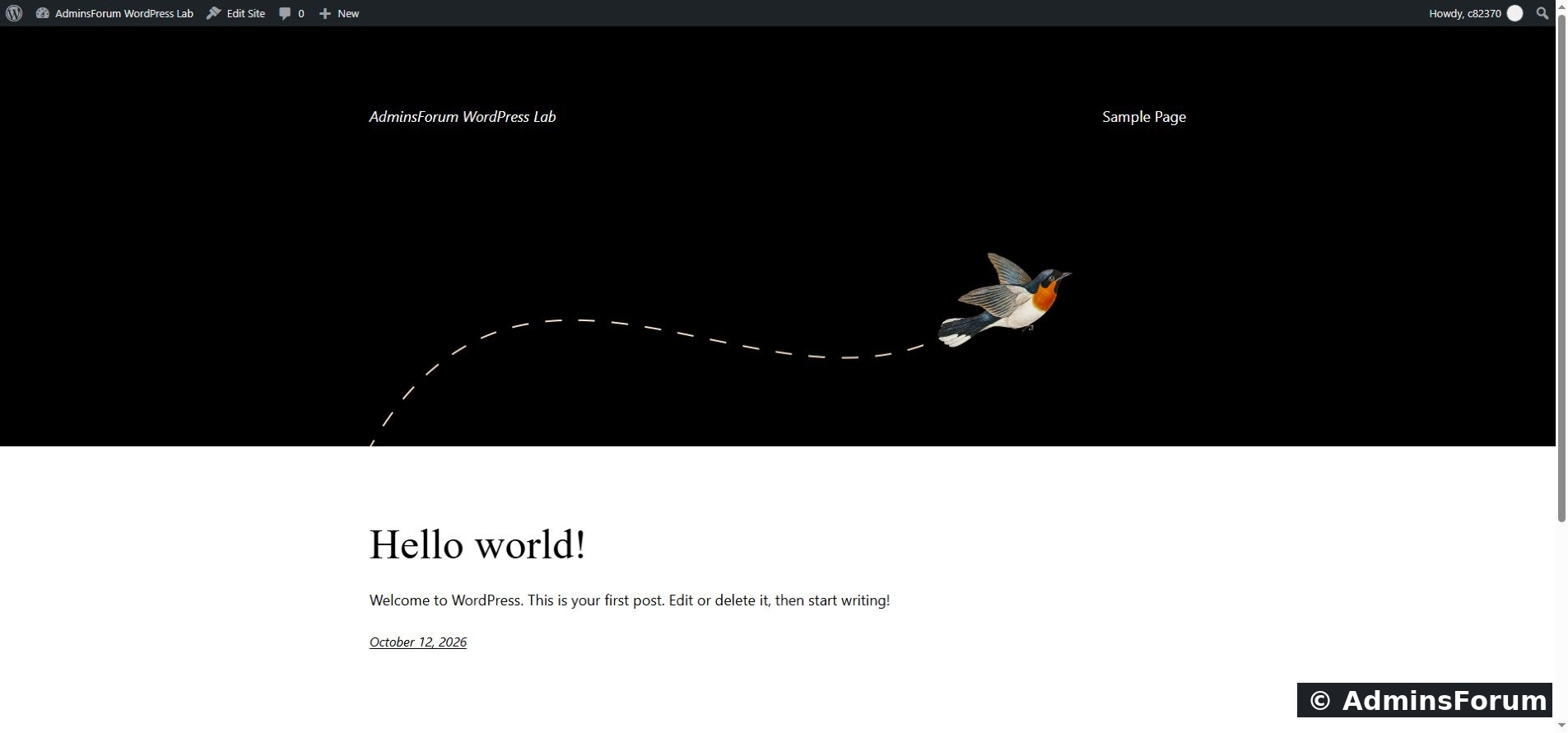
Our lab homepage after activation. The design changed and the sample content still loaded over HTTPS.
For a block theme, further design work happens in WordPress’s Site Editor. Switching themes alone does not build menus, layouts or a complete business website. Theme-specific customizations may need adjustment.
5. Switch back to the previous theme
Return to the Theme tab and activate your previous theme using its Active switch. Wait, check the states and refresh the public website again.
During our test, we refreshed the panel and reopened the theme list before the return switch persisted. If a switch or warning looks inconsistent, reopen the list and verify the actual state instead of repeatedly clicking it. We confirmed Twenty Twenty-Five active again and the original Blog homepage restored. Twenty Twenty-Two remains installed but inactive.
Switching back is useful for a design test, but it is not a complete recovery method for every theme. A theme or associated plugin may change settings or data; a reliable backup is still necessary.
6. Understand update and removal controls
We left Auto update off during this demonstration and did not test an automatic update. Review your maintenance and monitoring plan before enabling it. The panel warns against enabling automatic theme/plugin updates while its maintenance mode is enabled.
Uninstall is different from switching themes. Review the consequences and take a backup before removing anything. Preserve an appropriate fallback theme, and avoid deleting a parent theme required by a child theme. We did not uninstall themes in this walkthrough.
Troubleshooting
Final check
You should know which theme is active, have tested the public website and have a clear way to return to the previous configuration. Our installation, activation, homepage check and switch-back were tested. Automatic updates, uninstalling and full backup restoration were not tested here.
Source: aaPanel WP Toolkit documentation. Screenshots and theme-switch results are from our own AdminsForum lab.
In WP Toolkit, click the WordPress version beside your domain, open the Theme tab, install the theme you want and turn on its Active switch. Then check the public website. Keep the previous theme installed so you can switch back if the new design is unsuitable.
We tested this on wp.adminslab.com with aaPanel 8.0.6 Free Edition, WordPress 7.1.3 and PHP 8.5. We installed Twenty Twenty-Two 2.2, activated it, checked its homepage and switched back to the original Twenty Twenty-Five 1.5 theme. Installation and switching worked without purchasing Pro.
Before starting
- Make a fresh files-and-database backup. Follow our WP Toolkit backup guide and retain a verified copy outside the server.
- Test on staging before changing a live business website. Theme changes can affect navigation, templates, typography, widgets and plugin integrations.
- Record your current theme name. Keep it installed during the test.
- Check the candidate theme’s official source, author, maintenance and compatibility. Avoid installing a theme merely because its preview looks attractive.
1. Open the Theme tab
Choose WP Toolkit in aaPanel. Find the correct website and click the WordPress version button in its Quick action area. In the Site modification window, choose Theme beside Base setup, Plugin and Utils.
Our original theme list. Twenty Twenty-Five was active; other installed themes were inactive.
The table separates Active from Auto update. Active controls which theme supplies your website’s design. Auto update is a separate update preference. Installing a theme does not mean it becomes active.
2. Find and install a theme
Click Install in the Theme tab. Enter the theme’s name in the search field and press Enter. Our panel’s theme search field was labelled Please enter plugin name, even though the window was for themes. Check that you opened Theme before searching.
We searched for Twenty Twenty-Two and chose the result from the WordPress team. Review the Name, Author, WP and PHP columns; similar names can refer to different products. Requirements shown in the list do not prove compatibility with every plugin or customization on your website.
The exact theme and author in our search result.
Click Install in the correct row once and wait for completion. Close the installation window, keeping the underlying theme manager open. Confirm that the theme appears in the installed list. In our test it appeared as Twenty Twenty-Two 2.2.
3. Activate the new theme
In the new theme’s row, turn on the Active switch. Wait for the operation to finish. Confirm that the new theme is active and the previous one is inactive. WordPress uses one active theme for the site.
Twenty Twenty-Two is active after the switch; the other themes are inactive.
Do not switch off your only active theme first. Activate its replacement instead. The panel can display an “At least 1 theme is active” message if you attempt to disable the active theme without a replacement.
4. Check the actual website
Open the public HTTPS address and refresh the page. Check the homepage, a post, important pages, navigation, mobile layout, images and forms. A successful switch in the panel does not mean the new design meets your needs.
Our lab homepage after activation. The design changed and the sample content still loaded over HTTPS.
For a block theme, further design work happens in WordPress’s Site Editor. Switching themes alone does not build menus, layouts or a complete business website. Theme-specific customizations may need adjustment.
5. Switch back to the previous theme
Return to the Theme tab and activate your previous theme using its Active switch. Wait, check the states and refresh the public website again.
During our test, we refreshed the panel and reopened the theme list before the return switch persisted. If a switch or warning looks inconsistent, reopen the list and verify the actual state instead of repeatedly clicking it. We confirmed Twenty Twenty-Five active again and the original Blog homepage restored. Twenty Twenty-Two remains installed but inactive.
Switching back is useful for a design test, but it is not a complete recovery method for every theme. A theme or associated plugin may change settings or data; a reliable backup is still necessary.
6. Understand update and removal controls
We left Auto update off during this demonstration and did not test an automatic update. Review your maintenance and monitoring plan before enabling it. The panel warns against enabling automatic theme/plugin updates while its maintenance mode is enabled.
Uninstall is different from switching themes. Review the consequences and take a backup before removing anything. Preserve an appropriate fallback theme, and avoid deleting a parent theme required by a child theme. We did not uninstall themes in this walkthrough.
Troubleshooting
- Design looks unchanged: verify the Active state, refresh the public page and check whether browser/server caching is showing an older response.
- Installation fails: read the error and check available disk space, source connectivity and permissions. Do not broadly weaken file permissions as a shortcut.
- Layout or feature breaks: switch back to the previous theme, inspect logs and test the conflict on staging.
- Search field says plugin: our tested theme dialog uses that placeholder. Confirm the Theme tab is selected; do not assume you are in the plugin manager.
Final check
You should know which theme is active, have tested the public website and have a clear way to return to the previous configuration. Our installation, activation, homepage check and switch-back were tested. Automatic updates, uninstalling and full backup restoration were not tested here.
Source: aaPanel WP Toolkit documentation. Screenshots and theme-switch results are from our own AdminsForum lab.