



FTPS protects FTP logins and file transfers with TLS. This guide uses Pure-FTPd on aaPanel with explicit FTPS on port 21. SFTP is a different protocol that uses SSH; selecting SFTP in a client will not connect to Pure-FTPd.
Before you start
1. Check the existing service
In aaPanel, open App Store → Installed → Pure-FTPd → Setting. Confirm that the service is running. Keep your working panel and SSH sessions open while making configuration changes.
2. Back up the configuration
Our lab configuration is /www/server/pure-ftpd/etc/pure-ftpd.conf. Before editing, save a private copy of this file and the current /etc/ssl/private/pure-ftpd.pem certificate bundle. Paths can differ between installations; verify the file your service actually loads.
3. Prepare a trusted certificate bundle
Pure-FTPd can load a PEM bundle containing the private key and full certificate chain. In our lab, the existing Let's Encrypt certificate and matching key were verified before creating /etc/ssl/private/pure-ftpd.pem. The bundle is owned by root with permissions 0600. Never post or upload its private key to a forum.
The name entered in your FTP client must match the certificate. Our certificate is valid for mail.adminslab.com, not the server IP.

The lab certificate bundle and strict TLS configuration were verified before restarting the service.
4. Require encryption for both connections
Set the following directives in the active Pure-FTPd configuration:
TLS 3 requires TLS for both the login/control connection and the file-transfer/data connection. TLS 1 permits plaintext FTP, and TLS 2 only requires encryption on the control connection. Save the configuration and restart Pure-FTPd. If the service fails, check its log and restore the backed-up configuration instead of repeatedly changing unrelated settings.
5. Check passive ports
Explicit FTPS uses port 21 for the control connection. Passive transfers also need the configured data-port range permitted by the server and provider firewalls. The lab already allowed TCP 39000–40000; this test did not open additional public ports. Use your actual configured range. Do not open Redis, database or panel backend ports to solve an FTP error.
6. Connect securely
In your FTP client select FTP, explicit FTP over TLS, port 21, the certificate hostname and the restricted account. In FileZilla, choose “Require explicit FTP over TLS”. Keep certificate verification enabled. A name mismatch or expired certificate needs correction on the server or hostname; do not turn validation off.
7. Verify the result
Our lab tests confirmed:
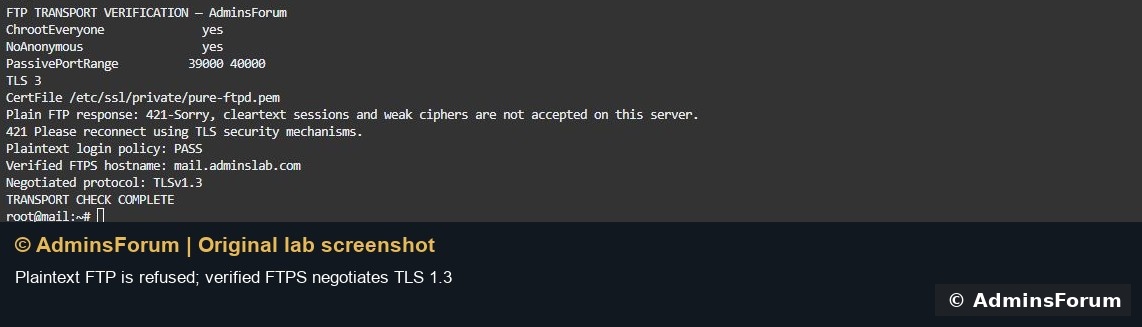
Plaintext FTP was refused; the certificate-verified connection negotiated TLS 1.3.
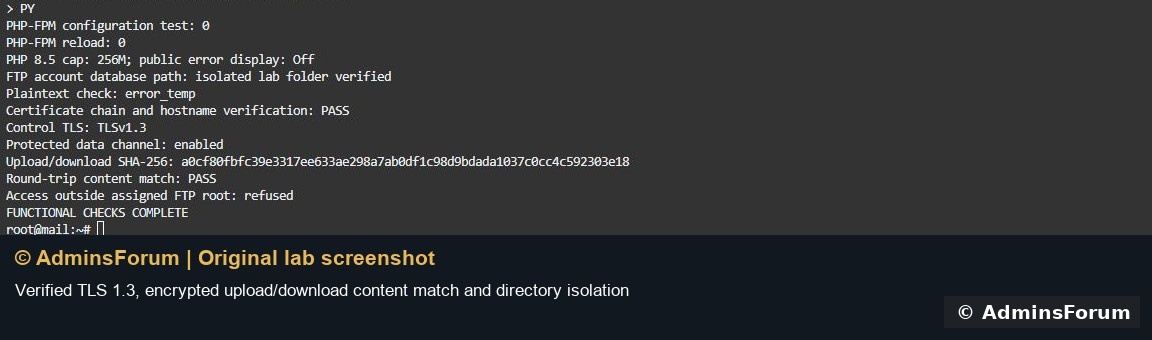
Protected upload/download and directory restriction passed.
Troubleshooting
Login works but listing or transfers hang: check passive ports, the provider firewall and the advertised server address.
Certificate error: verify the client hostname, certificate expiry, complete chain and matching private key.
Plain FTP no longer works: this is expected with TLS 3; configure explicit FTPS in the client.
Cannot leave the assigned folder: this is expected for the restricted account. Its FTP root is not the server filesystem root.
Certificate renewal
Copying a certificate into the FTP bundle does not automatically update that bundle after renewal. Renew the certificate, securely rebuild the bundle, restart Pure-FTPd and repeat certificate and transfer checks. Our lab certificate expires on 9 January 2027; no automatic FTP redeployment hook was added in this test.
Related guides
Install Pure-FTPd and check its service
Create a restricted FTP account
References
aaPanel FTP documentation
Pure-FTPd TLS documentation
Cloudflare supported proxy ports
Certificate renewal follow-up
The lab now uses a validated hourly synchronization helper to deploy the renewed aaPanel certificate into the separate Pure-FTPd bundle. Dry validation, deployment, trusted TLS and an unchanged second run passed. Future renewal has not yet occurred. Follow the complete automatic certificate-update guide.
Before you start
- Pure-FTPd is installed and running.
- You have a separate FTP user restricted to the intended website folder.
- A DNS-only hostname points to the server. Our lab uses mail.adminslab.com because its existing trusted certificate covers that name.
- You have the matching private key and full certificate chain, and a backup of the current FTP configuration and certificate.
1. Check the existing service
In aaPanel, open App Store → Installed → Pure-FTPd → Setting. Confirm that the service is running. Keep your working panel and SSH sessions open while making configuration changes.
2. Back up the configuration
Our lab configuration is /www/server/pure-ftpd/etc/pure-ftpd.conf. Before editing, save a private copy of this file and the current /etc/ssl/private/pure-ftpd.pem certificate bundle. Paths can differ between installations; verify the file your service actually loads.
3. Prepare a trusted certificate bundle
Pure-FTPd can load a PEM bundle containing the private key and full certificate chain. In our lab, the existing Let's Encrypt certificate and matching key were verified before creating /etc/ssl/private/pure-ftpd.pem. The bundle is owned by root with permissions 0600. Never post or upload its private key to a forum.
The name entered in your FTP client must match the certificate. Our certificate is valid for mail.adminslab.com, not the server IP.
The lab certificate bundle and strict TLS configuration were verified before restarting the service.
4. Require encryption for both connections
Set the following directives in the active Pure-FTPd configuration:
Code:
TLS 3
CertFile /etc/ssl/private/pure-ftpd.pem
ChrootEveryone yes
NoAnonymous yes
PassivePortRange 39000 400005. Check passive ports
Explicit FTPS uses port 21 for the control connection. Passive transfers also need the configured data-port range permitted by the server and provider firewalls. The lab already allowed TCP 39000–40000; this test did not open additional public ports. Use your actual configured range. Do not open Redis, database or panel backend ports to solve an FTP error.
6. Connect securely
In your FTP client select FTP, explicit FTP over TLS, port 21, the certificate hostname and the restricted account. In FileZilla, choose “Require explicit FTP over TLS”. Keep certificate verification enabled. A name mismatch or expired certificate needs correction on the server or hostname; do not turn validation off.
7. Verify the result
Our lab tests confirmed:
- The certificate chain and hostname were accepted by a client using its normal trusted CA store.
- The control connection negotiated TLS 1.3.
- A protected data connection uploaded and downloaded a test file with matching contents and SHA-256 hash.
- The restricted account could not access another website folder.
- A plaintext connection was rejected with “Please reconnect using TLS security mechanisms.”
Plaintext FTP was refused; the certificate-verified connection negotiated TLS 1.3.
Protected upload/download and directory restriction passed.
Troubleshooting
Login works but listing or transfers hang: check passive ports, the provider firewall and the advertised server address.
Certificate error: verify the client hostname, certificate expiry, complete chain and matching private key.
Plain FTP no longer works: this is expected with TLS 3; configure explicit FTPS in the client.
Cannot leave the assigned folder: this is expected for the restricted account. Its FTP root is not the server filesystem root.
Certificate renewal
Copying a certificate into the FTP bundle does not automatically update that bundle after renewal. Renew the certificate, securely rebuild the bundle, restart Pure-FTPd and repeat certificate and transfer checks. Our lab certificate expires on 9 January 2027; no automatic FTP redeployment hook was added in this test.
Related guides
Install Pure-FTPd and check its service
Create a restricted FTP account
References
aaPanel FTP documentation
Pure-FTPd TLS documentation
Cloudflare supported proxy ports
Certificate renewal follow-up
The lab now uses a validated hourly synchronization helper to deploy the renewed aaPanel certificate into the separate Pure-FTPd bundle. Dry validation, deployment, trusted TLS and an unchanged second run passed. Future renewal has not yet occurred. Follow the complete automatic certificate-update guide.