



1 hour ago
CyberPanel SpamAssassin: Install It, Fix the Restart Bug, Send Spam to Junk (Tested)
CyberPanel can install SpamAssassin for you in one click, and it's free. But on our test server (CyberPanel 3.0.8, Ubuntu 24.04) it didn't tag a single spam message until we restarted it by hand, and even then spam still landed in the Inbox. Here's the full setup that actually works, tested with the standard spam test message.
What you get for free (and what's paid)
Step 1: Install SpamAssassin
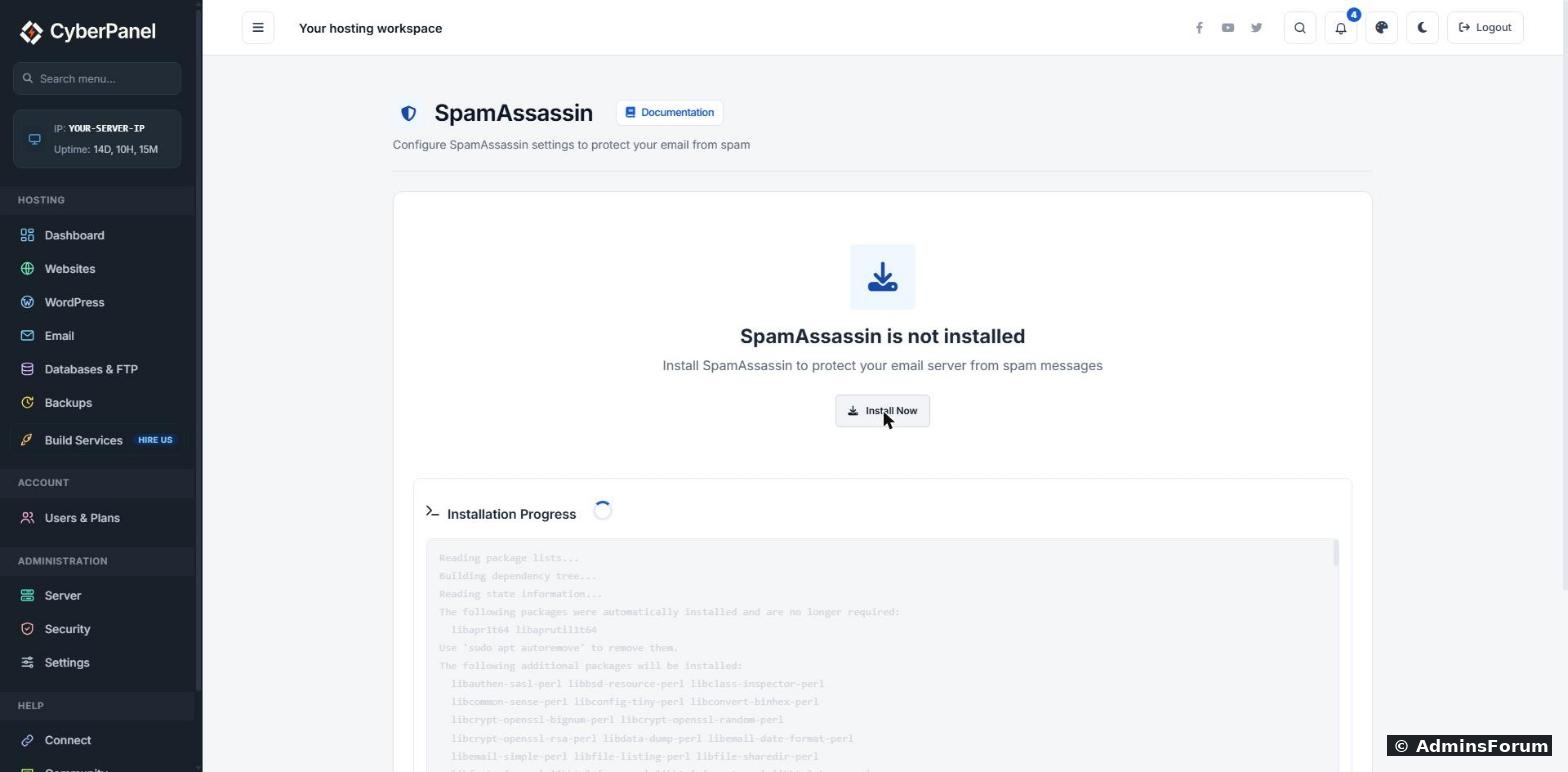
Go to Email → SpamAssassin. On a fresh server it says SpamAssassin is not installed. Click Install Now.
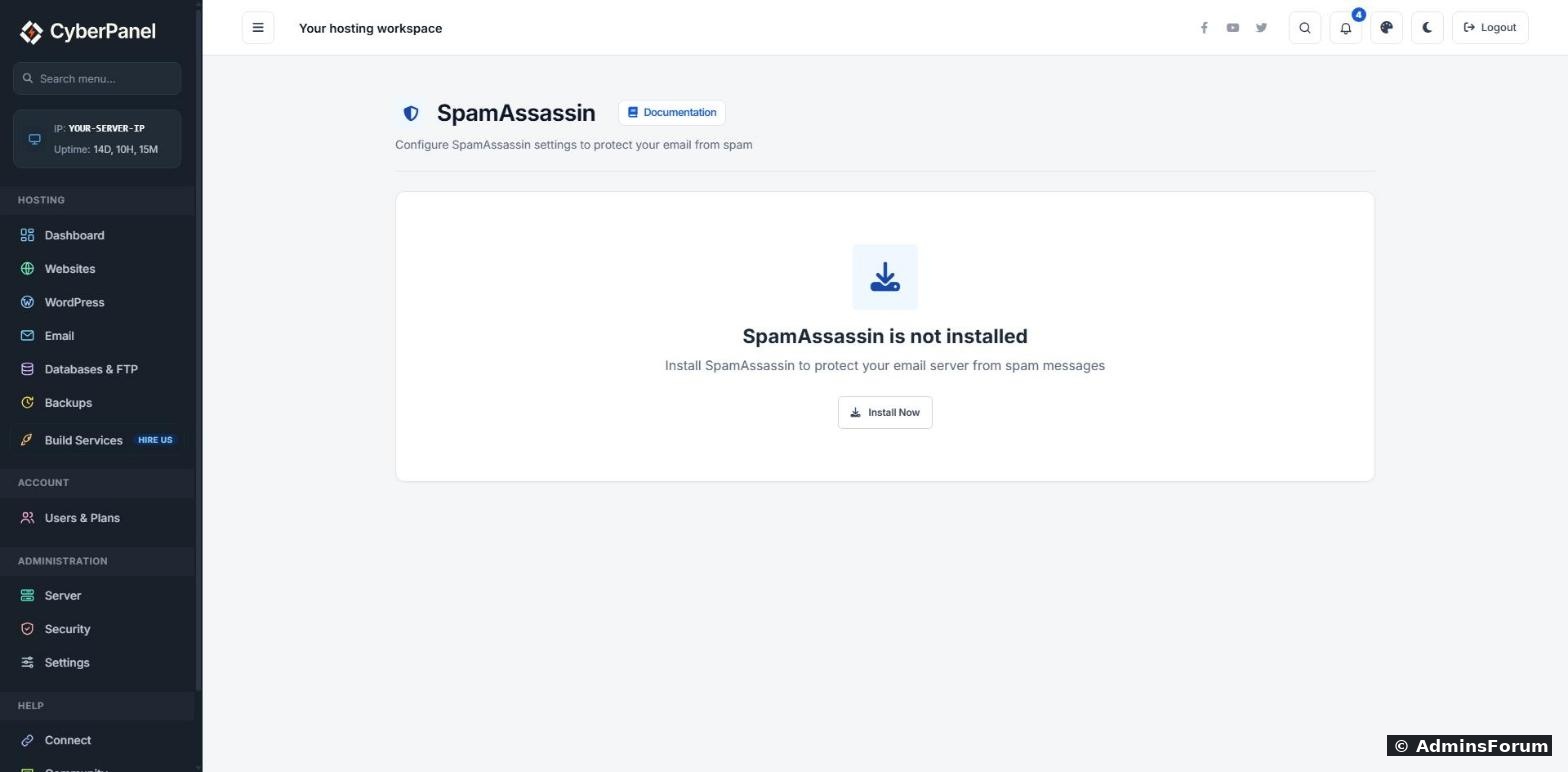
The install log shows in the page. It takes about a minute.
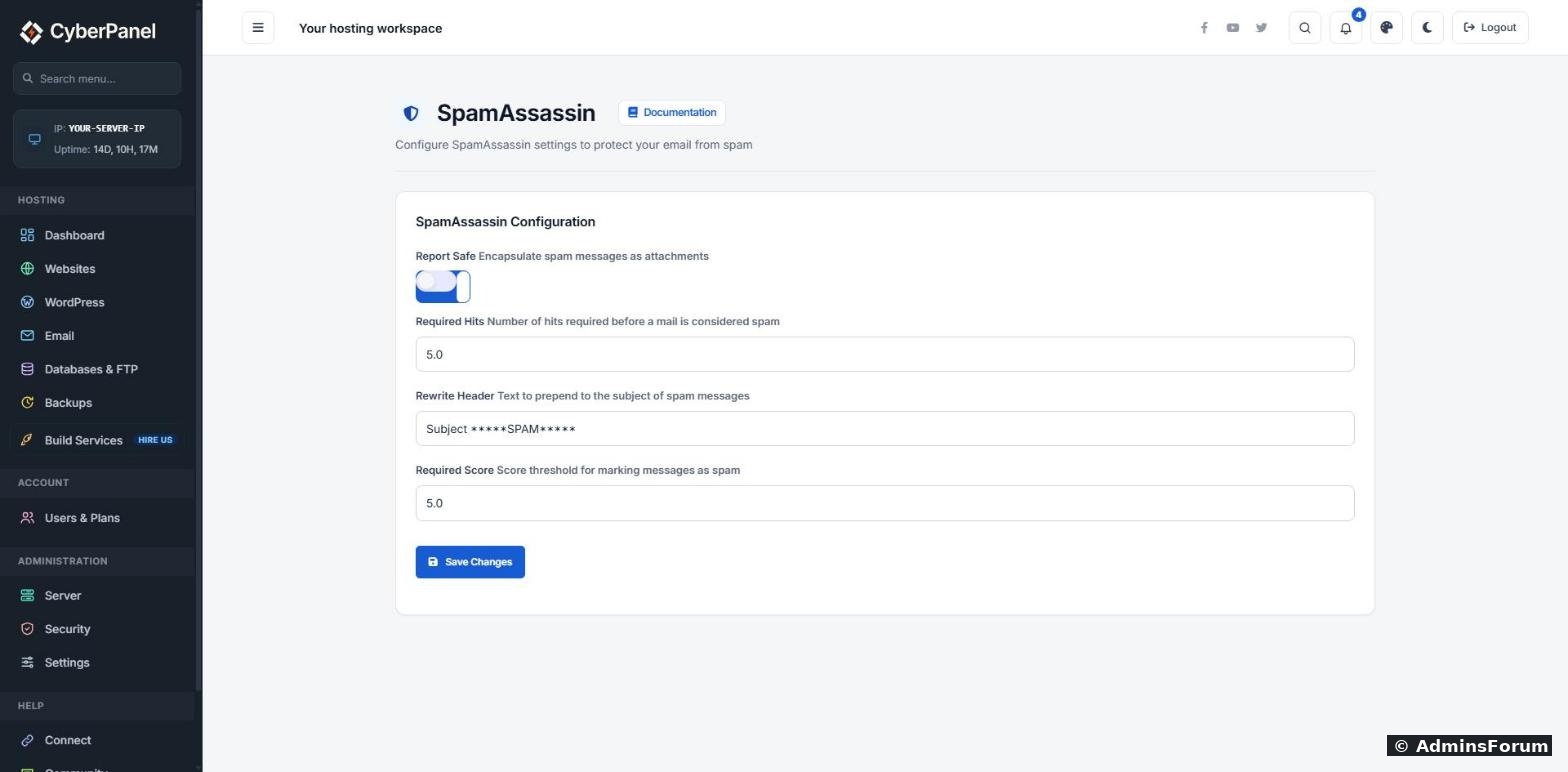
When it's done, the page turns into the settings form:
Step 2: Restart SpamAssassin (the bug)
This is the step nobody tells you about. Right after the install, our test spam arrived with the spam headers (
, score 999) but the subject was not tagged. We checked the server: CyberPanel started the SpamAssassin service and wrote its settings file 4 seconds later, so the running service never read your settings.
The fix is one command over SSH as root:
After the restart the very next test arrived as *****SPAM***** GTUBE…. Do the same after you change anything on the SpamAssassin settings page. A restart takes a second and doesn't lose any mail.
Step 3: Test it the right way
Every spam filter knows a harmless test line called GTUBE. Any message that contains it scores about 1000 points.
Important: don't test by sending from one of your own mailboxes to another in webmail. CyberPanel only checks mail that arrives on port 25 (mail from other servers). Mail you send yourself goes through the submission port and is never scanned. You can see this in Postfix's config,
:
To send a proper test, run this on the server as root. It hands the message to your own mail server on port 25, just like mail from outside. Change the address to one of your mailboxes:
Then check the SpamAssassin log:
You should see a line like result: Y 999 - ALL_TRUSTED,GTUBE. Y means spam.
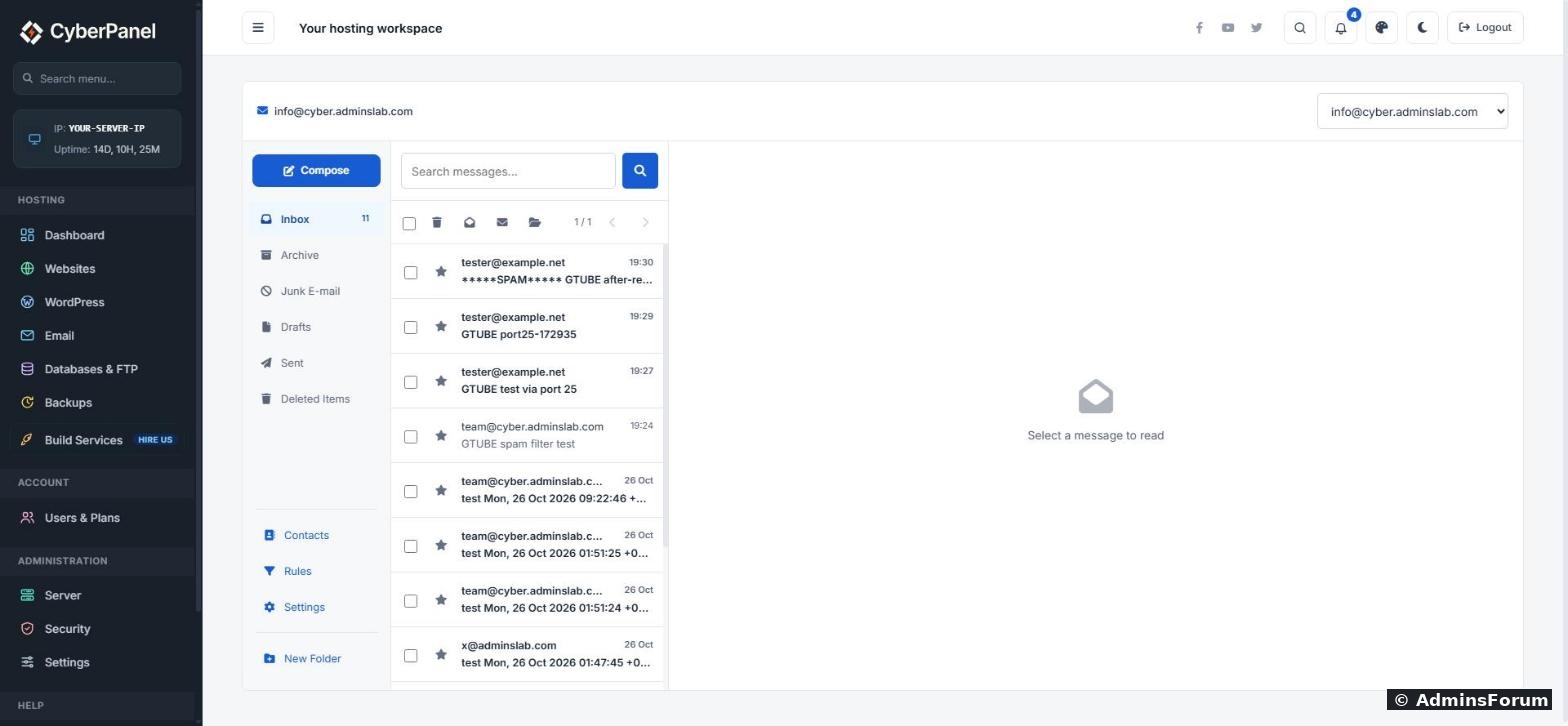
In webmail, the message now shows the tag in its subject:
Step 4: Send spam to the Junk folder automatically
Out of the box, tagged spam still lands in the Inbox. CyberPanel's webmail has mail rules that fix this, and they run on the server when mail is delivered, so they also work for people who read mail in Outlook or on a phone.
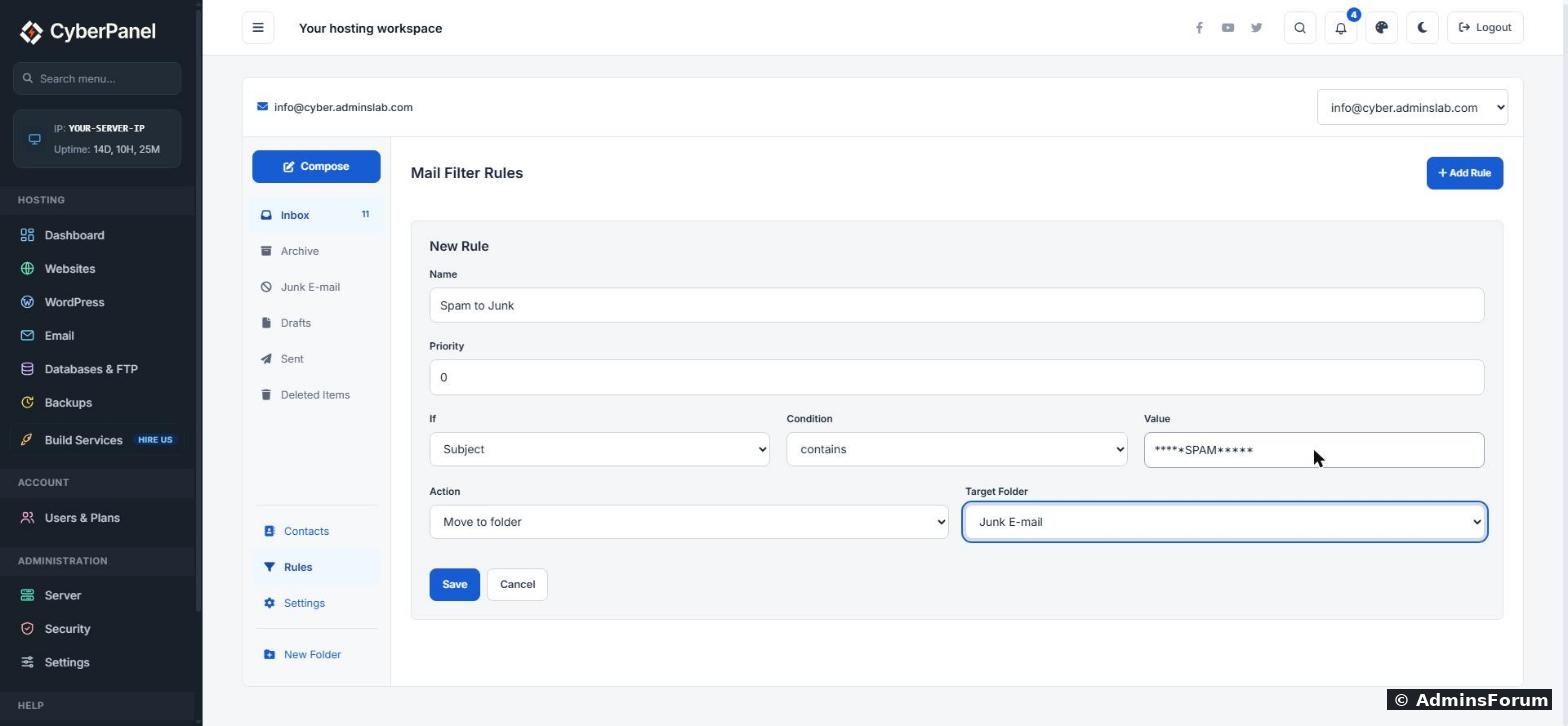
In webmail, click Rules → Add Rule and fill in:
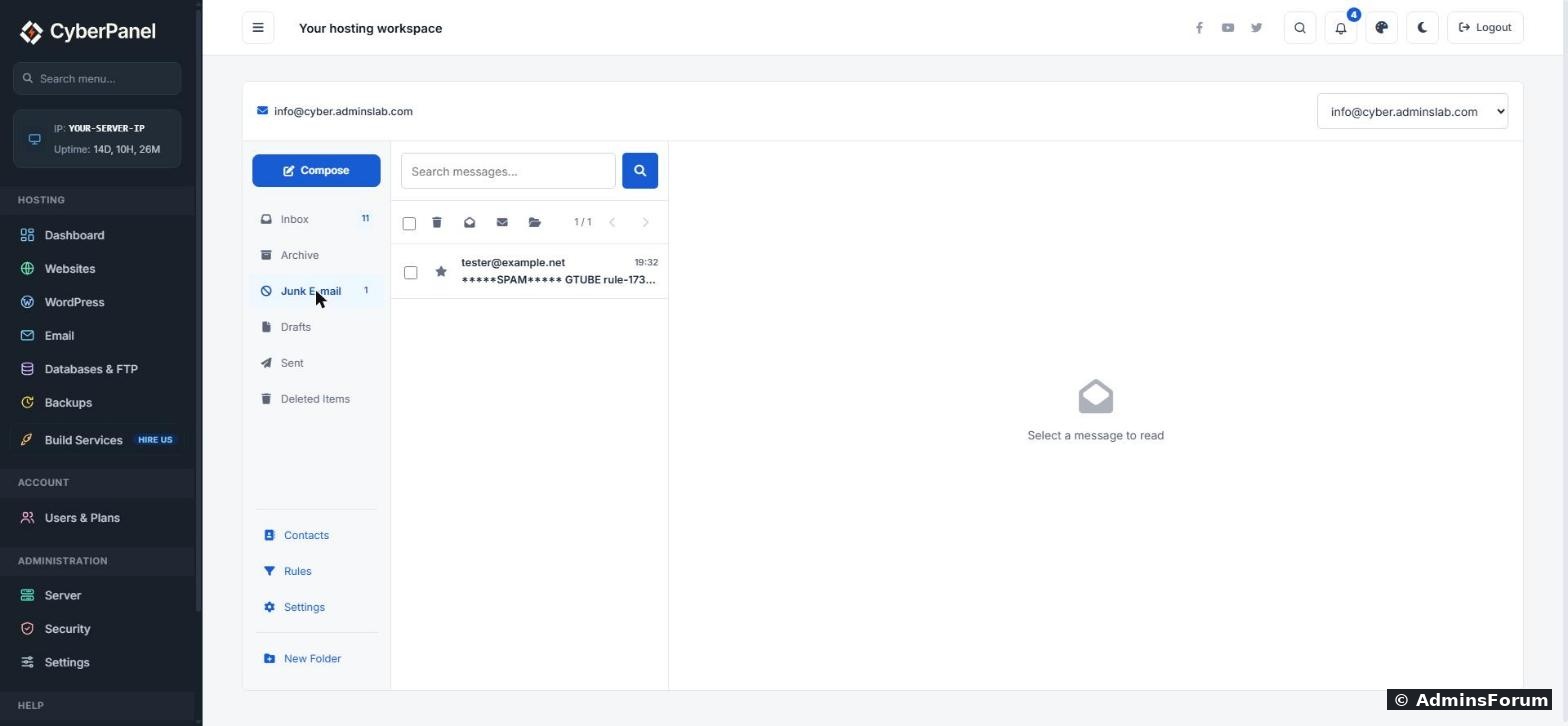
Our next test went straight to Junk E-mail:
Rules are per mailbox, so add the same rule to each mailbox you use (switch mailbox with the menu at the top right of webmail). The Value has to match your Rewrite Header text exactly, so if you change one, change the other.
Good to know
Questions, or a test that doesn't get tagged? Reply below with the
lines (hide your server IP and real addresses first).
CyberPanel can install SpamAssassin for you in one click, and it's free. But on our test server (CyberPanel 3.0.8, Ubuntu 24.04) it didn't tag a single spam message until we restarted it by hand, and even then spam still landed in the Inbox. Here's the full setup that actually works, tested with the standard spam test message.
What you get for free (and what's paid)
- SpamAssassin: free, installs from the panel.
- Rspamd and the Email Debugger: both links in the Email menu go to CyberPanel's paid add-ons page.
Step 1: Install SpamAssassin
Go to Email → SpamAssassin. On a fresh server it says SpamAssassin is not installed. Click Install Now.
The install log shows in the page. It takes about a minute.
When it's done, the page turns into the settings form:
- Required Score (5.0): a message that scores this much or more is spam. 5 is the normal default. Lower catches more spam but also more real mail.
- Rewrite Header: text added to the start of the subject of spam, here
. We'll use this in Step 4.Code:*****SPAM*****
- Report Safe: when on, a spam message arrives as a short report with the original attached. When off, the message stays as it was and only spam headers are added.
Step 2: Restart SpamAssassin (the bug)
This is the step nobody tells you about. Right after the install, our test spam arrived with the spam headers (
Code:
X-Spam-Flag: YESThe fix is one command over SSH as root:
Code:
systemctl restart spamdStep 3: Test it the right way
Every spam filter knows a harmless test line called GTUBE. Any message that contains it scores about 1000 points.
Important: don't test by sending from one of your own mailboxes to another in webmail. CyberPanel only checks mail that arrives on port 25 (mail from other servers). Mail you send yourself goes through the submission port and is never scanned. You can see this in Postfix's config,
Code:
/etc/postfix/master.cfCode:
smtp      inet  n  -  n  -  -  smtpd -o content_filter=spamassassin
spamassassin unix - n n - - pipe flags=R user=spamd argv=/usr/bin/spamc -e /usr/sbin/sendmail -oi -f ${sender} ${recipient}
To send a proper test, run this on the server as root. It hands the message to your own mail server on port 25, just like mail from outside. Change the address to one of your mailboxes:
Code:
python3 - <<'PY'
import smtplib
to = '[email protected]'
msg = ('Subject: GTUBE test\r\nFrom: [email protected]\r\nTo: ' + to + '\r\n\r\n'
       'XJS*C4JDBQADN1.NSBN3*2IDNEN*GTUBE-STANDARD-ANTI-UBE-TEST-EMAIL*C.34X\r\n')
s = smtplib.SMTP('127.0.0.1', 25); s.sendmail('[email protected]', [to], msg); s.quit()
print('sent')
PYCode:
journalctl -u spamd --since "-5 min" | grep resultIn webmail, the message now shows the tag in its subject:
Step 4: Send spam to the Junk folder automatically
Out of the box, tagged spam still lands in the Inbox. CyberPanel's webmail has mail rules that fix this, and they run on the server when mail is delivered, so they also work for people who read mail in Outlook or on a phone.
In webmail, click Rules → Add Rule and fill in:
- Name: Spam to Junk
- If: Subject, Condition: contains, Value: *****SPAM*****
- Action: Move to folder, Target Folder: Junk E-mail
Our next test went straight to Junk E-mail:
Rules are per mailbox, so add the same rule to each mailbox you use (switch mailbox with the menu at the top right of webmail). The Value has to match your Rewrite Header text exactly, so if you change one, change the other.
Good to know
- Check Junk now and then, especially in the first weeks. If real mail ends up there, raise Required Score a little (for example to 6), save, and restart spamd.
- A warning in the log is harmless. Our spamd log showed cannot create user preferences file /var/log/spamassassin/.spamassassin/user_prefs. It just means no per-user preferences file was created, and scanning still works.
- SpamAssassin only protects mail coming in. It does nothing for mail your server sends out. For that, make sure SPF, DKIM and DMARC are set up (see our CyberPanel email setup guide).
- After a CyberPanel upgrade, send the GTUBE test again to make sure the filter is still wired in.
Questions, or a test that doesn't get tagged? Reply below with the
Code:
journalctl -u spamd