



CyberPanel Malware Scan With ImunifyAV: What the Free Version Does (Tested)
CyberPanel comes with ImunifyAV, a free malware scanner from CloudLinux. It can scan every website on your server, show you exactly which file is infected and why, and scan again on a schedule. What it can't do for free is clean the files for you. That part is paid, and the panel doesn't tell you this until you click the button.
We tested it on CyberPanel 3.0.8 (ImunifyAV 8.11) with a harmless test virus file, so every screenshot below shows a real detection, a real cleanup and a real clean result.
Step 1: Open ImunifyAV
In CyberPanel go to Security → ImunifyAV and click Access Now.
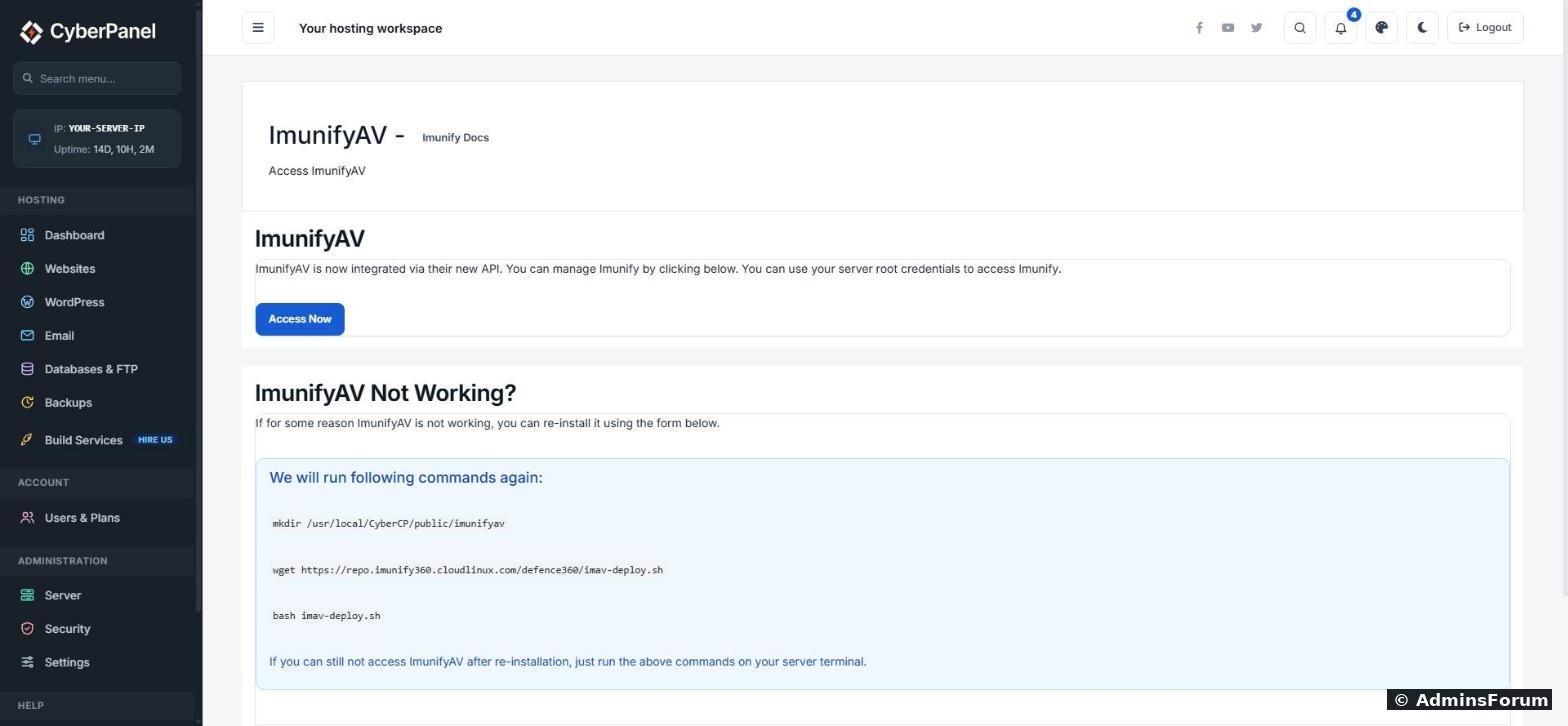
ImunifyAV opens on its own login page. Log in with your server's root username and password (the same ones you use for SSH as root). If you only log in with an SSH key and never set a root password, set one first with
over SSH.
If the page is blank or broken, click Install Now lower on the same CyberPanel page. It runs the official install script again. If that also fails, run the three commands shown on that page yourself as root.
Step 2: Pick what to scan
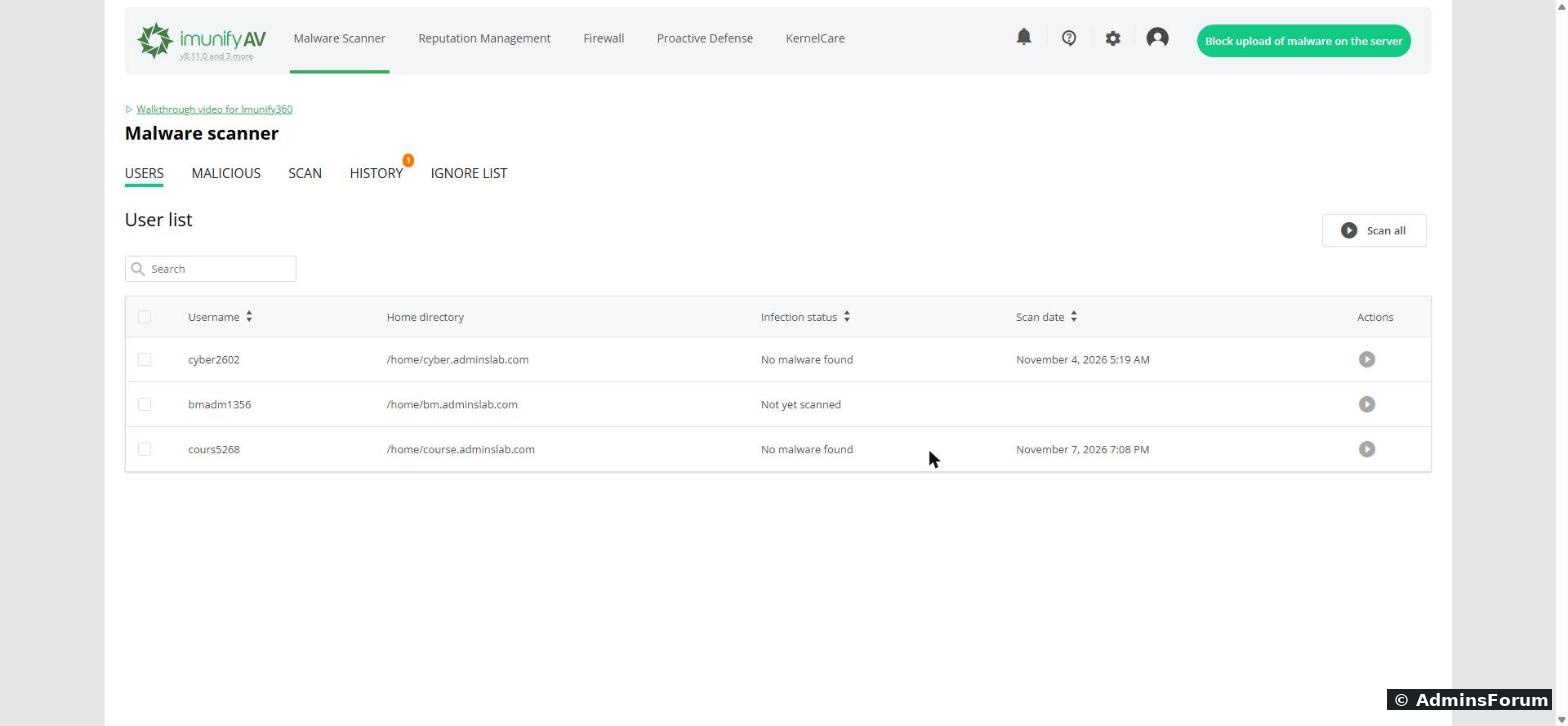
The Users tab lists every website on the server by its Linux user and home folder. On our server that's one row per website.
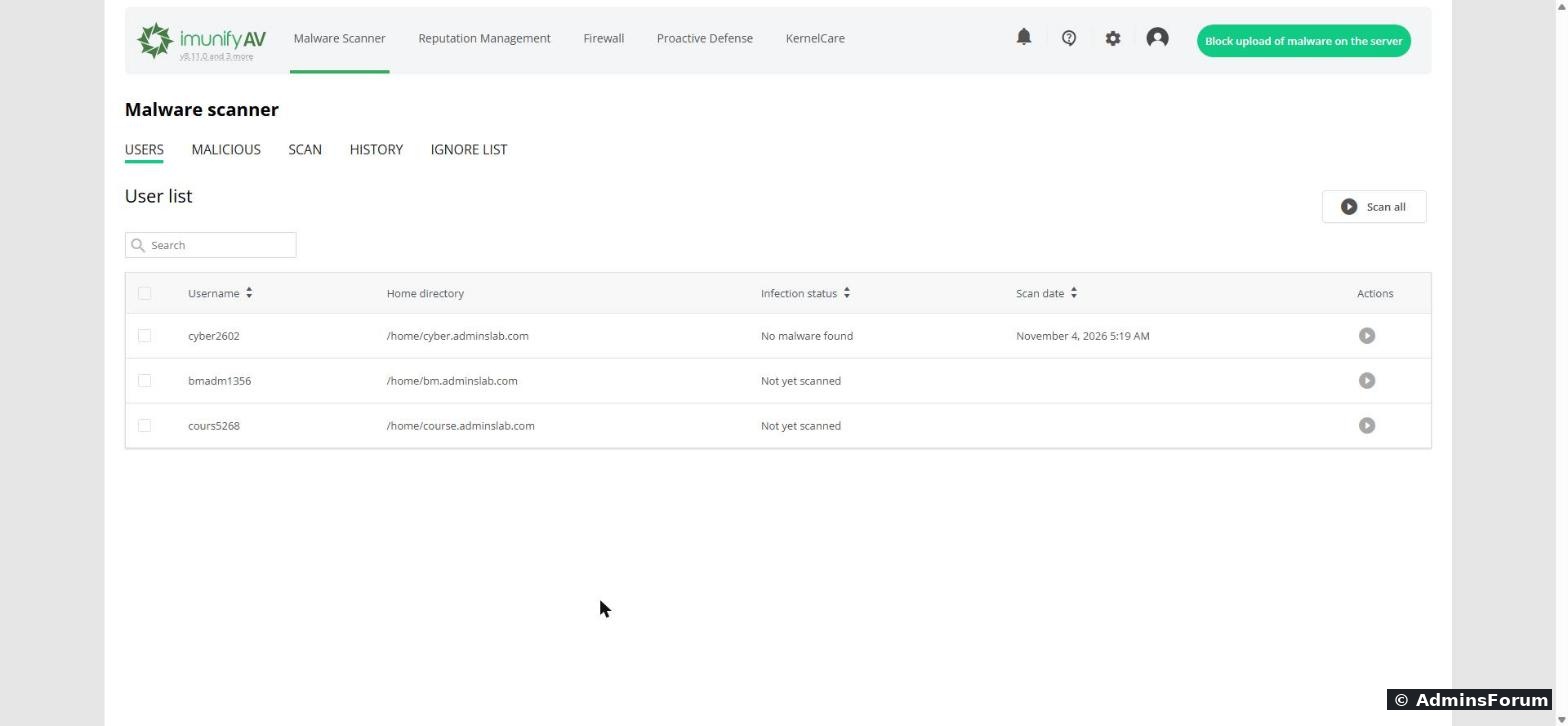
Click the play button at the end of a row to scan that website, or Scan all to scan every site. Confirm with Yes, scan.
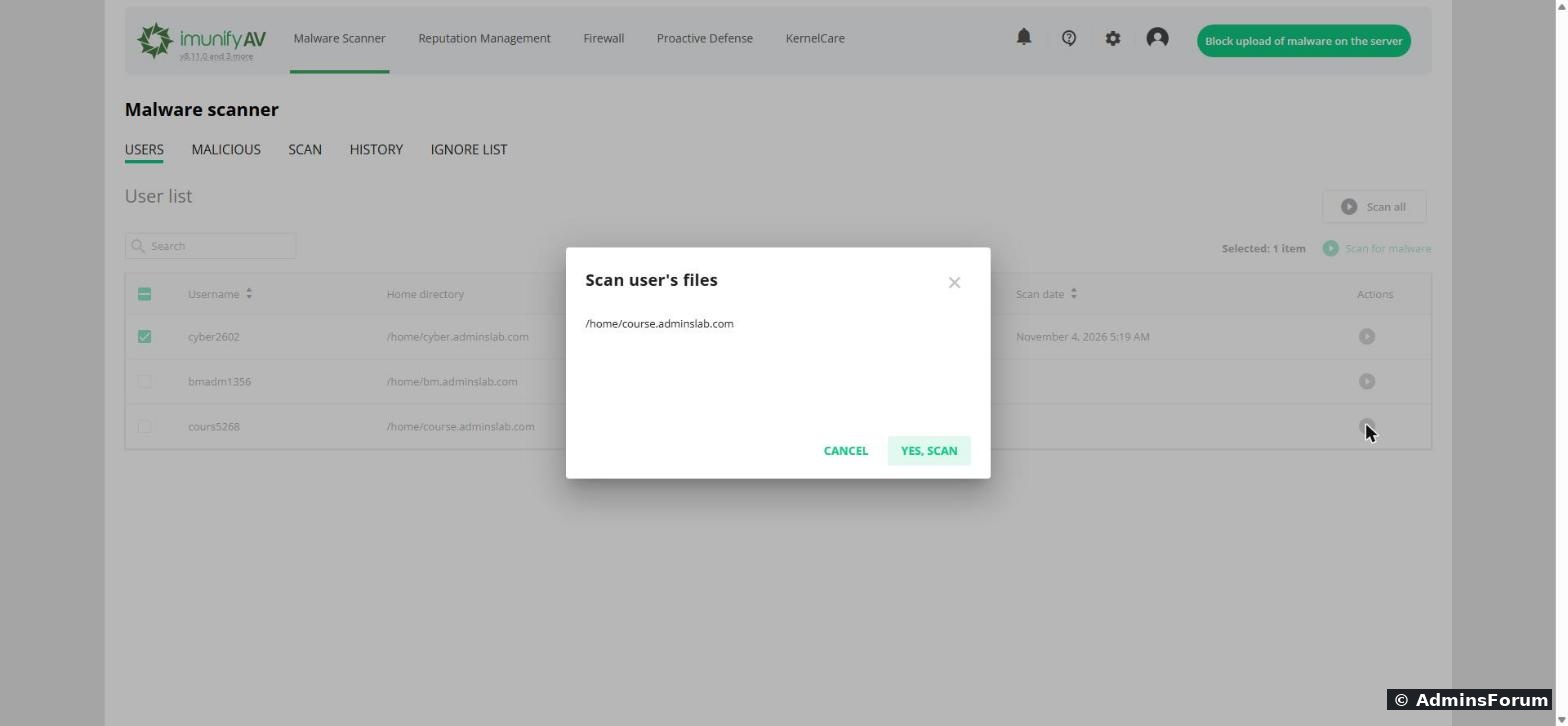
You can also open the Scan tab and type any folder (for example
) to scan everything under it.
Step 3: Read the results
Small sites take seconds. The Scan tab shows each scan with the number of files checked and the result. Our test site had 5 files and one of them was our test virus, so it says 1 file threat.
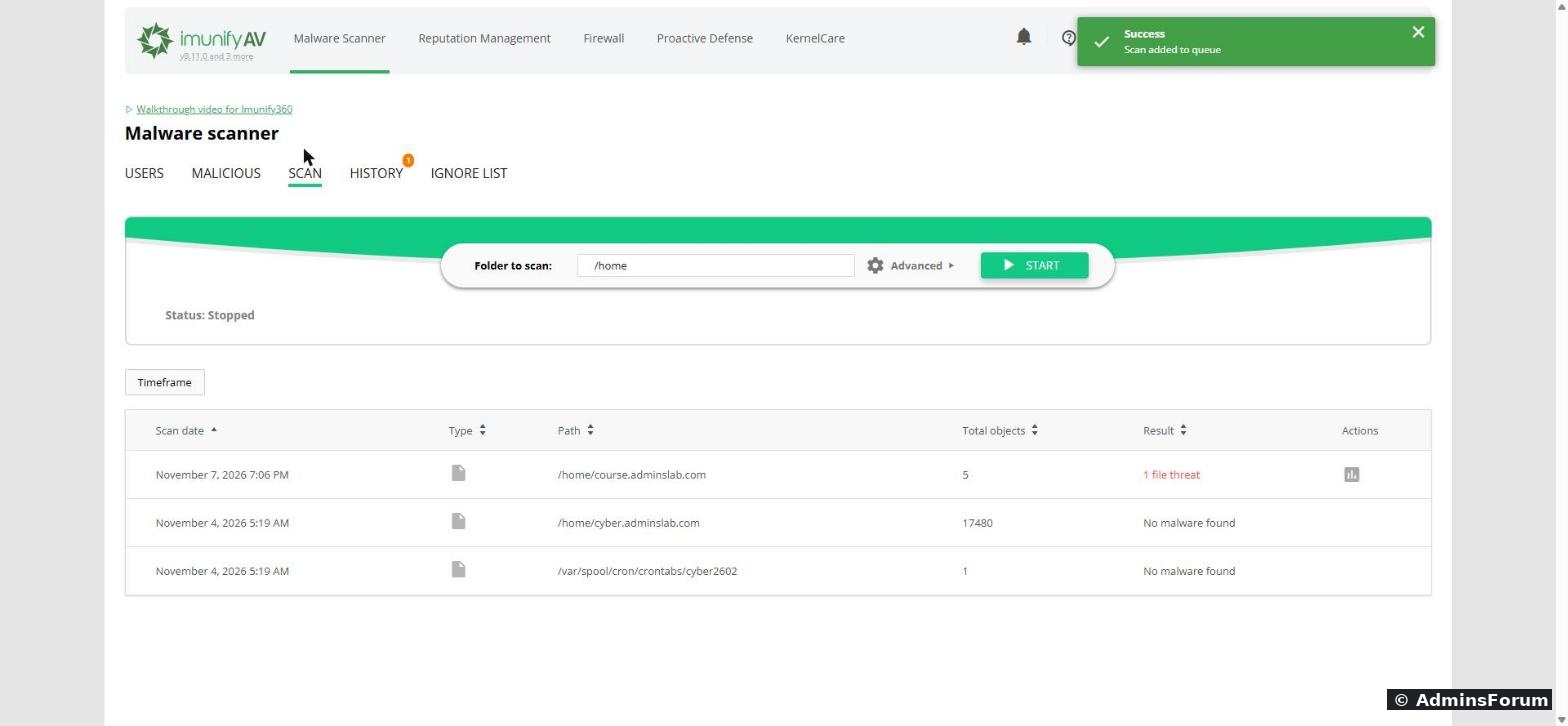
Notice the second row: the scanner also checks the site user's cron jobs (
). That's useful, because a lot of real infections hide a cron job that puts the malware back after you delete it.
Open the Malicious tab to see every infected file: the full path, which website user owns it, the signature that matched (the Reason column) and its status.
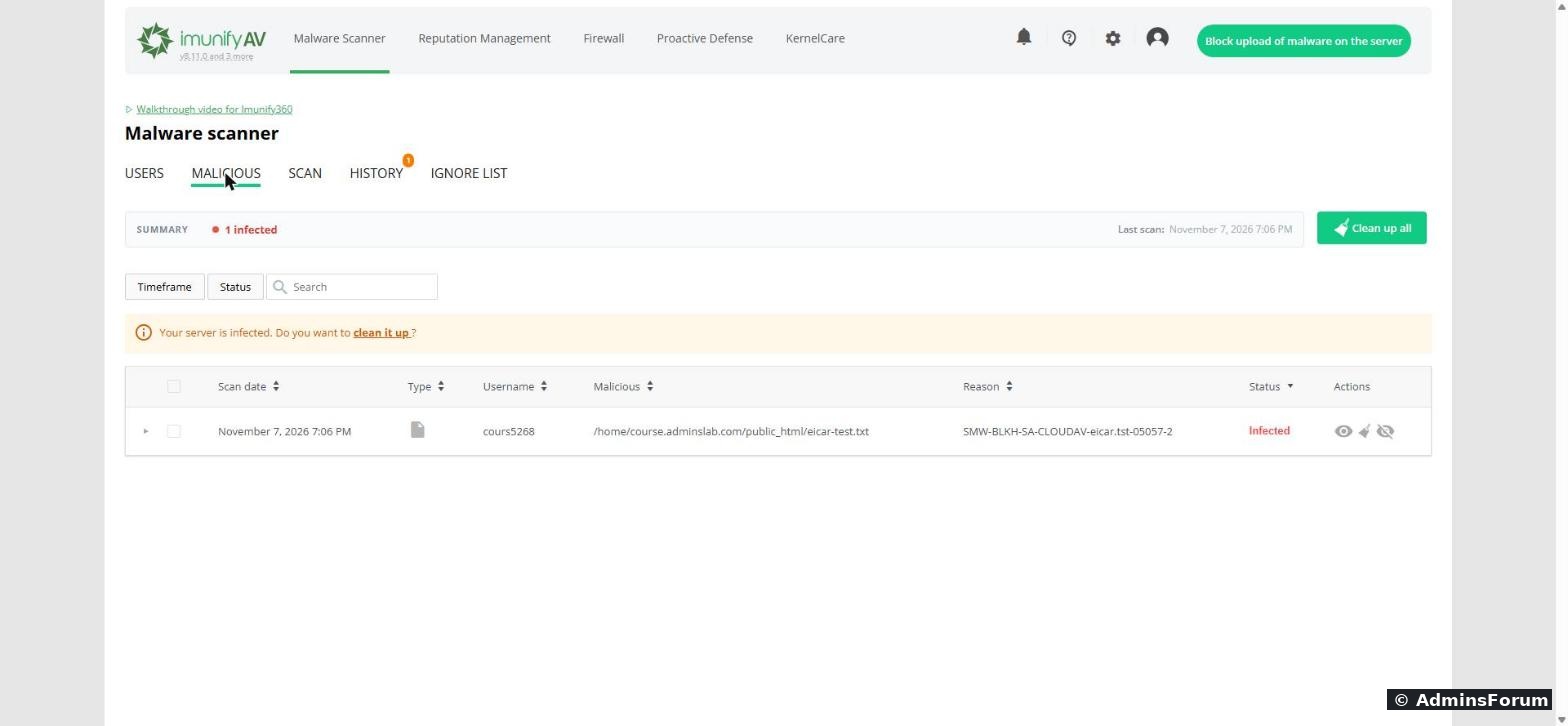
The eye icon shows what's inside the file, so you can check for yourself before you delete anything.
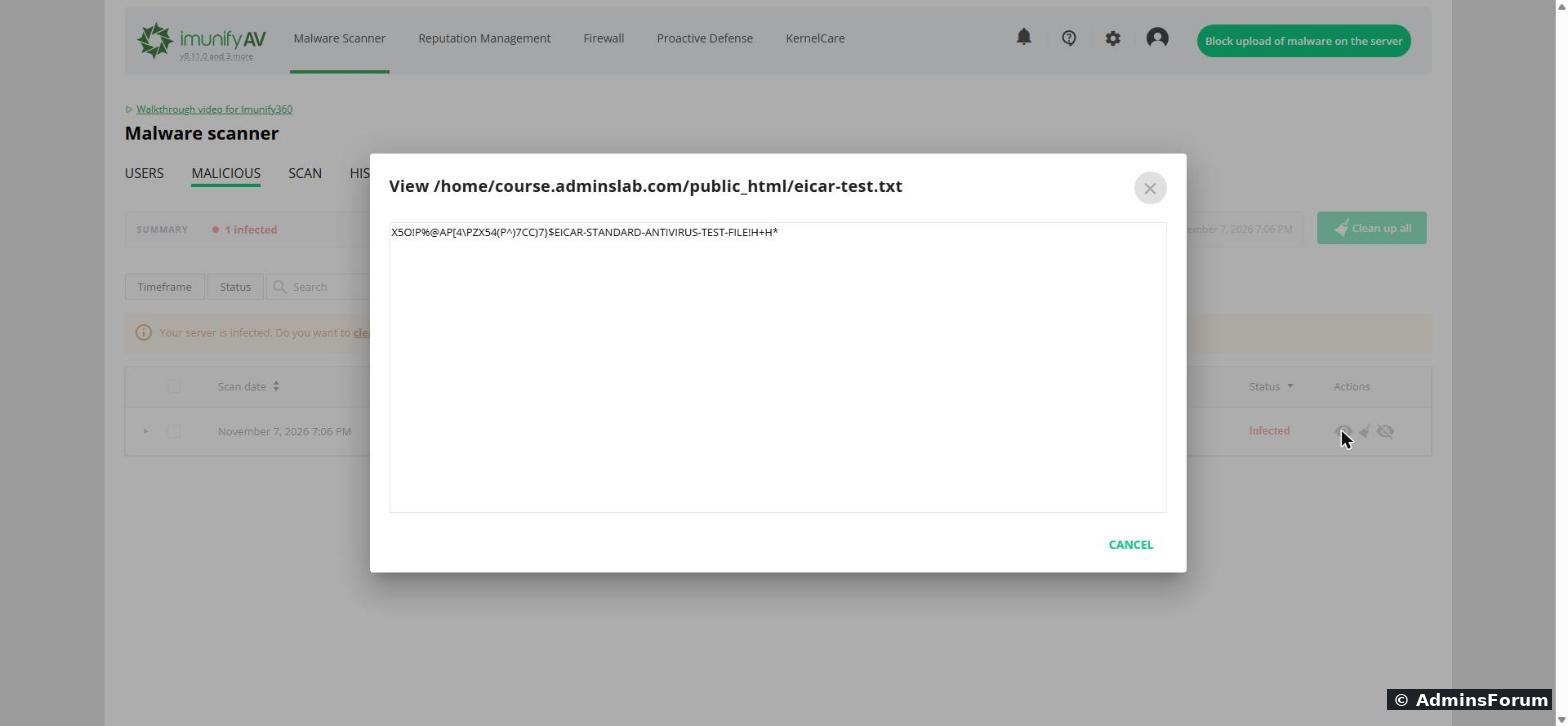
The other two icons are clean up (the brush) and ignore (the crossed-out eye). Use ignore only for a file you are sure is a false positive.
Step 4: Cleaning up (this is the paid part)
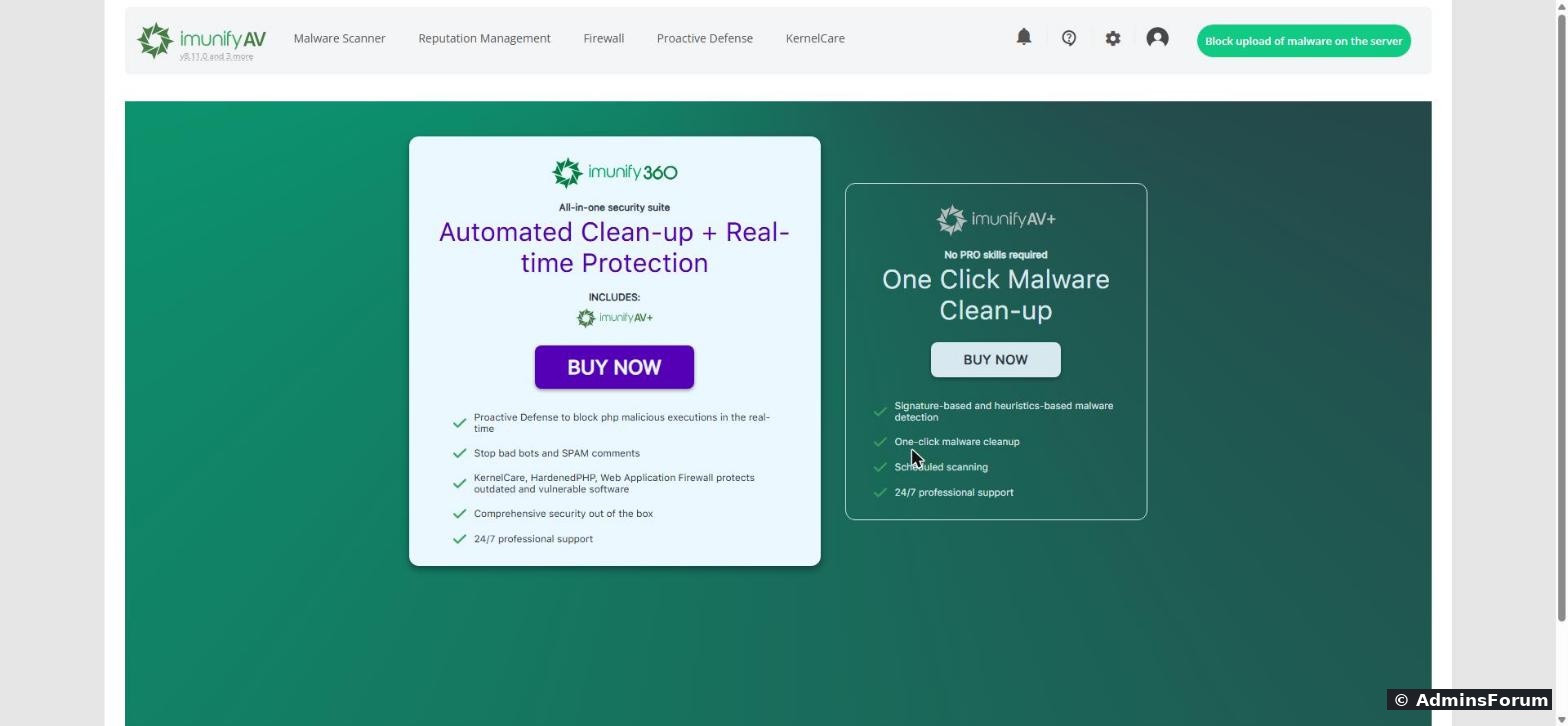
Click the brush icon and ImunifyAV asks: Manual cleanup or Auto cleanup. Auto cleanup takes you straight to an upgrade page. One-click cleanup needs ImunifyAV+ or Imunify360, which are paid licences.
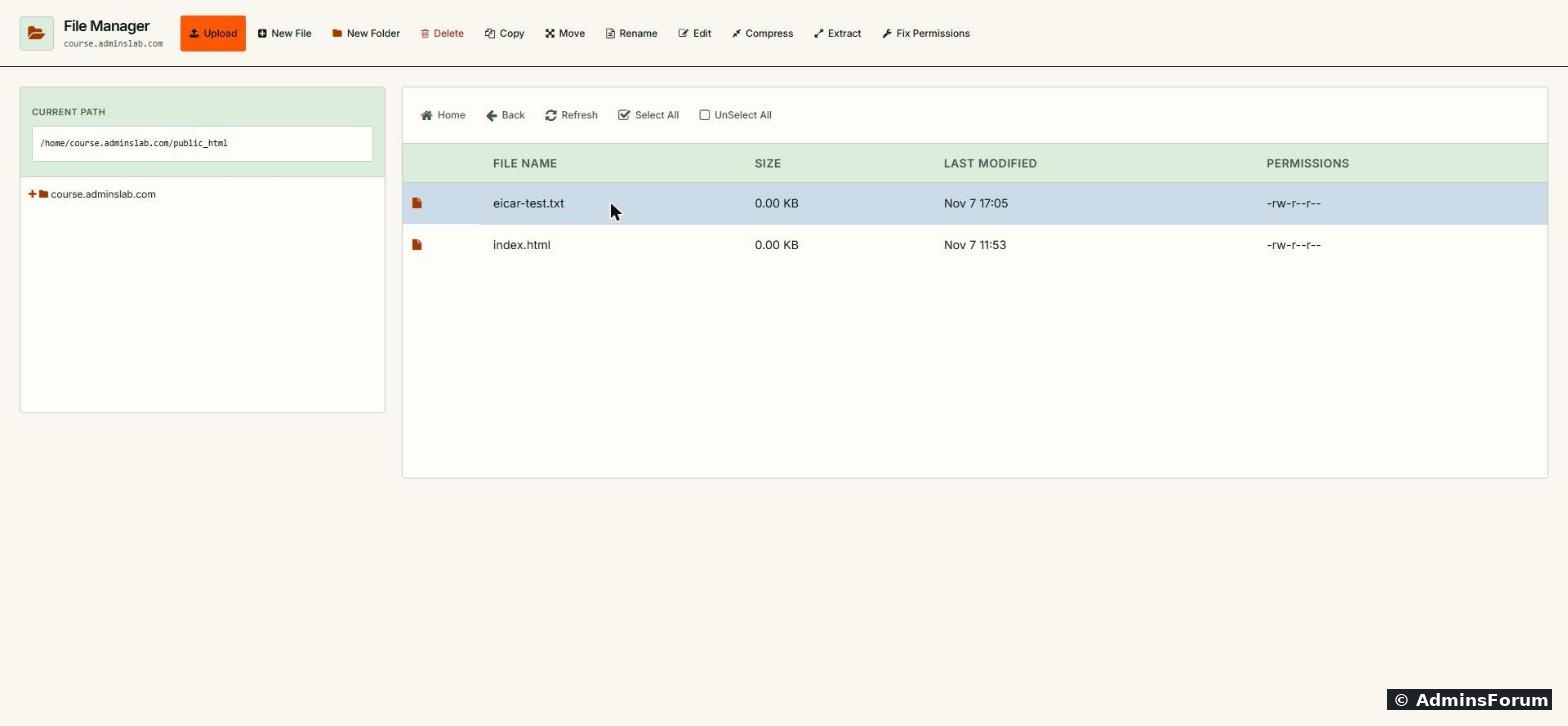
With the free version you clean up by hand. For a single bad file that's easy: delete it (or fix it) in CyberPanel's File Manager. Our test file was in
, so we selected it and clicked Delete.
Then go back to Users and scan the site again. It now says No malware found.
Step 5: Turn on regular scans
Click the gear icon (Settings) and scroll to Background Scanning. In the free version you can only choose Never or Monthly, plus the day of the month and the time. Pick Monthly, choose a quiet hour, and click Save changes.
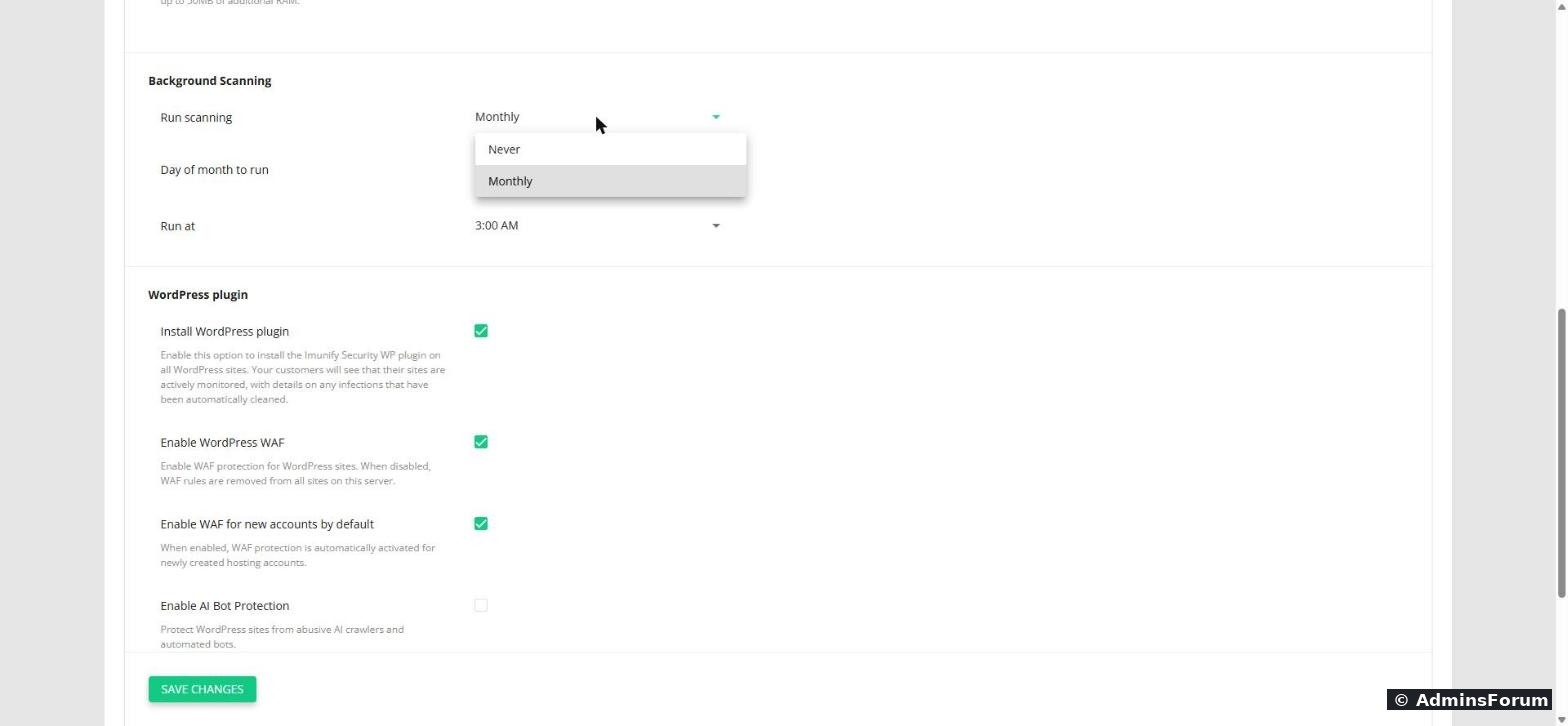
Monthly is a long gap. After anything suspicious (a hacked plugin in the news, strange redirects, spam in your mail queue), run a manual scan straight away instead of waiting.
On the same Settings page you'll see the WordPress options (the Imunify WordPress plugin and WordPress WAF) were already ticked on our server. Leave them on unless they cause trouble with a site.
Test it yourself safely
Every antivirus recognises a standard harmless test file called EICAR. It's just one line of text and can't do anything. To check your scanner works, create a file called
in a site's
with File Manager, paste this line into it and save:
Scan that site, check it shows up as a threat, then delete the file and scan again.
If it finds real malware
Deleting the file is only half the job. Malware almost always came in through something, and it will come back the same way. On a real infection:
What about the AI Security Scanner?
CyberPanel 3 also has an AI Scanner in the Security menu. It's a separate paid service: you add a card, it charges $10 up front, and each scan is charged from that balance. ImunifyAV is the free option.
Quick answers
More security guides for CyberPanel: Firewall explained, SSH key login and File Manager and FTP. Questions or a scan result you can't read? Reply below (hide your server IP first).
CyberPanel comes with ImunifyAV, a free malware scanner from CloudLinux. It can scan every website on your server, show you exactly which file is infected and why, and scan again on a schedule. What it can't do for free is clean the files for you. That part is paid, and the panel doesn't tell you this until you click the button.
We tested it on CyberPanel 3.0.8 (ImunifyAV 8.11) with a harmless test virus file, so every screenshot below shows a real detection, a real cleanup and a real clean result.
Step 1: Open ImunifyAV
In CyberPanel go to Security → ImunifyAV and click Access Now.
ImunifyAV opens on its own login page. Log in with your server's root username and password (the same ones you use for SSH as root). If you only log in with an SSH key and never set a root password, set one first with
Code:
passwdIf the page is blank or broken, click Install Now lower on the same CyberPanel page. It runs the official install script again. If that also fails, run the three commands shown on that page yourself as root.
Step 2: Pick what to scan
The Users tab lists every website on the server by its Linux user and home folder. On our server that's one row per website.
Click the play button at the end of a row to scan that website, or Scan all to scan every site. Confirm with Yes, scan.
You can also open the Scan tab and type any folder (for example
Code:
/homeStep 3: Read the results
Small sites take seconds. The Scan tab shows each scan with the number of files checked and the result. Our test site had 5 files and one of them was our test virus, so it says 1 file threat.
Notice the second row: the scanner also checks the site user's cron jobs (
Code:
/var/spool/cron/crontabs/...Open the Malicious tab to see every infected file: the full path, which website user owns it, the signature that matched (the Reason column) and its status.
The eye icon shows what's inside the file, so you can check for yourself before you delete anything.
The other two icons are clean up (the brush) and ignore (the crossed-out eye). Use ignore only for a file you are sure is a false positive.
Step 4: Cleaning up (this is the paid part)
Click the brush icon and ImunifyAV asks: Manual cleanup or Auto cleanup. Auto cleanup takes you straight to an upgrade page. One-click cleanup needs ImunifyAV+ or Imunify360, which are paid licences.
With the free version you clean up by hand. For a single bad file that's easy: delete it (or fix it) in CyberPanel's File Manager. Our test file was in
Code:
public_htmlThen go back to Users and scan the site again. It now says No malware found.
Step 5: Turn on regular scans
Click the gear icon (Settings) and scroll to Background Scanning. In the free version you can only choose Never or Monthly, plus the day of the month and the time. Pick Monthly, choose a quiet hour, and click Save changes.
Monthly is a long gap. After anything suspicious (a hacked plugin in the news, strange redirects, spam in your mail queue), run a manual scan straight away instead of waiting.
On the same Settings page you'll see the WordPress options (the Imunify WordPress plugin and WordPress WAF) were already ticked on our server. Leave them on unless they cause trouble with a site.
Test it yourself safely
Every antivirus recognises a standard harmless test file called EICAR. It's just one line of text and can't do anything. To check your scanner works, create a file called
Code:
eicar-test.txtCode:
public_htmlCode:
X5O!P%@AP[4\PZX54(P^)7CC)7}$EICAR-STANDARD-ANTIVIRUS-TEST-FILE!H+H*If it finds real malware
Deleting the file is only half the job. Malware almost always came in through something, and it will come back the same way. On a real infection:
- Take a backup first, even of the infected site, so you can't make things worse.
- Update everything: WordPress core, every plugin and theme. Delete plugins and themes you don't use.
- Look for more than one file. Scan the whole site, not just the folder you noticed.
- Check cron jobs in CyberPanel (Websites → your site → Cron Jobs) for anything you didn't add.
- Change passwords: WordPress admins, FTP, database and the CyberPanel account.
- If many core files are infected, restoring a clean backup is usually faster and safer than cleaning by hand.
What about the AI Security Scanner?
CyberPanel 3 also has an AI Scanner in the Security menu. It's a separate paid service: you add a card, it charges $10 up front, and each scan is charged from that balance. ImunifyAV is the free option.
Quick answers
- Is ImunifyAV really free? Scanning, viewing results and monthly background scans are free. One-click cleanup is paid.
- Does it slow the server? Settings has CPU and I/O sliders for the scanner. Lower means gentler but slower scans.
- Which login does it use? Your server's root login, not your CyberPanel admin login.
More security guides for CyberPanel: Firewall explained, SSH key login and File Manager and FTP. Questions or a scan result you can't read? Reply below (hide your server IP first).