



10-12-2026, 05:33 AM
How do you check WordPress updates on an aaPanel website?
Sign in to WordPress and open Dashboard → Updates. Use Check again to refresh the status, then review WordPress core, plugins and themes separately. aaPanel’s WP Toolkit also shows the installed WordPress version, but the WordPress dashboard provides a useful check of the application’s own update status.
Our lab runs WordPress 7.1.3 on aaPanel 8.0.6 Free Edition with PHP 8.5. We checked both interfaces. Core, plugins and themes were already up to date, so this walkthrough verifies the checking process. It does not claim that an upgrade was performed.
1. Confirm the website in WP Toolkit
Open aaPanel → WP Toolkit and find the correct domain. Click the WordPress version in the Quick action area to open Wordpress Setting → Base setup.
Our Status message displayed WordPress 7.1.3 is already the latest version. Wait for the data to load: the fields can briefly show dashes while aaPanel retrieves the site information.
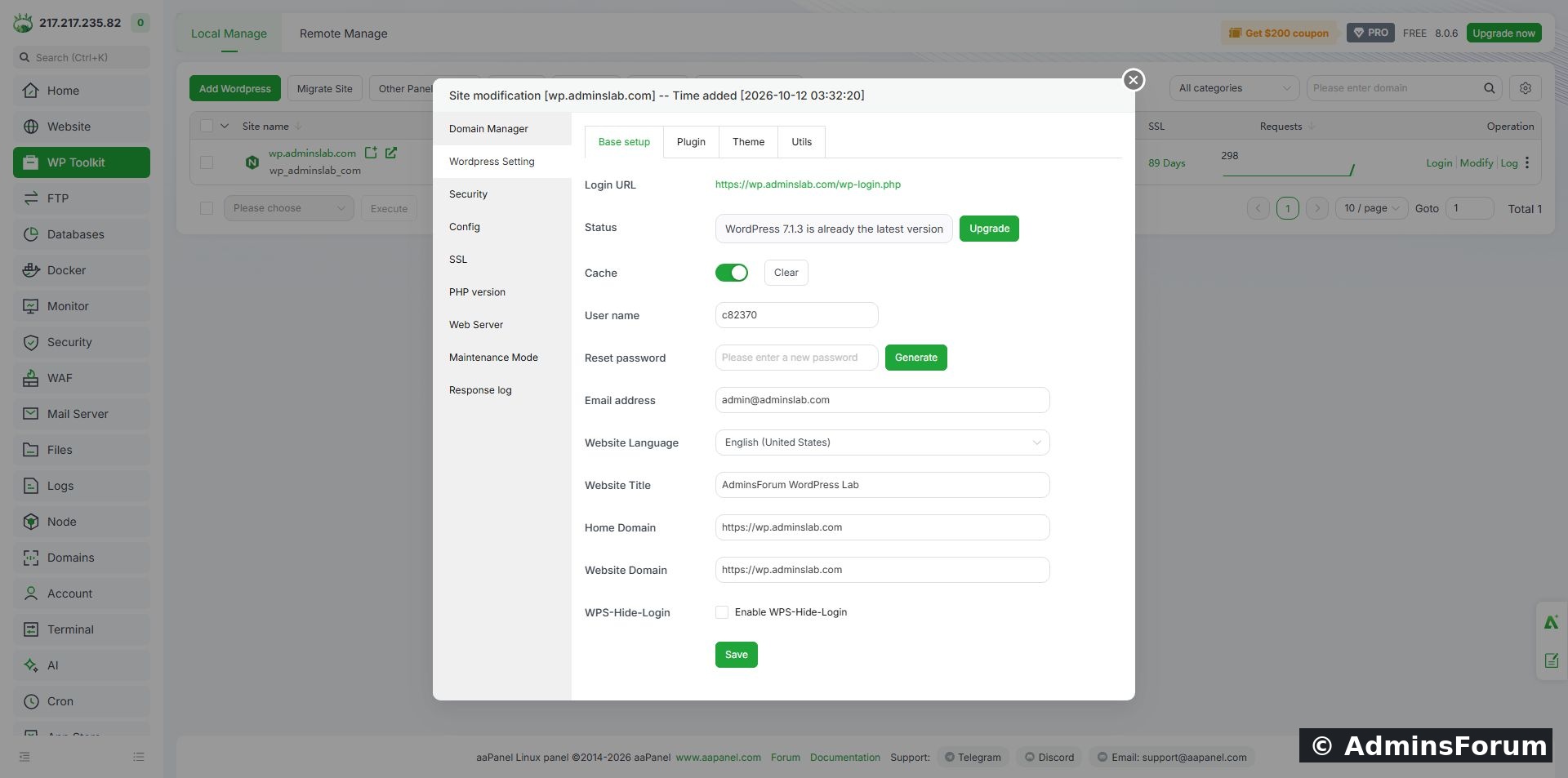
The installed version and status reported by WP Toolkit. The new-password field is empty; checking updates does not require changing your password.
Do not click Generate or fill Reset password just to check a version. The Upgrade control relates to WordPress; aaPanel’s separate Upgrade now button relates to the hosting panel. PHP and the web server have their own updates too. These are different components and should not be changed together without a plan.
2. Open WordPress’s Updates screen
Sign in using your normal WordPress administrator login. If you followed our test-site setup, the dashboard is at your domain followed by /wp-admin/. Use the correct login path if you previously customized it.
In WordPress, choose Dashboard → Updates. Review Current version and the timestamp beside Last checked. Click Check again to request a fresh status check, then wait for the page to return.
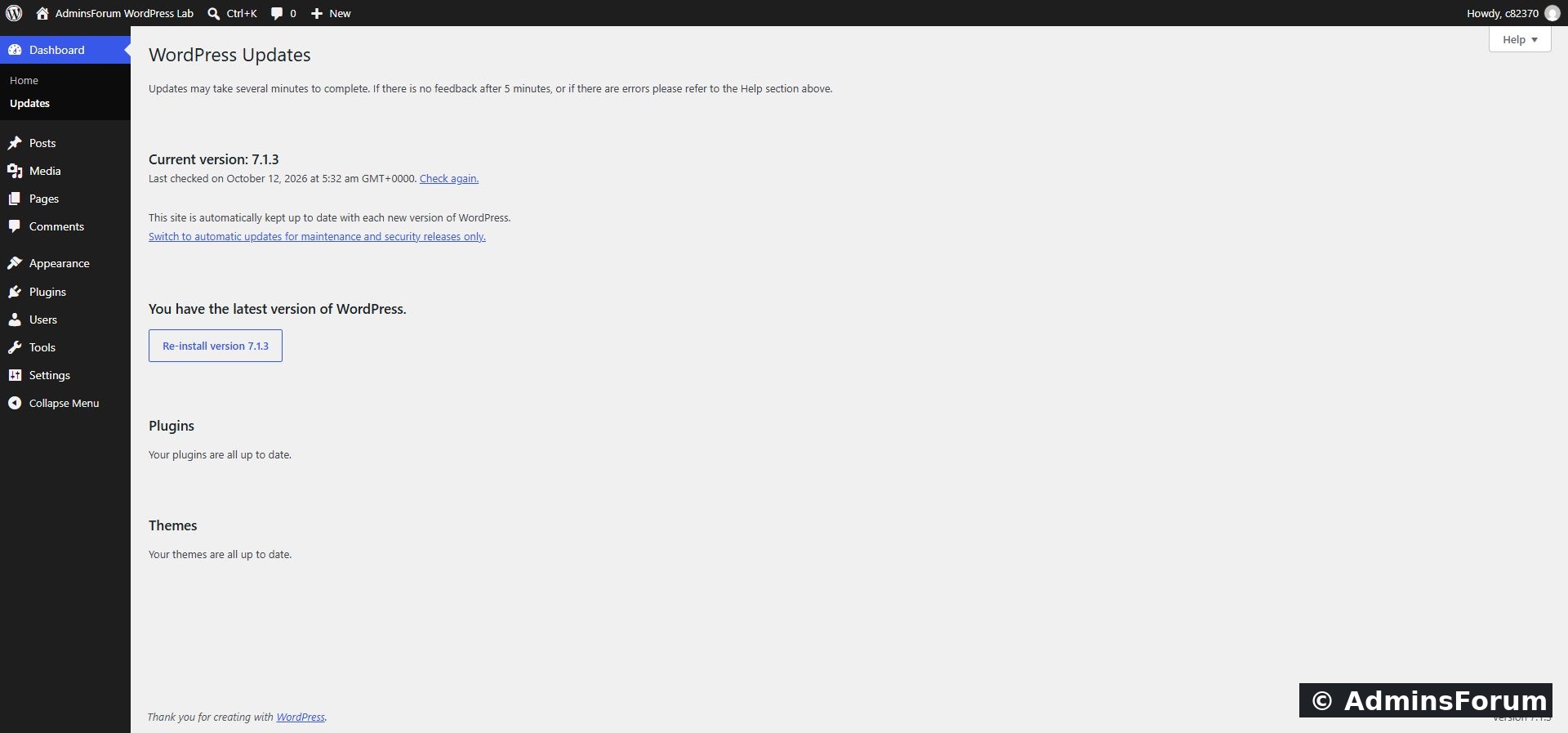
Our dashboard after checking: core, plugins and themes are all up to date.
3. Read each section separately
In our session, all three sections reported current software. That is a valid result: no update action is necessary just to complete a tutorial.
The Re-install version button is not an upgrade to a newer version. It replaces core files with the same release and is not a routine step after every update check. We did not use it.
4. Prepare before applying an offered update
Before changing a live site, save a complete files-and-database backup and confirm a recovery plan. Follow our WP Toolkit backup guide. Keep a verified copy off the server and test recovery separately.
Record the current core, plugin, theme and PHP versions. Review the release notes and compatibility requirements for the specific changes. Test them on staging where practical and pick a quiet time for a live-site update.
On sites with orders, registrations or frequent content changes, coordinate the maintenance window so recovery from an older backup does not unexpectedly discard newer data. A successful archive creation alone is not proof of a successful restoration.
5. When an update is available
Use the action shown for the specific component on Dashboard → Updates. Follow its prompts and allow it to finish. Avoid starting several overlapping operations or repeatedly pressing an update button because progress is slow.
Afterward, confirm the reported version and check the public homepage, administrator login and important functionality. Test forms, checkout or member features if your site uses them. Clear relevant caches when needed and examine errors before treating the work as complete.
Our lab had no pending update, so these are preparation and verification instructions rather than a tested upgrade result. We did not downgrade the lab to manufacture an update scenario.
6. Review automatic updates without changing them accidentally
Read the policy displayed on the Updates page. Our site stated that it is kept current with each new WordPress version. The page offered a link to switch to maintenance/security releases only. We left the existing policy unchanged.
Core automatic updates and plugin/theme Auto update switches are separate preferences. Know which one you are changing, how backups will be retained and how failures will be noticed. A manual screenshot of today’s status does not prove future scheduled updates will run successfully.
Maintenance mode in Free Edition
Our aaPanel Maintenance Mode screen displayed This feature is only available for Pro. Do not assume the built-in panel maintenance page is available in Free Edition. We did not buy Pro or enable that feature. Plan an appropriate maintenance approach for your website before a change that could interrupt visitors.
Troubleshooting
Verified result
We refreshed the WordPress Updates page and confirmed core, plugins and themes were current. No upgrade, reinstallation, automatic-update preference change or maintenance-mode activation was performed.
References: WordPress update documentation and aaPanel WP Toolkit documentation. Screenshots are from our own AdminsForum lab.
Sign in to WordPress and open Dashboard → Updates. Use Check again to refresh the status, then review WordPress core, plugins and themes separately. aaPanel’s WP Toolkit also shows the installed WordPress version, but the WordPress dashboard provides a useful check of the application’s own update status.
Our lab runs WordPress 7.1.3 on aaPanel 8.0.6 Free Edition with PHP 8.5. We checked both interfaces. Core, plugins and themes were already up to date, so this walkthrough verifies the checking process. It does not claim that an upgrade was performed.
1. Confirm the website in WP Toolkit
Open aaPanel → WP Toolkit and find the correct domain. Click the WordPress version in the Quick action area to open Wordpress Setting → Base setup.
Our Status message displayed WordPress 7.1.3 is already the latest version. Wait for the data to load: the fields can briefly show dashes while aaPanel retrieves the site information.
The installed version and status reported by WP Toolkit. The new-password field is empty; checking updates does not require changing your password.
Do not click Generate or fill Reset password just to check a version. The Upgrade control relates to WordPress; aaPanel’s separate Upgrade now button relates to the hosting panel. PHP and the web server have their own updates too. These are different components and should not be changed together without a plan.
2. Open WordPress’s Updates screen
Sign in using your normal WordPress administrator login. If you followed our test-site setup, the dashboard is at your domain followed by /wp-admin/. Use the correct login path if you previously customized it.
In WordPress, choose Dashboard → Updates. Review Current version and the timestamp beside Last checked. Click Check again to request a fresh status check, then wait for the page to return.
Our dashboard after checking: core, plugins and themes are all up to date.
3. Read each section separately
- WordPress: shows the installed core version and whether a newer release is offered.
- Plugins: shows plugin updates separately from the core.
- Themes: shows theme updates separately from plugin updates.
In our session, all three sections reported current software. That is a valid result: no update action is necessary just to complete a tutorial.
The Re-install version button is not an upgrade to a newer version. It replaces core files with the same release and is not a routine step after every update check. We did not use it.
4. Prepare before applying an offered update
Before changing a live site, save a complete files-and-database backup and confirm a recovery plan. Follow our WP Toolkit backup guide. Keep a verified copy off the server and test recovery separately.
Record the current core, plugin, theme and PHP versions. Review the release notes and compatibility requirements for the specific changes. Test them on staging where practical and pick a quiet time for a live-site update.
On sites with orders, registrations or frequent content changes, coordinate the maintenance window so recovery from an older backup does not unexpectedly discard newer data. A successful archive creation alone is not proof of a successful restoration.
5. When an update is available
Use the action shown for the specific component on Dashboard → Updates. Follow its prompts and allow it to finish. Avoid starting several overlapping operations or repeatedly pressing an update button because progress is slow.
Afterward, confirm the reported version and check the public homepage, administrator login and important functionality. Test forms, checkout or member features if your site uses them. Clear relevant caches when needed and examine errors before treating the work as complete.
Our lab had no pending update, so these are preparation and verification instructions rather than a tested upgrade result. We did not downgrade the lab to manufacture an update scenario.
6. Review automatic updates without changing them accidentally
Read the policy displayed on the Updates page. Our site stated that it is kept current with each new WordPress version. The page offered a link to switch to maintenance/security releases only. We left the existing policy unchanged.
Core automatic updates and plugin/theme Auto update switches are separate preferences. Know which one you are changing, how backups will be retained and how failures will be noticed. A manual screenshot of today’s status does not prove future scheduled updates will run successfully.
Maintenance mode in Free Edition
Our aaPanel Maintenance Mode screen displayed This feature is only available for Pro. Do not assume the built-in panel maintenance page is available in Free Edition. We did not buy Pro or enable that feature. Plan an appropriate maintenance approach for your website before a change that could interrupt visitors.
Troubleshooting
- Check again returns an error: record the message and inspect site/server connectivity and logs. Do not disable SSL verification as a shortcut.
- The dashboard requests connection credentials: investigate the installation’s file ownership and update method before supplying credentials or changing permissions.
- Update failed or site is unavailable: stop further changes, preserve the error and consult the official failed-update guidance. Recover using a known backup when appropriate.
- Panel and dashboard disagree: refresh both, confirm they refer to the same installation and compare the actual version rather than a cached label.
Verified result
We refreshed the WordPress Updates page and confirmed core, plugins and themes were current. No upgrade, reinstallation, automatic-update preference change or maintenance-mode activation was performed.
References: WordPress update documentation and aaPanel WP Toolkit documentation. Screenshots are from our own AdminsForum lab.