



Yesterday, 02:44 AM
A Node.js app that runs today may still fail after a VPS restart if automatic startup is disabled. This guide shows where aaPanel's Boot option is, how to read the right logs, and how to prove that an app recovers after a real reboot.
Lab result: We enabled Boot for our sample project, rebooted the tutorial VPS and verified that it started automatically without pressing Start. There was a temporary 502 while the server was coming back; a later HTTPS check returned 200 with the expected page. The app continued running as www on 127.0.0.1:3100.
Tested: Ubuntu 22.04.5 LTS, aaPanel Free 8.0.7 and Node.js 24.21.0 on 14 October 2026. Project: afnodelab. Domain: node.adminslab.com. This is a disposable tutorial server; schedule a maintenance window before rebooting a server that hosts real users.
1. Start with a known working app
Follow Deploy a Node.js app in aaPanel with a domain and HTTPS first. Record the project name, directory, runtime, start command and listening port.
Before changing startup settings, check that the application is already responding:
Replace the port and domain for your own app. Both checks should return 200 for this sample. The local request checks the application directly; the HTTPS request checks the domain, web-server mapping and certificate as well.
2. Find the application log
Open Website → Node.js Project and click the project name. Select Project log. Read the latest startup output, including errors before the final line.
Our sample logs this line when it starts:
An error such as module not found, permission denied or address already in use points to different problems. Check the start script and files for missing modules, the selected user's permissions for access errors, and the port for address conflicts. Do not repeatedly restart without reading the error.
Project log and Website log are not interchangeable. The project log concerns the application process. Website logs concern requests handled by the mapped web server. A 502 can occur when Nginx is running but the application behind it is not ready.
3. Restart only the application when appropriate
Open Service status → Restart and confirm the project restart. This affects the selected app rather than rebooting the whole VPS. Repeat the local and HTTPS response checks afterwards.
We tested a project restart in the deployment guide and confirmed the expected page returned. A successful project restart alone does not prove startup after a full machine reboot: those are separate tests.
4. Enable startup after reboot
Open Project config. Review the existing directory, start script, port, www user and Node runtime. Check Boot → Follow the system to start the service, then click Save. Wait for Modify the project successfully.
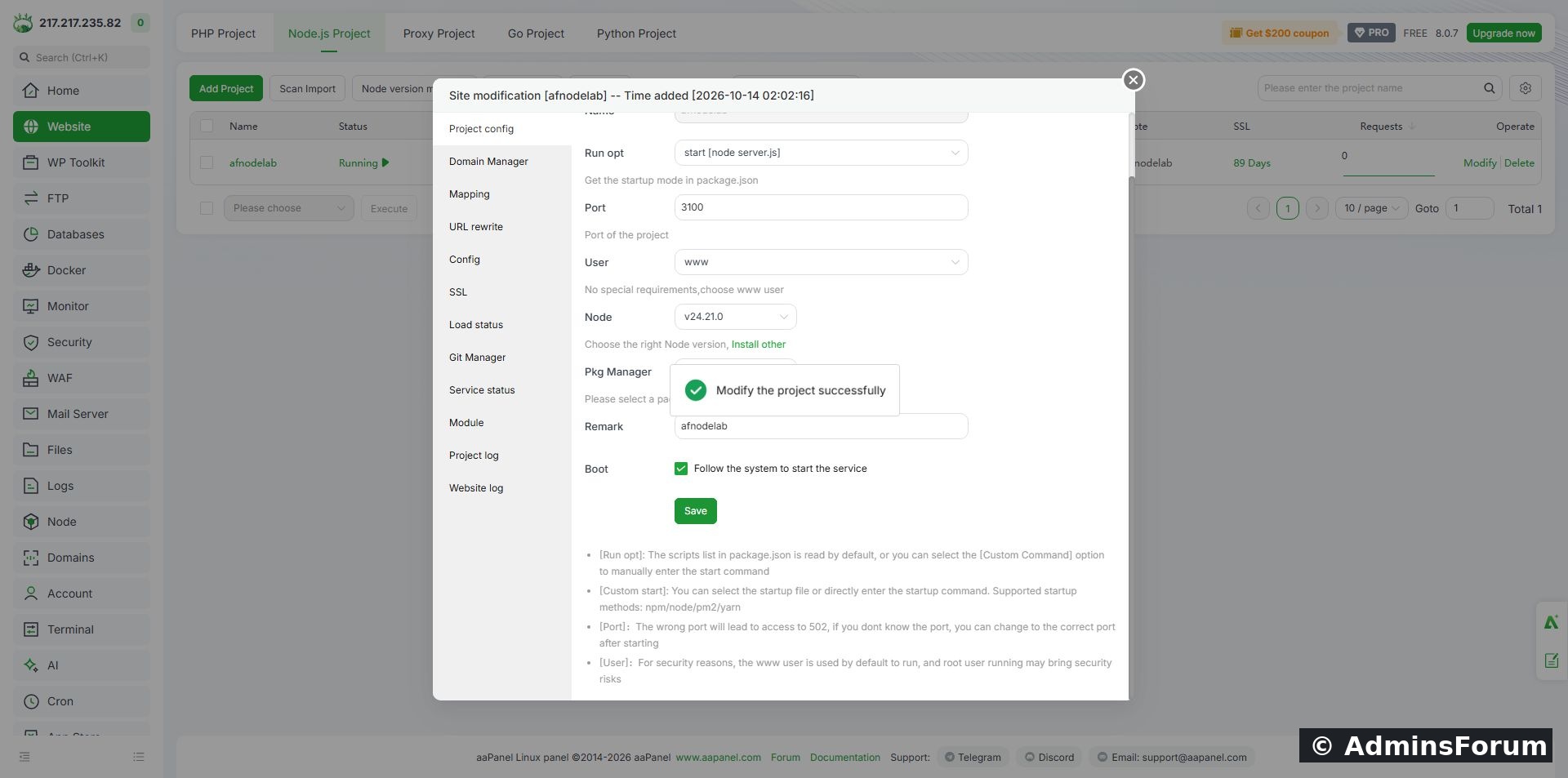
The Boot checkbox is enabled for afnodelab and saved successfully.
Do not assume that checking the box without saving has changed the server configuration. Keep the application files in a persistent directory and make sure its runtime remains installed. Startup cannot repair a broken start command or missing dependency.
5. Record the current boot before testing
Over SSH, record:
The boot ID lets you distinguish an actual server reboot from merely reconnecting your terminal. Also check the app's current listener:
These checks match our sample. Other applications may use a different start command. Our pre-reboot listener and process were present, and the app ran as www.
6. Perform a controlled VPS reboot
Make sure you have provider-console access, current backups and no installation or migration in progress. Notify users if this is a live service. A full reboot interrupts all services on that VPS, including websites and mail.
On the authorised lab server we ran:
Expect SSH to disconnect. Give the machine time to start, then reconnect. Do not open a second copy of the app manually during this test; doing so would obscure whether automatic startup worked and could introduce a port conflict.
7. Verify automatic recovery
After reconnecting, repeat:
A changed boot ID confirms a new boot. The listener, process owner and responses confirm that the app returned. New process IDs are normal after a reboot.
In our test, the first HTTPS check shortly after startup returned 502. A later check returned 200 automatically, and we verified the expected response body, a localhost-only listener and a www-owned Node process. We did not manually start the project between those checks. Do not treat a short startup delay as proof that the Boot setting failed; also do not assume that every persistent 502 is harmless.
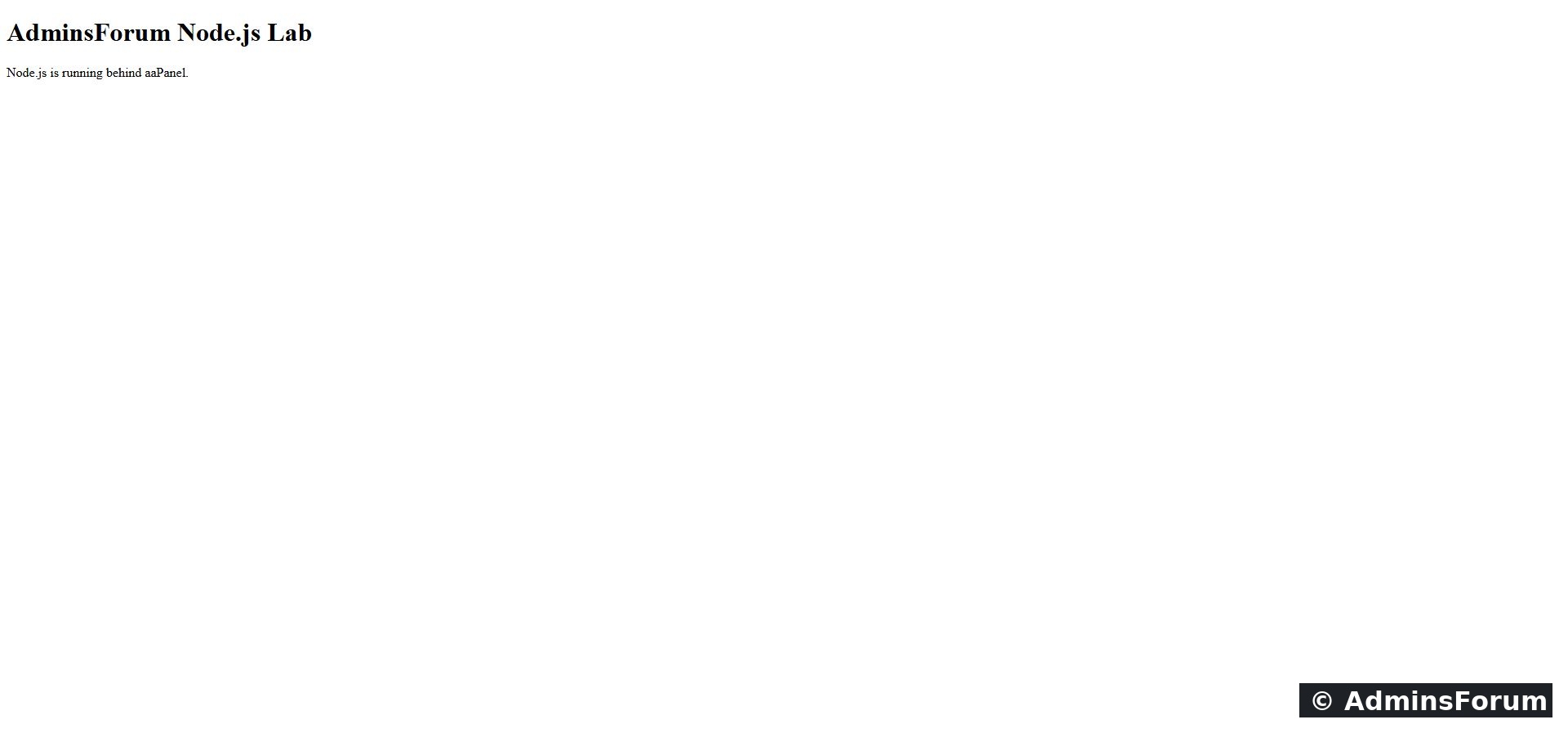
The expected sample page is available over HTTPS after the VPS reboot.
8. If recovery does not complete
Check whether the VPS, aaPanel and web server are available. Sign back into aaPanel if the reboot ended your panel session. Review the project status, Boot setting and latest Project log. Test localhost before investigating DNS or SSL.
If you need a manual Start to restore service, record that intervention and re-test automatic startup later. A manually recovered app has not passed an automatic-start test.
What this test proves
The Boot option worked for this sample on the tested aaPanel version. It does not prove that a different application, database dependency or background queue will recover in the same way. Repeat recovery testing for each real deployment, including its dependencies and expected response.
References: aaPanel Node.js project documentation.
Lab result: We enabled Boot for our sample project, rebooted the tutorial VPS and verified that it started automatically without pressing Start. There was a temporary 502 while the server was coming back; a later HTTPS check returned 200 with the expected page. The app continued running as www on 127.0.0.1:3100.
Tested: Ubuntu 22.04.5 LTS, aaPanel Free 8.0.7 and Node.js 24.21.0 on 14 October 2026. Project: afnodelab. Domain: node.adminslab.com. This is a disposable tutorial server; schedule a maintenance window before rebooting a server that hosts real users.
1. Start with a known working app
Follow Deploy a Node.js app in aaPanel with a domain and HTTPS first. Record the project name, directory, runtime, start command and listening port.
Before changing startup settings, check that the application is already responding:
Code:
curl -i http://127.0.0.1:3100/
curl -I https://node.adminslab.com/2. Find the application log
Open Website → Node.js Project and click the project name. Select Project log. Read the latest startup output, including errors before the final line.
Our sample logs this line when it starts:
Code:
AdminsForum lab listening on http://127.0.0.1:3100Project log and Website log are not interchangeable. The project log concerns the application process. Website logs concern requests handled by the mapped web server. A 502 can occur when Nginx is running but the application behind it is not ready.
3. Restart only the application when appropriate
Open Service status → Restart and confirm the project restart. This affects the selected app rather than rebooting the whole VPS. Repeat the local and HTTPS response checks afterwards.
We tested a project restart in the deployment guide and confirmed the expected page returned. A successful project restart alone does not prove startup after a full machine reboot: those are separate tests.
4. Enable startup after reboot
Open Project config. Review the existing directory, start script, port, www user and Node runtime. Check Boot → Follow the system to start the service, then click Save. Wait for Modify the project successfully.
The Boot checkbox is enabled for afnodelab and saved successfully.
Do not assume that checking the box without saving has changed the server configuration. Keep the application files in a persistent directory and make sure its runtime remains installed. Startup cannot repair a broken start command or missing dependency.
5. Record the current boot before testing
Over SSH, record:
Code:
cat /proc/sys/kernel/random/boot_id
uptime -sCode:
ss -ltnp | grep ':3100'
ps -eo user,pid,args | grep '[n]ode server.js'6. Perform a controlled VPS reboot
Make sure you have provider-console access, current backups and no installation or migration in progress. Notify users if this is a live service. A full reboot interrupts all services on that VPS, including websites and mail.
On the authorised lab server we ran:
Code:
sudo systemctl reboot7. Verify automatic recovery
After reconnecting, repeat:
Code:
cat /proc/sys/kernel/random/boot_id
uptime -s
ss -ltnp | grep ':3100'
ps -eo user,pid,args | grep '[n]ode server.js'
curl -i http://127.0.0.1:3100/
curl -I https://node.adminslab.com/In our test, the first HTTPS check shortly after startup returned 502. A later check returned 200 automatically, and we verified the expected response body, a localhost-only listener and a www-owned Node process. We did not manually start the project between those checks. Do not treat a short startup delay as proof that the Boot setting failed; also do not assume that every persistent 502 is harmless.
The expected sample page is available over HTTPS after the VPS reboot.
8. If recovery does not complete
Check whether the VPS, aaPanel and web server are available. Sign back into aaPanel if the reboot ended your panel session. Review the project status, Boot setting and latest Project log. Test localhost before investigating DNS or SSL.
- No listener: The app has not started, is starting slowly or exited. Read the application log and check its runtime and start command.
- Local response works, domain returns 502: Check the web-server mapping and its configured upstream port.
- Permission errors: Check the run user's access to files and required resources; avoid switching to root as a shortcut.
- Port conflict: Identify the process using the port. Do not launch another duplicate process to fix it.
- Only HTTPS fails: Check the certificate and web-server configuration separately from the app.
If you need a manual Start to restore service, record that intervention and re-test automatic startup later. A manually recovered app has not passed an automatic-start test.
What this test proves
The Boot option worked for this sample on the tested aaPanel version. It does not prove that a different application, database dependency or background queue will recover in the same way. Repeat recovery testing for each real deployment, including its dependencies and expected response.
References: aaPanel Node.js project documentation.