



10-12-2026, 12:48 PM
How do you create a WordPress page without publishing it immediately?
Open Pages → Add Page, enter a title, add your content blocks and choose Save draft. Use View → Preview in new tab to see the page in the website’s theme. Previewing a draft does not publish it to visitors.
We tested this workflow on wp.adminslab.com, our aaPanel-hosted WordPress 7.1.3 lab. We saved a real draft page and confirmed its title and paragraph rendered in the Twenty Twenty-Five theme. The test page remains a draft.
1. Choose a page rather than a post
Sign in to WordPress. Pages are useful for content such as About or Contact pages. Posts are usually used for dated articles and a blog feed. For this demonstration choose Pages → Add Page.
The editor can offer starter patterns. In our test, a Choose a pattern dialog appeared. We used its Close button to start with a blank page. You can choose a pattern when it suits your design, but it is not required for adding basic content.
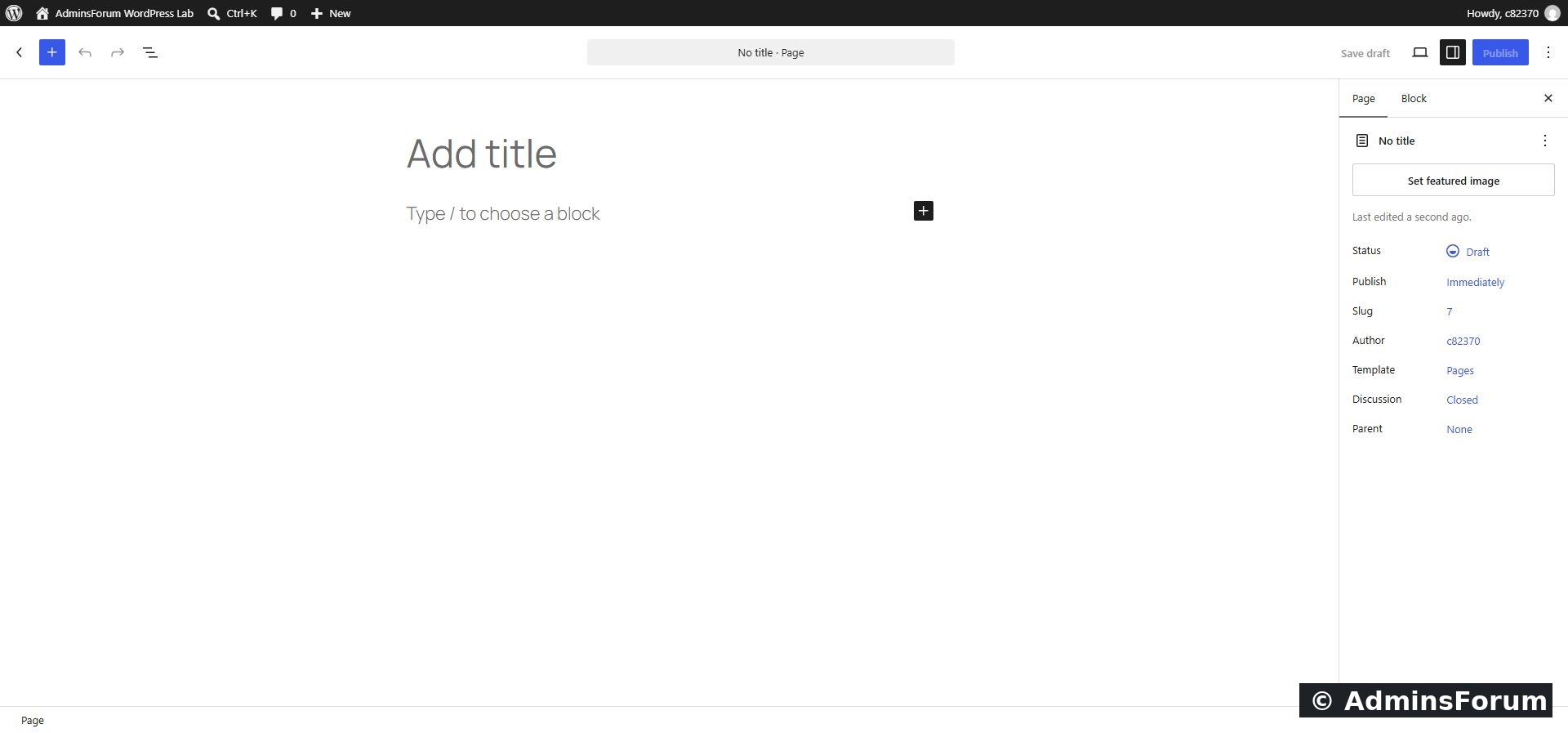
The blank page editor before adding our title and paragraph.
2. Enter a clear page title
Click Add title and type the name of the page. We used AdminsForum Lab — About this website. Use a title that describes what visitors will find rather than an unexplained placeholder.
The title becomes part of the page content and helps identify it in your administrator page list. Do not confuse it with an independently configured SEO title or meta description supplied by an SEO plugin.
3. Add the first content block
Click Type / to choose a block or Add default block beneath the title. The editor creates a Paragraph block. Write a short introduction.
Our demonstration paragraph explains that the website is an AdminsForum tutorial lab used to test aaPanel and WordPress workflows. We kept the example simple so the saved result could be verified without extra plugins or design changes.
You can add more blocks later. Use headings to divide substantial content, and an Image block for pictures. A page made of one giant paragraph is harder to read and maintain than a few purposeful sections.
4. Save the draft
Click Save draft in the top bar. Wait for the operation to finish. Our editor displayed Draft saved.
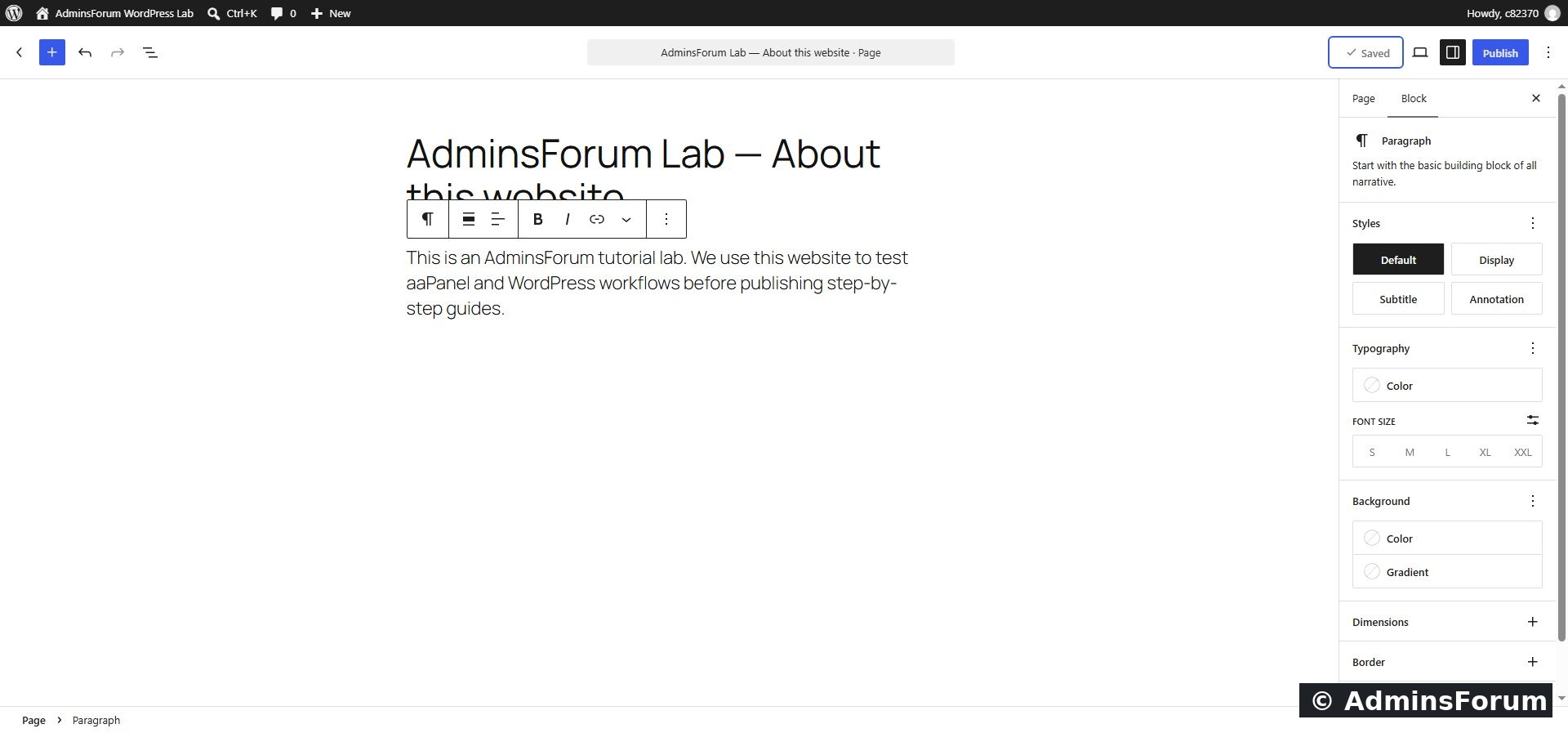
Our saved draft contains a title and paragraph. The page has not been published.
Do not rely on having text visible in the editor as proof that it was saved. Confirm the saved state before closing the tab. The Publish button is a separate action, and we did not use it in this test.
5. Open the website preview
Click View in the editor’s top bar. The menu in our version offers desktop, tablet and mobile preview options, plus Preview in new tab. Choose Preview in new tab and wait for the page to render.
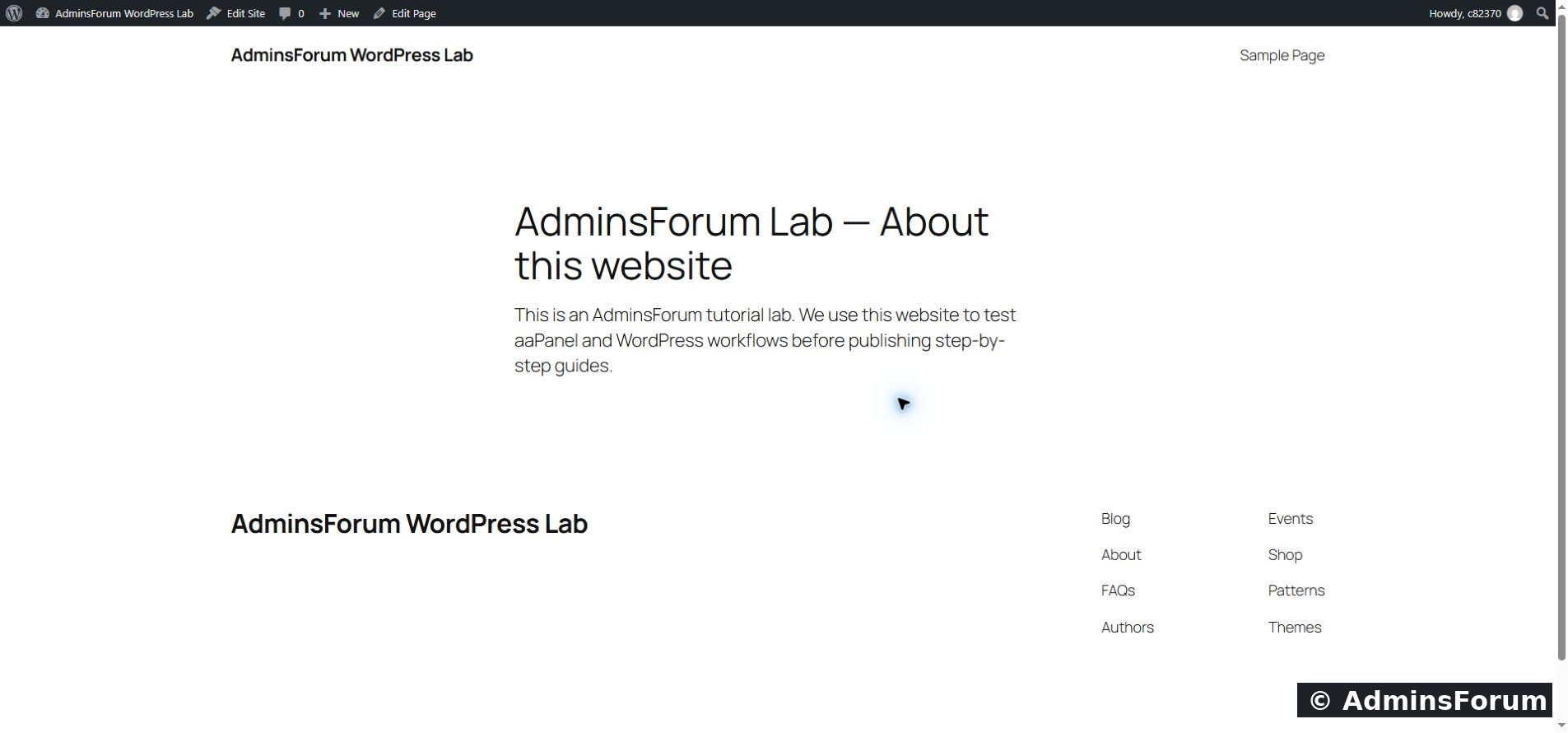
The draft preview rendered our title and paragraph in the website’s actual theme.
Check the wording, spacing and page structure. Review the layout on the screen sizes relevant to your visitors. A preview is a useful check, but it does not prove that navigation menus, forms or every device configuration will work.
The preview may require your logged-in session. Do not treat its address as the permanent public page URL or share URLs containing private preview tokens unnecessarily.
6. Return to editing
Go back to the editor tab, adjust the content and save again when needed. Preview the new version rather than relying on an older open preview tab.
A draft can remain unfinished while you gather content or review the design. Saving it does not automatically put it in the site’s header menu or make it the homepage. Menu placement and homepage selection are separate tasks.
7. Prepare for publication when the page is ready
Before publishing a real page, check its content, links, image descriptions, visibility and intended URL. Remove placeholder text and verify any promised contact details or functionality.
WordPress’s Publish controls allow you to review the publication settings. Publishing, scheduling or changing visibility should match your intended audience. This guide stops at a saved, previewed draft because that is the workflow we tested; it does not claim a public page was published.
Troubleshooting
Verified result
We created the lab page, saved its title and paragraph as a draft and confirmed its preview rendered in the original Twenty Twenty-Five theme. We did not publish it, change the homepage or edit navigation menus.
Screenshots and results are from the AdminsForum lab.
Open Pages → Add Page, enter a title, add your content blocks and choose Save draft. Use View → Preview in new tab to see the page in the website’s theme. Previewing a draft does not publish it to visitors.
We tested this workflow on wp.adminslab.com, our aaPanel-hosted WordPress 7.1.3 lab. We saved a real draft page and confirmed its title and paragraph rendered in the Twenty Twenty-Five theme. The test page remains a draft.
1. Choose a page rather than a post
Sign in to WordPress. Pages are useful for content such as About or Contact pages. Posts are usually used for dated articles and a blog feed. For this demonstration choose Pages → Add Page.
The editor can offer starter patterns. In our test, a Choose a pattern dialog appeared. We used its Close button to start with a blank page. You can choose a pattern when it suits your design, but it is not required for adding basic content.
The blank page editor before adding our title and paragraph.
2. Enter a clear page title
Click Add title and type the name of the page. We used AdminsForum Lab — About this website. Use a title that describes what visitors will find rather than an unexplained placeholder.
The title becomes part of the page content and helps identify it in your administrator page list. Do not confuse it with an independently configured SEO title or meta description supplied by an SEO plugin.
3. Add the first content block
Click Type / to choose a block or Add default block beneath the title. The editor creates a Paragraph block. Write a short introduction.
Our demonstration paragraph explains that the website is an AdminsForum tutorial lab used to test aaPanel and WordPress workflows. We kept the example simple so the saved result could be verified without extra plugins or design changes.
You can add more blocks later. Use headings to divide substantial content, and an Image block for pictures. A page made of one giant paragraph is harder to read and maintain than a few purposeful sections.
4. Save the draft
Click Save draft in the top bar. Wait for the operation to finish. Our editor displayed Draft saved.
Our saved draft contains a title and paragraph. The page has not been published.
Do not rely on having text visible in the editor as proof that it was saved. Confirm the saved state before closing the tab. The Publish button is a separate action, and we did not use it in this test.
5. Open the website preview
Click View in the editor’s top bar. The menu in our version offers desktop, tablet and mobile preview options, plus Preview in new tab. Choose Preview in new tab and wait for the page to render.
The draft preview rendered our title and paragraph in the website’s actual theme.
Check the wording, spacing and page structure. Review the layout on the screen sizes relevant to your visitors. A preview is a useful check, but it does not prove that navigation menus, forms or every device configuration will work.
The preview may require your logged-in session. Do not treat its address as the permanent public page URL or share URLs containing private preview tokens unnecessarily.
6. Return to editing
Go back to the editor tab, adjust the content and save again when needed. Preview the new version rather than relying on an older open preview tab.
A draft can remain unfinished while you gather content or review the design. Saving it does not automatically put it in the site’s header menu or make it the homepage. Menu placement and homepage selection are separate tasks.
7. Prepare for publication when the page is ready
Before publishing a real page, check its content, links, image descriptions, visibility and intended URL. Remove placeholder text and verify any promised contact details or functionality.
WordPress’s Publish controls allow you to review the publication settings. Publishing, scheduling or changing visibility should match your intended audience. This guide stops at a saved, previewed draft because that is the workflow we tested; it does not claim a public page was published.
Troubleshooting
- The pattern dialog covers the editor: choose a suitable pattern or close the dialog to start blank.
- Save draft fails: preserve your text, check the error and session, and confirm whether the REST request or server response failed before continuing.
- Preview shows old content: save the current draft, reopen or refresh its preview and check whether you are viewing the correct page.
- The page is not in navigation: a draft is not public navigation content. Even after publication, menu/homepage placement may need separate configuration.
- Editor labels differ: WordPress versions and themes can change the interface. Match the action—save, view or publish—rather than blindly clicking the same screen position.
Verified result
We created the lab page, saved its title and paragraph as a draft and confirmed its preview rendered in the original Twenty Twenty-Five theme. We did not publish it, change the homepage or edit navigation menus.
Screenshots and results are from the AdminsForum lab.