



10-16-2026, 12:21 PM
Before updating aaPanel, check the installed version and release channel, prepare restorable backups and confirm you can reach the server through SSH. Then use the panel's supported update control when a suitable newer stable release is offered, and verify both the panel and your websites afterward.
We checked this process on our Ubuntu 22.04.5 lab on 16 October 2026. The Update dialog reported aaPanel Stable 8.0.7 as current and separately offered information about Beta 8.25.0. We did not change channels, reinstall the same version or perform a version upgrade. The screenshot below is the actual lab result; version numbers and available controls can change.
1. Know which software you are updating
The aaPanel version is the management panel's version. It is separate from Nginx or Apache, each PHP runtime, MySQL/MariaDB, individual plugins and Ubuntu packages. Updating the panel is not proof that those components are updated. Plan major runtime and database changes separately so you can identify the cause if something breaks.
On Home, record the displayed aaPanel version and OS. Note any plugins or custom integrations you depend on. Keep a short list of representative websites and tasks that currently work, including one database-backed application if you host one.
2. Check the available release and channel
Click Update on the Home page and read the result. Compare the installed version, stable release information and release notes. A beta version with a larger number is a different release channel, not an instruction to switch a working production server.
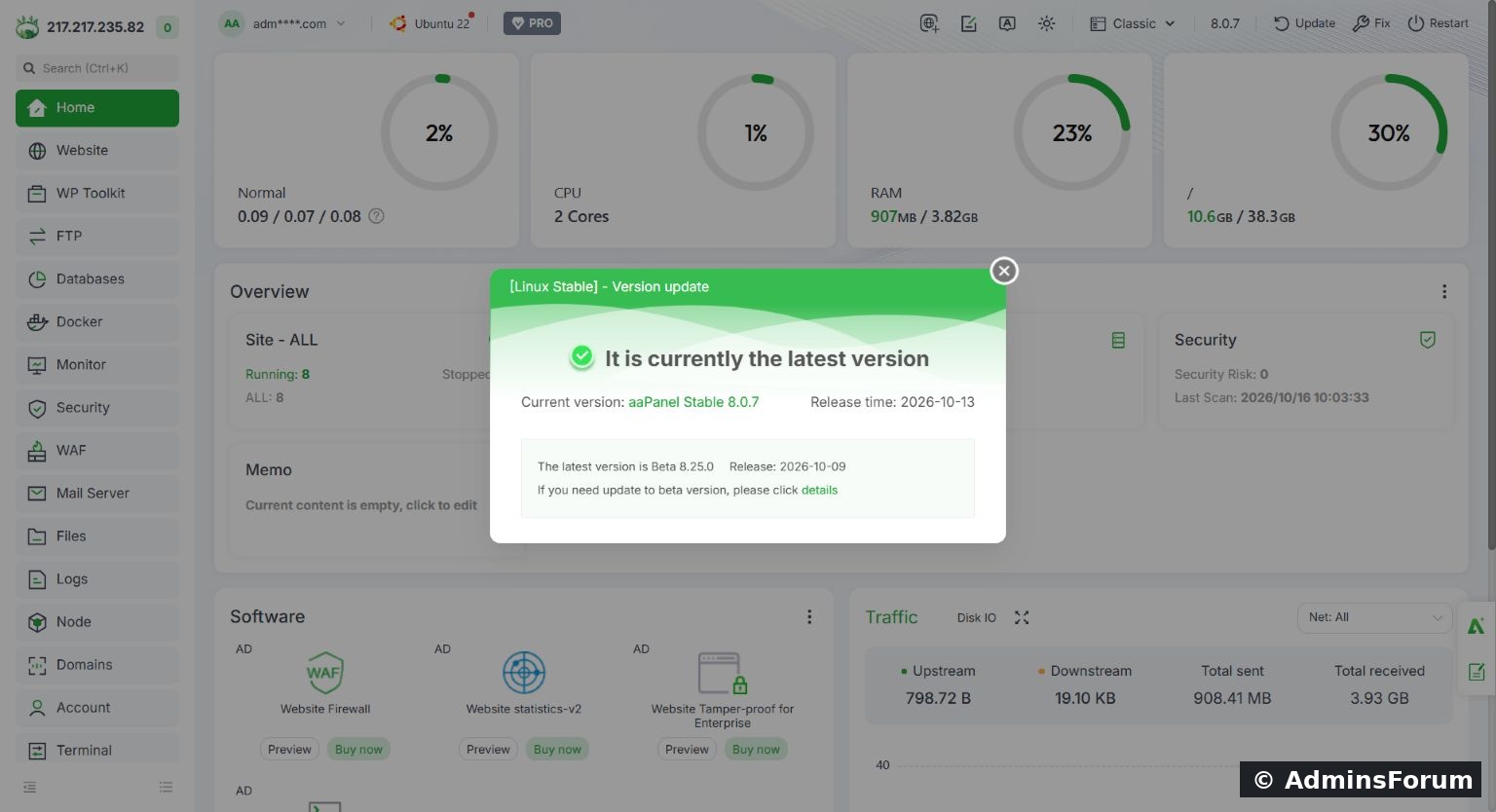
The lab reported Stable 8.0.7 as current. Beta information appears separately. We stopped at this check rather than changing channels to manufacture an upgrade example.
If your panel reports it is current, there is no normal stable upgrade to perform through that check at that time. Close the dialog and keep monitoring release information. If a newer stable version is offered, read its changes and requirements before confirming an installation. The exact confirmation screen can differ; our lab did not display a newer-stable installation screen.
Do not mistake a failure to fetch version information for confirmation that your installation is current. Investigate connectivity, time, DNS and the panel error log if the update check itself fails.
3. Prepare independent access and a maintenance window
Confirm your normal SSH connection works before relying on it for recovery. Keep the provider's console or recovery access available when possible. A panel restart can interrupt the browser session, including a terminal running inside that panel; use a separate SSH client for panel recovery work.
Choose a suitable time and record the starting version. Avoid combining the panel update with PHP switching, web-server migration or database upgrades. Notify affected users if the planned work may interrupt their service. Do not change credentials, the panel port or firewall rules as part of routine update preparation.
4. Prepare backups that match your recovery needs
Check the panel's automatic backup configuration and most recent panel backup. aaPanel panel-data backups are not a substitute for website files, databases, mail data, application configuration or a complete server recovery plan. Use separate application-consistent database backups, not a raw copy of a running database directory.
Our lab contained panel backup archives dated 13, 14, 15 and 16 October 2026 under /www/backup/panel. Their presence is useful evidence that files exist; it does not establish archive integrity, full coverage or a successful restore. Review timestamps, contents and the required recovery procedure before depending on a backup.
Use these existing walkthroughs for the actual data involved:
5. Check space and the starting service state
From SSH, these read-only checks show disk space and inode usage:
The first reports filesystem capacity; the second reports available inodes, which are needed to create files. Inspect other filesystems too if your installation or backup folders are on separate mounts. Do not start an update with an unresolved full filesystem, and do not delete unfamiliar server files just to make space.
Our root filesystem showed 30% space use and 11% inode use. On this Nginx installation we also checked configuration syntax:
It reported syntax OK and a successful configuration test. This command is specific to our installed Nginx path; Apache and other deployments require their own validation. It does not update or reload the server and does not establish that every application works.
Before making changes, open representative sites over HTTPS and exercise an important normal task. Keep their baseline results so an existing problem is not blamed on the update.
6. Install a suitable stable update when one is offered
After the prerequisites are ready, return to Home → Update. If a newer appropriate stable release is available, use the supported installation action shown by your release, review the confirmation and follow progress through completion. Do not close or repeatedly resubmit the operation while it is working. A temporary panel disconnect can occur; allow the operation to finish before starting repair attempts.
We did not execute this upgrade step on the lab because the update check reported the installed stable version was current. This guide is a verified update-check and preparation walkthrough, not a claimed before/after upgrade test.
Do not run a fresh installation script over an existing server as a substitute for an update. Avoid copying old installer commands or unchecked download-and-execute instructions from unrelated forum replies.
7. Verify after a real update
Reconnect to the panel using its existing address, sign in and confirm the expected version and release channel. Check the website and database lists, scheduled tasks and required plugins. Open the same representative websites and repeat the baseline application tasks. Verify trusted HTTPS as well as page content; a successful panel login alone does not prove the hosted sites are healthy.
Review new error-log entries around the update time. Confirm backups and certificate-renewal management remain configured. Record the starting version, ending version, time and outcome for future troubleshooting.
8. If the panel does not return, diagnose before repairing
Use the separate SSH connection or provider console. Check the exact error and panel log instead of disabling access controls. The official aaPanel documentation identifies bt 22 for displaying the panel error log and bt 16 as a repair action that can update panel files. Repair is a change, not a harmless status check; investigate and preserve a backup first.
Start with our aaPanel bt command guide, and use the supported instructions for the actual release. Do not restore an arbitrary older panel database or downgrade files without a compatible recovery plan: panel state and live services can otherwise disagree. Restore from verified backups or follow version-specific vendor recovery advice.
Does clicking Update also upgrade PHP and MySQL?
Do not assume so. Check and manage each component separately, including its compatibility and recovery requirements. A working panel update should not be used as evidence that all server software is current.
Should I select beta because it looks newer?
Use beta only for a deliberate test with a recovery plan. For this tutorial we retained stable. Release-channel choice and production compatibility matter more than comparing the numbers alone.
More aaPanel Getting Started Guides. Ask in aaPanel Support with the original version, target version, OS and a redacted error.
References
aaPanel Home: Update, Fix and Restart.
aaPanel settings and backup controls.
aaPanel panel troubleshooting and CLI reference.
We checked this process on our Ubuntu 22.04.5 lab on 16 October 2026. The Update dialog reported aaPanel Stable 8.0.7 as current and separately offered information about Beta 8.25.0. We did not change channels, reinstall the same version or perform a version upgrade. The screenshot below is the actual lab result; version numbers and available controls can change.
1. Know which software you are updating
The aaPanel version is the management panel's version. It is separate from Nginx or Apache, each PHP runtime, MySQL/MariaDB, individual plugins and Ubuntu packages. Updating the panel is not proof that those components are updated. Plan major runtime and database changes separately so you can identify the cause if something breaks.
On Home, record the displayed aaPanel version and OS. Note any plugins or custom integrations you depend on. Keep a short list of representative websites and tasks that currently work, including one database-backed application if you host one.
2. Check the available release and channel
Click Update on the Home page and read the result. Compare the installed version, stable release information and release notes. A beta version with a larger number is a different release channel, not an instruction to switch a working production server.
The lab reported Stable 8.0.7 as current. Beta information appears separately. We stopped at this check rather than changing channels to manufacture an upgrade example.
If your panel reports it is current, there is no normal stable upgrade to perform through that check at that time. Close the dialog and keep monitoring release information. If a newer stable version is offered, read its changes and requirements before confirming an installation. The exact confirmation screen can differ; our lab did not display a newer-stable installation screen.
Do not mistake a failure to fetch version information for confirmation that your installation is current. Investigate connectivity, time, DNS and the panel error log if the update check itself fails.
3. Prepare independent access and a maintenance window
Confirm your normal SSH connection works before relying on it for recovery. Keep the provider's console or recovery access available when possible. A panel restart can interrupt the browser session, including a terminal running inside that panel; use a separate SSH client for panel recovery work.
Choose a suitable time and record the starting version. Avoid combining the panel update with PHP switching, web-server migration or database upgrades. Notify affected users if the planned work may interrupt their service. Do not change credentials, the panel port or firewall rules as part of routine update preparation.
4. Prepare backups that match your recovery needs
Check the panel's automatic backup configuration and most recent panel backup. aaPanel panel-data backups are not a substitute for website files, databases, mail data, application configuration or a complete server recovery plan. Use separate application-consistent database backups, not a raw copy of a running database directory.
Our lab contained panel backup archives dated 13, 14, 15 and 16 October 2026 under /www/backup/panel. Their presence is useful evidence that files exist; it does not establish archive integrity, full coverage or a successful restore. Review timestamps, contents and the required recovery procedure before depending on a backup.
Use these existing walkthroughs for the actual data involved:
- Back Up and Restore Website Files.
- Back Up and Restore a Database.
- Back Up aaPanel Mail Server.
- Build and Test an Off-Site Recovery Plan.
5. Check space and the starting service state
From SSH, these read-only checks show disk space and inode usage:
Code:
df -h /
df -i /Our root filesystem showed 30% space use and 11% inode use. On this Nginx installation we also checked configuration syntax:
Code:
/www/server/nginx/sbin/nginx -tBefore making changes, open representative sites over HTTPS and exercise an important normal task. Keep their baseline results so an existing problem is not blamed on the update.
6. Install a suitable stable update when one is offered
After the prerequisites are ready, return to Home → Update. If a newer appropriate stable release is available, use the supported installation action shown by your release, review the confirmation and follow progress through completion. Do not close or repeatedly resubmit the operation while it is working. A temporary panel disconnect can occur; allow the operation to finish before starting repair attempts.
We did not execute this upgrade step on the lab because the update check reported the installed stable version was current. This guide is a verified update-check and preparation walkthrough, not a claimed before/after upgrade test.
Do not run a fresh installation script over an existing server as a substitute for an update. Avoid copying old installer commands or unchecked download-and-execute instructions from unrelated forum replies.
7. Verify after a real update
Reconnect to the panel using its existing address, sign in and confirm the expected version and release channel. Check the website and database lists, scheduled tasks and required plugins. Open the same representative websites and repeat the baseline application tasks. Verify trusted HTTPS as well as page content; a successful panel login alone does not prove the hosted sites are healthy.
Review new error-log entries around the update time. Confirm backups and certificate-renewal management remain configured. Record the starting version, ending version, time and outcome for future troubleshooting.
8. If the panel does not return, diagnose before repairing
Use the separate SSH connection or provider console. Check the exact error and panel log instead of disabling access controls. The official aaPanel documentation identifies bt 22 for displaying the panel error log and bt 16 as a repair action that can update panel files. Repair is a change, not a harmless status check; investigate and preserve a backup first.
Start with our aaPanel bt command guide, and use the supported instructions for the actual release. Do not restore an arbitrary older panel database or downgrade files without a compatible recovery plan: panel state and live services can otherwise disagree. Restore from verified backups or follow version-specific vendor recovery advice.
Does clicking Update also upgrade PHP and MySQL?
Do not assume so. Check and manage each component separately, including its compatibility and recovery requirements. A working panel update should not be used as evidence that all server software is current.
Should I select beta because it looks newer?
Use beta only for a deliberate test with a recovery plan. For this tutorial we retained stable. Release-channel choice and production compatibility matter more than comparing the numbers alone.
More aaPanel Getting Started Guides. Ask in aaPanel Support with the original version, target version, OS and a redacted error.
References
aaPanel Home: Update, Fix and Restart.
aaPanel settings and backup controls.
aaPanel panel troubleshooting and CLI reference.