



Yesterday, 08:07 AM
When an aaPanel cron job does not do what you expect, inspect its actual output and result. In our aaPanel 8.0.7 lab, the log footer said Successful even when a shell script exited with code 7. A success label alone is not enough to verify a job.
Tested: Ubuntu 22.04.5 and aaPanel Free 8.0.7. We used only the disposable AdminsForum cron execution lab task. We reproduced a nonzero script exit, checked the generated execution file, restored the harmless timestamp script and left the schedule disabled. Existing jobs were not changed.
1. Find the exact task and check its status
Open Cron → Task Lists. Confirm its name, Running/Stopped status, execution cycle and intended execution user. Check the server timezone and whether the schedule has become due. For a first task, follow Create and Test a Scheduled Shell Script.
A Stopped task is not supposed to run automatically. A manual Execute action is a separate test and does not prove automatic scheduling is enabled.
2. Read current output, not just the footer
Click the task's Log link and use Refresh log. Match the newest timestamp to the run you are investigating. Check stderr messages, missing files, command errors and the output you expected the script to create.
Our controlled failure script was:
This only prints a diagnostic message and returns a nonzero status. It does not delete data or alter a service. Use it only in a disposable test job, not as a replacement for your live script.
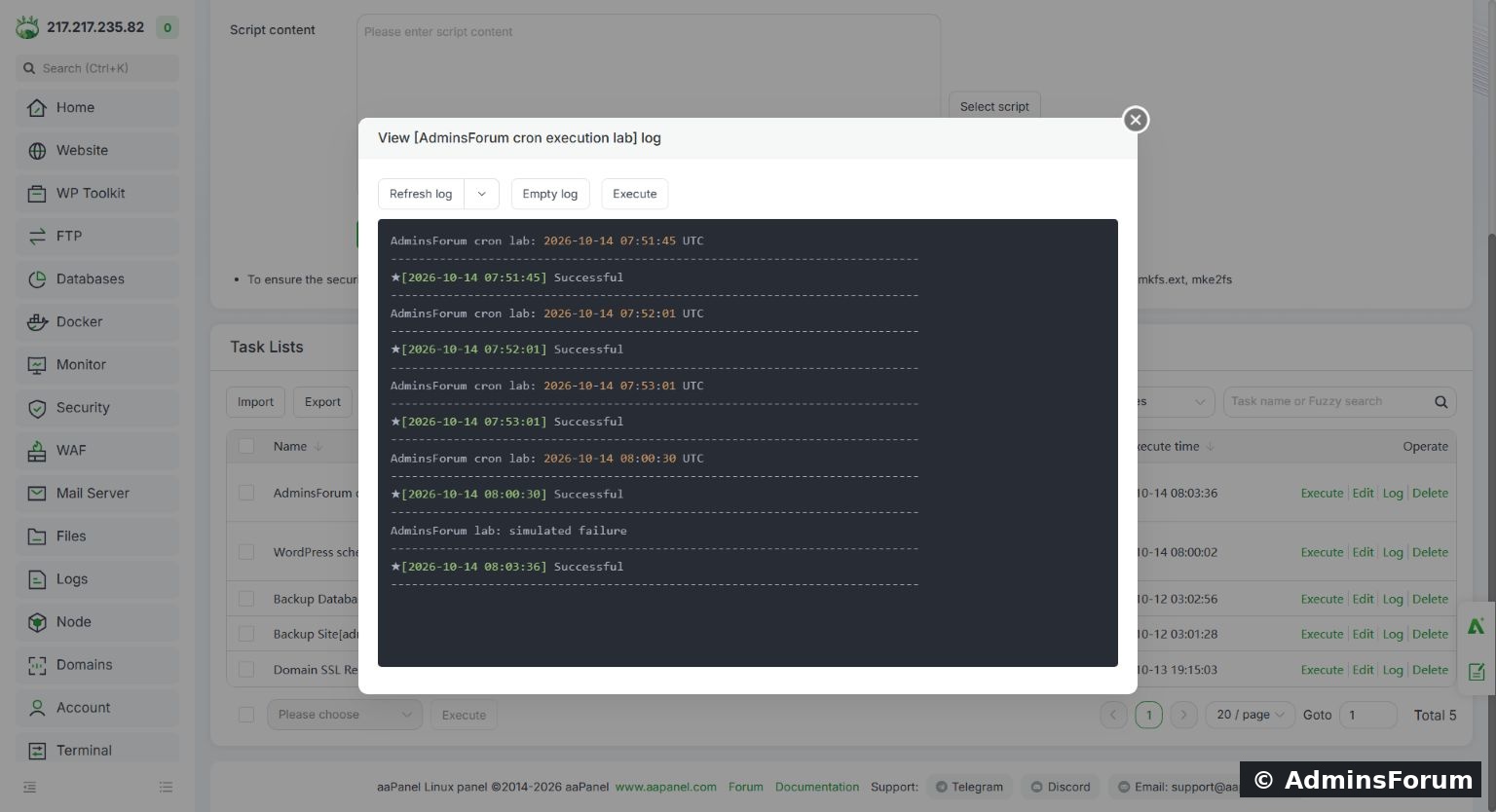
The log contains simulated failure output followed by a Successful footer in the tested panel version.
The generated wrapper in this lab printed its Successful footer without checking the preceding user script's exit result. Therefore the footer cannot, by itself, establish successful application work. This finding is scoped to our installed version and shell-task wrapper; we did not assume identical behavior for every task type or release.
3. Check whether an edited script actually reached the execution file
In this lab, editing the task while it was disabled saved the new content in the panel's task record, but its existing generated execution file still contained the older timestamp script. A manual run at that point produced old output.
We inspected only this lab task's generated file to confirm the mismatch. Re-enabling the disposable task regenerated its execution file, after which the failure text appeared in the log. Do not blindly enable a destructive or broken production script just to force regeneration. Review the command first, use a safe test copy and keep a stop/rollback plan.
If an edited disabled task runs old code on your version, compare the saved content with the actual execution file or use a newly created, isolated test task containing a harmless diagnostic. Do not edit unrelated aaPanel-generated files or apply a global scheduler reset without a diagnosed reason.
4. Check the interpreter, user and paths
Scheduled execution may not load the same shell startup files as your interactive terminal. Use absolute executable paths and the right application environment. Verify that the task user can read scripts and write only the intended output directory.
For Python, use the correct virtual-environment interpreter. For PHP, use the PHP version required by that website. If a command needs a working directory, explicitly change to it and stop if that fails. Do not solve Permission denied by making the entire website tree world-writable.
5. Make success and failure visible in your own script
For a real job, emit a clear marker only after its command and result checks pass. A pattern is:
This is a template, not an executable job until you replace the command. Add a check for the actual result as well: a backup file should be readable and restorable, an API operation should have the expected response, and a generated report should contain the expected data. A process exiting zero is not a complete business-result test.
6. Correct the cause and rerun safely
Save the reviewed script. Use Execute for a controlled manual run, then inspect fresh output. In our lab we restored:
Because the test task was active when the corrected content was saved, its generated execution file was updated. The next manual execution printed the expected timestamp rather than the simulated failure text.
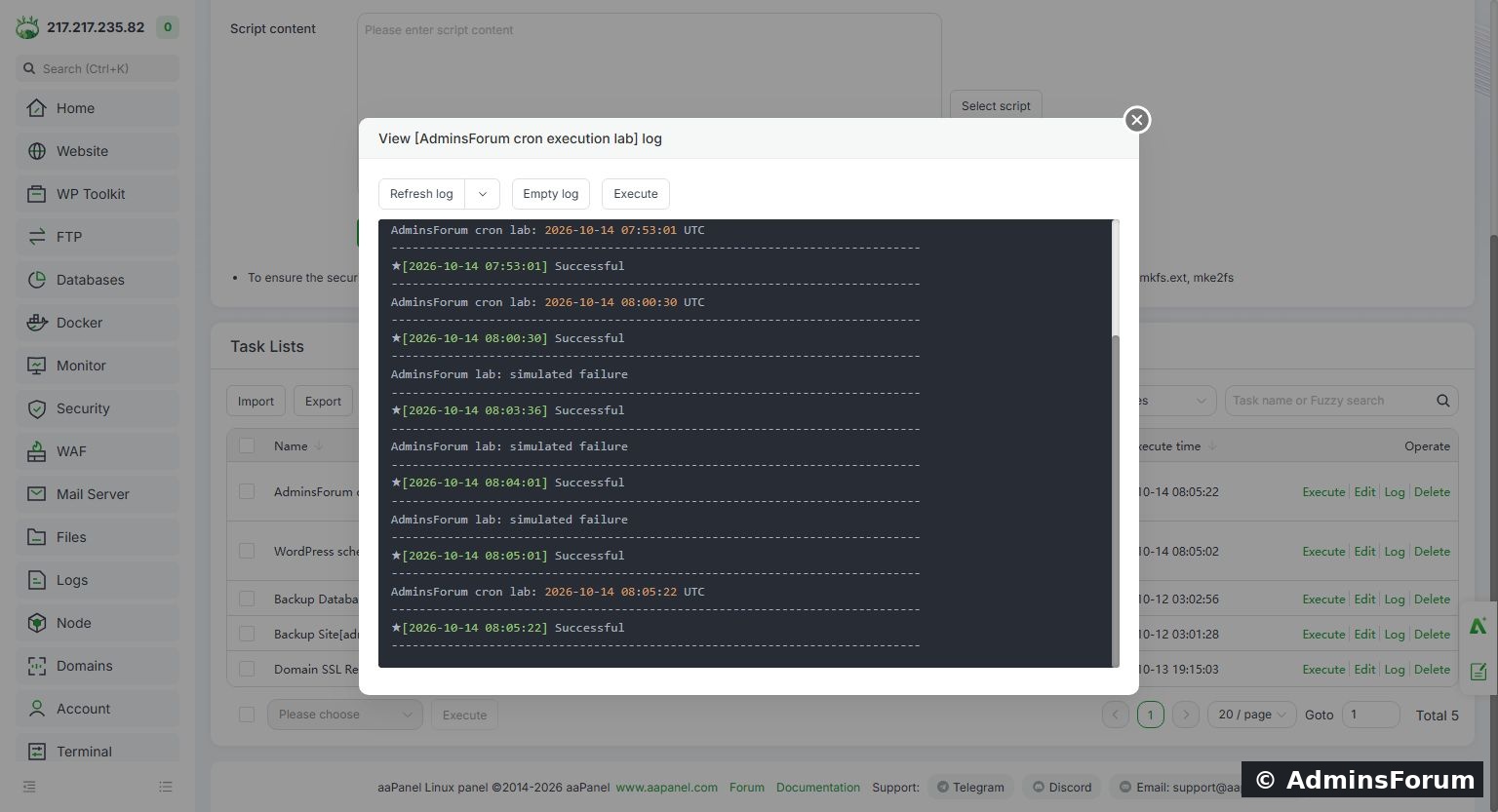
The later log entry contains the recovered timestamp output. This concrete output proves our script correction took effect.
We then disabled the lab task and confirmed its status was Stopped. This recovery test checks manual execution after a script change. Automatic timestamp scheduling was verified separately in the introductory cron guide; it was not inferred from the manual run here.
Other common causes
For a support request
Provide panel version, task type, schedule, execution user, sanitized script and recent relevant log lines. Remove passwords, tokens, private keys and database secrets. State whether failure occurred in manual execution, automatic execution or both.
AdminsForum lab-tested troubleshooting guide. Screenshots show our own harmless test job; they document observed behavior rather than a claim that every cron task is broken.
Tested: Ubuntu 22.04.5 and aaPanel Free 8.0.7. We used only the disposable AdminsForum cron execution lab task. We reproduced a nonzero script exit, checked the generated execution file, restored the harmless timestamp script and left the schedule disabled. Existing jobs were not changed.
1. Find the exact task and check its status
Open Cron → Task Lists. Confirm its name, Running/Stopped status, execution cycle and intended execution user. Check the server timezone and whether the schedule has become due. For a first task, follow Create and Test a Scheduled Shell Script.
A Stopped task is not supposed to run automatically. A manual Execute action is a separate test and does not prove automatic scheduling is enabled.
2. Read current output, not just the footer
Click the task's Log link and use Refresh log. Match the newest timestamp to the run you are investigating. Check stderr messages, missing files, command errors and the output you expected the script to create.
Our controlled failure script was:
Code:
printf 'AdminsForum lab: simulated failure
' >&2
exit 7The log contains simulated failure output followed by a Successful footer in the tested panel version.
The generated wrapper in this lab printed its Successful footer without checking the preceding user script's exit result. Therefore the footer cannot, by itself, establish successful application work. This finding is scoped to our installed version and shell-task wrapper; we did not assume identical behavior for every task type or release.
3. Check whether an edited script actually reached the execution file
In this lab, editing the task while it was disabled saved the new content in the panel's task record, but its existing generated execution file still contained the older timestamp script. A manual run at that point produced old output.
We inspected only this lab task's generated file to confirm the mismatch. Re-enabling the disposable task regenerated its execution file, after which the failure text appeared in the log. Do not blindly enable a destructive or broken production script just to force regeneration. Review the command first, use a safe test copy and keep a stop/rollback plan.
If an edited disabled task runs old code on your version, compare the saved content with the actual execution file or use a newly created, isolated test task containing a harmless diagnostic. Do not edit unrelated aaPanel-generated files or apply a global scheduler reset without a diagnosed reason.
4. Check the interpreter, user and paths
Scheduled execution may not load the same shell startup files as your interactive terminal. Use absolute executable paths and the right application environment. Verify that the task user can read scripts and write only the intended output directory.
For Python, use the correct virtual-environment interpreter. For PHP, use the PHP version required by that website. If a command needs a working directory, explicitly change to it and stop if that fails. Do not solve Permission denied by making the entire website tree world-writable.
5. Make success and failure visible in your own script
For a real job, emit a clear marker only after its command and result checks pass. A pattern is:
Code:
if /absolute/path/to/your-command; then
    printf 'JOB_OK: command completed
'
else
    code=$?
    printf 'JOB_FAILED: exit=%s
' "$code" >&2
    exit "$code"
fi6. Correct the cause and rerun safely
Save the reviewed script. Use Execute for a controlled manual run, then inspect fresh output. In our lab we restored:
Code:
printf 'AdminsForum cron lab: '; /usr/bin/date -u '+%Y-%m-%d %H:%M:%S UTC'The later log entry contains the recovered timestamp output. This concrete output proves our script correction took effect.
We then disabled the lab task and confirmed its status was Stopped. This recovery test checks manual execution after a script change. Automatic timestamp scheduling was verified separately in the introductory cron guide; it was not inferred from the manual run here.
Other common causes
- No new entries: task disabled, wrong timezone, schedule not due or scheduler not running.
- Command not found: wrong executable path or software not installed.
- Missing environment: required variables or interpreter environment not provided to the scheduled job.
- Old output after editing: check generated-script freshness and the log timestamp; do not assume a saved form means the next execution uses it.
- Multiple overlapping runs: choose a realistic interval and use appropriate locking for jobs that must not overlap.
- Disk full or unwritable output: inspect capacity and the specific directory permissions before rerunning.
For a support request
Provide panel version, task type, schedule, execution user, sanitized script and recent relevant log lines. Remove passwords, tokens, private keys and database secrets. State whether failure occurred in manual execution, automatic execution or both.
AdminsForum lab-tested troubleshooting guide. Screenshots show our own harmless test job; they document observed behavior rather than a claim that every cron task is broken.