



Yesterday, 06:23 AM
This guide creates a small Flask application and runs it under aaPanel using Gunicorn and a separate Python virtual environment. The test stops at a verified localhost response; domain mapping and HTTPS are separate steps.
Tested lab: Ubuntu 22.04.5 LTS, aaPanel Free 8.0.7, Python 3.10.12 in af_python_lab, Flask 3.1.3 and Gunicorn 26.2.0. Tested on 14 October 2026. For a new production project choose a currently maintained Python release compatible with the application; the version here records the existing lab system interpreter.
1. Prepare the environment
Follow Create a Python virtual environment in aaPanel. Our application interpreter is:
Keep application dependencies separate from aaPanel's own pyenv. Verify the interpreter and pip before installing packages.
2. Create the application folder
Create a fresh folder /www/wwwroot/af-flask-lab and put app.py inside it:
This defines a Flask application object named app in a module named app. There are no credentials, database operations or file uploads in this demonstration.
Use www ownership for this new app folder so the selected run user can read it. The app environment also needs suitable ownership for package installation by the intended user. Apply permission changes only to the newly created application environment and folder, not aaPanel's own Python environment.
3. Install Flask and Gunicorn
As www, use the application's exact interpreter:
We installed from official PyPI and the dependency check returned No broken requirements found. For repeatable real deployments, preserve a reviewed dependency specification instead of always installing whatever version is newest.
Gunicorn is the WSGI server for this example. Do not publish a production Flask site using its development server or enable debug mode on a public deployment.
4. Add the Python project
Open Website → Python Project → Add Project. Set:
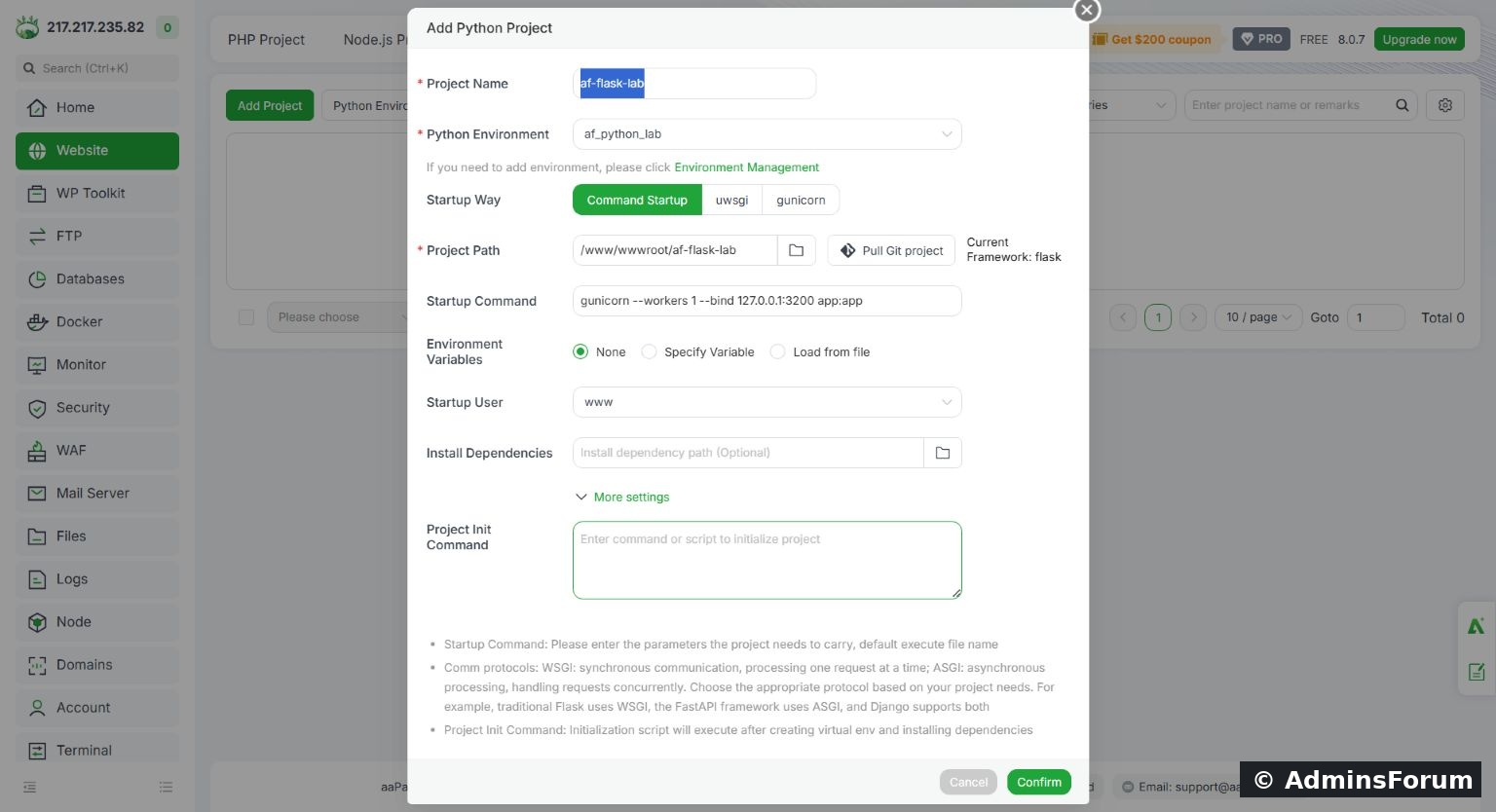
Create the Flask project with the isolated interpreter and localhost Gunicorn command.
The app:app argument means load the app object from app.py. The port must be available. One worker is enough for this tiny lab check, not a universal production sizing recommendation.
5. Wait for project initialization
Click Confirm and let initialization finish. Our panel performed additional environment setup before launching the process. A creation dialog completing does not guarantee that the app is already ready for requests.
Click the project name and inspect Project information. Confirm the interpreter, source folder, run user and startup command.
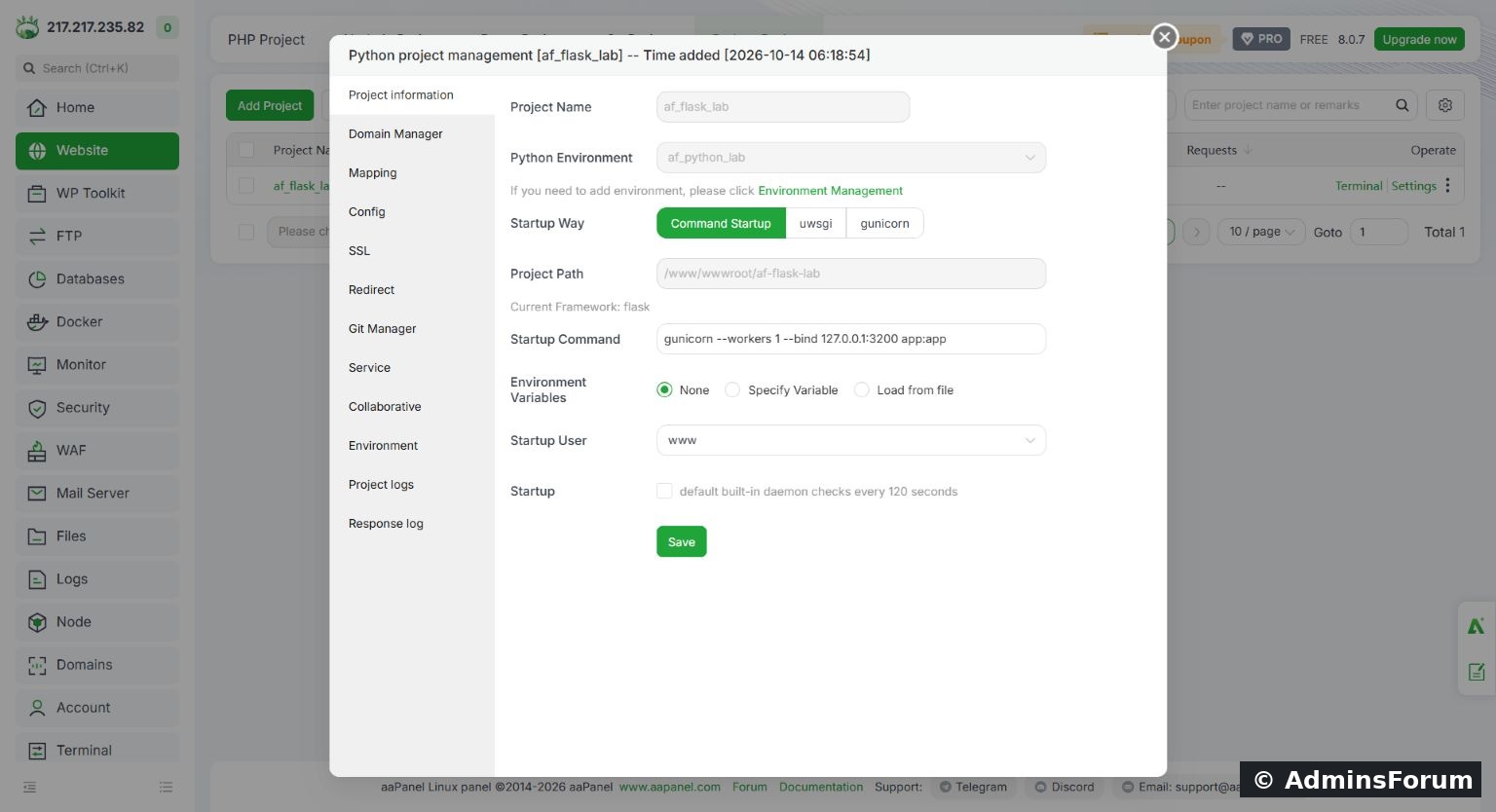
Final project settings retain af_python_lab, the www user and port 3200.
6. Read the startup log
Open Project logs. Our log showed Gunicorn starting, listening at http://127.0.0.1:3200 and booting its worker.
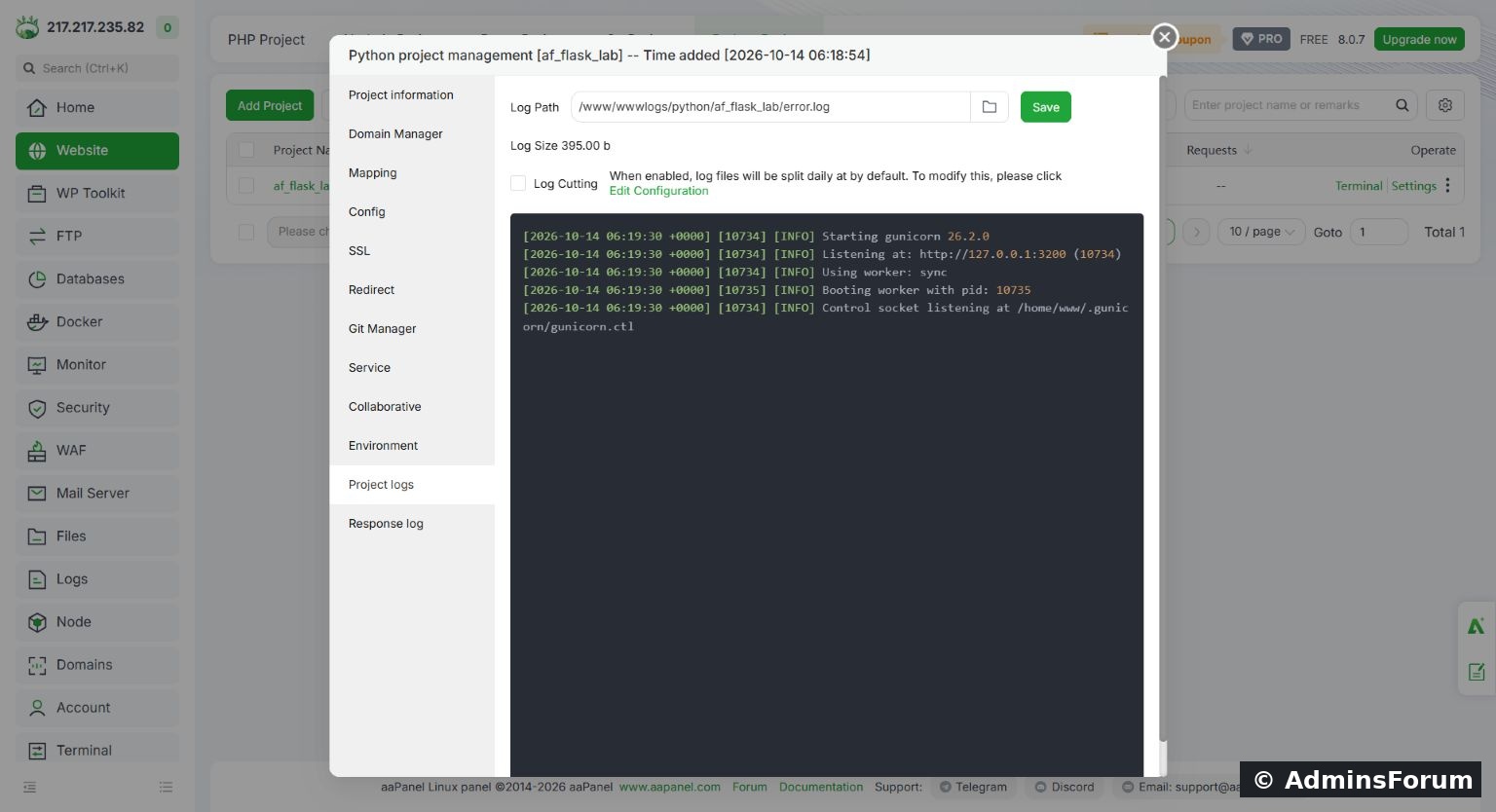
Actual Gunicorn startup output for the sample project.
If the log reports module not found, check the selected environment and working directory. If it reports address already in use, identify the existing listener before trying another launch. Read the complete error before reinstalling packages.
7. Verify the local response
Over SSH on the VPS:
Our response was HTTP 200 with AdminsForum Flask lab. The Gunicorn master and worker ran as www using the selected environment. pip check passed after the panel setup, and the existing Node.js HTTPS website remained healthy.
8. Understand the boundary of this test
The app is listening only on localhost. It is not yet a public HTTPS website. Next, add the intended domain, configure web-server mapping to this port and deploy a certificate. Do not open port 3200 publicly just to bypass the mapping.
Startup-after-reboot is also a separate recovery test. The Startup checkbox for this Python sample remained off during the current test. A successful current response does not prove automatic reboot recovery.
Reference: Flask's Gunicorn deployment documentation.
Tested lab: Ubuntu 22.04.5 LTS, aaPanel Free 8.0.7, Python 3.10.12 in af_python_lab, Flask 3.1.3 and Gunicorn 26.2.0. Tested on 14 October 2026. For a new production project choose a currently maintained Python release compatible with the application; the version here records the existing lab system interpreter.
1. Prepare the environment
Follow Create a Python virtual environment in aaPanel. Our application interpreter is:
Code:
/www/server/pyporject_evn/af_python_lab/bin/python2. Create the application folder
Create a fresh folder /www/wwwroot/af-flask-lab and put app.py inside it:
Code:
from flask import Flask

app = Flask(__name__)

@app.get('/')
def home():
return 'AdminsForum Flask lab'Use www ownership for this new app folder so the selected run user can read it. The app environment also needs suitable ownership for package installation by the intended user. Apply permission changes only to the newly created application environment and folder, not aaPanel's own Python environment.
3. Install Flask and Gunicorn
As www, use the application's exact interpreter:
Code:
/www/server/pyporject_evn/af_python_lab/bin/python -m pip install --index-url https://pypi.org/simple flask gunicorn
/www/server/pyporject_evn/af_python_lab/bin/python -m pip checkGunicorn is the WSGI server for this example. Do not publish a production Flask site using its development server or enable debug mode on a public deployment.
4. Add the Python project
Open Website → Python Project → Add Project. Set:
- Project Name: af_flask_lab
- Python Environment: af_python_lab
- Startup Way: Command Startup
- Project Path: /www/wwwroot/af-flask-lab
- Startup Command: gunicorn --workers 1 --bind 127.0.0.1:3200 app:app
- Startup User: www
- Environment Variables: None for this non-secret sample
Create the Flask project with the isolated interpreter and localhost Gunicorn command.
The app:app argument means load the app object from app.py. The port must be available. One worker is enough for this tiny lab check, not a universal production sizing recommendation.
5. Wait for project initialization
Click Confirm and let initialization finish. Our panel performed additional environment setup before launching the process. A creation dialog completing does not guarantee that the app is already ready for requests.
Click the project name and inspect Project information. Confirm the interpreter, source folder, run user and startup command.
Final project settings retain af_python_lab, the www user and port 3200.
6. Read the startup log
Open Project logs. Our log showed Gunicorn starting, listening at http://127.0.0.1:3200 and booting its worker.
Actual Gunicorn startup output for the sample project.
If the log reports module not found, check the selected environment and working directory. If it reports address already in use, identify the existing listener before trying another launch. Read the complete error before reinstalling packages.
7. Verify the local response
Over SSH on the VPS:
Code:
curl -i http://127.0.0.1:3200/
ss -ltnp | grep ':3200'
ps -eo user,pid,args | grep '[g]unicorn.*3200'8. Understand the boundary of this test
The app is listening only on localhost. It is not yet a public HTTPS website. Next, add the intended domain, configure web-server mapping to this port and deploy a certificate. Do not open port 3200 publicly just to bypass the mapping.
Startup-after-reboot is also a separate recovery test. The Startup checkbox for this Python sample remained off during the current test. A successful current response does not prove automatic reboot recovery.
Reference: Flask's Gunicorn deployment documentation.