



10-13-2026, 01:48 AM
Quick answer
Open the settings for the PHP version used by your website, change Limit of upload, then give post_max_size extra room for the whole request. Verify the limit in WordPress and test a fresh upload. Changing an unused PHP version or the CLI configuration does not fix the website's upload limit.
Our aaPanel 8.0.6 lab used Nginx 1.30.5, PHP-FPM 8.5.11 and WordPress 7.1.3. We raised the displayed WordPress limit from 50 MB to 64 MB, set the POST limit to 72M, corrected a PHP 8.5 memory-cap warning and completed a fresh branded JPEG upload. Screenshots are original AdminsForum lab captures.
1. Check which PHP handles the website
In aaPanel, find the website's selected PHP version. In WordPress, open Tools → Site Health → Info → Server. Record the PHP version and PHP SAPI. Our website reported fpm-fcgi, so we changed the regular PHP-8.5 manager.
OpenLiteSpeed's litespeed SAPI uses a separate lsphp installation. Its settings can differ even when the version number matches. Our earlier OpenLiteSpeed test had an 8M POST limit and therefore an 8 MB effective upload limit. Use the separate-runtime guide before changing that installation. The verified 64 MB screenshots in this post are from PHP-FPM; they are not proof that an unrelated lsphp installation changed automatically.
Back up the applicable PHP and web-server configuration before editing. Note that a version-wide PHP change can affect every website using that version.
2. Record the current upload limit
Open App Store → Installed → PHP-8.5 → Setting. Choose Limit of upload. The lab originally showed 50 MB. WordPress Media → Add Media File also reported 50 MB.
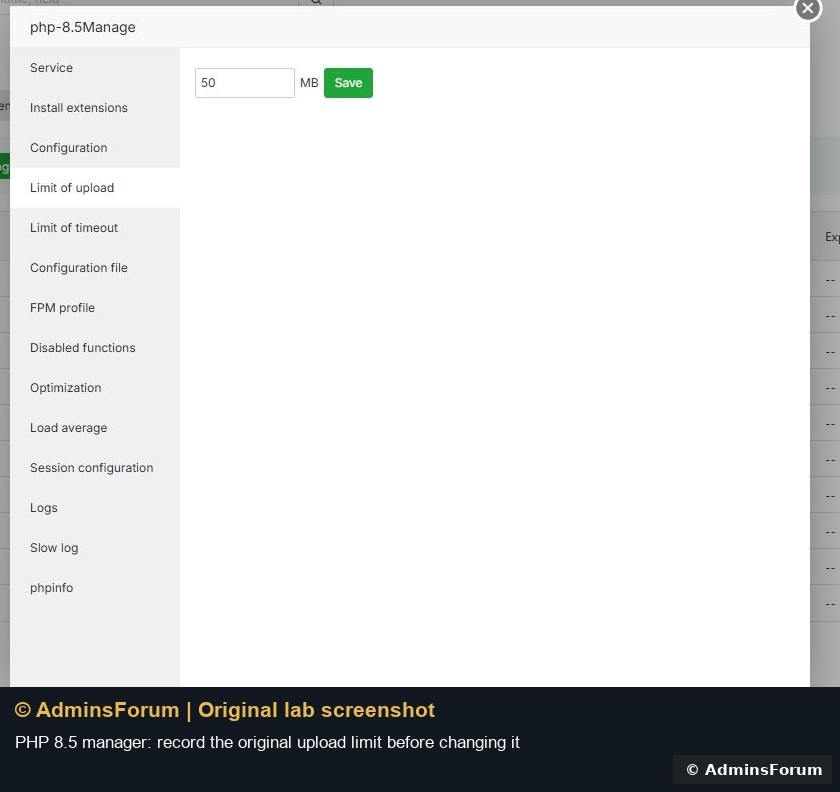
For your site, use its actual version rather than following the number in our example blindly. Choose a limit appropriate to the files and server resources you need.
3. Set the file limit and POST headroom
On Limit of upload, enter 64 and click Save. Wait for completion. Then open Configuration and review upload_max_filesize and post_max_size. Our panel's upload-limit action set both to 64M; we changed post_max_size to 72M and saved again.
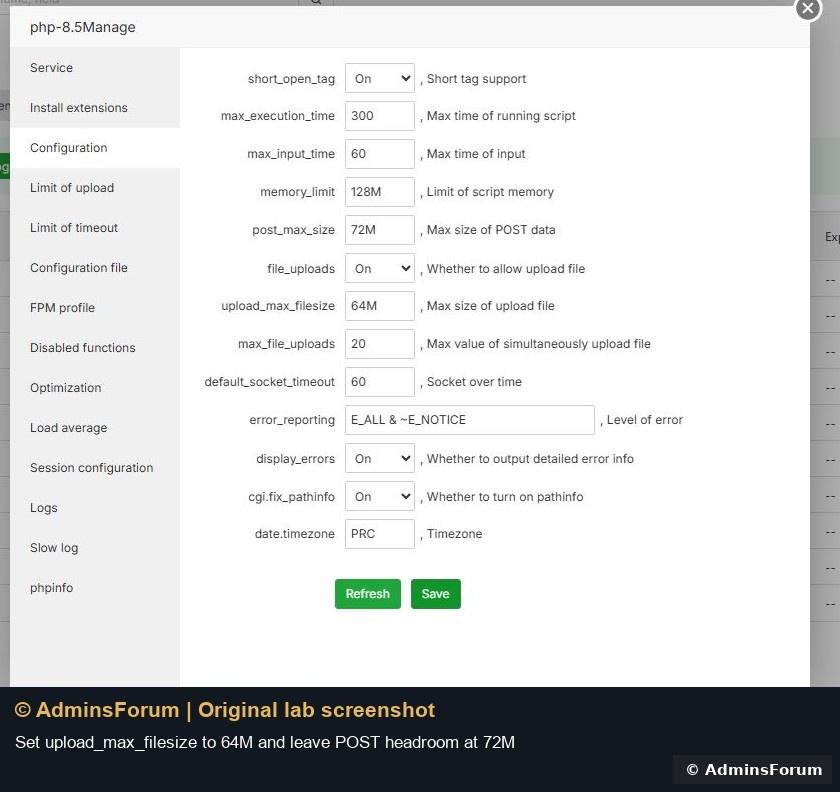
The file limit applies to one uploaded file. POST size applies to the complete request, including form fields and upload overhead. Keep POST size above the intended file size. Our resulting settings were:
These are tested example values, not a universal tuning preset. A large high-resolution image may require much more processing memory than its compressed file size suggests.
4. Handle the PHP 8.5 memory-cap warning if present
Our first upload attempt exposed a warning: WordPress tried to raise memory_limit to 256M for administration, but max_memory_limit capped it at 128M. PHP 8.5 introduced this startup-only ceiling, so changing an application-side memory preference alone may not solve it.
We preserved the original ini file, changed the active PHP-FPM ini directive to:
The normal frontend memory_limit remained 128M. This allowed WordPress's administration request to use 256M without setting unlimited memory. We also set display_errors = Off while keeping log_errors = On, so diagnostics are logged rather than inserted into public pages or upload responses. The configuration screenshot above was taken before that final error-display change.
In aaPanel, use the matching PHP manager's Configuration file editor for directives absent from its simple form. Make only the intended change and preserve the rest of the file. The lab's relevant ini path was /www/server/php/85/etc/php.ini; confirm your own loaded path first.
5. Validate and reload the correct PHP service
We checked the PHP-FPM configuration successfully, then reloaded PHP-FPM 8.5. The exact service-specific commands used in this lab were:
Inspect the test result before reloading. If it fails, correct the syntax or restore the saved configuration. Do not reload a different PHP version and assume the website received the change. An lsphp website needs its own appropriate worker/service reload.
6. Verify an actual WordPress request
Refresh Tools → Site Health → Info → Server. Our website reported upload_max_filesize 64M, post_max_size 72M, frontend memory 128M and administration memory 256M.
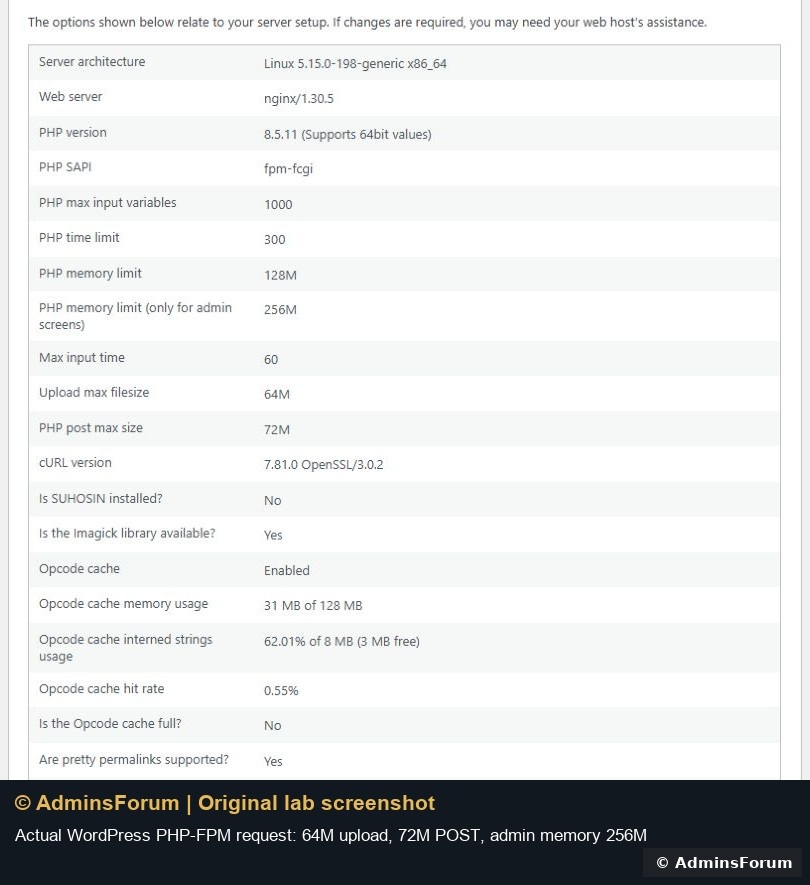
Then reopen Media → Add Media File. WordPress showed Maximum upload file size: 64 MB. We uploaded a fresh original branded JPEG successfully; the upload finished and offered Edit and Copy URL actions without the earlier memory warning.
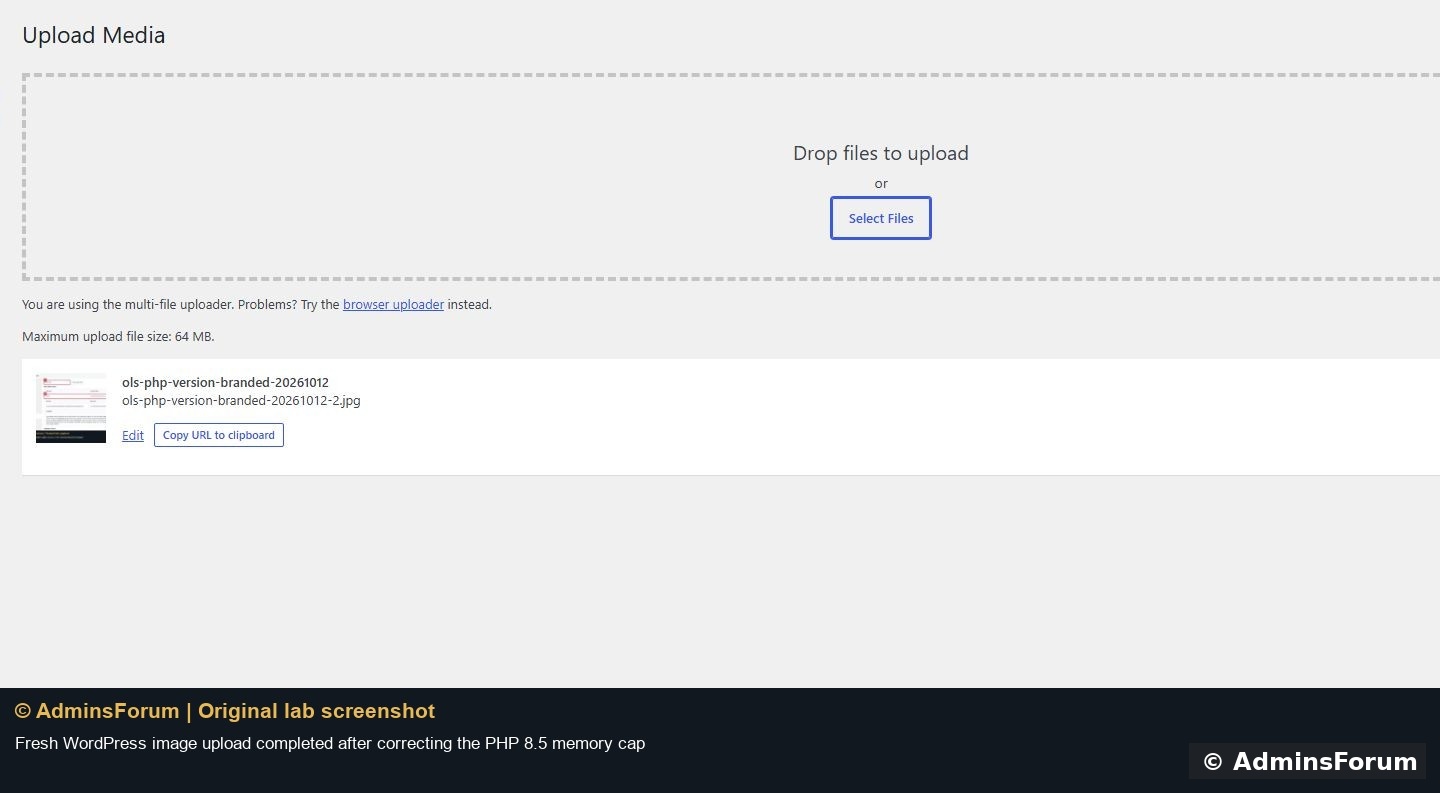
We verified the settings and a normal image upload. We did not test a file exactly at the 64 MB boundary, so this post does not claim a maximum-size stress test.
If uploads still fail
Keep the previous values and configuration backup for rollback. Check application behavior after reverting and reloading as carefully as after increasing the limit.
Reference: PHP resource and upload directives. © AdminsForum.
Open the settings for the PHP version used by your website, change Limit of upload, then give post_max_size extra room for the whole request. Verify the limit in WordPress and test a fresh upload. Changing an unused PHP version or the CLI configuration does not fix the website's upload limit.
Our aaPanel 8.0.6 lab used Nginx 1.30.5, PHP-FPM 8.5.11 and WordPress 7.1.3. We raised the displayed WordPress limit from 50 MB to 64 MB, set the POST limit to 72M, corrected a PHP 8.5 memory-cap warning and completed a fresh branded JPEG upload. Screenshots are original AdminsForum lab captures.
1. Check which PHP handles the website
In aaPanel, find the website's selected PHP version. In WordPress, open Tools → Site Health → Info → Server. Record the PHP version and PHP SAPI. Our website reported fpm-fcgi, so we changed the regular PHP-8.5 manager.
OpenLiteSpeed's litespeed SAPI uses a separate lsphp installation. Its settings can differ even when the version number matches. Our earlier OpenLiteSpeed test had an 8M POST limit and therefore an 8 MB effective upload limit. Use the separate-runtime guide before changing that installation. The verified 64 MB screenshots in this post are from PHP-FPM; they are not proof that an unrelated lsphp installation changed automatically.
Back up the applicable PHP and web-server configuration before editing. Note that a version-wide PHP change can affect every website using that version.
2. Record the current upload limit
Open App Store → Installed → PHP-8.5 → Setting. Choose Limit of upload. The lab originally showed 50 MB. WordPress Media → Add Media File also reported 50 MB.
For your site, use its actual version rather than following the number in our example blindly. Choose a limit appropriate to the files and server resources you need.
3. Set the file limit and POST headroom
On Limit of upload, enter 64 and click Save. Wait for completion. Then open Configuration and review upload_max_filesize and post_max_size. Our panel's upload-limit action set both to 64M; we changed post_max_size to 72M and saved again.
The file limit applies to one uploaded file. POST size applies to the complete request, including form fields and upload overhead. Keep POST size above the intended file size. Our resulting settings were:
Code:
upload_max_filesize = 64M
post_max_size = 72M
memory_limit = 128M
These are tested example values, not a universal tuning preset. A large high-resolution image may require much more processing memory than its compressed file size suggests.
4. Handle the PHP 8.5 memory-cap warning if present
Our first upload attempt exposed a warning: WordPress tried to raise memory_limit to 256M for administration, but max_memory_limit capped it at 128M. PHP 8.5 introduced this startup-only ceiling, so changing an application-side memory preference alone may not solve it.
We preserved the original ini file, changed the active PHP-FPM ini directive to:
Code:
max_memory_limit = 256MThe normal frontend memory_limit remained 128M. This allowed WordPress's administration request to use 256M without setting unlimited memory. We also set display_errors = Off while keeping log_errors = On, so diagnostics are logged rather than inserted into public pages or upload responses. The configuration screenshot above was taken before that final error-display change.
In aaPanel, use the matching PHP manager's Configuration file editor for directives absent from its simple form. Make only the intended change and preserve the rest of the file. The lab's relevant ini path was /www/server/php/85/etc/php.ini; confirm your own loaded path first.
5. Validate and reload the correct PHP service
We checked the PHP-FPM configuration successfully, then reloaded PHP-FPM 8.5. The exact service-specific commands used in this lab were:
Code:
/www/server/php/85/sbin/php-fpm -t
/etc/init.d/php-fpm-85 reload
Inspect the test result before reloading. If it fails, correct the syntax or restore the saved configuration. Do not reload a different PHP version and assume the website received the change. An lsphp website needs its own appropriate worker/service reload.
6. Verify an actual WordPress request
Refresh Tools → Site Health → Info → Server. Our website reported upload_max_filesize 64M, post_max_size 72M, frontend memory 128M and administration memory 256M.
Then reopen Media → Add Media File. WordPress showed Maximum upload file size: 64 MB. We uploaded a fresh original branded JPEG successfully; the upload finished and offered Edit and Copy URL actions without the earlier memory warning.
We verified the settings and a normal image upload. We did not test a file exactly at the 64 MB boundary, so this post does not claim a maximum-size stress test.
If uploads still fail
- The old limit remains: confirm the actual PHP handler, loaded ini and fresh request after the relevant reload.
- 413 Request Entity Too Large: inspect the applicable web-server/reverse-proxy request-body limit; changing PHP alone may not change every upstream layer.
- POST data disappears or the upload is empty: check the whole-request POST limit and temporary upload directory.
- Upload reaches the server but image processing fails: inspect logs, memory ceilings, image dimensions, filesystem permissions and the image library.
Keep the previous values and configuration backup for rollback. Check application behavior after reverting and reloading as carefully as after increasing the limit.
Reference: PHP resource and upload directives. © AdminsForum.