



10-16-2026, 06:29 PM
For a PHP cron job in aaPanel, specify the full path to the required PHP executable and the script, set its working directory deliberately and inspect the actual output. A website's PHP version setting does not establish which executable a shell command named php will run.
We tested this on aaPanel 8.0.7 on 16 October 2026. A harmless diagnostic script was run through two installed CLI binaries, then through a new aaPanel Shell Script task using the PHP 8.5 path. We manually executed that task, inspected its log and stopped its schedule. We did not change global PHP links, website PHP assignments, credentials or existing cron jobs.
1. Identify the runtime your application requires
Check the application's supported PHP versions and extensions before selecting a binary. Cron jobs may run application commands, queue workers or maintenance scripts; their requirements belong to that application. Do not upgrade a production job merely because a newer PHP runtime is installed.
Our lab's executables were:
These paths are examples from this installation. Other PHP versions, installations and OpenLiteSpeed lsphp can use different paths. Verify the executable you intend to use instead of copying an unavailable path.
2. Use a harmless diagnostic before a real job
We prepared /www/backup/af-php-cli-lab-20261016/verify.php outside the website document roots:
This prints the version, interface, loaded configuration file, current directory and Fileinfo availability. It does not print environment variables, credentials or application data. Keep diagnostics private; do not leave a public phpinfo page available on a website.
The PHP manual documents command-line file execution. CLI and web execution are different contexts, so verify the observed values rather than assuming one panel setting controls both.
3. Compare the installed CLI versions
From SSH we ran the same script from the same folder with each explicit executable. Both commands exited with code 0. The results were:
4. Create an aaPanel Shell Script task with an explicit path
Open Cron and choose Shell Script. Give the test a distinctive name. Ours was AdminsForum PHP CLI runtime lab. In Script content we entered:
The first command sets the working directory. The && means PHP runs only if that directory change succeeds. Use the actual application directory and approved command for a real job. Quote paths containing spaces appropriately; our lab paths contain none.
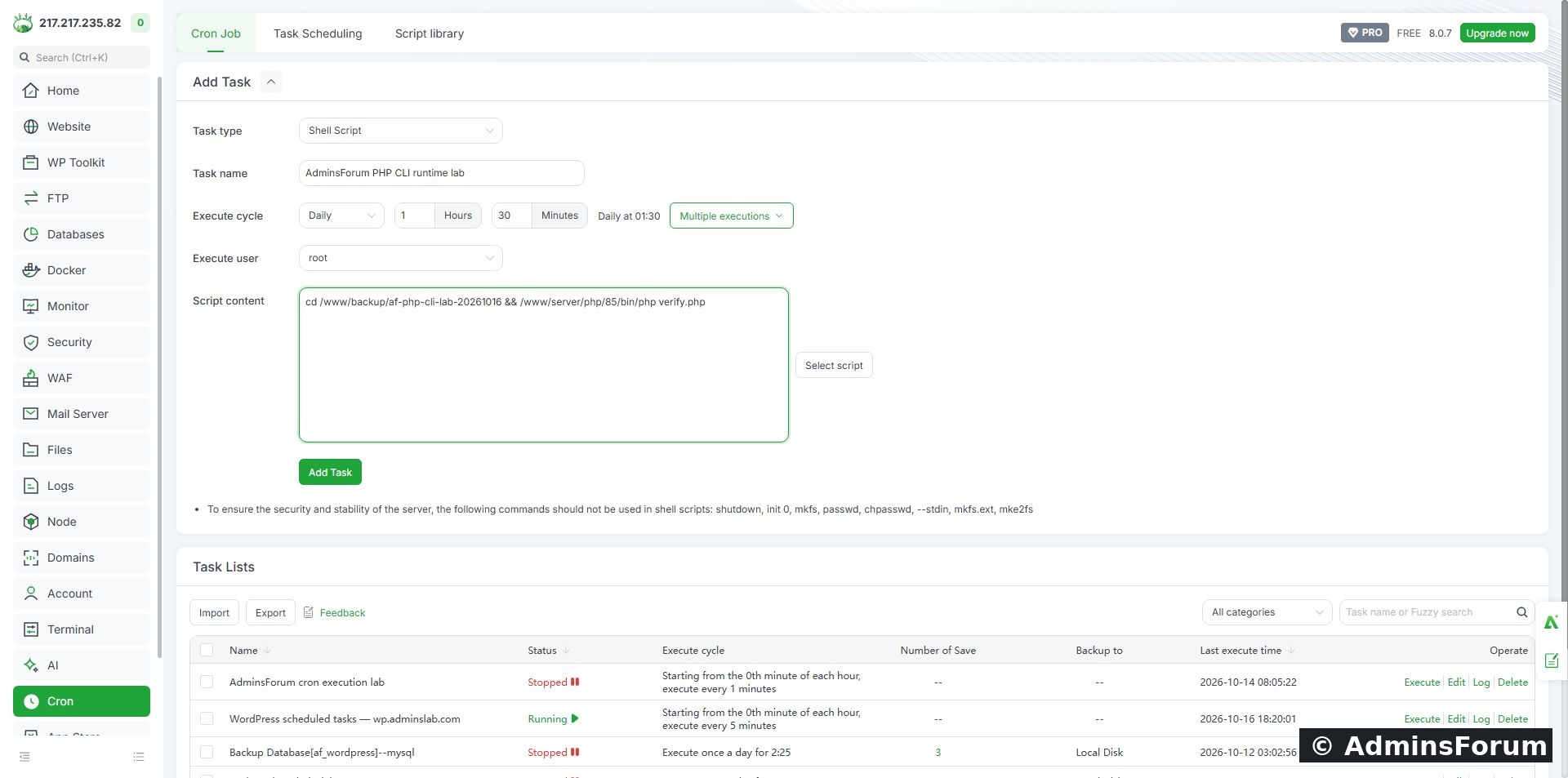
Actual lab task form. The diagnostic names the PHP executable explicitly rather than relying on the shell's PATH.
We retained a Daily 01:30 cycle solely while creating this disposable task, then stopped it after the manual check. We did not wait for or claim a scheduled 01:30 execution. The form's default user was root; that was used for this read-only diagnostic. For production application jobs, use an existing account with the access needed for that application and its output files. Do not copy root as a default recommendation.
5. Execute once and inspect the output
After adding the task, find its exact name in Task Lists. Use Execute on that row, review the confirmation and confirm only the intended harmless job. Then open Log.
Our log at 18:25:11 UTC showed PHP 8.5.11, SAPI cli, /www/server/php/85/etc/php-cli.ini, the intended working directory and Fileinfo true. That matched the earlier direct CLI test.
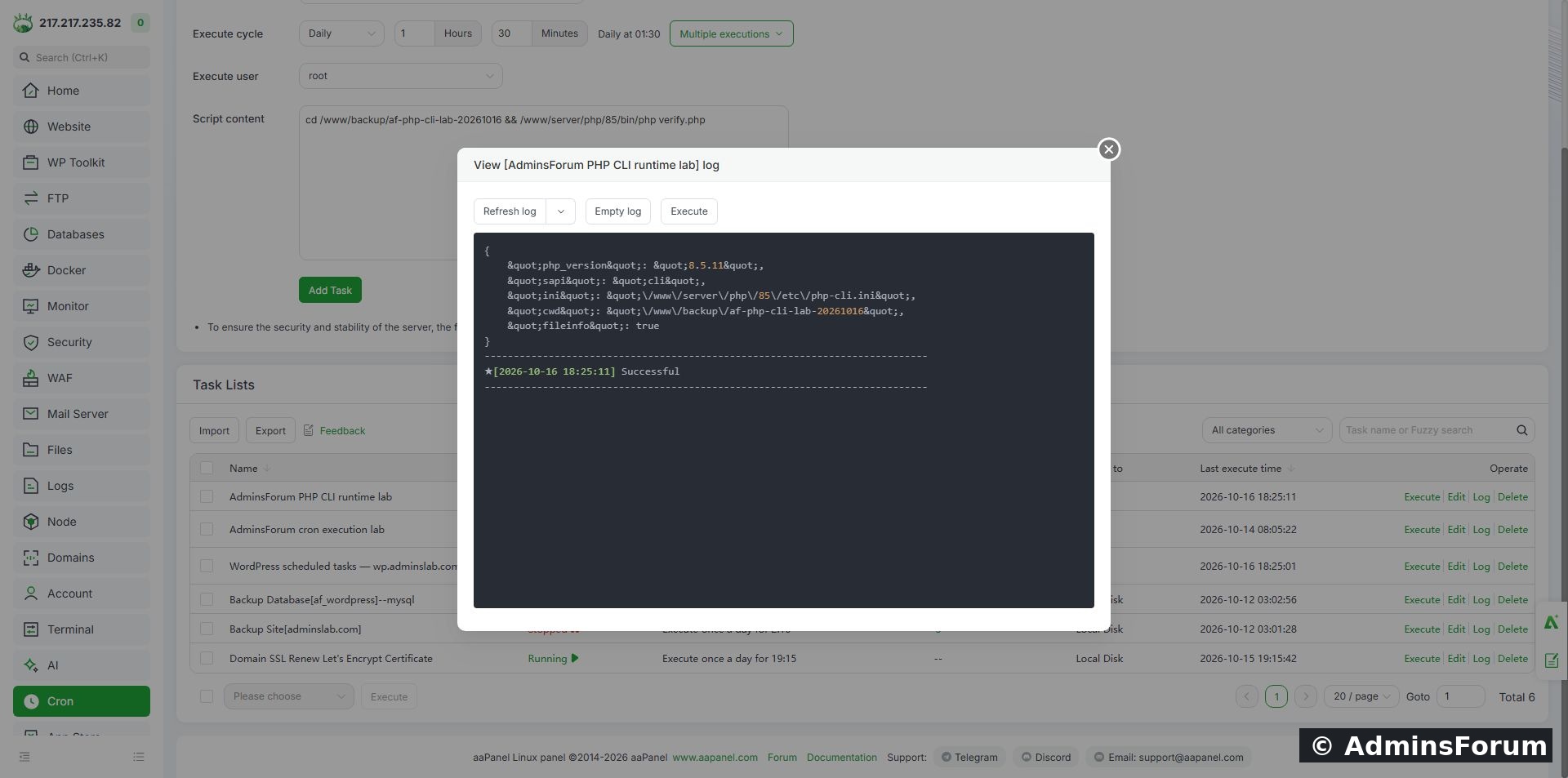
Actual task output. This panel rendered JSON quote characters as " text in the log viewer; the runtime values remain identifiable. We checked the diagnostic values rather than relying only on the Successful footer.
For a real maintenance task, also verify its intended result. A generated report must exist and contain the expected data; a backup must be readable and restorable. An exit status or panel footer alone does not prove the business task succeeded.
6. Stop the test schedule
Close the log, click Running in this test task's Status cell and confirm deactivation. Wait for the row to show Stopped. We left this disabled task and its log for reference; the existing WordPress and certificate-renewal schedules were not changed.
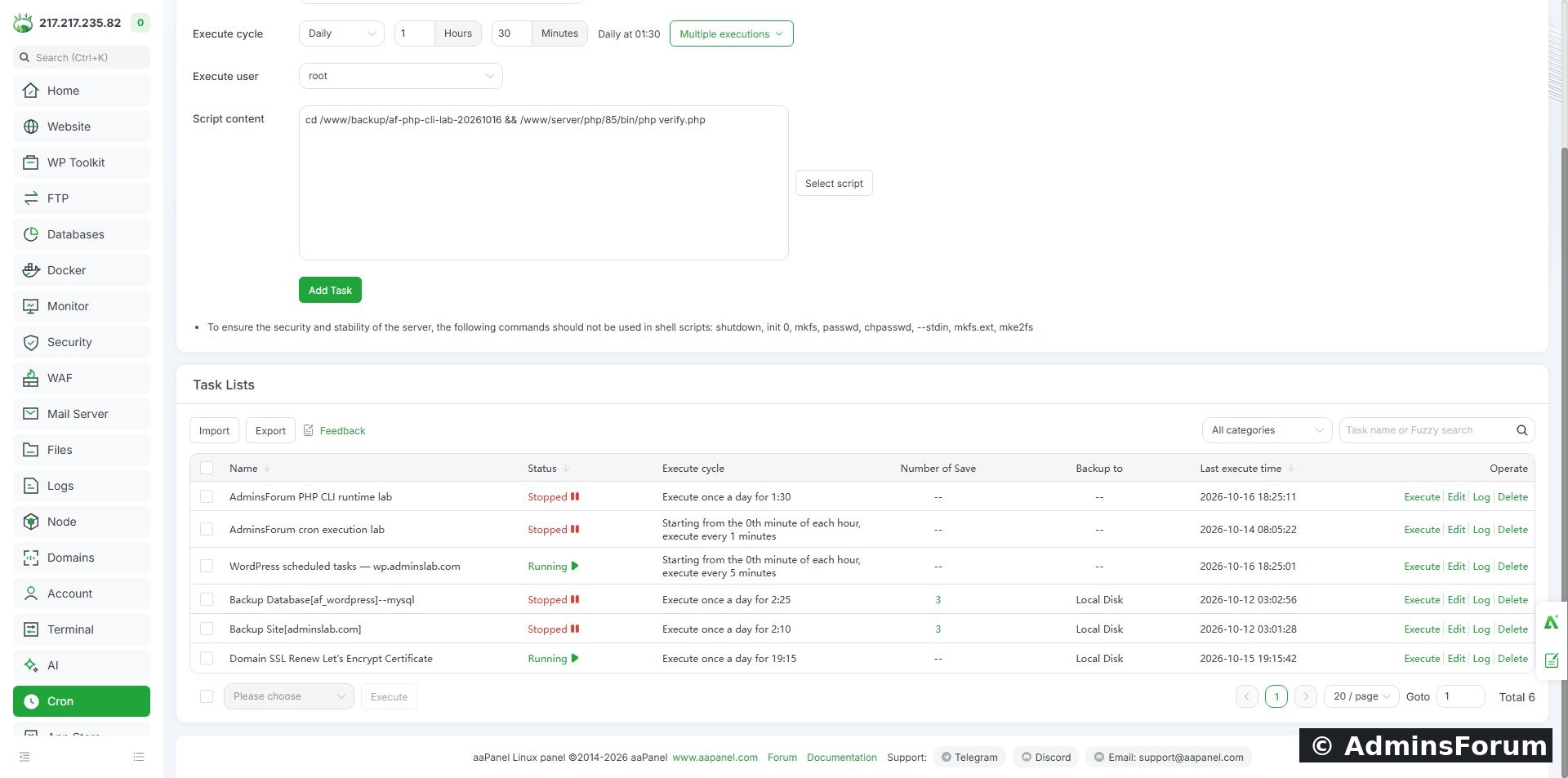
The completed PHP CLI test task is Stopped. Manual execution was tested; automatic scheduling was not retested in this lesson.
If a PHP job fails
Related guides
Create and Test a Scheduled Shell Script.
PHP CLI versus PHP-FPM OPcache Checks.
OpenLiteSpeed PHP Version and Extensions.
References
aaPanel Cron task controls.
PHP command-line usage.
We tested this on aaPanel 8.0.7 on 16 October 2026. A harmless diagnostic script was run through two installed CLI binaries, then through a new aaPanel Shell Script task using the PHP 8.5 path. We manually executed that task, inspected its log and stopped its schedule. We did not change global PHP links, website PHP assignments, credentials or existing cron jobs.
1. Identify the runtime your application requires
Check the application's supported PHP versions and extensions before selecting a binary. Cron jobs may run application commands, queue workers or maintenance scripts; their requirements belong to that application. Do not upgrade a production job merely because a newer PHP runtime is installed.
Our lab's executables were:
Code:
/www/server/php/84/bin/php
/www/server/php/85/bin/php2. Use a harmless diagnostic before a real job
We prepared /www/backup/af-php-cli-lab-20261016/verify.php outside the website document roots:
Code:
<?php
echo json_encode([
    'php_version' => PHP_VERSION,
    'sapi' => PHP_SAPI,
    'ini' => php_ini_loaded_file(),
    'cwd' => getcwd(),
    'fileinfo' => extension_loaded('fileinfo')
], JSON_PRETTY_PRINT) . PHP_EOL;The PHP manual documents command-line file execution. CLI and web execution are different contexts, so verify the observed values rather than assuming one panel setting controls both.
3. Compare the installed CLI versions
From SSH we ran the same script from the same folder with each explicit executable. Both commands exited with code 0. The results were:
- PHP 8.4 path: version 8.4.26, SAPI cli, configuration /www/server/php/84/etc/php-cli.ini, Fileinfo false.
- PHP 8.5 path: version 8.5.11, SAPI cli, configuration /www/server/php/85/etc/php-cli.ini, Fileinfo true.
4. Create an aaPanel Shell Script task with an explicit path
Open Cron and choose Shell Script. Give the test a distinctive name. Ours was AdminsForum PHP CLI runtime lab. In Script content we entered:
Code:
cd /www/backup/af-php-cli-lab-20261016 && /www/server/php/85/bin/php verify.phpActual lab task form. The diagnostic names the PHP executable explicitly rather than relying on the shell's PATH.
We retained a Daily 01:30 cycle solely while creating this disposable task, then stopped it after the manual check. We did not wait for or claim a scheduled 01:30 execution. The form's default user was root; that was used for this read-only diagnostic. For production application jobs, use an existing account with the access needed for that application and its output files. Do not copy root as a default recommendation.
5. Execute once and inspect the output
After adding the task, find its exact name in Task Lists. Use Execute on that row, review the confirmation and confirm only the intended harmless job. Then open Log.
Our log at 18:25:11 UTC showed PHP 8.5.11, SAPI cli, /www/server/php/85/etc/php-cli.ini, the intended working directory and Fileinfo true. That matched the earlier direct CLI test.
Actual task output. This panel rendered JSON quote characters as " text in the log viewer; the runtime values remain identifiable. We checked the diagnostic values rather than relying only on the Successful footer.
For a real maintenance task, also verify its intended result. A generated report must exist and contain the expected data; a backup must be readable and restorable. An exit status or panel footer alone does not prove the business task succeeded.
6. Stop the test schedule
Close the log, click Running in this test task's Status cell and confirm deactivation. Wait for the row to show Stopped. We left this disabled task and its log for reference; the existing WordPress and certificate-renewal schedules were not changed.
The completed PHP CLI test task is Stopped. Manual execution was tested; automatic scheduling was not retested in this lesson.
If a PHP job fails
- Command not found: verify the full executable path and installed runtime.
- Could not open input file: check the script path, working directory and task user's read access.
- Undefined function or missing extension: inspect the runtime used by that exact job, not just the website's extension screen.
- Works in a terminal only: compare user, working directory, configuration and required application environment. Do not print secrets into logs while checking them.
- Old output after an edit: compare the saved task with its actual execution behavior before enabling a changed production job.
Related guides
Create and Test a Scheduled Shell Script.
PHP CLI versus PHP-FPM OPcache Checks.
OpenLiteSpeed PHP Version and Extensions.
References
aaPanel Cron task controls.
PHP command-line usage.