



10-13-2026, 03:32 PM
To enable Intl in aaPanel, open the PHP version used by your website, choose Install extensions, install intl, and check the loaded-module list after the task completes. This addresses a missing extension; it does not resolve every application error.
Tested setup
Ubuntu 22.04, aaPanel 8.0.7 Free Edition, PHP 8.5.11. We installed Intl in our lab using aaPanel's official PHP manager. The installation log reported success and a PHP-FPM reload; the refreshed extension list showed Uninstall, and the PHP information screen included intl under Loaded. These screenshots document that test. A separate website request and command-line test were not performed in this rehearsal.
What is Intl used for?
Intl provides internationalization functions. For example, NumberFormatter formats a number or currency according to a locale. Some applications require ext-intl and may report that it is missing, or show a class-not-found error for NumberFormatter. Check the application's requirements before adding extensions.
1. Find the PHP version your website uses
Open Website, select the relevant site's settings and check its PHP version. Record it before opening App Store. A server can have several PHP versions installed: an extension added to PHP 8.5 does not automatically become available in PHP 8.4.
If the website uses OpenLiteSpeed, also check its configured PHP handler. Its runtime can differ from the PHP-FPM version managed here. Do not change a working site's PHP version just to match these screenshots.
2. Open the correct PHP manager
Open App Store, search for PHP, find the installed version used by the website and click Setting. Select Install extensions. Find the row named intl. The search field can narrow the list; allow the result to refresh.
If Intl already shows an installed status and an Uninstall action, skip installation and proceed to verification. Do not uninstall it as a troubleshooting shortcut.
3. Install Intl and follow the task
Click Install on the intl row and confirm the installation. The row changes to Installing.... Open that status link to inspect the task log. Compilation produces many lines and may take several minutes. Do not submit the same installation repeatedly or restart the panel while the build is progressing.
In our test the log ended with a successful build, shared-extension installation and Reload service php-fpm done.
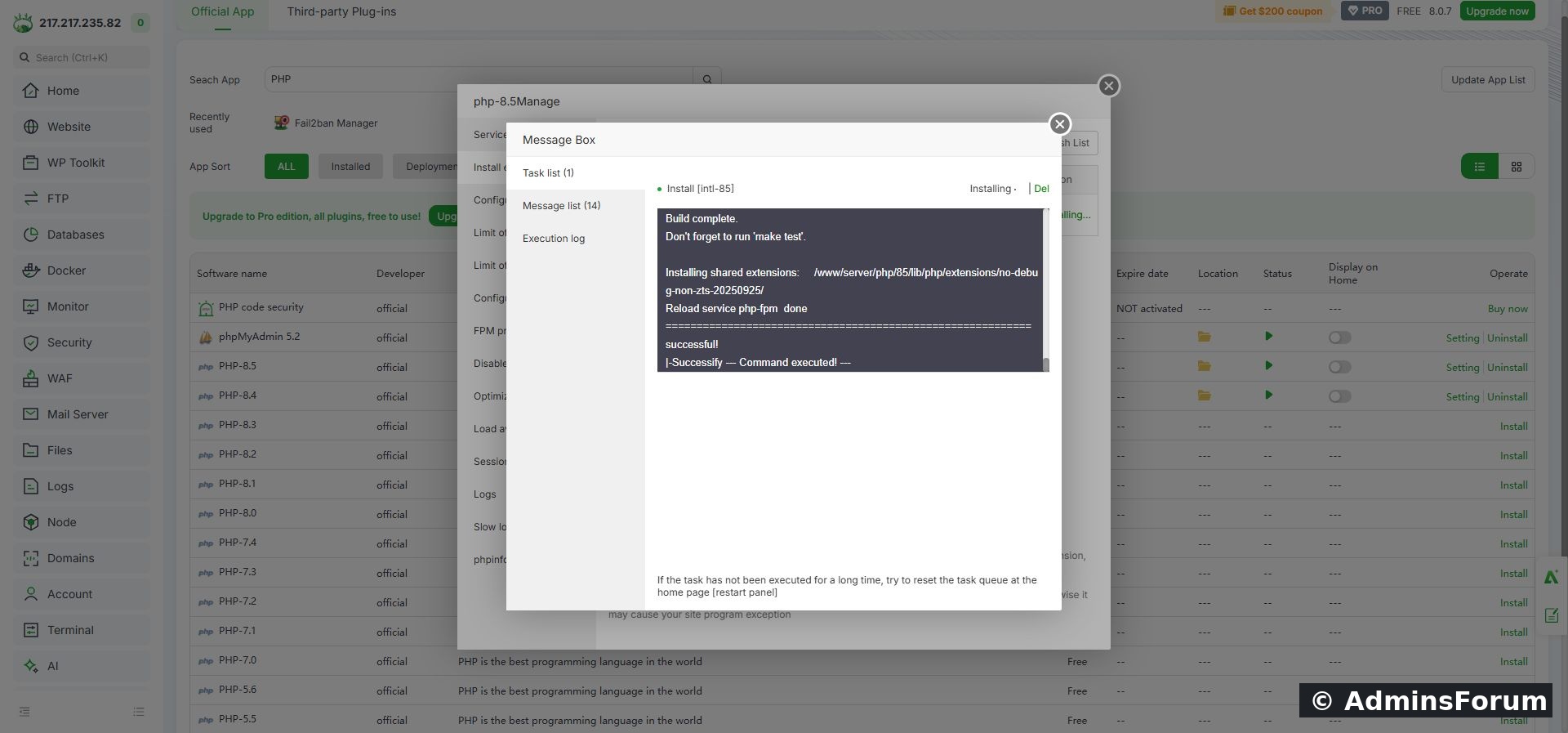
Completed installer log from the PHP 8.5 lab. A queued task alone is not proof of success.
4. Refresh and verify the installed extension
Return to Install extensions and click Refresh List. Wait for the loading message to disappear. In our lab the intl row changed from Install to Uninstall, confirming the manager's installed status.
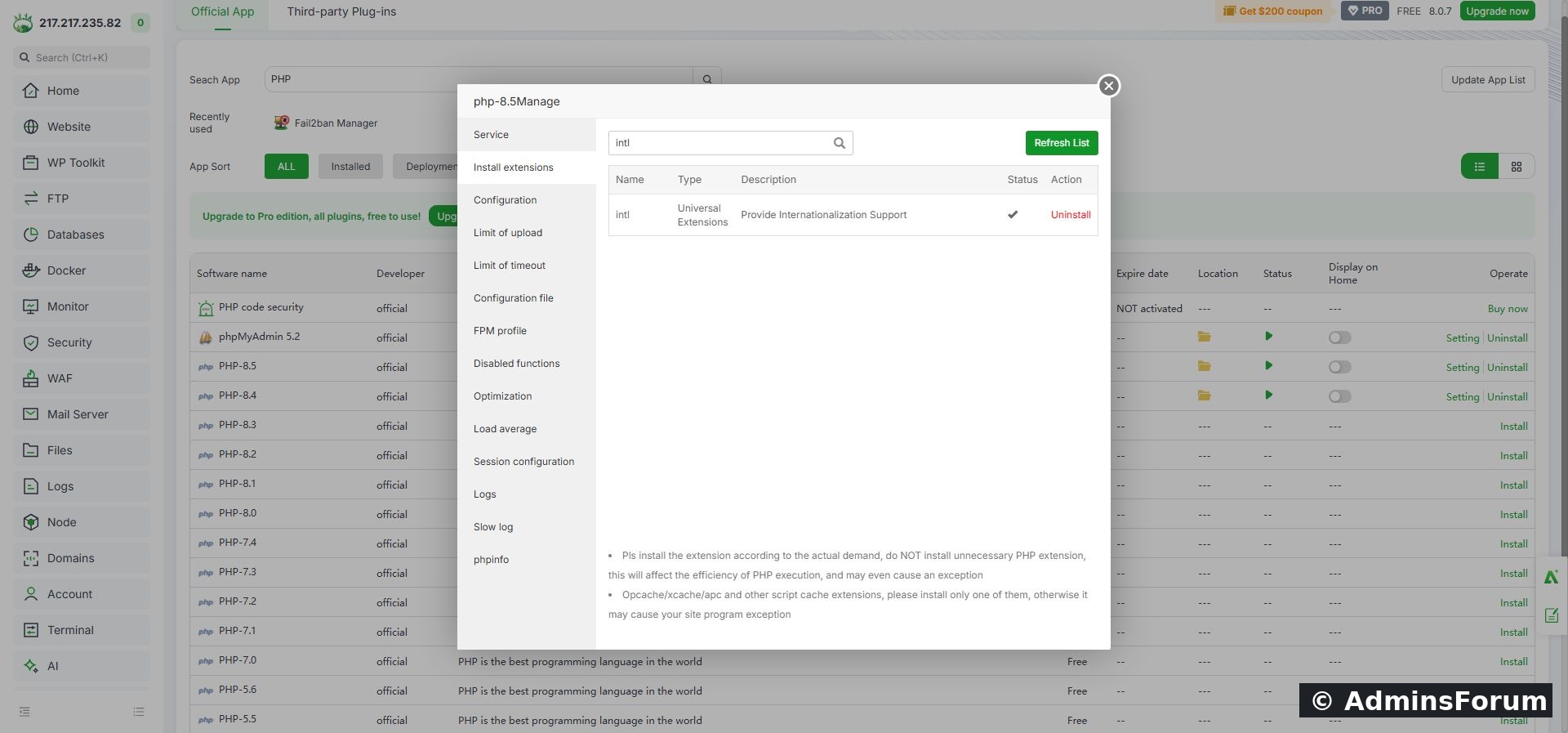
Intl installed for PHP 8.5. Leave the Uninstall control untouched.
Select phpinfo in the same manager. Check the version and the Loaded list. Our screen reports 8.5.11 and includes intl. This checks the manager's PHP runtime; verify the website separately if its error remains.
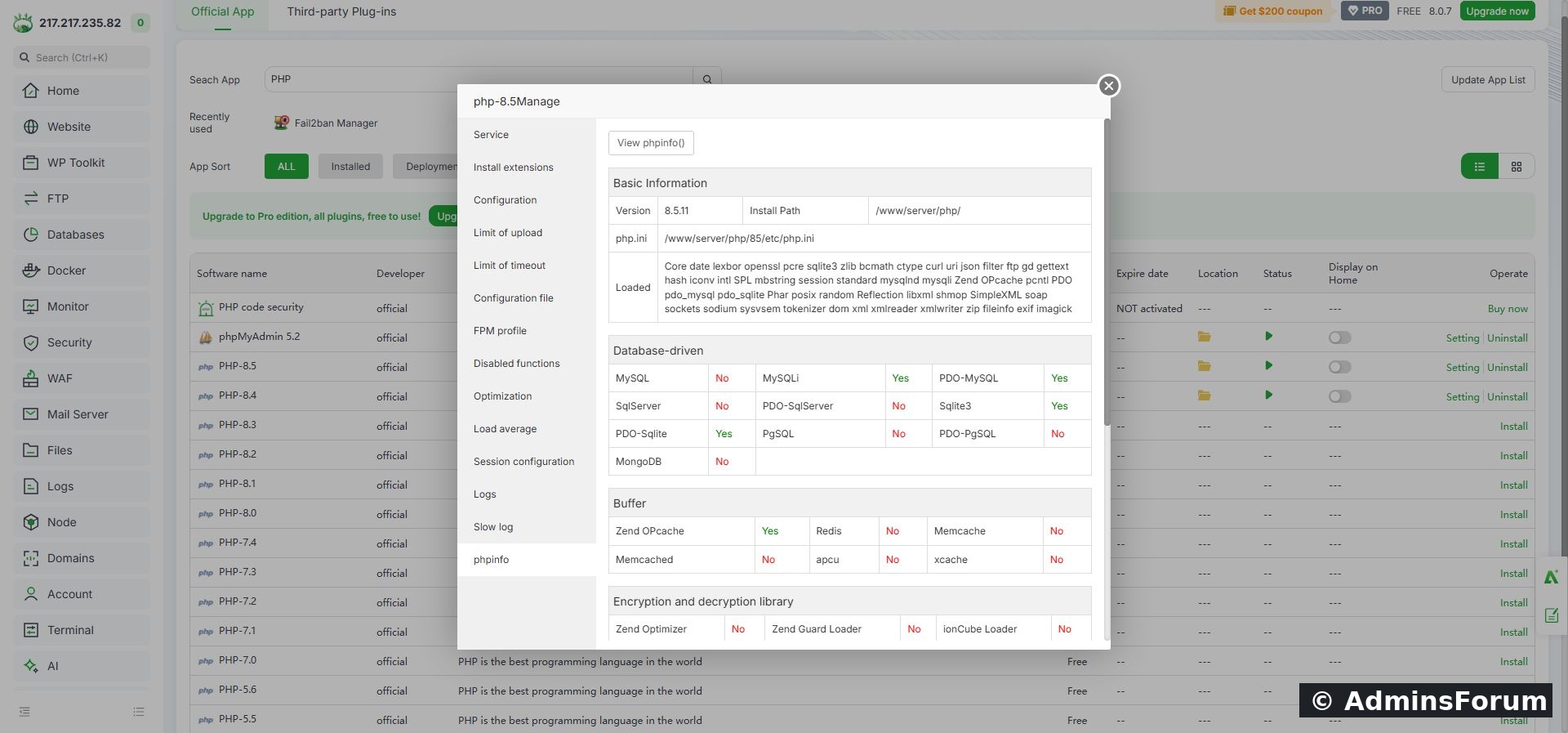
The PHP information screen lists intl among loaded extensions.
5. Recheck the application
Reload the application's requirements check or the page that originally failed. Confirm that its PHP version matches the version you modified. If you have SSH access, this optional command checks the aaPanel PHP 8.5 CLI binary:
A loaded extension returns true. Replace 85 with your installed version's directory. Running plain php may check a different system binary. This command is an additional check for readers, not output captured in our rehearsal.
Troubleshooting
Success checklist
The installer finishes successfully, the intl row shows installed, the correct runtime lists intl, and the application's missing-extension check clears. Only the first three were directly verified in this lab rehearsal.
Reference: PHP NumberFormatter documentation and PHP Intl installation documentation.
Need help? Post your aaPanel version, website PHP version and the relevant installation error in PHP & Extensions Support. Remove credentials and private tokens from screenshots or logs.
Tested setup
Ubuntu 22.04, aaPanel 8.0.7 Free Edition, PHP 8.5.11. We installed Intl in our lab using aaPanel's official PHP manager. The installation log reported success and a PHP-FPM reload; the refreshed extension list showed Uninstall, and the PHP information screen included intl under Loaded. These screenshots document that test. A separate website request and command-line test were not performed in this rehearsal.
What is Intl used for?
Intl provides internationalization functions. For example, NumberFormatter formats a number or currency according to a locale. Some applications require ext-intl and may report that it is missing, or show a class-not-found error for NumberFormatter. Check the application's requirements before adding extensions.
1. Find the PHP version your website uses
Open Website, select the relevant site's settings and check its PHP version. Record it before opening App Store. A server can have several PHP versions installed: an extension added to PHP 8.5 does not automatically become available in PHP 8.4.
If the website uses OpenLiteSpeed, also check its configured PHP handler. Its runtime can differ from the PHP-FPM version managed here. Do not change a working site's PHP version just to match these screenshots.
2. Open the correct PHP manager
Open App Store, search for PHP, find the installed version used by the website and click Setting. Select Install extensions. Find the row named intl. The search field can narrow the list; allow the result to refresh.
If Intl already shows an installed status and an Uninstall action, skip installation and proceed to verification. Do not uninstall it as a troubleshooting shortcut.
3. Install Intl and follow the task
Click Install on the intl row and confirm the installation. The row changes to Installing.... Open that status link to inspect the task log. Compilation produces many lines and may take several minutes. Do not submit the same installation repeatedly or restart the panel while the build is progressing.
In our test the log ended with a successful build, shared-extension installation and Reload service php-fpm done.
Completed installer log from the PHP 8.5 lab. A queued task alone is not proof of success.
4. Refresh and verify the installed extension
Return to Install extensions and click Refresh List. Wait for the loading message to disappear. In our lab the intl row changed from Install to Uninstall, confirming the manager's installed status.
Intl installed for PHP 8.5. Leave the Uninstall control untouched.
Select phpinfo in the same manager. Check the version and the Loaded list. Our screen reports 8.5.11 and includes intl. This checks the manager's PHP runtime; verify the website separately if its error remains.
The PHP information screen lists intl among loaded extensions.
5. Recheck the application
Reload the application's requirements check or the page that originally failed. Confirm that its PHP version matches the version you modified. If you have SSH access, this optional command checks the aaPanel PHP 8.5 CLI binary:
Code:
/www/server/php/85/bin/php -r 'echo PHP_VERSION, PHP_EOL; var_export(extension_loaded("intl")); echo PHP_EOL;'Troubleshooting
- The task fails: read the first actual error in the log. A compiler/dependency error needs its own fix; a final queue message does not explain the cause. Include the PHP version and relevant error when asking for support.
- Installed but still missing: check the website's PHP version, PHP handler and application's requirements screen. The CLI and web runtime may differ.
- Duplicate loading warning: inspect the relevant configuration for repeated extension entries. Avoid adding extension=intl blindly after the manager has already configured it.
- No intl row: refresh the official app/extension list and check support for your PHP version. Installing the operating system's php-intl package may affect system PHP rather than aaPanel's PHP installation.
Success checklist
The installer finishes successfully, the intl row shows installed, the correct runtime lists intl, and the application's missing-extension check clears. Only the first three were directly verified in this lab rehearsal.
Reference: PHP NumberFormatter documentation and PHP Intl installation documentation.
Need help? Post your aaPanel version, website PHP version and the relevant installation error in PHP & Extensions Support. Remove credentials and private tokens from screenshots or logs.