



10-13-2026, 03:33 AM
Quick answer
Use Settings → Panel SSL → Modify → Lets Encrypt to request a certificate for your panel hostname, then sign in through that same hostname. A website's SSL certificate does not automatically secure the separate aaPanel listener.
Lab result
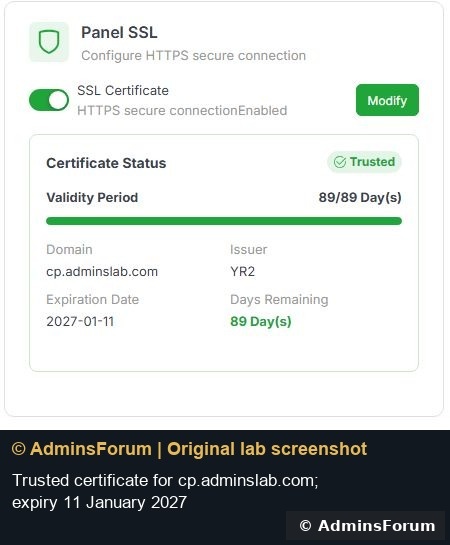
On aaPanel 8.0.6, the native panel-certificate workflow deployed a trusted certificate for cp.adminslab.com. The panel keeps its existing port 18443. The certificate expires on 11 January 2027, and a client using its normal trusted CA store verified the hostname and negotiated TLS 1.3. The domain login succeeded.
1. Prepare DNS and recovery
Create a dedicated DNS-only A record pointing to the VPS before requesting the certificate. Use the existing panel port and keep its security entrance private. Our record is cp.adminslab.com → 217.217.235.82; substitute your own hostname and IP.
Keep an independent SSH or provider-console recovery route. Back up panel configuration and certificate files privately before replacing them. Do not put certificate private keys in a public web folder or attach them to a support thread.
If you use a CDN, redirection or validation rules, ensure they will not intercept the certificate challenge. This walkthrough used native File Verification and a DNS-only hostname.
2. Open the panel certificate editor
Open Settings and find Panel SSL. Select Modify next to SSL Certificate. This is the panel's certificate setting, separate from the SSL tab on an individual website.
Our panel already had HTTPS enabled with an IP certificate. We kept HTTPS enabled while replacing it with a hostname certificate; disabling encryption was unnecessary.
3. Select the native Let's Encrypt workflow
In Custom Panel Certificate choose Lets Encrypt. The native dialog offers File Verification and DNS Verification. We selected File Verification and entered cp.adminslab.com in Panel Domain, then used Install Certificate Now.
The request progressed through Panel SSL Initialize and deployed the certificate. Wait for the result instead of submitting repeated applications. A failed request needs its validation error checked first; repeated requests can encounter CA limits.
DNS Verification is an alternative when appropriate, but this article does not claim that its provider/API flow was tested.
4. Reconnect using the correct hostname
The panel may restart or refresh after certificate deployment. Use your domain, existing port and existing security entrance:
We opened the login page and signed in through the domain. The previous IP URL produced a certificate-name mismatch because the replacement certificate covers the domain. That is a hostname issue, not a reason to bypass a browser warning or disable HTTPS.
Domain binding remains a separate restriction. We left it empty; setting it is not required simply to install a domain certificate.
5. Verify the certificate
In Settings, check Certificate Status, Domain, Issuer and Expiration Date. The domain must match the address you actually use. Also test with normal certificate validation; a green status in the panel alone is not the entire check.
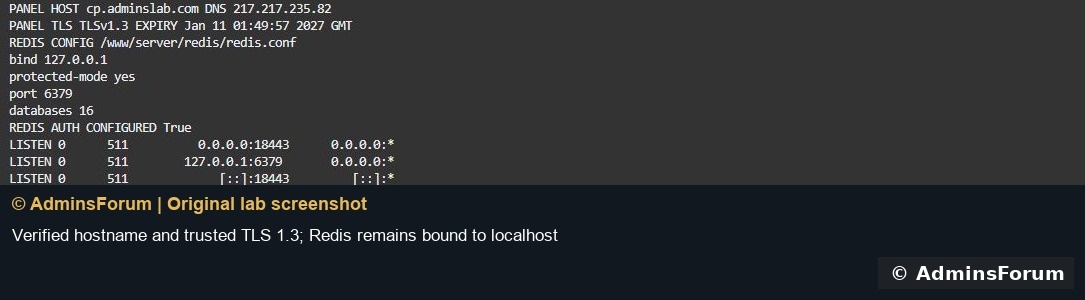
Our independent check resolved the domain to the correct VPS, validated the chain and hostname, and negotiated TLS 1.3 on port 18443. It did not disable certificate validation.
6. Check renewal arrangements
The native workflow describes automatic renewal through the domain-management system. Our existing Domain SSL Renew task remains Running. Keep the hostname resolving to the correct server and keep the selected validation route working so future renewal can complete.
The present certificate was verified after deployment. Its future renewal has not yet occurred, so this guide does not claim a completed renewal test. Check the next renewal log and certificate expiry rather than assuming the task's existence guarantees success.
A manually copied Custom SSL certificate needs its own deployment and renewal process. A renewed website certificate does not necessarily replace a separately copied panel certificate.
Troubleshooting
Related: Set up aaPanel domain access.
Reference: aaPanel domain and panel-SSL documentation. © AdminsForum.
Use Settings → Panel SSL → Modify → Lets Encrypt to request a certificate for your panel hostname, then sign in through that same hostname. A website's SSL certificate does not automatically secure the separate aaPanel listener.
Lab result
On aaPanel 8.0.6, the native panel-certificate workflow deployed a trusted certificate for cp.adminslab.com. The panel keeps its existing port 18443. The certificate expires on 11 January 2027, and a client using its normal trusted CA store verified the hostname and negotiated TLS 1.3. The domain login succeeded.
1. Prepare DNS and recovery
Create a dedicated DNS-only A record pointing to the VPS before requesting the certificate. Use the existing panel port and keep its security entrance private. Our record is cp.adminslab.com → 217.217.235.82; substitute your own hostname and IP.
Keep an independent SSH or provider-console recovery route. Back up panel configuration and certificate files privately before replacing them. Do not put certificate private keys in a public web folder or attach them to a support thread.
If you use a CDN, redirection or validation rules, ensure they will not intercept the certificate challenge. This walkthrough used native File Verification and a DNS-only hostname.
2. Open the panel certificate editor
Open Settings and find Panel SSL. Select Modify next to SSL Certificate. This is the panel's certificate setting, separate from the SSL tab on an individual website.
Our panel already had HTTPS enabled with an IP certificate. We kept HTTPS enabled while replacing it with a hostname certificate; disabling encryption was unnecessary.
3. Select the native Let's Encrypt workflow
In Custom Panel Certificate choose Lets Encrypt. The native dialog offers File Verification and DNS Verification. We selected File Verification and entered cp.adminslab.com in Panel Domain, then used Install Certificate Now.
The request progressed through Panel SSL Initialize and deployed the certificate. Wait for the result instead of submitting repeated applications. A failed request needs its validation error checked first; repeated requests can encounter CA limits.
DNS Verification is an alternative when appropriate, but this article does not claim that its provider/API flow was tested.
4. Reconnect using the correct hostname
The panel may restart or refresh after certificate deployment. Use your domain, existing port and existing security entrance:
Code:
https://cp.example.com:YOUR_PANEL_PORT/YOUR_SECURITY_ENTRANCEDomain binding remains a separate restriction. We left it empty; setting it is not required simply to install a domain certificate.
5. Verify the certificate
In Settings, check Certificate Status, Domain, Issuer and Expiration Date. The domain must match the address you actually use. Also test with normal certificate validation; a green status in the panel alone is not the entire check.
Our independent check resolved the domain to the correct VPS, validated the chain and hostname, and negotiated TLS 1.3 on port 18443. It did not disable certificate validation.
6. Check renewal arrangements
The native workflow describes automatic renewal through the domain-management system. Our existing Domain SSL Renew task remains Running. Keep the hostname resolving to the correct server and keep the selected validation route working so future renewal can complete.
The present certificate was verified after deployment. Its future renewal has not yet occurred, so this guide does not claim a completed renewal test. Check the next renewal log and certificate expiry rather than assuming the task's existence guarantees success.
A manually copied Custom SSL certificate needs its own deployment and renewal process. A renewed website certificate does not necessarily replace a separately copied panel certificate.
Troubleshooting
- Validation fails: check A/AAAA records, DNS propagation, challenge reachability and CDN/redirect rules. Read the actual validation result.
- Browser reports a different name: use the certificate hostname or install the right certificate; do not accept an unrelated certificate as the permanent solution.
- Domain works on 443 but panel does not: verify the panel's actual port. Website HTTPS and panel HTTPS are separate listeners.
- Panel restarts during deployment: reconnect to the correct hostname and existing entrance. Preserve your SSH/provider-console route.
- Renewal task fails later: check its log, DNS and validation path before expiry. Do not wait until the certificate is already invalid.
Related: Set up aaPanel domain access.
Reference: aaPanel domain and panel-SSL documentation. © AdminsForum.